

Monster hunter wilds pc optimization starts with one honest question: which part of your PC is actually holding the game back? Wilds is one of the most demanding PC releases of recent years, and it punishes the wrong guess. Lowering texture quality will not help if your CPU is the limit, and buying a faster graphics card will not fix stutter caused by full video memory or a slow drive. This guide shows you how to find your real bottleneck, which settings cost the most performance, how upscaling and frame generation actually work in this game, and what to upgrade first if you decide to spend money.
Monster Hunter Wilds is both CPU heavy and GPU heavy, but in different scenes. Crowded camps, herds, and dynamic weather load the CPU, while dense foliage, volumetric fog, and ray tracing load the GPU. Turn on DLSS, FSR, or XeSS upscaling first, set volumetric fog to Low, turn ray tracing off on mid range cards, match texture quality to your video memory, and only enable frame generation when your base frame rate is already around 40 frames per second or higher. Most stutter comes from video memory pressure, shader compilation, or slow storage, not from a single bad setting.
Why Wilds Is So Demanding on PC
Monster Hunter Wilds launched on February 28, 2025 for PlayStation 5, Xbox Series X and S, and PC through Steam. Capcom built it on the RE Engine, the same engine behind Resident Evil 4 and Monster Hunter Rise, but Wilds asks far more of that engine than those games did. The world is seamless, with no loading screens between zones. Herds of monsters roam the map, weather shifts in real time, and dozens of creatures and NPCs can be active on screen at once. Every one of those systems needs CPU time, and every blade of grass and fog bank needs GPU time.
The PC launch was rough. Digital Foundry titled its launch analysis “Profound Perf Problems Must Be Addressed” and advised against playing on 8 GB graphics cards at the time. Capcom has improved the game since then with several large patches, including Title Update 4 in December 2025 and further performance updates in January and February 2026 that reduced CPU and GPU load and fixed texture streaming stutter. The game runs much better now than it did at launch, but it is still honest about its demands. The official system requirements assume upscaling is switched on, which is unusual, and the recommended tier assumes frame generation is active. That tells you something important before you touch a single setting: Wilds was tuned around reconstruction technology, not native rendering.
The practical result is that most players need upscaling, frame generation, or both to reach a smooth 60 frames per second. Chasing native resolution at Ultra settings on mainstream hardware leads to frustration, and that is not a sign that your PC is broken. It is a sign that the game expects you to use its upscaling tools. The rest of this guide is about using those tools correctly and spending your remaining performance budget on the settings that actually change how the game looks and feels.
Is Monster Hunter Wilds CPU Bound or GPU Bound?
The short answer is that it depends on where you are standing. Wilds shifts between CPU bound and GPU bound scenes constantly, which is why a single frame rate number never tells the whole story. A hunt in an open plain can run smoothly while the camp area stutters, and the same hardware can look fine in one weather state and struggle in the next. Learning to tell the two apart is the most useful skill in this guide, because every fix that follows depends on it.
CPU Bound Scenes Camps, Herds, and Weather Changes
The CPU does the simulation work. It tracks monster AI, herd behavior, NPC routines, physics, and the dynamic weather system that changes the world around you. Scenes with many creatures on screen, the busy camp and hub areas, and moments when weather rolls in are the heaviest CPU loads in the game. If your frame rate drops in camp but recovers out in the field, your CPU is the likely limit. If lowering resolution and graphics settings barely changes your frame rate, that is another strong sign of a CPU limit, because those settings mostly load the GPU.
Older quad core processors and early six core chips struggle here even at low settings, because the simulation load does not shrink when you turn the graphics down. Capcom’s own patches confirm this picture: the January 2026 update specifically reduced CPU load near the Support Desk in camp areas, where a background check was eating CPU time. Modern six core and eight core CPUs handle the game far better, and large cache gaming CPUs such as the Ryzen 7 9800X3D class of chip have an advantage in exactly these crowded, simulation heavy moments. For a deeper explanation of how the two limits differ in any game, see our guide to CPU intensive vs GPU intensive games.
GPU Bound Scenes: Fog, Foliage, and Ray Tracing
The GPU does the rendering work. Dense vegetation, long view distances, volumetric fog, shadows, and ray traced reflections all land on the graphics card. The Scarlet Forest is the classic GPU torture test in Wilds, with thick fog and dense foliage in every direction. If your frame rate drops when you look into a foggy forest but recovers when you look at the sky or a plain wall, your GPU is the limit. If lowering resolution gives you a large frame rate boost, that also points at the GPU, because resolution is almost purely a GPU cost.
Ray tracing is the single most expensive GPU feature in the game, and it buys very little visually in most scenes. Volumetric fog is close behind it. Texture quality is different: it mostly costs video memory rather than raw GPU speed, and it causes stutter instead of a clean frame rate drop when memory runs out. That distinction matters, and it is covered in detail in the video memory section below.
How to Tell Which One Limits You
You do not need expensive software to diagnose this. The built in benchmark tool on Steam gives you a quick baseline, but real gameplay is the real test. Open your hardware monitor of choice and watch CPU and GPU usage during a hunt. If GPU usage sits near 95 to 100 percent while the CPU has headroom, you are GPU bound, and graphics settings and upscaling are your tools. If GPU usage sits well below 90 percent while one or more CPU cores are maxed out and the frame rate is still low, you are CPU bound, and no graphics slider will save you. Also watch frame time, not just average frame rate. A game that averages 60 frames per second but regularly drops to 30 for a fraction of a second feels worse than a steady 50. Our guide to what frame time is and why 1 percent lows matter explains how to read those numbers and why they matter more than the average.
Practical takeaway: diagnose before you tune. Spend five minutes in camp and five minutes in a foggy forest with your monitor open, and you will know whether to chase CPU fixes or GPU fixes.
Official System Requirements
Capcom publishes four PC spec tiers for Wilds. The important detail is in the fine print: the minimum tier targets 30 frames per second at 1080p upscaled from a 720p internal resolution, and the recommended tier targets 60 frames per second at 1080p with frame generation enabled. Both tiers assume an SSD and 16 GB of system RAM, and integrated graphics are not guaranteed to run the game at all. Here is the official picture, simplified.
| Tier | CPU | GPU | RAM | Target |
|---|---|---|---|---|
| Minimum | Core i5-10400, Core i3-12100, or Ryzen 5 3600 | GTX 1660 6 GB or RX 5500 XT 8 GB | 16 GB | 1080p upscaled from 720p, 30 FPS, Lowest preset |
| Recommended | Same CPU options as Minimum | RTX 2060 Super 8 GB or RX 6600 8 GB | 16 GB | 1080p, 60 FPS, Medium preset, frame generation on |
| High | Same CPU options as Recommended | RTX 4060 Ti 8 GB or RX 6700 XT 12 GB | 16 GB | 1440p, 60 FPS, frame generation on |
| Ultimate | Core i5-11600K, Core i5-12400, Ryzen 7 5800X, or Ryzen 7 7700 | RTX 4070 Ti 12 GB, RTX 4070 Ti Super 16 GB, or RX 7800 XT 16 GB | 16 GB | 4K, 60 FPS, frame generation on |
Three things stand out. First, Capcom lists the same CPU options for the first three tiers, which tells you the CPU bar is modest on paper but the real world CPU load in crowded scenes is higher than the spec sheet suggests. Second, every tier above Minimum assumes frame generation, so the underlying real frame rate on recommended hardware is closer to 30 to 40 frames per second before frame generation doubles the displayed number. Third, the optional High Resolution Texture Pack officially requires at least 16 GB of video memory and adds about 75 GB of storage, taking the total install to around 150 GB. If you have less than 16 GB of video memory, do not install that pack. It is one of the most common self inflicted causes of stutter in the game. You can check the current official details on the official Monster Hunter Wilds site.
For real world context, the October 2026 Steam survey found the RTX 3060 back on top as the most common graphics card at 3.62 percent of surveyed systems, and 16 GB of system RAM on 41.42 percent of systems. That means a large share of players are sitting exactly on the recommended tier hardware, or just below it, and need upscaling to get a smooth experience. There is nothing wrong with that. It is simply where the game is tuned.
The Settings That Cost the Most Performance
Most graphics settings in Wilds cost very little on their own. Independent testing by PCOptimized Settings found that no single graphics setting outside upscaling, frame generation, and ray tracing costs more than about 2 percent of performance by itself. The big wins come from a small number of settings, and the rest can mostly stay where you like them. That is good news, because it means you do not need to turn everything to Low. You need to turn the right things down. The benchmark numbers cited in this section come from PCOptimized Settings, which measured each setting individually on an RTX 4090 with a Core i9-12900K.
| Setting | What It Costs | Recommendation |
|---|---|---|
| Upscaling (DLSS, FSR, XeSS) | DLSS Quality adds about 23 percent FPS, Performance about 37 percent | Always on, Quality at 1440p, Balanced or Performance at 1080p on weaker cards |
| Frame generation | About 64 percent higher displayed FPS on an RTX 4090 in testing | On only when base FPS is already 40 or higher |
| Volumetric fog | The single heaviest environmental setting, roughly 15 to 20 percent at High | Low or Off, it also looks cleaner at Low |
| Ray tracing | About 7 to 8 percent at any level, with little visual change in most scenes | Off on entry and mid range cards, Low or Medium on high end cards |
| Texture quality | Costs video memory, not raw speed, causes stutter when memory runs out | Match to your VRAM: Medium at 8 GB, High at 12 GB, Highest only at 16 GB or more |
| Shadow quality | Moderate GPU cost, High shadows eat memory and compute | Medium is the sweet spot |
| Screen space reflections | Significant GPU cost for reflections you rarely notice mid hunt | Off or Low |
| Ambient occlusion and bloom | Small to moderate cost | Keep on if you like the look, turn down first if you need a few frames |
Volumetric fog deserves its reputation. It uses ray marching to simulate light scattering through the air, and at High it both costs a large share of your frame budget and adds a grey haze that many players find uglier than the Low setting. This is the rare setting that looks better and runs faster when you turn it down. Start here.
Ray tracing in Wilds covers reflections, mostly on water and metallic surfaces. Testing found a 7 to 8 percent cost at any quality level, and switching between Low, Medium, and High changed almost nothing in performance. If you are going to use it at all, use Low. On a mid range card, turning it off entirely is often the difference between a stuttery 45 frames per second and a smooth 60.
Texture quality is the setting people misunderstand most. Ultra textures in Wilds can consume nearly 19 GB of video memory while delivering only about 6 percent more frames per second than Medium settings, according to DSO Gaming benchmark reporting. That is a terrible trade on any card with less than 16 GB of video memory. When textures exceed your video memory, the engine stops loading proper detail and either shows blurry textures or stutters as it constantly swaps data in and out. Match textures to your memory and leave them there. Our guide to whether 8 GB of VRAM is enough covers this trap across modern games, not just Wilds.
Practical takeaway: enable upscaling, set fog to Low, turn ray tracing off, and match textures to your video memory. Those four changes recover more performance than every other slider combined.
Upscaling and Frame Generation The Rules That Matter
Upscaling renders the game at a lower internal resolution and reconstructs it to your display resolution. In Wilds this is not a nice extra. It is the main performance lever in the game, because the official requirements are built around it. DLSS is the best choice on NVIDIA RTX cards, FSR on AMD cards and older NVIDIA cards, and XeSS on Intel Arc cards. At 1440p use Quality mode. At 1080p on a weaker card, Balanced or Performance mode is the right call. Native resolution is not practical on mainstream hardware in this game, and DLSS Quality often looks better than the game’s native temporal anti-aliasing anyway. For a full comparison of the two main technologies, see our DLSS vs FSR guide.
Frame generation is different from upscaling, and confusing the two causes most of the disappointment players report. Frame generation creates synthetic frames between real rendered frames. It makes motion look smoother, but it does not make the game respond faster. If your real frame rate is 30 and frame generation shows 60, your input lag still feels like 30. That is why the base frame rate rule matters so much: only enable frame generation when your real frame rate before generation is already around 40 frames per second or higher. Below that point, combat feels floaty and unresponsive, which is the last thing you want in a game built on precise dodges. Always pair frame generation with NVIDIA Reflex or AMD Anti-Lag if your hardware supports it, because those tools reduce the input lag that frame generation adds.
One more warning about frame generation: it struggles when the base frame rate is unstable. If your frame time spikes every few seconds because of shader compilation or video memory pressure, frame generation will make those spikes look worse, not better. Fix the stutter first, then turn frame generation on. The order matters.
Shader Compilation Stutter and How to Fix It
Shader compilation stutter is the most frustrating problem in Wilds because it looks like a hardware failure when it is actually a one time cost. The RE Engine compiles shaders as you encounter new effects, monsters, and weather patterns. The first session after a fresh install, a driver update, or a major game patch is always the roughest, because the game is building its shader cache from scratch. If you judge performance on that first session, you will think the game runs far worse than it does. Judge it on your second session, after the cache is built.
If stutter returns after every patch, your old shader cache is the likely cause. The reliable fix is to verify the game files in Steam, then delete the shader cache so the game rebuilds it cleanly. In Steam, right click Monster Hunter Wilds, open Properties, go to Installed Files, and click Verify integrity of game files. Then delete the shader cache folder for the game and relaunch it. Spend ten minutes in the Training Area and walk through a few different areas before judging the result, so the cache rebuilds before you enter a real hunt.
A second, separate stutter has a different cause. Wilds shipped with an older version of DirectStorage, the technology that streams compressed game data from your SSD directly to your graphics card. Community testing found that the shipped version can cause hitches when you rotate the camera quickly in dense areas. Updating the DirectStorage files has been reported to fix this camera rotation stutter for many players, but editing game files always carries some risk, so back up the original files first and skip this step if you are not comfortable with it.
There is also a community mod framework called REFramework that many players credit with smoothing out periodic micro stutter. It is unofficial software, it modifies how the game runs, and you should check current community guidance about online play before installing any mod. Do not install mods if you are unsure about the safety, and always keep a backup of your original game files. Mods are a last resort, not a first step. Drivers, shader cache, and settings fix the large majority of stutter without them.
Practical takeaway: after every patch or driver update, let the shader cache rebuild before you decide the game still stutters. Most post patch stutter is a cache problem, not a hardware problem.
VRAM, RAM, and Storage The Hidden Bottlenecks
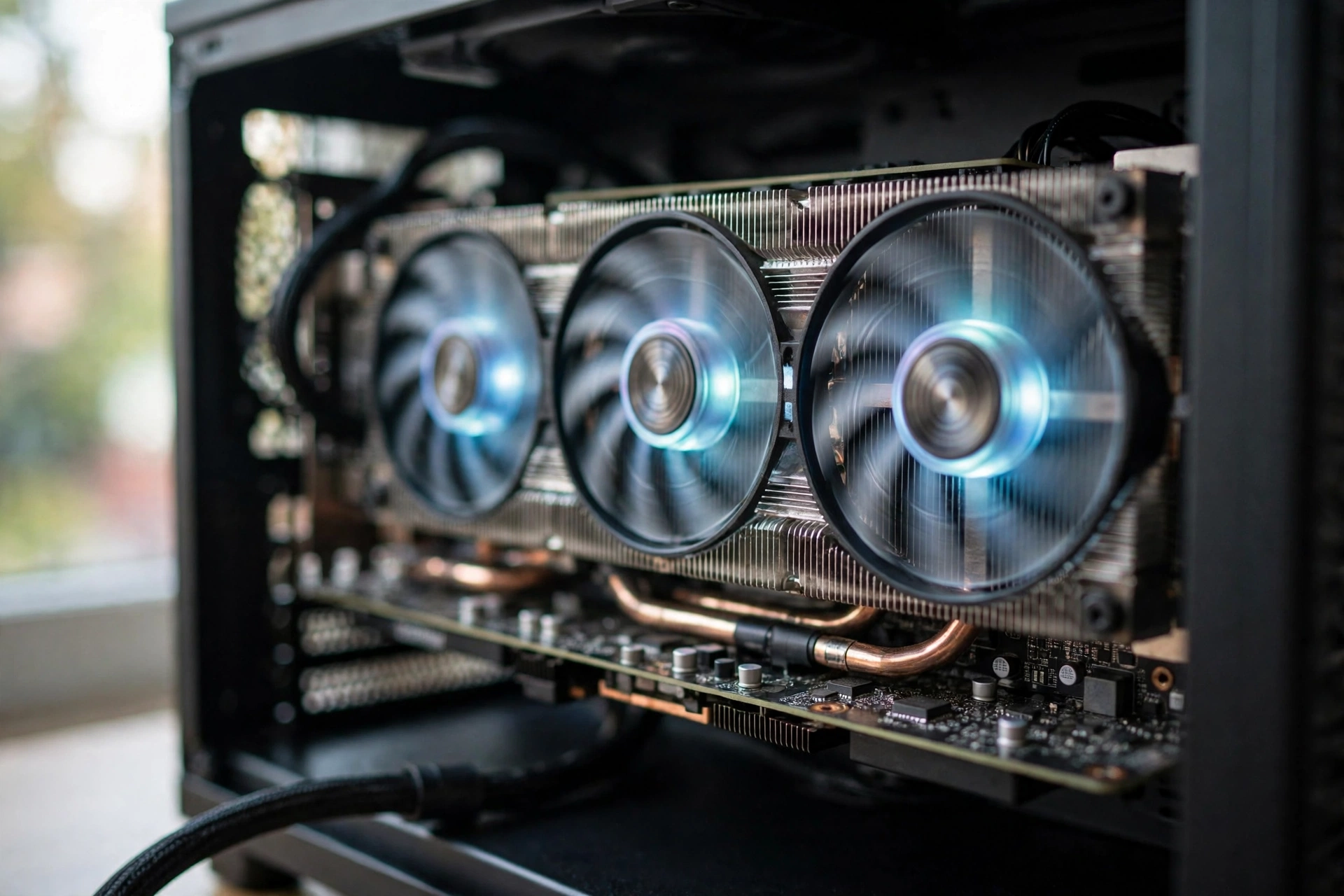
Video memory is the hidden bottleneck in Wilds. The game will happily request more video memory than your card has, and the result is stutter rather than a clean drop in frame rate. That is why players with strong graphics cards still report hitching: their card is fast, but its memory is full. The rule is simple and strict. At 8 GB of video memory, use Medium textures. At 12 GB, High is comfortable. At 16 GB or more, High or Highest is fine, and only then should you consider the High Resolution Texture Pack. Our guide to whether full VRAM causes stuttering explains this mechanism in detail, because it applies to many modern games beyond Wilds.
System RAM is the second hidden limit. Capcom lists 16 GB as both the minimum and the recommended amount, but community testing and the October 2026 Steam survey tell a more nuanced story. With 16 GB as the most common amount on real gaming PCs, many players are running exactly at the official line, and background programs can push them over it. If you run a browser with many tabs, streaming software, or chat apps alongside the game, 32 GB gives the game room to breathe. This matters more than usual right now because RAM prices have been soaring in late 2026, which makes a RAM upgrade a real budget decision rather than a casual purchase. Before you spend money on RAM at current prices, close background apps, check your actual memory usage during a hunt, and only upgrade if the game is genuinely running out. Our guide to how much RAM you really need for gaming walks through that check.
Storage is the third hidden limit, and it is the easiest to get wrong. Wilds requires an SSD, and a mechanical hard drive will stutter badly as the seamless world streams in. A fast NVMe SSD is the best choice, because the game streams enormous environments continuously and a slow drive cannot keep up with camera movement and zone transitions. If the game is installed on a hard drive or an old SATA SSD, moving it to an NVMe drive is one of the largest single improvements you can make, and it costs nothing if you already own the drive.
Drivers deserve a short note here too. Capcom’s official guidance for recent versions recommends NVIDIA driver 581.57 or newer and AMD driver 25.9.1 or newer. AMD users should be careful with one specific newer release: versions 25.10.2 and above have confirmed problems on some cards, including the RX 5500 XT and RX 7800 XT. If stutter started right after a driver update, rolling back to the previous stable version is a legitimate test. There is also a current AMD driver story worth knowing about: an AMD Radeon driver bug that caused excessive SSD writes is getting a fix in Adrenalin 26.11.1, which is a reminder to keep drivers current but to read the release notes before installing a brand new version on day one. For the safe way to update without breaking a working setup, see our guide to updating GPU drivers safely.
Step by Step Optimization Checklist

Work through these steps in order. Each one is quick, and the order matters because later steps assume the earlier ones are done.
- Update your graphics driver to a stable version, using the official guidance above, and restart your PC.
- Move the game to an NVMe SSD if it is not already there, and confirm at least 75 GB of free space, or 150 GB if you use the High Resolution Texture Pack.
- Verify the game files in Steam and let the shader cache rebuild with a calm ten minute session in the Training Area.
- Enable upscaling: DLSS Quality on RTX cards, FSR Quality on AMD cards, XeSS on Intel Arc.
- Set volumetric fog to Low, ray tracing to Off, and texture quality to match your video memory.
- Set shadow quality to Medium and screen space reflections to Low or Off.
- Cap your frame rate at a value your hardware can hold steadily, instead of leaving it unlimited.
- Play a real hunt, check frame time stability, and only then enable frame generation if your base frame rate is 40 or higher.
- Close background apps and browser tabs before playing, and check memory usage if stutter persists.
- If stutter started after a patch, repeat step 3 before changing anything else.
This checklist is deliberately boring. The boring steps are the ones that fix most performance problems, while the exotic tweaks people argue about online usually fix nothing.
Best Settings by Hardware Tier
Use these profiles as starting points, then adjust one setting at a time based on your own frame time readings. Every PC is different, and a profile is a starting point, not a promise.
| Tier | GPU Example | Upscaling | Frame Generation | Key Settings |
|---|---|---|---|---|
| 1080p entry | GTX 1660 Super, RX 6600, RTX 3060 | FSR or DLSS Balanced | On if base FPS reaches 40 | Low to Medium preset, fog Low, ray tracing Off, textures Medium |
| 1080p to 1440p mid range | RTX 4060, RTX 4060 Ti, RX 7700 XT | DLSS or FSR Quality | On, base FPS usually 45 or higher | High preset, fog Low, ray tracing Off, textures High at 12 GB |
| 1440p to 4K high end | RTX 4070 Ti, RX 7800 XT, RTX 5080 | DLSS or FSR Quality | On for high refresh monitors | Ultra preset, fog Low, ray tracing Low, textures High or Highest |
One note on the entry tier: PCOptimizedSettings measured Wilds averaging under 60 frames per second at 4K Ultra on an RTX 4090 without ray tracing, rising to 78 frames per second at 1440p and 89 at 1080p. If the fastest consumer card of its generation cannot hold 60 at 4K Ultra without help, no mid range card will. That is not a failure of your hardware. It is the game telling you that upscaling and frame generation are part of the intended experience. The full benchmark breakdown is available from PCOptimizedSettings, and the patch history that changed these numbers is summarized by PCGamingUniverse.
What to Upgrade First
If you have decided to spend money, spend it on the part that is actually limiting you. That sounds obvious, but most upgrade mistakes come from skipping the diagnosis step. Use the monitoring method from the CPU versus GPU section and upgrade in this order.
If you are CPU bound in camps and crowded scenes, a CPU upgrade helps most. A modern six core or eight core processor with large cache is the sweet spot for this game, and it also helps every other simulation heavy game you own. If you are GPU bound in fog and foliage, a graphics card upgrade helps most, but check your video memory before you buy: a new card with only 8 GB of memory will hit the same texture wall in Wilds that your old card did. Aim for 12 GB or more if you plan to keep the card for several years.
If your stutter comes from memory or storage, those upgrades are cheaper and often more effective than a new processor or graphics card. Moving the game to an NVMe SSD you already own costs nothing. Adding RAM helps only if you are actually running out of it, so check usage first, especially while RAM prices are high. And if your graphics card is already strong but your monitor is the limit, remember that no upgrade changes what your display can show. Our guide to whether you should upgrade your CPU or GPU first gives a general framework for this decision that applies well beyond Wilds.
One market reality is worth stating plainly. High end graphics cards have been scarce and expensive, with the RTX 5090 facing shortage reports and tight supply, so a GPU upgrade right now may cost far more than it should. That makes optimization the smart first move: the settings in this guide are free, and they often recover enough performance to delay an upgrade until prices make sense. Upgrade when the diagnosis says so and the price says so, not because one bad hunt frustrated you.
Common Mistakes That Waste Performance
The first mistake is turning everything to Low at once. You lose image quality everywhere and learn nothing about which setting actually helped. Change one thing at a time and test it in the same scene, ideally the same camp or forest run, so you can compare fairly.
The second mistake is installing the High Resolution Texture Pack on an 8 GB or 12 GB card. It needs 16 GB of video memory by Capcom’s own guidance, and installing it below that line is the fastest way to create stutter that no other setting can fix.
The third mistake is enabling frame generation with a base frame rate under 40. The displayed number looks great and the game feels terrible, because input lag follows the real frame rate, not the generated one.
The fourth mistake is judging performance on the first session after a patch. Shader compilation makes that session unrepresentative. Always judge on the second session.
The fifth mistake is ignoring background apps. A browser with video playing, a recording tool, or a chat app can eat the CPU cores and memory that Wilds needs. Close them before you blame the game.
The sixth mistake is chasing a single average frame rate number. A steady 50 with stable frame times feels better than an average of 70 with constant drops to 30. Watch the lows, not just the average.
Frequently Asked Questions
Can I run Monster Hunter Wilds on my PC?
If your PC meets the official minimum, a Core i5-10400 or Ryzen 5 3600, a GTX 1660 with 6 GB of video memory or an RX 5500 XT with 8 GB, 16 GB of RAM, and a 75 GB SSD, the game should run at 1080p on the Lowest preset at around 30 frames per second with upscaling enabled. For a genuinely smooth 60 frames per second at 1080p on Medium settings, treat the recommended tier as your floor: an RTX 2060 Super or RX 6600 with 8 GB of video memory, plus frame generation. Anything below the minimum will struggle, and integrated graphics are not guaranteed to run the game at all.
Why is Monster Hunter Wilds so laggy?
The most common causes are video memory pressure, shader compilation after a patch or driver update, a slow storage drive, or a CPU limit in crowded scenes. Start with the cheap fixes: enable upscaling, set volumetric fog to Low, turn ray tracing off, match texture quality to your video memory, verify the game files, and let the shader cache rebuild. If the game is installed on a hard drive, move it to an SSD. If lag appears only in camps and crowded areas, your CPU is the likely limit, and graphics settings will not fix it.
Is Monster Hunter Wilds optimized now?
Yes, it is much better optimized than it was at launch. Capcom released several large performance patches through late 2025 and early 2026, including Title Update 4 and further updates in January and February 2026, that reduced CPU and GPU load, fixed texture streaming stutter, and added a dedicated CPU options tab. The game is still demanding, and it still expects upscaling and frame generation on most hardware, but the worst launch problems are fixed. Some players still use community mods for the remaining micro stutter, but most players no longer need them.
How much RAM do you need for Monster Hunter Wilds?
The official requirement is 16 GB of RAM at both the minimum and recommended tiers. That is enough if you play with background apps closed. If you keep a browser, streaming software, or chat apps open while playing, 32 GB gives the game more room and reduces stutter from memory pressure. Check your actual memory usage during a hunt before buying more RAM, especially while RAM prices are high, because an upgrade only helps if you are genuinely running out.
Will Monster Hunter Wilds run on a low-end PC?
It can run on a low-end PC that meets the minimum specs, but you need realistic expectations. At 1080p on the Lowest preset with upscaling on Performance mode and frame generation enabled, a minimum spec PC can deliver a playable experience around 30 frames per second. It will not hold 60 frames per second in busy hunts, and ray tracing and high textures are out of reach. If your PC is below the minimum specs, the game will likely stutter too much to enjoy, and an upgrade is the honest answer.
Why is my FPS suddenly so low?
Sudden frame rate drops usually come from a recent change: a game patch, a driver update, a shader cache that needs rebuilding, a background app consuming CPU or memory, or overheating that forces your hardware to slow down. Check what changed most recently and undo it first. Verify the game files, rebuild the shader cache, close background apps, check temperatures, and roll back a driver if the problem started right after updating it. If the drop happens only in specific areas such as camps or foggy forests, it is more likely a scene specific CPU or GPU limit than a system problem.
Key Takeaways
- Wilds is CPU bound in camps, herds, and weather changes, and GPU bound in fog, foliage, and ray tracing. Diagnose which one limits you before changing settings.
- Upscaling is mandatory on most hardware, not optional. Use DLSS Quality, FSR Quality, or XeSS Quality as your starting point.
- Volumetric fog to Low, ray tracing off, and textures matched to your video memory recover more performance than every other slider combined.
- Frame generation only helps when your real frame rate is already around 40 or higher. Below that it makes combat feel floaty.
- Most stutter comes from video memory pressure, shader compilation after patches, or slow storage. Fix those before buying new hardware.
- The official minimum targets 30 frames per second at 1080p with upscaling, and the recommended tier assumes frame generation. Plan your expectations around that.
Conclusion
Monster hunter wilds pc optimization is not about finding one magic setting. It is about finding your real bottleneck and spending your performance budget where it matters. The game is demanding because its world is large, seamless, and full of simulation, and Capcom tuned it around upscaling and frame generation rather than native rendering. Accept that design, enable upscaling, tame the fog and ray tracing, match your textures to your memory, and let your shader cache rebuild after patches. Most players will find a smooth hunt without spending anything.
If you do decide to upgrade, let the diagnosis choose the part. A CPU upgrade fixes camp and crowd stutter. A graphics card with enough video memory fixes fog and foliage frame rates. An NVMe SSD and enough system RAM fix the hitches that neither of those touch. Check your usage, fix the free things first, and spend money only on the limit you actually measured. That is how you stop fighting the settings menu and get back to the hunt.

Leave a Reply