

Your PC has strong parts, but your games do not feel strong. The frame rate drops, the game stutters, and a new part changes nothing. That gap between what your hardware should do and what it actually does is often a bottleneck. A bottleneck happens when one part of your PC cannot keep up with the rest, so the whole system waits for it. The slow part sets the speed limit. The other parts can be fast and new, but they still have to wait their turn. The good news is that a bottleneck leaves clues. You do not need to guess, and you do not need to buy parts at random. You can watch a few simple signs, run a few quick checks, and find the real limit in minutes.
This guide walks through the seven most common signs of a PC bottleneck, what each sign means, and how to check it on your own PC. It also covers the before and after test that proves whether an upgrade helped, and the lookalikes that can fool you into buying the wrong part.
Common Signs of a PC Bottleneck
Think of your PC as a team passing boxes down a line. Your CPU prepares each frame. It handles game logic, physics, player positions, and the instructions that tell your graphics card what to draw. Your GPU then draws that frame. If the CPU is slow to prepare frames, the GPU stands idle and waits. If the GPU is slow to draw frames, the CPU waits with finished work in hand.
In both cases, one part limits the other. That is the whole idea. A bottleneck is not a broken part. It is a mismatch in speed between parts that have to work together, frame after frame.
Intel explains this in simple terms: when the CPU sends instructions faster than the GPU can render them, the CPU is held back by the GPU, and when the GPU renders faster than the CPU can supply instructions, the GPU is held back by the CPU. You can read the full explanation in Intel’s guide to what is bottlenecking a PC.
A bottleneck also changes with the game and the settings. The same PC can be CPU limited in one game at 1080p and GPU limited in another game at 4K. That is normal. The goal is not to remove every limit, because every PC has a limit somewhere. The goal is to find the limit that is hurting your games right now, and fix that one first.
To learn how the main types differ, read our guide to the types of PC bottlenecks. It covers CPU, GPU, RAM, and storage limits, and how each one feels while you play.
Sign 1: Your FPS Drops Even Though You Have a Strong Graphics Card
This is the sign most gamers notice first. You bought a strong card, you expected smooth play, and the frame rate still falls at the worst moments.
Picture this example. You are playing Warzone with an RTX 4070, a card that should handle the game well, and your FPS drops to 45 in a busy fight. The game was smooth a moment ago. Then the action starts, the frame rate falls, and the game feels heavy and slow to respond.
That drop is a clue, not a verdict on its own. A single low number does not prove a bottleneck. What matters is the pattern. Does the frame rate fall in the same kinds of moments, like fights, explosions, or large open areas? Does it stay low while the action is busy, then recover when things calm down? If yes, something in your system is struggling to keep up with the busy moments.
A strong GPU cannot fix a limit that sits somewhere else. If your CPU cannot prepare frames fast enough, if your RAM is full, or if heat is slowing a part down, the frame rate will drop no matter how good your graphics card is. The card can only draw the frames it receives. It cannot create frames that were never prepared.
The newest cards do not change this rule. The GeForce RTX 50 series and the Radeon RX 9000 series are the current generations, and both are faster than the cards they replaced, but a faster card still waits on the same CPU, RAM, and storage. A new generation card only helps if the graphics card was the part holding you back.
Start with this simple check. Play the game that gives you trouble for ten minutes. Note when the drops happen and what is on screen at that moment. Then check your CPU and GPU use at the same time, which we cover in the next section. If the drops line up with one part working at its limit while the other rests, you have found your lead.
Also check your settings before you blame your hardware. A frame rate cap, V-Sync, or a power saving mode can hold your FPS down on purpose. Turn those off for the test, or at least note that they are on. For more on how resolution changes the balance, see our guide to the monitor resolution bottleneck at 1080p, 1440p, and 4K.
Sign 2: Your CPU Sits at 99 Percent While Your GPU Barely Hits 50 Percent
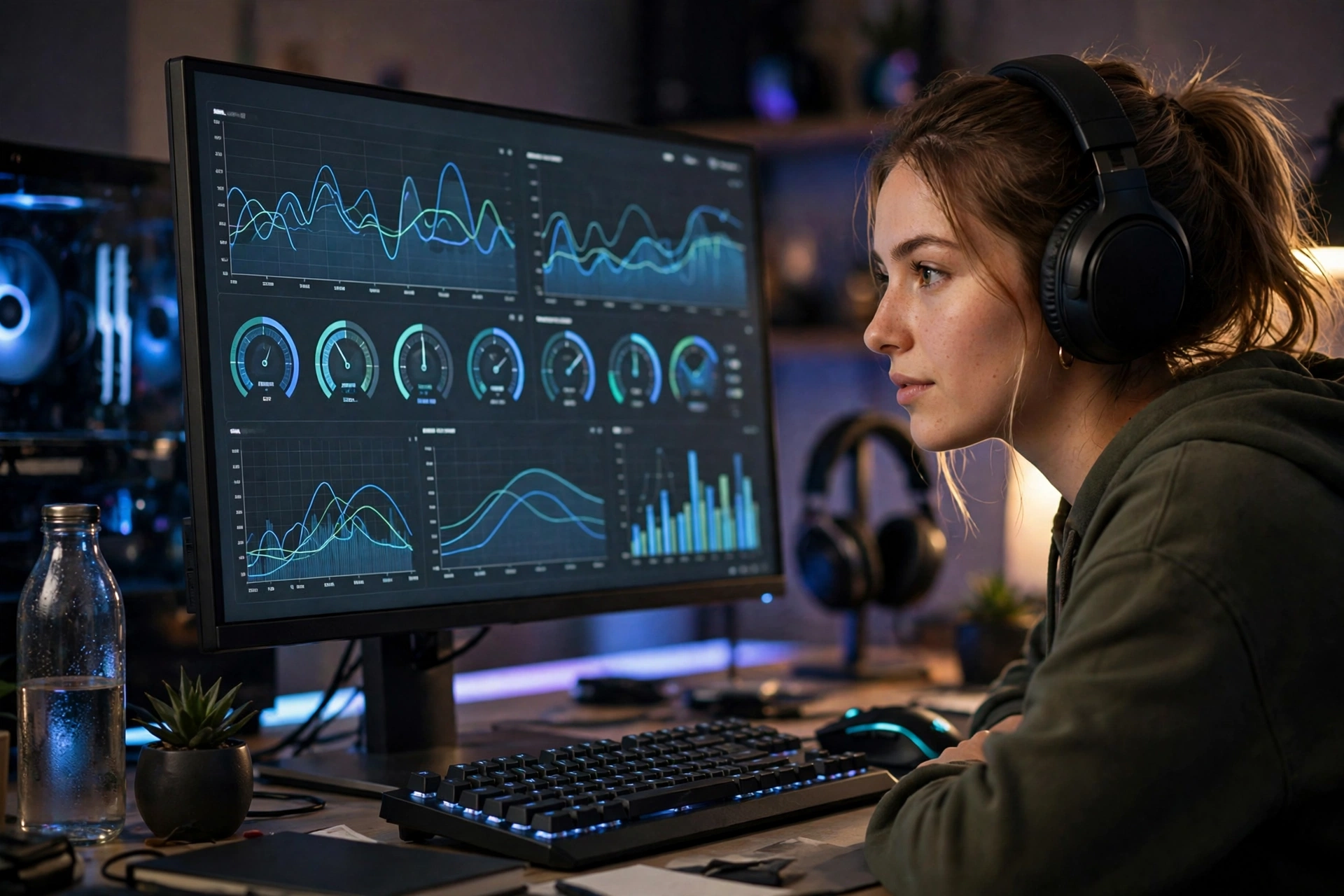
This is the clearest sign of a CPU bottleneck, and it is easy to check. Open Task Manager while your game is running, go to the Performance tab, and look at CPU use and GPU use side by side.
In a CPU bottleneck, your CPU sits at 99 percent, working as hard as it can, while your GPU barely hits 50 percent. The GPU is not lazy. It is waiting. It has finished its work and has nothing new to draw, because the CPU cannot send it instructions fast enough.
Intel puts it plainly in its support notes: when CPU use is higher than GPU use in this way, the system is experiencing a bottleneck. The full note is on Intel’s support page about high CPU use and low GPU use.
Here is the pattern to remember. Whichever part is pinned near 100 percent while the other has room to spare is the part holding your system back. In a healthy, balanced system during demanding play, your GPU should usually be the busier part, running close to full use. If your CPU is the one pinned at the top while your GPU rests near half use, the CPU is your limit in that game.
There is one trap here, and it catches a lot of people. Total CPU use can look low even when the CPU is the problem. Many games lean hard on one or two main threads, which are single lines of work inside the CPU. If one core is maxed out, the game still stalls, but the other cores sit idle and pull the average down. Task Manager might show 40 percent total CPU use while one core is at 100 percent.
To catch that, look at per core use, not just the total. In Task Manager, go to Performance, click CPU, right click the graph, and choose Change graph to, then Logical processors. If one or two cores sit near 100 percent while your GPU stays low, that is still a CPU bottleneck. The average hid it.
For real build stories that show this pattern in action, see our real PC bottleneck build examples. They show how the same usage gap looks across different CPU and GPU pairs.
Sign 3: Your Game Stutters Every 30 Seconds on a Powerful Rig
Stutter is different from low FPS, and it feels worse. Your average frame rate can look fine on paper, yet the game still jerks and hitches. Smooth play breaks for a split second, then recovers, then breaks again.
Take this example. You are playing Hogwarts Legacy on a powerful rig, and the game stutters every 30 seconds. The pattern is regular. The world loads, you move through a new area, the game hitches, and then it smooths out again until the next hitch. The hardware is strong, so the stutter feels wrong, and it is.
Regular stutter like this often points to something the CPU, RAM, or storage is doing on a schedule. It can be the game loading new textures, the system moving data in and out of memory, or a background task waking up and stealing CPU time. It can also be shader compilation, which is the game preparing visual effects for the first time, or a full RAM stick forcing the system to swap data to a slower drive.
The key detail is the timing. Random stutter can come from many places. Regular stutter, like a hitch every 30 seconds, is a stronger clue. Note the interval, note what you were doing when it happened, and check whether it happens in the same place in the game each time. If it happens when you enter a new area, storage or memory is a likely suspect. If it happens even in a small, closed room with nothing new to load, the CPU or a background app is more likely. If the game is installed on an old hard drive instead of a solid state drive, loading new areas can hitch too. Many recent games list a solid state drive in their requirements, and some state outright that one is required, so a hard drive is now a real suspect for loading stutter.
Watch your 1 percent lows, not just your average FPS. Your average FPS is the average frame rate over time. Your 1 percent lows are the worst one percent of frames, the moments when the game felt slowest. If your average is high but your 1 percent lows are far below it, your frame pacing is uneven. The game is smooth most of the time and rough in bursts, and those bursts are what you feel as stutter.
To track this, use a free overlay that shows FPS, frame time, CPU use, and GPU use while you play. On a GeForce card, the NVIDIA App overlay shows live FPS and performance stats, and it replaced GeForce Experience, which NVIDIA no longer supports. Steam and AMD Software have similar overlays if you use those tools.
Sign 4: A New Component Gives You Zero Performance Improvement
You spent good money on a new part. You installed it, you started your game, and nothing changed. The frame rate is the same. The stutter is the same. The loading times are the same. That is a loud sign, and it tells you something useful: you upgraded the wrong part.
A new GPU will not help if your CPU was the limit. A new CPU will not help if your GPU was the limit. A faster drive will not help if your RAM was the limit. Each part can only fix the limit it controls. If the real limit sits somewhere else, the new part waits in line behind it, just like the old part did.
This is the most expensive sign on this list, because it costs money to learn. It is also the most avoidable. A ten minute check before you buy would have shown which part was pinned at its limit and which part had room to spare. That check costs nothing.
If this has already happened to you, do not buy another part right away. Stop and test first. Run the same game at the same settings, watch CPU use, GPU use, RAM use, and temperatures, and write the numbers down. Then compare them with the checks in this guide. The numbers will point to the real limit, and your next upgrade, if you still need one, will be the right one.
You can also run your parts through a calculator before you spend money, so you can see the expected balance at your resolution. Our guide explains how the bottleneck calculator works and what the score means. Treat the score as a starting guess, not a final verdict. Live monitoring on your own PC is what confirms it.
Sign 5: Sudden Frame Drops When the System Heats Up
Your game runs well for the first ten minutes. Then the frame rate falls off a cliff, the fans get loud, and the game stays slow until you quit and let the PC cool down. That is a heat sign, and it is easy to miss if you only test for two minutes.
When a CPU or GPU gets too hot, it protects itself by slowing down. This is called thermal throttling. The part lowers its clock speed, which is the speed it works at, so it makes less heat. Lower speed means fewer frames. The part is not broken. It is doing its job, which is to avoid damage, but the result feels like a bottleneck.
Heat can also build up slowly. Dust in the fans, a cooler that is not seated well, dried thermal paste, or a case with poor airflow can all let temperatures climb over time. The first minutes look fine because the parts are still cool. The problem only shows up once the heat has had time to build.
Here is a simple way to check. Play for at least 20 minutes, not two. Watch the temperature of your CPU and GPU while you play, and note the temperature when the frame rate drops. If the drop lines up with high temperatures, and the clock speed falls at the same time, heat is a strong suspect.
Before you buy anything, try the free fixes. Clean the dust out of the fans and filters with care. Make sure the case fans are spinning and blowing the right way, with cool air coming in and hot air going out. Check that the PC has space around it and is not pushed against a wall or sitting on carpet. Close the case panel the right way, since an open case does not always cool better. If the problem stays after cleaning and better airflow, then look at the cooler itself or ask a repair shop to check the thermal paste.
Heat is a common cause of sudden drops, and it is one of the cheapest to fix. Do not skip it.
Sign 6: Stuttering Gets Worse in Crowded Game Scenes
Your game is smooth in a quiet hallway. Then you walk into a busy town, a big battle starts, or a crowd of players appears, and the stutter begins. The frame rate falls, the game hitches, and it only recovers when the scene empties out.
Crowded scenes ask the most from your CPU. Each character, each enemy, each moving object needs game logic, physics, and position updates. The CPU has to track all of it, every frame. The GPU also has more to draw, but the CPU load often grows faster in these moments, because the number of things to track jumps up all at once.
This is why the same PC can feel fine in one part of a game and rough in another. An empty field is light work. A city square full of people, cars, and effects is heavy work. A solo mission is light work. A large multiplayer fight with dozens of players is heavy work.
Watch for this pattern. If your stutter always gets worse when the scene gets busy, and always eases when the scene gets quiet, your CPU is a likely suspect. If the stutter gets worse when you turn up shadows, reflections, and resolution, the GPU is more likely the limit in that game.
You can test this in minutes. Stand in a quiet spot and note your FPS and usage numbers. Then move to the busiest spot you can find and note the numbers again. Compare the two sets. If CPU use jumps to near full in the busy spot while GPU use stays low, the CPU is struggling with the crowd. If GPU use jumps to near full while CPU use stays steady, the GPU is struggling with the extra detail.
This sign also shows up outside gaming. Video editing with many clips, streaming while gaming, or running a game with a browser full of tabs open can all add CPU load at the worst time. Close background apps for the test, so you are measuring the game, not the apps behind it.
Sign 7: Lowering Your Graphics Settings Does Nothing
This is the classic test, and it is one of the most useful signs in this guide. Lower your graphics settings, drop your resolution, and watch what happens to your FPS.
If your FPS jumps up, your GPU was the limit. You gave it less work to do, and it finished faster. That is normal and healthy. Your GPU was working hard, and lighter settings helped it.
If your FPS barely changes, your CPU, or another part, is the limit. You gave the GPU less work, but the frame rate stayed the same, because the GPU was never the part holding you back. The CPU still takes the same time to prepare each frame, so the frame rate stays stuck at the same level.
Try it step by step. First, note your FPS at your normal settings. Then drop the resolution one step, from 1440p to 1080p for example, and note the FPS again. Then drop the graphics preset from High to Low and note the FPS once more. If the numbers barely move across all three steps, you have a strong CPU bottleneck signal.
This test also helps you decide what to fix. A GPU limit responds to lower settings, upscaling, and a GPU upgrade. A CPU limit responds to closing background apps, lowering CPU heavy settings like draw distance and crowd density, and, if needed, a CPU upgrade. For the full fix steps in order, read our guide on how to fix a CPU GPU bottleneck.
Be careful with one detail. If your FPS is capped by V-Sync, a frame limit, or your monitor refresh rate, lowering settings will not raise it past the cap. That is not a bottleneck. That is the cap doing its job. Turn the cap off for the test, or set it above your normal FPS, so you can see the real change.
Frame Generation Can Hide a Bottleneck
Frame generation is the newest wrinkle in bottleneck testing. NVIDIA DLSS 4 Multi Frame Generation, which runs on GeForce RTX 50 series cards, generates up to three additional frames for each frame the GPU renders the normal way. AMD’s version is FSR 4, a machine learning upscaler that launched with the Radeon RX 9000 series, and AMD has since extended it to RX 7000 and RX 6000 cards. Both make the frame counter climb, and both can make a game look smoother. NVIDIA has also announced DLSS 4.5, which adds Dynamic Multi Frame Generation for RTX 50 series cards.
The catch is that a generated frame is not a real frame. It carries no new game logic and no new player input, so it does not make the game respond faster. A game that renders 40 real frames per second still feels like 40 frames per second even when the counter shows 160. If you test with frame generation on, the numbers can hide a CPU limit, because the counter rises while the CPU still prepares the same slow stream of real frames.
Turn frame generation off before you run any test in this guide, and turn it off for both runs of a before and after test. Note whether upscaling is on too, because upscaling renders at a lower resolution and rebuilds the image, which lowers GPU load and can shift the limit toward the CPU. Test with the same upscaling and frame generation settings on both runs, or the comparison means nothing. You can read how DLSS 4 Multi Frame Generation works in NVIDIA’s DLSS 4 update.
How to Confirm a Bottleneck in 10 Minutes
You do not need a lab or a paid tool. You need ten minutes, one game, and a way to watch your hardware while you play. Here is a simple plan.
First, close extra apps. Shut down the browser, the streaming app, and anything else you do not need for the test. Background apps add CPU load and muddy the numbers.
Second, turn on an overlay that shows FPS, CPU use per core, GPU use, RAM use, and temperatures. Task Manager works for a basic check, and a free overlay tool works better for per core detail and frame time.
Third, play the game that gives you trouble for ten minutes. Play it the way you normally play. Go to the busy areas. Fight the fights. Do not stand still in a menu, because menus are light work and will hide the problem.
Fourth, write down four things at the busy moment and at the quiet moment: average FPS, CPU use, GPU use, and temperature. Compare the two sets. The gap between them tells you where the load jumps.
Fifth, run the resolution test from Sign 7. Drop the resolution one step and see if FPS jumps or stays flat. That one step often settles the question.
If you want a quick estimate before you test, run your CPU and GPU through the calculator on our homepage. Use it as a starting point, then confirm it with the live numbers from your own PC. The live numbers always win over an estimate.
Before and After Testing That Actually Proves It
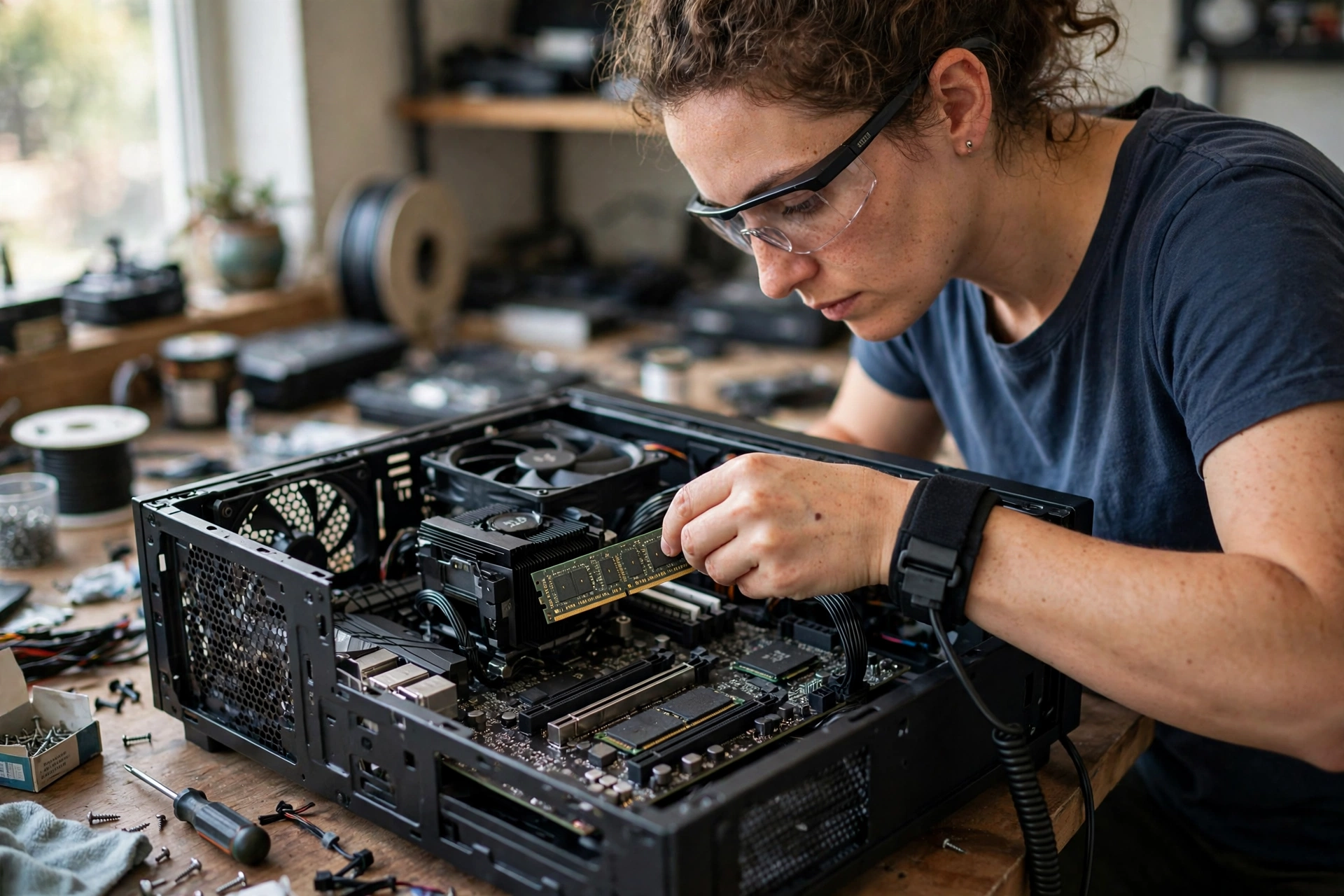
This is the step most people skip, and it is the step that saves the most money. Without a baseline, a new part can feel faster while the real problem stays untouched. You need numbers from before and after, taken the same way, or you cannot prove the upgrade helped.
Here is the method. Record average FPS and 1 percent lows in the same game at the same settings before the upgrade. Write down the game, the scene or level, the resolution, the graphics preset, and the exact settings you used. Change only one part. Do not change two parts at once, and do not change the game or the settings at the same time. Retest the same game and settings after the upgrade, in the same scene, for the same length of time. Then compare the two sets of results.
Changing only one part matters. If you change the CPU and the GPU together, you will not know which one helped. If you change the settings too, you will not know if the gain came from the part or from the lighter settings. One change at a time is slower, but it gives you a clear answer.
Keep the test fair in other ways too. Use the same driver version if you can. Turn frame generation off for both runs, and keep upscaling at the same setting. Close the same background apps. Test at a similar room temperature, since heat can change the result. Run the test for the same length of time, and use the same busy scene, not a quiet menu on one run and a big fight on the other.
Compare average FPS and 1 percent lows together. Average FPS tells you the overall speed. The 1 percent lows tell you how smooth the worst moments felt. A good upgrade should lift both. If the average goes up but the 1 percent lows stay low, the stutter is still there, and the real limit may still be waiting.
Write the results down in a small table. Put the before numbers on one side and the after numbers on the other. If the gain is small or zero, stop and recheck the usage numbers. The part you changed may not have been the limit. That is useful knowledge, even if it is disappointing, because it stops you from spending more on the wrong part.
This method also works for free fixes. Test before and after cleaning the dust, fixing airflow, closing background apps, or updating a driver. The same rule applies: same game, same settings, same scene, one change, then compare.
Quick Reference Table Cause and Quick Check
| Sign | Likely cause | Quick check |
|---|---|---|
| FPS drops to 45 in Warzone with an RTX 4070 | CPU limit, RAM limit, or heat holding back a strong GPU | Note when drops happen, then check CPU and GPU use at that moment |
| CPU at 99 percent, GPU at 50 percent | CPU bottleneck | Check per core CPU use in Task Manager while playing |
| Stutter every 30 seconds in Hogwarts Legacy | Memory, storage, or background task loading on a schedule | Check 1 percent lows and note the exact timing of each hitch |
| New part, zero improvement | Wrong part upgraded, real limit sits elsewhere | Retest with the same game and settings, then check usage again |
| Frame drops as the system heats up | Thermal throttling in the CPU or GPU | Play for 20 minutes and watch temperatures and clock speed |
| Stutter worse in crowded scenes | CPU load from many characters, physics, and AI | Compare FPS and usage in a quiet spot and a busy spot |
| Lower settings change nothing | CPU limit, since the GPU was never the slow part | Drop resolution one step and see if FPS jumps or stays flat |
| Long loads and texture pop in | Storage or RAM limit in open world games | Check drive use and RAM use during loading |
What Is Not a Bottleneck
Not every slow moment is a bottleneck. Some limits are set on purpose, and some come from software, not hardware. Check these lookalikes before you buy a part. A frame rate cap is the most common lookalike. V-Sync, a frame limit in the game, or a monitor refresh rate cap will hold your FPS at a set number. Your GPU use will look low, because the card is not asked to do more. That is normal. Turn the cap off for your test, or raise it, and see if the numbers change.
A driver problem can also look like a bottleneck. A new driver can fix stutter, and a bad driver can cause it. Update your graphics driver from the official source, restart your PC, and retest before you blame your hardware.
Background apps are another lookalike. A browser with many tabs, a streaming app, a download, or an antivirus scan can eat CPU time and RAM while you play. Close them for the test. If the stutter goes away, the apps were the problem, not your parts.
A game bug or a shader compilation hitch can also cause stutter, even on a strong PC. If the stutter only happens in one game, and only in one area, and your usage numbers look normal, check for a game update or a known issue with that game before you change hardware.
Finally, a single slow moment is not a bottleneck. Every PC has a slow frame now and then. A bottleneck is a pattern that repeats in the same kinds of moments, in the same kinds of scenes, with the same usage gap each time.
What to Fix First
Once you know which part is the limit, fix that part first. Do not start with the most expensive part. Start with the cheapest fix that matches your sign.
If heat is the sign, clean the PC, fix airflow, and check the cooler before you buy anything. If background apps are the sign, close them and free up RAM before you buy anything. If a driver is the sign, update it and retest.
If the CPU is the limit, close background apps, lower CPU heavy settings like draw distance, crowd density, and physics, and make sure your RAM is running at its rated speed. If that is not enough, a CPU upgrade is the next step, but check that your motherboard supports the new CPU first.
If the GPU is the limit, lower GPU heavy settings like shadows, reflections, and resolution, or turn on upscaling if your game supports it. If that is not enough, a GPU upgrade is the next step, but check your power supply and case size first.
If RAM is the limit, close apps, check that you have enough RAM for the game, and make sure the RAM sticks are in the right slots for dual channel mode. 16GB is now the common floor: Battlefield 6, released in October 2025, lists 16GB of RAM as its minimum requirement, so a PC with 8GB will struggle with current games before the CPU or GPU even matter. On a current platform, the RAM is DDR5: AMD AM5 boards for Ryzen 7000 and 9000 chips and Intel Core Ultra 200S boards take DDR5 only, and DDR4 sticks do not fit DDR5 slots. Turn on the XMP profile on an Intel board or the EXPO profile on an AMD board, so the RAM runs at its rated speed instead of a slower default. If storage is the limit, move the game to a solid state drive, ideally an NVMe drive, and leave free space on that drive.
Work through the fixes in that order: free fixes first, settings second, upgrade last. That order saves money and often fixes the problem without a new part at all.
Frequently Asked Questions
How do I know if my CPU is bottlenecking my GPU?
Watch CPU use and GPU use at the same time while you play. If your CPU sits near 99 percent while your GPU barely hits 50 percent, your CPU is likely the limit. Check per core use too, because one maxed out core can limit a game even when total CPU use looks low.
Is it bad if my GPU usage is at 99 percent?
No, in most cases it is good. A GPU near 99 percent during demanding play means the card is working hard and your CPU is keeping up with it. That is the normal, healthy pattern for a gaming PC. Worry more when the GPU rests far below full use while the CPU is pinned at the top.
Why does my FPS drop in Warzone even with a strong graphics card?
A strong card cannot fix a limit that sits elsewhere. If your CPU cannot prepare frames fast enough, if your RAM is full, or if heat is slowing a part down, your FPS will drop in busy moments even with a strong GPU. Check CPU and GPU use during a busy fight to see which part is at its limit.
Why does my game stutter even when my average FPS looks fine?
Average FPS hides the worst moments. Your 1 percent lows show the slowest frames, which are the ones you feel as stutter. If your average is high but your 1 percent lows are far below it, your frame pacing is uneven. Check for memory, storage, heat, or background app causes, and test in the same busy scene each time.
Does lowering graphics settings help a CPU bottleneck?
Usually not much. Lowering graphics settings gives the GPU less work, but it does not give the CPU less work. If your FPS barely changes when you drop resolution and settings, that is a strong sign the CPU is the limit. Lower CPU heavy settings like draw distance and crowd density instead, and close background apps.
Does frame generation hide a CPU bottleneck?
Yes, it can. Frame generation adds AI made frames between real frames, so the FPS counter climbs even though the CPU still prepares real frames at the same slow rate. The game looks smoother but does not respond faster. Turn frame generation off when you test, so the FPS number shows the real frames your CPU and GPU are producing.
Should I upgrade my CPU or GPU first?
Upgrade the part that is at its limit while the other part has room to spare. If your CPU is at 99 percent and your GPU is at 50 percent, upgrade the CPU first. If your GPU is at 99 percent and your CPU has headroom, upgrade the GPU first. Test before you buy, and use a before and after test to prove the upgrade helped.
Conclusion
A PC bottleneck is not a mystery, and it is not a reason to replace your whole PC. It is a pattern, and once you learn to read it, you can find it in minutes.Watch for the seven signs in this guide. Low FPS with a strong card, CPU at 99 percent while the GPU rests at 50 percent, regular stutter every 30 seconds, zero gain from a new part, frame drops as the system heats up, worse stutter in crowded scenes, and no change when you lower settings. Each sign points to a part, and each part has a simple check.
Confirm the sign with live numbers, not a guess. Watch CPU use per core, GPU use, temperatures, and 1 percent lows while you play the game that gives you trouble. Run the resolution test. Rule out caps, drivers, and background apps first.
Then prove any upgrade with a before and after test. Record average FPS and 1 percent lows in the same game at the same settings before the upgrade, change only one part, retest the same game and settings after, then compare the two sets of results. Without a baseline, a new part can feel faster while the real problem stays untouched.
Start with the free fixes, change one thing at a time, and let the numbers guide your next step. Your PC will tell you what it needs, if you take ten minutes to listen.

Leave a Reply