

Your monitor resolution decides which part of your PC works the hardest. The same CPU and GPU can feel perfectly balanced at 4K and badly mismatched at 1080p, with no hardware change at all. That is because resolution changes how much work your graphics card must do for every frame, while your processor does about the same amount of work at any resolution. When you understand this one idea, you can stop wasting money on the wrong upgrade and start spending where it actually helps.
This guide explains how 1080p, 1440p, and 4K each move the bottleneck to a different part of your system. You will learn why 1080p punishes a weak processor, why 4K lets a mid-range CPU keep up, why 1440p is the sweet spot for most gamers, and how games, workloads, memory, storage, and heat change the picture. By the end, you will know exactly how to split your budget for the resolution you actually play at. You will also see what the newest upscaling updates and current graphics cards change at each resolution, including ultrawide screens and high refresh 4K.
What a Bottleneck Really Is
A bottleneck is the slowest part in your PC. In gaming, your processor prepares each frame and your graphics card draws it. If one part cannot keep up with the other, the faster part waits, and your frame rate stops where the slower part stops. That waiting part is the bottleneck.
A bottleneck is not always a problem. Every PC has one. The goal is to have the right part be the limit for what you do. A graphics card running near full load while the processor has spare room is the healthy state for most gaming. That means you are getting everything you paid for from your most expensive part. A processor stuck near full load while the graphics card waits is the state worth fixing, because it often causes stutter and uneven frame pacing.
The key point is that a bottleneck is not fixed. It moves. It shifts with the game you play, the settings you choose, and most of all, the resolution of your monitor. The same pair of parts can be CPU limited at 1080p and GPU limited at 4K. That is why a bottleneck calculator must always ask for your resolution, and why any result without a resolution attached is close to useless.
If you are new to the idea, start with our pillar guide to types of PC bottlenecks, which explains CPU, GPU, RAM, and storage limits in plain terms. Then come back here to see how resolution moves the load between them.
How Your CPU and GPU Share the Work
Think of your processor as the planner and your graphics card as the painter. For every frame, the processor works out the game logic, the physics, the enemy AI, and the positions of every object. It then sends a list of drawing instructions, called draw calls, to the graphics card. The graphics card takes those instructions and paints the pixels on your screen.
Here is the part that matters. The planner does about the same amount of work for a frame whether that frame ends up at 1080p or 4K. The game world does not get more complex just because your screen has more pixels. The painter, on the other hand, has far more work at higher resolutions. A 1080p frame has about 2 million pixels. A 1440p frame has about 3.7 million pixels, close to 78 percent more. A 4K frame has about 8.3 million pixels, about four times as many as 1080p.
So when you raise the resolution, the graphics card takes longer to paint each frame, and the frame rate drops. As the frame rate drops, the processor has fewer frames to prepare each second, so its job gets easier. The limit moves from the processor to the graphics card. When you lower the resolution, the opposite happens. The graphics card paints each frame so fast that it keeps asking the processor for the next one, and the processor becomes the limit.
This is why hardware reviewers test processors at 1080p and graphics cards at 1440p and 4K. Low resolution removes the graphics card from the picture and exposes the processor. High resolution removes the processor from the picture and exposes the graphics card. You can use the same trick at home to find out which part limits your own PC, and we show you how later in this guide.
1080p Where Your CPU Works the Hardest
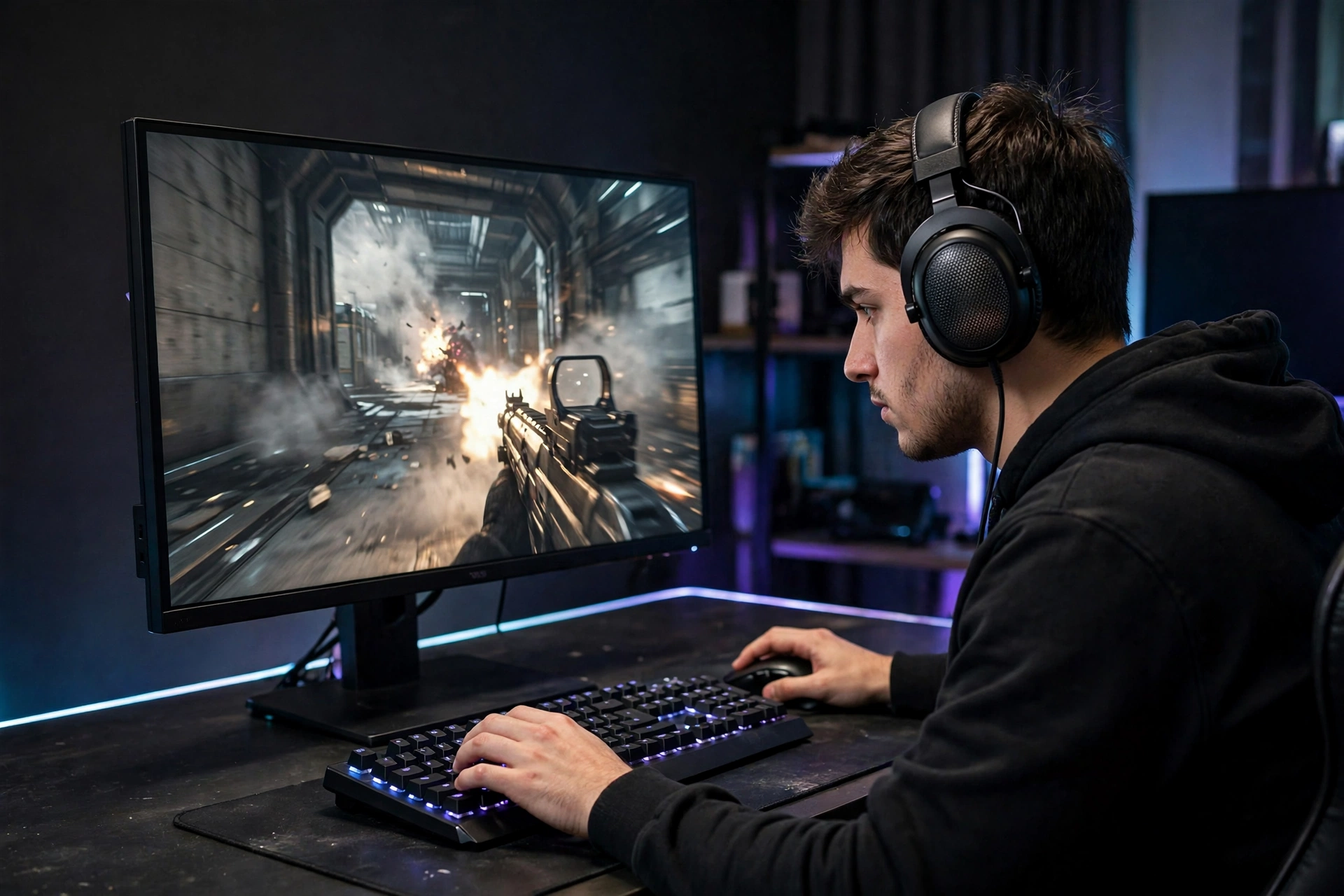
At 1080p, your graphics card renders each frame fast. A modern card can paint 2 million pixels with little effort, so it finishes quickly and waits for the next set of instructions. That waiting time is the problem. The processor must prepare game logic, physics, and AI data for hundreds of frames per second, and it works in overdrive to keep up. If it cannot, the graphics card sits partly idle, your frame rate stalls, and you get micro-stutters even though your graphics card is strong.
This is why 1080p competitive gaming favors high-end processors with massive caches. In fast shooters, the processor is the part that decides whether you hit the frame rate your high refresh monitor can show. A strong processor with fast single core speed keeps the frame times steady, which is what smooth play actually feels like. A weak processor at 1080p gives you a lower average frame rate and, worse, sudden dips that throw off your aim at the worst moment.
Upgrading your graphics card at 1080p often gives you nothing at all. If the processor can only prepare 100 frames per second worth of game data, a faster card will still show 100 frames per second. The extra power has nowhere to go. That is the most common money mistake at this resolution, and it is also the easiest to avoid once you know the rule: at 1080p, the processor matters more than the graphics card.
There are two clear signs of a CPU bottleneck at 1080p. First, your graphics card usage stays well below full load, often in the 60 to 80 percent range, while one or two processor cores sit near 100 percent. Second, lowering your graphics settings or even dropping the resolution further does almost nothing for your frame rate. If that sounds familiar, read our guide to the common signs of a PC bottleneck to confirm what you are seeing, and our guide on how to fix a CPU GPU bottleneck for the steps that actually help.
1440p The Balanced Sweet Spot
At 1440p, the load evens out. The graphics card now has about 78 percent more pixels to paint than at 1080p, so it takes longer per frame, and the processor gets breathing room. At the same time, the frame rate is still high enough that the processor cannot be weak. This is the sweet spot, and it is the resolution where a well matched CPU and GPU combo matters most.
Balance is the key word at 1440p. A top tier processor paired with a budget graphics card wastes the processor, because the card cannot keep up. A top tier graphics card paired with a weak processor wastes the card, because the processor cannot feed it fast enough. The best results come from splitting your budget evenly and picking parts from the same tier. A mid-range processor with a mid-range card will beat a lopsided pair in most real games at this resolution.
For most gamers, 1440p is also where the picture quality jump feels biggest. Text is sharper, distant objects are clearer, and the image looks richer than 1080p, while the frame rate cost is still manageable for a good mid-range or high-end card. If you play a mix of competitive shooters and story games, 1440p with a high refresh monitor is the most flexible setup you can buy.
1440p at high refresh deserves its own note. A 1440p 144Hz or 165Hz monitor keeps the balance described above, but a 1440p 240Hz monitor pushes the processor much harder again. At 240 frames per second the processor must prepare nearly as many frames as in a 1080p high refresh setup, so a weak processor will show up even though the resolution is high. If you buy a 1440p 240Hz screen for competitive play, treat it as a processor-first build, just like 1080p at high refresh. If you play at 1440p 144Hz or 165Hz, the even budget split still applies.
Our real PC bottleneck build examples show balanced 1440p pairings and explain why each part was chosen. Use those examples as a starting point, then check your own parts with the calculator before you buy.
4K Where Your GPU Carries the Load
At 4K, the workload flips completely. Pushing more than 8 million pixels per frame forces the graphics card to work overtime, and frame output slows down. The processor, which still does about the same work per frame, suddenly has plenty of time. Even a mid-range CPU can keep pace at 4K, because it only needs to prepare 60 or so frames per second instead of hundreds.
This is why pairing an expensive processor with a budget GPU for 4K gaming is a waste of money. The graphics card is the wall, and no processor can push past it. The money spent on the high-end processor would have bought a far better result if it had gone into the graphics card instead. At 4K, the processor matters significantly less, and the graphics card is almost everything.
The rule of thumb is simple. Spend 50 to 60 percent of your total build budget on the graphics card when you play at 4K. The rest goes to a solid mid-range processor, enough fast memory, and a good SSD. A processor from a sensible tier will not hold back a strong card at this resolution in almost any game, and the money you save can go toward the card itself, which is the part that decides your frame rate.
A GPU bottleneck at 4K is also the healthy state, not a problem to fear. When your graphics card runs near 100 percent and your processor sits comfortably below full load, you are using your hardware the way it was designed to be used. If the frame rate is still too low, the fix is a stronger card, lower settings, or upscaling, which we cover below.
The current cards built for 4K are the GeForce RTX 50 Series and the Radeon RX 9000 Series, both launched in early 2025. NVIDIA lists 32GB of GDDR7 memory on the RTX 5090, 16GB on the RTX 5080 and the RTX 5070 Ti, and 12GB on the RTX 5070. AMD lists 16GB of GDDR6 memory on both the RX 9070 XT and the RX 9070. That memory matters as much as raw speed at 4K, because high resolution textures and ray tracing fill video memory fast.
For a new card bought mainly for 4K, 16GB of video memory is the sensible target. A 12GB card can still handle many 4K games, especially without ray tracing, but it has less headroom for demanding new releases and high texture settings. An 8GB card is no longer a comfortable 4K choice. In Tom’s Hardware GPU hierarchy averages from June 2026, the 16GB RTX 5060 Ti averaged 40.2 frames per second at 4K Ultra against 28.1 for the same card with 8GB, a gap of about 43 percent from memory alone. At 1080p the same two cards were only about 5 percent apart, which shows the problem is the resolution, not the card. Check the memory size before you check the model name.
Resolution Bottleneck Comparison at a Glance
The table below sums up the whole guide in one place. Find your resolution, see where the load sits, and see what to do about it.
| Resolution | Hardware Load | Typical Bottleneck Risk | What to Do |
|---|---|---|---|
| 1080p (FHD) | High CPU, medium GPU | High risk of CPU bottleneck at high refresh rates (144Hz and above) | Invest in a strong processor with fast single core speed |
| 1440p (QHD) | Balanced CPU and GPU | The sweet spot, needs a well matched CPU and GPU combo | Balance your budget equally between CPU and GPU |
| 3440×1440 (ultrawide) | Medium CPU, heavy GPU | Sits between 1440p and 4K, about 5 million pixels per frame | Treat like 1440p with a stronger GPU, or like light 4K |
| 4K (UHD) | Low CPU, heavy GPU | High risk of GPU bottleneck, CPU matters significantly less | Spend 50 to 60 percent of total budget on the graphics card |
Refresh Rate Makes the Bottleneck Bigger or Smaller
Resolution is only half the story. Your monitor refresh rate sets the frame rate target, and that target changes which part limits you. A 60Hz monitor shows at most 60 frames per second, so even a modest processor can keep up, and the graphics card is usually the limit. A 144Hz monitor asks for 144 frames per second, and a 240Hz monitor asks for 240. Every extra frame is more work for the processor, because it must prepare each one.
That is why 1080p at 144Hz or higher is the hardest test for a processor. The graphics card finishes frames fast, the refresh target is high, and the processor must deliver new frame data hundreds of times per second. At 4K 60Hz, the same processor has an easy job, because the graphics card is slow enough that only 60 frames per second are needed.
This also means a monitor itself can be a bottleneck. A 60Hz screen caps what you see at 60 frames per second no matter how many frames your PC renders. A high resolution screen can demand more work than your graphics card can deliver and drag your frame rate down. If you want the full picture on the monitor side, read our guide on whether a monitor can bottleneck your PC, which covers refresh rate, resolution, response time, and sync settings.
When you plan a build, always pair the resolution with the refresh rate. A 1080p 240Hz setup is a processor-first build. A 4K 60Hz setup is a graphics card-first build. A 1440p 144Hz setup is the balanced build where both parts matter equally. Buying a fast monitor without the parts to feed it, or fast parts without a monitor that can show them, wastes money either way.
Two newer cases break the simple pattern. A 4K 120Hz or 144Hz monitor doubles the frame target of a 4K 60Hz screen, so the processor must prepare twice as many frames while the graphics card still paints 8.3 million pixels for each one. At 4K high refresh, both parts matter again, and this is where frame generation earns its keep, because it fills the extra display frames without asking the processor for more rendered frames. An ultrawide 3440×1440 monitor is the other middle case. It paints about 5 million pixels per frame, about 34 percent more than standard 1440p and about 2.4 times 1080p, so it sits between 1440p and 4K: GPU heavy, but the processor still matters more than it does at full 4K.
Upscaling Changes the Math
Upscaling is the one trick that lets you break the normal rules. Technologies like NVIDIA DLSS and AMD FSR render the game at a lower internal resolution, then rebuild the image to fit your screen. Your monitor still shows 4K, but your graphics card only paints a 1440p or 1080p image inside. That cuts the graphics card load sharply and can shift a GPU bottleneck back toward the processor.
For a 4K gamer with a mid-range card, upscaling is often the difference between a smooth game and a slideshow. It lets a card that could never paint 8 million pixels per frame deliver a sharp 4K picture anyway. The trade-off is a small loss of image detail in some scenes, and the result depends on the game and the quality setting you pick. Most players find the Quality setting is the best balance of sharpness and speed.
DLSS 4 changed the picture further. It introduced Multi Frame Generation on GeForce RTX 50 Series cards, which uses AI to generate extra frames between the frames the game renders. The newer DLSS 4.5 update raises that to up to five generated frames per rendered frame, in a 6X mode, still only on RTX 50 Series cards. Single frame generation works on RTX 40 and RTX 50 cards, while Super Resolution works on every RTX card from the 20 Series onward, according to NVIDIA’s own support table. DLSS 4.5 also brought a second generation transformer model for Super Resolution and Ray Reconstruction, which NVIDIA says improves stability and clarity. NVIDIA has since added DLSS 5 with 3D-Guided Neural Rendering for RTX 50 Series cards, but that targets lighting and materials, not the resolution load, so it does not change the bottleneck math.
AMD’s side has a new name to watch for. FSR 4 is now called FSR Upscaling, and the current version is FSR Upscaling 4.1, listed by AMD in more than 400 supported games. It is a machine learning upscaler, and AMD lists ML-based upscaling for RX 6000, RX 7000, and RX 9000 Series cards, while the full FSR Redstone suite, which adds frame generation, ray regeneration, and radiance caching, needs an RX 9000 Series card or better. If a game menu says FSR Upscaling instead of FSR 4, it is the same technology under its new name.
One limit still applies to both makers. Frame generation raises the frame rate you see, but the game still renders its base frames at the rate your processor and graphics card can manage. If your processor can only prepare 90 rendered frames per second, frame generation can smooth what the screen shows, but it cannot make the game itself render faster. It is a display smoother, not a fix for a CPU limit in the rendered frames. Upscaling is different: it lowers the real render load, so it genuinely eases a GPU bottleneck. Use upscaling to fix a GPU limit, and frame generation to fill a high refresh screen once the rendered rate is already healthy.
You can learn how the two main systems work from the makers themselves. NVIDIA explains DLSS on its official DLSS page, and AMD explains FSR on its official FSR page. Both are worth a read before you decide which card to buy, because upscaling support can matter as much as raw power at 4K.
Upscaling also changes how you should read a bottleneck result. If you plan to use DLSS or FSR, check your bottleneck at the internal render resolution, not the output resolution. A system that looks GPU limited at native 4K may be perfectly balanced once upscaling is on. That is one more reason to test with your real settings, not with a number on a box.
Different Games Different Bottlenecks
Resolution sets the stage, but the game decides how hard each part works on it. Two games at the same resolution can stress completely different parts of your PC.
Esports titles like CS2, Warzone, and Valorant require massive CPU power for high frame rates. These games are built for speed, not for heavy graphics. They run at high frame rates on modest cards, which means the processor is the part that sets the ceiling. At 1080p with a high refresh monitor, a fast processor with a large cache is worth more than a flagship graphics card in these games. Competitive players who chase 240 frames per second and above should spend on the processor first.
Heavy simulators flip the picture. Microsoft Flight Simulator shifts the heavy lifting to the graphics card, with huge detailed scenery, long draw distances, and complex lighting. At 1440p and 4K, the graphics card is the clear limit, and even a strong card can struggle at high settings. Strategy games and open world games with many characters on screen sit in the middle, and they can stress the processor in crowded scenes even at higher resolutions.
The lesson is simple. There is no single bottleneck for your PC, only a bottleneck for your PC, your game, your settings, and your resolution together. Before you upgrade, check the games you actually play. A processor upgrade helps the competitive shooter player. A graphics card upgrade helps the simulator and story game player. Buying the wrong one helps nobody.
Heavy Workloads Beyond Gaming
Gaming is not the only work your PC does, and other jobs change the bottleneck in their own ways. If you edit video, stream live, or play in VR, resolution is only one part of the picture.
Video editing, live streaming, and VR need significantly more multi-core processor horsepower and VRAM compared to standard gaming. Video editing leans on many processor cores for rendering and exporting, and on graphics card memory for smooth timeline playback at high resolution. Live streaming adds encoding work on top of the game itself, which can mean the processor or the graphics card encoder, depending on your settings. VR renders two high resolution views at once, one for each eye, so it is brutally hard on the graphics card and its memory, while also demanding steady frame times from the processor to avoid motion sickness.
For these workloads, the resolution rules still apply, but the floor is higher everywhere. A mid-range processor that is fine for 4K gaming may struggle when it also has to encode a live stream. A graphics card with too little VRAM may handle 1440p gaming well but choke on 4K video editing. If you do heavy work as well as gaming, buy for the heavier job, not the lighter one, and leave headroom in both the processor core count and the graphics card memory.
Hidden Bottlenecks RAM, Storage and Heat
Your CPU and GPU are not the only parts that can hold your PC back. Three hidden bottlenecks catch many builders by surprise, and they get worse at exactly the resolutions where you would expect smooth play.
Slow memory causes a massive RAM bottleneck. Your processor talks to your RAM constantly, and if the memory is slow, single channel, or too small, the processor stalls while it waits for data. This hurts most at 1080p, where the processor is already the limit, but it can also cause stutters at any resolution. Fast dual channel memory in the right amount is one of the cheapest real upgrades you can make, and it helps every game you play.
Storage is the second hidden limit. An old mechanical hard drive instead of an SSD will severely restrict overall performance, with slow loading, late texture pop-in, and hitching in open world games. A modern SSD loads game data fast enough that the rest of the system never waits on it. If you still run games from a hard drive, an SSD is the single best upgrade for the money, before any processor or graphics card change.
Heat is the third. Ignoring the thermal limits of a gaming laptop, or a desktop with poor airflow, will severely restrict performance through throttling. When a processor or graphics card gets too hot, it slows itself down to stay safe, and your frame rate drops for no visible reason. Dust, dried thermal paste, a blocked vent, or a weak cooler can all do this. If your frame rate falls after ten minutes of play but starts strong, heat is the first suspect, not a weak part.
For a deeper look at these limits, see our pillar guide to the types of PC bottlenecks, which covers RAM and storage limits in detail, and our guide to how the bottleneck calculator works and what the score means, which explains how the score treats your whole system, not just two parts.
How to Split Your Budget by Resolution
Once you know where the load sits, the budget follows. The table earlier in this guide gives the short version. Here is the longer version, with the thinking behind it.
At 1080p, spend more on the processor. A fast processor with strong single core speed and a large cache will do more for your frame rate than a flagship graphics card, especially if you play competitive games on a high refresh monitor. A solid mid-range card is enough for most 1080p gaming, and the money you save on the card buys a better processor, faster memory, and an SSD.
At 1440p, split your budget evenly. This is the resolution where balance pays off most. A processor and graphics card from the same tier, with fast memory and an SSD, will give you smooth high refresh gaming in most titles. Avoid the temptation to buy one flagship part and one budget part, because the weaker part will set your frame rate either way.
At 4K, spend 50 to 60 percent of your total budget on the graphics card. Buy the strongest card you can afford, pair it with a sensible mid-range processor, and do not worry that the processor is not flagship grade. It will keep up. The extra money goes where it matters, into the part that paints 8 million pixels per frame.
These are starting points, not laws. Your games, your monitor, and your other work can shift them. Use the calculator to test your exact parts at your exact resolution before you spend, and recheck after any change. A two minute check beats a two hundred dollar mistake.
Overclocking and the Bottleneck Calculator
Overclocking changes the balance too. Pushing a processor or graphics card past its stock clock speeds raises its ceiling, and that can move the bottleneck from one part to the other. A processor overclock can fix a CPU bottleneck at 1080p. A graphics card overclock can ease a GPU bottleneck at 4K. But an overclock on the wrong part does nothing, just like a hardware upgrade on the wrong part.
That is why our bottleneck calculator accounts for performance changes when you run an overclock calculator pass on your processor or GPU. It helps you identify your system limits instantly, whether you run stock settings or pushed clock speeds. You can test a planned overclock before you touch any setting, and see whether it actually moves your score or just adds heat for no gain.
A few honest notes on overclocking. It adds heat, it can shorten the life of a part if pushed too far, and the gains are often smaller than people expect, a few percent in most cases. It is a fine tuning tool, not a fix for a badly matched pair. If your system is badly balanced, no overclock will save it. Fix the balance first, then overclock for the last few percent if you enjoy the process.
To learn exactly what the number means, read our guide to how the bottleneck calculator works and what the score means. It explains the score bands, what counts as a good result, and when a number is worth acting on.
How to Test Your Own System in Five Minutes
You do not need to trust any guide, including this one, about your own PC. You can measure the bottleneck yourself in five minutes with a free tool.
Install MSI Afterburner with its RivaTuner overlay, or use any hardware monitor you like, and turn on the overlay for processor usage, graphics card usage, and frame rate. Then play your usual game at your usual resolution and settings for a few minutes, in a busy scene, not an empty menu.
Read the numbers. If the graphics card sits at 95 to 100 percent while the processor has spare room, you are GPU limited, and that is the healthy state at 1440p and 4K. If the graphics card drops to 60 or 80 percent while one or two processor cores sit near 100 percent, you are CPU limited, and that is most common at 1080p and high refresh rates. If the frame rate jumps a lot when you drop the resolution, you were GPU limited. If it barely moves, you were CPU limited. Repeat the test in a second game before you spend money on an upgrade, because the answer changes with the game.
Test at the resolution you actually play at, with the settings you actually use. A test at a resolution you never play tells you nothing useful. And test in more than one game, because as this guide has shown, the answer changes with the game.
Frequently Asked Questions
Does higher resolution make a CPU bottleneck worse?
No, higher resolution makes a CPU bottleneck smaller. Raising the resolution adds work for the graphics card without adding much work for the processor, so the frame rate drops and the processor gets breathing room. The bottleneck moves to the graphics card. Lowering the resolution is what makes a CPU bottleneck worse, because the graphics card finishes frames faster and the processor has to keep up.
Is a GPU bottleneck at 4K bad?
No, a GPU bottleneck at 4K is the normal and healthy state. At 4K the graphics card does the most work by far, so it should be the part running near full load. It means you are getting everything you paid for from your most expensive component. It only becomes a problem if the frame rate is lower than you want, and then the fix is a stronger card, lower settings, or upscaling.
Why is my CPU at 100 percent at 1080p but not at 4K?
At 1080p your graphics card renders each frame quickly, so your processor must prepare hundreds of frames per second to keep it fed. At 4K the graphics card takes much longer per frame, so the frame rate falls and your processor only needs to prepare a fraction as many frames. The processor does about the same work per frame at either resolution, but it does that work far fewer times per second at 4K.
Should I buy a better CPU or GPU for 1440p gaming?
For 1440p gaming you should balance both. This is the sweet spot resolution where a well matched pair matters most. If one part is much weaker than the other, that part sets your frame rate. Check your current usage first. If the graphics card sits near full load, upgrade the card. If the processor is maxed while the card waits, upgrade the processor. If you are building new, split the budget evenly between the two.
Can a 4K monitor bottleneck a mid-range PC?
Yes. A 4K monitor demands about four times the pixel work of a 1080p monitor, and a mid-range graphics card may not keep up. The picture will be sharp, but the frame rate can fall by half or more, and the game can feel worse than it did at lower resolution. The fixes are a stronger graphics card, lower settings, a lower render resolution, or upscaling like DLSS or FSR, which renders at a lower internal resolution and rebuilds the image.
Does upscaling remove a GPU bottleneck?
Upscaling eases a GPU bottleneck, it does not remove it completely. DLSS and FSR render at a lower internal resolution, so the graphics card paints fewer pixels and the frame rate rises. That can shift the limit back toward the processor, especially at 4K. It is one of the best tools for a mid-range card on a high resolution screen, and it costs nothing to try if your game supports it.
Do I need a high-end CPU for 4K gaming?
No. At 4K even a mid-range CPU can keep pace in most games, because the graphics card is the limit and the frame rate is low enough that the processor has plenty of time. An expensive processor paired with a budget graphics card is a waste of money for 4K gaming. Spend 50 to 60 percent of your budget on the graphics card and pair it with a solid mid-range processor.
How much VRAM do I need for 4K gaming?
For a new card bought mainly for 4K, 16GB is the sensible target. A 12GB card can handle many 4K games, especially without ray tracing, but it leaves less headroom for demanding releases and high texture settings. An 8GB card is no longer comfortable at native 4K. In Tom’s Hardware GPU hierarchy averages from June 2026, a 16GB RTX 5060 Ti averaged about 43 percent faster than its 8GB version at 4K Ultra, while the gap at 1080p was only about 5 percent. Memory size matters most exactly where the pixel count is highest.
Does frame generation fix a CPU bottleneck?
No. Frame generation creates extra frames for the display, but the game still renders its base frames at the rate your processor and graphics card can manage. If your processor can only prepare 90 frames per second, frame generation can make the picture look smoother on a high refresh screen, but it cannot make the game render faster. Upscaling is the tool that genuinely eases a GPU bottleneck, because it lowers the real render load. Use upscaling to fix a GPU limit, and frame generation to fill a high refresh display once the rendered rate is already healthy.
Conclusion
Monitor resolution is the single biggest lever that moves a bottleneck around your PC. At 1080p, the graphics card renders fast and the processor works in overdrive, so a strong processor with fast single core speed matters most, especially for competitive gaming at high refresh rates. At 1440p, the load balances out, and a well matched pair with an even budget split gives the best results. At 4K, the graphics card paints more than 8 million pixels per frame and becomes the clear limit, while even a mid-range processor keeps pace, so most of your budget belongs on the graphics card.
Games, workloads, memory, storage, and heat all shape the final result, and upscaling can rewrite the math entirely. But the core rule never changes: the lower the resolution, the more the processor matters, and the higher the resolution, the more the graphics card matters.
Before your next upgrade, check your own system at the resolution you actually play at. Run the bottleneck calculator with your exact parts and your exact resolution, and test with a hardware monitor while you play. Spend where the limit really is, and your next upgrade will be the one that actually makes your games feel better.

Leave a Reply