
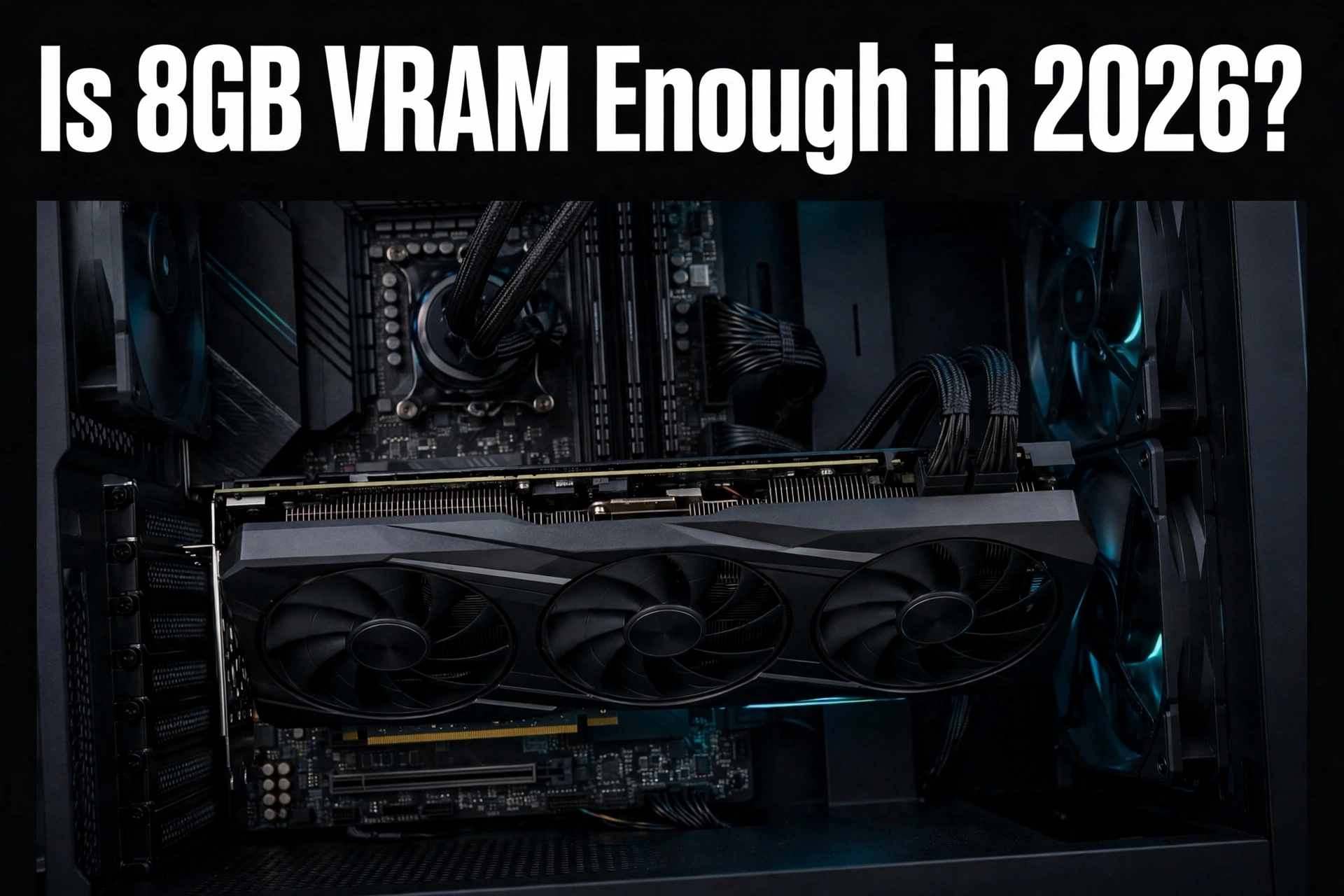
Is 8GB VRAM Enough? yes at 1080p with tuned settings, tight at 1440p, and no for 4K ultra in 2026. An 8GB card can still play esports and many older games well, but modern AAA games with high textures or ray tracing can run out of video memory, and that shows up as stutter and late textures, not always as low average FPS.
What VRAM Actually Does
VRAM is the memory built into your graphics card. Think of it as the card’s desk. Textures, models, shadows, ray tracing data, and the frame being drawn all sit on that desk while you play. System RAM is like a filing cabinet in another room. It holds a lot, but fetching from it takes much longer.
When the desk is big enough, the card works smoothly. When the desk is too small, the card keeps swapping data in and out of system RAM. That swapping is called texture streaming or VRAM thrashing, and it is the main reason a VRAM limit feels different from a weak GPU core. A weak GPU core usually gives you a steady, lower frame rate. A VRAM limit gives you sudden hitches, textures that pop in late, and frame times that jump even when the average FPS looks acceptable.
That distinction matters for this whole guide. If you only watch average FPS, you can miss a VRAM problem completely. If you watch frame times and 1 percent lows, the problem becomes obvious. For a plain explanation of how a limiting part changes what you feel in game, see our guide to CPU bottleneck vs GPU bottleneck. The same idea applies here: the limiting part, not the fastest part, decides how smooth the game feels.
One more concept saves a lot of confusion. Allocated VRAM is not the same as required VRAM. Many games reserve more memory than they strictly need, especially when extra memory is available. An overlay that shows 10GB allocated on a 16GB card does not prove that the same game needs 10GB on an 8GB card. What matters is whether performance breaks down on the 8GB card in the same scene, with the same settings. That is why the test later in this guide changes only one setting at a time.
Takeaway: VRAM does not make a card faster on its own. It decides whether a card can hold the scene it is trying to draw without constant swapping.
Verdict by Resolution
1080p: Yes, With Tuned Settings
At 1080p, 8GB is still a workable budget tier in 2026. Esports games, older titles, and well optimized games usually fit comfortably. Modern AAA games also run at 1080p, but you may need to drop texture quality from Ultra to High, or turn ray tracing down, to keep frame times steady. That is a settings compromise, not a broken card.
If you play mostly at 1080p and you plan to keep the card for a short time, 8GB is a sensible budget choice. If you plan to keep it for three or more years and you want high textures in new AAA games, 12GB is the safer buy, even at 1080p, because texture demands keep rising.
1440p: Tight, and Getting Tighter
At 1440p, 8GB is the tight tier. Many games still run, especially with High textures and upscaling, but texture heavy open world games, heavy mods, and ray tracing can push past 8GB. When that happens, you will see the classic signs: stutter when you turn quickly, textures that load late, and frame times that spike in busy areas.
For a new 1440p card in 2026, 12GB is the practical baseline, and 16GB is the comfortable long term choice. An 8GB card at 1440p is not a bad card, but it is a card that asks you to manage settings in new releases. Buy it only if budget is the deciding factor, and go in knowing that trade off.
4K: No, Not for Ultra Settings
At 4K, 8GB is not enough for ultra textures and ray tracing in demanding games. The texture sets are simply larger, and the card has to hold more at once. You can still play at 4K on an 8GB card with lower textures and upscaling, but that defeats much of the reason to play at 4K in the first place.
For 4K, 16GB is the realistic minimum for a comfortable experience in 2026, with more headroom helping for ultra textures, heavy mods, and ray tracing. This is also where a VRAM limit is easiest to confuse with a weak GPU. At 4K, both can be true at once: the core may be working hard, and the memory may also be full. The test later in this guide helps you separate the two.
Takeaway: Judge VRAM by your resolution first, then by your games, then by how long you plan to keep the card.
| Resolution | 8GB verdict in 2026 | Best fit for 8GB | Safer new buy |
|---|---|---|---|
| 1080p | Workable with tuned settings | Esports, older games, modern AAA at High textures | 8GB budget, 12GB for long term |
| 1440p | Tight, settings management needed | Lighter games, High textures, upscaling on | 12GB baseline, 16GB long term |
| 4K | Not enough for ultra settings | Lower textures and upscaling only | 16GB minimum |
Signs Your VRAM Is the Bottleneck
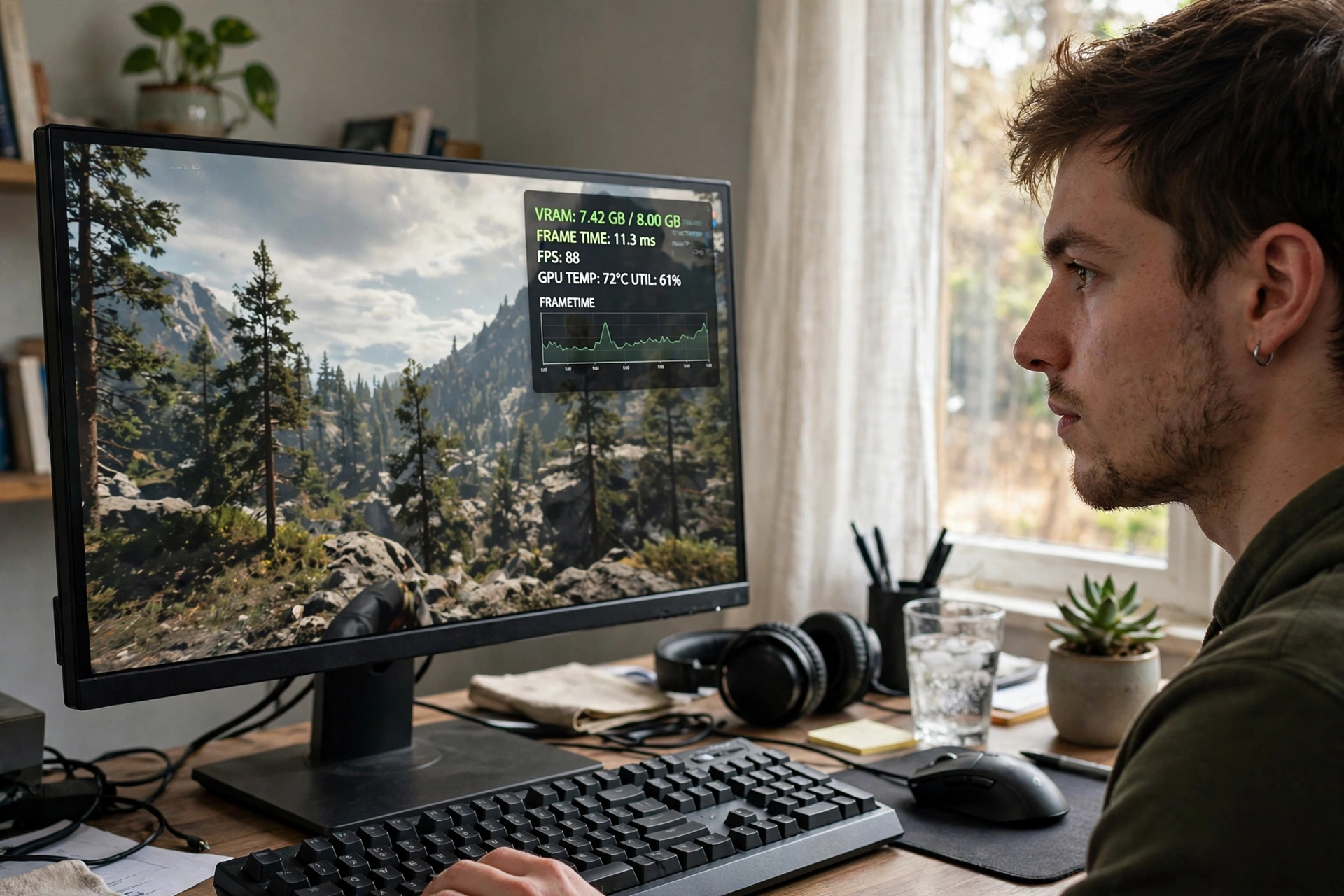
Look for a pattern, not a single number. A VRAM limit usually shows up in a specific way.
First, stutter when you move fast or turn quickly. The game needs new textures right now, the card cannot hold them all, and it has to fetch them from system RAM. The frame rate average may recover a second later, but that hitch is what you feel.
Second, textures that pop in late or stay blurry. You enter a new area and the walls, ground, or character models look soft for a moment, then sharpen. That is texture streaming under pressure, not a slow internet connection.
Third, frame times that spike while average FPS stays decent. If your average is 70 FPS but your 1 percent lows drop far below that in busy scenes, memory pressure is a strong suspect. A steady low average points more toward a GPU core limit or a CPU limit.
Fourth, settings that change the problem in a very specific way. If dropping texture quality by one step fixes most of the stutter, while dropping resolution alone does not, VRAM is likely the main limit. If dropping resolution fixes it and texture quality does not, the GPU core or another limit is more likely.
Fifth, problems that get worse with mods, texture packs, or ray tracing. All three add memory load. A game that was smooth before a texture pack, and stutters after it, is telling you exactly where the limit sits.
Takeaway: Stutter plus late textures plus a texture setting fix is the classic VRAM signature. Average FPS alone will not diagnose it.
What Eats VRAM Most
Not every setting costs the same amount of memory. Ranked from biggest typical impact to smaller, the usual suspects are:
- Texture quality. High and Ultra textures are the biggest single VRAM cost in most games. A step down here often frees more memory than any other single change.
- Resolution and render resolution. Higher resolution means larger frame buffers and larger texture sets in memory.
- Ray tracing and path tracing. These add data for lighting, reflections, and scene geometry, and they can push an already full card over the edge.
- Shadow quality and draw distance. Both increase the amount of scene data the card must hold at once, especially in open world games.
- Texture packs and mods. A high resolution texture pack can add gigabytes of data on top of the base game, and it is the most common surprise for 8GB owners.
- Background apps that use the GPU. Streaming, recording, a browser with hardware acceleration, and a second monitor with video can all share GPU memory, leaving less for the game.
One setting deserves a special note: upscaling. DLSS, FSR, and XeSS render at a lower internal resolution and upscale the image. That can reduce memory pressure and raise frame rates, but it does not magically fix a full VRAM pool if textures are still set to Ultra. Use upscaling together with a sensible texture setting, not instead of it.
Takeaway: Start with texture quality when VRAM is tight. It is usually the largest lever, and it often costs less visual quality than players expect when dropping from Ultra to High.
Test Your Own Card in 5 Minutes
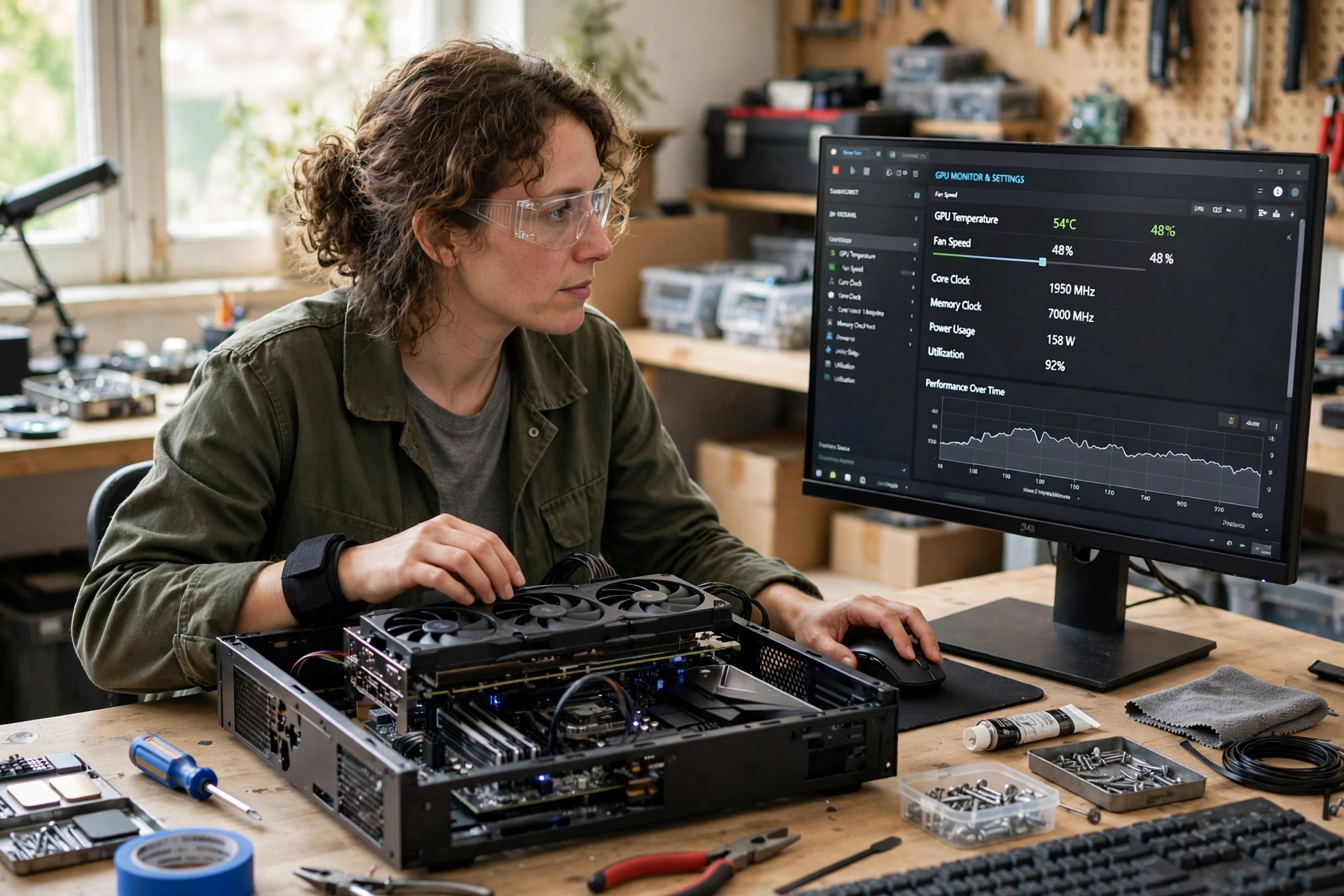
You do not need a calculator site to test this. Use an overlay that shows GPU usage, VRAM usage, frame rate, and frame times. MSI Afterburner with its overlay is a common free choice, and many GPU drivers also include an overlay.
Step 1: Pick a Repeatable Scene
Choose a busy scene you can repeat: a city drive, a large battle, or a walk through a detailed area. Menus and empty rooms will not stress memory, so they will not show the problem.
Step 2: Record Your Baseline
Play for three to five minutes at your normal settings. Note average FPS, 1 percent lows if your overlay shows them, and how the game feels. Note VRAM usage too, but remember that allocated VRAM alone does not prove a limit.
Step 3: Lower Texture Quality Only
Drop texture quality by one step, for example Ultra to High, and change nothing else. Play the same scene again. If stutter drops sharply and frame times smooth out, VRAM was a major limit. If almost nothing changes, VRAM was probably not the main limit.
Step 4: Lower Resolution Only
Restore textures to your normal setting, then lower resolution by one step, for example 1440p to 1080p, or turn on upscaling. Play the same scene again. If this fixes the problem while the texture change did not, the GPU core, or another limit tied to render load, is more likely.
Step 5: Compare Frame Times, Not Just Averages
Compare the worst moments, not the average. A VRAM fix often shows up as steadier frame times and higher 1 percent lows, even if the average FPS only rises a little. That steadier feel is the real win.
If you want a quick starting number for your whole system, you can also try our CPU bottleneck calculator. Treat it as a starting point, not a verdict, because it does not measure VRAM pressure in a specific scene the way this test does. For help reading what a small imbalance means, see our guide to what counts as a good bottleneck percentage.
Takeaway: Change one setting at a time, in the same scene, and judge by frame times. That is the only test that separates a VRAM limit from a core or CPU limit in your own game.
Settings That Free VRAM, Ranked
Use this order when you need to free memory quickly. Stop as soon as the game feels smooth, so you do not give up more image quality than you need to.
- Texture quality: Ultra to High, then High to Medium if needed. This is usually the biggest saving.
- Texture packs and mods: Remove high resolution packs first, or use a lower resolution version of the pack.
- Ray tracing: Turn it off, or drop it from Ultra to Medium, before you drop core resolution. Ray tracing adds memory and GPU load together.
- Upscaling: Turn on DLSS Quality, FSR Quality, or XeSS Quality. This lowers internal render resolution and can ease memory pressure.
- Shadow quality and draw distance: Drop one step each. These help in open world games where the card must hold a large scene.
- Resolution: Drop one step as a last resort, because it changes the whole image, not just textures.
A note on frame generation: frame generation can make motion look smoother, but it does not reduce VRAM use in the way players sometimes hope. If memory is already full, frame generation will not fix texture stutter. Fix the memory problem first, then use frame generation if your card and game support it and you like how it looks.
Takeaway: Texture quality, then texture packs, then ray tracing, then upscaling. That order saves the most memory with the least visible loss for most players.
8GB vs 12GB vs 16GB Which Should You Buy
This is not just about a number on a box. It is about matching memory to the GPU core, the resolution, and how long you will keep the card. A weak GPU core with 16GB will not beat a strong GPU core with 12GB in most games, because the core still has to draw every frame. Likewise, a strong GPU core with only 8GB can feel held back in texture heavy games, because it cannot hold the scene it is fast enough to draw.
Use this decision table as a starting point, then adjust for your games.
| Your situation | Recommended VRAM | Why |
|---|---|---|
| Esports at 1080p, tight budget, short keep time | 8GB | Esports textures are lighter, and 1080p keeps memory use lower |
| Modern AAA at 1080p, keep card 3 or more years | 12GB | Headroom for new textures without constant settings cuts |
| Modern AAA at 1440p, new card in 2026 | 12GB minimum, 16GB preferred | 1440p textures plus ray tracing push 8GB too often |
| 4K, ultra textures, heavy mods, or ray tracing | 16GB or more | Larger texture sets and ray tracing data need real headroom |
| Streaming while gaming at 1440p or above | 12GB minimum, 16GB preferred | Encoding and game share GPU memory, so the game gets less |
For official specification pages, check AMD and NVIDIA for current card tiers, and for detailed specification tables check TechPowerUp. Compare the full card, not just the VRAM number: core performance, power needs, and price matter just as much. A good power supply also matters for a stable build, and our PSU tier list can help you avoid a weak unit that causes crashes under load, which players sometimes mistake for a VRAM problem.
Takeaway: Buy the fastest GPU core that also has enough VRAM for your resolution. Do not sacrifice core performance just to get a bigger VRAM number, and do not buy a strong core with too little VRAM for your games.
If You Already Own an 8GB Card
You do not need to replace an 8GB card right away. Many owners can get a much better experience with settings alone.
First, set textures to High instead of Ultra in new AAA games. The visual difference is often small on a 1080p or 1440p monitor, while the memory saving is large.
Second, use upscaling at Quality mode. It keeps the image sharp while lowering internal resolution, which helps both frame rate and memory pressure.
Third, remove or lower high resolution texture packs until you test them in a busy scene. A pack that looks great in screenshots can stutter in gameplay if it pushes memory over the limit.
Fourth, close GPU heavy background apps while gaming, especially browser video, recording software, and extra overlays. They share GPU memory, and on an 8GB card that shared use matters.
Fifth, keep drivers updated and enable Resizable BAR in your BIOS if your system supports it. Resizable BAR lets the CPU access the full graphics memory at once in supported games, and it is free performance when it is available. It will not turn an 8GB card into a 16GB card, but it removes one avoidable bottleneck.
Consider an upgrade only if you have already tried those steps and you still see regular stutter in the games you play most, at the resolution you actually use. At that point, the upgrade decision should be based on your resolution table above, not on a single game or a single calculator percentage.
Takeaway: Settings, texture packs, and background apps first. Upgrade only when the same games still stutter after those fixes.
Common Mistakes
- Judging by average FPS only. A VRAM problem hides in frame times and 1 percent lows, not in the average.
- Treating allocated VRAM as required VRAM. A game that allocates 12GB on a 16GB card may still run well on an 8GB card with slightly lower textures.
- Buying VRAM instead of GPU power. A slow core with lots of memory will still be slow. Match core and memory together.
- Leaving Ultra textures on while blaming the card. One texture step down often fixes the exact stutter players blame on hardware.
- Forgetting mods and ray tracing. Both are memory costs that stack on top of base game textures, and they are easy to overlook.
- Ignoring the rest of the system. Slow storage can cause late texture loading that looks like a VRAM problem, and a weak power supply can cause crashes that look like a GPU problem. Test settings first, then check storage and power.
Expert Tips
- Test in a busy scene, not a menu. Memory problems appear when the scene is full, not when it is empty.
- Use frame times as your main metric for VRAM. A smooth frame time graph is more valuable than a slightly higher average.
- Keep a settings profile per game. One game may need High textures, another may run Ultra fine. A single global setting wastes quality in easy games and causes stutter in hard ones.
- Check for a texture pack update or a lower resolution pack version before you buy a new card. Pack makers often ship both.
- If you stream, test with streaming on. A game that is smooth alone can stutter when encoding shares GPU memory.
- When you compare two cards, compare them at the same resolution and settings, in the same game, with frame times shown. Averages alone can hide the exact difference VRAM makes.
Pros and Cons
Pros of 8GB in 2026: Lower cost, enough for esports and 1080p gaming, widely available in budget tiers, and fine for players who manage settings.
Cons of 8GB in 2026: Tight at 1440p, not enough for 4K ultra, vulnerable to texture packs and ray tracing, and less future proof for new AAA games if you keep the card for years.
Pros of 12GB and 16GB: More headroom for textures, mods, and ray tracing, steadier frame times in busy scenes, and a longer useful life at 1440p and 4K.
Cons of 12GB and 16GB: Higher cost, and wasted money if you only play light games at 1080p and never use the extra memory.
Frequently Asked Questions
Is 8GB VRAM enough for gaming in 2026?
Yes at 1080p with tuned settings, tight at 1440p, and no for 4K ultra in demanding games. The right answer depends on resolution, game type, and how long you plan to keep the card.
Does more VRAM increase FPS?
Only when VRAM was the limit. If the card already holds the scene, extra VRAM sits idle and does not raise frame rate. If VRAM was full and causing stutter, more VRAM can smooth frame times and raise 1 percent lows, which feels much better even if the average rises only a little.
Is 8GB VRAM enough for 1440p?
It can work, especially with High textures and upscaling, but it is tight in texture heavy and ray traced games. For a new 1440p card in 2026, 12GB is the practical baseline.
Is 8GB VRAM enough for ray tracing?
Usually no for high ray tracing settings in demanding games. Ray tracing adds memory load on top of textures, so an 8GB card often needs lower textures, lower ray tracing, or upscaling to stay smooth.
How do I know if VRAM is my bottleneck?
Use the 5 minute test in this guide. Lower texture quality only, in the same scene. If stutter drops sharply and frame times smooth out, VRAM was a major limit. If nothing changes, another limit is more likely.
Should I upgrade from 8GB to 12GB or 16GB?
Upgrade if you have tried texture, mod, ray tracing, and background app fixes, and you still see regular stutter in the games you play most, at your normal resolution. Otherwise, settings alone may give you the smooth experience you want without spending money.
Key Takeaways
- 8GB is a budget floor in 2026, not a comfortable target for new AAA gaming.
- 1080p: workable. 1440p: tight. 4K ultra: not enough.
- VRAM problems show up as stutter and late textures, not always as low average FPS.
- Texture quality is the biggest lever. Drop it one step before you blame hardware.
- Test by changing one setting at a time, in the same scene, and judge by frame times.
- Buy the fastest GPU core that also has enough VRAM for your resolution and keep time.
Conclusion
Is 8GB VRAM enough in 2026? It depends on how you play, and that is the honest answer, even if it is less catchy than a simple yes or no. At 1080p, with sensible settings, an 8GB card still earns its place, especially for esports and budget builds. At 1440p, it asks for more settings management, and at 4K ultra, it asks for too much.
If you already own an 8GB card, do not rush to replace it. Run the 5 minute test, drop textures one step, check mods and ray tracing, and close GPU heavy background apps. You may find that the card you already own feels much smoother with no new hardware at all.
If you are buying new, use the resolution table in this guide, match VRAM to the GPU core, and think about how long you will keep the card. A little extra memory now can save years of settings compromises later, but only if the core is also strong enough to use it.
Start with your resolution, then your games, then your keep time. That order gives you the right VRAM answer for your build, not someone else’s build.

Leave a Reply