
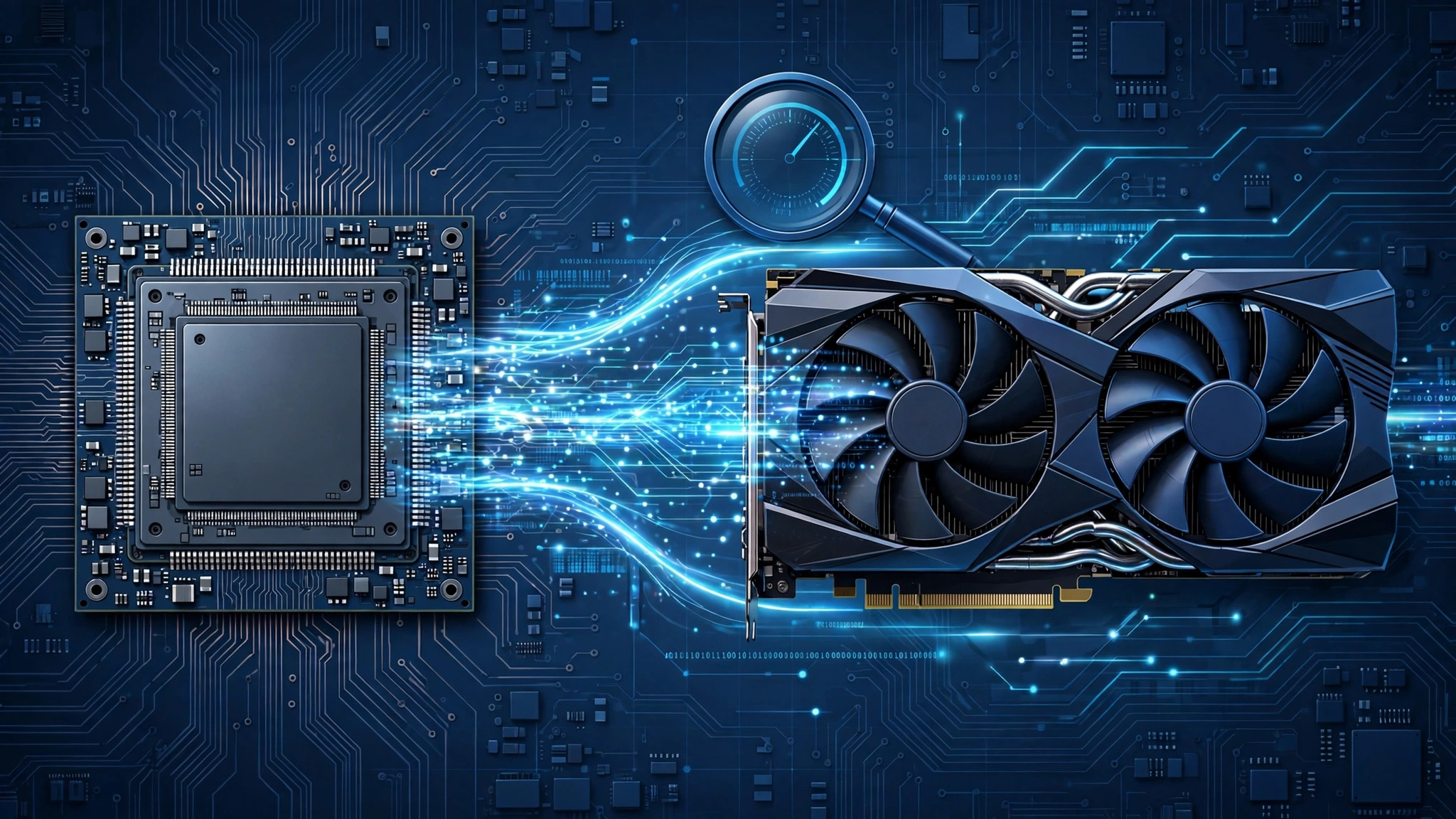
Is your powerful graphics card underperforming? You might have a CPU bottleneck. In 2026, with GPUs like the RTX 5060 and RX 9070 delivering incredible performance, an outdated processor can hold back your entire gaming PC. This guide explains how to check if your CPU is bottlenecking using our free CPU bottleneck calculator and manual methods.
What Is a CPU Bottleneck?
A CPU bottleneck occurs when your processor cannot keep up with your graphics card. The CPU prepares frames for the GPU to render. If the CPU is too slow, the GPU sits idle waiting for instructions, wasting its potential. This is especially common in 2026 as graphics cards have advanced faster than many older processors.
For example, pairing an Intel Core i5-10400F with an RTX 4070 Super creates a significant CPU bottleneck at 1080p. The GPU could deliver 200 FPS, but the CPU can only prepare 120 frames per second. You paid for 200 FPS performance but only get 120.
Signs Your CPU Is Bottlenecking Your GPU
Watch for these symptoms:
Intel vs AMD Which Is Better for Avoiding Bottlenecks in 2026?
Both Intel and AMD offer excellent gaming processors in 2026, but they have different strengths. AMD’s Ryzen 7000X3D series with 3D V-Cache delivers superior gaming performance in most titles, especially at 1080p where CPU bottlenecks are most severe. The extra cache reduces memory latency, allowing the CPU to feed frames to the GPU faster.
Intel’s 14th generation Core processors excel in single-core performance and productivity tasks. The Core i7-14700K with its hybrid architecture (performance cores + efficiency cores) handles background tasks well while gaming. For pure gaming, AMD X3D chips have the edge. For mixed gaming and content creation, Intel offers better value.
When choosing between platforms, consider upgrade paths. AMD’s AM5 socket will support future Ryzen generations through 2027, while Intel’s LGA1700 is at the end of its lifecycle. A platform with a clear upgrade path protects your investment against future bottlenecks.
- High CPU usage, low GPU usage: CPU at 95-100% while GPU sits at 60-70% in games
- Stuttering in CPU-heavy games: Frame drops in open-world titles like Cyberpunk 2077 or Starfield
- No FPS improvement at lower resolutions: Dropping from 1440p to 1080p does not increase frame rates
- Poor 1% low FPS: Average FPS looks fine but gameplay feels choppy
How to Check If Your CPU Is Bottlenecking
Method 1: Monitor Hardware Usage While Gaming
Download MSI Afterburner with RivaTuner Statistics Server. Enable the on-screen display for CPU usage (per-core), GPU usage, and framerate. Play a demanding game for 15 minutes. If your CPU cores are maxed out while GPU usage stays below 85%, you have a CPU bottleneck.
According to Tom’s Hardware, monitoring per-core usage is critical because games often max out 2-4 cores while others sit idle. Overall CPU usage might show 60%, but individual cores could be at 100%.
Method 2: Test at Different Resolutions
Run a game benchmark at 1080p, 1440p, and 4K. If your FPS barely changes between resolutions, your CPU is the limiting factor. A GPU bottleneck would show significantly higher FPS at lower resolutions. This test works because higher resolutions shift the workload to the GPU.
Method 3: Use Our Free CPU Bottleneck Calculator
The fastest method is our CPU bottleneck calculator. Select your processor, graphics card, RAM, and resolution. Our tool analyzes your hardware against real benchmark data from TechPowerUp and PassMark to calculate your bottleneck percentage instantly. No downloads required.

What Is a Good CPU Bottleneck Percentage?
Our calculator provides a percentage score. Here is how to interpret it:
- 0-5%: Perfect match. Your CPU and GPU are well balanced.
- 6-10%: Minor bottleneck. Acceptable for most gamers, barely noticeable.
- 11-20%: Moderate bottleneck. Consider upgrading your CPU if you play competitive games at high refresh rates.
- 20%+: Severe bottleneck. Your CPU is significantly holding back your GPU. Upgrade recommended.
For 1080p high-refresh gaming (144Hz+), aim for under 10%. At 4K, up to 15% is acceptable because the GPU becomes the primary limiting factor.
Common CPU Bottleneck Scenarios in 2026
Ryzen 5 3600 + RTX 4060 Ti: The older Zen 2 architecture bottlenecks modern GPUs at 1080p. Upgrade to a Ryzen 5 7600X for a 25-30% FPS improvement. Check our guide on the best AM4 CPUs for gaming if you want to stay on the AM4 platform.
Intel i7-9700K + RX 7800 XT: The 8-core/8-thread design lacks hyperthreading, causing stutters in modern titles. A Core i5-13600K offers significantly better 1% lows.
Any CPU + RTX 5060 at 1080p: The RTX 5060 is incredibly fast for 1080p. Even mid-range CPUs from 2023 may bottleneck it in esports titles pushing 300+ FPS. For 1440p, the bottleneck is less severe.
Best CPUs to Avoid Bottlenecks in 2026
For gaming in 2026, these processors pair well with modern GPUs:
- Budget 1080p: AMD Ryzen 5 7600 or Intel Core i5-13400F
- Mid-range 1440p: AMD Ryzen 7 7800X3D or Intel Core i7-14700K
- High-end 4K: AMD Ryzen 9 7950X3D or Intel Core i9-14900K
The Ryzen 7 7800X3D remains the gaming champion thanks to its 3D V-Cache technology. According to AMD, the stacked cache reduces memory latency significantly in games. For Intel builds, check Intel’s 14th gen lineup for strong single-core performance.
How to Fix a CPU Bottleneck
Upgrade your processor: The most effective solution. Ensure your motherboard supports the new CPU or budget for a platform upgrade. Our bottleneck calculator can verify the new pairing before you buy.
Overclock your CPU: A mild overclock can reduce bottlenecks by 5-10%. Ensure adequate cooling. This is a temporary fix, not a long-term solution.
Increase resolution or graphics settings: Shifting load to the GPU by playing at 1440p instead of 1080p, or enabling ray tracing, can balance the workload. This does not fix the bottleneck but improves GPU utilization.
Close background applications: Discord, Chrome, and streaming software consume CPU resources. Close unnecessary apps while gaming. For more tips, see our guide on how to increase FPS.
Enable XMP/EXPO for RAM: Slow memory can exacerbate CPU bottlenecks. Enable your RAM’s rated speed in BIOS. Learn more in our DDR4 vs DDR5 gaming performance comparison.
Frequently Asked Questions
How do I know if my CPU is bottlenecking my GPU?
Monitor CPU and GPU usage while gaming. If CPU usage is at 95-100% while GPU usage is below 85%, your CPU is bottlenecking. You can also use our free CPU bottleneck calculator for an instant percentage score without any software installation.
Is a 10% CPU bottleneck bad?
No, a 10% bottleneck is acceptable for most gamers. You will not notice a significant performance loss in real-world gaming. Only competitive esports players targeting 240Hz+ should aim for under 5%.
Can a CPU bottleneck damage your PC?
No, a CPU bottleneck will not damage your hardware. It simply means your GPU is not reaching its full potential. Your components will run at safe temperatures and voltages. The only “damage” is to your wallet – you paid for performance you cannot use.
Does RAM affect CPU bottlenecks?
Yes. Slow or insufficient RAM can worsen CPU bottlenecks because the processor waits for data from memory. Use at least 16GB of DDR4-3200 or DDR5-5600 in dual-channel mode. Single-channel memory can reduce CPU performance by 10-15% in games.
Should I upgrade my CPU or GPU first?
Use our bottleneck calculator to identify the weaker component. If you have a CPU bottleneck above 15%, upgrade the CPU first. If the bottleneck is under 10%, upgrade the GPU for better performance gains. Always check motherboard compatibility before buying a new processor.
Conclusion
Checking for CPU bottlenecks in 2026 is essential before any PC upgrade. Use our free CPU bottleneck calculator to get an instant percentage score, then follow the manual verification methods above to confirm. Aim for under 10% bottleneck at your target resolution and refresh rate. A balanced CPU-GPU pairing ensures you get the maximum FPS for your money.

Leave a Reply