
Quick answer: A RAM bottleneck happens when your memory, not your CPU or GPU, limits gaming performance. It usually shows up as stuttering, sudden freezes, and poor 1% low FPS rather than just low average FPS. The most common causes are running out of memory, running a single RAM stick, or forgetting to enable XMP or EXPO. Most of these are cheap or free to fix.
You just upgraded your graphics card, but your games still stutter. Your FPS counter looks fine, then suddenly tanks for half a second every time you turn a corner in an open world. You blame the CPU. You blame the drivers. You blame Windows. But the real culprit is often sitting right there on your motherboard, quietly starving your expensive CPU of data: your RAM.
A RAM bottleneck is one of the least talked about and most misunderstood performance problems in PC gaming. Everyone obsesses over CPU and GPU pairings, while memory gets treated as a box to check. In this guide, you will learn exactly what a RAM bottleneck is, the five ways memory can hold back your FPS, how to detect one in about five minutes, and how to fix it without wasting money on the wrong upgrade.
Table of Contents
- What Is a RAM Bottleneck, Exactly?
- The 5 Ways RAM Can Bottleneck Your PC
- Signs You Have a RAM Bottleneck
- How to Check for a RAM Bottleneck in 5 Minutes
- How Much RAM Do You Need for Gaming in 2026?
- Single vs Dual Channel: The Configuration Most People Get Wrong
- DDR4 vs DDR5: Does the Generation Matter for Bottlenecks?
- How to Fix a RAM Bottleneck
- When RAM Is NOT the Problem
- RAM Bottleneck Myths, Debunked
- Frequently Asked Questions
- Key Takeaways
- Final Word
What Is a RAM Bottleneck
Think of your CPU as a chef and your RAM as the kitchen counter. The chef can only cook as fast as ingredients arrive on the counter. A bigger, faster CPU is a better chef, but if the counter is tiny, slow to restock, or half blocked, even a world-class chef stands around waiting.
A RAM bottleneck is exactly that: a situation where system memory is the slowest stage in the data pipeline, forcing the CPU (and sometimes the GPU) to wait. Your CPU prepares every frame: game logic, physics, AI, draw calls. It constantly pulls data from RAM. If the RAM cannot deliver fast enough, the CPU idles, the GPU gets frames late, and your game stutters.
Here is what makes RAM bottlenecks tricky: they rarely show up as simply “low FPS.” Average frame rates can look respectable while the game feels awful. That is because memory problems hit frame consistency hardest. You get hitches, freezes when loading new areas, and terrible 1% low FPS (the slowest frames that decide how smooth a game feels).
A quick note on terminology: a bottleneck is simply whichever component limits the rest. A small bottleneck is normal and healthy; your GPU should usually be the limiting part. Our guide on what a good bottleneck percentage is explains the numbers, but the short version is that anything under about 10 percent is fine, and a GPU doing the limiting is actually the ideal setup.
The 5 Ways RAM Can Bottleneck Your PC

Memory does not fail in one single way. There are five distinct mechanisms, and they can combine. Understanding each one is the key to diagnosing your own system.
1. Not Enough Capacity
This is the most common RAM bottleneck. When your game, Windows, and background apps together need more memory than you have, Windows starts using the page file: a chunk of your SSD reserved as emergency “fake RAM.” An SSD responds far more slowly than real RAM, so every time the system swaps data back and forth, the game hitches.
Modern AAA games commonly use 8 to 12 GB on their own. Add Windows, Discord, a browser with a few tabs, and streaming software, and 16 GB gets eaten fast. Once usage pins near 100 percent, stuttering begins. This is also why the “RAM usage” number in Task Manager matters more than most people think.
2. Too-Slow RAM Speed
RAM speed (measured in megahertz, like DDR4-3200 or DDR5-6000) controls how much data the memory can move per second. If the speed is too low, the CPU spends extra cycles waiting for data to arrive. The effect is strongest in CPU-heavy scenarios: competitive shooters at high frame rates, open-world games streaming assets, and simulation games.
This matters more on AMD Ryzen systems than many people expect, because AMD’s Infinity Fabric interconnect, the link between CPU cores, scales with memory speed. Faster RAM literally lets Ryzen cores talk to each other faster.
3. High Latency (CAS Timings)
Speed is only half the story. Latency, usually shown as CAS latency (CL16, CL30, and so on), measures how many clock cycles the RAM needs to respond to a request. High latency means the CPU asks for data and waits longer for the answer.
The tricky part: DDR5 has much higher clock speeds than DDR4 but also much higher CAS numbers. A DDR5-6000 CL30 kit and a DDR4-3600 CL16 kit actually have similar true latency in nanoseconds. So do not compare CL numbers across generations. Compare within the same generation, where lower latency at the same speed is better.
4. Wrong Channel Configuration
Modern CPUs are designed to talk to two memory sticks at once (dual channel), which effectively doubles memory bandwidth. If you run a single stick, you cut that bandwidth in half, and the CPU starves. Benchmarks consistently show 10 to 30 percent more FPS with dual-channel enabled in CPU-bound games, and the gap is far worse on systems with integrated graphics, where 2026 testing has shown single-channel setups collapsing by 40 to 65 percent in some titles (for example, Cyberpunk 2077 dropping from 38 to 22 FPS and F1 24 from 86 to 30 FPS on comparable laptops).
This one is painful because it is so common. Plenty of prebuilt PCs ship with one stick, and plenty of builders buy a single 16 GB stick thinking “one bigger stick is just as good.” It is not.
5. VRAM Spillover Into System RAM
Your GPU has its own memory (VRAM). When a game’s textures and assets exceed your card’s VRAM, the overflow spills into system RAM, which is far slower than VRAM. At that point your system RAM speed suddenly matters for graphics performance too, and you get the classic symptom: a game that runs fine until you raise texture settings or enter a dense area, then falls apart.
This is increasingly common on 8 GB graphics cards at 1440p with high textures. If your card is the weak link, the fix may be lowering texture quality rather than touching your RAM at all. Our pairing guides, like the ones for the RX 9070 XT and the RTX 5060 Ti, cover how much VRAM and CPU headroom each card needs, and the same “match your parts” logic applies to memory: even a perfectly paired CPU and GPU underperform if the RAM setup is wrong.
Signs You Have a RAM Bottleneck
A RAM bottleneck feels different from a CPU or GPU bottleneck. Learn the fingerprint and you can diagnose it without any tools.
The classic RAM bottleneck symptoms:
- Stuttering and hitching even though average FPS looks okay
- Terrible 1% and 0.1% low FPS (the frame rate graph looks like a jagged mountain range)
- Freezes when entering new areas, fast-traveling, or turning quickly
- Texture pop-in and assets loading late
- The game gets worse the longer you play (memory fills up, page file kicks in)
- Alt-tabbing or having Discord and a browser open makes everything noticeably worse
- Low GPU usage during gameplay, especially in scenes that should be demanding
That last point is the big tell. In a GPU bottleneck, your GPU runs at 95 to 100 percent and that is healthy. In a RAM bottleneck, the GPU sits underused because it is waiting on data that the memory cannot deliver fast enough.
| Symptom | Most likely culprit |
|---|---|
| Smooth but low FPS, GPU at 95-100% | GPU bottleneck (normal and healthy) |
| Low FPS with CPU at 90-100% and GPU underused | CPU bottleneck |
| Decent average FPS but constant stutter, hitches on area loads | RAM bottleneck (capacity or speed) |
| Stutter that gets worse the longer you play | RAM capacity / page file thrashing |
| Stutter only with a browser, Discord, or streaming open | RAM capacity (background apps eating memory) |
| One RAM stick, or XMP/EXPO disabled | RAM configuration bottleneck |
How to Check for a RAM Bottleneck in 5 Minutes
You do not need special software for the first pass. Windows already shows you almost everything.
Step 1: Check your memory usage while gaming
- Start your game and play for 10 to 15 minutes in a demanding area.
- Press Ctrl + Shift + Esc to open Task Manager.
- Go to the Performance tab and click Memory.
- Look at the usage percentage. If it regularly sits above 85 to 90 percent while gaming, you are running out of headroom. If it is pinned near 100 percent, Windows is almost certainly leaning on the page file, and that alone can explain your stutter.
Step 2: Check whether XMP or EXPO is enabled
On that same Task Manager memory screen, look at the Speed value. If you bought a DDR4-3600 kit but Task Manager shows 2133 or 2400 MT/s, your memory profile is not enabled. Your RAM is running at slow default JEDEC speeds. Enabling XMP (Intel) or EXPO (AMD) in your BIOS is a free performance fix that takes five minutes. This single oversight causes more “mystery stutter” than any other memory issue.
Step 3: Check your channel configuration
In Task Manager’s memory section, look for the slots and channel information, or use the free tool CPU-Z and check the Memory tab. If you have one stick installed, you are running single channel and leaving 10 to 30 percent of CPU-bound performance on the table. The fix is a matching second stick, ideally identical in brand, speed, and capacity.
Step 4: Confirm with an overlay
For a definitive answer, run MSI Afterburner with its on-screen display while gaming. Watch three numbers: GPU usage, RAM usage, and frametime. The RAM bottleneck signature is unmistakable: RAM usage pinned high, GPU usage bouncing well below 95 percent in demanding scenes, and a frametime graph full of spikes. If you want the full monitoring walkthrough, our CPU bottleneck fix guide covers the same tools and techniques in detail, and most of them apply here too.
How Much RAM Do You Need for Gaming in 2026?
The honest answer depends on how you use your PC. The breakdown below is based on current game requirements and 2026 hardware guidance, including Microsoft’s own Windows 11 gaming PC guidance, which lists 16 GB as the baseline and 32 GB as the safer upgrade.
| Capacity | Best for | 2026 verdict |
|---|---|---|
| 8 GB | Very light or older games only | Below minimum: expect stutter in modern titles |
| 16 GB | Budget and mid-range 1080p gaming | Minimum baseline: fine for most games if you close background apps |
| 32 GB | 1440p/4K gaming, streaming, heavy multitasking | Sweet spot: the safest buy for a new PC in 2026 |
| 64 GB | Video editing, 3D work, extreme multitasking | Overkill for gaming alone: buys no extra FPS |
A few things worth knowing behind those numbers. Most current titles use between 8 and 13 GB during gameplay, which is why 16 GB still works for pure gaming. The exceptions that push past 16 GB are memory-hungry simulators and heavily modded games (think Microsoft Flight Simulator 2024, Cities: Skylines 2, Star Citizen, or a heavily modded Skyrim). And on Steam’s hardware survey, 16 GB remains the most common capacity on gaming PCs, so game developers still target it.
One more critical point: more RAM only helps up to the point where you stop running out. Going from 8 to 16 GB can transform a stuttery game. Going from 32 to 64 GB for gaming alone buys you essentially nothing. Capacity removes a ceiling; it does not raise the roof.
Single vs Dual Channel
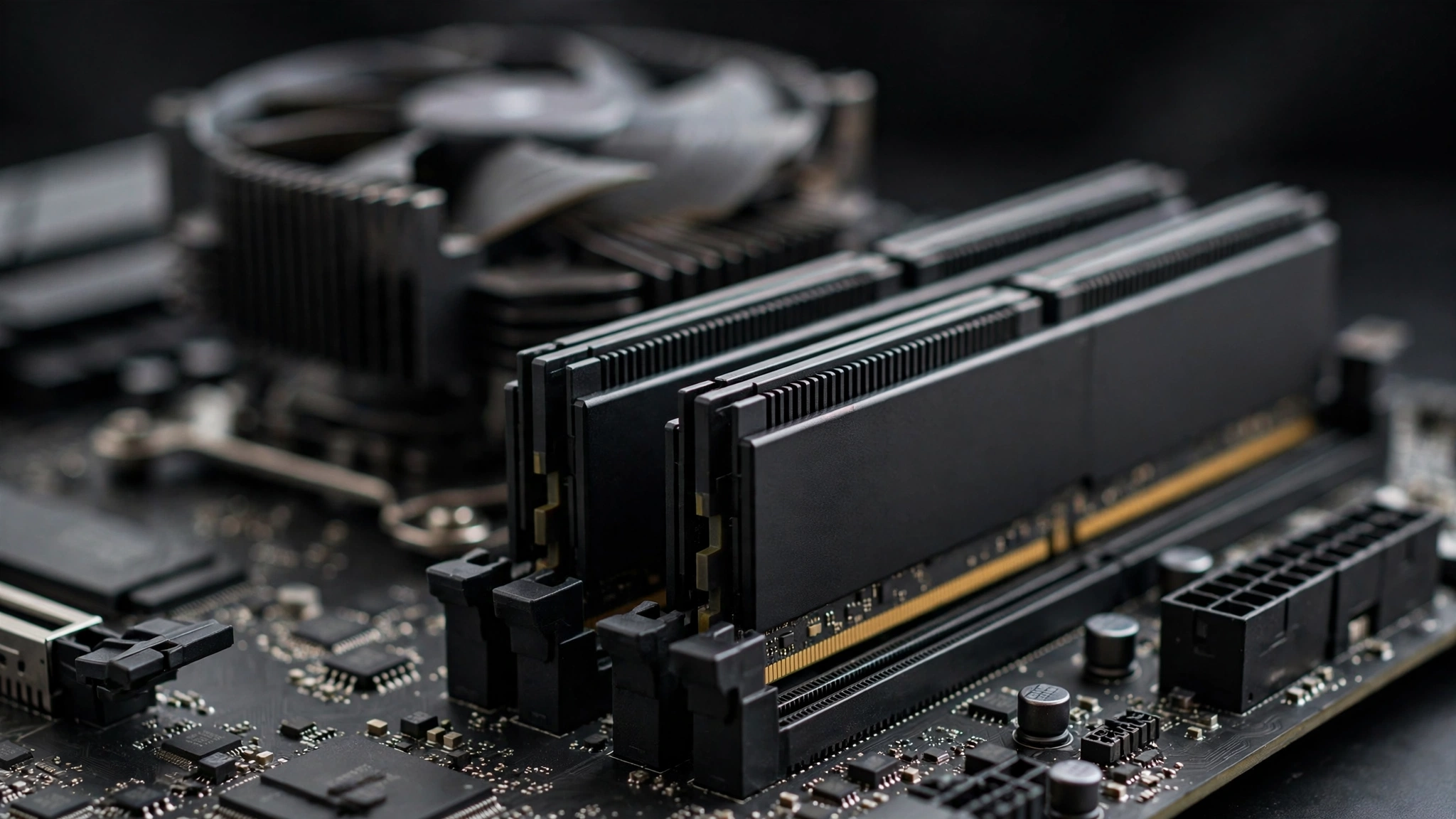
This deserves its own spotlight because it is the single most common memory mistake in gaming PCs. Dual channel means your CPU accesses two identical RAM sticks simultaneously, effectively doubling memory bandwidth. Single channel means half the bandwidth, and modern CPUs are built expecting dual channel.
The rule is simple: always run two (or four) matched sticks, installed in the correct motherboard slots (usually the second and fourth slots from the CPU; check your manual). One 16 GB stick is worse than two 8 GB sticks for gaming, full stop. We will be publishing a dedicated deep dive on single vs dual channel soon; for now, just know that if you currently have one stick, adding a matching second one is among the cheapest meaningful upgrades in all of PC building.
Does the Generation Matter for Bottlenecks?
Short answer: the generation matters less than the configuration. A well set up DDR4 kit (dual channel, XMP enabled, DDR4-3600 CL16) will beat a badly set up DDR5 kit (single channel, XMP off) every time.
That said, DDR5 brings genuinely higher bandwidth, and on current platforms DDR5-5600 to DDR5-6000 with tight timings (around CL30) is the sweet spot where price and performance meet. For AMD Ryzen 7000 and 9000 series CPUs, DDR5-6000 is widely considered the ideal target because it syncs well with the CPU’s internal interconnect.
Two caveats. First, your motherboard supports one generation or the other, never both, so this is a platform decision you make once when building. Second, do not upgrade an entire platform just for DDR5 if your DDR4 setup is healthy; the money almost always buys more FPS spent on the GPU. We break down the full DDR4 vs DDR5 question, including real gaming performance differences and upgrade math, in our DDR4 vs DDR5 gaming performance guide.
How to Fix a RAM Bottleneck
Work through these in order, cheapest first. Most people never need to get past step two.
1. Enable XMP or EXPO (free, 5 minutes)
Restart your PC, enter the BIOS (usually Delete or F2 during boot), find the memory profile setting (called XMP on Intel boards, EXPO or DOCP on AMD boards), enable it, save, and exit. Then verify in Task Manager that your RAM now runs at its rated speed. This is the single highest value-per-minute fix in PC gaming. Intel’s own XMP 3.0 specification describes these as factory-tested profiles, so you are not doing anything risky: you are simply letting the RAM run at the speed you paid for.
2. Fix your channel configuration (cheap)
If you have one stick, buy a matching second stick and install it in the correct slot for dual channel. It is one of the cheapest meaningful upgrades in PC building, and it can recover 10 to 30 percent of lost performance in CPU-bound games. Match brand, capacity, speed, and timings as closely as possible; mismatched sticks can force everything down to the slower stick’s speed.
3. Close memory-hungry background apps (free)
Before spending money, test with a clean slate. Close your browser, Discord, streaming software, and launchers, then replay the same game scene. If the stutter disappears, your capacity is fine for the game but not for the game plus your habits. Either keep background apps closed while gaming or treat it as your signal to move to 32 GB.
4. Add more capacity (moderate cost)
If Task Manager shows memory pinned near 100 percent even with background apps closed, you genuinely need more RAM. For most gamers in 2026 that means moving from 16 to 32 GB with a 2 x 16 GB kit. Buy a matched kit rather than mixing old and new sticks when you can.
5. Upgrade to a faster kit (only if the rest is already right)
This is the last resort, not the first. Faster RAM helps most when your CPU is already the limiting factor and you play at high frame rates. If your GPU is pinned at 99 percent at 4K ultra settings, faster RAM will not save you. Spend the money where the real bottleneck is, which you can confirm with our free bottleneck calculator.
For the broader picture, including settings tweaks and system-level changes that reduce pressure on every component, see our guide on how to increase FPS.
When RAM Is NOT the Problem
Honesty matters here, because RAM upgrades are the most oversold fix in PC gaming. Do not blame your memory if:
- Your GPU is at 95 to 100 percent usage. That is a GPU bottleneck, which is the healthy, expected state. More or faster RAM changes nothing here. Lower settings or a stronger GPU is the answer.
- Your CPU is pegged at 100 percent while RAM usage is comfortable. That is a CPU bottleneck. Faster RAM can shave a little off a CPU bottleneck (some guides estimate a modest single-digit improvement in memory-sensitive games, though results vary widely), but it will not fix a genuinely weak CPU.
- You already have 32 GB and usage stays well under 80 percent. Your memory is not the limit. Look at thermals, drivers, or background software instead.
- The stutter comes with high temperatures. Thermal throttling looks like stuttering but has nothing to do with RAM. Check CPU and GPU temperatures under load.
- Games are installed on a mechanical hard drive. Slow storage causes hitching and texture pop-in that feels exactly like a RAM problem. Moving the game to an SSD is the fix.
- You are chasing higher average FPS at 4K. At high resolutions the GPU does the heavy lifting and memory differences shrink to almost nothing.
The pattern is simple: RAM is guilty when usage is pinned high or the configuration is wrong. Otherwise, look elsewhere first.
RAM Bottleneck Myths Debunked
Myth 1: More RAM always means more FPS.
Reality: RAM removes a ceiling; it does not raise the roof. Going from too little to enough can feel transformative. Going from enough to more does nothing measurable.
Myth 2: RAM speed barely matters.
Reality: it matters more than the old advice suggests, especially for 1% low FPS and frame consistency, and especially on Ryzen. But it matters far less than having enough capacity and dual channel in the first place. Priority order: enough capacity, then dual channel, then XMP enabled, then speed and timings.
Myth 3: A single 32 GB stick is fine because “I will add another later.”
Reality: “later” often never comes, and until it does you are running at half memory bandwidth. Two 16 GB sticks now beats one 32 GB stick now in every game that cares about bandwidth, which is most of them.
Myth 4: DDR5 automatically fixes RAM bottlenecks.
Reality: a badly configured DDR5 setup (single channel, XMP off, slow JEDEC speeds) loses to a well configured DDR4 setup every time. Configuration beats generation.
Myth 5: If Task Manager shows high RAM usage, I must buy more RAM immediately.
Reality: Windows intentionally uses free memory for caching, so high usage alone is not proof of a problem. The real test is whether usage pins near 100 percent and you get stuttering that disappears when you close background apps.
Frequently Asked Questions
Does RAM affect FPS in games?
Yes, but indirectly. RAM does not render frames; it feeds data to the CPU that does. Too little RAM, slow RAM, or single-channel RAM starves the CPU, which lowers FPS and, more noticeably, wrecks frame consistency. Once you have enough fast, well-configured RAM, adding more does not increase FPS.
Can RAM cause stuttering even with a good CPU and GPU?
Absolutely, and this is the most common RAM bottleneck scenario. A strong CPU and GPU cannot help if the memory cannot feed them. As hardware testers have found, many stutters blamed on “CPU bottlenecks” turn out to be RAM problems: XMP left disabled, slow memory, or a single stick. Stutter with low GPU usage is the classic fingerprint.
Is 16GB RAM enough for gaming in 2026?
For most games, yes, if it is dual channel and you keep background apps reasonable. 16 GB remains the most common capacity on gaming PCs and the baseline in Microsoft’s own gaming guidance. Move to 32 GB if you stream, run Discord and a browser while gaming, play memory-hungry simulators, or want headroom for the next few years.
Does dual channel RAM really make a difference?
Yes. Dual channel effectively doubles memory bandwidth, and benchmarks consistently show 10 to 30 percent higher FPS in CPU-bound games versus single channel, plus smoother frame pacing. On systems with integrated graphics the difference can be far larger. Always run matched pairs.
Will faster RAM fix my CPU bottleneck?
Only partially. Faster, lower-latency RAM in dual channel can reduce the severity of a CPU bottleneck by a modest amount in memory-sensitive games, because the CPU spends less time waiting for data. But it cannot turn a weak CPU into a strong one. If your CPU is genuinely the limit, a CPU upgrade (or the settings tweaks in our CPU bottleneck guide) matters far more.
Should I enable XMP or EXPO? Is it safe?
Yes, enable it. XMP (Intel) and EXPO (AMD) are factory-tested profiles stored on the RAM itself; enabling one simply runs the memory at its advertised speed instead of slow default speeds. It is a standard BIOS toggle, not risky manual overclocking. Just verify stability afterward, and make sure your motherboard and CPU officially support the rated speed.
Can too much RAM hurt performance?
No, extra capacity does not hurt. An unused 64 GB kit performs the same as a 32 GB kit in games. The only real cost is the money you could have spent on a better GPU or CPU. The one exception: populating all four DIMM slots can make it harder to run very high memory speeds stably, so two sticks is usually the sweet spot for performance.
How do I know if my RAM or my GPU is the bottleneck?
Watch GPU usage while gaming. If the GPU sits at 95 to 100 percent, the GPU is the limit and your RAM is fine. If the GPU is well under 95 percent in demanding scenes while RAM usage is pinned high and the game stutters, memory is the suspect. When in doubt, run your exact parts through our free PC bottleneck calculator to see which component the numbers point to.
Key Takeaways
- A RAM bottleneck means memory, not your CPU or GPU, is the slowest stage. It shows up as stuttering and bad 1% lows more than low average FPS.
- The five mechanisms: too little capacity, too-slow speed, high latency, single-channel configuration, and VRAM spillover into system RAM.
- The fingerprint: stuttering plus low GPU usage plus RAM pinned near 100 percent.
- The cheapest fixes come first: enable XMP/EXPO (free), run dual channel (cheap), close background apps (free).
- 16 GB dual channel is the 2026 baseline; 32 GB is the sweet spot for streaming and multitasking; 64 GB buys gamers nothing.
- Configuration beats generation: well set up DDR4 beats badly set up DDR5.
- When the GPU is maxed out or RAM usage is comfortable, memory is not your problem. Do not buy RAM to fix a GPU or CPU bottleneck.
Final Word
RAM is the quiet component. It never gets the glory of a new graphics card or the benchmark headlines of a new CPU, but it decides whether those expensive parts actually get to do their jobs. The good news is that RAM bottlenecks are among the easiest performance problems to diagnose and the cheapest to fix. Five minutes in Task Manager and your BIOS can recover performance you already paid for.
If you are planning a build or an upgrade and want every part pulling its weight, start with balance. Our guide on how to build a gaming PC walks through matching CPU, GPU, and memory from the beginning, and our free bottleneck calculator will check your exact combination before you spend a dollar. Fix the memory, balance the build, and let your hardware finally breathe.

Leave a Reply