
Upgrade the part that is actually limiting your games. If your GPU usage stays near 95 to 100 percent, upgrade the GPU first. If your GPU usage stays well below that while one CPU core is maxed out and frames stutter, upgrade the CPU first. If neither part is maxed out, fix settings, memory speed, or background load first, and retest before you buy anything.
You have one upgrade budget, and both parts look old. That is the real frustration behind this question. A friend says GPU, always. A forum thread says CPU, always. A calculator gives you a single percentage and no context about your monitor, your games, or whether a CPU upgrade also means a new motherboard. None of that tells you what will actually change on your screen.
This guide starts in a different place. It does not give you a universal answer, because there is not one. It gives you a short test you can run tonight, a decision table based on what that test shows, and the full cost of each path, including the hidden parts people forget. By the end, the answer will follow from your own PC, not from someone else’s build.
A quick note on numbers in this guide. FPS figures and usage ranges are estimates compiled from published third party benchmarks and from the general behavior of PC hardware, not measurements from one controlled test rig. Real results vary by game, driver version, settings, and cooling. Where a fact cannot be verified for your exact setup, this guide says so, and the test section is there so you can check your own PC instead of trusting a general number.
What a Bottleneck Really Means
A bottleneck is simple. Your CPU and GPU work together on every frame. The CPU prepares the frame: game logic, physics, AI, draw calls, and instructions for what to draw. The GPU draws it: textures, lighting, shadows, and pixels. If one part finishes its work and waits on the other, the waiting part is not the problem. The part that is still working is the limit.
That is why a GPU bottleneck is usually good news in gaming. If your GPU usage sits near 95 to 100 percent, your graphics card is doing all it can, and your CPU is feeding it well. You are getting the full value of the card you own. To go faster, you need a stronger card, lower settings, a lower resolution, or upscaling.
A CPU bottleneck feels different. Your GPU usage drops, often to 60 to 80 percent, while frames stutter or 1 percent lows collapse, even when the average frame rate looks acceptable. Average FPS can hide this. Frame times tell the truth. A smooth game has steady frame times. A CPU limited game has spikes, pauses in busy scenes, and drops when many characters, units, or effects appear at once.
Resolution changes the balance in a predictable way. At 1080p, each frame has fewer pixels, so the GPU finishes quickly and waits more often on the CPU. At 1440p, the GPU works harder and the balance moves toward the middle. At 4K, the GPU works much harder still, so it is almost always the limit. The same CPU and GPU can look CPU limited at 1080p, balanced at 1440p, and GPU limited at 4K, all in the same game. That is why testing at your real resolution matters more than any general verdict.
If you want the basic definitions in more depth, start with our guide to CPU bottleneck vs GPU bottleneck. It explains the two limits in plain terms and why a GPU limit is the healthy state for most gaming PCs.
Takeaway: do not chase zero bottleneck. Every PC has a limiting part at any given moment. The goal is to upgrade the part that is limiting the games you actually play, at the resolution and refresh rate you actually use.
The 10 Minute Test That Answers It
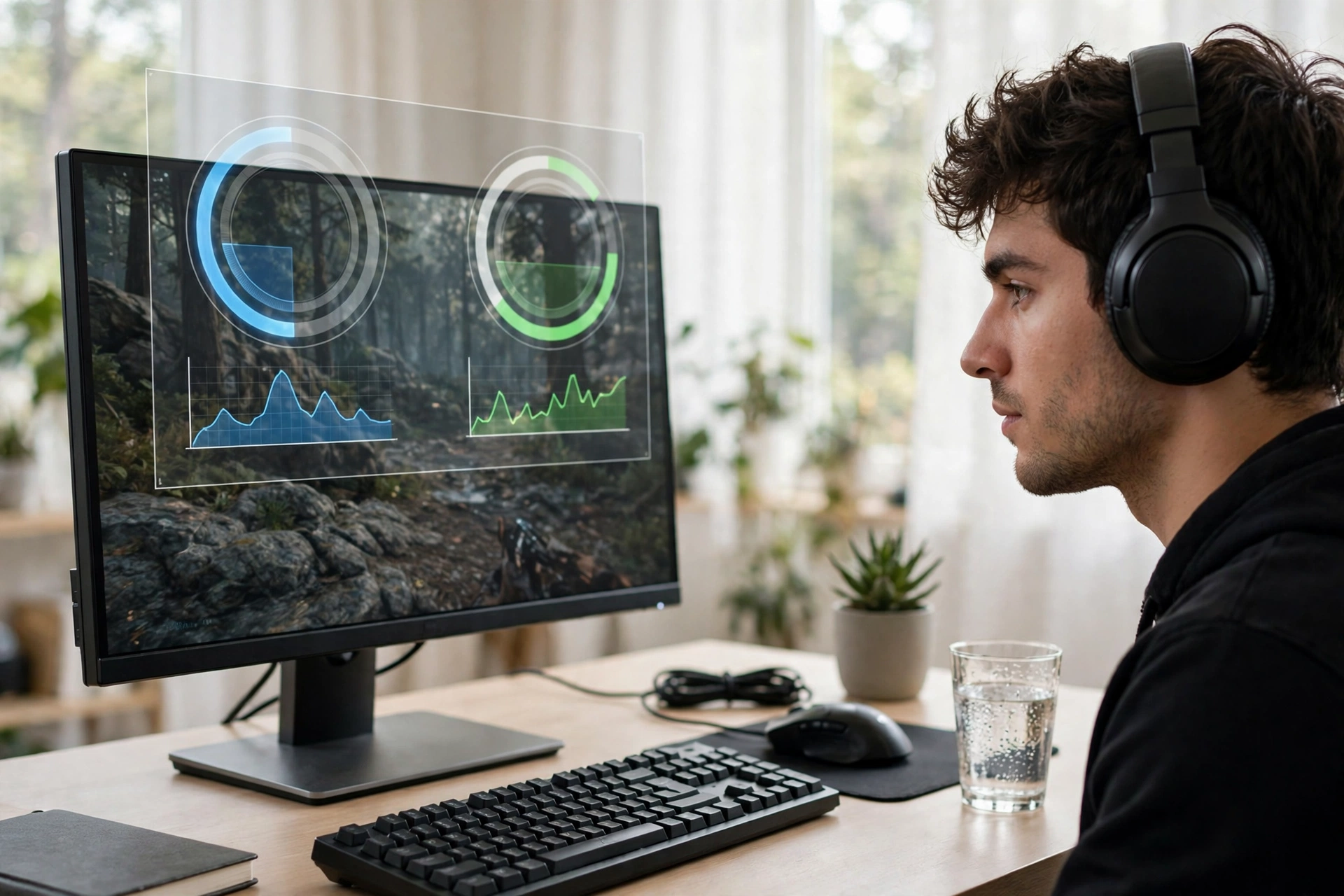
Run this test before you buy anything. You need an overlay tool. MSI Afterburner with its on screen display works well, and the built in overlays in the NVIDIA app or AMD Adrenalin software also work. Windows Task Manager on a second screen can work for a rough check, but an in game overlay is easier because you see usage while you play.
Step 1: Play a busy scene, with no frame cap
Turn off VSync and any frame limit for the test, so nothing caps the frame rate except your hardware. Play a normal, busy scene for at least five minutes, not a menu and not an empty area. Use the settings you actually play with. If you test at low settings you never use, you will get an answer for a PC you do not own.
Step 2: Watch GPU usage first
GPU usage is the best single signal, because it is harder to misread than total CPU usage.
- GPU usage around 95 to 100 percent most of the time: the graphics card is the limit. Your CPU is feeding it well.
- GPU usage clearly lower, for example 60 to 80 percent, while the frame rate is not capped and the game feels rough: the graphics card is waiting. The CPU, the game engine, or another limit is holding it back.
- GPU usage jumping wildly with frame time spikes: look at the next step before you decide. This pattern can also come from thermal throttling, a VRAM limit, or background load.
Step 3: Watch CPU usage per core, not total usage
Total CPU usage misleads a lot of people. A game can be limited by one or two busy cores while total usage shows only 40 or 50 percent, because games do not spread work evenly across all cores. Turn on per core CPU usage in your overlay. If one or two cores sit near 100 percent while GPU usage stays low and frames stutter in busy scenes, that is a real CPU limit signal.
If no single core is maxed out and GPU usage is also not maxed out, do not jump to a CPU upgrade yet. Check the free fixes section first. Memory speed, background apps, a frame cap you forgot, or thermal throttling can all produce this pattern.
Step 4: Drop the resolution as a second test
Lower the resolution a lot, or lower the render scale, and watch the frame rate.
- If the frame rate jumps up a lot, the graphics card was the limit. Less work for the GPU means more frames.
- If the frame rate barely changes, the processor was the limit. The GPU had room to spare, and giving it less work did not help, because the CPU could not prepare frames any faster.
Run this test in more than one game if you can. A simulation game and a story driven shooter will often give different answers, and your upgrade should serve the games you play most, not the one outlier.
Step 5: Check your monitor cap
Write down your monitor resolution and refresh rate before you buy. A 60Hz monitor can only show 60 frames per second, even if your PC renders 200. A 144Hz monitor can show up to 144. If your current PC already hits your monitor cap in the games you play, a faster part will not look better on that screen, unless you also plan to upgrade the monitor. This single check saves more wasted upgrades than any calculator.
Takeaway: the test takes 10 minutes, and it beats a calculator percentage, because it measures your PC, your games, and your settings, not a generic pairing table.
The Decision Table
Use your test results, not a generic rule, to pick a first upgrade.
| What your test shows | Upgrade first | Why |
|---|---|---|
| GPU usage near 95 to 100 percent, smooth frame times, you want higher settings or higher resolution | GPU | The graphics card is doing all it can, and the CPU has room to feed a stronger card |
| GPU usage low, one or two CPU cores near 100 percent, stutter in busy scenes | CPU | The processor cannot prepare frames fast enough, so a new card would wait just as long |
| Frame rate barely changes when you drop resolution | CPU | Less GPU work did not help, which points to a processor or engine limit |
| Frame rate jumps a lot when you drop resolution | GPU | The graphics card was the limit, and less rendering work freed it up |
| Neither part maxed out, or frame rate is capped by your monitor | Neither yet | Check free fixes, memory speed, background apps, thermals, and monitor cap first, then retest |
| Both parts maxed out in different games, or both feel old | See the budget section | Order matters here, because a GPU can move to a later build while a CPU platform change locks you in |
For a general sense of what counts as a healthy imbalance, see our guide to what counts as a good bottleneck percentage. A small imbalance is normal. The number only matters when it shows up as stutter, low frame rates, or a GPU sitting idle in the games you actually play.
Upgrade the GPU First When This Is True
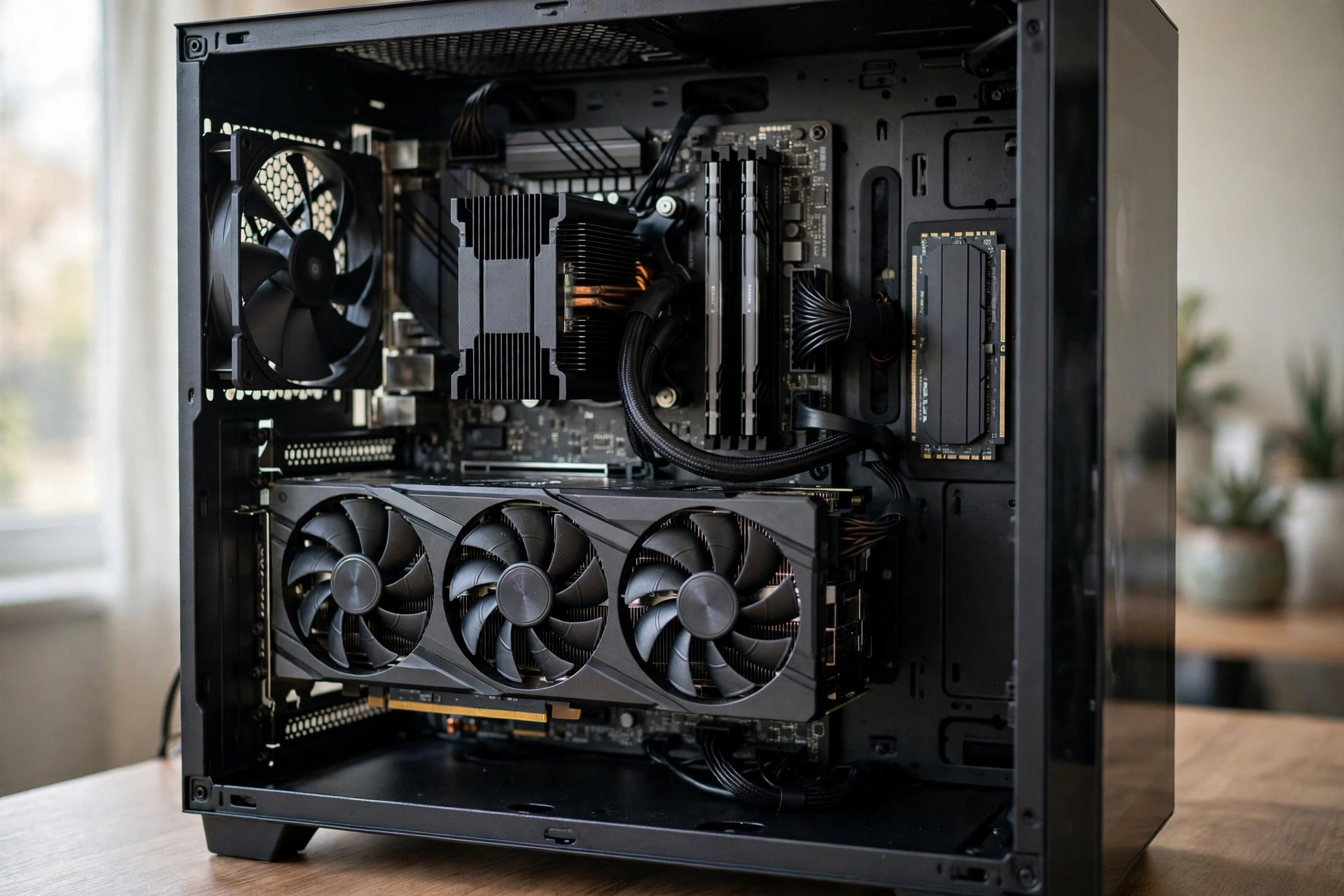
Upgrade the GPU first when your test shows the graphics card at full load, when you play at 1440p or 4K, when you want ray tracing or higher settings, or when your current card runs out of VRAM. VRAM deserves its own check. If textures pop in late, if high texture settings cause sudden stutter even though GPU core usage looks normal, or if a game warns about VRAM, a card with more VRAM can help even when raw speed looks similar on paper. Do not judge a GPU upgrade by core speed alone.
A GPU upgrade is also the simpler first step in most builds. You usually keep your motherboard, CPU, and RAM, and you swap one part. That simplicity is real, but it still has checks. Check power supply wattage and connectors, check case length and clearance, and check that your power supply is a reliable unit, not just a big wattage number. For a full tier list and wattage guidance, see our PSU tier list.
Also check your CPU headroom before you buy a much stronger card. A modest GPU upgrade on a balanced PC is safe. A flagship card on a very old 4 core CPU at 1080p high refresh is a different story, because the new card will wait on the CPU in exactly the games where you wanted more frames. If your test already shows a CPU limit, a GPU upgrade first will disappoint you, even if the new card is excellent on its own.
Upscaling changes the math in a useful way. DLSS and FSR let a weaker card render at a lower internal resolution and upscale the result, which can raise frame rates without new hardware. If you have not tried upscaling yet, try it before you buy, especially at 1440p and 4K. It will not fix a CPU limit, but it can turn a GPU limit from unplayable to smooth, and it helps you judge how much card you actually need.
For official specifications, check NVIDIA for GeForce cards and AMD for Radeon cards, and compare those specifications against your monitor, your games, and your power supply before you buy.
Takeaway: GPU first is right when the card is at full load, when you play at higher resolutions, or when VRAM is the problem, and when your CPU still has room to feed a stronger card.
Upgrade the CPU First When This Is True
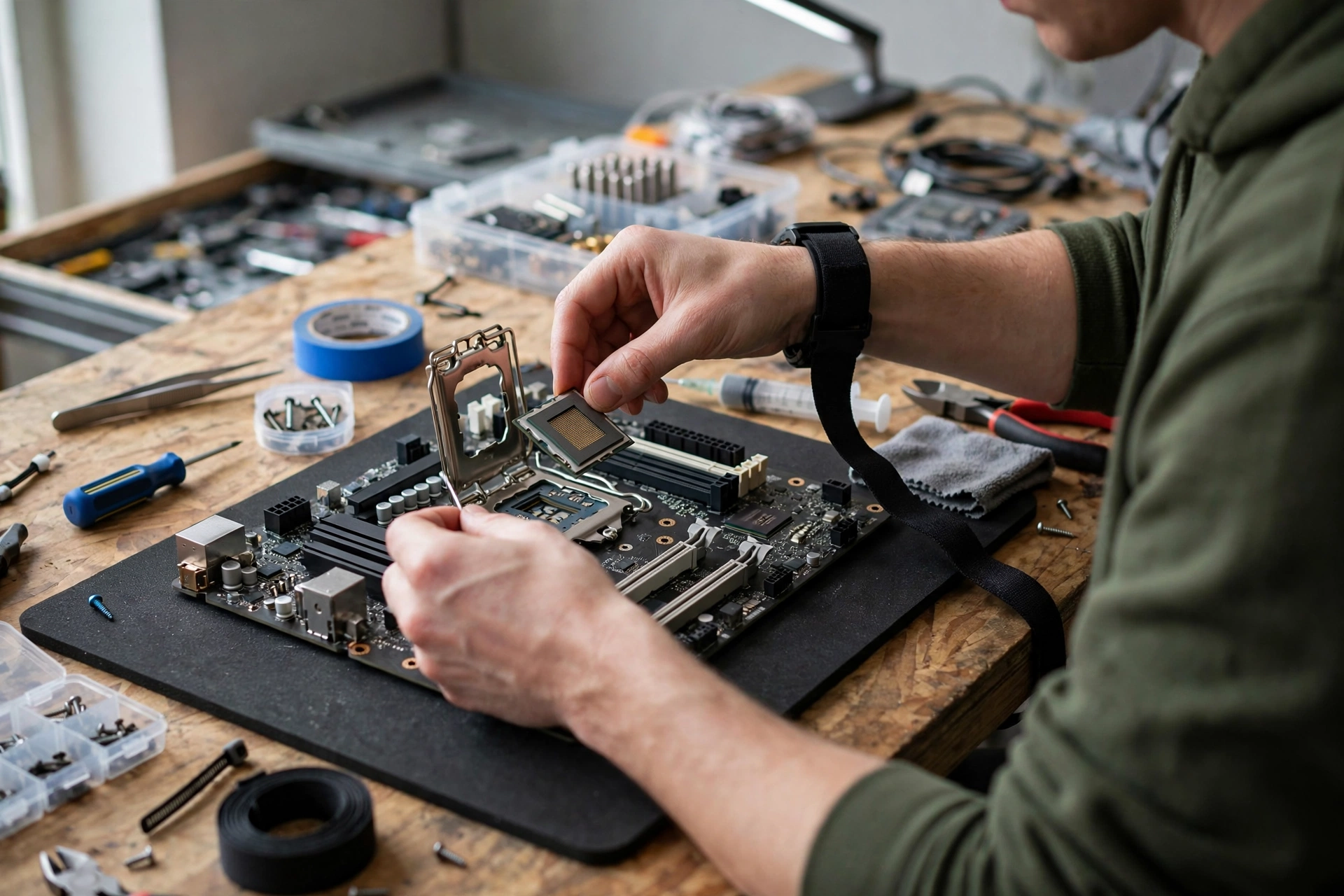
Upgrade the CPU first when your test shows low GPU usage with maxed out cores, when frames stutter in busy scenes, when you play competitive esports at high refresh rates at 1080p, or when you play simulation, strategy, or large multiplayer games that lean heavily on the processor. In those games, the CPU does more work per frame, and a faster processor raises both average frames and, more importantly, 1 percent lows, which is what makes a game feel smooth.
A CPU upgrade has a hidden cost that a GPU upgrade usually does not. Ask these questions before you price it. Does your motherboard socket and chipset support the new CPU, or will you need a new motherboard? Does the new CPU need DDR5 RAM while you own DDR4? Does your motherboard need a BIOS update first, and can you do that update with your current CPU installed? Is your cooler rated for the new chip, and does your case have airflow for it? A CPU price tag alone can mislead you by a wide margin once motherboard, RAM, and cooler costs are added.
That platform question also cuts the other way. If your motherboard already supports a much faster CPU in the same socket, a drop in CPU upgrade can be excellent value. You keep your board, RAM, and cooler, and you gain headroom for years. Check your motherboard support list and BIOS version before you assume you need a full platform change. Many builders skip this check and pay for a rebuild they did not need.
Memory speed is part of a CPU upgrade, even when you do not buy new RAM. If your RAM runs at slow default speeds because XMP or EXPO is off, your CPU cannot show its real performance. Turn on the rated memory profile in BIOS, verify the speed in Windows, and retest before you buy. This free step has fixed many supposed CPU bottlenecks, especially on AMD systems where memory speed matters more.
Streaming and editing change the CPU case too. If you encode with a CPU based encoder while gaming, you add a second heavy job to the same processor. Using a GPU based encoder, such as NVENC on a modern NVIDIA card, can move that job off the CPU and remove a streaming bottleneck without a CPU upgrade at all. Try that switch first if you stream. If you edit video, render, or run heavy multitasking alongside gaming, a CPU with more cores can help in ways that gaming alone would not justify, and that workload case is a legitimate reason to put the CPU first.
Takeaway: CPU first is right when the processor is the proven limit, when your games are CPU heavy, or when your workload needs cores, and only after you have priced the full platform change, not just the chip.
Upgrade Neither First Free Fixes That Work
Before you spend anything, run this checklist and retest. These fixes have saved many builders from buying the wrong part.
- Turn on XMP or EXPO for your RAM, and verify the rated speed. Slow default memory can look like a CPU problem.
- Update graphics drivers and motherboard BIOS, especially if you changed hardware recently or if a game started stuttering after an update.
- Close background apps, browser tabs with video, and recording software you are not using. Background load hits the CPU hardest.
- Check temperatures under load. A CPU or GPU that throttles to protect itself will look weak, even though the hardware itself is fine. Clean dust, check fan curves, and check case airflow.
- Check for a frame cap, VSync, or a power limit you forgot. A cap can make a strong PC look slow, and a power limit in BIOS can quietly hold a CPU back.
- Try upscaling and lower the most GPU heavy settings first, such as ray tracing and shadows, before you lower everything. This tells you whether the limit is rendering or processing.
- Make sure your game is on an SSD, not a slow hard drive, if load times and texture pop in are part of the problem. Storage does not raise average FPS much, but it can remove pauses that feel like stutter.
If a free fix moves your test result, your original diagnosis changes too. Retest after each major change, and only buy when the same limit shows up consistently across games and after the free fixes.
Takeaway: a free fix that changes your test result is worth more than a new part bought on a guess.
RAM, Storage, and Monitor Traps
Three parts that are neither CPU nor GPU cause a surprising number of false bottleneck diagnoses.
RAM: too little RAM forces Windows to use much slower storage as virtual memory, which causes pauses and stutter while both CPU and GPU look normal. Single channel RAM, meaning one stick instead of two matched sticks, can also hurt performance in some games. Slow RAM speed, covered above, is the third RAM trap. Check capacity, channel mode, and rated speed before you blame the CPU.
Storage: a full SSD, a slow hard drive for games, or a drive that is constantly busy with background work can cause load pauses and texture streaming problems. This is not the same as low average FPS, and a new CPU or GPU will not fix it. Move your main games to a fast SSD with free space, and check drive health if pauses are new.
Monitor: as noted in the test section, refresh rate caps visible gain. A 60Hz monitor, a 75Hz monitor, or a frame cap set in game or in driver software can all make a fast PC look capped. Also check that your monitor cable and port actually support the refresh rate and resolution you set. A high refresh monitor connected over an older cable can silently run at a lower rate.
Takeaway: if CPU and GPU usage both look reasonable yet the game still feels bad, check RAM, storage, and monitor cap before you buy either part.
Gaming, Streaming, and Editing Do Not Share One Answer
Your workload decides which first upgrade makes sense, even with the same hardware.
Gaming at 1440p or 4K, story driven or open world: GPU first in most cases, because the card is the limit and settings and resolution drive the load.
Competitive esports at 1080p high refresh: CPU first more often, because frame rates are already very high and the processor, memory latency, and game engine set the ceiling. Even here, check your monitor first, because a 144Hz monitor caps the visible gain.
Simulation, strategy, and large multiplayer: CPU first more often, because these games simulate many units, systems, or players. A stronger GPU will not fix a simulation limit, and lowering graphics settings will not help much either, because the load was never on the card.
Streaming while gaming: try a GPU encoder first, for free, before either upgrade. If you still need more, the right first upgrade depends on your encoder and your game. A CPU encoder workload points to CPU, while a high resolution, high settings game points to GPU. Test with your actual streaming setup, not with gaming alone.
Video editing, rendering, and heavy multitasking: CPU first more often, especially for encoding and timeline work, while GPU helps with effects, previews, and some exports depending on the software. Check which part your software actually uses for your most common export before you buy.
Takeaway: name your main workload before you name your upgrade. The same PC can have a different correct first upgrade for gaming, streaming, and editing.
Budget and Order When Both Parts Are Weak
If both parts are old, the order still matters, because the two paths do not cost the same over time.
A GPU upgrade usually transfers to your next build. You can buy a graphics card now, use it with your current CPU, and carry it to a new motherboard, CPU, and RAM later. That transfer value makes GPU first attractive when both parts are weak but the CPU is not yet a hard limit in your games. It also means you should not buy a card so strong that your current CPU wastes most of it at your resolution, because you are paying now for performance you cannot use until the later CPU upgrade.
A CPU upgrade usually locks you into a platform. A new socket often means a new motherboard, and a new platform often means new RAM. That cost is real, but it can also be the right first step if your CPU is the hard limit, if your current platform has no drop in upgrade path, or if you plan to keep the new platform for years while you upgrade the GPU later. In that case, buying the platform first gives every later GPU upgrade full room to work.
A practical order for a tight budget looks like this. First, run the test and the free fixes. Second, if the GPU is the limit, buy the GPU that fits your monitor and power supply, not the flagship you hope to grow into. Third, if the CPU is the limit, price the full platform change and compare it with a drop in upgrade on your current board. Fourth, retest after the first upgrade before you buy the second part, because the balance changes once the first limit is gone. Many builders find that one well chosen upgrade is enough for their monitor and games, and the second upgrade can wait.
If you want a quick estimate to start from, you can try our CPU bottleneck calculator, but treat it as a starting point, never as a verdict. Your own test, as described above, always has the final word.
Takeaway: when both parts are weak, buy the part that transfers best or removes the hard limit first, then retest before you spend on the second part.
Common Mistakes
Mistake 1: trusting a single calculator percentage. A percentage does not know your monitor, your games, your settings, or whether one CPU core is maxed out. Use it as a starting point, then run the test in this guide.
Mistake 2: upgrading the part you want, not the part that is limiting you. A new graphics card is exciting, but it will not fix a CPU limit, and a new CPU will not fix a GPU limit. Excitement is a bad buying guide.
Mistake 3: ignoring platform cost. A CPU upgrade that also needs a motherboard, RAM, and possibly a cooler can cost far more than the chip alone. Price the full change before you compare it with a GPU upgrade.
Mistake 4: ignoring the monitor. If your monitor caps at 60 frames per second, a faster part will not look better on that screen. Upgrade the monitor, or accept the cap, before you buy hardware for frames you cannot see.
Mistake 5: lowering all settings to test a bottleneck. Lowering settings shifts load toward the CPU, which can make a GPU limit look like a CPU limit. Test at the settings you actually use, then use the resolution drop test as a controlled second check.
Mistake 6: buying for one game and ignoring the rest. If one simulation game is CPU limited but your other ten games are GPU limited, buy for the majority, or accept that one game will stay CPU heavy. A single outlier should not drive a full platform change on its own.
Mistake 7: forgetting VRAM, RAM, storage, and thermals. These four traps mimic CPU and GPU bottlenecks, and they are cheaper to fix than either main part. Check them before you buy.
Expert Checklist Before You Buy
Use this checklist as a final gate, after your test and after any free fixes.
- I ran the usage test in at least one busy scene, at my real settings, with no frame cap.
- I checked GPU usage and per core CPU usage, not just total CPU usage.
- I ran the resolution drop test, and the result points the same way as the usage test.
- I checked my monitor resolution and refresh rate, and I know what frame rate I can actually see.
- I checked RAM capacity, channel mode, and rated speed, and XMP or EXPO is on.
- I checked temperatures under load, and neither part is throttling.
- I checked power supply wattage and connectors for a GPU upgrade, and socket, chipset, BIOS, RAM type, and cooler for a CPU upgrade.
- I checked case length and clearance for a GPU, and cooler clearance for a CPU.
- I priced the full upgrade, not just the main part, including motherboard, RAM, and cooler if needed.
- I know what will change on screen after this upgrade, in the games I play most, not just in a benchmark.
If you cannot tick most of these boxes, pause. A paused purchase is cheaper than a wrong purchase, and the test only takes 10 minutes to rerun.
Pros and Cons
GPU first
Pros: biggest visible gain at 1440p and 4K, better settings and ray tracing, usually a simple swap, and the card can move to a later build. Cons: wasted if your CPU is already the hard limit, needs power supply and case checks, and VRAM limits can remain if you buy too small a card for your resolution.
CPU first
Pros: smoother frame times and 1 percent lows, better esports and simulation performance, better streaming and editing headroom, and a platform that can feed later GPU upgrades. Cons: platform cost can be high, gains are small if the GPU was already the limit, and a CPU upgrade alone will not raise settings or resolution quality.
Frequently Asked Questions
Should I upgrade CPU or GPU first for gaming?
Upgrade whichever part your test shows as the limit. GPU usage near full load points to GPU first. Low GPU usage with maxed out CPU cores and stutter points to CPU first. If neither part is maxed out, fix settings, memory, or background load first.
Is it better to upgrade GPU first in most cases?
For gaming at 1440p or 4K, yes, in most cases, because the graphics card does most of the work at higher resolutions. At 1080p high refresh, or in simulation and strategy games, CPU first is more common. Your test matters more than the general rule.
Can a new GPU be bottlenecked by an old CPU?
Yes. If your CPU cannot prepare frames fast enough, a new graphics card will wait just as long as the old one, especially at 1080p or in CPU heavy games. That is why a CPU limit test matters before a big GPU purchase.
Can a new CPU be wasted on an old GPU?
Yes, in gaming terms. A faster CPU will not raise settings, resolution, or ray tracing quality if the old graphics card is already at full load. It can still help frame time smoothness and non gaming work, but it will not make games look better on its own.
Do I need a new motherboard to upgrade my CPU?
Sometimes. It depends on socket, chipset, and BIOS support. Some boards accept a much faster CPU in the same socket after a BIOS update. Others need a new board, and a new platform can also mean new RAM. Check your motherboard support list before you budget.
Should I upgrade RAM or storage before CPU or GPU?
Check them first, but do not automatically buy them first. If RAM is too small, single channel, or running at slow default speed, or if games sit on a slow or full drive, fixing those issues can change your diagnosis. If RAM and storage are already fine, they are not the reason to delay a real CPU or GPU upgrade.
Key Takeaways
- Upgrade the limiting part, not the part you want most. Your test shows which one that is.
- GPU usage near full load means GPU first. Low GPU usage with maxed out CPU cores and stutter means CPU first.
- Resolution matters. The same PC can be CPU limited at 1080p and GPU limited at 4K.
- A CPU upgrade can cost far more than the chip once motherboard, RAM, BIOS, and cooler are counted.
- A GPU upgrade usually transfers to your next build, which makes it attractive when both parts are weak but the CPU is not yet a hard limit.
- Monitor refresh rate caps visible gain. Check it before you buy.
- Free fixes come first: memory speed, drivers, background apps, thermals, settings, and upscaling, then retest.
Conclusion
Should you upgrade CPU or GPU first in 2026? The honest answer is that it depends on your test, your monitor, your games, and your full upgrade cost, and any guide that gives you one universal answer without those checks is guessing with your money.
Run the 10 minute test tonight. Watch GPU usage, watch per core CPU usage, and run the resolution drop test. If the graphics card is at full load, upgrade it first, and check power supply, case, and VRAM before you buy. If the processor is maxed out and frames stutter, upgrade it first, and price the full platform change, not just the chip. If neither part is maxed out, fix the free things first and retest, because a new part will not fix a settings, memory, storage, or monitor problem.
That order, test first, fix free things second, buy the limiting part third, and retest before a second purchase, is how you avoid the most common upgrade mistake: spending money on the wrong part and seeing almost no change on screen.
For detailed specification tables, check TechPowerUp, and for official product information check the AMD and NVIDIA homepages linked earlier in this guide. Then compare any upgrade against your monitor, your games, and your budget, and buy only when your own test points the same way.

Leave a Reply