

This guide shows you how to update gpu drivers safely, whether you own an NVIDIA GeForce card, an AMD Radeon card, or an Intel Arc card. A graphics driver is the software that lets Windows, your games, and your creative apps talk to your graphics card. When that software is outdated, damaged, or simply the wrong build for your hardware, you can see stuttering, crashes, black screens, missing features, and performance that looks like a hardware problem even when your hardware is fine. The good news is that most driver updates take only a few minutes, and the fixes for a bad update are usually straightforward once you know where to look.
Driver versions change frequently, so this guide describes the steps rather than pinning a specific version number. Always check the official download page for your card maker on the day you update, read the release notes for that release, and note the version you install so you can roll back to it later if a newer release causes trouble. If you are buying or keeping a card right now, it also helps to know the market around you. Reports in November 2026 describe further RTX 50 series price rises, which makes it even more important to get the most from the card you already own instead of assuming a new purchase will fix a software problem. The October 2026 Steam survey also put the RTX 3060 back on top, a useful reminder that many gamers still play on older, capable cards that benefit greatly from a clean, current driver.
Why Updating GPU Drivers Matters
A new driver release usually brings a mix of game optimizations, bug fixes, security fixes, and support for new features. Game ready releases often arrive alongside major game launches, and they can fix crashes or visual glitches that only appear in that game. Studio or creator focused releases may prioritize stability in editing and rendering apps instead. For most gamers, the practical benefit is simple: a current driver removes one common cause of strange performance before you spend money or change hardware.
That does not mean you should update blindly every time a new release appears. If your PC is stable, your games run well, and you are in the middle of an important project or a competitive season, there is nothing wrong with waiting a few days and reading feedback first. Update promptly when a release fixes a bug you actually have, when a new game you want to play recommends it, or when you have not updated in months. Skip the rush when everything works and the release notes describe only games you do not play.
Avoid third party driver updater programs. They often bundle unwanted software, and they can install the wrong package for your card. The safest sources are the card maker’s own app, the card maker’s official download page, and Windows Update as a fallback. Windows Update drivers are usually stable, but they are often older than the latest release from NVIDIA, AMD, or Intel, so gamers should prefer the maker’s own channel for graphics drivers.
Check Your GPU and Current Driver
Before you change anything, write down what you have. That record turns a confusing rollback into a five minute job, and it helps you confirm that the update actually installed.
First, find your graphics card model. On Windows, press Windows key plus R, type dxdiag, press Enter, and open the Display tab. You will see the card name, the maker, and the current driver version and date. You can also open Device Manager, expand Display adapters, right click your card, choose Properties, and open the Driver tab. Note the card model and the driver version in a text file or on your phone.
Second, check how your PC is behaving right now. Play a game you know well for a few minutes and note the frame rate, any stutter, and any crashes. If you use a monitoring tool, note GPU usage and temperature as well. This baseline matters because a driver update should be judged against what came before it, not against a vague feeling that the PC feels faster or slower. If you need help reading those numbers, our guide to using MSI Afterburner to monitor your PC explains the key readings in plain terms.
Third, prepare for a restart. Close games and editing apps, save open work, and keep your laptop plugged in if you are updating a laptop. Driver installs usually need a restart, and a laptop that sleeps or runs out of power in the middle of an install can leave you with a half finished driver. If you use BitLocker, make sure you have your recovery key available before you enter Safe Mode later in this guide, because some systems ask for it.
How to Update NVIDIA Drivers
NVIDIA offers two main routes: the NVIDIA app (which replaced GeForce Experience) and a manual download from the official site. Both install the same driver packages, so choose the route you find easier to manage.
Update With the NVIDIA App
Open the NVIDIA app and go to the Drivers section. If an update is available, you will see it listed there, along with release notes. Click Download, then choose Express Installation for a standard update or Custom Installation if you want extra control. In a custom install, you can tick the clean installation option, which removes previous NVIDIA driver settings and profiles before installing the new driver. This is a useful middle step between a normal update and a full DDU clean install, and it is often enough to fix settings related glitches.
After the install finishes, restart your PC even if the installer does not force you to do so. Then reopen the NVIDIA app, go back to the Drivers section, and confirm that the installed version matches the version you just downloaded. Test the same game you used for your baseline, and check that your display resolution, refresh rate, and any custom settings are still correct.
Update NVIDIA Drivers Manually
Manual download gives you full control, and it is the best route when the NVIDIA app is not installed, is not detecting an update, or you need a specific release. Go to the NVIDIA driver download page, select your product type, product series, product model, operating system, and download type, then search and download the package. For gaming, choose the Game Ready Driver. For creative work in video editing, 3D work, or design apps, the Studio Driver may be the better fit, since it prioritizes stability in those apps.
Run the downloaded installer as administrator, choose Express or Custom installation, and restart when prompted. If you are switching between Game Ready and Studio drivers, or you are troubleshooting a problem, choose Custom installation and tick the clean installation option. Do not download NVIDIA drivers from random file sites. A fake installer is one of the easiest ways to put unwanted software on a gaming PC.
How to Update AMD Drivers
AMD delivers its graphics drivers through AMD Software: Adrenalin Edition, which combines the driver with a control panel, performance tuning, and game profiles. You can also download packages manually from AMD, but Adrenalin is the simplest route for most Radeon owners.
Open AMD Software: Adrenalin Edition, go to the System page, and look for the update controls. AMD separates releases into Recommended packages, which are the validated default for most users, and Optional packages, which may arrive sooner with newer game support but have had less validation time. If you value stability, stay on Recommended packages unless an Optional package fixes a problem you actually have. Check the release notes for the package you are about to install, and confirm that your card and version of Windows are listed as supported.
When an update is available, download and install it through Adrenalin, then restart your PC. After the restart, reopen Adrenalin, check the System page to confirm the new driver version, and recheck any custom settings such as fan curves, power limits, or game profiles. A clean install option is available in the AMD installer for cases where old settings may be causing trouble. For step by step help with the official update controls, see the AMD support article for Adrenalin updates.
If Adrenalin says no update is available but you know a newer package exists, use the AMD auto detect tool or a manual download from AMD instead. This can happen when an update check fails, when a system is on a legacy support path, or when the installed package is an older branch. Always confirm the package matches your exact card model and operating system before installing.
How to Update Intel Arc Drivers
Intel Arc graphics cards use the Intel Arc Graphics Driver package, which includes the Arc Control companion app. You can update through Arc Control, through the Intel Driver and Support Assistant, or by manual download from the Intel Download Center. All three routes should lead to the same official package for your card, so pick the one that works reliably on your system.
Arc Control can notify you about driver updates and streamline the install, but its update feature relies on the Intel Driver and Support Assistant being present. If Arc Control opens but its update check fails, check that the assistant is installed and working before you assume no update exists. The assistant scans your system, identifies Intel hardware, and presents the matching driver package. Install it from the assistant, restart when prompted, then reopen Arc Control to verify the new version.
Manual download is the best fallback. Go to the Intel Driver and Support Assistant page or the Intel Download Center, find the Arc Graphics Driver package for your card and version of Windows, download it, and run the installer. Read the release notes, because Intel Arc drivers have improved rapidly over time, and a given release may fix a specific game or feature you care about. If you own an Arc B580, note that a rumor reported on November 3, 2026 suggested Intel might discontinue that card to prioritize professional Arc Pro products. That report is unconfirmed, Intel has not announced such a decision, and it does not change how you update your driver today. It is simply a reason to keep your driver current while the card remains supported, rather than assuming a future upgrade will solve a present problem.
Vendor Method Comparison
The table below summarizes the simplest reliable route for each vendor, plus the manual fallback and the clean install option. Use the app route for routine updates, and switch to manual or clean install only when you have a reason to do so.
| Vendor | Easiest routine route | Manual fallback | Clean install option |
|---|---|---|---|
| NVIDIA | NVIDIA app, Drivers section | Official driver download page, manual search | Custom installation with clean installation ticked |
| AMD | AMD Software: Adrenalin Edition, System page | AMD driver pages or auto detect tool | Clean install option in the AMD installer |
| Intel Arc | Arc Control or Intel Driver and Support Assistant | Intel Download Center, Arc Graphics Driver package | Full reinstall, or DDU clean install for stubborn problems |
No matter which vendor you use, the post install checks are the same: restart, verify the installed version in the vendor app or Device Manager, confirm your display resolution and refresh rate, and test a familiar game before you change any other setting.
How to Do a Clean Install With DDU
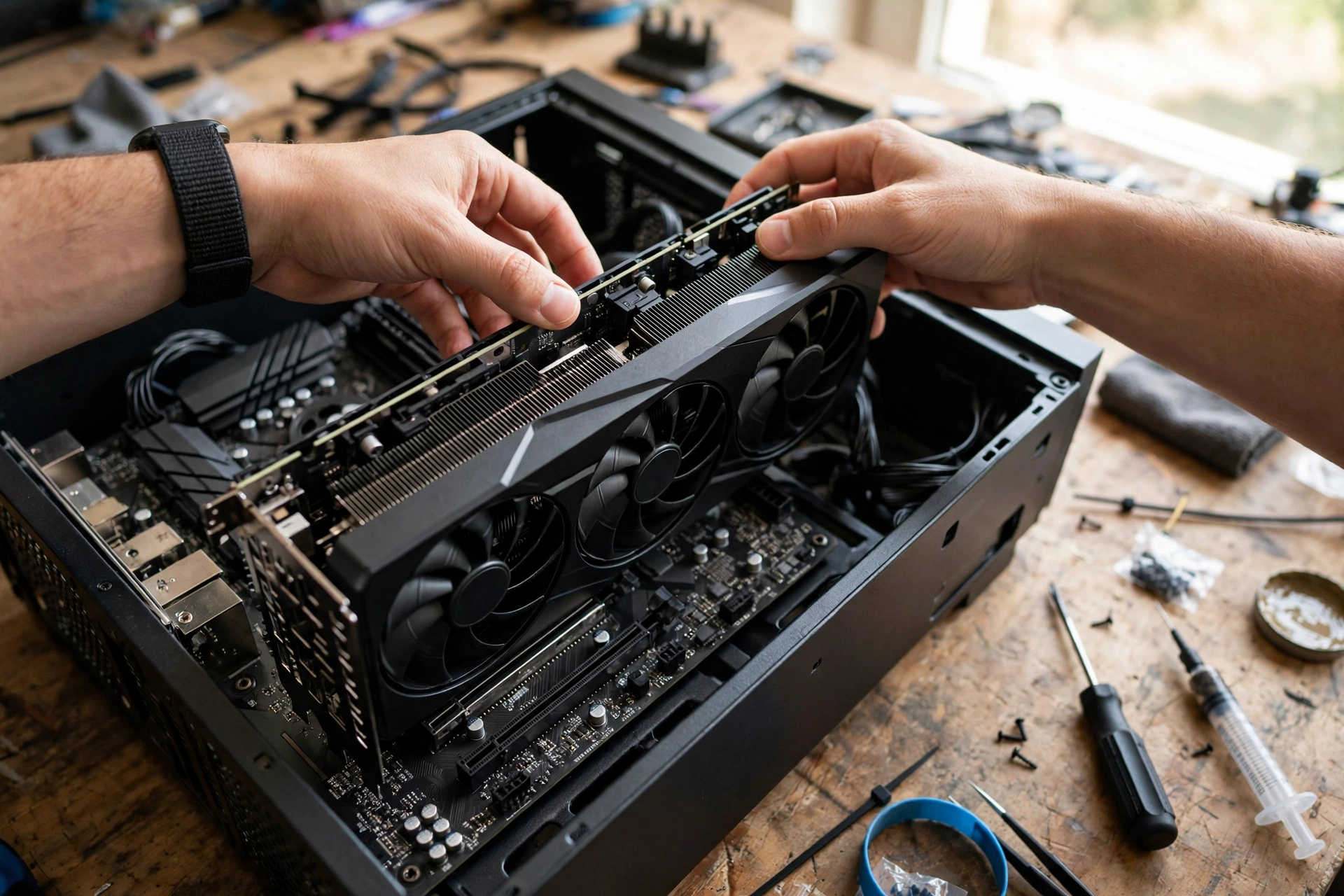
A clean install removes old driver files and settings so the new driver starts fresh. The built in clean install options from NVIDIA and AMD are enough for most cases. Display Driver Uninstaller, usually called DDU, goes further by removing leftover driver files, registry entries, and components that a normal uninstall can leave behind. Use DDU when a normal update or clean install has not fixed the problem, when you are switching between NVIDIA and AMD cards, or when a driver install keeps failing.
Do not use DDU for every routine update. It is a troubleshooting tool, not a monthly habit, and running it without a plan can waste time and introduce new problems if you are not prepared.
When to Use DDU
Use DDU when you see one of these patterns: crashes or black screens that started after a driver change, a driver install that fails repeatedly, control panel features that will not open, leftover settings from a previous card brand, or a switch to a different brand of graphics card. If your only issue is that a game runs slowly, check the bottleneck and performance diagnosis section later in this guide first, because DDU will not fix a genuinely weak CPU, a thermal limit, or a game setting that is too high for your card.
DDU Safe Mode Steps
Follow these steps in order, and do not skip the preparation stage.
- Download the new driver package for your card from the official NVIDIA, AMD, or Intel page first, but do not install it yet. Save it somewhere easy to find, such as your Desktop.
- Download DDU from its official site and extract it to a folder on a local drive, such as your Desktop. Do not run DDU from a network drive or a cloud synced folder.
- Save all open work, close your apps, and disconnect your PC from the internet by unplugging Ethernet or turning off Wi-Fi. This stops Windows Update from installing a different driver while you work.
- Boot into Safe Mode. On Windows 10 or Windows 11, hold Shift, click Restart from the Power menu, then choose Troubleshoot, Advanced options, Startup Settings, and Restart. When the list appears, press 4 or F4 for Enable Safe Mode.
- In Safe Mode, open the extracted DDU folder and run Display Driver Uninstaller as administrator. Choose GPU as the device type, choose your card maker (NVIDIA, AMD, or Intel), then choose Clean and restart. If you are physically swapping the card, choose Clean and shutdown instead, then power off and swap the card before you power on again.
- After the restart, stay disconnected from the internet and install the driver package you downloaded in step 1. A low resolution display at this stage is normal until the new driver is installed.
- Restart once more, reconnect to the internet, verify the installed driver version, and test a familiar game.
What Not to Delete With DDU
DDU is designed to remove graphics driver components, but you should still be careful. Do not delete personal files, game installs, or folders you do not recognize. Do not run DDU on the wrong device type, and do not remove audio drivers or chipset drivers unless a trusted guide for your exact problem tells you to do so. Do not delete your downloaded driver installer before you have finished, because you need it while you are offline. If you use BitLocker, keep your recovery key nearby before you enter Safe Mode. If you sign in with a PIN or Windows Hello, make sure you know your account password, because Safe Mode may not accept a PIN.
How to Roll Back a Bad Driver
A rollback returns your PC to the previous driver when a new release causes crashes, stutter, or broken features. Act quickly, and change only one thing at a time so you can tell what fixed the problem.
First, try Device Manager. Open Device Manager, expand Display adapters, right click your graphics card, choose Properties, open the Driver tab, and click Roll Back Driver if the button is available. Windows will ask why you are rolling back. Choose the closest reason, confirm, and restart. This option is only available if Windows kept the previous driver files, so it may be greyed out after a clean install or a DDU run.
If rollback is not available, reinstall the previous driver manually. Download the older package from the official vendor page, run the installer, and choose a custom or clean installation if offered. This is why noting your previous version before you update matters: without that note, you may have to guess which older release was stable for you.
If neither route works, use the DDU clean install process in the previous section, then install the older known good package while offline. After you recover, wait for the next driver release and read its release notes and known issues before you try updating again. Report the problem through the vendor app or support page if you can, because that feedback helps the vendor fix the bug for other users with the same card.
How Outdated or Broken Drivers Mimic a Bottleneck
A bottleneck usually means one part of your PC is holding back another part, for example a weak CPU limiting a strong graphics card. A driver problem can look exactly like that, which is why drivers should be checked before you blame your hardware. Low GPU usage, sudden frame drops, and stuttering are classic examples. If your graphics card is not being driven correctly, it may sit idle while the CPU waits, or it may render frames unevenly even though neither part is truly overloaded.
Outdated drivers can also miss optimizations for a new game, which makes that game run worse than older games on the same PC. Broken drivers can cause crashes, texture problems, or features such as upscaling and frame generation to behave strangely. None of these symptoms prove your card is too weak. They only prove that something in the chain from game to driver to hardware is not working as intended.
Use this diagnostic checklist before you conclude that you have a hardware bottleneck:
- Check the driver version and date, and compare it with the latest release on the official vendor page.
- Test more than one game. A problem in one game points to that game or its driver optimization, while a problem in every game points to a wider driver or system issue.
- Watch GPU usage and temperature during a game. Low usage with low frame rates and cool temperatures suggests the card is not being fed work, which can be a driver, CPU, or game setting issue.
- Reset in game settings to a known preset, and turn off any new upscaling or frame generation feature you just enabled, to rule out a feature interaction.
- Check for Windows updates, chipset drivers, and BIOS updates only after you have ruled out the graphics driver, since changing many things at once hides the real cause.
- If a clean driver install fixes the problem, note the working version and keep it until the next release is proven stable for your games.
If the problem remains after a clean, current driver install, then look at hardware causes. Our guide to finding a PC bottleneck walks through CPU, GPU, RAM, and storage checks step by step, and our explainer on what a GPU bottleneck means helps you tell a real GPU limit from a driver or settings problem. If frame rates are low in general, the guide on why your FPS is so low covers the most common causes in order.
Common Driver Update Problems and Fixes
A black screen after an update is frightening, but it is often temporary. Wait a few minutes, because the display can flicker or go dark while the new driver loads. If the screen stays black, restart the PC and let Windows load the basic display driver, then reinstall the driver package cleanly. If you still have no display, boot into Safe Mode and use DDU, as described above, then install the known good package.
If the installer fails, close other apps, run the installer as administrator, and make sure you downloaded the package for the correct card model and operating system. A common mistake is installing a desktop driver on a laptop that needs a manufacturer specific package, or installing a driver for the wrong generation of card. Laptop owners should check their laptop maker’s support page if the generic vendor driver refuses to install or causes missing features.
If games crash only after an update, roll back first, as described in the rollback section. Then check whether the crash affects one game or all games, and whether a game update or a Windows update arrived at the same time. If only one game crashes, check that game’s support pages and forums for a known driver issue before you change hardware.
If the vendor app will not open after an update, reinstall the full driver package rather than trying to repair the app alone. The app and the driver are part of the same package for NVIDIA, AMD, and Intel, so a clean reinstall usually restores both. If temperatures rise after an update, check fan curves and power settings in the vendor app, because an update can reset custom profiles. Our guide to GPU thermal throttling explains how heat limits performance and how to tell throttling apart from a driver problem.
When to Update and When to Wait
Update when you have a clear reason: a new game you want to play, a bug fix for a problem you have, a security fix, or a driver that is months out of date. Waiting is sensible when your PC is stable, you are mid project, or the release notes cover only games you do not play. A good routine for most gamers is to check for a driver update when a major game launches, after a Windows feature update, and every month or two if nothing else prompts a check.
Do not chase every optional or beta release unless you need what it fixes. Optional releases can be useful, but they have had less validation, and they are more likely to introduce a new bug. If you do try an optional release, note your previous version first so you can roll back quickly.
Keep a simple driver log. Note the date, the version installed, and whether it worked well. Over a few months, that log becomes the fastest way to answer the question that matters after a bad update: which version was stable for my exact card and games? It also stops you from reinstalling a release you already know caused trouble.
For new PC builders, driver updates are part of the final setup, not an afterthought. If you are planning a build, our complete gaming PC build guide covers assembly and setup, and this driver guide covers the software step that makes that new hardware run as intended. If a new build still feels slow after a clean driver install, check CPU limits with our guide on how to fix a CPU bottleneck before you assume the graphics card is at fault.
Frequently Asked Questions
What does updating Nvidia drivers do?
This is a real question asked on Quora, and it is one of the most useful questions a new PC owner can ask. Updating NVIDIA drivers installs newer software that tells your graphics card how to run games and apps. A new release can improve performance in new games, fix crashes and visual bugs, add support for new features, and patch security issues. It does not change your hardware, and it cannot turn a weak card into a strong one, but it can remove software limits that were holding a capable card back.
Do graphics drivers automatically update?
This is also a real question asked on Quora. The honest answer is: partly. Windows Update can install graphics drivers automatically, but those drivers are often older than the latest release from the card maker. NVIDIA, AMD, and Intel apps can notify you about new releases, and some can download them automatically if you enable that setting, but a full driver install usually still needs your approval and a restart. For gaming, do not assume you are current just because Windows is up to date. Check the vendor app or official download page directly.
Should I update my GPU driver if my games already run fine?
Not urgently. If everything is stable and you are not playing a newly released game, you can wait and read feedback on the new release first. Update when a release fixes a bug you have, adds support for a game you want, or when your driver is several months old. Keep a note of your working version before you update, so a rollback is easy if the new release disappoints.
Is a clean install better than a normal driver update?
A normal update is better for routine use, because it is faster and it keeps your settings. A clean install is better when you have a driver related problem, when you are switching card brands, or when old settings may be causing crashes or missing features. DDU is a step beyond a built in clean install, and it should be reserved for stubborn problems, failed installs, and brand switches.
Can a driver update fix low FPS?
Sometimes, yes. If low FPS started after a driver change, or if it affects a newly released game that a new driver optimizes, an update or a rollback can fix it. If low FPS affects all games, started gradually, and persists after a clean driver install, the cause is more likely hardware, heat, settings, or a CPU limit. Work through the diagnostic checklist in this guide before you spend money on new hardware.
How do I know if a new driver caused my problem?
Look at timing. If crashes, stutter, or black screens started right after a driver update, and nothing else changed at the same time, the driver is the prime suspect. Roll back to the previous version and test the same game. If the problem disappears, you have your answer. If it remains after a rollback and a clean install, look at game updates, Windows updates, temperatures, and hardware next.
Conclusion
Updating GPU drivers safely is mostly about using the right source, preparing before you change anything, and knowing how to undo a bad update. Use the NVIDIA app or manual download for GeForce cards, AMD Software: Adrenalin Edition for Radeon cards, and Arc Control or the Intel Driver and Support Assistant for Intel Arc cards. Note your current version first, restart after installing, and verify the new version before you judge the result. Use a built in clean install for most driver problems, save DDU for stubborn cases and brand switches, and roll back promptly when a new release causes trouble.
Most importantly, do not let a driver problem push you into an unnecessary upgrade. Check the driver, run the diagnostic checklist, and test a clean install before you conclude that your card or CPU is holding you back. In a market where new card prices are rising, a few careful minutes on drivers is one of the cheapest performance fixes a PC gamer can make, and it keeps a capable card running at its best for longer.

Leave a Reply