

Quick answer: GPU thermal throttling is your graphics card slowing itself down to survive when it gets too hot. Modern GPUs boost their clock speeds up when they are cool, then quietly cut those speeds as temperature climbs, which drops your FPS and wrecks your 1% lows. If your game starts smooth and turns choppy after 15 to 20 minutes, heat is your bottleneck, not your hardware.
Your game is running great. Forty minutes in, the frames start dipping. An hour later you are staring at stutters that were not there at the start. You blame the game, your drivers, or your CPU. But the real culprit might be sitting right in front of you, getting hotter by the minute.
This is the story of gpu thermal throttling, one of the most misunderstood performance killers in PC gaming. It is also one of the most fixable. Unlike a true CPU or GPU bottleneck, where one part is simply not fast enough for the other, throttling means your card already has the speed you paid for. It just cannot use it because of heat. That distinction matters, because the fix costs nothing while a wrong upgrade costs hundreds.
It matters even more right now. GPU prices surged through 2026, with retail trackers showing RTX 50-series cards up roughly 66% year over year and AMD raising memory prices for partners on October 1. Buying your way out of a performance problem is expensive. Diagnosing whether heat is the real limiter is free.
What GPU Thermal Throttling Actually Is
Every modern graphics card has a built-in survival instinct. Inside the silicon, thermal sensors watch the temperature constantly. When the temperature approaches a limit called TjMax (the maximum junction temperature set by the manufacturer), the card cuts its own power and clock speeds to cool down. This happens at the firmware level, faster than any software could react. The card would rather run slower than cook itself.
Think of it like a runner on a hot day. Your legs are strong enough to sprint, but your body forces you to slow down before you overheat. The strength never left. The heat just will not let you use it.
This is different from what a true GPU bottleneck is, where the graphics card is simply the slowest part in your system and holds everything back from the first second. Throttling is a bottleneck that arrives late, and that timing is your biggest clue.
TjMax and the Two Temperatures That Matter
You need to know about two different temperature readings, because mixing them up causes most confusion.
The first is the average GPU temperature, sometimes called edge temperature. This is what most tools showed you for years, and it is the number most people quote.
The second is the hotspot temperature, also called junction temperature. This is the single hottest point on the chip, and it can run 15 to 30 degrees hotter than the average reading. According to repair technicians testing with NVIDIA’s internal diagnostic tools, an RTX 5070 Ti can report a calm 68 degrees in Windows while its hotspot sits at 107 degrees and the card silently cuts clocks. If you only watch the average, you will never see the problem.
The lesson is simple. Always check both numbers. If the gap between average and hotspot is larger than 20 degrees under full load, something is wrong with the contact between the chip and the cooler, usually dried thermal paste or poor mounting. PCWorld’s October 2026 hardware guide puts it plainly: a delta above 20 degrees is a warning sign, and at 30 degrees the card is already throttling to protect itself.
Why Heat Is a Bottleneck, Not Just a Number
A temperature number on its own means nothing. What matters is what heat does to your clock speeds, because clock speed is what produces frames.
How Boost Clocks Turn Temperature Into FPS
Modern GPUs do not run at one fixed speed. They use boost algorithms that push clocks as high as power, voltage, and temperature allow. When the card is cool, it boosts high. As temperature climbs toward the limit, it trims the boost in small steps, sometimes 15 MHz at a time. Each step is small, but they stack up over a long session.
Here is the part most articles skip. The damage is not evenly spread. Your average FPS might only drop modestly, but your 1% lows, the worst one percent of frames, can collapse far harder. Those lows are the stutters you feel when the game freezes for a beat during a fight. Digital Trends’ breakdown of thermal throttling notes the same effect: modern cards trim clocks in small steps, and the result is a frame rate that tanks right when smooth delivery matters most. This is why your FPS can look fine on paper while the game feels awful.
The 20-Minute Test
Throttling has a signature pattern that no other problem copies exactly. Play a demanding game for 20 minutes while watching your GPU clock speed and temperature. At minute one, clocks are high and temps are rising. Around minute 10 to 20, temps flatten near the limit and clocks start a slow decline. The longer you play, the worse it gets. Short sessions often mask the problem completely, which is why the issue can hide for months.
Hardware Times described the telltale sign as a sawtooth pattern in the clock graph: frequencies climb, temperatures spike, clocks drop, the card cools briefly, and the cycle repeats. If your monitoring graph looks like teeth on a saw, you are watching throttling in real time.
Safe GPU Temperatures by Card Class
Safe temperatures depend on your card class, because NVIDIA and AMD set different limits for different architectures. The table below groups the most common gaming cards. Exact numbers vary by model and cooler design, so treat these as reliable guideposts and check your card maker’s spec sheet for the final word.
| Card Class | Normal Gaming Range | Start Worrying Here | Verified Thermal Limit |
|---|---|---|---|
| NVIDIA RTX 50 series | 65 to 85C core | Hotspot at 95C+ for 10+ minutes | 107C hotspot (NVIDIA); board partners treat sustained 95C+ as overheating |
| NVIDIA RTX 40 series | 65 to 80C core | Core at 88C or higher | Typical slowdown zone begins in the low 80s; shutdown near 100C+ |
| NVIDIA RTX 30 series | 70 to 83C core | GDDR6X memory junction at 100C+ | 106 to 110C memory junction (Tom’s Hardware testing) |
| AMD RX 9000 series | 55 to 75C core | Hotspot at 100C+ sustained | 110C maximum junction temp (AMD) |
| AMD RX 7000 / 6000 series | 60 to 80C core | Hotspot at 105C+ sustained | 110C maximum junction temp (AMD) |
| GTX 16 series and older | 65 to 80C core | Core at 88C or higher | 95 to 100C typical shutdown range |
Two rules of thumb work across every generation. First, for the GPU core, most cards should stay under 80 to 85 degrees while gaming. Tom’s Hardware recommends keeping core temps well south of 90 degrees, and suggests comparing your average clocks after 15 minutes of gaming to the card’s advertised boost clock. If you are running 100 MHz or more below that number, heat is likely costing you performance. Second, for AMD cards and NVIDIA memory, the junction reading matters more than the core average, and 110 degrees is the widely documented danger line.
The RTX 50 Hotspot Story
If you own an RTX 50-series card, this section is for you, because the rules changed this year.
When NVIDIA launched the Blackwell cards, the company stopped exposing the hotspot temperature through its public monitoring interface. Your average temperature looked fine, but you could not see the hottest point on the die. Reviewers and repair techs flagged this as a real problem for diagnosis, because a card could be throttling while every visible number looked normal.
In July 2026, third-party tools finally caught up. HWMonitor 1.65, HWiNFO, AIDA64, and a community plugin for MSI Afterburner all added hotspot readings for RTX 50 cards. Within weeks, owners started posting hotspot readings of 100 degrees and higher on cards that reported comfortable average temps. One board partner, Colorful, told a customer that sustained temperatures at 95 degrees or higher for more than 10 minutes under heavy load should be treated as overheating, and that persistent readings in that range deserve an inspection.
The practical takeaway is clear. Update your monitoring software to a version that reads RTX 50 hotspot temperatures, and do not judge your card by the average alone. A card that looks cool can still be heat-limited.
What This Means for Older Cards Too
The hotspot lesson applies beyond RTX 50. On cards with GDDR6X memory like the RTX 3070 Ti through 3090, the memory junction can throttle the card even when the core looks comfortable. Tom’s Hardware documented that GDDR6X typically starts throttling around 106 to 108 degrees and can run at 102 degrees sustained on Founders Edition cards, technically within spec but well into the zone where you lose boost headroom. On AMD cards, the hotspot reading has always been visible, which is one reason AMD owners spotted throttling earlier.
Thermal Throttling vs a Real Bottleneck
This is the question that matters most for this site’s readers, because throttling and bottlenecking get confused constantly. They feel similar, but they mean opposite things. A bottleneck means your hardware cannot do the job. Throttling means your hardware can do the job but heat will not let it.
Here is how to tell them apart with real data.
Pattern 1: Heat throttling. Your GPU usage sits near 95 to 100%, which normally means the card is working at full capacity. But your clock speeds slide downward as temperature climbs. The monitoring graph shows that sawtooth pattern. Performance is great at minute one and worse at minute twenty.
Pattern 2: True CPU bottleneck. Your GPU usage sits well below 95%, often 60 to 70%, while one or two CPU cores are maxed out. Clock speeds stay high and stable. Performance is the same at minute one and minute sixty. Heat has nothing to do with it. Our guide to the signs your CPU is bottlenecking your GPU covers this pattern in detail, and the symptoms look nothing like throttling once you know what to watch.
Pattern 3: The card is simply maxed out. GPU usage near 100%, clocks stable, temperatures normal. The card is giving you everything it has. This is not throttling and not a bottleneck. It is a card that has hit its honest limit, and the answer is lower settings or a stronger card, not a thermometer.
One more trap to avoid. Low GPU usage plus high temperatures does not mean heat is the problem. A card can run hot simply because the case has poor airflow while the real limiter is elsewhere. Temperature alone never diagnoses anything. Temperature plus falling clocks plus falling FPS is the full picture.
How to Diagnose Throttling in 20 Minutes
You do not need special skills or paid software. Every tool in this test is free, and the whole process takes one gaming session.
- Install monitoring. Get MSI Afterburner for the on-screen display and HWiNFO64 for deep sensor readings including hotspot and junction temperatures. Both are free. Enable logging so you can review the numbers afterward.
- Turn on the PerfCap reason indicator. In Afterburner, the PerfCap reason tells you exactly what is limiting your card. If it reads “Therm,” your card is telling you directly that temperature is the cap. If it reads “Power” or “VOp,” the limiter is something else.
- Play one demanding game for 20 minutes. Pick something that pushes your GPU hard at your usual settings. Note your FPS at minute one and again at minute twenty.
- Read the graph. Look at clock speed and temperature over time. Stable clocks with falling FPS means something else is wrong. Falling clocks that track rising temperatures mean heat. Compare your average clock after 15 minutes to the card’s advertised boost clock. A gap of 100 MHz or more points at throttling, following Tom’s Hardware’s widely cited rule of thumb.
- Check the frametimes. Tools like CapFrameX record your 1% and 0.1% lows. If average FPS looks fine but the lows are terrible, throttling is the prime suspect. Smooth averages with ugly lows is the classic signature.
If you want a deeper baseline for your hardware before you start, our roundup of the best free benchmark software includes tools that log temps and clocks during stress tests.
What to Check Before You Spend a Dollar
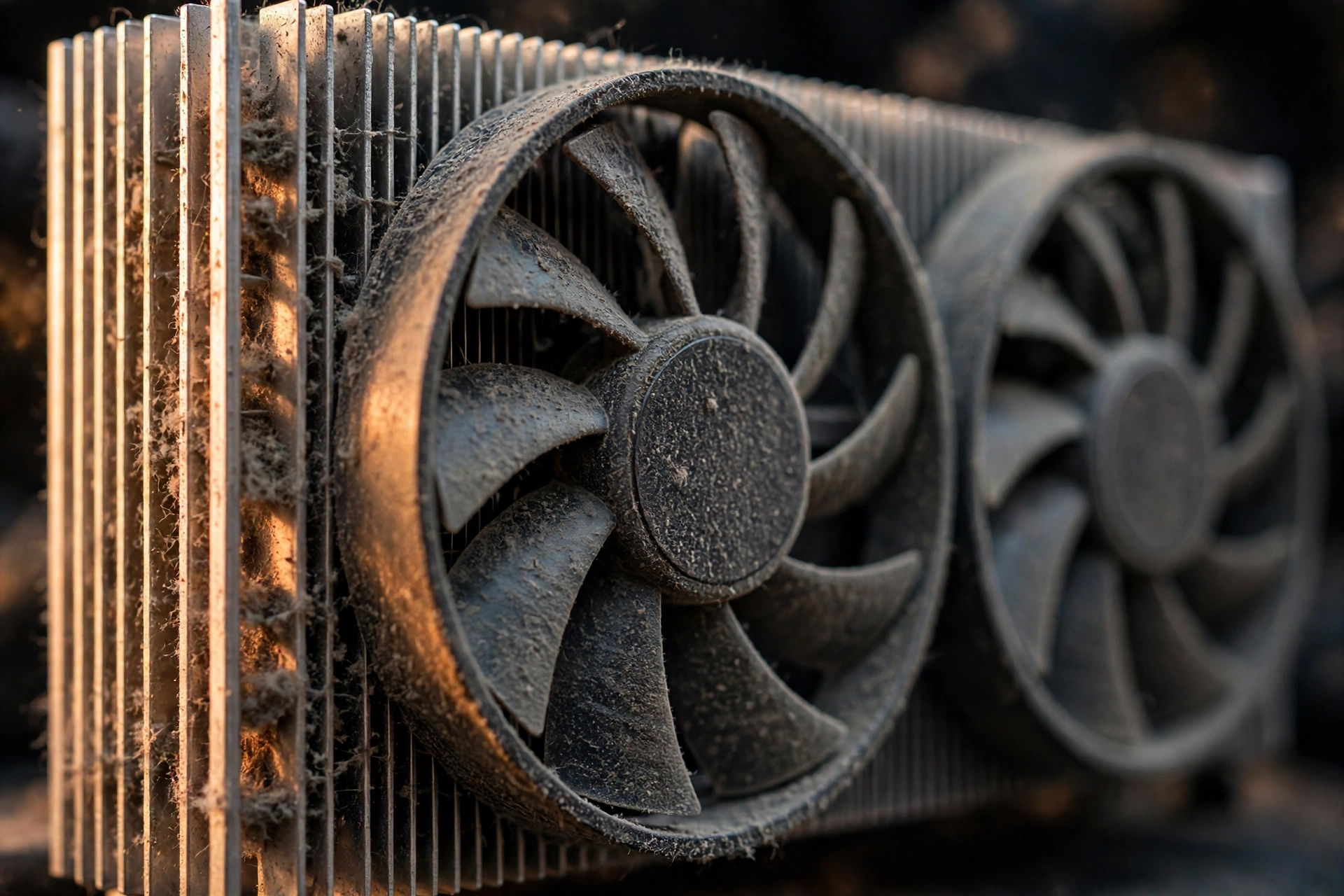
When the diagnosis confirms throttling, the fixes start with inspection, not spending. The most common causes are boring, which is exactly why they get missed.
Start with dust. A heatsink packed with dust and a fan caked in grime can raise temperatures sharply on its own. One widely shared community case involved a laptop owner whose GPU hit 87 degrees on a loading screen and idled at 60 degrees; shining a flashlight through the vents revealed the heatsink was blocked, and a careful blast of compressed air dropped idle temps back to 30 degrees and restored full performance.
Next, check the hotspot delta. If your average temperature looks fine but the hotspot sits 25 to 30 degrees higher, the thermal paste has likely dried out or the cooler is not making good contact. Repasting fixes this, and it is the single most effective free repair for an aging card.
Finally, look at your case. A card suffocating in a case with no exhaust will throttle no matter how clean it is. Our PC cooling guide for 2026 walks through airflow layout, fan placement, and the common mistakes that trap heat inside a case, including how many intake and exhaust fans you actually need and where to put them. The guide covers the full cooling picture, so start there if airflow is your weak spot. This article stays focused on the throttling itself: how heat steals your frames and how to prove it.
One more note on priorities. With GPU prices still inflated through late 2026, keeping your current card out of throttling is the cheapest performance upgrade available. A dusty card losing 15% of its boost is a problem you can fix in an afternoon.
Common Mistakes That Cost You FPS
Mistake 1: Watching average temperature only. As the RTX 50 story shows, the average can lie. Always check hotspot or junction readings alongside it.
Mistake 2: Assuming low FPS means a weak GPU. Throttling produces the same symptom, low FPS, from a card that is actually strong enough. Diagnose before you shop.
Mistake 3: Ignoring the 1% lows. Average FPS hides throttling. The lows reveal it. If you never measure frametimes, you are grading your card on the wrong number.
Mistake 4: Blaming the CPU first. A CPU bottleneck shows low GPU usage and stable clocks. Throttling shows high GPU usage and falling clocks. The data points in opposite directions, so check the numbers instead of guessing.
Mistake 5: Overclocking a hot card. Pushing more voltage into a card that already throttles just makes it throttle harder. Fix the temperatures first, then decide if overclocking makes sense.
Frequently Asked Questions
How do I know if my GPU is thermal throttling?
Monitor your GPU temperature, clock speed, and the PerfCap reason in MSI Afterburner or HWiNFO64 while gaming for 20 minutes. If temperatures climb near the limit while clock speeds slide downward and FPS follows, your card is thermal throttling. The PerfCap indicator reading “Therm” is the card telling you directly. Real users on forums describe the same giveaway: temperatures close to 90 degrees with clocks bouncing around instead of holding steady.
Does thermal throttling reduce FPS?
Yes, directly. Throttling lowers the GPU’s core and memory clock speeds to cut heat, which slows the card’s ability to process frames. The effect shows up immediately as FPS drops and stuttering. If throttling continues because temperatures never come down, the card keeps cutting clocks, and the stutters get worse the longer you play.
What are the common symptoms of thermal throttling in a GPU?
The classic symptoms are sudden FPS drops during games, stuttering or lag spikes that get worse over a session, fans running at maximum speed constantly, and in severe cases visual glitches like flashing textures or even system crashes. The defining trait is timing: everything starts fine and degrades as heat builds up.
What temperature will make my GPU shut down?
Most high-end GPUs have a maximum temperature between 95 and 105 degrees Celsius before the system forces a shutdown to prevent damage. The exact number depends on the card. AMD sets a 110-degree maximum junction temperature on its modern cards, while NVIDIA’s RTX 50 series throttles at a 107-degree hotspot. Shutdown is the last resort, and throttling happens well before it.
Is GPU thermal throttling bad, or is it protecting my card?
It is both. Throttling is a protection system doing its job, and it prevents permanent damage. But while it protects the silicon, it costs you the performance you paid for. Occasional mild throttling in a heat wave is normal. Constant throttling in normal conditions means something is wrong with your cooling, your paste, or your airflow, and it deserves attention.
Why does my FPS start high then drop to 10-20 after a few minutes?
This is one of the most reported throttling patterns in community forums. One user described running at 100 FPS for about 15 seconds, then getting throttled into huge stutters at 10 to 20 FPS that made the game unplayable. The cause was heat: the card boosted hard at first, hit its thermal limit, and cut clocks aggressively. Short sessions hide this completely, which is why a 20-minute monitored test is the right way to confirm it.
My GPU hits 90C in games and the clocks keep jumping around. Is that throttling?
Very likely yes. As one experienced builder explained on Quora, if your temperature is close to 90 degrees and your clocks are bouncing around instead of holding steady, that is thermal throttling in action. The card is not broken. It is protecting itself. But the bouncing clocks are costing you smooth frames, so it is worth checking your cooling, your hotspot delta, and your fan curve.
Key Takeaways
- GPU thermal throttling is your card cutting its own clock speeds to survive heat, and it costs you real FPS, especially in your 1% lows.
- Watch hotspot and junction temperatures, not just the average. A delta above 20 degrees between the two means your cooler is not doing its job.
- The signature of throttling is timing: great performance at minute one, worse at minute twenty, with a sawtooth pattern in your clock graph.
- Throttling is not a bottleneck. High GPU usage with falling clocks means heat. Low GPU usage with stable clocks means a true CPU bottleneck.
- With GPU prices still inflated in late 2026, fixing throttling on your current card is the cheapest performance upgrade you can make.
Conclusion
Heat is the quietest bottleneck in PC gaming. It never shows up in a parts list, it hides behind normal-looking temperatures, and it makes a strong card perform like a weak one. But it is also the bottleneck you can diagnose in one evening with free tools, and often fix without spending anything.
The next time your frames start strong and fade, do not reach for your wallet first. Reach for a monitoring overlay. Check the clocks, check the hotspot, and let the data tell you whether your problem is speed or temperature. If it is temperature, you just found free performance sitting inside your case. And if the numbers look clean, our guide on how to increase FPS covers the real settings and tweaks that lift frame rates when heat is not the issue.
*Sources: Tom’s Hardware’s guide on checking graphics card temperature and what counts as too hot; Digital Trends’ breakdown of thermal throttling and frame rates; PCWorld’s October 2026 guide on hotspot deltas and diagnosing an overheating graphics card.*

Leave a Reply