

Quick Answer: To find a PC bottleneck, run a game with MSI Afterburner or Task Manager open and compare CPU vs GPU usage. If the GPU sits at 95-100% while the CPU is much lower, the GPU is your limit. If the CPU is pinned near 100% while the GPU waits, the CPU is your limit. Then confirm with a resolution scaling test.
Learning how to find pc bottleneck problems in your own rig is easier than most guides make it sound. You do not need expensive equipment or a degree in computer science. You just need to know which numbers to watch, where to watch them, and what they actually mean. In this guide, I will walk you through the same diagnostic process that tech reviewers use, broken into eight simple steps you can follow tonight.
Start With Task Manager
The fastest way to start diagnosing is already on your PC. Press Ctrl + Shift + Esc to open Task Manager, click the Performance tab, and you will see live graphs for your CPU, GPU, memory, and disk. Now launch a demanding game, play for five to ten minutes, then Alt-Tab back to Task Manager.
Look for one component sitting at or near 100% while the others are clearly lower. That mismatch is your first clue. For example, if your CPU graph is pinned at 98% while your GPU is only doing 55%, your processor is very likely holding the system back. Flip those numbers around and the graphics card is your limit.
Task Manager is free and instant, but it has real limits. It shows averages over time, so brief spikes get smoothed out. It also does not show per-core CPU load in the main view, which matters a lot (more on that in Step 3). Think of it as a quick first look, not the final verdict.
Takeaway: Task Manager takes 30 seconds and needs no install, making it the perfect first screen before you move to better tools.
Read CPU and GPU Usage Numbers the Right Way
Here is the golden rule of bottleneck hunting. Run your game and compare just two numbers: CPU usage and GPU usage.
| What You See | What It Means |
|---|---|
| GPU at 95-100%, CPU clearly lower | GPU bottleneck. Your graphics card is maxed out and doing all it can. This is the healthy, normal state for most gaming PCs. |
| CPU at 90-100%, GPU sitting well below 90% | CPU bottleneck. Your processor cannot feed frames to the graphics card fast enough, so the GPU waits around. |
| Both CPU and GPU near 100% | Balanced system under a very heavy load. You are simply asking more than the whole PC can deliver at these settings. |
| Neither component working hard, but FPS is low | Something else is wrong. Check for a frame rate cap, VSync, thermal throttling, or a hidden limiter like RAM or storage (see Step 8). |
One important warning before you trust these numbers: turn off any frame rate cap first. VSync, in-game FPS limits, and driver-level caps all tell your hardware to stop working once a target is hit. That makes usage numbers look artificially low and hides the real bottleneck. Disable the cap, run the test, then turn it back on.
If you want the deeper theory behind these two bottleneck types, our CPU bottleneck vs GPU bottleneck comparison breaks down exactly how each one behaves in real games.
Takeaway: GPU near 100% with a relaxed CPU means the GPU is the limit. CPU near 100% with a bored GPU means the CPU is the limit. Test with frame caps off or the numbers lie.
Check Per-Core CPU Usage, Not the Total Number
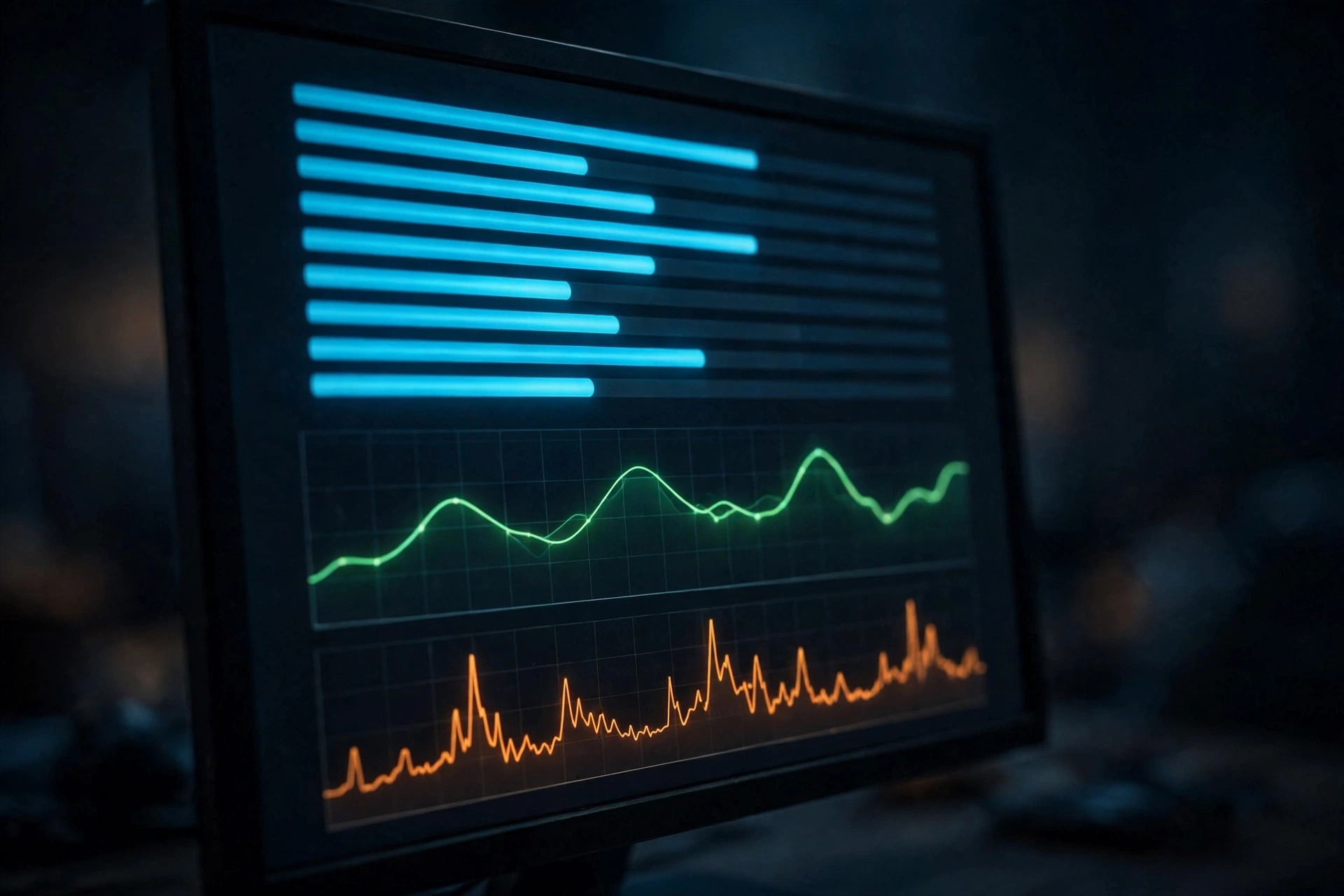
This is the step where most people get fooled. Total CPU usage can read a calm 35% while one individual core is screaming at 100%. Many games still lean heavily on one or two main threads, so a single maxed-out core can bottleneck your whole system even when the overall number looks fine. Forum veterans on Linus Tech Tips have pointed this out for years: per-core usage is far more accurate than the total percentage.
To see it, use a free tool like MSI Afterburner with its on-screen display, or HWiNFO64. Enable the per-core CPU graphs and play your game normally. If one or two cores are pinned near the top while the GPU is under 90%, you have a CPU bottleneck hiding behind a low total number.
If you would rather learn the warning signs by feel first, we put together a plain-English list of the 10 signs your CPU is bottlenecking your GPU that pairs well with this test.
Takeaway: Never judge the CPU by its total usage number. One pinned core is all it takes to hold back a powerful GPU.
Watch Frametimes and 1% Lows, Not Just Average FPS
Average FPS is the most quoted number in gaming, and it is also the most misleading. An average of 120 FPS can hide terrible stuttering if half the frames arrive smoothly and the other half arrive late. That is why reviewers talk about frametimes (how long each individual frame takes, measured in milliseconds) and 1% lows (the worst 1% of frames).
In MSI Afterburner, enable the frametime graph. A healthy run looks like a fairly flat line. A CPU bottleneck usually shows as frequent tall spikes, which you feel as micro-stutter even when the average FPS number looks fine. If your average FPS seems okay but the game feels choppy, this is almost always where the answer hides.
For a broader look at why frame rates drop in the first place, see our guide on why your FPS is so low.
Takeaway: Flat frametime graph means smooth. Tall frequent spikes mean something, usually the CPU, is struggling to keep up.
Run the Resolution Scaling Test
This is the cleverest free test in this guide, and it needs no software at all. It comes from years of forum wisdom on AnandTech and Tom’s Hardware, and it works because of one simple fact: raising the resolution makes the GPU work much harder while barely changing the CPU’s workload.
Here is how to do it:
- Pick a repeatable scene in your game, like standing in one busy spot.
- Note your FPS at your normal resolution.
- Drop the resolution one step (for example, from 1440p to 1080p) and note the FPS again.
- If FPS jumps up a lot (roughly 25-30% or more), your GPU was the limit. Giving it less work let it fly.
- If FPS barely moves (under 10% or so), your CPU was the limit. The GPU already had spare capacity it could not use because the CPU was not feeding it fast enough.
Try it the other direction too. Raise the resolution: if FPS barely drops, your CPU was the bottleneck all along, because the GPU had headroom to render the extra pixels without slowing down.
Takeaway: When changing the resolution barely changes your FPS, the CPU is the bottleneck. When FPS follows the resolution up and down, the GPU is the bottleneck.
Use a Bottleneck Calculator as a Rough Starting Point
Online bottleneck calculators compare your CPU and GPU specs and spit out a bottleneck percentage. They can be handy as a quick sanity check before you buy parts, but they cannot see your games, your settings, your resolution, or your cooling, so treat the number as a rough estimate, never a verdict. We dug into exactly how trustworthy these tools are in our guide on are bottleneck calculators accurate, and the short version is: useful starting point, poor finishing point.
The right way to use one is simple. Enter your exact CPU and GPU, read the estimate, then verify it with the real-world tests from Steps 1 through 5. If the calculator and your own testing agree, you can trust the result. If they disagree, trust your testing. Before comparing parts, it also helps to look up your exact card’s specifications on the TechPowerUp GPU database so you are comparing real numbers, not marketing names.
Takeaway: Calculators guess from spec sheets. Your own monitoring tells the truth. Use the first to plan, the second to decide.
Confirm With Real In-Game Testing
A bottleneck found in one game might not exist in another. Strategy games and simulators with hundreds of units hammer the CPU. Cinematic single-player games at high settings hammer the GPU. Competitive shooters at low settings to chase high refresh rates hammer the CPU again. So test at least two or three different games, and test the busy moments, not empty menus or calm starting areas.
A few practical rules for honest testing:
- Close background apps first. A browser with 40 tabs or a recording tool can eat enough CPU to fake a bottleneck.
- Keep your graphics drivers current. Grab the latest package from NVIDIA’s driver page if you run a GeForce card, or the equivalent for your brand, because old drivers can cause stutter that looks like a hardware limit.
- Watch temperatures during the test. A hot CPU or GPU slows itself down to survive, which looks exactly like a bottleneck but is really a cooling problem. We explain the difference in our guide to GPU thermal throttling.
- Compare your results against published reviews of your hardware, such as the benchmark suites at Tom’s Hardware, to see whether your numbers are in the normal range or something is off.
- For repeatable numbers, run a proper benchmark instead of eyeballing it. Our roundup of the best free benchmark software lists tools that give you clean, comparable scores.
Takeaway: One game is an anecdote. Three games, with temps watched and drivers current, is a diagnosis.
Hunt the Hidden Limiters
Sometimes the CPU and GPU numbers look fine, yet the game still stutters. That usually means a third component is the real bottleneck.
RAM: Capacity and Speed
Open Task Manager’s memory graph while gaming. If committed memory is sitting above 90% of your total RAM, Windows starts paging data to your drive, which is thousands of times slower than RAM and causes brutal stuttering. Slow RAM speed or single-channel mode (one stick instead of two) can also quietly hold back your CPU. Our guide on how much RAM you really need for gaming walks through capacity and speed in detail.
VRAM: Your Graphics Card’s Own Memory
Watch the dedicated GPU memory graph in Afterburner. If it is completely full and you see texture pop-in, blurry textures, or sudden stutters when you turn around, the card is running out of VRAM. The fix is usually lowering texture quality one notch, which barely changes how the game looks but frees a lot of memory.
Storage: The Slow Drive Problem
On the disk graph, a hard drive pinned at 100% active time during loading or open-world streaming is a classic storage bottleneck. Moving the game to an SSD usually fixes it outright. We covered the full picture in our article on what a storage bottleneck is, including the signs that your drive, not your CPU or GPU, is slowing games down.
Takeaway: If CPU and GPU both look innocent, check RAM usage, VRAM usage, and disk activity before you blame either of them.
How Frame Generation Changes the Answer
There is a new twist to bottleneck hunting in 2026: frame generation. NVIDIA launched a faster DLSS 5 model on October 16 with up to a 1.4x frame-rate boost and a new “Preset C” for frame generation (reported by pokde.net). Frame generation creates extra frames with AI instead of rendering them the traditional way, which takes load off the GPU.
Here is the catch: your CPU still has to prepare every frame, real or generated. So when frame generation pushes your FPS much higher, the CPU can become the new bottleneck even though the GPU is relaxed. If you test with DLSS frame generation on and see low GPU usage with high FPS, turn frame generation off and retest to find the true hardware limit underneath. Our article on whether DLSS reduces CPU bottleneck digs into this relationship in more depth.
Takeaway: Frame generation can mask a GPU bottleneck and expose a CPU one. Always run your diagnostic tests with it off, then turn it back on for actual play.
Common Mistakes
- Trusting the total CPU percentage instead of per-core usage.
- Testing with VSync or an FPS cap turned on, which fakes low usage numbers.
- Testing only one game and assuming the result applies everywhere.
- Ignoring temperatures, so thermal throttling gets misread as a bottleneck.
- Blaming the hardware when a driver issue or background app is the real cause.
- Checking usage on the desktop or in menus instead of during heavy gameplay.
- Treating a bottleneck calculator percentage as a final verdict instead of a hint.
Takeaway: Most wrong diagnoses come from the test setup, not the hardware. Cap off, temps watched, multiple games, per-core view.
What to Do After You Find Your Bottleneck
Once you know which part is the limit, the fix becomes obvious. If the tests point at the CPU, our how to fix a CPU bottleneck guide covers everything from free tweaks to upgrade picks. If they point at the GPU, our how to fix a GPU bottleneck guide does the same. And before spending anything, try the free performance wins in our how to increase FPS guide, since a few settings changes sometimes remove the need for an upgrade entirely.
One honest note on timing. Current-generation GPU prices have risen a median of 33% over the last 90 days according to SmartValueLab’s October 13 tracking, so a discounted last-generation card often beats a new one on value right now. On the high end, NVIDIA denied RTX 5090 discontinuation rumors on October 17, but supply remains extremely tight with street prices still sitting above $5000 (reported by wccftech). Those are current market snapshots, not buying advice, and prices move fast.
Takeaway: Diagnose first, then fix. Free tweaks beat paid upgrades, and a verified bottleneck beats a guessed one every time.
Frequently Asked Questions
How do I detect and differentiate a CPU and GPU bottleneck?
Monitor both while gaming. A GPU bottleneck shows the graphics card at 95-100% usage with the CPU well below that. A CPU bottleneck shows one or more CPU cores pinned near 100% while the GPU sits under 90%. The resolution scaling test in Step 5 confirms which one it is without any extra software.
How can I tell if my CPU is slowing down my GPU?
Watch per-core CPU usage in MSI Afterburner or HWiNFO during gameplay. If one or two cores are maxed out while your GPU usage stays low, your CPU is slowing down your GPU. Low total CPU percentage does not clear the CPU, because most games lean on just a few cores.
Is my CPU bottlenecking my GPU?
Run the tests in this guide and you will know for sure in about 20 minutes. The quick check: GPU under 90% with a CPU core pinned near 100% means yes. Also try lowering your resolution one step. If your FPS barely improves, the CPU is holding the GPU back.
How do you determine whether CPU or GPU bottlenecks?
Use the resolution scaling test. Lower the resolution: a big FPS jump means the GPU was the limit, almost no change means the CPU was the limit. Back it up with usage monitoring from Task Manager or Afterburner, and test more than one game before you decide.
Why is my FPS unchanged after upgrading my GPU?
The most common cause is a CPU bottleneck. If your processor cannot prepare frames any faster, a stronger graphics card just waits around like the old one did. Check per-core CPU usage while gaming. If a core is pinned and the new GPU is underused, the CPU is your limit, not the card.
What bottleneck percentage is acceptable between a CPU and GPU?
There is no official number, but as a practical rule, under 10% on a calculator estimate is nothing to worry about, 10-20% is worth checking with real testing, and anything consistently above that deserves attention. Remember that calculators are rough estimates. Your own in-game monitoring matters far more than any percentage.
Does a CPU or GPU bottleneck hurt anything other than performance?
For the most part, no. A bottleneck just means one part waits on another, so you get less performance than you paid for. It does not damage anything. The one exception is heat: if the limiting component runs hot because of poor cooling, high temperatures over long periods are worth fixing for the health of the part.
How do I know if a CPU will or won’t bottleneck a GPU before buying?
Check published benchmarks for your target resolution and the games you play. If every CPU tested gets the same FPS in a review, the GPU is the limit at those settings. If faster CPUs score clearly higher, the CPU matters and a weak one will bottleneck. Then sanity-check the pairing with a bottleneck calculator and our accuracy guide before you spend money.
Key Takeaways
- Compare CPU vs GPU usage while gaming: GPU at 95-100% means a GPU limit, a pinned CPU with a waiting GPU means a CPU limit.
- Always check per-core CPU usage, because total CPU percentage hides single-thread bottlenecks.
- Watch frametimes and 1% lows, not just average FPS, to catch stutter.
- The resolution scaling test confirms your diagnosis with zero software.
- Test multiple games, watch temperatures, and update drivers before trusting any result.
- Check RAM, VRAM, and storage when the CPU and GPU both look innocent.
- Run diagnostic tests with frame generation off, then enable it for actual play.
Conclusion
Finding a PC bottleneck is a skill, not a guess. Start with Task Manager for a quick read, move to per-core monitoring and frametime graphs for the real picture, confirm with the resolution scaling test, and always check the hidden limiters before you blame the CPU or GPU. Follow these eight steps and you will know exactly which part is holding your PC back, and whether it is worth upgrading or just a settings tweak away from smooth. Once you have your answer, our fix guides will help you turn that diagnosis into real FPS gains.

Leave a Reply