

Quick Answer
A storage bottleneck happens when your drive cannot feed game data to your CPU and GPU fast enough. The clearest signs are long loading screens, texture pop-in, stuttering during fast movement, 100% disk usage in Task Manager, and shader compile delays. An old HDD is the most common cause, but even a nearly full or aging SSD can slow games down. The fix is usually moving games to an SSD, keeping 15 to 20% free space, and using an NVMe drive for DirectStorage titles.
What Is a Storage Bottleneck?
A storage bottleneck is what happens when your SSD or HDD is the slowest link in your gaming PC. Your CPU crunches game logic, your GPU draws every frame, but both of them keep waiting because the drive cannot deliver textures, models, and world data on time. When your game asks for data and the drive answers too slowly, you get longer loads, visible pop-in, and stutters that no graphics setting can fix.
Here is the key thing most guides skip: a storage bottleneck rarely lowers your average FPS. Your GPU still renders frames at full speed whenever the data is ready. What storage ruins is frame-time consistency, the smoothness between frames. You can hold 120 FPS on average and still feel constant hitches, because the drive stalls the pipeline for a few dozen milliseconds at a time. That is why people blame their graphics card first, tweak settings for hours, and see nothing change. The real culprit is the drive.
How is this different from other bottlenecks?
If you have been reading our bottleneck guides, you know the usual suspects. A CPU bottleneck shows up as low GPU usage and high CPU usage, and our 10 signs of a CPU bottleneck guide covers that pattern in detail. A storage bottleneck looks different: your CPU and GPU usage stay healthy, yet the game still hitches. Your frames are fine, your data delivery is not. Our guide on why FPS stays low walks through the full checklist if you want to rule out the other causes first.
Practical takeaway: If your average FPS looks good but the game feels bad, stop blaming the GPU. Start suspecting the drive.
Sign 1: Loading Screens Drag On Forever

The most obvious sign of a storage bottleneck is also the easiest to measure. You click Play, and the loading screen stretches on for a minute or more while a friend with a similar PC is already playing. Game launch, save loading, and level transitions all go through your drive, so slow storage shows up here first and loudest.
This is not just annoying. In multiplayer games, slow loading means you join matches late. In single-player epics, it means every death, fast travel, and respawn costs you real time. The gap between drive types is enormous at this step: an old 7,200 RPM hard drive can take two to three times longer to load the same scene as a basic SATA SSD, and an NVMe drive can be several times faster again. Load times are the one place where storage speed translates almost directly into time saved.
How to test it: Time how long your favorite game takes from clicking Play to reaching gameplay. Then compare against published load-time tests for the same game on an SSD. If your times are dramatically longer, your drive is almost certainly the holdup.
Practical takeaway: Load times are a pure storage benchmark. If they are bad, everything downstream is bad too.
Sign 2: Textures Pop In Late
Modern games no longer load entire levels into memory at once. Instead, they stream textures, models, and audio in small pieces as you move through the world. This saves RAM, but it puts constant pressure on your drive. When the drive cannot keep up, you see the result directly: blurry textures that sharpen seconds late, buildings that appear out of nowhere, trees popping into existence on the horizon, and NPCs missing faces until you stand still.
Hard drives suffer the most here because of seek time. An HDD stores data on spinning platters, so its read head must physically move to each new location. Streaming a game world means thousands of small random reads, which is exactly what spinning disks are worst at. SSDs access flash memory electronically with no moving parts, so random reads are hundreds of times faster. This is why one hardware reviewer found that the most noticeable HDD-versus-SSD difference in modern games is not average frame rate, but whether assets arrive on time during gameplay.
What it looks like in practice: You sprint across an open world and the ground turns into low-resolution mush. You turn a corner and enemies materialize from thin air. You open your inventory and item icons load one by one like a slow web page. If any of this sounds familiar, your storage is losing the race against your GPU.
Practical takeaway: Pop-in is the visual fingerprint of a storage bottleneck. It means data is arriving, just too late.
Sign 3: Stuttering With a Strong GPU
This is the sign that confuses people the most. You own a powerful graphics card, your average FPS reads 100 or higher, yet the game stutters every few seconds. You lower the graphics settings and nothing changes. You raise them and nothing changes either. That setting-independence is the giveaway: when graphics settings do not move the needle, the bottleneck is not the GPU.
What is happening is a frame-time spike. Your GPU renders 99 frames in 8 milliseconds each, then waits 80 milliseconds for the next chunk of game data to arrive from the drive. Your monitoring software shows a healthy average, but your eyes feel the hitches. Watch the 1% low FPS number instead of the average. Healthy 1% lows sit close to the average. When 1% lows collapse while the average stays high, something outside the GPU is stalling the frame pipeline, and slow storage is a prime suspect.
Real-world testing backs this up. PC Gamer’s DirectStorage testing of Forspoken found that playing from a hard drive did not just slow loads, it measurably hurt raw frame rates by roughly 8 to 10%, with the game itself warning that installing on an HDD may cause content to display incorrectly. The drive was literally bottlenecking the GPU’s output.
If you have not checked your 1% lows yet, our FPS troubleshooting guide shows you how to read them in MSI Afterburner and what each pattern means.
Practical takeaway: Average FPS measures your GPU. 1% lows measure your whole system. Bad lows with a good average point at storage.
Sign 4: Disk Usage Pinned at 100%
Windows gives you a free storage bottleneck detector, and most people never open it. While your game is running, open Task Manager (Ctrl + Shift + Esc), switch to the Performance tab, and look at your game drive’s Active time. If it sits at or near 100% while you play, your drive is saturated. Every request is queueing behind other requests, and the game is waiting.
Pay attention to which drive is pegged. If Windows and the game share one old drive, background Windows activity (updates, indexing, antivirus scans) competes with the game for the same limited bandwidth. A 100% reading on an HDD during gameplay is almost always a bottleneck. On an SSD, brief spikes to 100% during loading are normal, but sustained 100% during active gameplay means the drive cannot keep up with the game’s streaming demands.
Also watch the Response time column. Healthy SSDs answer in fractions of a millisecond. If your drive’s average response time climbs into the hundreds of milliseconds, requests are piling up badly.
Practical takeaway: Task Manager does not lie. Sustained 100% disk usage during gameplay is a confirmed storage bottleneck, no guesswork needed.
Sign 5: Shader Compilation Stutters
There is a special kind of stutter that strikes on a game’s first launch, or right after you update your graphics drivers: the game freezes for a second or two every time it encounters a new effect, area, or lighting condition, then never stutters there again. That is shader compilation. Your PC is translating the game’s visual effects into instructions your specific GPU understands, and it has to do it before the frame can render. The compiled shaders get cached on your drive, so a slow drive makes every first encounter a freeze.
This problem has annoyed PC gamers for years, and October 2026 is bringing real relief. Microsoft’s Advanced Shader Delivery system ships precompiled, GPU-specific shaders with the game download itself, so your CPU never has to do the heavy lifting. The DirectX team confirmed on October 1 that the feature is expanding to all NVIDIA RTX GPUs later this month (as first reported by VideoCardz), with Intel Arc B570/B580 and Core Ultra Series 2/3 covered too, joining AMD’s RDNA 1 through 4 cards that already had it. It requires Windows 11 24H2 or newer, and Microsoft says it cuts shader preparation time by about 95%. Gears of War: E-Day is the first showcase title.
Why does this matter for storage? Two reasons. First, the precompiled shader cache lands on your drive, so a slow drive still slows how fast that cache loads. Second, until the games you actually play support it, shader stutter remains a live problem, and it is worst on HDDs where every cache read is a physical seek. If your games stutter hardest in the first hour and smooth out later, suspect shader compilation on slow storage.
Practical takeaway: First-launch stutters are shader compilation meeting slow storage. Keep drivers updated and Windows 11 24H2-ready so you benefit as Advanced Shader Delivery rolls out.
Sign 6: Fast Travel Feels Like Reinstalling
Open-world games are the ultimate storage stress test. Every fast travel, zone transition, or respawn dumps the current world from memory and streams a new one from your drive. On a healthy SSD, fast travel takes seconds. On a struggling drive, it can take a minute or longer, sometimes with the game freezing entirely while it waits.
Pay special attention to respawn stutter in co-op games. One well-documented player experience: in Genshin Impact co-op, HDD users freeze for about half a second every time someone swaps characters, because the new character’s files have to be fetched from the spinning disk, while SSD users barely notice. In Monster Hunter World, lobbies could tell which player was on an HDD because their quest load times held everyone up. Your slow drive does not just hurt you, it can hurt your whole party.
Practical takeaway: If one specific action (fast travel, respawn, character swap) always triggers the hitch, that is the game waiting on your drive.
Sign 7: Games Warn Your Drive Is Too Slow
Some games now tell you directly. Lords of the Fallen famously pops up a “slow hard drive detected” warning even for some SSD users, and the community’s answer was consistent: the warning fires when the drive is nearly full or too slow. Forspoken goes further, warning players that installing on an HDD may cause content to display incorrectly.
Then there is the official requirements side. Ratchet and Clank: Rift Apart lists an SSD in its PC requirements for anything above the bare minimum settings (minimum allows an HDD only at 720p, 30 FPS, very low settings). Forspoken’s DirectStorage implementation cuts load times from around 10 seconds to about 1 second on an NVMe drive, per the developers, and its minimum spec calls for an SSD. When a game’s own spec sheet demands an SSD, running it from an HDD is a bottleneck you chose, not a mystery.
Practical takeaway: Read the minimum requirements honestly. If the game asks for an SSD and you give it an HDD, every problem that follows is the drive.
Sign 8: Your Nearly Full Drive Got Slower
Storage bottlenecks can develop over time. A drive that was fine a year ago can slow down simply because it filled up. SSDs need free space to work efficiently: when a drive is nearly full, the controller has to work much harder to find empty blocks for new writes, which slows both reads and writes. The widely repeated rule of thumb from storage communities is to keep at least 15 to 20% of an SSD free. Games make this worse because they constantly write temporary data: shader caches, save files, and downloaded updates.
This is easy to check and easy to fix. Look at your game drive’s free space right now. If it is above 90% full, free up room before you buy anything. Uninstall games you finished, move your media library to a second drive, and clear out old shader caches. Plenty of “my PC got slower” stories end with a nearly full drive, and the fix costs nothing.
Practical takeaway: A drive over 90% full is a drive running with one hand tied behind its back. Free space is free performance.
Sign 9: Windows Feels Sluggish While Gaming
The ninth sign is the one people blame on everything else. Alt-tabbing takes forever. Discord stutters. Your browser freezes when the game loads a new area. Task Manager itself takes ten seconds to open. When the whole system feels heavy but CPU and GPU usage look fine, the storage subsystem is usually saturated.
This is especially common when Windows, the page file, and your games all live on one old drive. Windows is constantly doing background work: search indexing, update checks, telemetry, antivirus scans. On a fast SSD these are invisible. On an aging HDD or a nearly full SSD, they compete with your game for every I/O operation, and the game loses. If your PC feels fine when idle but collapses the moment a game loads, your drive cannot serve two masters at once.
Practical takeaway: System-wide sluggishness during gaming is storage saturation, not a CPU problem. Your drive is serving too many customers at once.
HDD vs SSD vs NVMe What the Upgrade Fixes
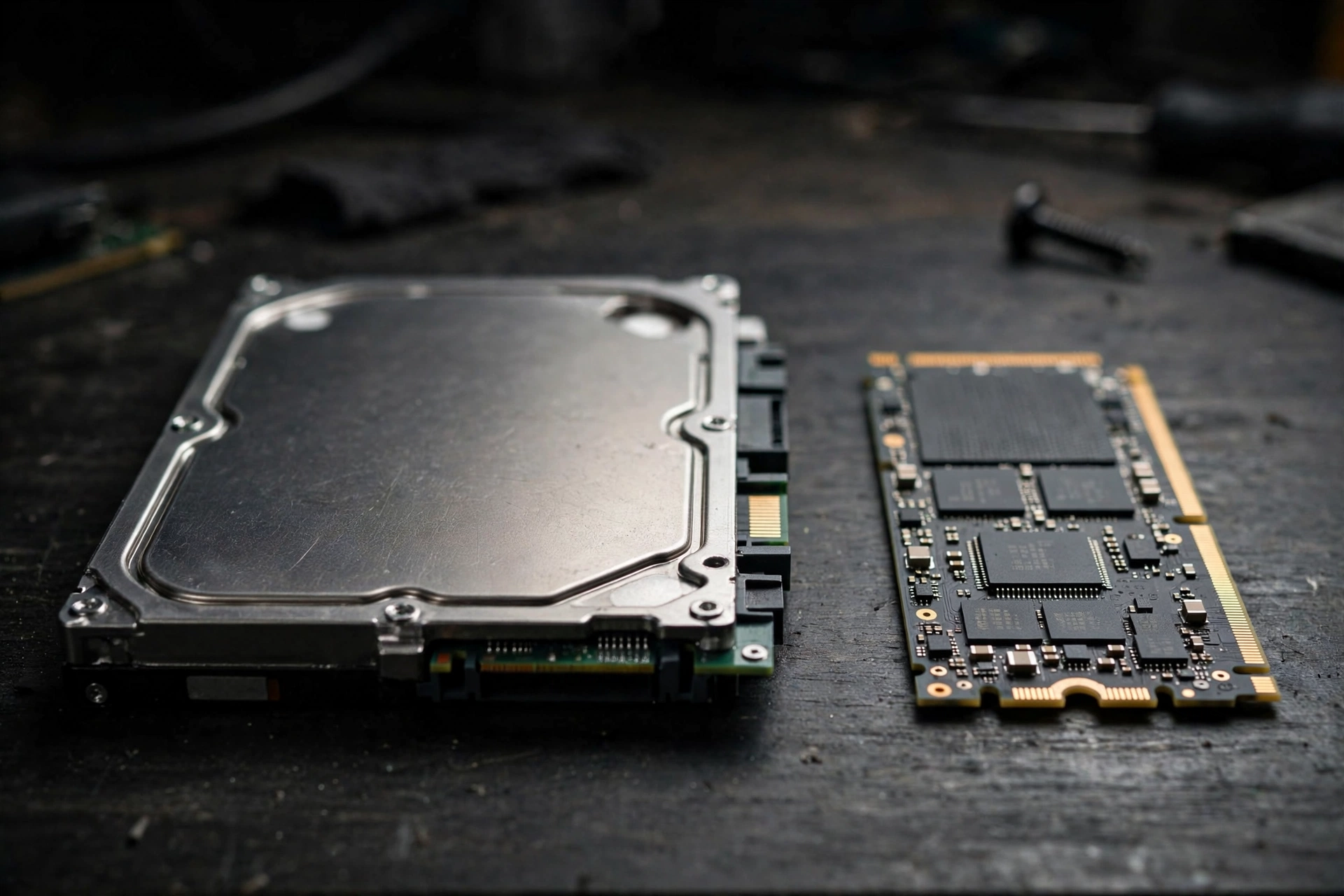
So what does each drive type actually change in games? Here is the honest breakdown, because marketing numbers and real gaming gains are very different things.
| Drive Type | Typical Sequential Speed | Random Access | What It Fixes in Games |
|---|---|---|---|
| 7,200 RPM HDD | 120 to 160 MB/s | Very slow (milliseconds per seek) | Nothing modern; causes pop-in, long loads, stutter |
| SATA SSD | Around 550 MB/s | Fast (microseconds) | Fixes load times, pop-in, and most stutter |
| NVMe Gen 3 | Up to 3,500 MB/s | Very fast | Faster loads; required baseline for DirectStorage |
| NVMe Gen 4 | Up to 7,000 MB/s | Very fast | Best load times in DirectStorage titles; 1 to 2 second loads in tested games |
| NVMe Gen 5 | 10,000 MB/s and up | Very fast | Bragging rights for now; tiny real gaming gain over Gen 4 |
The honest truth about Gen 4 versus Gen 5: in real game testing, the jump from a good Gen 3 or Gen 4 NVMe to a Gen 5 drive barely moves load times or frame rates. One outlet’s Forspoken testing found no frame-rate difference between SSD types worth worrying about, and PCIe 4.0 was the sweet spot. The big leap is HDD to any SSD. The medium leap is SATA SSD to NVMe. After that, you are paying for benchmark numbers, not game feel.
Where NVMe really earns its keep is DirectStorage. That is the next section, and it is the one reason a modern NVMe drive is worth having even if you already own a SATA SSD.
Practical takeaway: HDD to SSD is the upgrade that transforms gaming. SATA to NVMe is a nice bonus. Gen 4 to Gen 5 is optional.
Why Modern Games Care About Your Drive
DirectStorage is Microsoft’s technology that lets games load assets straight from an NVMe SSD to the GPU with minimal CPU involvement. Old storage APIs were designed for slow hard drives and issue one request at a time. NVMe drives can handle thousands of parallel requests, but games could not use that power until DirectStorage gave them the right tools. With GPU decompression (added in DirectStorage 1.1), the graphics card itself decompresses game data on the fly, which effectively multiplies the drive’s real throughput.
What you need: an NVMe SSD (PCIe 3.0 works, PCIe 4.0 is the sweet spot), a DirectX 12 GPU with Shader Model 6.0 support (any modern card qualifies), and Windows 11 for the full benefit. The first showcase games tell the story: Forspoken was the first DirectStorage 1.1 title, with developers reporting load times dropping from about 10 seconds to around 1 second, and Ratchet and Clank: Rift Apart became the first DirectStorage 1.2 game with GPU decompression for background asset streaming.
Important nuance: DirectStorage has to be built into each game by its developers. Windows does not apply it retroactively. Adoption has been gradual since the API launched in 2022, but it is now standard in engines like Unreal Engine 5, so expect more titles to require or strongly prefer NVMe drives going forward. If you buy a drive today, make it NVMe, because the games of the next few years are being built around that assumption.
Practical takeaway: DirectStorage is the future of game loading. An NVMe SSD is not just faster, it is the ticket to how new games are designed to run.
Storage vs RAM Bottleneck Which One Do You Have?
Storage and RAM bottlenecks share symptoms, especially stuttering, so here is how to tell them apart. A RAM bottleneck shows up as high memory usage (near your total capacity), heavy page-file activity, and stutters that get worse the longer you play. A storage bottleneck shows up as 100% disk usage with RAM usage looking normal. They are related, though: when RAM runs short, Windows uses the drive as overflow (the page file), which turns a RAM shortage into brutal storage thrashing.
We covered RAM-side symptoms in depth in our RAM bottleneck guide: that article explains the five signs your memory is the problem, how to read memory usage correctly, and when more RAM (rather than a faster drive) is the fix. Quick rule: if Task Manager shows RAM pinned near maximum, fix RAM first. If RAM looks fine but the disk is pegged, fix storage first. If both are struggling, fix RAM first, because no drive is fast enough to fake being memory.
Practical takeaway: RAM and storage bottlenecks team up. Check RAM usage before you blame the drive, or you will fix the wrong thing.
Diagnose It in 10 Minutes
You do not need special software to confirm a storage bottleneck. Run this checklist while your most problematic game is open:
- Open Task Manager (Ctrl + Shift + Esc), Performance tab. Is your game drive at or near 100% active time during gameplay? That is a confirmed storage bottleneck.
- Check response time. Average response time in the hundreds of milliseconds means requests are queueing badly.
- Check free space. Right-click the drive in File Explorer. Under 15% free on an SSD is a red flag.
- Check drive health. Open CrystalDiskInfo (free) and look at the health status and total writes. A drive reporting “Caution” or “Bad” is failing, not just slow.
- Check your RAM too. If memory is maxed out alongside the disk, you may have a RAM bottleneck feeding a storage problem (see the section above).
- Move one game to a different drive if you have one, even temporarily. If the stutter disappears, you have your answer with zero doubt.
- Check what else is using the disk. In Task Manager’s Processes tab, sort by Disk. Antivirus scans, Windows Update, and cloud sync tools can steal bandwidth mid-game.
If three or more of these point at the drive, stop tweaking graphics settings. Settings cannot fix a data-delivery problem. Our CPU bottleneck fix guide is worth a look too, since it covers the full elimination process when you are not sure which component is holding you back.
Practical takeaway: Ten minutes with Task Manager beats ten hours of settings tweaks. Diagnose first, spend later.
Should You Upgrade? What to Buy
If the diagnosis points at your drive, the upgrade path is refreshingly simple, and it is one of the best dollar-per-feel improvements in PC building.
If you game from an HDD: Buy any reputable SSD. Even a budget SATA SSD will transform your experience: loads measured in seconds instead of minutes, pop-in mostly gone, stutters sharply reduced. This is the single biggest storage upgrade you can make.
If you game from a SATA SSD: Consider an NVMe drive, especially a PCIe 4.0 model, if you play DirectStorage titles or plan to keep the PC for a few years. The day-to-day difference is smaller than the HDD-to-SSD jump, but load times do improve and you are ready for how new games are built.
If you already have NVMe Gen 3 or 4: You almost certainly do not have a storage bottleneck from drive speed. Look at free space, drive health, and whether something else is saturating the disk before spending money.
What about prices right now? Memory markets are rough in late 2026, and it is worth knowing before you shop. Samsung raised DRAM prices by 20% in the second half of the year, and 3GB GDDR7 memory chips were reported at $60 to $70 each (via PC Guide, October 2026), which is pushing up costs across memory products. Enterprise SSD pricing rose nearly 30% quarter over quarter in Q3 2026 according to industry reports. Translation: SSD prices are elevated and may climb further, so if you need a drive, buying sooner beats waiting for a sale that might not come. Watch for real deals rather than assuming prices will fall.
Size guidance: 1TB is the practical minimum for a game drive in 2026, since single AAA titles now routinely exceed 100GB. 2TB is the sweet spot if you keep several big games installed. Whatever you buy, leave that 15 to 20% free.
Practical takeaway: HDD users should upgrade immediately, it is transformative. Everyone else should diagnose first. And given current memory pricing, do not wait forever for a better deal.
Common Mistakes
- Buying a faster GPU to fix storage stutter. If your 1% lows are bad and settings do nothing, a new graphics card changes nothing. Check our bottleneck percentage guide to understand what your CPU-GPU balance actually looks like before spending.
- Installing the game on the SSD but leaving Windows on a dying HDD. The page file and background OS activity still hammer the slow drive. Put Windows on the SSD too, or at least make sure the OS drive is healthy.
- Filling the new SSD to 99% on day one. Modern games are huge. A 1TB drive with three 150GB games and no free space will slow down. Budget 15 to 20% headroom into your capacity planning.
- Ignoring drive health warnings. SSDs wear out. If CrystalDiskInfo says Caution, back up your saves now and replace the drive. A dying drive causes exactly the stutters described in this guide, then it causes data loss.
- Assuming Gen 5 is required for DirectStorage. It is not. Any NVMe drive works, and Gen 4 is the tested sweet spot. Do not overspend chasing a spec your games cannot use yet.
- Forgetting the SATA port trap. Some motherboards disable certain SATA ports or share bandwidth when M.2 slots are populated. Check your manual after installing an NVMe drive, or your old drives can mysteriously vanish.
FAQs
Is my HDD causing stuttering in games? Should I get an SSD?
Almost certainly yes, and yes. HDDs struggle with the thousands of small random reads modern games need for asset streaming, which causes exactly the stuttering you describe: hitches during movement, late texture loading, and long loads. Moving the game to any SSD, even a budget SATA model, typically eliminates most of it. It is the most cost-effective upgrade for an HDD-based gaming PC.
How much better would games perform on an SSD with my current setup?
Expect dramatically shorter load times (often 2 to 3 times faster than an HDD), far less texture pop-in, and much smoother frame pacing. Your average FPS will not jump much, because the GPU still does the rendering, but the game will feel significantly smoother. In one tested DirectStorage title, switching from HDD to SSD improved raw frame rates by roughly 8 to 10% on top of the smoothness gains.
Can old HDD cause of struggles in games?
Yes. An aging HDD is slower than when it was new: mechanical wear increases seek times and error correction, and bad sectors force retries that show up as stutters. If the drive is also nearly full or several years old, check its health with CrystalDiskInfo. A failing drive does not just slow games, it risks your saved data.
Is buying a SSD worth it!?
For gaming, it is one of the most worthwhile upgrades you can buy. No other single component change transforms day-to-day feel as much as moving from an HDD to an SSD: faster boots, faster loads, less stutter, and a snappier whole system. With 1TB SATA SSDs remaining affordable even in the current memory market, the value is hard to beat. Just keep 15 to 20% free space so it stays fast.
Can you still play modern games on an HDD instead of an SSD?
You can, but the experience keeps getting worse. Older and indie titles designed around slow storage still run acceptably. Modern AAA games built for streaming, and especially DirectStorage titles, increasingly list an SSD as a requirement, and some warn or misbehave on HDDs. You will face long loads, pop-in, and stutter that no setting fixes. An SSD is no longer optional for new releases, it is the baseline the games are designed around.
Can HDD bottleneck games?
Yes, absolutely. A hard drive bottlenecks games whenever the game needs data faster than the spinning platters can deliver it. That covers loading screens, texture streaming, open-world traversal, shader cache reads, and respawn loading. The CPU and GPU end up waiting on the drive, which is the textbook definition of a bottleneck. If you want to measure your overall CPU-GPU balance too, run your specs through our bottleneck calculator after fixing the storage side.
Does a full SSD slow down games?
Yes. SSDs slow down as they fill up because the controller has less free space to work with for writes and background maintenance. Keep at least 15 to 20% of the drive free. If your games got slower over months without any hardware change, check free space before anything else.
Key Takeaways
- A storage bottleneck means your drive cannot feed data to your CPU and GPU fast enough. It hurts smoothness (1% lows, stutter, pop-in), not average FPS.
- The 9 signs: endless loading screens, late texture pop-in, stuttering with a strong GPU, 100% disk usage, shader compile stutters, painful fast travel, in-game slow-drive warnings, slowdown as the drive fills up, and system-wide sluggishness while gaming.
- HDD to any SSD is the transformative upgrade. SATA SSD to NVMe is a solid bonus, especially for DirectStorage games. Gen 4 to Gen 5 barely matters for gaming today.
- Diagnose free with Task Manager: sustained 100% disk usage during gameplay confirms it. Check free space (keep 15 to 20%) and drive health too.
- Microsoft’s Advanced Shader Delivery is rolling out to all NVIDIA RTX GPUs in October 2026 (Windows 11 24H2+), which should cut first-launch shader stutter dramatically.
- Memory prices are elevated in late 2026 (Samsung DRAM up 20%, SSD prices climbing), so buy the drive you need now rather than waiting.
- When in doubt, move one game to a faster drive and compare. That single test answers the question with zero ambiguity.
Conclusion
Storage is the most underrated bottleneck in gaming PCs. Everyone benchmarks the CPU and GPU, but the humble drive decides whether your expensive hardware ever gets its data on time. The good news is that storage bottlenecks are also the easiest to diagnose and among the cheapest to fix: ten minutes with Task Manager tells you the truth, and a single SSD upgrade can transform how your whole PC feels.
Work through the nine signs above, run the 10-minute diagnosis, and fix what you find. If you are still unsure which component is holding your system back after the storage check, plug your parts into our bottleneck calculator for a full CPU-GPU balance reading. And if your PC runs hot while those drives work overtime, our PC cooling guide will help keep everything, storage included, running at its best.

Leave a Reply