

Quick answer: So, what is frame time? It is the number of milliseconds between each frame your GPU delivers to your monitor. Steady frame times feel smooth. Uneven frame times feel like stutter, even when your FPS counter looks great. The 1% low number tells you how bad your worst moments get. For real smoothness, watch frame time and 1% lows, not just the average FPS number.
You know the frustration. Your game reports 120 FPS, your hardware cost real money, and yet the motion on screen hiccups and jerks like a scratched DVD. You drop your settings. You update your driver. The stutter stays. The problem is that you have been watching the wrong number the whole time.
Average FPS tells you how many frames appeared in one second. It says nothing about how evenly they arrived. That uneven arrival is what your eyes actually feel. Once you understand frame time, a lot of PC gaming mysteries start making sense, including why a locked 60 FPS on a console can feel smoother than 90 FPS on a midrange PC.
This guide explains frame time in plain language, shows you what 1% lows and 0.1% lows mean, and teaches you to measure and fix stutter on your own PC. No engineering degree required.
What Is Frame Time
Frame time is the amount of time that passes between one frame and the next. It is measured in milliseconds (ms). While FPS counts how many frames your PC produces in a full second, frame time zooms in and times each single frame, one by one.
Here is the math, and it is the only math in this article. Take 1000 milliseconds (one second) and divide it by your frame rate:
- 60 FPS means one frame every 16.67 ms
- 120 FPS means one frame every 8.33 ms
- 144 FPS means one frame every 6.94 ms
- 240 FPS means one frame every 4.17 ms
Lower frame times mean frames arrive faster, which usually means smoother motion and quicker response to your mouse or controller. But the raw number is only half the story. The other half is consistency.
Frame Time vs FPS: Two Sides of the Same Coin
FPS and frame time describe the same thing from opposite ends. FPS is the average speed of a road trip. Frame time is whether the car kept a steady speed or slammed the brakes five times along the way.
Imagine two players. Both see 60 FPS on their counter. Player A gets one frame every 16.7 ms, like clockwork. Player B gets most frames in 10 ms, then suddenly one frame takes 60 ms, then a few take 25 ms. Both average 60 FPS across the second. Player A enjoys smooth motion. Player B feels a visible hitch every time that slow frame lands.
That hitch is called a frame time spike, and it is the single biggest reason games feel bad despite “good” FPS numbers. Your brain notices uneven motion far more than it notices a slightly lower average.
Practical takeaway: FPS tells you how fast your PC is. Frame time tells you how smooth it feels. You need both.
Why Average FPS Hides Stutter
Averages are liars by design. They compress a full second of ups and downs into one tidy number. A game can report a healthy average while dropping dozens of slow frames inside that same second.
This is not a theory. It shows up in real games. One published analysis of Gotham Knights showed the game running at a locked 60 FPS average, yet its frame time graph had spikes above 100 ms. Each of those spikes is a frame that took six times longer than it should. The result felt like stuttering and choppiness even though the game was technically hitting its target frame rate.
Here is another way this fools people. When Microsoft showed Gears of War: E-Day running at 60 FPS on new RTX Spark laptops, the demo did not disclose the resolution or whether DLSS was switched on. The 60 FPS number made a nice headline, but it says nothing about frame time consistency, which is what determines whether the game actually feels smooth in your hands. Any time a company or a reviewer quotes only the average, remember you are seeing the tip of the iceberg.
A consistent 60 FPS with flat frame times feels calm and responsive. An inconsistent 90 FPS with wild spikes feels nervous and jerky. Competitive players figured this out years ago, which is why they care more about stable frame delivery than about the biggest possible number.
Practical takeaway: If your game stutters at a “good” FPS, stop chasing a higher average and start investigating your frame time consistency.
What Are 1% Lows and 0.1% Lows?
If frame time is the doctor, 1% lows are the blood test result. They give you one number that captures the stutter your average hides.
1% Lows Explained Simply
Your PC records thousands of frames during a gaming session. To find the 1% low, the benchmarking tool sorts all those frames from slowest to fastest and takes the average frame rate of the slowest 1 percent. As the ROG team’s 1% lows guide explains, this number shows the frame rate during your worst moments: the intense firefights, the explosions, the moments when your system struggles most.
Picture two PCs:
- PC A averages 160 FPS with a 1% low of 65 FPS.
- PC B averages 145 FPS with a 1% low of 110 FPS.
PC A wins the benchmark screenshot. PC B wins the actual gaming experience. On PC A, the game regularly collapses during demanding scenes. On PC B, the worst moments are barely noticeable. The closer your 1% low sits to your average, the smoother your game feels.
0.1% Lows: The Rare Freezes
The 0.1% low is the same idea, but stricter. It is the average frame rate of the slowest 0.1 percent of frames. These are the big, ugly freezes, the kind that last a noticeable fraction of a second. They happen rarely, but when they do, they break your immersion completely.
A healthy 0.1% low sits reasonably close to your 1% low. When your 0.1% low falls off a cliff while everything else looks fine, something specific is wrong: a shader compiling at the worst moment, an asset loading from a slow drive, or a background process stealing your CPU for a split second.
How to Read These Numbers
Do not chase any magic threshold you read in a comment section. Instead, compare the numbers to each other:
- Great: 1% low within 10 to 20 percent of the average. You will barely notice the dips.
- Okay: 1% low around 60 to 70 percent of the average. Most players tolerate this.
- Bad: 1% low below half the average. You will feel this as constant stutter.
The gap between the average and the 1% low is your real smoothness score. A smaller gap beats a bigger average every time.
Practical takeaway: When comparing settings, CPUs, or GPUs, look at which option gives you the best 1% lows, not just the best average.
Micro-Stutter What Causes It?
Micro-stutter is the name for those tiny, rapid hitches that make motion feel rough. Blur Busters describes frametime spikes as abrupt interruptions of frame output, lasting from microseconds to milliseconds, sometimes dragging the frame rate into the single digits for an instant. The usual suspects fall into four groups.
CPU Bottleneck
This is the number one cause on gaming PCs, and it is exactly the kind of problem this site exists to diagnose. When your CPU cannot prepare frames fast enough, the GPU sits idle waiting, and frame times swing wildly. Heavy physics, crowds of NPCs, and complex AI all punish a weak CPU. You can learn the difference between the two kinds of bottlenecks in our CPU bottleneck vs GPU bottleneck breakdown.
With Call of Duty: Modern Warfare 4 launching on October 23, this matters more than usual. CoD multiplayer is famously CPU-bound, so checking your 1% lows (not just your average FPS) is the right way to judge whether your CPU is holding the game back.
Shader Compilation and Asset Streaming
Many modern games compile shaders or stream textures while you play. The first time you enter a new area, the game pauses briefly to prepare visuals. That pause is a frame time spike. Some games do this at launch or in a menu to get it out of the way, which is why the first five minutes of a session often stutter more than the rest.
Low RAM or VRAM
When your system runs out of fast memory, it starts swapping data to slower storage. An SSD is thousands of times slower than RAM from the game’s point of view, so every swap is a hitch. Single-channel RAM (one stick instead of two) is another classic culprit, because it starves the CPU of memory bandwidth.
Background Apps and Overlays
Discord, Chrome with forty tabs, RGB lighting software, screen recorders, and even some antivirus tools can steal CPU time in short bursts. Each theft shows up as a spike. This is the most common cause of stutter on PCs that are otherwise fast enough, and it is also the cheapest to fix.
Practical takeaway: Most stutter comes from the CPU side of the pipeline or from software interruptions, not from a weak GPU. That is why upgrading your graphics card sometimes does nothing for stutter.
How to Measure Frame Time on Your PC
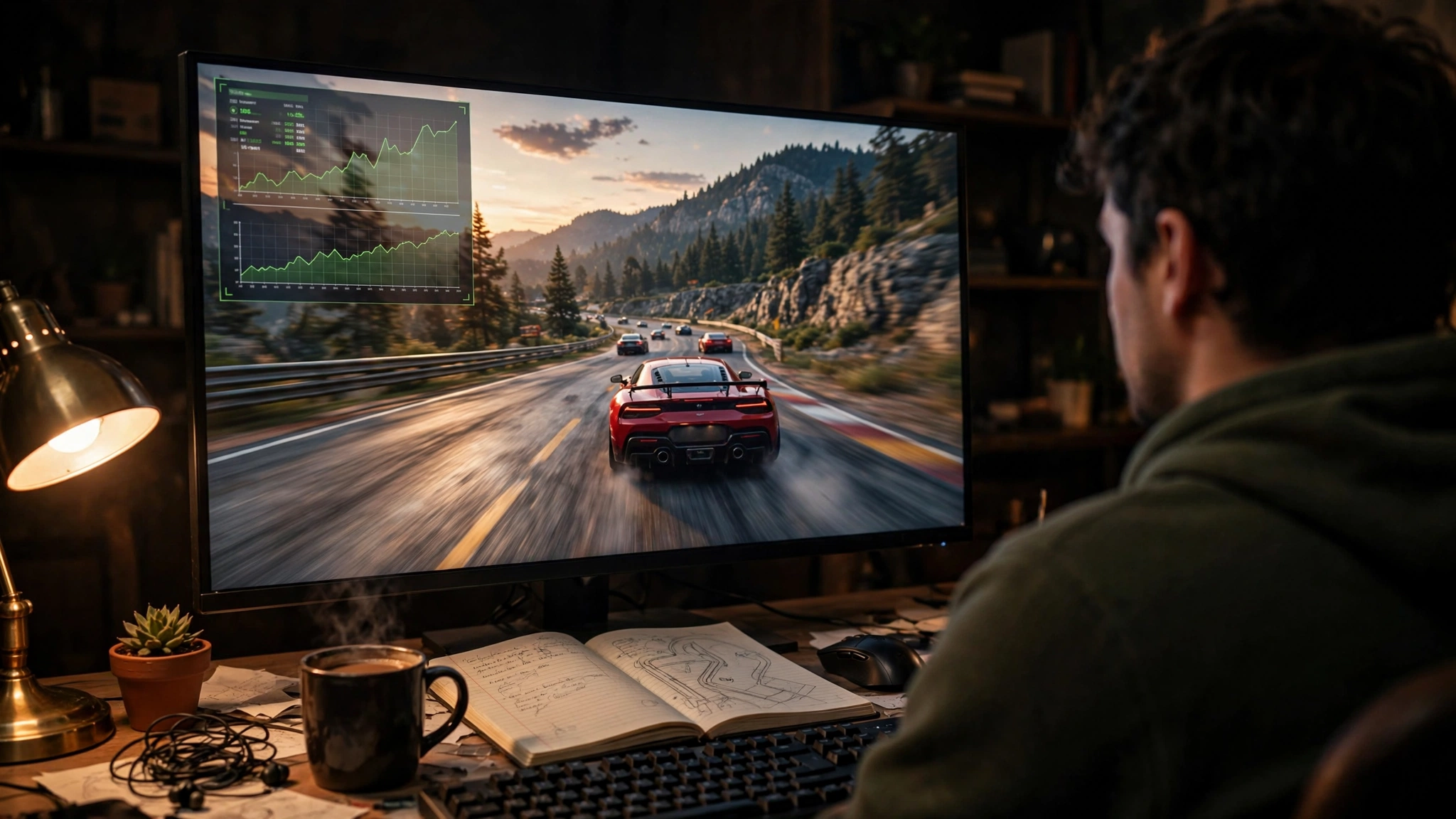
You do not need expensive equipment. Three free tools cover everything a beginner needs, and most games offer a built-in graph too.
If you have not diagnosed your system yet, our guide on how to find a PC bottleneck covers the basics of reading usage overlays and spotting a weak CPU or GPU. Its frame time section is short, only about 180 words, so treat this article as the deep dive that guide points toward.
CapFrameX (Best for Beginners)
CapFrameX is a free capture and analysis tool built on Intel’s PresentMon technology. You play the game for a few minutes while it records, then it shows you average FPS, 1% lows, 0.1% lows, and a frame time graph. The interface is beginner friendly, and it is the tool most hardware reviewers use for exactly these measurements. Start here if you have never measured frame times before.
MSI Afterburner and RTSS
MSI Afterburner with the RivaTuner Statistics Server overlay shows a live frame time graph while you play. You see the spikes the instant they happen, which makes it perfect for connecting a stutter to its cause. Open the overlay, walk into the area where the game hitches, and watch the graph. This live feedback is something CapFrameX’s after-the-fact analysis cannot give you.
Intel PresentMon and NVIDIA FrameView
PresentMon is Intel’s free command-line capture tool that sits underneath tools like CapFrameX. NVIDIA FrameView is NVIDIA’s own free benchmarking tool. Both are excellent, but both assume you are comfortable with more technical software. Try them after you outgrow the simpler options.
Built-In Game Performance Graphs
Many games now include their own performance overlays. NVIDIA’s overlay, AMD’s performance metrics, and some in-game options (like the ones in recent Call of Duty and Battlefield titles) can show frame time graphs without any extra software. These are less detailed than CapFrameX, but they take ten seconds to enable and they answer the basic question: is my frame time steady or spiky?
Practical takeaway: Install CapFrameX for detailed analysis and MSI Afterburner for live monitoring. Between the two, you can diagnose any stutter.
How to Read a Frame time Graph
Open CapFrameX or your Afterburner overlay and look at the frame time graph. The vertical axis shows milliseconds per frame. The horizontal axis shows time passing. Each point is one frame.
A healthy graph looks like a flat line with small ripples. At 60 FPS, the line should hover near 16.7 ms. Small wiggles are normal and invisible. The graph only becomes a problem when you see tall, sharp spikes shooting upward.
Here is how to read what you see:
- Flat line: Your frame pacing is good. If the game still feels off, the problem is elsewhere (like high input lag or a low refresh rate monitor).
- Occasional tall spikes: Something interrupts the game briefly. Suspect shader compilation, asset streaming, or a background app.
- Constant jagged waves: Your CPU or GPU cannot keep up steadily. Suspect a bottleneck or settings that are too high.
- Regular repeating spikes: Something on a timer is interfering. Overlays, recording software, and RGB apps are common causes.
One more concept worth knowing: frame time is not quite the same as what your monitor displays. Researchers at NVIDIA have studied how variable refresh rate, V-Sync, and frame generation complicate the path from a rendered frame to the image on your screen. The graph still tells you the most useful version of the truth for troubleshooting, which is whether your PC delivers frames evenly.
Practical takeaway: A flat graph means a smooth game. Tall spikes mean interruptions. Fix the interruptions, not the average.
How to Fix Bad Frame Pacing and Stuttering

Work through these fixes in order. Each one targets a different cause, and most cost nothing.
Cap Your FPS Just Below Your Refresh Rate
This single trick fixes more stutter than any upgrade. When your frame rate runs wild above your monitor’s refresh rate, frames arrive at random points in each refresh cycle, which creates uneven pacing. Capping the frame rate slightly below your refresh rate (usually 3 to 5 FPS below) gives the system a steady rhythm.
You can cap it three ways: the game’s built-in FPS limiter (best option when it works well), the NVIDIA Control Panel’s Max Frame Rate setting, or AMD Software’s frame rate limiter. Competitive players sometimes prefer uncapped frame rates for the lowest latency, but for smooth and tear-free motion, a careful cap wins.
Turn On G-Sync or FreeSync
Variable refresh rate technology makes your monitor wait for each frame instead of refreshing on a fixed schedule. This eliminates screen tearing and smooths out uneven frame delivery. NVIDIA’s G-Sync page describes how the technology matches the monitor’s refresh rate to the GPU frame rate to minimize stutter and input lag.
To enable it on NVIDIA: open the NVIDIA Control Panel, go to Display, then Set up G-SYNC, and check the enable box. Make sure your monitor’s own variable refresh setting is switched on too. AMD users get the same benefit from FreeSync, which is the open standard version of the same idea.
Close Background Apps and Disable Overlays
Before you spend a dollar, clean your system. Close your browser, Discord, and anything recording or streaming. Disable in-game overlays you do not use. Check Task Manager for anything eating CPU in the background. Many players discover their “hardware problem” was actually a chat app all along.
Update Drivers and Lower CPU-Heavy Settings
Update your GPU driver and your motherboard chipset driver. Both directly affect frame pacing. Then lower the settings that hammer the CPU: shadows, draw distance, crowd density, and physics effects. Keep texture quality high if you have enough VRAM, since textures mostly stress the GPU. If your average FPS itself is the real problem, our guide on why your FPS is so low walks through the usual suspects first.
Frame Generation and DLSS: What They Do (and Do Not Do)
Frame generation is the hot topic of October 2026. NVIDIA just shipped a new DLSS 5 model reported to boost 4K frame rates by up to 1.4x in early tests (one reported example went from 65 to 90 FPS) while using roughly 20 percent less 4K VRAM. These numbers look amazing on a benchmark chart.
Here is the catch for frame time fans. Frame generation inserts AI-created frames between real ones. Your FPS counter jumps, but the game simulation still updates at the original pace, so input latency does not improve the way the FPS number suggests. Your 1% lows still tell the truth about real stutter. Use frame generation as a smoothness bonus on top of a healthy system, not as a bandage for a CPU bottleneck. We explored the CPU side of this question in our guide on whether DLSS reduces CPU bottleneck.
Practical takeaway: Cap your frame rate, enable variable refresh, and clean up background apps before you blame your hardware. These three steps solve most stutter.
Frame Time Targets for Smooth 60, 120, 144, and 240 FPS
Use this table as your cheat sheet. The frame time column shows what each frame rate means in milliseconds. The target column shows what your 1% lows should roughly hold for the game to feel right at that level.
| Target FPS | Frame Time per Frame | 1% Low Target | Best For |
|---|---|---|---|
| 60 FPS | 16.67 ms | 50+ FPS | Single-player games, story titles |
| 120 FPS | 8.33 ms | 100+ FPS | Fast action, 120Hz monitors |
| 144 FPS | 6.94 ms | 120+ FPS | Competitive shooters, 144Hz monitors |
| 240 FPS | 4.17 ms | 200+ FPS | Esports, 240Hz monitors |
Why 240Hz Needs a Strong CPU
Hitting 240 FPS average is only half the battle. Holding 1% lows near 200 FPS requires a CPU that can feed frames every 4.17 ms without breaking stride. This is why high-refresh gaming is really a CPU test in disguise. Our guide on which CPUs are fast enough for 240Hz lists processors that can actually sustain those frame times.
One more reality check. A small calculated bottleneck percentage does not guarantee good frame times. Two systems can show nearly identical bottleneck numbers while one stutters and the other glides, because the percentage says nothing about consistency. Our guide explains what a good bottleneck percentage looks like and why it is only a starting point, not a smoothness guarantee.
Practical takeaway: Pick your frame time target from the table, then judge your PC by its 1% lows against that target, not by the average alone.
Common Mistakes Beginners Make
- Chasing the biggest average FPS. A higher average with worse 1% lows is a downgrade, not an upgrade.
- Upgrading the GPU to fix stutter. Stutter usually comes from the CPU or software. A new GPU keeps the same spikes.
- Running uncapped frame rates on a fixed-refresh monitor. This is the fastest way to get uneven frame pacing.
- Leaving twenty background apps open. Every one of them is a potential spike source.
- Ignoring the frame time graph. The graph shows you the problem in seconds. Guessing takes hours.
- Blaming the game engine immediately. Sometimes the engine is at fault, but check your system first. Most stutter is fixable on your end.
Expert Tips
- Test one change at a time. Change a setting, measure your 1% lows, then change the next thing. Otherwise you will never know what worked.
- Use the in-game limiter first. It usually paces frames better than driver-level caps, because the game engine controls the timing directly.
- Watch per-core CPU usage, not the total. A game can be CPU-limited with total usage at 40 percent if one core is maxed out. Afterburner shows per-core graphs.
- Put games on an SSD. Asset streaming stutter from a hard drive is one of the easiest fixes in PC gaming.
- Enable XMP or EXPO for your RAM. Memory running at half speed quietly damages your 1% lows, and many builders forget this step.
- Record a baseline before upgrading. Measure your 1% lows today. After any upgrade, measure again. Numbers beat feelings.
Frequently Asked Questions
What is frame time, and why does it matter for gaming?
Frame time is the number of milliseconds between each frame your GPU delivers. It matters because your eyes feel consistency, not averages. Steady frame times feel smooth. Uneven frame times feel like stutter, even when the FPS counter shows a high number. If your game hitches at good FPS, frame time is almost always the explanation.
Will the CPU affect FPS?
Yes, and it affects frame time even more. The CPU prepares every frame before the GPU draws it. A weak or overloaded CPU causes uneven frame times and low 1% lows, which you feel as stutter. This is why CPU-heavy games like large open-world titles and competitive shooters punish slow processors so hard. This question comes up constantly on Quora, and the answer is always the same: when average FPS looks fine but the game stutters, suspect the CPU first.
Why is my gaming PC dropping lots of FPS in light games like Valorant?
Light games like Valorant are CPU-bound, so your graphics card is rarely the problem. The usual causes are a CPU bottleneck, background apps stealing CPU time, or drivers that need updating. Measure your 1% lows while playing. If they sit far below your average, work through the fixes in this guide: cap your frame rate, close background apps, update your chipset and GPU drivers, and enable XMP for your RAM. This exact question appears on Quora regularly, and the answer is almost never “buy a better GPU.”
What are 1% lows in gaming?
1% lows are the average frame rate of the slowest 1 percent of frames in a session. They measure your worst moments, the stutters and hitches that the average FPS hides. A 1% low close to your average means smooth gameplay. A 1% low far below your average means constant stutter. Reviewers and competitive players treat 1% lows as the most honest smoothness metric.
My FPS is high but my game stutters. What is wrong?
Your frame times are uneven. Open MSI Afterburner with the RTSS overlay and watch the frame time graph while you play. Tall spikes point to interruptions like shader compilation, asset streaming, or background apps. Constant jagged waves point to a CPU bottleneck or settings that are too high. This is one of the most common questions on PC hardware forums, and the frame time graph answers it in under a minute.
Frametime spikes and stutters in every game. Where do I start?
Start with the free fixes in order. Cap your FPS a few frames below your monitor’s refresh rate. Enable G-Sync or FreeSync. Close background apps and disable overlays you do not use. Update your GPU and chipset drivers. If the spikes continue in every game after all of that, check your temperatures for thermal throttling and make sure your RAM is running in dual channel with XMP or EXPO enabled. Hardware forums are full of this exact plea for help, and these steps resolve the large majority of cases.
Key Takeaways
- Frame time is the milliseconds between frames. Consistency matters more than speed.
- Average FPS hides stutter. Averages compress a full second of ups and downs into one number.
- 1% lows show your worst moments. The closer they sit to your average, the smoother the game.
- Most stutter comes from the CPU side: bottlenecks, shader compilation, low RAM, or background apps.
- Measure with CapFrameX and MSI Afterburner. Both are free and beginner friendly.
- Read the graph: flat line good, tall spikes bad.
- Fix stutter with an FPS cap, G-Sync or FreeSync, and a clean system before spending money.
- Judge upgrades by 1% lows, not by the average FPS number.
Conclusion
Frame time is the metric your FPS counter never told you about, and 1% lows are the number that finally makes stutter measurable. Once you watch these two numbers, PC performance stops being a mystery. You will know whether your CPU or your software is the problem, you will know which settings actually help, and you will stop wasting money on upgrades that cannot fix your stutter.
Start tonight. Install CapFrameX, play your most troublesome game for ten minutes, and look at your 1% lows. If they sit close to your average, your PC is healthy. If they fall off a cliff, you now know exactly where to look. Smooth gaming was never about the biggest number on the screen. It was always about the steadiest one.

Leave a Reply