

Quick answer: The best motherboard for Ryzen 7 9800X3D builds is the MSI MAG B850 Tomahawk MAX WiFi. It feeds the 120W chip without breaking a sweat, gives you PCIe 5.0 for the graphics card and two Gen5 M.2 slots, Wi-Fi 7 and 5GbE, and costs about half of a flagship X870E board. The 9800X3D runs at full speed on it, because gaming frame rates do not change with the chipset tier.
The Ryzen 7 9800X3D just became a much easier buy. Newegg cut it to $399.99 on November 8, 2026 with a $70 coupon, down from its $479 launch price, and that deal put the fastest gaming CPU back on a lot of shopping lists. If you are one of the builders grabbing it at that price, the next question is the motherboard, and this is where most people waste money.
Here is the honest truth up front: the 9800X3D is a modest 120W chip with a locked multiplier. It does not need a $500 motherboard. It needs clean power, a current BIOS, DDR5-6000 memory running at the right speed, and the ports your build will actually use. A good B850 board delivers all of that. An X870E board delivers the same gaming performance plus more lanes and USB4, which only matters if you use them.
This guide compares the AM5 chipset tiers in plain language, picks six boards worth buying at each tier, and explains the traps: lane sharing, B840 boards that look like a bargain, memory kits that cost more than they return, and flagship features that buy zero extra frames. If you want the wider picture first, our best motherboard for gaming guide covers the general rules that apply to any build.
What the Ryzen 7 9800X3D Actually Needs From a Motherboard
The Ryzen 7 9800X3D is an 8-core, 16-thread Zen 5 processor on the AM5 socket. It boosts up to 5.2 GHz from a 4.7 GHz base clock, carries 96 MB of L3 cache for 104 MB of total cache thanks to second-generation 3D V-Cache, and is rated at a 120W default TDP. AMD lists it as unlocked for overclocking, it uses DDR5 memory only, and it ships without a cooler in the box, so you need to buy one. It launched on November 7, 2024 at $479. You can check every one of those numbers on the official AMD specification page.
Three facts from that spec sheet decide the whole motherboard question. First, 120W is a modest power target, and the chip spends most of its gaming time well below it, so any AM5 board with a decent VRM and a real heatsink feeds it at stock settings and with Precision Boost Overdrive enabled. Second, the 3D V-Cache is what makes this CPU fast in games, not the motherboard. The stacked cache cuts memory latency in the titles that respond to it, and no chipset tier makes that cache any bigger. If you want the short version of why cache matters so much for frame rates, our guide on does CPU cache affect gaming explains it in plain terms. Third, the chip only fits AM5. AM4 boards such as B550 do not accept it, and DDR4 memory does not fit either, so anyone upgrading from an older Ryzen build needs a new board, new RAM, and a cooler.
That leaves a short checklist for the board itself. It must have the AM5 socket, DDR5 slots, a BIOS new enough to recognize a Ryzen 9000 chip, enough VRM cooling to hold boost clocks under a long gaming session, a PCIe 5.0 graphics slot if you plan to keep the board through a future GPU upgrade, at least one Gen5 M.2 slot, and the USB and networking your setup uses. Everything beyond that list is convenience, not performance.
AM5 Chipset Tiers Explained X870E, X870, B850 and B840
AMD sells four current AM5 chipsets, and the differences between them are about lanes and ports, not speed. The processor itself handles the graphics slot, the first NVMe slot, and the memory. The chipset is the traffic controller for everything else: extra M.2 slots, SATA ports, USB, and networking. A higher chipset badge buys a bigger traffic controller. It does not buy frames.
| Chipset | PCIe 5.0 graphics slot | PCIe 5.0 M.2 | USB4 | CPU overclocking | Best for |
|---|---|---|---|---|---|
| X870E | Yes, guaranteed | Yes, multiple | Yes, mandatory | Yes | Expansion-heavy builds |
| X870 | Yes, guaranteed | Yes | Yes, mandatory | Yes | USB4 without X870E pricing |
| B850 | Optional, check the board | At least one Gen5 slot | Optional | Yes | Most gaming builds |
| B840 | No, PCIe 4.0 only | No, Gen4 only | No | No | Office PCs, not gaming |
X870E uses two chipset chips instead of one, which is where its extra lanes, extra M.2 slots, and extra high-speed USB ports come from. X870 uses a single chip but still mandates USB4 and PCIe 5.0 for the graphics card and storage. B850 keeps CPU and memory overclocking, guarantees at least one Gen5 M.2 slot, and leaves PCIe 5.0 for the graphics slot and USB4 up to the board maker. Good B850 boards, including our top pick, include both anyway. B840 is the odd one out: it caps the graphics slot at PCIe 4.0, provides no Gen5 storage, and blocks CPU overclocking entirely, including Precision Boost Overdrive. It is an office-PC chipset that happens to fit a Ryzen, and it has no place under a 9800X3D.
One more point that confuses buyers: every B850, X870, and X870E board ships with firmware that already supports the 9800X3D. Older B650 and X670 boards needed a BIOS update to AGESA 1.2.0.2a or newer before they would boot this chip, so check the support list before you reuse one. If you are comparing the tiers in more depth, our PCIe 4.0 vs PCIe 5.0 gaming bottleneck guide shows what the newer standard actually changes in games.
The 6 Best Motherboards for Ryzen 7 9800X3D at a Glance
These six boards cover every sensible way to house a 9800X3D: the value default, the full-featured X870E pick, a premium X3D-tuned flagship, the cheapest board that still makes sense, a mini-ITX option, and a value X870 for builders who want USB4 without flagship pricing. Every one of them runs the CPU at full gaming speed. What changes is the port count, the lane budget, and the price.
| Board | Chipset | Size | Gen5 M.2 | USB4 | Best for |
|---|---|---|---|---|---|
| MSI MAG B850 Tomahawk MAX WiFi | B850 | ATX | Yes | No | Most builds |
| ASUS ROG Strix X870E-E Gaming WiFi | X870E | ATX | Yes | Yes | Expansion and USB4 |
| GIGABYTE X870E AORUS Master X3D | X870E | ATX | Yes | Yes | Premium X3D tuning |
| MSI B850 Gaming Plus WiFi | B850 | ATX | Yes | No | Tight budgets |
| ASUS ROG Strix X870-I Gaming WiFi | X870 | Mini-ITX | Yes | Yes | Small form factor |
| MSI PRO X870-P WiFi | X870 | ATX | Yes | Yes | Value X870 with USB4 |
Street prices checked November 10, 2026: the Tomahawk MAX WiFi was $209.99 at Amazon, the Strix X870E-E was $399.99 at B&H, and the B850 Gaming Plus WiFi was $179.99 at the MSI store. Prices move daily and coupons come and go, so treat these as a snapshot and check the live number before you order.
MSI MAG B850 Tomahawk MAX WiFi Best Overall
The Tomahawk MAX WiFi is the default answer for a 9800X3D gaming build, and it is the board this guide recommends to most readers. MSI gives it a 14+2+1 power stage layout with 80A stages under a proper heatsink, four M.2 slots with two of them at Gen5 speed, a PCIe 5.0 graphics slot, Wi-Fi 7, and 5GbE wired networking. It supports DDR5 up to 8400 MT/s when overclocked, and it runs a DDR5-6000 CL30 EXPO kit, the sweet spot for this CPU, without any fuss.
What makes it the right default is what it does not ask you to pay for. There is no USB4, and that is the only meaningful thing missing against an X870 board. If you run fast external SSDs or a USB4 dock, that one feature is the reason to step up. For a single-GPU gaming rig, this board gives you everything the X870E boards sell as headline features except native USB4, at roughly half the price. Independent testing agrees: the board earned strong marks for value and thermals in the FPS Review hands-on review.
One layout caveat is worth knowing before you buy. The lower PCIe 4.0 x4-length slot drops to x2 speed when the third M.2 slot is populated, so plan your drive layout before you fill every slot. For most builders that tradeoff never matters, because the graphics card and the first two M.2 drives keep full speed.
ASUS ROG Strix X870E-E Gaming WiFi Best X870E
If your build actually needs the lanes, the Strix X870E-E is the X870E board to buy. It carries an 18+2+2 power stage layout, five M.2 slots, dual USB4 ports at 40 Gbps, Wi-Fi 7, and 5GbE networking. Memory tuning is a strong point, with ASUS listing DDR5 support up to 8400 MT/s and a BIOS that makes EXPO setup painless.
This is the board for a 9800X3D build that also handles heavy storage, a capture card, or fast external drives. Five M.2 slots mean storage upgrades never cost you a GPU lane, and the dual USB4 ports cover docks and enclosures that a B850 board simply cannot feed. The honest caveat is that for pure gaming with a 9800X3D, you are paying for connectivity rather than any performance the processor can use. The CPU runs exactly as fast on the Tomahawk. Buy this board when the port list earns its price, not because the chipset badge looks faster.
GIGABYTE X870E AORUS Master X3D Best Premium
The AORUS Master X3D is the premium pick for builders who want the most complete AM5 board with tuning aimed specifically at X3D chips. It matches the Strix X870E-E with an 18+2+2 power design, five M.2 slots, USB4, and Wi-Fi 7, and it adds X3D-specific tuning features in the BIOS that Gigabyte built for this exact CPU family.
Who should buy it? Someone building a no-compromise rig who also plans to keep the board through a future CPU upgrade, possibly to a 16-core Ryzen 9, and who wants the strongest VRM and the fullest I/O list available. Who should skip it? Anyone building a gaming-only PC with one graphics card and two SSDs. That builder gets the same frame rates from the Tomahawk and keeps roughly $300 in their pocket for a better GPU, which is where frames actually come from.
MSI B850 Gaming Plus WiFi Best Budget
The B850 Gaming Plus WiFi is the cheapest board in this guide that still makes sense under a 9800X3D. It keeps the essentials that matter: the B850 chipset with CPU and memory overclocking, a PCIe 5.0 graphics slot, at least one Gen5 M.2 slot, and Wi-Fi. At $179.99 at the MSI store in our November 10, 2026 snapshot, it undercuts the Tomahawk by about $30.
The tradeoff is straightforward. You get fewer M.2 slots, simpler audio, fewer USB ports, and less VRM headroom than the Tomahawk. For a gaming-only build with one SSD and one graphics card, none of that matters. For a build that will grow into three drives and a capture card, the Tomahawk is worth the step up. Do not go cheaper than this tier. Boards below it cut VRM cooling and port counts to levels that turn a premium CPU into a compromise, and the savings are rarely more than $20 or $30.
ASUS ROG Strix X870-I Gaming WiFi Best Mini-ITX
Small form factor builders get a genuine option here, not an afterthought. The Strix X870-I packs a 10+2+1 power design, two M.2 slots, USB4, and Wi-Fi 7 onto a mini-ITX board, and it handles the 9800X3D without complaint. The 120W TDP is kind to small cases, and the 3D V-Cache chip does not need the VRM muscle that a 16-core part would demand.
Mini-ITX always costs more per feature than ATX, and this board is no exception. You get two M.2 slots instead of four or five, two RAM slots instead of four, and one PCIe slot, so plan the build around those limits. If your case fits a micro-ATX board, our micro-ATX vs ATX motherboard comparison shows how much you save by stepping up a size. If the case is truly small, this is the board to buy.
MSI PRO X870-P WiFi Best Value X870
The PRO X870-P WiFi is the cheapest honest way onto the X870 tier, and it exists for one kind of buyer: someone who wants mandatory USB4 and guaranteed PCIe 5.0 for the graphics card without paying Strix or Crosshair prices. It gives you three M.2 slots with one at Gen5 speed, a single 40 Gbps USB4 port, 5GbE, and Wi-Fi 7. The onboard audio uses the older ALC897 codec, which is the most visible corner cut, and an inexpensive USB DAC or headset fixes it completely if you care.
For most 9800X3D builders, the Tomahawk still wins, because USB4 alone rarely justifies the price gap. But if you own a USB4 enclosure or dock today, this board is the rational way to get that port. It proves the wider point of this guide: buy the cheapest board that has the ports you will use, and spend the rest on the graphics card.
DDR5 Memory and the 6000 CL30 Sweet Spot
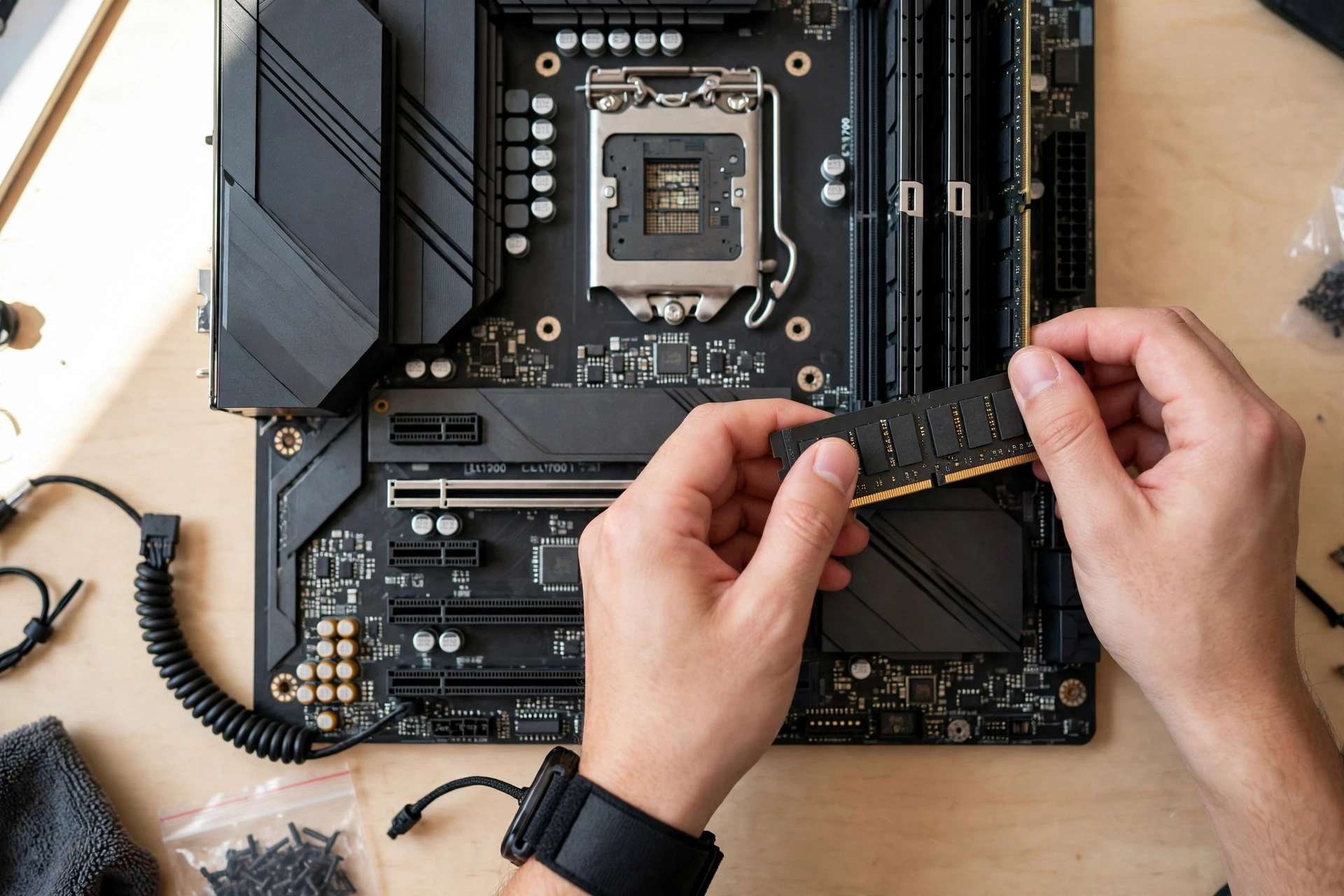
Memory is the one place where the motherboard choice genuinely changes gaming performance, and it has almost nothing to do with the chipset tier. The Ryzen 7 9800X3D runs best on a DDR5-6000 CL30 EXPO kit, two sticks of 16GB for 32GB total. That speed keeps the memory controller and the Infinity Fabric in their 1 to 1 ratio, which is where latency is lowest. AMD used exactly that configuration, 2x16GB of DDR5-6000, in its own launch testing, which tells you where the platform is tuned to run.
Faster kits exist, and they cost more, but they buy very little in games on this CPU. DDR5-6400 and above usually force the memory controller into a slower ratio, which cancels out the raw speed gain. Slower kits leave performance on the table. The practical rule is simple: buy DDR5-6000 CL30, enable EXPO in the BIOS, and stop shopping. If you want the numbers behind latency and timings, our RAM speed vs CAS latency guide breaks them down.
Two more memory notes matter right now. First, two sticks beat four. Four DIMMs are harder for the memory controller to stabilize at 6000 MT/s, and many boards drop to lower speeds with all four slots filled. Second, DDR5 prices have climbed sharply in late 2026, so the kit you want costs more than it did a few months ago. That makes the 32GB decision more important, not less: 16GB is already tight for modern games, and the October 2026 Steam survey showed 16GB as the most common system memory at 41.42 percent, which means a large share of gamers are already at the edge. Buy the 32GB kit with the board, and do not plan to add a second mismatched kit later. Our best RAM for gaming guide covers how much memory different builds actually need.
How Much Power Delivery Do You Really Need
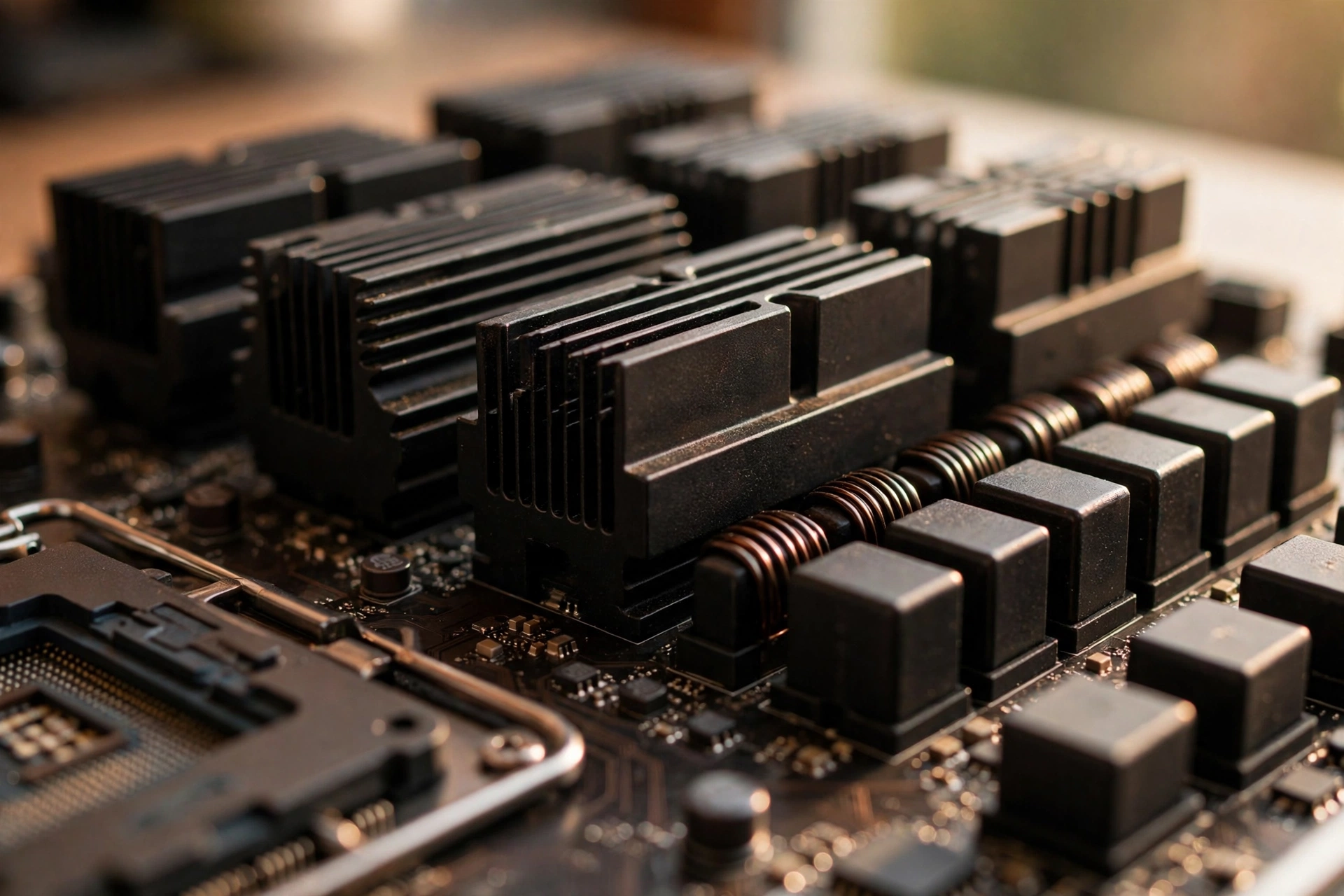
The VRM, or voltage regulator module, converts 12V power from the supply into the precise voltage the CPU needs. Its quality decides whether the chip holds its boost clocks under a long gaming session or throttles back when the power stages get hot. Marketing makes this sound complicated. The math is simple.
The 9800X3D draws about 120W at its rated TDP and usually less while gaming. A 14+2+1 layout with 80A stages, like the Tomahawk, can deliver several times that power before breaking a sweat. An 18+2+2 layout with 110A stages, like the Strix X870E-E, can deliver far more again. Both are overkill for this chip, and that is the point: VRM headroom stops mattering once the board clears the CPU’s needs with margin. What matters is the heatsink on top of the stages. A board with a solid VRM and a real heatsink holds boost clocks forever. A board with a big stage count and a tiny heatsink, or no heatsink at all, throttles under sustained load.
That is why the floor for this CPU is a board with heatsinked power stages from a family that holds up under 16-core chips, even though the 9800X3D is only 8 cores. It is also why Precision Boost Overdrive works fine on every board in this guide. PBO raises power limits and lets the chip boost longer, but the 9800X3D is a locked-multiplier chip with modest power draw, so PBO adds a little headroom, not a new thermal problem. If you want to tune the BIOS after the build, our BIOS settings to reduce CPU bottleneck guide walks through the settings that matter.
PCIe 5.0 and M.2 Layout Where Boards Waste Your Money
PCIe 5.0 sounds like a headline feature, and board makers price it like one. In practice, its value for a gaming build is narrow and specific. A graphics card at PCIe 5.0 x16 has twice the bandwidth of PCIe 4.0 x16, but current games do not use that bandwidth. The difference between a Gen5 and a Gen4 graphics slot is effectively zero in today’s titles, and even a card running at PCIe 4.0 x8, half the lanes, loses only a few percent in most games. PCIe 5.0 matters as future-proofing for the next GPU you buy, not as performance today.
Storage is the same story with one exception. A Gen5 NVMe drive is roughly twice as fast as a Gen4 drive on paper, but game load times barely change, because loading is limited by other parts of the system. The one place Gen5 storage earns its keep is DirectStorage titles and heavy file work, where the faster drive can feed the GPU directly. For most builders, one Gen5 M.2 slot for the boot drive and Gen4 slots for the rest is the right layout.
The real trap is lane sharing, and it is buried in every board manual. Many boards disable or slow down a slot when another slot is filled. The Tomahawk drops its lower PCIe slot to x2 when the third M.2 slot is populated. Other boards cut the graphics slot from x16 to x8 when a second Gen5 drive is installed. None of this is a defect. It is the normal result of sharing a fixed lane budget, and it only hurts if you fill every slot without reading the manual first. Count your drives, count your cards, and buy the board whose lane map fits that count with one slot to spare.
Which Boards Waste Money for a Gaming-Only Build
The fastest way to waste money on this CPU is to buy a flagship board for a gaming-only build. The ASUS ROG Crosshair X870E Hero is a superb board, with five M.2 slots, SlimSAS, dual USB4, and 5GbE plus 2.5GbE networking, and ASUS listed it at $569.99 in an August 2026 snapshot. It is also, for a single-GPU gaming PC, about $360 of ports and debug features that will never get used. The same applies to every board above the $400 mark with 10GbE networking, extreme overclocking controls, and LN2 modes. Those features exist for competitive overclockers and workstation builders, not for a gaming rig.
Here is the test to run before you pay for any board above the Tomahawk. Write down every device the build will connect in the next two years: graphics card, drives, capture card, USB devices, network speed, monitor outputs. Then check whether the cheaper board has a port for each one. If it does, the expensive board buys nothing. If it does not, the expensive board earns its price. Most gaming builds pass the test on a $210 B850 board. The builds that fail it are the ones with five drives, a USB4 dock, or a capture card, and those are the builds this guide points at the Strix X870E-E.
There is one more waste category: paying for a brand-new flagship board when a previous-generation X670E board would do the same job. X670E boards such as the Crosshair X670E Hero offer the same five M.2 slots and dual-chipset lane budget as X870E, and they often sell for less now. The catch is the BIOS. A used or older-stock X670E board may need an update to AGESA 1.2.0.2a or newer before it boots a 9800X3D, so confirm the BIOS version or buy a board with BIOS Flashback before you commit.
BIOS and First Boot Checklist
A new AM5 build fails to boot far more often from a skipped step than from a bad part. Run through this list before you press the power button.
First, check the BIOS. Every B850, X870, and X870E board in this guide ships with firmware that supports the 9800X3D, but if you buy an older B650 or X670 board, confirm it has AGESA 1.2.0.2a or newer. If it does not, use BIOS Flashback, which updates the BIOS from a USB stick without a CPU installed, and every board in this guide has it or an equivalent.
Second, seat the RAM in the correct slots, usually A2 and B2, the second and fourth slots from the CPU. The manual marks them clearly, and using the wrong slots is the most common reason a new build fails memory training.
Third, enable EXPO in the BIOS on first boot. Without it, your DDR5-6000 kit runs at the slow JEDEC default, usually 4800 MT/s, and you lose the memory performance you paid for. Fourth, install the AMD chipset drivers from AMD, then update the graphics drivers. A recent reminder of why drivers matter: an AMD Radeon driver bug was writing excessive data to SSDs, and the fix is coming in Adrenalin 26.11.1. Our AMD Radeon driver SSD writes bug fix article has the full story and the workaround until the fixed driver lands.
Fifth, check temperatures under load before you call the build done. The 9800X3D is rated to 95 degrees Celsius at maximum, and a good tower cooler or 240mm liquid cooler keeps it well below that in games. If temperatures look high, reseat the cooler before you blame the motherboard.
What GPU Should You Pair With It
The motherboard does not decide your frame rates, but the graphics card does, so the board budget and the GPU budget are one decision. Money saved on the board should go to the GPU, and the 9800X3D is strong enough to feed anything on the market, including an RTX 5090. Our best GPU for Ryzen 7 9800X3D guide ranks the pairings by resolution and budget, and our Ryzen 7 9800X3D with RTX 5070 bottleneck analysis shows how the popular mid-range pairing actually behaves in games.
Two market notes matter for timing. High-end graphics cards remain hard to find at sane prices, and NVIDIA addressed RTX 5090 supply on November 10, so check stock and street prices before you lock in a GPU budget. At the other end of the market, the October 2026 Steam survey put the RTX 3060 back on top as the most used graphics card at 3.62 percent, which is a useful reality check: most gamers play on far less than a flagship, and a 9800X3D build with a mid-range card is a balanced machine, not a compromise.
One last pairing note: the power supply matters more than the motherboard tier. A high-end GPU on a weak PSU causes crashes that look like CPU problems. Size the PSU for the graphics card you plan to buy, not the one you own today, and leave headroom for the next upgrade.
Common Mistakes to Avoid
Buying a B840 board for a gaming build is the most expensive cheap decision in this guide. The chipset blocks CPU overclocking, caps the graphics slot at PCIe 4.0, and offers no Gen5 storage. The savings over a budget B850 board are small, and the platform loses the upgrade path that makes AM5 worth buying.
Paying for X870E for frame rates is the second mistake. The chipset tier does not change gaming performance on a single-GPU build. Buy X870E for USB4, five M.2 slots, and lane headroom, and only when your device list needs them.
Filling all four RAM slots with a high-speed kit is the third. Four DIMMs stress the memory controller, and many boards drop to lower speeds with every slot filled. Two sticks of 16GB is the stable configuration for DDR5-6000.
Forgetting EXPO is the fourth. A DDR5-6000 kit runs at 4800 MT/s until EXPO is enabled, and that single BIOS toggle is worth more gaming performance than any motherboard upgrade.
Buying the wrong socket is the fifth, and it still happens. AM4 boards and DDR4 memory do not fit AM5. If you are moving from a Ryzen 5000 build, budget for the board, the RAM, and the cooler together, because the CPU alone is only part of the platform cost.
Skipping BIOS Flashback on a reused older board is the sixth. A B650 or X670 board without a current BIOS will not boot a 9800X3D at all, and without Flashback you need an older Ryzen chip just to update it.
Frequently Asked Questions
Do I need an X870E motherboard for the Ryzen 7 9800X3D?
No. The 9800X3D runs at full gaming speed on a good B850 board. X870E adds USB4, more PCIe 5.0 lanes, and more M.2 slots, which matter for storage-heavy builds and USB4 devices, not for frame rates. Buy X870E when your device list needs the extra connectivity, and buy B850 when it does not.
Does the 9800X3D need X870, or is B850 enough?
B850 is enough for most builds. A good B850 board like the Tomahawk MAX WiFi has a PCIe 5.0 graphics slot, Gen5 M.2 storage, Wi-Fi 7, and a VRM that handles the 120W chip with room to spare. X870 makes sense when you need mandatory USB4 or a broader rear I/O set, but it does not make the CPU any faster in games.
Will I need a BIOS update before first boot?
Not on a new B850, X870, or X870E board, because they ship with firmware that already supports the 9800X3D. You may need one on an older B650 or X670 board, which needs AGESA 1.2.0.2a or newer. Check the board support list before you buy, and prefer a board with BIOS Flashback so you can update from a USB stick without a CPU installed.
Does the Ryzen 7 9800X3D come with a cooler?
No. AMD does not include a cooler with the 9800X3D, so you need to buy one. A quality tower air cooler or a 240mm liquid cooler is enough for gaming loads. Budget for the cooler as part of the platform cost, along with the board and the DDR5 memory.
Is DDR5-6000 the right memory speed for the 9800X3D?
Yes. DDR5-6000 CL30 is the sweet spot, because it keeps the memory controller and the Infinity Fabric in their 1 to 1 ratio for the lowest latency. Buy two sticks of 16GB for 32GB total, enable EXPO in the BIOS, and avoid four-stick kits at this speed, because they are harder to stabilize. Faster kits cost more and buy very little in games on this CPU.
Which X870 motherboard is best for the Ryzen 7 9800X3D?
For most builders who want X870, the MSI PRO X870-P WiFi is the value pick, with USB4, guaranteed PCIe 5.0, and Wi-Fi 7 at a mid-range price. If you want the fullest X870 feature set, the ASUS ROG Strix X870E-E Gaming WiFi is the stronger board, with five M.2 slots, dual USB4, and an 18+2+2 VRM. For a gaming-only build, either one is more board than the CPU needs, which is why the B850 Tomahawk is still our top recommendation overall.
Key Takeaways
- The best motherboard for Ryzen 7 9800X3D builds is the MSI MAG B850 Tomahawk MAX WiFi, at $209.99 in our November 10, 2026 snapshot. It has the power delivery, PCIe 5.0, and connectivity a gaming build needs, at about half the price of a flagship X870E board.
- Chipset tier does not change gaming frame rates on a single-GPU build. B850, X870, and X870E run the 9800X3D at the same speed. Buy the tier that fits your ports and drives, not the biggest badge.
- DDR5-6000 CL30 is the memory sweet spot. Buy 2x16GB, enable EXPO, and do not fill all four slots at this speed.
- Skip B840 for gaming. It blocks CPU overclocking, caps the graphics slot at PCIe 4.0, and has no Gen5 storage.
- Check lane sharing before you fill every slot. M.2 drives and add-in cards share a fixed lane budget on every board.
- The 9800X3D hit $399.99 at Newegg on November 8, 2026, down from its $479 launch price. A cheaper CPU makes the board savings matter more, because the money goes further on the graphics card.
Conclusion
The best motherboard for Ryzen 7 9800X3D is the one that fits your build, not the most expensive board on the shelf. For most gamers, that is the MSI MAG B850 Tomahawk MAX WiFi: a $210 board with a strong VRM, PCIe 5.0, two Gen5 M.2 slots, Wi-Fi 7, and 5GbE. It runs the 9800X3D at full speed, and the money it saves goes to the graphics card, where frames actually come from.
Step up to the ASUS ROG Strix X870E-E when your build needs five M.2 drives, dual USB4, or a capture card. Take the GIGABYTE X870E AORUS Master X3D when you want a no-compromise flagship with X3D-tuned BIOS features. Go small with the Strix X870-I, go cheap with the B850 Gaming Plus WiFi, or take the value X870 route with the PRO X870-P WiFi. Whichever board you choose, pair it with DDR5-6000 CL30 memory, enable EXPO, update the BIOS if you reuse an older board, and put the savings into the GPU. That is the whole recipe, and it works.

Leave a Reply