

Quick Answer: The best motherboard for gaming in 2026 depends on your CPU. AMD builders should look at a B850 board like the MSI MAG B850 Tomahawk MAX WiFi, while Intel LGA1851 builders should consider the MSI MAG Z890 Tomahawk WiFi. Whichever side you pick, check PCIe lane sharing, VRM quality, DDR4 versus DDR5 costs, and BIOS maturity before you buy.
Picking the best motherboard for gaming is one of the most misunderstood steps in a PC build. Ask five builders which board to buy and you will hear five different answers, most of them about brand loyalty or RGB lighting. That misses the point. A motherboard rarely adds frames to your games directly, but it absolutely can take them away. A weak voltage regulator can quietly throttle a $500 CPU during long gaming sessions. A lane-sharing design can cut your graphics card from a full x16 connection down to x8 the moment you add a second SSD. And in late 2026, the wrong board choice can cost you hundreds of dollars in RAM you did not need to buy, because DDR5 prices have surged to levels nobody predicted.
This guide is different from a standard spec-sheet roundup. Every pick below was chosen through a bottleneck lens: the board must keep your CPU fed with clean power, keep your GPU on its full PCIe connection, give you a memory path that survives the 2026 price surge, and stay on a platform with a real upgrade future. You get tiered picks for AMD AM5 and Intel LGA1851 (plus one smart DDR4-based Intel option), the exact traps to avoid, and honest answers to the questions real builders ask on forums every day.
How a Motherboard Can Quietly Bottleneck Your Gaming PC
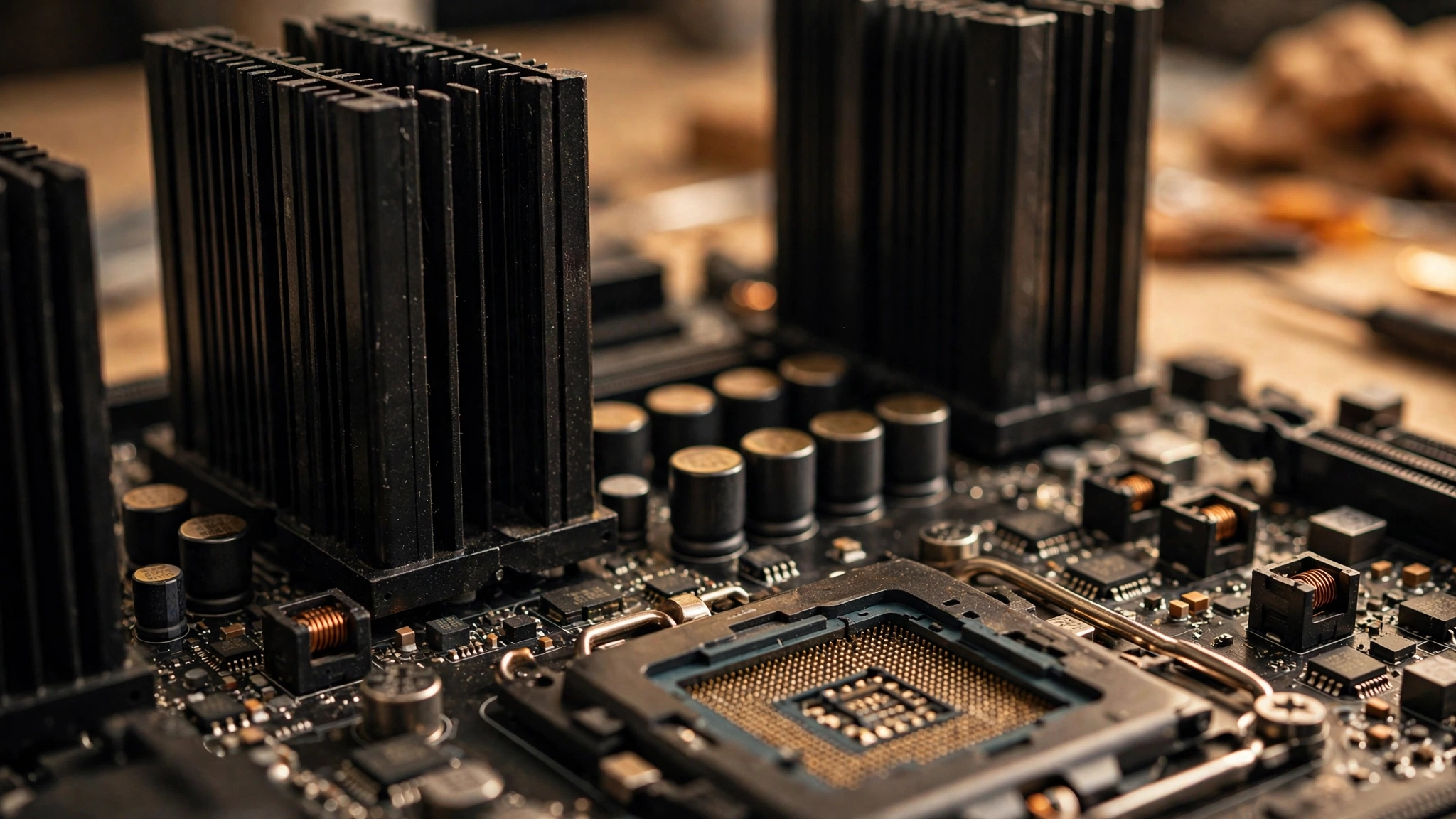
Most bottleneck advice focuses on the obvious pairing: is your CPU too slow for your GPU? That matters, but the motherboard sits underneath both components and quietly decides how much of their potential you actually get. A motherboard creates bottlenecks in four specific ways, and understanding them is the whole key to buying the right one.
First, the voltage regulator module (VRM) feeds your CPU. When a VRM is undersized or poorly cooled, it cannot sustain the power a high-end chip draws during long gaming sessions. The board then protects itself by telling the CPU to slow down. You never see an error message. You just lose a few percent of performance that no benchmark of your CPU alone would explain. This is why a $90 board with a Ryzen 9 can perform worse in practice than a $200 board with the same chip, even though both boot fine.
Second, PCIe lane sharing can cut your graphics card’s bandwidth. Modern desktop CPUs provide a limited number of PCIe lanes (typically 24 on current AMD Ryzen and Intel Core Ultra chips), and some motherboards wire a second M.2 slot to the same lanes as the primary GPU slot. Fill that slot and your graphics card silently drops from x16 to x8. There is no warning in Windows. The fix is to read the manual and choose the right slots, but the better fix is to buy a board whose lane layout does not punish you for adding storage.
Third, the memory standard locks your wallet, not just your RAM. AM5 boards only accept DDR5, while Intel’s older LGA1700 platform still has DDR4 boards available. In a normal year that is a footnote. In late 2026, with DDR5 kit prices soaring, it is the single biggest budget decision in a build.
Fourth, the chipset and BIOS decide your upgrade future. A board that stops getting BIOS updates is a dead end, no matter how good its hardware. And chipsets within the same generation gate features like overclocking, USB4, and extra PCIe 5.0 slots.
Practical takeaway: judge a motherboard by what it refuses to do to your components, not by what it promises to add.
The 5 Bottleneck Risks to Check Before You Buy
1. PCIe Lane Sharing The Silent GPU Bandwidth Cut
This is the least understood bottleneck in PC building. Your CPU has a fixed budget of PCIe lanes. The primary graphics slot wants 16 of them. Some board designs borrow from those 16 lanes to feed an extra M.2 slot, so installing a second SSD automatically splits the GPU slot down to x8. We will walk through exactly how to detect and avoid this in the dedicated section below.
2. Weak VRMs The Invisible CPU Throttle
A motherboard’s VRM turns 12V power from your PSU into the precise low voltage your CPU needs. Cheap boards use fewer, weaker power stages with small heatsinks. Under sustained gaming loads, especially with 12 or 16 core chips, the VRM overheats and the board dials the CPU back. If you are pairing a high-end processor with a bargain board, you bought a governor for your sports car. For more on why clean, stable power delivery matters for gaming performance, see our PSU tier list and power supply guide.
3. DDR4 vs DDR5 The 2026 Price-Surge Math
DDR5 prices exploded in 2026. AI data centers are buying DRAM and high-bandwidth memory faster than factories can produce it, and consumer kits paid the price. By October 2026, mainstream 32GB DDR5 kits that sold for around $90 in early 2025 were listing for $350 to $500, while older DDR4 kits that used to cost $60 to $90 climbed to roughly $150 to $180. This single market shift makes the memory standard of your motherboard a budget decision, not a tech spec. We run the full math in the DDR4 versus DDR5 section.
4. Chipset Gaps B650 vs X870, B860 vs Z890
Within a platform generation, chipsets are feature gates. For AMD AM5, B850 is the sensible mainstream pick for Ryzen 9000 gaming builds, while X870 and X870E mainly add USB4 and extra PCIe 5.0 M.2 slots for builders who will actually use them. For Intel LGA1851, B860 covers non-K Core Ultra 200 CPUs, while Z890 is the one that unlocks overclocking on K-series chips. Paying for a higher chipset you will not use is one of the most common ways builders overspend.
5. The Wi-Fi Tax and BIOS Maturity
Integrated Wi-Fi typically adds $20 to $50 to a board’s price versus the non-Wi-Fi version. If your PC sits next to your router on Ethernet, that is money you can move to a better GPU or more storage. BIOS maturity matters just as much: a board from a vendor with a strong update record will support next-generation CPUs on the same socket, while a neglected board will not. AM5’s longevity is one of its biggest selling points for 2026 builders, and Intel’s LGA1700 got an unexpected second wind in October 2026 when board makers extended BIOS support for upcoming processors on the older socket.
Practical takeaway: run every board you consider through these five checks before looking at brand names or aesthetics.
Best Motherboards for Gaming in 2026
Every board below earned its place by passing the five bottleneck checks above. The list is organized by budget tier and platform, so you can jump straight to your situation. For each pick, the “bottleneck guard” line explains the specific risk it protects you from.
| Motherboard | Platform | Tier | Bottleneck Guard |
|---|---|---|---|
| ASRock B850M Pro RS WiFi | AMD AM5 (B850) | Budget AMD | Solid power delivery for 6 and 8 core Ryzen chips, PCIe 5.0 GPU slot, Wi-Fi included |
| Gigabyte B760M DDR4 (LGA1700) | Intel LGA1700 (B760) | Budget Intel DDR4 | DDR4 memory keeps the total build affordable during the DDR5 price surge; fresh Oct 2026 BIOS support |
| MSI MAG B850 Tomahawk MAX WiFi | AMD AM5 (B850) | Mid-range AMD | 14x 80A CPU power stages, two Gen5 M.2 slots, Wi-Fi 7 and 5GbE without the X870 price |
| MSI MAG Z890 Tomahawk WiFi | Intel LGA1851 (Z890) | Mid-range Intel | K-series overclocking unlocked, Wi-Fi 7, four M.2 slots for storage-heavy builds |
| Gigabyte X870E AORUS Master | AMD AM5 (X870E) | High-end AMD | Full PCIe 5.0 layout with sensible lane sharing, USB4, built for 12 and 16 core Ryzen |
| MSI MPG Z890 Carbon WiFi | Intel LGA1851 (Z890) | High-end Intel | Premium VRM and connectivity for flagship Core Ultra builds, Wi-Fi 7 plus 5GbE |
Budget AMD Pick ASRock B850M Pro RS WiFi
For builders going AMD on a budget, this micro-ATX B850 board covers the essentials without the classic budget-board traps. You get the AM5 socket with its long upgrade path, a PCIe 5.0 x16 slot for your graphics card, and built-in Wi-Fi so you are not paying extra for a wireless card later. Pair it with a Ryzen 5 7600 or Ryzen 7 7800X3D class chip and the power delivery is comfortably within its limits.
The honest truth about budget boards is that this one will not feed a 16-core Ryzen 9 at full tilt forever, and it is not meant to. But for the 6 and 8 core CPUs that make sense in a budget gaming build, it delivers stable power and a modern feature set. If you are still deciding between AMD and Intel for your processor, our Intel versus AMD CPU comparison walks through which side fits different budgets.
Budget Intel Pick Gigabyte B760M DDR4 (LGA1700)
This is the smart-money pick of late 2026. On October 9, 2026, Gigabyte released BIOS updates for its B760 and H610 motherboards that officially extend support to upcoming Intel processors on the LGA1700 socket. The reason is simple: with DDR5 prices soaring past $400 for a 32GB kit, DDR4-based boards are suddenly the rational choice for budget and mid-range Intel builds.
A Gigabyte B760M board with DDR4 memory slots lets you reuse affordable DDR4 or buy it at far lower prices than DDR5, and the fresh BIOS support means the platform is not the dead end it looked like a year ago. Pair it with a 13th or 14th generation Core i5 and you have a gaming-capable foundation that leaves hundreds of dollars in your pocket for the graphics card, which is where gaming frames actually come from. If you want the full picture on Intel’s older socket roadmap, read our LGA1700 new CPUs guide.
Mid-Range AMD Pick MSI MAG B850 Tomahawk MAX WiFi
This is our top pick for most AMD builders in 2026. Tom’s Hardware named it their go-to ATX B850 board after lab testing, and the spec sheet explains why: 14x 80A power stages feeding the CPU, four M.2 sockets including two PCIe 5.0 x4 slots, Wi-Fi 7, and 5GbE wired networking. That is a connectivity package you normally have to step up to X870 to get.
The bottleneck guard is the power delivery. Those 14x 80A stages mean the board can sustain even a 12 or 16 core Ryzen under long gaming and streaming sessions without the VRM becoming the limiter. The dual Gen5 M.2 slots give you fast storage headroom, and because B850 does not force the aggressive lane-sharing layouts of some X870E designs, your GPU slot stays at full x16 in normal configurations. Tom’s Hardware’s full MSI MAG B850 Tomahawk MAX WiFi review confirms the strong test results and sensible pricing. Pair this board with a Ryzen 7 9800X3D and a high-end GPU and nothing on the board will hold either one back.
Mid-Range Intel Pick MSI MAG Z890 Tomahawk WiFi
Intel builders on LGA1851 who want overclocking headroom without flagship pricing should look here. The Z890 chipset unlocks multiplier overclocking on K-series Core Ultra 200 chips, something the cheaper B860 chipset cannot do. This board adds Wi-Fi 7 and four M.2 slots, so storage-heavy builders are covered.
The bottleneck guard is future flexibility. Four M.2 slots mean you can add drives over the life of the build without immediately hitting lane-sharing compromises, and the Z890 chipset keeps CPU overclocking on the table for later. If you are building around a locked (non-K) Intel CPU, save your money and drop to a B860 board instead. The overclocking tax only pays off if you will actually use it.
High-End AMD Pick Gigabyte X870E AORUS Master
For no-compromise AM5 builds, the X870E AORUS Master brings the full enthusiast package: an end-to-end PCIe 5.0 layout, USB4 ports, Wi-Fi 7, and power delivery built for the hungriest Ryzen 9 chips. This is the board for a Ryzen 9 9950X3D paired with an RTX 5080 or 5090 class GPU.
One honest note: X870E boards are where PCIe lane sharing is most aggressive, because they pack in the most Gen5 M.2 slots. On boards in this class, populating the extra CPU-connected M.2 slots can drop the primary GPU slot from x16 to x8. Read the manual’s lane-sharing table before filling every slot, and put your fastest SSD in the slot that does not steal GPU lanes. The lane sharing section below shows exactly how to check. Even with that caveat, the real-world gaming impact of x8 operation is small, which is why this board still earns the high-end slot.
High-End Intel Pick MSI MPG Z890 Carbon WiFi
The flagship Intel option pairs premium power delivery with Wi-Fi 7 and 5GbE networking. If you are building around a Core Ultra 9 285K with plans to overclock, this is the class of board whose VRM will not become the story of your build. You also get the full Z890 feature set for expansion.
The bottleneck guard at this tier is simple: nothing on the board becomes the limiter. That is what you are paying for above the mid-range. Just be honest with yourself about whether you need it. For pure gaming frame rates, the difference between this board and the Z890 Tomahawk above is connectivity and overclocking margin, not FPS. If the price gap buys you a GPU tier upgrade instead, the cheaper board plus the better GPU wins every time.
Practical takeaway: match the board tier to your CPU tier. A budget board with a flagship CPU creates a VRM bottleneck, and a flagship board with a budget CPU wastes money that belongs in your graphics card.
PCIe Lane Sharing Explained When Your GPU Drops to x8
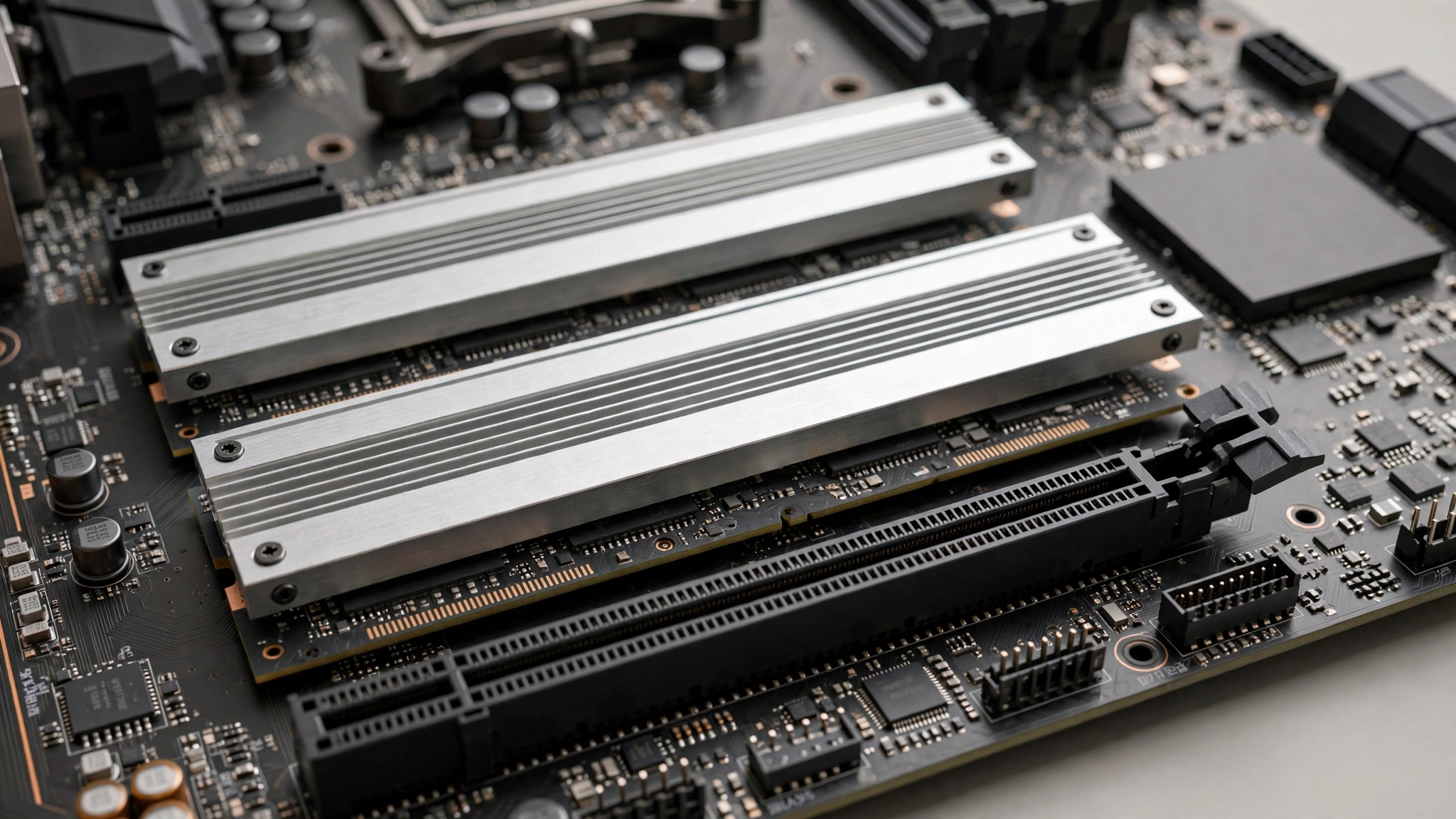
Lane sharing is the bottleneck most builders have never heard of, and it is worth understanding because it is completely silent. Your CPU provides a fixed number of PCIe lanes. On current desktop platforms that is typically 24 usable lanes: 16 (usually PCIe 5.0) intended for the graphics card, plus a handful for M.2 storage and the chipset link. Some motherboard designs wire a second or third M.2 slot to the same CPU lanes as the GPU slot. When you install an SSD in one of those slots, the board automatically splits the GPU’s 16 lanes into two groups of 8. Your graphics card is now running at x8 with no warning anywhere in Windows.
This is not a theoretical problem. Hardware coverage in 2026 confirmed specific examples: on the MSI MPG X870E Carbon WiFi, populating the M2_2 slot forces the primary GPU slot from x16 down to x8, and on the Gigabyte X870E AORUS ELITE WIFI7 ICE, using the extra CPU-connected M.2 slots drops the main GPU slot to x8 operation. Board makers document this, but they bury it in specification footnotes and manual tables that most builders never read.
Here is how to check your own system. Install GPU-Z, a free utility, and look at the Bus Interface field. It shows something like “PCIe x16 5.0 @ x8 5.0”. The first part is what the card supports, the second is what it is actually getting right now. If the second number is lower than the first, lane sharing (or a misseated card) is cutting your bandwidth. A detailed walkthrough of this behavior is available in SlashGear’s lane sharing explainer.
Now the important question: does it actually hurt gaming? Less than you would think. A PCIe 5.0 x8 connection carries the same bandwidth as PCIe 4.0 x16, which is plenty for current games. Tracked benchmarks put the real-world loss at roughly 4% at 1080p, 1 to 2% at 1440p, and around 1% at 4K when a GPU drops to x8. Gamers Nexus testing with an RTX 5090 found only a 1 to 4% difference dropping all the way from Gen5 x16 to Gen3 x16 in modern games. So this is a bottleneck you should know about and avoid when the manual makes it easy, not a crisis if it happens.
Three rules to stay safe. First, read the lane-sharing table in your board’s manual before installing SSDs, and put your boot drive in the M.2 slot that does not share lanes with the GPU slot (usually the topmost one). Second, if you plan to fill three or more M.2 slots, favor boards whose extra slots hang off the chipset rather than the CPU lanes. Third, verify with GPU-Z after the build. Two minutes of checking beats months of wondering.
Practical takeaway: lane sharing is a configuration problem, not a hardware defect. The manual tells you which slots are safe, and GPU-Z confirms it.
DDR4 vs DDR5 Motherboards The Price-Surge Math
No motherboard buying guide from before 2026 prepared builders for this. DDR5 memory prices went through an unprecedented surge this year. Memory analyst TrendForce revised its first-quarter 2026 forecast for PC DRAM contract prices to a 105 to 110% quarter-over-quarter increase, the steepest single-quarter jump on record. The cause is structural, not temporary: DRAM fabrication lines are being redirected to produce high-bandwidth memory for AI accelerators, where margins are far higher, starving the consumer market. Multiple industry sources agree the crunch could persist into 2027.
What this means at the checkout is stark. A mainstream 32GB DDR5 kit that sold for roughly $90 in early 2025 was listing for $350 to $500 by October 2026. Even DDR4 was not spared: kits that used to cost $60 to $90 climbed to around $150 to $180. When the RAM alone costs more than some graphics cards, the memory standard your motherboard requires becomes the biggest line item in the build.
This creates a genuine fork in the road. AMD’s AM5 platform is DDR5-only, so every AM5 board in this guide locks you into DDR5 pricing. There is no way around it, and you should budget accordingly. Intel’s older LGA1700 platform, on the other hand, still has DDR4 boards widely available, and as noted above, Gigabyte extended BIOS support for new LGA1700 processors in October 2026 specifically because DDR4’s price advantage became impossible to ignore.
So which should you pick? Run the math for your own build. If you are building a mid-range or budget Intel system, a DDR4 board plus a DDR4 kit can save you $200 or more versus the DDR5 equivalent, money that goes straight into a better GPU. That trade almost always wins for gaming. If you are building high-end on AM5, DDR5 is mandatory, so buy the speed your CPU actually benefits from (DDR5-6000 remains the sweet spot for Ryzen) and do not overpay for extreme frequencies that add little in games. For the deeper technical comparison of what DDR4 versus DDR5 actually changes in games, see our DDR4 vs DDR5 gaming performance guide, and for how much memory you truly need, our RAM for gaming guide keeps it practical.
One more consideration: RAM shortages also make the motherboard’s memory QVL (Qualified Vendor List) more important than usual. With prices this high, you cannot afford a kit that will not run at its rated speed. Check your board maker’s QVL for your exact kit before buying, especially for DDR5-6000 and faster kits.
Practical takeaway: in late 2026, the memory standard is a budget decision first and a technology decision second. Price both paths before you commit to a platform.
Microsoft Advanced Shader Delivery
Here is a late-2026 development that changes the motherboard conversation in a subtle way. On October 1, 2026, Microsoft’s DirectX team confirmed that Advanced Shader Delivery (ASD) is expanding to all NVIDIA RTX GPUs later in the month. The feature ships precompiled game shaders with the game download itself, so your CPU no longer has to compile thousands of shaders on first launch. Microsoft says this cuts shader preparation time by about 95%, turning minutes of first-launch stutter into seconds. Gears of War: E-Day is the first game demonstrating it, and Intel Arc B570/B580 cards plus Core Ultra Series 2 and 3 chips are covered in the same rollout. AMD’s RDNA cards already had it.
Why does this belong in a motherboard guide? Because ASD has a hard operating system requirement: Windows 11 version 24H2 or newer. And Windows 11 has hardware requirements that trace back to your motherboard and its firmware: TPM 2.0, Secure Boot, and a CPU on the support list. If you are buying a board today, make sure it is a platform that cleanly supports Windows 11 24H2 with TPM enabled in the BIOS. Every board in this guide does, but bargain-bin boards from dead platforms sometimes have flaky firmware TPM implementations that cause headaches.
The practical steps are simple. When you build, enable TPM (often labeled fTPM on AMD or PTT on Intel) and Secure Boot in the BIOS before installing Windows. Install Windows 11 24H2 or newer. Keep your GPU drivers current, since Microsoft had not published minimum driver versions for NVIDIA and Intel at the time of the announcement and those will arrive with the rollout. None of this is a bottleneck in the classic sense, but a board with mature, well-maintained BIOS firmware makes the whole process painless, which is one more reason to favor vendors with strong update records. You can read Microsoft’s full announcement on the DirectX developer blog.
Practical takeaway: any board you buy in 2026 should cleanly support Windows 11 24H2 with firmware TPM and Secure Boot. That keeps you eligible for features like Advanced Shader Delivery as they roll out.
Do You Actually Need It for an RTX 50 GPU?
Motherboard marketing leans hard on PCIe 5.0, so let us be honest about what it buys you with a current graphics card. NVIDIA’s RTX 50 series cards are designed to take advantage of PCIe 5.0 natively. But testing tells a calmer story: Gamers Nexus ran an RTX 5090, the fastest consumer card available, across PCIe generations and found only a 1 to 4% performance difference dropping from Gen5 x16 all the way to Gen3 x16 in modern games. In other words, even last-generation PCIe 4.0 x16, which is what a Gen5 x8 connection equals in bandwidth, is not meaningfully holding back today’s fastest GPU in games.
That does not make PCIe 5.0 useless. It matters more for storage: Gen5 M.2 slots double the sequential speed ceiling for NVMe drives, which helps with large game installs and will matter more as Microsoft’s DirectStorage API pushes games to stream assets directly from SSDs to the GPU. It is also cheap future-proofing, since a PCIe 5.0 x16 slot costs you nothing extra on most 2026 boards and keeps the board relevant for next-generation cards.
The buying rule is straightforward. Do not pay a premium specifically for PCIe 5.0 on the GPU slot in 2026, because no current card is starved without it. Do value Gen5 M.2 slots if you move large files or want the fastest load times, and do treat a full PCIe 5.0 layout as a nice bonus on boards you are already buying for other reasons. Anyone telling you a PCIe 4.0 board bottlenecks an RTX 50 card in games is selling you something.
Practical takeaway: PCIe 5.0 is future-proofing and faster storage, not a gaming requirement in 2026. Do not overpay for it alone.
Common Mistakes That Create Motherboard Bottlenecks
- Buying the board before the CPU. The socket must match your processor. AM5 boards take Ryzen 7000, 8000, and 9000 series chips. LGA1851 boards take Intel Core Ultra 200 series. LGA1700 boards take 12th, 13th, and 14th generation Intel chips. Decide the CPU first, then the board.
- Pairing a flagship CPU with a bargain VRM. A 16-core Ryzen 9 on a $90 board will throttle under sustained loads. Match board tier to CPU tier.
- Filling M.2 slots without reading the manual. The lane-sharing table tells you which slots steal GPU lanes. Two minutes of reading saves a silent x8 downgrade.
- Paying for Wi-Fi you will not use. If your PC lives on Ethernet, a non-Wi-Fi board variant puts $20 to $50 back in your pocket.
- Ignoring the memory QVL. With RAM prices at record highs, an unstable kit is an expensive mistake. Check the board maker’s Qualified Vendor List for your exact memory kit.
- Buying a dead platform unknowingly. Check that the board vendor is still releasing BIOS updates. A board with no updates is a board with no upgrade path.
- Overspending on the chipset. B860 is fine for a locked Intel CPU. B850 covers nearly every Ryzen gaming build. Only pay for X870E or Z890 if you will use what they add.
Expert Tips Before You Buy
Start with the CPU and GPU, then buy the cheapest board that does not bottleneck them. This is the single most valuable mindset shift. The motherboard is a foundation, not a performance part. Every dollar it does not need is a dollar for the graphics card.
Update the BIOS before you install Windows, especially on AM5. Early BIOS versions for new CPU generations can have memory compatibility quirks that later AGESA updates fix. Most modern boards support BIOS flashback, letting you update with no CPU installed.
Buy your RAM as a matched kit, not two separate sticks. Mixed sticks are the most common cause of memory instability tickets on build forums, and at 2026 prices you do not want to troubleshoot a $400 kit.
If you are on the fence between two boards, pick the one with the better BIOS reputation and update history. Features on a spec sheet are promises. BIOS updates are proof.
For builders watching every dollar during the component price surge, our gaming PC price-hike survival guide covers where to save and where not to compromise across the whole build.
Frequently Asked Questions
Does a motherboard affect gaming performance?
Barely, and only indirectly. With the same CPU, GPU, and RAM, the FPS difference between a $120 board and a $400 board is typically under 1 to 2%. Where the motherboard matters is in what it prevents: a weak VRM can throttle your CPU, bad lane sharing can cut GPU bandwidth, and an outdated BIOS can block CPU upgrades. Buy a board that stays out of your components’ way. (Source: real builder question from the Steam hardware community.)
How important is a motherboard for gaming?
Important as a foundation, unimportant as a performance part. Think of it like the electrical wiring in a house: you notice it only when it is inadequate. The right board gives your CPU clean power, your GPU its full PCIe lanes, your RAM a stable path to its rated speed, and your build an upgrade future. None of that shows up as extra FPS on day one, but all of it protects the FPS you paid for. (Source: real question from the Tom’s Hardware forums.)
If I upgrade my motherboard, will I see higher FPS in games?
Almost certainly not, if you keep the same CPU, GPU, and RAM. A motherboard swap alone does not make any component faster. The exceptions are narrow: moving from a board whose VRM was throttling your CPU to one that is not, or moving to a platform that supports a faster CPU or faster memory. If your current board runs your parts at their rated speeds, spend the upgrade money on the GPU instead. (Source: real question from TweakTown’s Ask the Experts.)
Is an MSI Gaming Plus motherboard better than an MSI Tomahawk motherboard?
Within MSI’s lineup, Tomahawk boards sit a tier above Gaming Plus boards, with stronger power delivery, better cooling, and richer connectivity. For a mid-range gaming build with a 6 or 8 core CPU, a Gaming Plus board is usually sufficient and cheaper. For higher-end CPUs or overclocking, the Tomahawk’s beefier VRM is worth the step up. Match the board tier to your CPU, as this guide’s picks demonstrate. (Source: real question from Quora.)
What is the best MSI motherboard for gaming?
It depends on your platform and budget. For AMD AM5 in 2026, the MSI MAG B850 Tomahawk MAX WiFi is the standout value pick with strong power delivery and modern connectivity. For Intel LGA1851, the MSI MAG Z890 Tomahawk WiFi covers overclocking builds while the MPG Z890 Carbon WiFi serves the high end. There is no single best board, only the best board for your CPU and budget. (Source: real question from Quora.)
Should I sacrifice graphics card budget to buy a better motherboard?
No. This is one of the most common budget mistakes in PC building. A better GPU improves your gaming performance directly and dramatically, while a more expensive motherboard mostly adds connectivity you may never use. Buy the least expensive board that meets the five bottleneck checks in this guide, then put every remaining dollar into the graphics card. The only exception is avoiding a board so cheap that its VRM throttles your CPU. (Source: real question from Quora.)
Which motherboard should I buy for gaming if I am building in 2026?
Start from your CPU choice. Ryzen builders should get a B850 board (the MSI MAG B850 Tomahawk MAX WiFi is our top overall AMD pick), Intel Core Ultra builders should get B860 or Z890 depending on whether they will overclock, and budget Intel builders should seriously consider a DDR4-based B760 board to dodge the DDR5 price surge. Whatever you choose, verify the lane-sharing layout, check the memory QVL, and confirm the vendor still ships BIOS updates. (Source: real question from the Linus Tech Tips forums.)
Key Takeaways
- A motherboard rarely adds gaming performance, but a bad one silently takes it away through weak VRMs and PCIe lane sharing.
- The best motherboard for gaming in 2026 for most AMD builders is a B850 board like the MSI MAG B850 Tomahawk MAX WiFi. For Intel LGA1851, look at Z890 for overclocking or B860 for locked CPUs.
- Read the lane-sharing table in your board manual before filling M.2 slots, and verify your GPU link width with GPU-Z after building.
- DDR5 prices surged to $350 to $500 for 32GB kits by October 2026, making DDR4-based Intel LGA1700 boards a genuinely smart budget play.
- Make sure any new board cleanly supports Windows 11 24H2 with firmware TPM enabled, keeping you eligible for features like Microsoft’s Advanced Shader Delivery.
- Do not pay extra for PCIe 5.0 on the GPU slot alone. No current graphics card is meaningfully bottlenecked without it.
Final Verdict
The best motherboard for gaming is the one that disappears into your build: clean power to the CPU, full PCIe lanes to the GPU, stable memory at its rated speed, and a platform with a future. In 2026, that means a B850 board for most Ryzen builders, a sensible Z890 or B860 for Intel’s current platform, and a hard look at DDR4-based LGA1700 boards if the RAM market has blown up your budget. Run every candidate through the five bottleneck checks, read the manual’s lane-sharing table, and put the money you save toward the graphics card. Your games will thank you for it.

Leave a Reply