

If you have ever asked what does a cpu do, you are asking the right first question before you buy or upgrade a gaming PC. The short answer is that the CPU, short for central processing unit, runs the instructions that make your computer work. Every click, every key press, every game level that loads, and every frame that appears on your screen starts as a set of instructions, and the CPU is the part that carries those instructions out.
Think of the CPU as the head chef in a busy kitchen. It does not cook every dish with its own hands, and it does not store all the food itself. Instead, it reads the orders, decides what happens next, hands tasks to the right helpers, checks the results, and keeps everything moving in the right order. Without it, the rest of the PC has no direction. With a weak one, even a strong graphics card can end up waiting around for work.
This guide explains the job in plain language, with no engineering degree required. You will learn how a CPU works step by step, what cores, threads, clock speed, and cache really mean, how integrated graphics differ from a dedicated graphics card, and how the CPU and GPU work together in a game. By the end, you will know which CPU details matter for gaming and which ones you can safely stop worrying about.
What Does a CPU Do in Simple Terms
A CPU does four basic jobs, over and over, billions of times per second. It fetches instructions from memory, figures out what each instruction means, carries it out, and then stores or passes on the result. That loop is the whole job, and everything else a computer does is built from those small steps repeated at incredible speed.
Here is what that looks like in everyday use. When you open a game, the CPU reads the instructions for starting that game, loads the pieces it needs from storage into memory, and tells other parts what to do. While you play, it tracks your character, your inputs, the non-player characters, the physics of a jump or a collision, and the state of the game world. It also talks to your operating system, your background apps, your audio, and your network connection, and it keeps all of that organized so nothing steps on anything else.
That is why the CPU is often called the brain of the computer. The comparison is useful, but it has limits. A brain learns and thinks in a broad sense. A CPU does not understand your game or care about winning. It follows instructions exactly, very fast, and without guessing. If the instructions say to add two numbers, it adds them. If they say to compare two values and jump to a different instruction when one is larger, it does that. A game is millions of those tiny decisions, stitched together so quickly that they feel like a living world.
It also helps to know what the CPU does not do. It does not draw the detailed pictures on your screen. That is the graphics card’s job, and you will see how the two split the work later in this guide. It does not store your files long term. That is your SSD or hard drive. It does not hold everything in its head at once either. It works with RAM for short term memory, and with its own small, very fast cache for the data it needs right now. Each part has a role, and the CPU’s role is to run the show.
For a gamer, the practical point is simple. A CPU that is too slow for your graphics card can hold your frame rate back, because the game logic, the draw calls, and the frame preparation all pass through it. A CPU that is fast enough gets out of the way and lets your graphics card do its best work. That balance is the heart of PC building, and it is worth understanding before you spend money on either part.
Inside the CPU The Main Parts in Plain Language
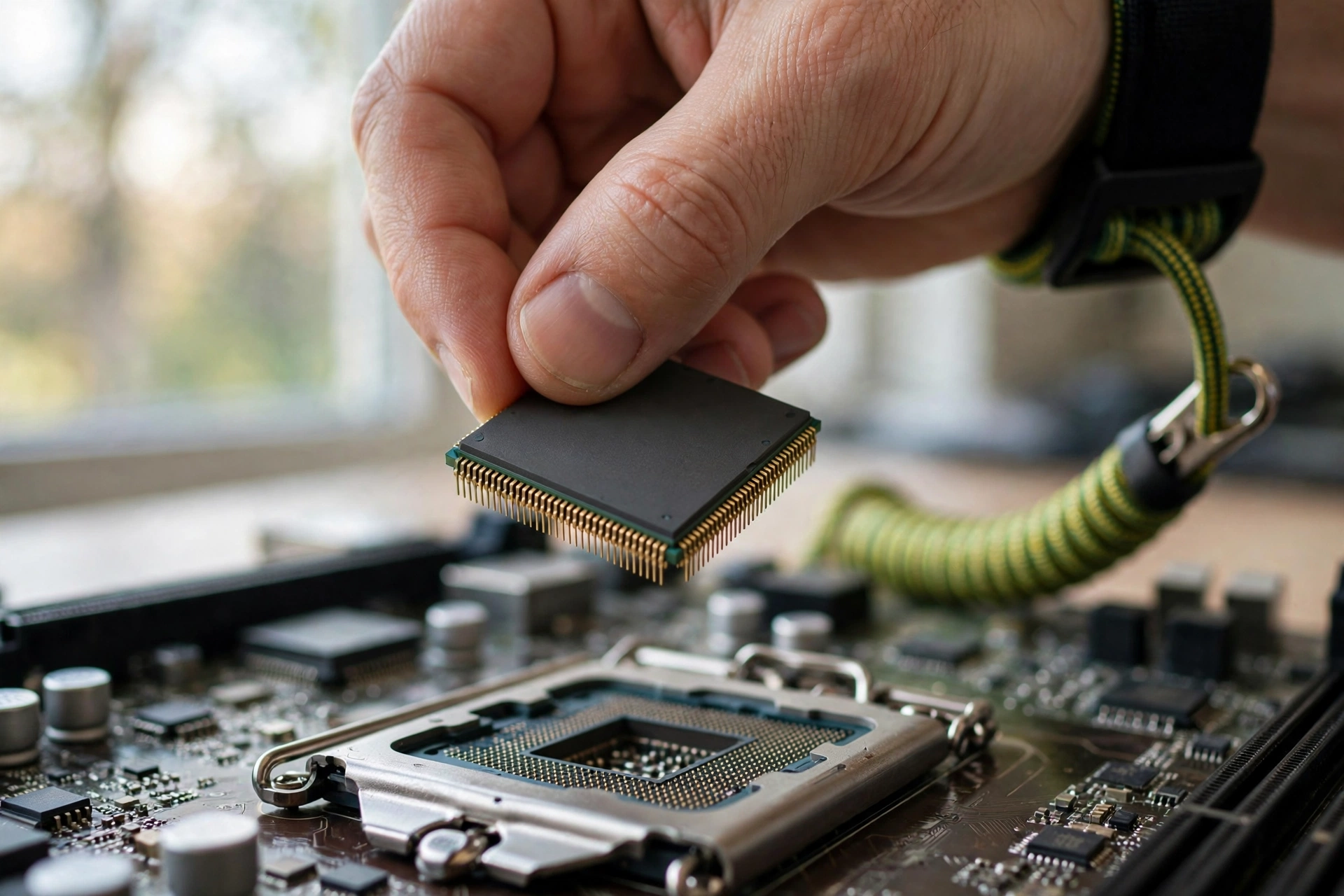
A modern CPU looks like a small, flat square, but inside it are billions of tiny switches called transistors. You do not need to understand transistors to buy a good CPU. You only need a simple picture of the main parts and what each one does.
The control unit is the organizer. It fetches instructions, decodes them, and directs traffic inside the chip, telling each part when to act. The arithmetic logic unit, usually shortened to ALU, is the calculator. It handles math and comparisons, such as adding numbers, checking whether one value is bigger than another, or deciding which path a program should take next. Registers are tiny storage spots right inside the CPU. They hold the small pieces of data the CPU is working on at this exact moment, so it does not have to travel out to RAM for every single step.
Around those parts sits the cache, which is a small pool of very fast memory built into the chip. You will get a full plain language explanation of cache later in this guide. For now, just remember that cache is the CPU’s desk drawer, RAM is the desk itself, and storage is the filing cabinet across the room. The closer the data is, the faster the CPU can reach it.
| Part of the CPU | Plain language job | Everyday comparison |
|---|---|---|
| Control unit | Fetches instructions and tells each part what to do next | The head chef reading orders and calling out tasks |
| Arithmetic logic unit (ALU) | Does the math and makes simple comparisons | The calculator on the chef’s counter |
| Registers | Hold the data being worked on right now | The ingredients already in the chef’s hands |
| Cache | Stores frequently used data very close to the cores | The drawer of tools right beside the stove |
| Cores | Independent workers that can run tasks at the same time | Extra chefs working side by side |
One more part matters for shoppers: the socket and platform. A CPU fits into a specific socket on a motherboard, and AMD and Intel use different sockets and chipsets. That means you cannot simply pick any CPU for any motherboard. When you upgrade, check that the CPU, motherboard, and RAM type all belong to the same platform. That one check prevents one of the most common beginner upgrade mistakes, and it is covered in more depth in our compatibility guide.
How a CPU Works Fetch, Decode and Execute
The fetch, decode, and execute cycle is the heartbeat of every CPU. It is a loop that repeats constantly while your computer is on. Once you see it in simple terms, a lot of other CPU jargon starts to make sense.
First comes fetch. The CPU looks at a pointer called the program counter, which tells it where the next instruction lives in memory, and it fetches that instruction. Think of it as picking up the next order ticket from the rail. Next comes decode. The control unit translates that instruction from machine code into signals that tell the CPU’s parts exactly what to do. This is the moment when a coded instruction becomes a clear action, such as “add these two numbers” or “load this value from memory.” Then comes execute. The right part of the CPU carries out the action, and the result is written back to a register or to memory so the next instruction can use it. Then the cycle starts again with the next instruction.
Modern CPUs do not run this cycle one slow step at a time. They use a technique called pipelining, which works like an assembly line. While one instruction is being executed, the next one is already being decoded, and the one after that is already being fetched. That overlap is a big reason a modern CPU feels so fast, even though each individual step is tiny.
Games benefit from this cycle in a direct way. Each frame of a game is the result of a long chain of instructions: read your input, update the game world, work out physics and AI, prepare a list of objects to draw, and hand that list to the graphics card. The CPU runs through that chain many times per second. If it finishes the chain quickly, your game feels smooth and responsive. If it struggles, you may see stutters, uneven frame times, or a frame rate that refuses to rise no matter how strong your graphics card is.
You do not need to memorize the cycle to buy a PC. You only need the idea: a CPU is an instruction runner, and gaming performance depends on how quickly and how steadily it can run the instructions that prepare each frame.
Cores and Threads Explained Simply
Cores and threads are two of the most confusing words on a CPU box, so let us clear them up with a simple picture. A core is a full, independent worker inside the CPU. A thread is a stream of work that a core can handle. Most modern CPUs can handle two threads per core at once, using a feature AMD calls simultaneous multithreading and Intel calls hyper-threading. That does not turn one core into two full cores, but it lets a core stay busy while one thread waits for data, which is a useful efficiency trick.
A useful comparison is a kitchen again. Cores are chefs. Threads are order tickets. One chef can juggle two tickets by switching between them while one dish waits for the oven, but two chefs can truly cook two dishes at once. More chefs help most when there are many dishes to cook at the same time. That is why more cores help with streaming while gaming, recording video, running chat and browser tabs in the background, and other multitasking, while a single fast core still matters a lot for games that lean on one main thread.
For gaming in 2027, a mainstream CPU with 6 cores and 12 threads is a sensible starting point for most builders, and 8 cores gives comfortable headroom for streaming and background tasks. Fewer cores can still work for light gaming, especially with a modest graphics card, but they leave less room for everything else your PC does while you play. More cores than 8 are usually about heavy work like video editing, 3D rendering, or running many virtual machines, not about higher frame rates in most games. For a real example of the mainstream range, AMD’s Ryzen 5 7600 is a 6 core, 12 thread CPU, and the Ryzen 7 7700 is an 8 core, 16 thread CPU. Those are well known, current generation mainstream parts, and they show how the core counts on the box translate into everyday choices.
| What you do | What usually matters most | A sensible starting point |
|---|---|---|
| Light gaming and everyday use | A few fast cores, enough threads for background apps | 6 cores and 12 threads |
| Gaming plus Discord, browser, and streaming | More cores so background work does not steal game performance | 8 cores and 16 threads |
| Heavy video editing or 3D work | Many cores for work that splits cleanly across workers | 12 cores or more, if the budget allows |
The key lesson is balance. Do not buy cores you will never use while ignoring everything else, and do not buy a CPU with too few cores and expect it to stream, record, and game at once without strain. Match the core count to how you actually use your PC, not to the biggest number on the shelf.
Why GHz Does Not Tell the Whole Story
Clock speed, measured in gigahertz (GHz), tells you how many cycles a CPU completes per second. A CPU rated at 5.0 GHz completes about 5 billion cycles per second. That sounds like a perfect way to compare CPUs, but it is not, and this is one of the biggest traps for first time buyers.
The reason is that not every cycle does the same amount of work. One CPU design might finish more instructions per cycle than another, thanks to a wider design, better prediction of what comes next, or a larger cache. Two CPUs at the same clock speed can therefore perform very differently, and a newer CPU at a lower clock speed can beat an older CPU at a higher one. Clock speed is also not fixed: modern CPUs boost to higher speeds for short bursts and settle lower under sustained heavy load, depending on cooling and power limits.
Think of clock speed like the tempo of a song. A faster tempo does not guarantee better music, and two bands playing at the same tempo can sound completely different. What matters for gaming is how much useful game work gets done per second, which depends on clock speed, instructions per cycle, cache, memory speed, and the game itself.
If you want the full deep dive, including base clock, boost clock, and how cooling changes real world speeds, read our guide on what CPU clock speed means. The short version for shoppers is this: use clock speed as one clue, never as the whole verdict, and compare CPUs of the same generation and family before you compare across brands or years.
Cache Explained in Plain Language
Cache is the CPU’s short term memory, built right into the chip, and it is much faster than RAM. When the CPU needs a piece of data again soon, it checks the cache first. If the data is there, that is called a cache hit, and work continues almost instantly. If it is not there, the CPU has to fetch it from RAM, which takes longer. That waiting time is one of the quiet reasons a CPU can feel fast or slow.
Most CPUs have three levels of cache. L1 cache is the smallest and fastest, and it sits closest to each core for the data that core is using right now. L2 cache is larger and a little slower, and it serves each core or a small group of cores. L3 cache is the largest of the three and is shared across cores, which helps when cores need to share game data or hand work back and forth. You do not need to memorize the sizes. You only need the idea that a bigger, well designed cache helps the CPU spend less time waiting and more time working.
Cache matters for gaming because games reuse a lot of data in short bursts: positions, textures being prepared, physics states, and AI decisions. A CPU with a generous cache can keep more of that working set close at hand, which can smooth out frame times in games that are sensitive to memory delays. That is one reason some gaming focused CPUs stand out even when their clock speeds look ordinary on paper.
Cache is not a magic number to chase on its own. A huge cache on an old design will not beat a balanced modern design, and cache size alone does not tell you how well a CPU will play your favorite game. Treat it as one more reason to look at real game performance and the whole design, not a single spec in isolation.
Integrated Graphics vs Dedicated Graphics
Some CPUs come with graphics built in, called integrated graphics. Others have no built in graphics at all and must be paired with a separate graphics card. Knowing which type you have prevents a very common beginner surprise: a PC that shows no picture at all because there is no graphics output to connect the monitor to.
Integrated graphics live inside the CPU and share system RAM. They are fine for web browsing, office work, video playback, and light or older games at modest settings. They are also handy as a backup: if your graphics card ever fails, integrated graphics can keep the PC usable while you fix it. Their limits show up quickly in modern games, though, because they share memory and power with the CPU and cannot match a dedicated card’s rendering power.
A dedicated graphics card, often called a discrete GPU, is a separate board with its own processor and its own fast video memory, as in the graphics cards made by NVIDIA. It handles the heavy drawing work: shading, lighting, textures, and the millions of pixels in each frame. For serious gaming, a dedicated card is the normal choice, and the CPU’s job shifts to preparing frames fast enough for that card to draw.
When you shop, check the CPU listing for integrated graphics. If it has none and you buy no graphics card, you will have no display output. If it has integrated graphics and you also buy a graphics card, your monitor should connect to the graphics card, not to the motherboard video port, or you will not get the card’s performance. That one cable check fixes a surprising number of “my new PC is slow” problems.
How the CPU Works With Your GPU
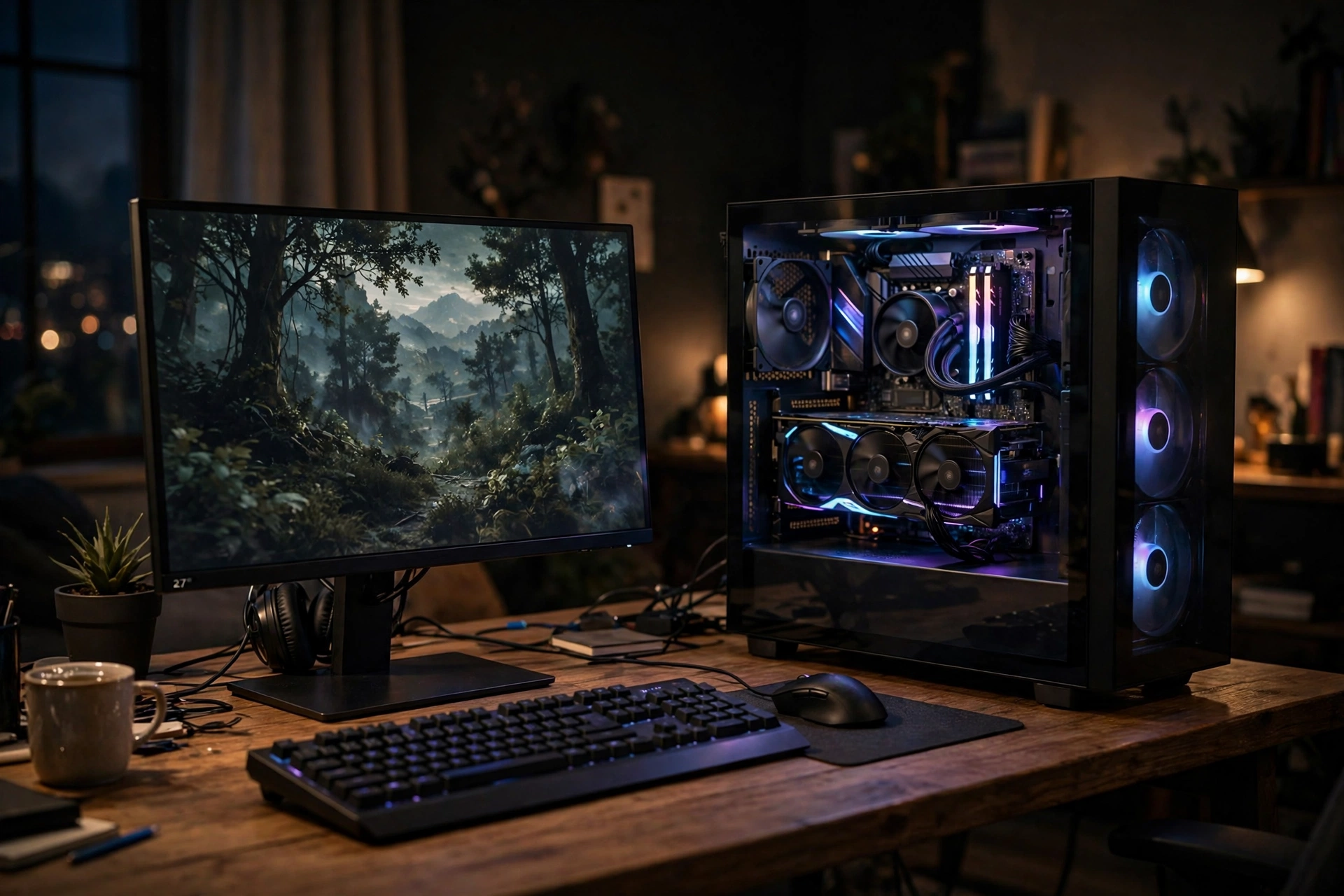
Here is where everything comes together for gamers. In a game, the CPU and GPU are partners with different jobs. The CPU prepares the frame: it updates the game world, works out physics and AI, and builds a list of draw calls that describe what needs to appear. The GPU then takes that list and draws it, turning geometry, textures, and lighting into the finished picture on your screen. The CPU sets the table, and the GPU serves the meal.
A bottleneck happens when one partner cannot keep up with the other. If the CPU cannot prepare frames fast enough, the GPU sits idle waiting for work, and your frame rate stops rising even though the graphics card has power to spare. If the GPU cannot draw frames fast enough, the CPU waits instead, and raising graphics settings will cost frame rate while the CPU still has headroom. Both directions are normal in different games and settings, and the goal is a balanced pairing, not a perfect one, since no pairing is perfectly matched in every game. For the full comparison of which side is holding you back and how to tell, see our guide on CPU bottleneck versus GPU bottleneck.
Resolution changes the balance in a useful way. At 1080p, frames are smaller and faster to draw, so the CPU’s preparation work matters more and a weak CPU shows up sooner. At 1440p and 4K, each frame takes the GPU much longer to draw, so the GPU becomes the limit more often and the CPU has more breathing room. That is why a pairing that feels CPU limited at 1080p can feel perfectly balanced at 1440p, and why reviewers test at several resolutions before judging a CPU.
A real world snapshot shows why this balance matters for ordinary gamers. Valve’s October 2026 Steam Hardware Survey put the GeForce RTX 3060 back at the top of the surveyed graphics cards, narrowly ahead of the RTX 5070, which reminds us that most gamers are not running the newest flagship card. A mid range card like that pairs sensibly with a mainstream 6 or 8 core CPU, because the card, not an extreme CPU, is usually the part doing the heaviest drawing work at common settings. Buying a far more expensive CPU for that kind of card rarely buys extra frames, while money saved there can go toward more RAM, better cooling, or a better monitor.
If you suspect your current PC is held back on one side, our step by step guide on how to find a PC bottleneck walks through the monitoring checks that show whether the CPU or the GPU is the busy one during your games. That check is worth doing before you buy, because it tells you which part actually deserves the upgrade money.
What This Means When You Buy or Upgrade a Gaming PC
You now have enough understanding to shop with confidence. Start with your graphics card and your monitor, since those set the frame rate and resolution you are aiming for. Then pick a CPU that can comfortably feed that card at that resolution, with enough cores for the background tasks you actually run. Then check the platform: the CPU socket, the motherboard chipset, and the RAM type must match, and your power supply and cooling must suit the parts you chose.
A few practical checks save beginners the most trouble. Confirm whether your CPU has integrated graphics or whether you need a graphics card for any display at all. Confirm your cooler fits your case and handles your CPU’s heat output, since a CPU that overheats will slow itself down to protect itself. Confirm your RAM amount and speed suit your build, since too little RAM forces the system to lean on much slower storage. If RAM itself becomes the choke point, our guide on RAM bottlenecks explains the signs and the fix.
If you are starting a new build, the walkthrough on assembling a gaming PC step by step walks through part selection and assembly in order, and our budget PC build guide for 2027 shows how to spend wisely when money is tight. If you are upgrading, check compatibility before you buy, not after the box arrives: CPU, motherboard, RAM, cooler, and power supply all have to agree, and a quick compatibility check is far cheaper than a return. Our guide on CPU and GPU compatibility covers that matching process in detail.
The biggest beginner mistake is chasing one number, whether that is clock speed, core count, or cache size, while ignoring the rest of the system. The second biggest is buying far more CPU than the graphics card can use, or far more graphics card than the CPU can feed. A balanced build at your real budget will beat an unbalanced build at a higher price almost every time, and it will feel smoother because neither partner spends its time waiting.
Frequently Asked Questions
What does a CPU do in a gaming PC?
In a gaming PC, the CPU runs the game logic, reads your inputs, updates the game world, handles physics and AI, and prepares each frame for the graphics card to draw. The graphics card then draws the finished picture. If the CPU is too slow for the card, frame rates can stall even when the card has spare power.
Do I need a CPU and a GPU, or is one enough?
You need both for serious gaming. The CPU runs instructions and prepares frames, while a dedicated GPU draws them. Some CPUs include integrated graphics that can run light games and everyday tasks, but modern games at good settings need a dedicated graphics card for smooth performance.
How many cores do I need for gaming?
Most gamers are well served by 6 cores and 12 threads, and 8 cores and 16 threads gives comfortable headroom for streaming, voice chat, and background apps. More cores help multitasking and heavy creative work more than they raise frame rates in most games, so match the core count to how you actually use your PC.
Is a higher GHz always better?
No. Clock speed is only one part of performance. A newer CPU design can do more work per cycle, use cache better, and stay faster under load than an older CPU with a higher GHz number. Compare CPUs within the same generation and look at real game performance, not GHz alone.
What is CPU cache in simple terms?
Cache is small, very fast memory built into the CPU for data it needs right now. L1 is the smallest and fastest, L2 is larger, and L3 is the largest and shared across cores. A good cache helps the CPU spend less time waiting on RAM, which can smooth out gaming performance.
Can a CPU bottleneck a GPU?
Yes. If the CPU cannot prepare frames fast enough, the graphics card waits for work and your frame rate stops rising. This shows up most at 1080p, where frames are quick to draw, and less at 4K, where the GPU takes longer per frame. Checking CPU and GPU usage while gaming shows which side is the busy one.
Do I need integrated graphics if I have a graphics card?
No, not for gaming, but integrated graphics are a useful backup if a graphics card fails. If your CPU has no integrated graphics and you have no graphics card, the PC will have no display output, so check that detail before you buy.
Conclusion
What does a cpu do, in the end? It runs instructions, billions of times per second, and turns your clicks, your game, and your operating system into organized, useful work. It fetches, decodes, and executes, it leans on cores, threads, cache, and clock speed to do that work efficiently, and it hands finished frame preparations to your graphics card so the game you see can come to life.
You do not need to remember every technical term to make a good buying decision. Remember the balance instead. Pick a CPU that can feed your graphics card at your monitor’s resolution, with enough cores for the tasks you run alongside your games, on a platform where the CPU, motherboard, and RAM all match. Check for integrated graphics, cooling, and power before you buy, and test your current PC before you upgrade so your money goes to the part that is actually holding you back.
A good CPU does not shout about itself. It simply gets out of the way, keeps the game world moving, and lets the rest of your PC do its best work. Now that you know what it does and how it works, you can spot that kind of CPU on a spec sheet, and you can build or upgrade with confidence instead of guesswork.

Leave a Reply