

CPU GPU compatibility comes down to six checks: matching CPU socket and motherboard, a free PCIe x16 slot for the GPU, PSU wattage covering both parts with headroom, a case that fits the card, RAM matching the board, and balanced chip strength. Work through each check below before you spend a dollar.
If you are staring at a shopping cart with a processor in one tab and a graphics card in another, you are asking the right question. Compatibility mistakes are the most expensive kind in PC building. A CPU that does not fit your motherboard is a return label and a week of waiting. A GPU your power supply cannot feed is a black screen on first boot. A strong graphics card chained to a weak processor is months of lost frames you can never get back.
The good news: real CPU GPU compatibility is simpler than the internet makes it sound. There is no secret handshake between brands, and the rules have barely changed in a decade. This guide walks you through the six layers of compatibility, one at a time, in plain English. By the end you will know exactly what to verify before buying, and you will have a checklist you can reuse for every build or upgrade.
What CPU GPU Compatibility Actually Means
Here is the mental model that makes everything click. Your CPU and GPU never touch each other directly. They both connect to the motherboard, which is the middleman, and they cooperate through it. Compatibility is really about six separate agreements between your parts and the platform they sit on:
- Socket agreement: the CPU must physically and electrically fit the motherboard’s socket.
- Chipset agreement: the motherboard’s chipset must support the CPU’s features (and the right BIOS must be installed).
- Slot agreement: the motherboard must have a PCIe x16 slot the GPU can use at full speed.
- Power agreement: the PSU must supply enough watts through the right connectors.
- Physical agreement: the card, cooler, and RAM must fit inside the case without blocking each other.
- Balance agreement: the two chips should be close enough in strength that neither wastes the other.
Miss any one of these and the build either fails to boot, runs unstable, or leaves performance on the table. Nail all six and the parts disappear into the background, which is exactly what you want.
One myth to kill right away: CPU GPU compatibility has nothing to do with matching brands. An AMD graphics card works perfectly on an Intel motherboard. An NVIDIA card works perfectly with a Ryzen CPU. PCIe is an open standard, and every modern part speaks it. Anyone telling you to keep brands in the family is selling you something.
Socket and Chipset Compatibility The First Gate
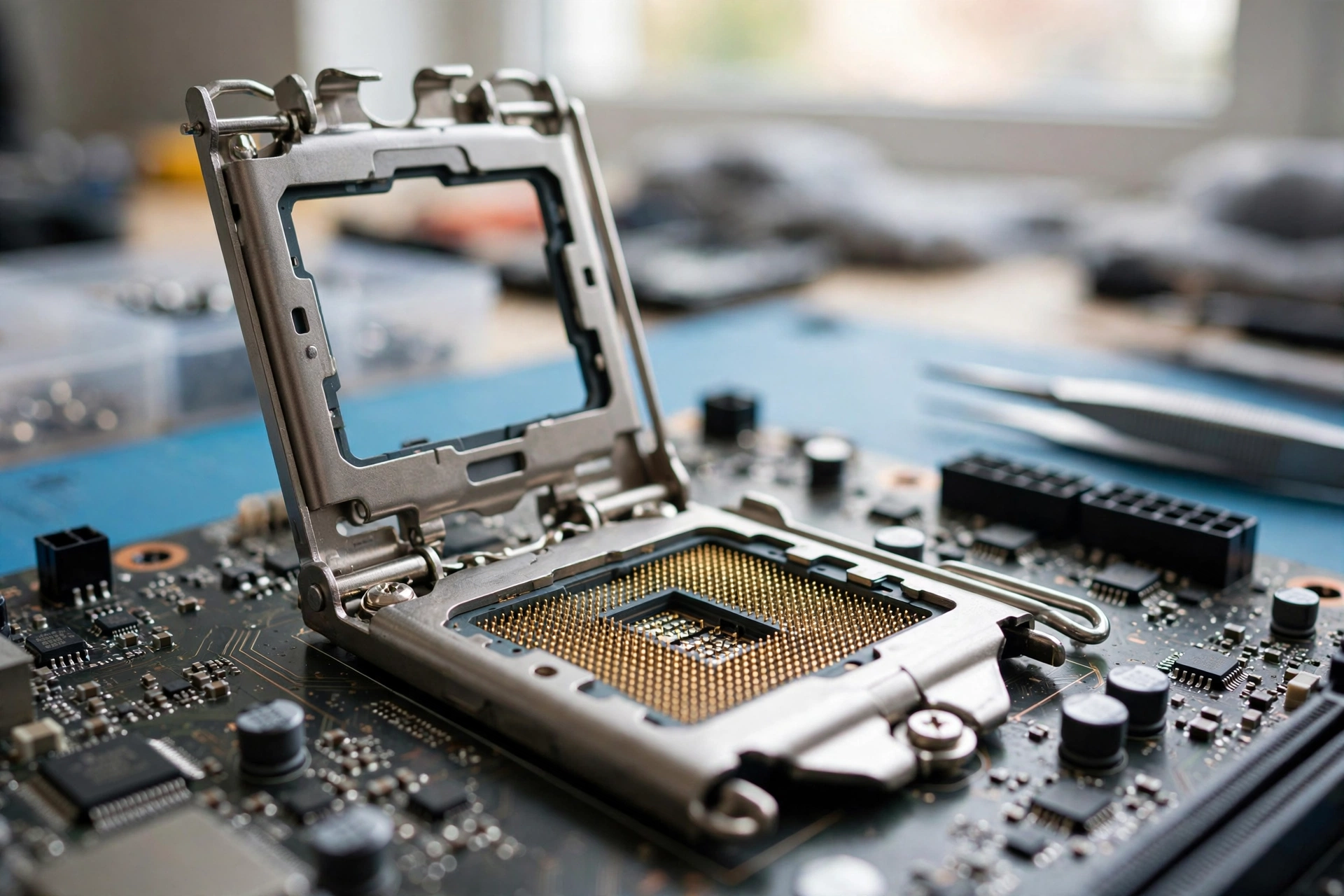
The socket is the physical connector on the motherboard where the CPU sits. If the socket code does not match your processor, the chip will not fit, will not make electrical contact, and will not boot. This is a hard rule with no workarounds. Get the socket right first and everything else follows.
Here is the current platform map:
| Platform | Socket | Current CPUs | RAM Type | Notes |
|---|---|---|---|---|
| AMD AM4 | AM4 | Ryzen 1000 through 5000 series | DDR4 | Mature budget platform, long support history |
| AMD AM5 | AM5 | Ryzen 7000, 8000, 9000 series | DDR5 only | AMD has committed to supporting AM5 through at least 2027 |
| Intel LGA1700 | LGA1700 | 12th, 13th, 14th Gen Core | DDR4 or DDR5 (board dependent) | Gigabyte confirmed new LGA1700 CPUs coming in early 2027 |
| Intel LGA1851 | LGA1851 | Core Ultra 200 series (Arrow Lake) | DDR5 only | Requires 800 series chipsets, not backward compatible |
Notice that LGA1700 and LGA1851 are the same physical size. Intel’s own support documentation states that the LGA1851 socket is not compatible with LGA1700 processors despite the shared dimensions, and that the new Core Ultra desktop chips require 800 series chipsets rather than the older 600 or 700 series boards. Same size does not mean same socket. Always go by the socket code, not by how the bracket looks.
There is one piece of good news from Intel in that same documentation: the mounting holes for LGA1700 coolers are mechanically compatible with LGA1851. So if you upgrade from a 14th Gen chip to a Core Ultra chip later, your existing CPU cooler can usually move across with you. Small mercy, but a real one.
Chipset vs Socket: Why Both Matter
The socket decides whether the CPU fits. The chipset decides whether it works properly. The chipset is the traffic controller on the motherboard that connects the CPU to everything else. Two boards can share a socket but offer very different features.
A budget H610 board and a premium Z790 board both use LGA1700, but the Z790 unlocks overclocking, more PCIe lanes, faster USB, and better memory support. Pairing a locked i5 with an H610 board is sensible. Pairing an unlocked i7-14700K with a bottom-tier board works, but you are paying for features the board cannot deliver.
BIOS Updates: The Invisible Compatibility Layer
This is the compatibility check most first-time builders miss. A motherboard can have the right socket and the right chipset and still refuse to boot with a newer CPU, because its BIOS does not know that chip exists yet.
Real example: when Intel’s 13th and 14th Gen chips launched, existing 600 series boards needed a BIOS update to recognize them. The board and CPU were technically compatible, but the firmware was not. The fix is a BIOS flash, which most modern boards can do from a USB stick, and some can do without a CPU installed at all (check for a “BIOS Flashback” button on the rear panel).
The newest twist in this story: on October 9, 2026, Gigabyte publicly confirmed that new LGA1700 processors are expected in early 2027, with BIOS updates already available for its B760 and H610 boards covering both DDR4 and DDR5 variants. Intel itself has not independently announced these chips, and the rumored “Raptor Lake Next” name comes from industry reporting rather than Intel, so treat any leaked specs or prices as speculation. But the practical takeaway is solid: if you own a compatible LGA1700 board, check your board maker’s support page for BIOS updates before assuming a CPU upgrade means a new motherboard. We broke down the confirmed facts versus the speculation in our Intel LGA1700 new CPUs 2027 guide.
For official confirmation of which Intel processors pair with which sockets and chipsets, Intel’s own processor compatibility guide lists every supported combination for the 12th, 13th, and 14th Gen desktop lineup. Bookmark it. It settles arguments.
Takeaway: match the socket code exactly, pick a chipset that fits the CPU’s tier, and always check BIOS support on the board maker’s CPU support list before buying.
How Your GPU Talks to Your Board
The graphics card connects to the motherboard through a PCIe x16 slot. This is the long slot near the CPU socket, and virtually every desktop motherboard made in the last fifteen years has at least one. PCIe is forward and backward compatible across generations, so a PCIe 5.0 card works in a PCIe 4.0 or 3.0 slot, and an older card works in a newer slot. Each generation roughly doubles the bandwidth of the previous one, so a card in an older slot simply gets less bandwidth to work with.
In practice, this rarely matters as much as people fear. A modern mid-range card in a PCIe 4.0 x16 slot loses essentially nothing compared to PCIe 5.0, because games do not saturate that much bandwidth. Where it can matter is with entry-level cards that use only 8 PCIe lanes paired with older PCIe 3.0 slots, where the halved bandwidth can cost a few percent in demanding scenes. If you are running a very old board with a new budget card, that is the one combination worth double-checking.
Three practical checks for the slot:
- Use the top x16 slot. It is the one wired directly to the CPU with the most lanes. Lower slots on budget boards are often electrically x4 or x8, which is fine for a capture card but not ideal for your main GPU.
- Watch lane sharing. On many boards, populating a second M.2 SSD slot steals lanes from the primary GPU slot, dropping it from x16 to x8. Your motherboard manual has a lane-sharing table. Read it before adding that second NVMe drive.
- Mind the generation for very old boards. A board from the PCIe 2.0 era can still run a modern card, but the bandwidth ceiling is low enough to be measurable. At that point the board itself is the upgrade candidate.
When you are comparing cards, the TechPowerUp GPU database is the fastest way to confirm a card’s PCIe version, TDP, and power connector layout from one spec page before you buy.
Takeaway: any modern board’s top PCIe x16 slot will run any modern GPU. Only worry about lane counts and generations when mixing very old boards with new cards, or stacking multiple M.2 drives.
Power Compatibility
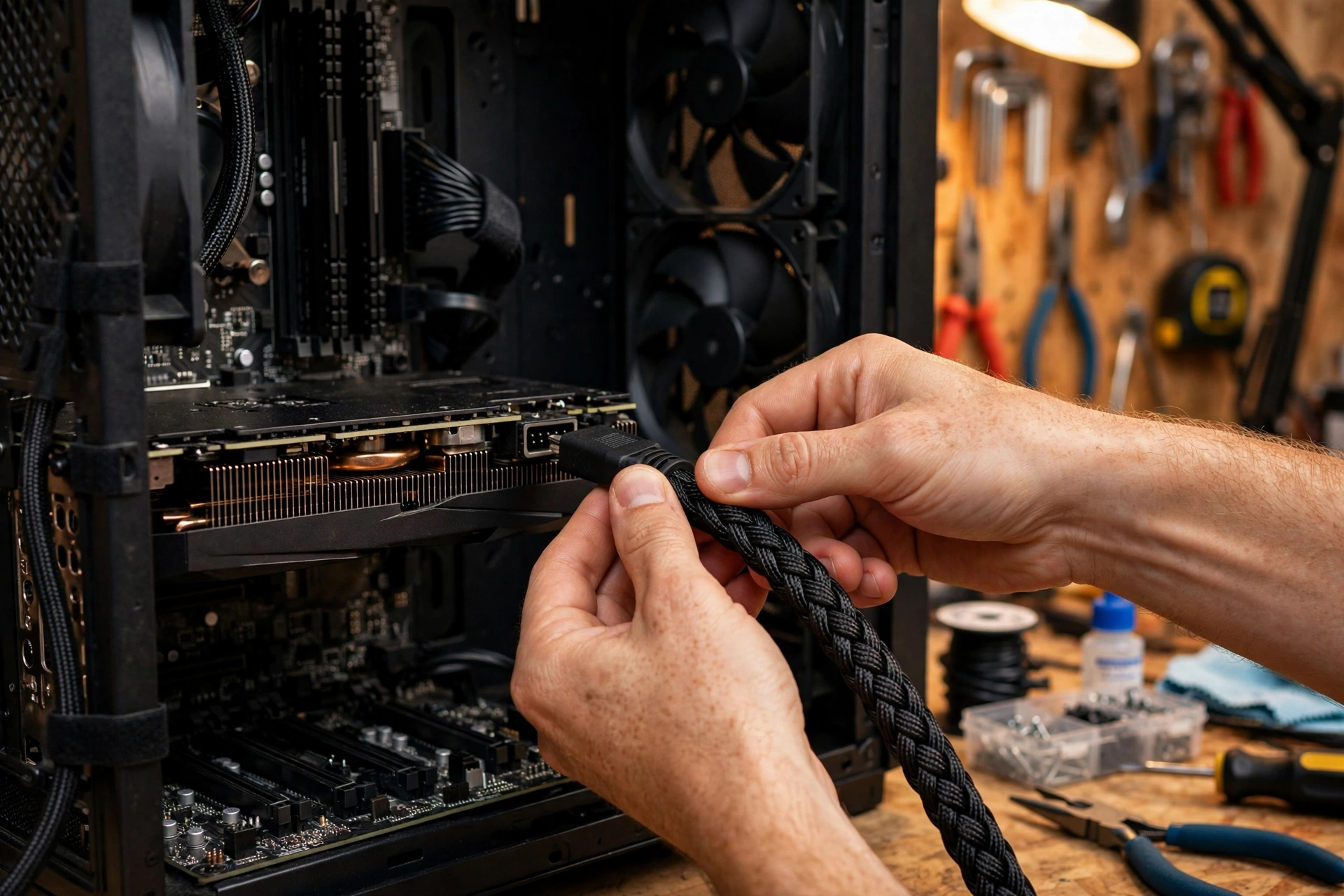
This is where most compatibility failures actually happen. Not the socket, not the slot. The power supply. Builders will happily spend $600 on a GPU and try to feed it with the tired 500W unit that came with a prebuilt five years ago. Then the PC shuts off mid-game and the graphics card takes the blame.
Here is the correct way to size power for a CPU and GPU pairing:
- Find the power draw of each part. Check the manufacturer’s spec page for the CPU’s TDP (or maximum turbo power) and the GPU’s board power (TGP). Add them together.
- Add the rest of the system. Motherboard, RAM, storage, fans, and lighting typically add 50 to 100W. Round up generously rather than precisely.
- Add headroom. Aim for the total to land at roughly 60 to 70 percent of the PSU’s rated wattage under full load. That margin covers transient power spikes, which modern GPUs are famous for, and keeps the PSU in its efficient, quiet operating range.
- Check the connectors. Count what the GPU needs (one, two, or three 8-pin PCIe plugs, or a 12V-2×6 plug) and confirm the PSU has those exact cables. Adapters exist, but a native cable from a quality unit is always the safer choice.
The 12V-2×6 Connector and RTX 50 Series Cards
If you are pairing a current-generation card, this section matters. NVIDIA’s RTX 50 series cards use the newer 12V-2×6 connector (the revised version of the 12VHPWR plug from the RTX 40 series). NVIDIA’s official RTX 50 series announcement confirms the Blackwell lineup and its platform features. Cards in this generation can draw serious power, and the 12V-2×6 plug carries it all through one small connector, which makes proper seating critical.
Practical rules for the new connector:
- Plug it in straight and push until it is fully seated with no visible gap. A partially seated plug is the number one cause of the melting-connector stories you have seen online.
- Do not bend the cable sharply right at the plug. Leave a few centimeters of straight run before any bend.
- If your PSU is ATX 3.1 rated, it likely includes a native 12V-2×6 cable. Older units need the adapter that comes in the GPU box, and the adapter needs enough 8-pin inputs from the PSU to feed it.
PSU Age and Quality Matter as Much as Wattage
A five-year-old budget 550W unit is not really a 550W unit anymore. Capacitors age, and cheap units often deliver most of their rating on the 3.3V and 5V rails while the 12V rail, the one your CPU and GPU actually drink from, is far weaker. Read the label’s 12V amperage, multiply by 12, and that is your real budget for the two hungry parts.
If your PC randomly shuts off under load, stutters despite fine temperatures, or started acting up right after a GPU upgrade, the PSU is suspect number one. Our guide to PSU warning signs walks through the full diagnosis, including how to read the label and test the 12V rail.
Takeaway: add CPU plus GPU power, add 50 to 100W for the rest, buy headroom on top, and confirm the exact connectors. When in doubt, the PSU is the cheapest part to oversize and the most expensive to get wrong.
Physical Compatibility Case, Cooler, and Clearance
The parts all agree electrically, but do they fit in the box? Physical compatibility ends more builds than any spec sheet mismatch.
- GPU length vs case clearance. High-end cards are long, often over 320mm. Your case spec sheet lists maximum GPU length. Measure twice, because a card that is 5mm too long is a card you are returning.
- GPU thickness vs slot spacing. Thick 2.5 or 3-slot cards can cover the PCIe slot below them, blocking a Wi-Fi card or capture card you planned to install. They can also press against the PSU shroud in compact cases.
- CPU cooler height vs case width. Tower air coolers are tall. Check the case’s maximum cooler height against the cooler’s spec.
- Cooler vs RAM clearance. Big air coolers overhang the RAM slots. If you bought tall RGB memory, confirm the cooler clears it or switch to low-profile RAM.
- Radiator vs case support. A 360mm liquid cooler needs a case with a 360mm mounting location. Not all “full towers” actually fit one up top.
One compatibility bright spot, mentioned earlier: Intel kept the cooler mounting holes identical between LGA1700 and LGA1851, so coolers carry over across that upgrade. AMD’s AM4 to AM5 transition was less kind, as the backplate and mounting changed, so AM4 coolers generally need a new mounting kit for AM5.
Takeaway: read the case spec sheet for GPU length, cooler height, and radiator support before ordering. The case is the frame everything must fit inside.
RAM Compatibility DDR4 vs DDR5 Platforms
RAM compatibility is decided by the motherboard, not the CPU and GPU. The board’s memory slots accept exactly one DDR generation. You cannot put DDR5 sticks in DDR4 slots (the notch is in a different position, physically preventing it), and mixing generations on one board is impossible.
The platform map from the socket section tells the story:
- AM4 boards: DDR4 only.
- AM5 boards: DDR5 only. There is no DDR4 door on AM5.
- LGA1700 boards: either DDR4 or DDR5 depending on the specific board model. Read the board’s spec page, not just the socket.
- LGA1851 boards: DDR5 only.
Beyond the generation, check three things:
- Speed support. The board lists supported memory speeds. Running DDR5-6000 on a board that tops out lower will simply downclock the kit, wasting money.
- The QVL. The Qualified Vendor List on the board maker’s support page lists RAM kits tested with that exact board. Sticks not on the QVL usually work, but the QVL is the closest thing to a guarantee.
- EXPO vs XMP. AMD boards use EXPO memory profiles, Intel boards use XMP. Kits are often tuned for one or the other. A kit will still run on the opposite platform, but you may need to set timings manually to get the rated speed.
This matters more than ever because of the 2026 memory price surge. With DRAM prices driven up by AI data center demand, the DDR4 vs DDR5 decision is now a hundreds-of-dollars decision, not a footnote. If you already own a DDR4 board, keeping it and putting the savings toward a stronger GPU is usually the smarter play at 1440p and 4K. Our DDR4 vs DDR5 gaming performance guide breaks down the real FPS differences by game and resolution so you can do that math with real numbers.
Takeaway: the motherboard dictates DDR4 or DDR5, never mix generations, check the QVL and speed support, and factor current RAM prices into the platform choice.
Matching Tiers So Nothing Bottlenecks
Everything so far was about parts working together at all. This section is about parts working well together. Two components can be fully compatible and still be a bad pairing if one is dramatically stronger than the other. That mismatch is a bottleneck: the weaker part caps what the stronger part can deliver.
The fix is tier matching. Pair entry-level with entry-level, mid-range with mid-range, and high-end with high-end. A Ryzen 5 7600 with an RTX 5060 Ti is a balanced 1440p pairing. A Ryzen 9 9950X with a ten-year-old budget card is a fast CPU waiting on a slow GPU. An i3 with an RTX 5090 is a fast GPU waiting on a slow CPU. None of these fail to boot. All of them waste money.
Resolution changes the math, and this is the part most guides gloss over:
- At 1080p, frames render fast, so the CPU works hardest. This is where CPU bottlenecks show up most. High-refresh 1080p gaming demands a strong CPU.
- At 1440p, the load balances out. This is the sweet spot where mid-range CPUs and mid-range GPUs live happily together.
- At 4K, the GPU does almost all the work. Even modest CPUs can feed a flagship card at 4K because the card is the limit in nearly every frame.
To put numbers on your specific pairing rather than guessing, run the exact CPU, GPU, resolution, and game type through our CPU bottleneck calculator. As a rule of thumb, a small bottleneck percentage in either direction is completely normal and nothing to chase to zero. If you want the full explanation of which percentages are fine, which are warning signs, and why a GPU bottleneck is generally preferable to a CPU one, read our guide on what counts as a good bottleneck percentage.
Takeaway: match performance tiers, remember that higher resolution shifts the burden to the GPU, and measure your exact pairing instead of guessing.
The CPU GPU Compatibility Checklist
Use this checklist for every build or upgrade. If every row gets a yes, your parts will work together.
| # | Check | How to Verify | Red Flag |
|---|---|---|---|
| 1 | CPU socket matches the motherboard | Compare socket codes on both spec pages | Codes differ by even one digit |
| 2 | Chipset supports the CPU’s features | Board maker’s CPU support list | Support list shows the CPU as unsupported or needing a newer BIOS than you can install |
| 3 | BIOS version supports the CPU | Board maker’s support page, BIOS release notes | No BIOS update listed for your CPU generation |
| 4 | GPU fits a PCIe x16 slot | Board layout diagram, manual | Only x4 or x1 slots free |
| 5 | PSU wattage covers the build with headroom | CPU TDP plus GPU board power plus 50 to 100W, then add margin | Total draw above 80 percent of PSU rating |
| 6 | PSU has the right GPU connectors | Count 8-pin plugs or 12V-2×6 cable | Only Molex adapters available |
| 7 | GPU length fits the case | Case spec sheet, maximum GPU length | Card longer than clearance by any amount |
| 8 | Cooler fits the case and clears the RAM | Cooler height vs case spec, RAM height | Tall RGB RAM under a wide tower cooler |
| 9 | RAM generation matches the board | Board spec page: DDR4 or DDR5 | Owning the wrong generation sticks |
| 10 | CPU and GPU are balanced in strength | Tier matching plus a bottleneck check | Flagship GPU with a budget CPU from five years ago, or vice versa |
Print it, bookmark it, or copy it into your notes app. Ten yeses means buy with confidence.
5 Common Mismatch Mistakes and How to Fix Them
Mistake 1: Buying the CPU Before Checking the Board’s CPU Support List
The socket matches, the chipset matches, and the PC still will not POST. The board shipped with a BIOS from before your CPU existed. This hits hardest when buying a new CPU for an older board, like dropping a 14th Gen chip into an early Z690.
Fix: check the board maker’s CPU support list and note the minimum BIOS version. Update the BIOS before swapping CPUs if you can, using the old chip. Many boards also support USB BIOS flashback with no CPU installed.
Mistake 2: Pairing a Flagship GPU With an Entry-Level CPU
An RTX 5070 Ti with a four-core budget CPU from five years ago will boot and run, but the CPU cannot feed the card fast enough at 1080p, and you paid flagship money for mid-range frames. This is the single most common performance mismatch in budget-stretched builds.
Fix: either step the GPU down a tier and bank the savings, or step the CPU up to match. At 1440p and 4K the mismatch hurts less, since the GPU becomes the limit, but the pairing is still unbalanced.
Mistake 3: Forgetting the PSU in a GPU Upgrade
The old card drew 120W. The new one draws 285W with spikes above that. The PSU is the same one from the original build. Result: shutdowns under load that look like a bad GPU.
Fix: redo the power math for the new card and replace the PSU if the headroom is gone. This is also the moment to check connector types, since newer cards may need 12V-2×6 while the old PSU only has 8-pin plugs.
Mistake 4: Assuming Same Socket Means Drop-In Upgrade
LGA1700 and LGA1851 look identical at a glance but are electrically incompatible. AM4 coolers need new mounting hardware for AM5. A DDR4 LGA1700 board cannot take DDR5 sticks even though the socket is the same. The platform is a system, not a single connector.
Fix: verify socket, chipset, RAM generation, and cooler mounting as four separate checks, not one.
Mistake 5: Ignoring Case Clearance Until the Parts Arrive
The card is 340mm long. The case fits 320mm. Now you own a very expensive paperweight until the return processes. Cooler height and radiator fit cause the same heartbreak.
Fix: write down the three clearance numbers (GPU length, cooler height, radiator support) from the case spec sheet before ordering anything that goes inside it.
What This Week’s Hardware News Means for Your Build
Compatibility is not static. The hardware world moved this month in ways that directly affect matching decisions.
NVIDIA’s RTX Spark laptops launched on October 16, 2026. Each machine pairs a Blackwell RTX GPU with a Grace CPU on a single superchip, co-designed with MediaTek, sharing up to 128GB of unified memory, sold through ASUS, Dell, HP, Lenovo, Microsoft, and MSI. The interesting part for builders is the design philosophy: NVIDIA eliminated the PCIe distance between CPU and GPU entirely with a 600 GB/s interconnect because balanced, tightly coupled parts perform better. That is the same principle behind everything in this guide, taken to its logical extreme. You cannot buy a superchip for your desktop, but you can apply the lesson: pick parts that are balanced and give them a fast, clean path to talk to each other.
The September 2026 Steam Hardware Survey shows where builders are actually going. AMD’s CPU share hit 48.4 percent against Intel’s 51.6 percent, the closest the race has ever been, while NVIDIA GPUs climbed to 76 percent of surveyed systems. The single fastest-growing card is the RTX 5070 at 6.2 percent of systems. Translation: the most common real-world upgrade right now is a mid-range 8-core CPU paired with an RTX 5070-class card. If that is your plan, you are swimming with the current, and the tier-matching advice in this guide fits that pairing perfectly.
Gigabyte’s LGA1700 announcement keeps DDR4 builders in the game. As covered above, new LGA1700 CPUs are expected in early 2027 with BIOS support already rolling out for B760 and H610 boards in both DDR4 and DDR5 flavors. If you own that platform, your compatibility homework for the next CPU upgrade just got much simpler: same socket, same board, same RAM, just a BIOS flash.
Frequently Asked Questions
Is any GPU compatible with any CPU?
This is one of the most asked questions on Quora about this topic, and the practical answer is yes. Any modern GPU will work with any modern CPU because the graphics card connects to the motherboard’s PCIe slot, not to the processor directly. Brand does not matter: Radeon cards run fine with Intel CPUs, and GeForce cards run fine with Ryzen CPUs. What does matter is balance. A weak CPU will hold back a strong GPU in CPU-heavy games, which is a bottleneck issue rather than a compatibility issue. Check the pairing strength, not the brand names.
Is it possible to choose the wrong GPU, like one that is not compatible?
Yes, and Quora users ask this for good reason. The card can be wrong in four ways: too long for your case, too power-hungry for your PSU, needing connectors your PSU does not have, or too strong for your CPU to feed. Very old motherboards can also cause trouble, since some legacy boards lack the UEFI support newer cards expect. Run the ten-point checklist above before buying and you will catch all four.
Is there a rule of thumb when pairing a CPU and a GPU?
The classic rule from the Tom’s Hardware forums is to spend roughly twice as much on the GPU as on the CPU for a balanced gaming build. It is a decent starting point, but resolution matters more than price ratios. A better modern rule: match performance tiers (mid CPU with mid GPU), then adjust for your monitor. High-refresh 1080p needs extra CPU strength, 1440p wants balance, and 4K lets the GPU carry almost everything. When you want a number instead of a rule, run your exact parts through a bottleneck calculator.
Does an AMD GPU work better with an AMD CPU, and NVIDIA with Intel?
No. This comes up constantly on hardware forums, and the answer has been no for years. PCIe is an open standard, and every combination of modern CPU and GPU brands works at full speed. Features like Resizable BAR, which lets the CPU access the GPU’s full memory, are part of the open PCIe specification and work across brands. There are tiny ecosystem perks within one brand’s software, but nothing that changes gaming performance in a meaningful way. Buy the best card and the best CPU for your budget regardless of logo.
Which GPU pairs well with an i5 4th generation PC?
Quora builders ask this about older systems a lot. A 4th Gen i5 uses the LGA1150 socket and DDR3 memory, so the platform itself is the limit, not compatibility. Any modern GPU will physically work in its PCIe x16 slot, but the old CPU will bottleneck anything stronger than a modest used card. The sensible ceiling is a mid-range card from a few generations back, something in the GTX 1660 Super class. Spending more buys frames the CPU cannot deliver. If the budget allows a platform upgrade instead, that money goes further on a newer CPU, board, and RAM than on a stronger card for the old system.
Will a GTX 1070 work with my Intel i5-3340?
Yes, it will run. This exact question appeared on the Tom’s Hardware forums, and the answer is straightforward: the card needs a PCIe x16 slot and sufficient power, and the i5-3340’s age does not prevent that. Expect the older quad-core CPU to hold the card back in CPU-heavy games at 1080p, which is normal for a pairing with this age gap. Before buying, confirm your PSU has the required 8-pin PCIe connector and enough wattage with headroom, and that the card physically fits your case. Compatibility yes, perfect balance no.
Key Takeaways
- CPU GPU compatibility has six layers: socket, chipset and BIOS, PCIe slot, power supply, physical fit, and performance balance. Check all six.
- Brand matching is a myth. AMD, Intel, and NVIDIA parts mix freely through the open PCIe standard.
- The motherboard decides the CPU socket and the RAM generation. Read its spec page and CPU support list before buying anything.
- Size the PSU from real power numbers plus headroom, and confirm the exact GPU connectors, especially 12V-2×6 on RTX 50 series cards.
- Match performance tiers and let your resolution guide the balance: 1080p favors CPU strength, 4K favors GPU strength.
- Current trends favor balanced mid-range pairings: the RTX 5070 is the fastest-growing GPU on Steam, 8-core CPUs are now mainstream, and LGA1700 owners may get new drop-in CPUs in early 2027.
Conclusion
Most compatibility anxiety comes from treating the CPU and GPU as a mysterious pair that must be perfectly soul-matched. They are not. They are two independent parts that share a motherboard, a power supply, and a case. Verify the socket, the chipset and BIOS, the PCIe slot, the power budget and connectors, the physical clearances, and the performance balance, and the build will work.
Do that homework once, using the checklist above, and you can buy with the calm confidence of someone who measured twice. And if you want a number on your specific combination before you commit, run it through a bottleneck calculator with your CPU, GPU, resolution, and target games, and see exactly where the balance sits.
Happy building.

Leave a Reply