

Quick Answer
Strictly speaking, no. A PSU is not a processing stage, so it cannot bottleneck your PC the way a CPU can. But a weak or failing power supply absolutely caps performance. When it cannot deliver clean, stable power under load, it causes shutdowns, crashes, and throttling that look and feel exactly like a bottleneck.
The Honest Truth About PSU Bottlenecks
Search the phrase psu bottlenecking your pc and you will find two camps arguing past each other. One side swears a weak power supply is secretly choking their gaming performance. The other side, quoting veteran forum users, says a PSU either delivers power or shuts off, and that is the end of the story. Both sides are half right, and the half they miss is the part that matters for your PC.
A CPU or GPU bottleneck happens because one processing stage is too slow for another. The PSU is not a processing stage at all. It never renders a frame or runs a game loop. So no, a power supply cannot “bottleneck” your system in the strict sense. If you want the classic definition, read our guide on whether a bottleneck is actually bad for your PC.
But here is what the second camp glosses over. A weak, aging, or mismatched PSU caps your performance through three very real mechanisms, and to you sitting at the desk, they feel identical to a bottleneck.
First, protection shutdowns. Every decent PSU has protection circuits with names like OCP (over-current protection), OPP (over-power protection), and OTP (over-temperature protection). When the load spikes past what the unit can safely deliver, these circuits cut power instantly. Your PC does not politely slow down. It dies mid-game, no blue screen, no warning. Modern graphics cards, especially high-end RTX cards from the 30, 40, and 50 series, are famous for microsecond power spikes that shoot far above their rated board power. An older PSU that looks fine on paper can trip on those spikes all evening.
Second, voltage ripple and rail sag. A healthy PSU delivers rock-steady 12V, 5V, and 3.3V. A struggling one lets those rails wobble. The 12V rail matters most because your CPU and GPU drink from it. When the rail sags under load, components become unstable. You get crashes, corrupted data, and in some cases the GPU quietly clocks itself down to stay alive. A well-known Tom’s Hardware discussion on this exact question landed on the honest answer: a bad PSU does not directly steal your FPS the way a weak CPU does, but unstable power causes freezes, crashes, and bizarre behavior that ruins the experience just as thoroughly.
Third, component self-throttling. Modern GPUs and CPUs constantly watch their power delivery. If the incoming power is dirty or marginal, they protect themselves by boosting less aggressively or hitting power limits early. Your card might run 100 or 200 MHz below its normal boost clock and you would never know unless you checked. That is, functionally, a performance cap caused by the PSU.
So call it a bottleneck, a cap, or a choke point. The name does not matter. What matters is that the symptoms are recognizable, the diagnosis is straightforward, and the fix is one of the cheapest upgrades in your entire PC.
7 Warning Signs Your PSU Is Bottlenecking Your PC
Sign 1: Random Shutdowns or Restarts During Gaming
This is the classic one. Your PC runs fine while browsing the web or watching videos. The moment you launch a demanding game, it powers off instantly, as if someone pulled the plug, then either reboots or sits there dead until you press the power button.
That instant, warning-free shutdown is the fingerprint of a protection circuit doing its job. When your GPU spikes and the PSU cannot follow, OCP or OPP trips and everything goes dark. Contrast this with a software crash, which usually gives you a blue screen, a frozen image, or an error dialog. A full power cut with no message is power delivery, almost every time.
One real case from the Tom’s Hardware forums tells the story perfectly. A user with an RTX 2080 Ti and a 750W SFX PSU suffered random crashes and black screens during gaming. When they capped the GPU’s power limit at 140W in software, the crashes stopped, but performance tanked. The diagnosis was clear: normal power spikes were tripping the unit. Limiting the spikes stopped the trips. If reducing your GPU’s power limit magically fixes your crashes, your PSU was the problem all along.
How to confirm it: Check Windows Event Viewer after a crash. Look under Windows Logs, then System, for a “Kernel-Power” Event ID 41 entry. That entry means the system lost power without a clean shutdown, which points straight at the PSU or the wall power feeding it.
Sign 2: Only One Specific Game Crashes
Here is a strange one that fools a lot of people. Your PC is perfectly stable in five games, then one specific title crashes it every single time. Naturally you blame the game, its drivers, or a bad update. Sometimes it is the game. But sometimes that one game simply has the nastiest power-draw pattern of anything you run.
Certain games hammer the GPU with rapid load changes: shader compilation bursts, ray tracing scenes mixed with simple menus, uncapped frame rates in loading screens. Each swing is a transient spike, and a marginal PSU survives the smooth loads but trips on the spiky one. A LinusTechTips forum user ran into exactly this after upgrading from a GTX 1070 to a GTX 1080 Ti. One game kept crashing after 5 to 45 minutes of play, and later the system started throwing blue screens with file corruption errors. The common thread was the hungrier card pulling harder spikes than the old PSU could ride through.
How to confirm it: If the crashes follow the hardware load rather than the software (other heavy games crash too, benchmarks crash too), it is the PSU. If truly only one title crashes, update your GPU drivers with a clean install first, then cap that game’s frame rate. If capping the frame rate stabilizes it, the PSU was tripping on the uncapped spikes.
Sign 3: Stuttering and FPS Dips That Do Not Match Your Thermals
You are watching your temperatures and they are fine. CPU at 70 degrees, GPU at 75, nothing throttling from heat. Yet the game stutters, frame times spike, or your average FPS sits below what benchmarks say your card should deliver.
A sagging 12V rail can do this. When voltage droops under load, the GPU’s boost algorithm backs off to stay within safe power behavior, or the card starts hitting its power limit earlier than it should. You will not see a crash. You will just see a card that never quite reaches the clocks it is supposed to hold.
Be honest with yourself here, because this sign is easy to misread. Low FPS with high temperatures is a cooling problem. Low FPS with a CPU pinned at 100 percent is a CPU bottleneck. Low FPS that appeared right after a GPU upgrade, with fine thermals and a CPU that is not maxed out, is where the PSU enters the suspect list. If you are chasing lost frames more broadly, our guide on why your FPS is so low walks through the full checklist.
How to confirm it: Install HWiNFO and watch the 12V rail reading during a gaming session. The ATX specification allows plus or minus 5 percent, so anything between 11.4V and 12.6V is technically in spec. But if you see the rail dipping toward 11.4V or bouncing around under load while your FPS sags, your PSU is struggling.
Sign 4: The PSU Fan Screams, or New Whining and Buzzing Appears
PSU fans are supposed to spin up under load. That is normal. What is not normal is a fan that suddenly runs at full tilt during light tasks, or a unit that has gotten dramatically louder over a few months. That means the internals are running hotter than they used to, which usually means the components are degrading and wasting more energy as heat.
Listen for new sounds too. A faint coil whine that has always been there is generally harmless. A new buzzing, clicking, or grinding that changes with load is not. Buzzing can mean arcing or failing components inside the unit. Grinding almost always means the fan bearing is dying, and a PSU with a dead fan will overheat and shut down (or worse) in short order. Guides like the PSU lifespan breakdown at The Infobits flag exactly these sounds as early warnings, and they are right: your ears often catch a dying PSU before your games do.
How to confirm it: Stop all case fans briefly and listen closely to isolate the noise to the PSU at the back of the case. If the whine or buzz clearly comes from the PSU and it is new, start shopping for a replacement. Do not wait for it to get worse.
Sign 5: Burning Smell or Hot Cables
This one is not a “monitor it and see” situation. If you smell burning plastic or hot electronics coming from your PC, shut it down and unplug it immediately. Do not reboot to “check if it still happens.” A burning smell means a capacitor, transformer, or connector is already damaged, and continuing to run the system risks a cascade failure that takes the motherboard or GPU with it.
Warm cables are worth a mention too. Power cables should never feel hot to the touch. If a PCIe cable or the 24-pin connector feels noticeably warm after gaming, current is meeting resistance somewhere, which usually means a loose connection or an undersized cable. This matters even more on modern cards. The 12VHPWR and newer 12V-2×6 connectors on RTX 40 and 50 series cards carry enormous current through a small plug, and a poorly seated connector can overheat. Our RTX 50 series power supply guide covers these connectors and the ATX 3.1 standard in detail.
How to confirm it: You do not need to. A burning smell is confirmation. Unplug the PC, let it cool, and inspect the PSU and its cables visually for discoloration, melted plastic, or bulging capacitors (look through the PSU grille, never open the unit). Then replace the PSU before powering on again.
Sign 6: You Upgraded the GPU but Kept the Old 500W PSU
This is the most common PSU bottleneck story in existence. The GPU gets a glorious upgrade. The PSU, hidden in the basement of the case where nobody looks at it, stays exactly where it was. Six months later the crashes start and the GPU takes the blame.
The math is unforgiving. A mid-range card from a few years ago might have pulled 120W. Its replacement can pull 200 to 285W, with transient spikes higher still. Your old 500W unit was sized for the old system, and PSUs also lose capacity as their capacitors age. A five-year-old budget 500W unit is not a 500W unit anymore.
Watch out for the label trap on old or cheap units, too. A real-world TechSpot discussion nailed this: some generic “550W” supplies deliver most of their wattage on the 3.3V and 5V rails, which modern components barely use, while the 12V rail where your CPU and GPU actually feed is far weaker. The sticker says 550W. The 12V rail says otherwise. I will show you how to read that label in the next section.
A Tom’s Hardware user asked whether they could run an RTX 3080 on their existing 650W PSU for light desktop use while waiting for a new unit. The honest answer from the community was unanimous: do not risk a card that expensive on a PSU that cannot handle its spikes. Even at idle, the momentary inrush when the system powers on or the GPU wakes up can be enough to trip protections or damage something.
How to confirm it: Add up your parts with the headroom check below. If your PSU is more than a couple of years old, was a budget unit to begin with, and your GPU is two or more tiers above what the PSU was bought for, you have found your problem.
Sign 7: Boot Loops, No-POST, or a Dead PC After a Hardware Change
Sometimes the PSU does not fail gracefully under load. It fails at the starting line. You press the power button and get a half-second of fan spin, then nothing. Or the system boot-loops, or it POSTs sometimes and not others.
A new GPU or CPU raises the inrush current the moment the system powers on. A marginal PSU that could start the old configuration cannot start the new one. The protections trip before Windows even loads. This sign often appears the morning after an upgrade, which makes the diagnosis almost too easy: if the PC booted fine yesterday with the old card and will not boot today with the new one, and you changed nothing else, the PSU is the prime suspect, not the shiny new GPU.
How to confirm it: The definitive test is swapping in a known-good PSU with enough wattage. If the system boots and runs stable, the old unit is done. No spare PSU? A local repair shop can bench-test yours in minutes, which beats buying parts on a guess.
How to Check Your PSU Real Capacity (Label vs. Reality)
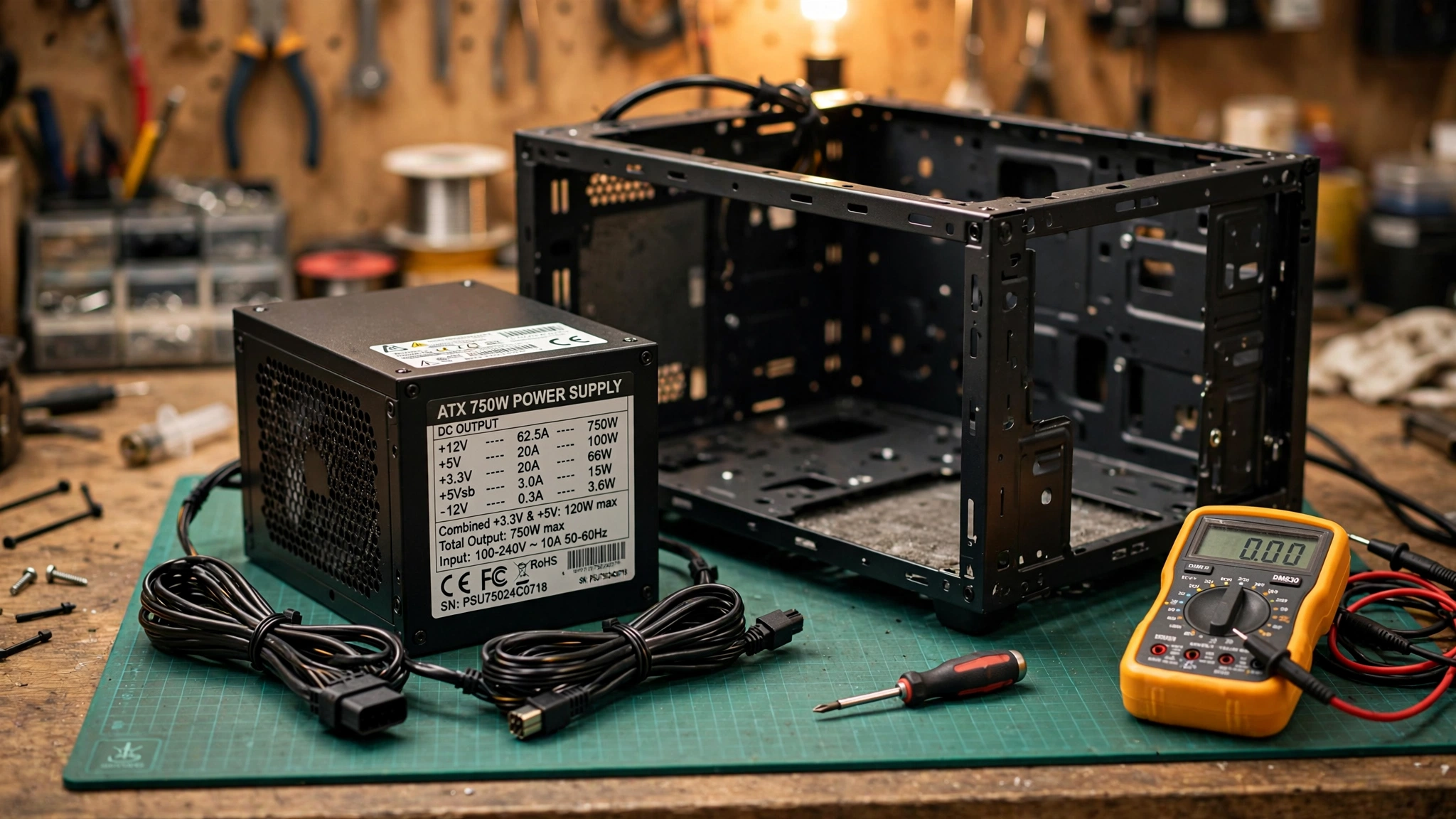
Every PSU has a specification sticker on its side. Most buyers glance at the big wattage number and stop reading. The number that actually matters is smaller and printed in a table, and learning to read it takes sixty seconds.
Look for the row labeled +12V. Next to it you will see a current rating in amps, something like 62.5A. Multiply the two and you get the real capacity available to your CPU and GPU, because watts equal volts times amps. A unit labeled “750W” with 62.5A on the 12V rail genuinely delivers 750W on 12V (12 x 62.5 = 750). A cheap “700W” unit with only 40A on the 12V rail delivers just 480W where it counts, and the rest of its rating sits on the 3.3V and 5V rails that your gaming hardware barely touches.
Three more label lessons that save people money:
80 PLUS is an efficiency rating, not a quality rating. The 80 PLUS program, run through 80plus.org, certifies how efficiently a PSU converts wall power into DC power. A Gold rating means less wasted electricity and less heat. It says nothing about voltage stability, ripple suppression, or whether the protection circuits actually work. A well-built Bronze unit from a reputable platform beats a Gold unit from a mystery manufacturer every time.
Age eats capacity. Capacitors dry out over years of heat cycles. A budget PSU that is six or seven years old cannot be trusted at its label rating anymore, especially if it has spent those years running hot and dusty. This is one reason quality units carry long warranties. If a manufacturer only offers a one or two year warranty, that tells you what they think of their own product. Quality units commonly carry seven to ten years or more.
The fan tells a story. If the PSU fan is clogged with dust, the unit has been cooking itself. Blow it out with compressed air (with the PC off and unplugged) and see if behavior improves. It is a free test and it sometimes genuinely helps.
The 60-Second Headroom Check
Before you spend a dollar, do this quick math. It answers the “is my PSU enough” question for any build in under a minute.
1. Find your CPU’s TDP (or PPT for Ryzen) and your GPU’s TBP (total board power). Both are on the manufacturer’s spec page. For example, a Ryzen 7 7800X3D is about 120W and an RTX 5070 is 250W.
2. Add them together: 120 + 250 = 370W.
3. Multiply by 1.4: 370 x 1.4 = 518W.
That 1.4 multiplier is your headroom. It covers the rest of the system (motherboard, RAM, drives, fans), the GPU’s transient spikes, capacitor aging over the years, and a little room to grow. Then round up to the next standard PSU size. In the example, 518W means a quality 550W unit technically covers it, but 650W is the smarter buy because it runs quieter, cooler, and leaves room for a future upgrade.
Two honest caveats. TDP and TBP are thermal and board-power ratings, not maximum draw, so treat the result as a floor, not a ceiling. And this math assumes a decent-quality unit. A junk 650W supply that can only deliver 450W on its 12V rail fails this check no matter what the calculator says, which is why the label reading in the previous section comes first.
Recommended PSU Wattage by GPU
If you would rather skip the math, this table gives you the answer. The “manufacturer minimum” column shows the PSU size NVIDIA and AMD publish on their official product pages for each card. The “practical pick” column adds the headroom from the section above, plus margin for transient spikes, which is why it runs one tier higher. For RTX 50 series cards specifically, pick a unit built to the ATX 3.1 standard with a native 12V-2×6 cable rather than adapters.
| GPU class | Examples | Manufacturer-published PSU minimum | Practical pick for headroom |
|---|---|---|---|
| RTX 5090 class | RTX 5090 | 1000W | 1200W, ATX 3.1 |
| RTX 5080 class | RTX 5080 | 850W | 1000W, ATX 3.1 |
| RTX 5070 Ti / 5070 class | RTX 5070 Ti, RTX 5070 | 750W | 850W, ATX 3.1 |
| RTX 5060 Ti / 5060 class | RTX 5060 Ti, RTX 5060 | 550W | 650W |
| RX 9070 XT / 9070 class | RX 9070 XT, RX 9070 | 700W to 750W | 850W |
| RX 9060 XT class | RX 9060 XT | 550W | 650W |
| Entry level | RTX 3050, RX 6600 | 450W to 550W | 550W |
One more note for upgraders: if your new GPU moved you up two or more rows in this table and your PSU did not move with it, treat the PSU as part of the upgrade cost. It is the cheapest component in the build and the one everything else depends on.
4 Quick Fixes to Try Before Buying a New PSU
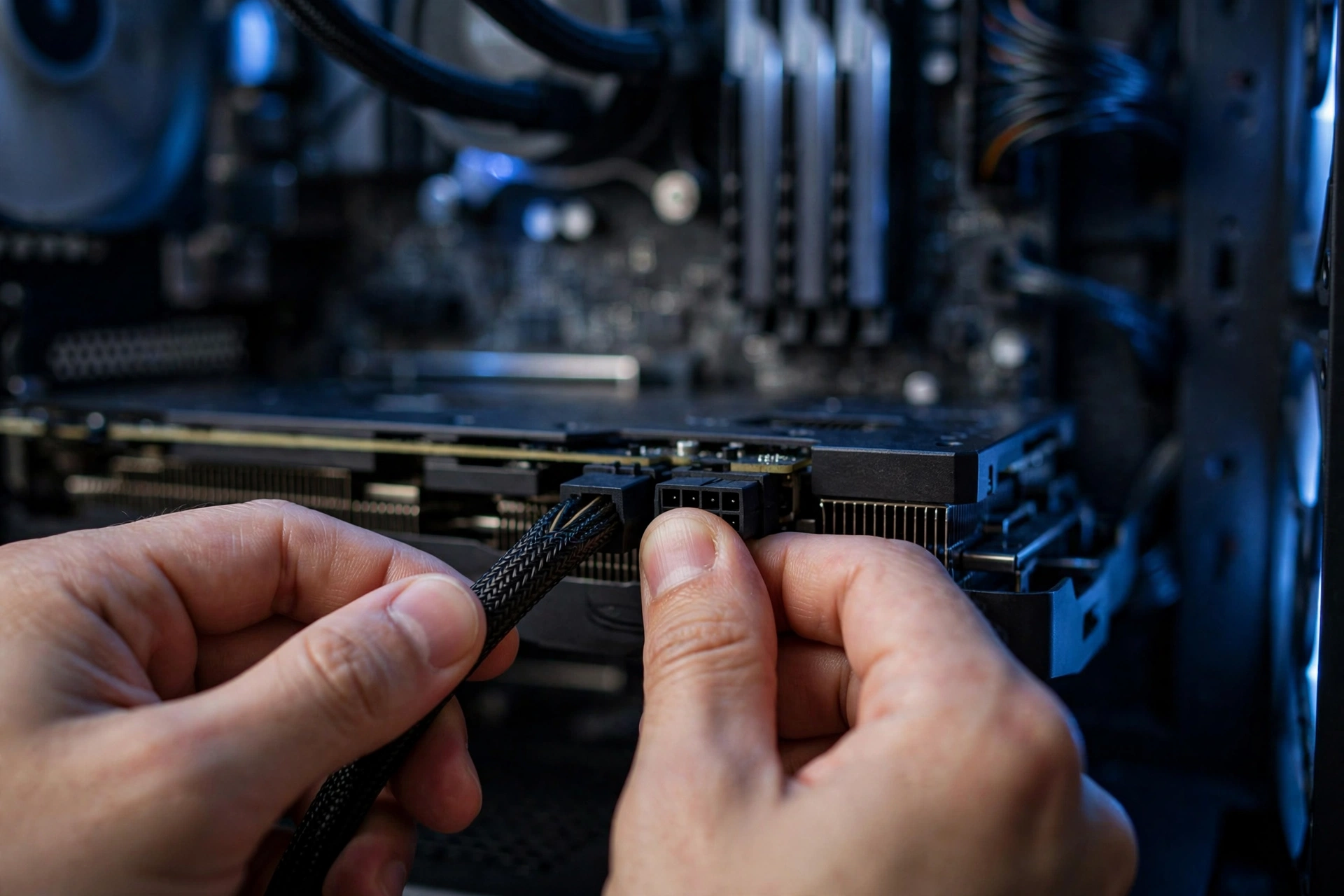
A new quality PSU costs real money, so it is worth ruling out the free fixes first. Work through these in order. If the symptoms survive all four, the unit itself is the problem.
1. Reseat every power connector. Power down, unplug the PC, and firmly reseat the 24-pin motherboard connector, the 8-pin CPU connector, and every PCIe connector on the GPU. Push until each latch clicks. A partially seated connector adds resistance, and resistance under hundreds of watts becomes heat and voltage drop. This single step fixes a surprising number of “dying PSU” cases.
2. Run separate PCIe cables, not daisy chains. Many PSU cables end in two 8-pin connectors on one wire (a pigtail or daisy chain). For any GPU with two or more power plugs, run one separate cable per plug instead of chaining. Each cable then carries half the current, which reduces heat and voltage drop at the connector. On high-end RTX cards this is not optional advice; it is how the connectors are meant to be fed.
3. Cap the load temporarily with a power limit. Open MSI Afterburner or your GPU vendor’s tool and drop the power limit to 80 or 85 percent. If the crashes stop, you have proven the PSU cannot handle full-load spikes, exactly like the RTX 2080 Ti owner from the forums. This is a diagnostic step and a temporary bandage, not a permanent fix, because you are leaving performance on the table.
4. Undervolt the GPU as a stopgap. A modest undervolt can shave 30 to 50W off a GPU’s draw with minimal performance loss, which is sometimes enough to stop a borderline PSU from tripping. It takes some trial and error, so treat it as a bridge while you shop for a proper unit, not as a reason to keep a failing PSU forever.
Two diagnostic tools deserve a mention. HWiNFO lets you log the 12V, 5V, and 3.3V rails during gaming so you can see sag with your own eyes. OCCT includes a dedicated PSU stress test that loads the CPU and GPU simultaneously; if your system dies during it but survives everything else, the verdict is in.
When should you skip the fixes and replace immediately? If the unit is more than seven years old, if you have smelled burning, if shutdowns happen even at idle, or if it is a no-name unit that came free with a case. In those cases every day you wait is a gamble with the rest of your hardware.
Why It Matters More Right Now
A quick look at the market explains why this article exists right now. Graphics cards have gotten brutally expensive. German retail data tracked by 3DCenter and reported on October 9, 2026 shows NVIDIA GPU prices up 66 percent on average over the previous twelve months, with the RTX 5090 up an eye-watering 132 percent. When the card in your case costs as much as a used car, the 100 dollars you saved on a cheap PSU is the worst bargain in the build.
Adoption data tells the same story from the other direction. Valve’s September 2026 Steam Hardware Survey, published October 2, puts the RTX 5070 at 5.86 percent of surveyed systems, making it the single most common GPU on Steam. Thousands of gamers are slotting 250W cards into systems that were built around weaker hardware, and a meaningful share of them are about to learn the lesson this article teaches.
There is even fresh uncertainty at the top of the stack. On October 10, 2026, hardware leaker MEGAsizeGPU claimed NVIDIA is halting RTX 5090 production to redirect its GB202 chips toward higher-margin RTX PRO cards, a rumor reported by VideoCardz and others but not confirmed by NVIDIA. Whether or not it proves true, the message for buyers is the same: whatever GPU you buy next will be expensive and power-hungry, and it deserves clean power.
So if you are buying today: choose a unit from a reputable platform (our PSU tier list ranks the models worth your money), size it with the table above, prefer ATX 3.1 with a native 12V-2×6 cable for any RTX 40 or 50 series card, and remember that the PSU is the one component that can destroy every other component. It is the cheapest insurance policy in your PC.
Related Guides on BottleneckCalculator
If you are still narrowing down a purchase, our PSU tier list ranks the best power supplies you can actually buy, organized by platform quality rather than marketing claims, so you can pick a unit that will survive several GPU generations. And if you are running or planning an RTX 50 series build, our RTX 50 series power supply guide goes deep on ATX 3.1, transient spikes, and the 12V-2×6 connector, which is exactly the standard your next PSU should meet.
5 Mistakes That Look Like a PSU Bottleneck
Before you blame the PSU, rule out these impostors. Each one produces crashes or stutters that people routinely misdiagnose as power problems.
It is actually a CPU bottleneck. Random stutters with the CPU pinned near 100 percent while the GPU idles are the textbook CPU bottleneck, not a power issue. Run through the 10 signs your CPU is bottlenecking your GPU before spending money on a PSU.
It is overheating. A GPU that hits its thermal limit will throttle hard and can shut the system down. Check temperatures first with HWiNFO. Dust-clogged coolers cause more “mystery crashes” than most people admit.
It is unstable RAM. A bad XMP or EXPO overclock causes exactly the random crashes people blame on the PSU. If crashes happen at idle or during light use rather than under load, suspect the memory first and test with the overclock disabled.
It is a driver mess. Especially after a GPU upgrade, leftover drivers from the old card cause crashes that look like hardware failure. Use Display Driver Uninstaller for a truly clean install before condemning any component.
It is the wall power. A failing surge protector, an overloaded power strip, or flaky mains power can brown out under load. Try plugging the PC directly into a different wall outlet before you buy anything.
Frequently Asked Questions
Is my PSU inadequate for my system? I get random crashes and black screens while gaming on my RTX 2080 Ti, but capping the GPU power limit at 140W stops the crashes.
Yes, that pattern is about as clear as PSU diagnosis gets. Your card’s normal power spikes are tripping the unit’s protections, and lowering the power limit removes the spikes. This exact scenario played out on the Tom’s Hardware forums with an RTX 2080 Ti on a 750W SFX unit. The wattage number looked fine on paper, but the unit could not handle the card’s transient spikes. The fix is a quality PSU sized for the card, not a permanent power limit that kneecaps your performance.
Can a bad power supply make a computer slow?
Not directly, and this is where the honest answer matters. A PSU cannot make your CPU render frames faster or slower the way an upgrade would. What a bad PSU absolutely can do is cause freezes, crashes, sudden shutdowns, and in some cases force your GPU to boost less aggressively on a sagging 12V rail. So you will not gain FPS by buying a bigger PSU for a healthy system, but a failing PSU will ruin your experience just as thoroughly as any bottleneck. If your games run fine but crash, suspect power. If they run consistently slowly without crashing, look at the CPU, GPU, thermals, and RAM first.
I upgraded to a faster GPU and now my games crash. Could I have overloaded my power supply?
Very possibly, and it is one of the most common upgrade mistakes. A real LinusTechTips forum case mirrors yours: a user moved from a GTX 1070 to a GTX 1080 Ti, games started crashing after minutes of play, and eventually blue screens with file corruption appeared. Nothing else had changed. The hungrier card’s power spikes overwhelmed the existing PSU. If your crashes started right after the GPU upgrade, run the 60-second headroom check above and read your PSU’s 12V rail rating. Odds are the PSU needs to be part of the upgrade.
Is it okay to run an RTX 3080 on a 650W PSU if I only browse the web and never game until my new PSU arrives?
Do not do it. This question came up on the Tom’s Hardware forums and the community answer was unanimous for good reason. Even without gaming, the power-on inrush and the moments the GPU wakes from idle can spike hard enough to trip protections or, with a cheap unit lacking proper protections, damage the card. A graphics card in this price class is the worst possible component to gamble with. Wait for the adequate PSU, then install the card.
Is my old 475W PSU enough for my Ryzen 3 3100 and GTX 1660 Super? Games crash within 10 minutes and I see LiveKernelEvent 141 and 117 hardware errors.
Those LiveKernelEvent 141 and 117 errors are Windows logging hardware-level GPU failures, and combined with crashes that arrive faster the longer you play, then eventually at Windows startup, this smells like a dying PSU. This matches a real LinusTechTips forum case with an aging CoolerMaster 475W unit. The “real power is about 380W” detail from that case is telling: old budget units degrade below their label. Replace the unit with a quality 550W supply and the crashes will very likely disappear.
Can a generic 550W PSU handle a mid-range gaming PC, or is the label misleading?
The label is often misleading on generic units, and this trips up thousands of builders. As a long-running TechSpot discussion explains, cheap supplies can post high wattage numbers by loading up the 3.3V and 5V rails while the 12V rail, the one your CPU and GPU actually use, is far weaker. Always do the volts-times-amps math on the 12V rail from the side sticker. If a “550W” unit only offers around 400W on 12V, it is a 400W PSU wearing a costume, and it has no business feeding a gaming GPU.
Key Takeaways
- A PSU cannot bottleneck your PC like a CPU does, because it is not a processing stage. But a weak or failing one caps performance through protection shutdowns, voltage ripple, and component self-throttling.
- An instant, warning-free shutdown under gaming load is the number one sign. Check Event Viewer for Kernel-Power Event ID 41 to confirm.
- Read the 12V rail on the PSU’s side label (volts times amps) instead of trusting the big wattage number. That is your real capacity.
- Size a new PSU with the headroom rule: (CPU TDP + GPU TBP) x 1.4, then round up to the next standard size.
- Try the free fixes first: reseat connectors, run separate PCIe cables, and test with a lower GPU power limit. If symptoms survive, replace the unit.
- With GPU prices up 66 percent over the past year, a quality PSU is the cheapest insurance for the most expensive part in your PC.
The Bottom Line
Nobody gets excited about buying a power supply. It has no frame rates, no RGB glory, no benchmark scores. But every frame your GPU renders passes through it first, and when it falters, everything falters with it. If any of the seven signs in this guide look familiar, do the headroom math tonight. It takes a minute, it costs nothing, and it might be the reason your games finally stop crashing.

Leave a Reply