

Quick answer: Yes eGPU Thunderbolt Bottleneck. Expect roughly 10-20% performance loss versus the same GPU in a desktop at 1080p, shrinking to 5-10% at 1440p and 4K. Thunderbolt 5 halves the penalty, and a 2-lane Thunderbolt port can double it.
The dream is seductive: one slim laptop for work and travel, one beefy graphics card waiting at your desk, a single cable connecting them. Plug in when you get home and game like you own a tower. Thousands of laptop owners have chased that dream with an external GPU (eGPU) enclosure and thousands have discovered the same harsh truth. That single cable is a bottleneck, and it quietly taxes every frame your expensive graphics card renders.
This guide gives you the real numbers: how much performance Thunderbolt actually steals, which GPUs suffer most, the 2-lane trap that can halve your bandwidth without warning, and when an eGPU still makes sense in 2026.
Thunderbolt bandwidth in plain numbers
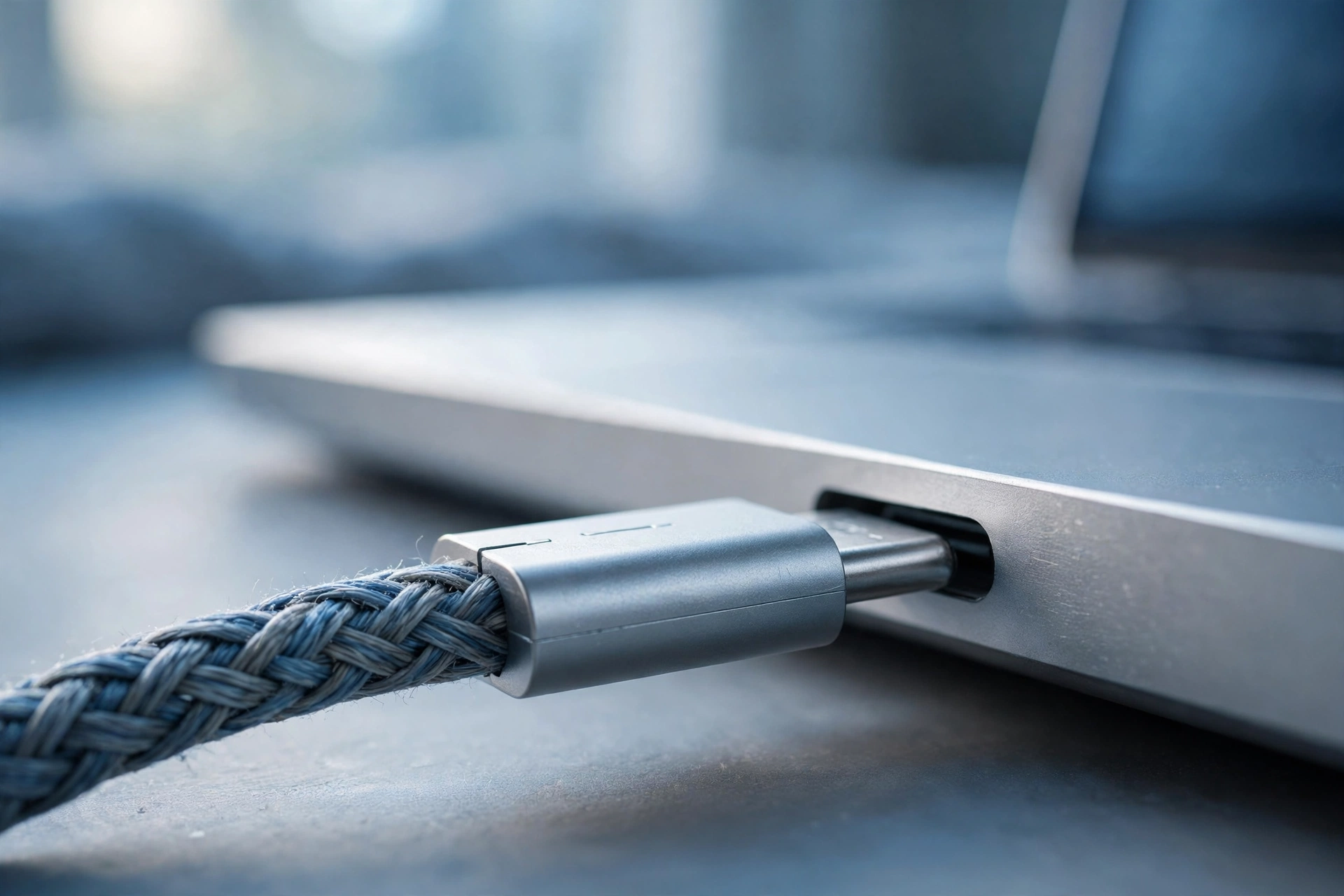
Thunderbolt 3 and 4 both advertise 40 Gbps of total bandwidth. That sounds like a lot, until you learn how little of it your GPU actually gets. After reserving bandwidth for the DisplayPort video signal and protocol overhead, a Thunderbolt 3/4 eGPU gets roughly 22-26 Gbps of usable PCIe data. That works out to about PCIe 3.0 x4, a quarter of the PCIe 3.0 x16 slot a desktop GPU expects, or an eighth of a modern PCIe 4.0 x16 slot.
Think of it this way: your RTX 4070-class card is trying to drink through a straw. For lighter workloads it copes fine, but the moment the game needs to shuttle large textures, geometry, and draw calls across that narrow link, frames start to pile up. If you want the deeper story on how PCIe lane counts affect GPUs, see our x8 vs x16 PCIe scaling test and our PCIe bandwidth bottleneck explainer.
Resolution matters enormously here. At 1080p, the GPU finishes frames quickly and leans hard on the CPU and the interconnect, so the Thunderbolt bottleneck is at its worst, often 15-25%. At 1440p the GPU spends more time shading pixels and less time waiting on data, so the penalty shrinks to roughly 10-15%. At 4K the card is almost entirely bound by its own compute, and the Thunderbolt tax drops to 5-10%.
There is a second, sneakier penalty: loopback mode. If you play on the laptop’s internal display, finished frames must travel back down the same Thunderbolt cable to reach the screen, stealing another 10-15% on top. Always use an external monitor plugged directly into the eGPU when performance matters.
And a third: Thunderbolt shares bandwidth with everything else on the chain. Daisy-chained docks, external SSDs, and capture devices all nibble from the same 40 Gbps. For maximum GPU throughput, plug the eGPU directly into the laptop with nothing else on that port.
The bottom line on bandwidth: Thunderbolt 3/4 gives your GPU about PCIe 3.0 x4 worth of data. That is enough for mid-range cards to stretch their legs, but it strangles high-end cards, especially at lower resolutions and on internal displays.
Thunderbolt 3 vs 4 vs 5 for eGPUs
Thunderbolt 4 is mostly a stricter, more consistent Thunderbolt 3, same 40 Gbps ceiling, but with guaranteed minimums that make eGPU behavior more predictable. Thunderbolt 5 is the real leap: 80 Gbps bidirectional (up to 120 Gbps in Bandwidth Boost mode for displays), which roughly triples the PCIe data available to the GPU.
| Thunderbolt version | Total bandwidth | PCIe data available to the GPU | Rough desktop equivalent | Power delivery |
|---|---|---|---|---|
| Thunderbolt 3 | 40 Gbps | ~22 Gbps (PCIe 3.0 x4) | Like a PCIe 3.0 x4 slot | 100W |
| Thunderbolt 4 | 40 Gbps | ~24 Gbps (PCIe 3.0 x4) | Like a PCIe 3.0 x4 slot, more consistent | 100W |
| Thunderbolt 5 | 80 Gbps (120 in Boost) | ~64 Gbps (PCIe 4.0 x8) | Like a PCIe 4.0 x8 slot | 140W+ |
Thunderbolt 5’s PCIe 4.0 x8-class link is a genuine game-changer for eGPUs, it is roughly what a desktop GPU gets in a secondary x8 slot, a configuration we know costs only a few percent. See Intel’s Thunderbolt 5 announcement for the official specs.
The catch: Thunderbolt 5 laptops, cables, and enclosures are still premium-priced in 2026, and you need all three to get the benefit. A TB5 laptop with a TB3 enclosure falls back to TB3 speeds.
For now, most eGPU owners are on Thunderbolt 3 or 4, which is why the rest of this guide focuses on making the best of that PCIe 3.0 x4-class link.
The 2-lane Thunderbolt trap: your laptop may give you half
Here is the trap most buyers miss: not every Thunderbolt port is full-speed. Some laptops, especially thin-and-lights wire their Thunderbolt controller with only 2 PCIe lanes instead of 4. Your eGPU then gets roughly half the already-small bandwidth: about PCIe 3.0 x2.
The symptoms are unmistakable: an eGPU that benchmarks 30-40% below expectations, stuttering in games that should run smoothly, and frame times that spike whenever the game loads new textures. If your eGPU feels slower than reviews promised, check your lanes before you blame the card.
How to check: look up your laptop’s detailed specs or reviews that test Thunderbolt bandwidth. Intel’s newer controllers are usually full 4-lane, but some OEMs cut corners. When in doubt, Engadget’s eGPU limitations overview is a good primer on what to verify.
A 2-lane port does not make eGPUs useless, it just moves every GPU one tier down in our performance table below. Budget accordingly.
Real performance loss numbers by GPU tier
Aggregated from eGPU.io, Reddit r/eGPU, and YouTube testing (2024-2026), here is what you actually lose putting each GPU class in a Thunderbolt 3/4 enclosure versus a desktop, at 1440p on an external monitor:
| GPU tier | Example cards | Approx. performance loss vs desktop | Why |
|---|---|---|---|
| Entry | GTX 1660 Super, RTX 3050, RX 6600 | 5-10% | Barely feeds the link; great eGPU citizens. |
| Mid-range | RTX 4060 / 4070, RX 7600 XT / 7700 XT | 10-20% | The sweet spot, noticeable but tolerable. |
| High-end | RTX 4070 Ti / 4080, RX 7900 XT | 20-35% | Starts to feel wasteful; needs 1440p+. |
| Flagship | RTX 4090 / 5090, RX 7900 XTX | 30-45% | Don’t. Massively strangled; buy a desktop. |
The pattern is brutal and clear: the more GPU you buy, the more Thunderbolt wastes. An RTX 4090 in a TB3 enclosure can perform like a desktop RTX 4070 Ti, you paid flagship money for high-end results.
At 1080p, add roughly 5-10 points to every loss figure above. At 4K, subtract roughly 5 points. On the internal display, add another 10-15 points. These stack, which is how a flagship can lose half its performance in the worst case.
DLSS and FSR are your best friends in an eGPU. Upscaling from a lower render resolution reduces the PCIe traffic (fewer pixels to shade means less data shuffling) while boosting FPS, partially offsetting the Thunderbolt tax.
One more nuance: 1% lows suffer more than averages. The Thunderbolt link introduces latency spikes that hit minimum frame rates harder, which is why eGPUs can feel worse than the numbers suggest.
If you are pairing a mid-range card and mostly play at 1440p on an external monitor, the 10-20% hit is genuinely livable, similar to dropping one settings preset.
The second bottleneck hiding in your lapto the CPU
Thunderbolt is not the only bottleneck in an eGPU setup. Most eGPU laptops are thin-and-lights with U-series and P-series CPUs that are far more power-efficient, but far weaker than desktop chips. At 1080p, where the GPU finishes frames fast, a weak laptop CPU becomes the limiting factor on top of the Thunderbolt penalty.
This is the classic double-bottleneck: the Thunderbolt link starves the GPU of data, and the laptop CPU cannot feed it fast enough anyway. The result is worse than either bottleneck alone. See why laptop GPUs behave differently for the full picture.
H-series gaming laptops (45W+) fare much better, their CPUs can mostly keep up, leaving Thunderbolt as the single clear bottleneck. If you are buying a laptop specifically for eGPU use, prioritize CPU power over thinness.
Before buying an enclosure, check your CPU and GPU compatibility, a strong eGPU paired with a weak laptop CPU is money wasted twice over.
Rule of thumb: if your laptop CPU scores below a desktop Ryzen 5 5600 in multi-core, expect the CPU to cost you an extra 5-15% on top of the Thunderbolt loss at 1080p.
Thunderbolt 5 how much does it fix?
Thunderbolt 5 is the first Thunderbolt generation that makes eGPUs feel genuinely uncompromised for mid-range cards. With ~64 Gbps of PCIe data (PCIe 4.0 x8-class), the bottleneck shrinks dramatically: expect roughly 5-10% loss for mid-range cards and 10-20% for high-end, versus 10-20% and 20-35% on TB3/4.
Early TB5 enclosures like the Razer Thunderbolt 5 Dock Chroma show what is possible, but the ecosystem tax is real: TB5 laptops, 80 Gbps cables, and enclosures each carry a premium. Budget at least $300-500 extra over a TB4 setup.
Bandwidth Boost mode (up to 120 Gbps) sounds exciting, but it reallocates lanes toward display output, it does not give the GPU more PCIe data. For eGPU gaming on an external monitor, standard 80 Gbps bidirectional mode is what matters.
If you are buying into eGPUs fresh in 2026 and can afford it, Thunderbolt 5 is worth it, it turns the eGPU from a compromise into a genuinely good option. If you already own TB3/4 gear, the upgrade math rarely works; put the money toward a better GPU instead.
One caveat: TB5’s benefits assume a 4-lane port. The 2-lane trap applies to TB5 laptops too. Verify before you buy.
ASUS ROG XG Station 3: What the New Thunderbolt 5 Dock Changes (and What It Does Not)
On November 3, 2026, ASUS Republic of Gamers officially announced the ROG XG Station 3, an external graphics card dock that connects to a laptop over a single Thunderbolt 5 cable. ASUS had shown the dock at Computex 2025, but this is the first time it has published full specifications, making it the first Thunderbolt 5 eGPU dock in the ROG lineup. It is an open-frame design, so the card sits exposed on top of the dock like a card on a test bench.
The headline number is the link. The dock uses Thunderbolt 5 at up to 80 Gbps bidirectional, twice the rated speed of Thunderbolt 4, and up to 120 Gbps in Bandwidth Boost mode. Bandwidth Boost reallocates lanes toward display output for high-volume video traffic, so it does not give the graphics card more PCIe data. For gaming on an external monitor, the 80 Gbps figure is the one that matters, and even that is not all available to the GPU. PCIe tunneling over Thunderbolt 5 is limited to roughly 64 Gbps of usable PCIe data, the PCIe 4.0 x8 class link described earlier in this guide.
That math is the whole story of this dock. A desktop PCIe 4.0 x16 slot moves roughly 256 Gbps, and a PCIe 5.0 x16 slot moves roughly twice that. The XG Station 3 gives your card about 64 Gbps, or around a quarter of a PCIe 4.0 x16 slot. That is a huge improvement over Thunderbolt 3 and 4, which delivered roughly 22 to 26 Gbps. But it is still a quarter of the pipe a desktop card expects, and that ceiling does not move.
ASUS lists support for four graphics card families: NVIDIA GeForce RTX 50 Series, NVIDIA RTX PRO 6000 Series, AMD Radeon RX 9000 Series, and Intel Arc. It also has a GC-HPWR slot for ASUS BTF cards, which draw power through the slot without a visible 16-pin cable. It charges the laptop with up to 140 watts through the same cable, and adds a second Thunderbolt 5 port plus two USB-C ports.
So which cards make sense here? The sweet spot is the same as it has always been for eGPUs, just one tier higher. An RTX 5070, RTX 5070 Ti, RX 9070 XT, or Intel Arc B580 class card is a good match: fast enough to be worth the dock, but not so fast that the 64 Gbps link wastes much of its performance. See our best CPU for the RTX 5070 guide. A flagship RTX 5080 or RTX 5090 will work, but the pattern this guide documents for every Thunderbolt generation still holds: the more GPU you buy, the larger the share the link leaves on the table. On Thunderbolt 5 the loss for a high-end card should land roughly in the 10 to 20 percent range given above, instead of the 30 to 45 percent a flagship suffered on Thunderbolt 3 and 4.
Now what the dock does not fix. First, your laptop CPU still bottlenecks. The dock changes the link between the laptop and the GPU, not the processor inside it, so the double bottleneck described earlier in this guide is still in play. A thin-and-light with a weak U-series chip will still hold back a fast card at 1080p, as our guide to why laptop GPUs bottleneck explains. Second, the 2-lane trap still applies. The dock can only use the lanes your laptop wires to its Thunderbolt port, so verify your machine gives the full 4 lanes before buying. Third, the PCIe 4.0 x8 class link is a ceiling, not a floor. A card in this dock performs like a card in a desktop x8 slot, and our GPU running at PCIe x8 guide explains what that costs at each resolution.
There are practical details buyers often discover too late. The dock does not include a power supply. You must buy your own SFX or SFX-L power supply (ASUS recommends at least 750 watts, 80 Plus Gold). Our RTX 50 series power supply guide can help you size one. The dock runs only on Windows 11 version 25H2 or later, and macOS is not supported. As of the announcement, ASUS has not announced a price or an availability date, and multiple outlets confirm both are still unknown, so treat any price quoted in a forum or retailer listing as unconfirmed. ASUS has also published no gaming benchmarks for the dock. Until reviewers test the XG Station 3, the honest expectation is the range this guide already gives for Thunderbolt 5: roughly 5 to 10 percent loss for mid-range cards and 10 to 20 percent for high-end cards at 1440p on an external monitor.
The buying takeaway is simple. If you already own a Thunderbolt 5 laptop with a full 4-lane port and a decent H-series CPU, the XG Station 3 is the dock to wait for once ASUS announces a price. And if you hoped this dock would finally let a flagship card run at full desktop speed from a laptop, it will not. Thunderbolt 5 narrows the gap by a lot. It does not close it. The full announcement is on the ASUS press release for the ROG XG Station 3.
ASUS XG Core: A Built-In RX 9060 XT Over USB4
On November 6, 2026, ASUS announced the XG Core, a compact external graphics dock with a graphics card already built in. There is no card to choose or install, and no separate power supply to buy. One cable connects it to a compatible laptop, handheld, or mini PC. That simplicity is the point, and also the limit.
Its full name is the XG Core Radeon RX 9060 XT LP 16GB GDDR6, an AMD card built on RDNA 4 architecture with 16GB of GDDR6 memory. That 16GB matters, because it gives the card room for higher resolution textures and 1440p play without the memory limits of 8GB cards. Our best CPU for the RX 9060 XT guide covers what this card needs from a processor, and the dock supports GPU Tweak III tuning and monitoring.
ASUS lists its size as 144 by 117 by 39mm, closer to a paperback book than to a desktop graphics card box. Built-in HDMI and DisplayPort outputs let the monitor connect directly to the dock. ASUS says it works with compatible laptops, handhelds, and mini PCs, plus compatible Thunderbolt 3 systems. Handhelds gain the most, because docking one to a real graphics card changes what it can play on a big monitor.
The XG Core and the XG Station 3 solve different problems, as the table below shows.
| Feature | XG Core | XG Station 3 |
|---|---|---|
| Graphics card | Built-in RX 9060 XT, 16GB | Bring your own card |
| Connection | USB4, up to 40Gbps | Thunderbolt 5, up to 120Gbps |
| Size | Compact, 144 by 117 by 39mm | Open-frame desktop dock |
| What you buy | Box with card included | Dock only, card and PSU separate |
The connection is where the XG Core gives ground. USB4 at up to 40Gbps sits in the same class as Thunderbolt 3 and 4, which this guide already shows delivering roughly 22 to 26Gbps of usable PCIe data. The XG Station 3 delivers roughly 64Gbps over Thunderbolt 5, so the XG Core gives its card about a third of that link.
At 1080p high refresh, the card finishes each frame quickly, so the game asks the link for new data constantly. That is where this dock loses the most ground against the same card in a desktop. At 1440p each frame costs the card more work, so it waits on the link less, and the bottleneck eases. The 16GB of memory helps too, because the card holds more textures locally. The monitor connection matters too. With the monitor plugged into the dock, finished frames go straight to the screen. Play on the laptop screen instead, and finished frames must travel back over the same USB4 cable, eating into bandwidth the card needs. For the best result, use an external monitor attached to the dock.
Who is this dock for? First, thin laptop owners with a good CPU but only integrated graphics or a weak built-in GPU, who want one box that turns the laptop into a gaming machine. Our guide to why laptop GPUs bottleneck explains why the laptop CPU still matters: the dock fixes graphics, not the processor. Second, handheld owners, especially ROG Ally X and ROG Xbox Ally X owners, who want to play on a big screen. Third, mini PC owners, whose small machines have no room for a graphics card. Our mini PC bottlenecks and thermals guide covers those limits, which this dock sidesteps by putting the card outside the box.
Who should skip it? Desktop owners, because a desktop already gives a card a full PCIe slot. Anyone who already owns a desktop card, because buying a second card built into a dock makes no sense when the XG Station 3 would let them use the one they already have. Thunderbolt 5 laptop owners should also think hard, because their laptop can use the faster XG Station 3 instead. The XG Core is a portability and simplicity buy, not a maximum performance buy.
One honest note: ASUS has announced no price and no availability date for the XG Core, and has published no gaming benchmarks. What it costs and how fast it really runs are still unknown, and no frame rate claim can be trusted until reviewers test a real unit. The full announcement is on the ASUS press release for the XG Core. Until ASUS names a price and a date, this dock is a promising idea to watch, not a purchase to plan around.
Is the XG Core faster than the XG Station 3?
No. The XG Core uses USB4 at up to 40Gbps, while the XG Station 3 uses Thunderbolt 5 with roughly 64Gbps of usable PCIe data. The XG Core wins on size and simplicity, because the card is built in.
Will the XG Core work with my laptop?
It needs a USB4 port or a compatible Thunderbolt 3 system, so check your laptop specifications first. A plain USB-C port without USB4 or Thunderbolt support will not work. Compatible mini PCs and listed handhelds, including the ROG Ally X and ROG Xbox Ally X, are supported.
Should I wait for the price before deciding?
Yes. With no price, no availability date, and no published benchmarks, there is no way to judge value yet. Wait for the price, then compare it against a desktop RX 9060 XT build and the XG Station 3.
OCuLink the faster, clunkier alternative
OCuLink is the enthusiast’s answer to Thunderbolt’s limits: a direct PCIe 4.0 x4 connection (64 Gbps) with lower overhead and latency than Thunderbolt, no display bandwidth reservation, and no daisy-chaining tax. In practice, OCuLink eGPUs lose only 3-8% versus desktop, roughly half the Thunderbolt 3/4 penalty.
The trade-offs are significant: OCuLink is not hot-pluggable (you must power down to connect/disconnect), connectors are fragile, cable options are limited, and very few laptops have OCuLink ports, most users add one via an M.2 slot adapter, which means opening the laptop and giving up an SSD slot.
For tinkerers who want maximum eGPU performance and do not mind the hassle, OCuLink is the best-kept secret in 2026. For everyone else, Thunderbolt’s convenience wins.
Some newer handhelds and mini-PCs are shipping with OCuLink ports built in, if yours has one, it is almost always the better eGPU connection than Thunderbolt.
When does an eGPU make sense in 2027?
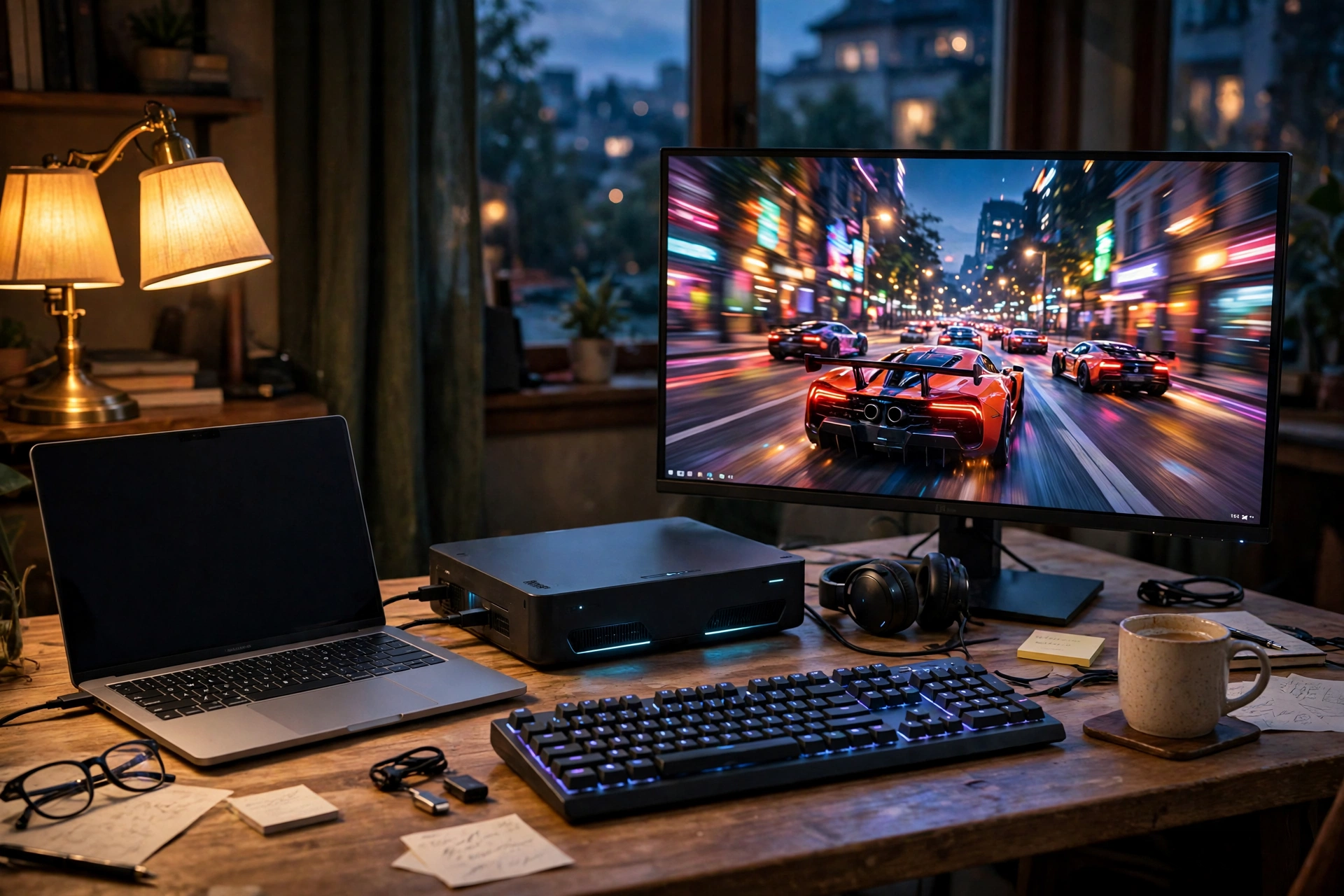
After all the caveats, here is the honest answer: an eGPU makes sense when you genuinely need one laptop to do everything (work, travel, and gaming) and you are willing to pay a premium for that flexibility. If you just want maximum gaming performance per dollar, a desktop or a gaming laptop wins every time.
It makes the most sense with: a mid-range GPU (RTX 4060/4070 or RX 7700 XT class), a 1440p external monitor, a laptop with a strong H-series CPU and a full 4-lane Thunderbolt port, and a real need for one-device portability.
It makes the least sense with: a flagship GPU (the bottleneck wastes your money), 1080p gaming (worst-case bottleneck), a weak U-series CPU, or a 2-lane Thunderbolt port.
Do the math honestly: a $300 enclosure + $500 GPU + $200 TB5 premium = $1,000 for ~85% of a desktop’s performance. A $1,000 desktop gives you 100% of that performance, plus upgradeability.
Creators have a stronger case: GPU-accelerated rendering, video encoding, and AI workloads are less sensitive to Thunderbolt latency than gaming, so the penalty is smaller and the portability is worth more. An eGPU for Blender or DaVinci on a MacBook or ultrabook is a legitimate workflow.
If you are upgrading an old desktop instead, see our best GPU for an old PC guide, sometimes the smartest eGPU alternative is not needing one.
7 mistakes that make the eGPU bottleneck worse
- Gaming on the internal display. Loopback mode costs 10-15%. Always use an external monitor.
- Buying a flagship GPU. A 4090 in a TB3 enclosure is money burned. Match the GPU to the link.
- Ignoring the 2-lane trap. Verify your laptop gives the full 4 lanes before buying.
- Daisy-chaining devices. Every device on the Thunderbolt chain steals bandwidth.
- Pairing with a weak CPU. A U-series ultrabook CPU bottlenecks on top of Thunderbolt.
- Gaming at 1080p. The bottleneck is worst at low resolutions. Target 1440p or higher.
- Skipping the math. Price the full setup (enclosure + GPU + cable) against a desktop.
Frequently asked questions
Can I use an eGPU with any laptop?
No, you need a Thunderbolt 3/4/5 port (or OCuLink/M.2 for DIY). USB-C without Thunderbolt does not work for eGPUs. Check your laptop’s specs for the Thunderbolt version and lane count.
Does an eGPU work with AMD graphics cards?
Yes. Both NVIDIA and AMD cards work in eGPU enclosures on Windows. On macOS, AMD cards are the officially supported option; NVIDIA support ended years ago.
Will Thunderbolt 5 eliminate the bottleneck?
Not entirely, but it shrinks it dramatically, roughly halving the TB3/4 penalty. For mid-range cards on TB5, the loss drops to single digits, which most gamers will never notice.
Key takeaways
- Thunderbolt 3/4 gives your eGPU about PCIe 3.0 x4 bandwidth, expect 10-20% loss for mid-range cards at 1440p.
- The penalty is worst at 1080p and on internal displays; use an external monitor at 1440p+.
- Check for the 2-lane trap, some laptops halve your Thunderbolt bandwidth.
- Thunderbolt 5 roughly halves the penalty but costs a premium across laptop, cable, and enclosure.
- OCuLink is faster (3-8% loss) but clunky: no hot-plug, fragile connectors, rare ports.
- Do not pair a flagship GPU with Thunderbolt 3/4, the bottleneck wastes your money.
- Your laptop CPU matters too, a weak U-series chip bottlenecks on top of Thunderbolt.
- An eGPU makes sense for one-laptop flexibility, not for maximum value.
Conclusion
Thunderbolt bottlenecks every eGPU, the only question is how much. On Thunderbolt 3/4, budget for 10-20% performance loss with a sensible mid-range card at 1440p on an external monitor, more if you break the rules above. Thunderbolt 5 halves the tax; OCuLink halves it again for those willing to tinker. The eGPU dream is alive in 2027, but it rewards informed buyers and punishes impulse purchases. Match your GPU to the link, verify your lanes, use an external monitor, and do the value math honestly. Get those right, and one cable really can give you the best of both worlds.

Leave a Reply