

For most modern gaming PCs, turn hardware accelerated GPU scheduling on. It is a free Windows setting that moves GPU scheduling work from your CPU to a dedicated processor on your graphics card. It will not magically raise your FPS, but it can smooth out frame delivery, and it is required for NVIDIA DLSS Frame Generation on RTX 40 and 50 series cards. Turn it off only if you see stutter on a card with 8GB of VRAM or less, or if VR games misbehave with it enabled.
Introduction
Every Windows gaming PC has a small toggle buried in the graphics settings that most players never touch. It is called hardware accelerated GPU scheduling, or HAGS for short. It has been sitting there since 2020, and for years the honest answer about it was simple: it barely changes anything. That answer is now out of date.
In 2026, HAGS quietly became a requirement for some of the most used graphics features on modern GPUs. NVIDIA DLSS Frame Generation will not turn on without it. AMD recommends it for FSR frame generation. And on a PC where the CPU is the bottleneck, taking scheduling work off the processor can make frame times steadier even when the average FPS number barely moves.
This guide explains what HAGS actually does in plain English, when it helps, when it hurts, and how to test it on your own PC in ten minutes. No invented benchmarks, no hype, just the setting, the trade-offs, and a clear answer for your setup.
What Is Hardware Accelerated GPU Scheduling?
HAGS is a Windows feature that changes who schedules work for your graphics card. To understand why that matters, you need a one-minute picture of how your PC draws a game frame.
Your CPU prepares instructions for the graphics card: draw this character, shade that wall, light this scene. Those instructions go into a queue, and a scheduler decides the order in which the GPU runs them. Before HAGS, that scheduler lived on the CPU. A high-priority thread on your processor coordinated, prioritized, and scheduled every piece of GPU work, for every program using the graphics card.
HAGS hands most of that high-frequency scheduling work to a dedicated scheduling processor built into modern graphics cards. Windows still decides which program gets priority. The GPU hardware takes over the moment-to-moment job of managing queues and switching between tasks. The CPU gets some work back, and the GPU gets its instructions with less waiting in between.
The Old Way: The CPU Schedules Everything
In the old model, the CPU did two jobs at once during gaming. It ran the game logic, physics, and AI, and it also managed the GPU schedule. On a strong CPU with a light game, that extra job was invisible. On a weaker CPU, or in a game that floods the system with draw calls, scheduling added overhead on top of everything else the processor was already doing.
Microsoft knew about this cost for years. Games hid it with buffering: the CPU would prepare work for the next frame while the GPU was still drawing the current one. Buffering kept the GPU busy, but it added latency, because your input was picked up during one frame and only appeared on screen a frame or two later. There was a constant tension between keeping the GPU fed and keeping input responsive.
The New Way: The GPU Schedules Itself
HAGS breaks that tension a little. With scheduling handled on the graphics card, the CPU spends less time managing the queue, and work can reach the GPU with less delay. Microsoft introduced the feature with the Windows 10 May 2020 Update, as an opt-in setting that was off by default. It needs a WDDM 2.7 driver, which is the Windows display driver model version that shipped with that update, and a graphics card with the hardware to support it.
The rollout was cautious on purpose. Scheduling sits at the heart of the graphics system, so Microsoft gathered data from Windows Insiders first, then let graphics card makers release supporting drivers once they had been tested. That is why the switch does not appear on every PC. If your GPU or driver does not expose the feature, Windows simply hides the toggle.
What HAGS Actually Does
Strip away the jargon and HAGS does three things.
First, it lowers CPU overhead. The processor no longer runs the high-frequency scheduling loop, so some CPU time is freed for the game itself. On most systems the freed time is small, a fraction of what the game uses. On a CPU-bound system, where the processor is the limiting part, even a small saving can show up as steadier frame delivery.
Second, it can reduce latency a little. Because work reaches the GPU with less queueing in between, the gap between your input and the picture on screen can shrink. The change is measured in milliseconds, and most players will not feel it directly. It is real, but it is subtle.
Third, it changes how VRAM is managed. With HAGS on, the GPU takes more control over its own video memory, and that can raise VRAM usage slightly. On a card with plenty of memory, that is harmless. On a card with 8GB or less, it is the one side effect that can actually hurt, which is why the low VRAM warning shows up in every honest guide to this setting.
What HAGS does not do is make your graphics card faster. It does not add shader power, it does not raise clock speeds, and it does not change what your GPU can render. Anyone promising a big FPS jump from this toggle is selling something. The value of HAGS is in smoother delivery and lower overhead, not in a higher number in the corner of your screen.
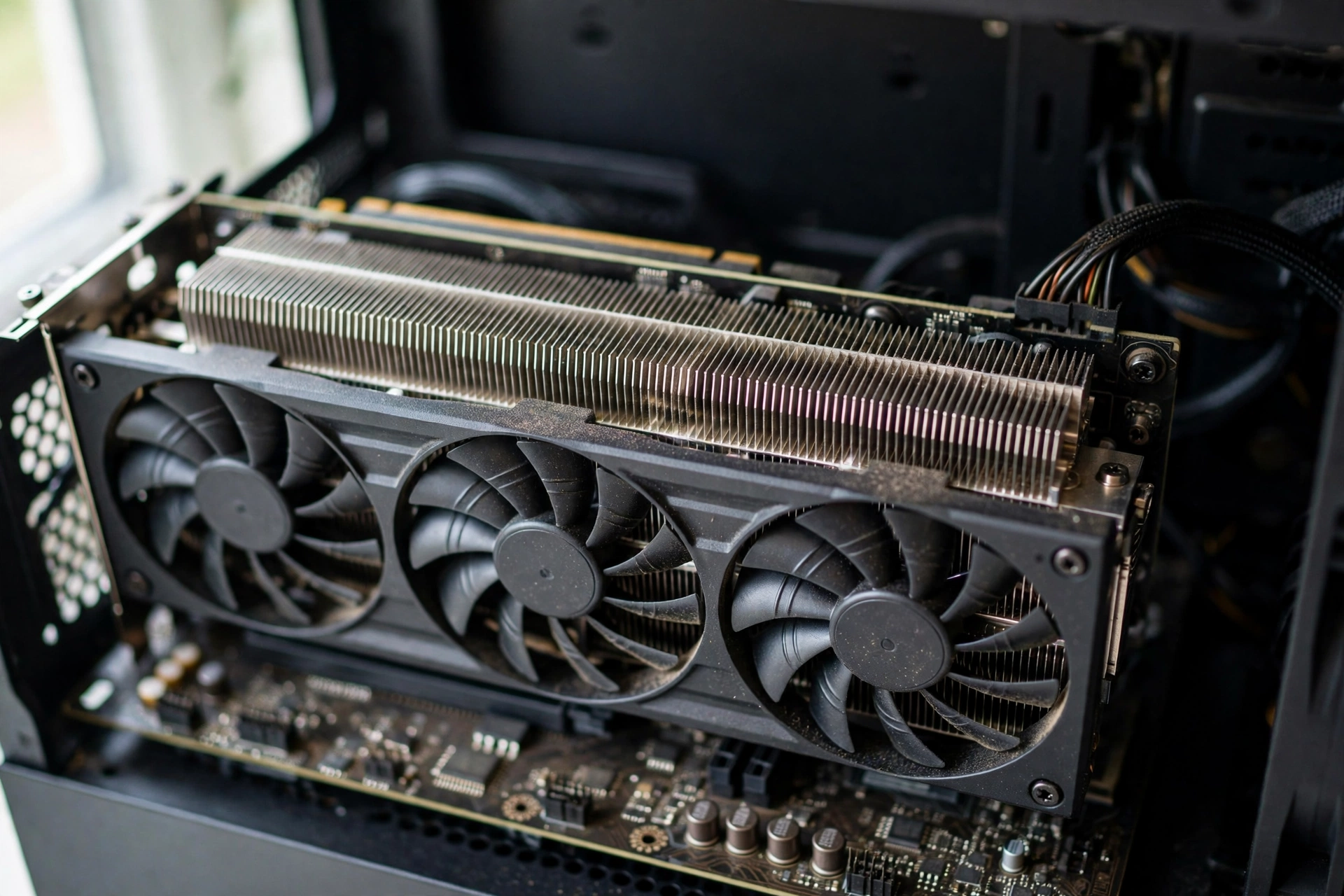
HAGS On or Off The Short Answer by Setup
If you want the answer without the explanation, find your setup in this table.
| Your Setup | Setting | Why |
|---|---|---|
| NVIDIA RTX 40 or 50 series | On, required | DLSS Frame Generation will not work without HAGS |
| Modern GPU, Windows 11 | On | Lower CPU overhead, smoother frame delivery, no real downside for most players |
| GPU with 8GB of VRAM or less, and you see stutter | Test off | HAGS can raise VRAM usage and push a tight card over the edge |
| VR gaming with stutter or tracking problems | Test off | VR is the most commonly reported problem area for HAGS |
| Streaming or video editing slowdowns after enabling it | Test off | Some encoding and editing workloads have reported issues |
| Old GPU or old driver, no toggle visible | Nothing to set | Your hardware or driver does not expose the feature |
The pattern is simple. If you have a modern card, leave it on. If something specific breaks after you turn it on, turn it off and compare. The setting is free, reversible, and takes one restart to change.
When HAGS Helps
HAGS helps in four situations that are worth knowing about, because they explain why the setting matters more now than it did in 2020.
You Own an RTX 40 or 50 Series Card
This is the big one. NVIDIA DLSS Frame Generation, the feature that uses AI to create extra frames between rendered frames, requires hardware accelerated GPU scheduling to be on in Windows. If HAGS is off, Frame Generation will not activate in any game, no matter what you set in the NVIDIA app or in the game menu. The same requirement applies to Multi Frame Generation on RTX 50 series cards. NVIDIA documents HAGS as a requirement for the feature, and its developer guidance states that Frame Generation fails to initialize when the setting is disabled.
That single requirement changed the whole conversation. Frame Generation is now one of the most used features on modern NVIDIA cards, and every RTX 40 or 50 series owner who wants it needs HAGS on. There is no workaround and no alternative setting.
Your CPU Is the Bottleneck
This is the angle that matters most on a bottleneck-focused site. If your CPU is holding back your graphics card, anything that takes work off the processor is worth a look. HAGS removes the scheduling loop from the CPU, which frees a small amount of processor time. On a balanced PC, that saving is too small to notice. On a system where the CPU is already struggling, it can show up as slightly steadier frame times, especially in busy scenes with lots of objects on screen.
Do not expect a transformation. HAGS will not fix a real CPU bottleneck. If your processor is too weak for your graphics card, the fix is a better CPU, lower CPU-heavy settings, or a higher resolution that shifts work to the GPU. HAGS is a small help on top of those fixes, not a replacement for them. If you want to know whether your CPU is actually the limiting part, our guide on how to fix a CPU bottleneck walks through the diagnosis and the real fixes, and our guide to finding a PC bottleneck shows how to confirm it with monitoring tools before you change anything.
Your 1% Lows Feel Worse Than Your Average FPS
Average FPS is the number everyone quotes, but it is not the number you feel. What you feel is the worst moments: the dips when the game hitches for a split second. Those dips are measured as 1% lows, the slowest 1% of frames. Independent guides that tested HAGS on and off in 2025 and 2026 report that average FPS typically moves within a range of about 2% lower to 3% higher, which is inside the normal run-to-run variance of most benchmarks. In plain terms, the average barely moves.
Where HAGS shows a more consistent effect is in frame time stability. By cutting one layer of CPU queueing out of the path, it can make the worst frames a little less bad on some systems. The effect is small and it does not appear in every game, but smoother 1% lows are exactly what makes a game feel better even when the FPS counter shows the same number. If you have never looked at 1% lows before, our guide on what frame time is and why 1% lows matter explains the metric and how to read it.
You Play in Borderless Windowed Mode
If you play games in borderless windowed mode so you can alt-tab quickly, HAGS can help a little with presentation. The Desktop Window Manager, the part of Windows that composites your desktop, has to work with the game to show each frame. HAGS reduces some of the scheduling delay in that path. The difference is subtle, and fullscreen exclusive mode is still the lowest-latency way to play, but for borderless players the setting is a small win.
When HAGS Hurts
HAGS is low risk, but low risk is not no risk. There are four situations where turning it off is the right call.
Your Graphics Card Has 8GB of VRAM or Less
This is the most important exception. HAGS can increase VRAM usage, because the GPU manages more of its own memory scheduling. On a 12GB or 16GB card, the extra usage is invisible. On an 8GB card running a demanding game at high settings, it can be the difference between fitting in memory and spilling over, and spilling over means stutter and texture pop-in.
If you own an 8GB card and you notice stutter that started after enabling HAGS, test it off. If you are not sure whether 8GB is enough for the games you play, our guide on is 8GB of VRAM enough breaks down which games and settings push past 8GB and which stay comfortably inside it.
You Play VR Games
VR is the most consistently reported problem area for HAGS. Players using Meta Quest Link and similar PC VR setups have reported frame drops, image stutter, and tracking jitter with HAGS on, even when the same GPU runs flat-screen games fine. AMD noted in its early driver release notes that VR headsets could fail to display content or suffer severe performance drops with hardware scheduling enabled. Modern drivers are better than the early ones, but VR remains the one workload where off is a common recommendation. If your VR games hitch and your flat games do not, HAGS is the first setting to test.
You Stream or Edit Video
Some streamers and video editors have reported slower rendering or encoder stutter with HAGS on. The reports are scattered rather than universal, and they seem tied to specific encoder and driver combinations rather than to HAGS itself. Still, if your OBS stream stutters or your render times climb right after you enable the setting, test it off and compare. Your workflow matters more than a toggle.
Your Drivers Are Old
HAGS needs a WDDM 2.7 driver at minimum, and the early drivers that added support had real bugs. NVIDIA added HAGS support in driver 451.48, released on June 24, 2020, for Pascal (GTX 10 series) and newer cards, and that driver shipped with a known issue where video on a second display could lag or freeze while gaming. AMD had a longer road, with stability issues on early RDNA cards that took time to iron out. If your drivers are more than a year or two old, update them before you judge the setting. Judging HAGS on a 2020 driver is judging a different feature.
Does HAGS Fix a CPU Bottleneck?
This is the question that brings most readers here, so here is the direct answer: no, HAGS does not fix a CPU bottleneck. It can ease one slightly, and that distinction matters.
A CPU bottleneck means your processor cannot feed your graphics card fast enough, so the GPU sits idle waiting for work. HAGS removes one piece of CPU work, the scheduling loop, which is a real saving. But scheduling is a small slice of what the CPU does during gaming. The game logic, physics, draw call preparation, and driver work are all still on the processor. Removing the scheduling slice helps at the margins. It does not change the balance between your CPU and GPU.
Think of it this way. If your CPU is the bottleneck, HAGS is like taking one bag out of an overloaded car. The car is a little lighter, and you might notice it on a hill. It is still overloaded. The real fixes are the ones that change the load: a stronger CPU, settings that reduce CPU work like lower draw distance and crowd density, or a higher resolution that gives the GPU more to do. Our guide on how to increase FPS covers the settings that shift work between the CPU and GPU, and it pairs well with this one.
There is one more honest point. In a purely GPU-bound situation, where your graphics card is running at 99% usage, HAGS does almost nothing measurable. The CPU is not the limiting part, so freeing CPU time changes nothing the player can see. That is normal, and it is not a sign that the setting is broken. It is a sign that your bottleneck is somewhere else.
How to Turn HAGS On or Off in Windows
The setting lives in the same place on Windows 10 and Windows 11. It takes about a minute, plus a restart.
- Open Settings. You can press the Windows key and I together.
- Go to System, then Display.
- Scroll down and click Graphics.
- Click Change default graphics settings.
- Find the Hardware-accelerated GPU scheduling toggle and switch it on or off.
- Restart your PC. The change does not take effect until you restart.
On Windows 11, the toggle is usually on by default on supported systems, so you may find it already enabled. On Windows 10, it was off by default when the feature launched, so you may need to turn it on yourself.

If you do not see the toggle at all, your GPU or driver does not expose the feature. That is normal on older cards and on some AMD cards where the driver does not list support. There is nothing to force, and no registry edit is worth the risk. Update your graphics driver to the latest version first. If the toggle still does not appear, your hardware simply does not support HAGS, and you are not missing a hidden performance boost.
One more note: after you change the setting, restart before you test anything. Changing it without a restart does nothing, and testing a game before the restart will give you a result for the old setting, not the new one.
How to Test HAGS On Your Own PC
Guides can tell you the average result, but your PC is not the average. The only way to know what HAGS does on your system is a ten-minute test with numbers you collect yourself.
Pick one game that you play regularly, and pick one repeatable scene: a busy town, a big fight, or a fixed benchmark run if the game has one. Turn on an FPS overlay that shows 1% lows, not just average FPS. MSI Afterburner with RTSS is the standard free choice, and the NVIDIA app overlay shows the same numbers.
Play the same five-minute scene with HAGS on, and write down the average FPS and the 1% low. Restart, turn HAGS off, restart again, and play the same scene the same way. Compare the 1% lows first and the average second. Keep whichever setting gives you steadier frame times. If the numbers are within a couple of percent of each other, which they usually are, keep HAGS on for the Frame Generation and future feature benefits, unless you are in one of the exception groups above.
Test in the game you actually play, not in a synthetic benchmark. HAGS affects real games differently, and a benchmark that shows no change tells you nothing about the open-world game where you spend your evenings.
Common Mistakes
Expecting a big FPS jump. HAGS is not a performance mode. Independent testing puts the average FPS change in a range of roughly 2% lower to 3% higher, which is inside normal test variance. If you turn it on expecting 10 more frames, you will be disappointed, and the disappointment is not the setting’s fault.
Testing without restarting. The toggle does nothing until you restart Windows. Every test done before the restart is testing the old setting.
Judging it on average FPS alone. The average barely moves. The 1% lows and frame time consistency are where any difference shows up. Test those numbers or you will miss the effect entirely.
Forgetting the VRAM limit. On an 8GB card, HAGS can push VRAM usage up just enough to cause stutter in demanding games. If stutter appears after enabling it, the VRAM limit is the first suspect.
Chasing the toggle on unsupported hardware. If the switch is missing, your GPU or driver does not support HAGS. No registry tweak is worth the stability risk, and you are not losing performance you could otherwise have.
Turning it off because a forum post said so. Early HAGS had real bugs, and old forum posts remember them. Modern drivers on modern cards behave very differently from the 2020 launch. Test on your own system with current drivers before you decide.
Expert Tips
Leave it on if you own an RTX 40 or 50 series card. Frame Generation needs it, and there is no reason to give up a feature that can double your displayed frame rate over a toggle that costs you nothing measurable.
Test it per game, not per PC. HAGS can help in one game and hurt in another, especially in VR titles and older games with unusual engines. A global setting does not have to mean a global answer. If one game stutters with it on, test that game with it off before you change the setting for everything.
Update drivers before you judge. The 2020 and 2021 drivers that first added HAGS had known issues that are fixed in current releases. A test on old drivers is a test of old bugs.
Pair it with a real bottleneck check. HAGS is a small lever. If your games stutter, find the actual bottleneck first with monitoring, then fix that. A toggle will not save a system with a genuinely weak CPU or a full VRAM buffer.
Check the setting after major Windows updates. Feature updates can reset graphics settings. If Frame Generation suddenly stops working or a game feels different after an update, check whether HAGS is still on before you blame the game.
Frequently Asked Questions
Should I turn hardware accelerated GPU scheduling on or off?
For most modern gaming PCs, turn it on. It lowers CPU overhead, can smooth frame delivery, and is required for DLSS Frame Generation on RTX 40 and 50 series cards. Turn it off only if you see stutter on a card with 8GB of VRAM or less, if VR games misbehave, or if a specific workload slows down after you enable it.
Does HAGS increase FPS?
Not in any meaningful way. Independent guides that tested HAGS on and off report average FPS changes of roughly 2% lower to 3% higher, which sits inside normal run-to-run variance. The real benefit is steadier frame times and better 1% lows on some systems, not a higher average.
Does HAGS reduce CPU bottleneck?
It can ease a CPU bottleneck slightly by removing the scheduling loop from the processor, but it does not fix one. Scheduling is a small part of CPU work during gaming. If your CPU is genuinely too weak for your GPU, you need a better CPU or settings that reduce CPU load.
Why is the HAGS option missing in Windows?
The toggle only appears when your GPU and driver support the feature. HAGS needs a WDDM 2.7 driver and a compatible graphics card, generally NVIDIA GTX 10 series or newer, AMD RX 5000 series or newer, or Intel Arc. Update your graphics driver first. If the toggle still does not appear, your hardware does not expose the feature.
Is HAGS required for DLSS Frame Generation?
Yes. NVIDIA lists hardware accelerated GPU scheduling as a requirement for DLSS Frame Generation on RTX 40 and 50 series cards. If HAGS is off, Frame Generation will not activate in any game. NVIDIA documents this in its DLSS game and feature list, and AMD also recommends HAGS on for FSR frame generation, noting that leaving it off can add tearing with variable refresh rate on and V-Sync off.
Does HAGS cause stuttering?
It can, on cards with 8GB of VRAM or less, because it can raise VRAM usage. It has also been linked to stutter in VR games and in some streaming and editing workloads. On a modern card with enough VRAM and current drivers, stutter from HAGS is uncommon. If stutter appears right after you enable it, turn it off and compare.
Does HAGS work on Windows 10?
Yes. HAGS arrived with the Windows 10 May 2020 Update, version 2004, and it works on Windows 10 and Windows 11. On Windows 11 it is usually on by default on supported systems. On Windows 10 it was off by default at launch.
Do I need to restart after changing HAGS?
Yes. The change does not take effect until you restart your PC. Always restart before testing a game, or you will be measuring the old setting.
Key Takeaways
- HAGS moves GPU scheduling work from your CPU to a dedicated processor on your graphics card, which lowers CPU overhead and can smooth frame delivery.
- Average FPS barely changes with HAGS on or off. Independent testing reports a range of roughly 2% lower to 3% higher, which is inside normal variance.
- HAGS is required for NVIDIA DLSS Frame Generation on RTX 40 and 50 series cards, and AMD recommends it for FSR frame generation.
- Turn HAGS off to test if you have 8GB of VRAM or less and see stutter, if VR games misbehave, or if streaming and editing slow down.
- HAGS can ease a CPU bottleneck slightly, but it does not fix one. The real fixes are a better CPU or settings that reduce CPU load.
- The setting is in Settings, System, Display, Graphics, Change default graphics settings, and it needs a restart to take effect.
Conclusion
Hardware accelerated GPU scheduling is a small setting with an outsized reputation. For most of its life it did almost nothing you could measure, and the honest advice was to ignore it. That changed when Frame Generation arrived, because NVIDIA made HAGS a hard requirement for one of the most useful features on modern graphics cards. Today the default answer is simple: if your PC is modern and your card has enough VRAM, turn it on and leave it on.
The exceptions are real but narrow. An 8GB card that stutters, a VR headset that hitches, a streaming setup that slows down: those are the cases where off is worth testing. Everything else is a ten-minute test on your own PC with 1% lows on screen. Keep the setting that gives you steadier frames, and do not chase an FPS number that this toggle was never going to move.
If your games still stutter with HAGS on, the setting is not your problem. Find the real bottleneck, fix that, and let HAGS do the small job it was built for. Start with our guide to finding a PC bottleneck and work from the numbers, not from a toggle.

Leave a Reply