

A fair gpu comparison starts with a simple question: what will this card actually have to do in your PC, at your resolution, in the games you play? Two cards with similar prices can be very different tools. One may be faster in traditional rendering but weaker in ray tracing. Another may have more memory but a slower chip. A third may be perfect for 1080p and underpowered for 4K. Without a framework, it is easy to pick the card with the biggest number on a chart and still end up with the wrong one.
This guide gives you a comparison framework you can reuse for any card, a tiered ranking that groups cards by what they are built to do, and a practical way to match a GPU tier to a CPU tier. It also shows how to read benchmarks without being misled by a single average frame rate, and it covers the mistakes that cause most bad GPU purchases.
Start With Your Monitor Not the Brand Name
Your monitor sets the workload. A 1080p display has far fewer pixels to fill than a 1440p display, and a 4K display has far more again. A card that is comfortable at 1080p may struggle at 1440p, and a card built for 4K is wasted on a 1080p 60 Hz screen. Start from the resolution and refresh rate you actually use, then find the tier that serves that monitor, and only then compare specific models inside that tier.
This is also why chasing the fastest card for a modest monitor is often wasted money. If your monitor cannot show more than 60 frames per second, a card that could deliver 200 frames in your games will not look any smoother than a card that delivers a stable 60 to 70. Spend the difference on a better monitor, a stronger CPU, or a future upgrade, rather than on headroom you cannot see.
If you are still deciding which resolution to target, our guide to the best graphics card for 4K gaming explains what 4K actually demands from a card, a CPU, and a power supply. For most buyers, the sensible move is to match the card to the monitor you already own, not to buy a card first and hope the monitor catches up later.
The GPU Comparison Framework
A useful gpu comparison checks the same seven factors for every card on your shortlist. If a review or a ranking only talks about one of them, it is not a complete comparison.
1. Raster Performance: The Traditional Baseline
Raster performance is how fast a card draws a game using traditional rendering, without ray tracing. It is still the best single baseline for most games, because many titles use little or no ray tracing, and because raster speed correlates closely with general gaming speed. Compare raster results in the games you play, at your resolution, with settings you would actually use. A card that wins by a large margin in one game and loses in another is not clearly better, it is just different.
2. Ray Tracing Performance: A Separate Score, Not a Footnote
Ray tracing simulates light, reflections, and shadows in a more realistic way, but it is expensive. Cards from different brands differ much more in ray tracing than in raster performance, so a card that looks close in raster tests can fall well behind once ray tracing is enabled. If you play ray traced games and you leave the feature on, weight ray tracing results heavily. If you turn ray tracing off, or you play games that do not use it, weight it lightly and focus on raster speed and VRAM instead.
3. VRAM: Enough Memory, in the Right Card
VRAM is the memory on the graphics card itself. It holds textures, frame buffers, and other data the GPU needs quickly. If VRAM runs out, the card must fetch data from slower system memory, which causes stutter and frame drops even if the chip itself is fast. More VRAM does not automatically make a card faster, but too little VRAM can make a fast card feel slow in demanding games.
The table below is a practical starting point, not a guarantee for every game. Texture packs, mods, and future titles can raise requirements, so treat the upper end of each range as the safer choice if you plan to keep the card for several years.
| Resolution and settings | VRAM guidance | Why it matters |
|---|---|---|
| 1080p, medium to high settings | 8 GB workable, 12 GB safer | Many current games fit, but demanding titles at high textures are getting tight on 8 GB |
| 1440p, high settings | 12 GB to 16 GB | Larger frame buffers and higher resolution textures raise usage sharply |
| 1440p ultra or 4K, high settings | 16 GB or more | High resolution textures, ray tracing, and upscaling buffers all add up |
| Esports and older titles at 1080p | 8 GB usually fine | Lighter games use far less memory, so GPU speed matters more here |
If you want a deeper look at the 8 GB question specifically, see our guide on whether 8 GB of VRAM is enough. The short version is that 8 GB is still usable at 1080p with sensible settings, but it is no longer a comfortable long term choice for demanding new games at 1440p.
4. Upscaling: DLSS, FSR, and XeSS Change the Result
Upscaling renders a game at a lower internal resolution and then reconstructs a sharper image. Done well, it can lift frame rates a lot with only a small visible cost, and it can move a card down a tier in practical terms: a midrange card with good upscaling can feel like a stronger card without it. The catch is that support varies by game and by brand. NVIDIA DLSS is available on GeForce RTX cards, AMD FSR works across a much wider range of hardware, and Intel XeSS sits in a similar role for Arc cards and beyond. When you compare two cards, check which upscalers your actual games support, and compare results with the upscaler you will use, not only native results with everything off. For official background on NVIDIA features, see NVIDIA GeForce, and for AMD features, see AMD graphics. Frame generation, where supported, can raise displayed frame rates further, but it does not reduce input latency in the same way as true rendered frames, so treat it as a bonus for smoothness, not as a replacement for base performance.
Upscaling also interacts with bottlenecks. A strong upscaler can shift load away from the GPU in some cases, which can expose a CPU limit that was hidden before. Our guide on whether DLSS reduces a CPU bottleneck explains that interaction in plain terms, and it is worth reading before you assume upscaling solves every performance problem.
5. Power, Cooling, and Size: The Practical Checks
A card that needs more power than your power supply can deliver, or that does not fit your case, is not a bargain at any benchmark score. Check the card maker’s recommended power supply guidance, the power connectors it needs, its length and thickness, and whether your case has the airflow to keep it cool. A well cooled card holds its boost clocks longer and stays quieter, while a cramped, hot card may throttle and lose performance over a long session. Power efficiency matters too: two cards with similar gaming performance can differ a lot in heat and noise, and that difference is felt every day, long after the benchmark chart is forgotten.
6. Features and Software: Encoders, Drivers, and Ecosystem
Beyond gaming speed, check the features you will actually use. Streamers care about encoder quality. Creators care about support in their editing or rendering software, where one brand may be strongly favored. Driver stability, regular updates, and useful software features such as recording, tuning, and per game profiles all affect daily ownership. None of these should override a large gaming performance gap, but they are a legitimate tiebreaker between two close cards, and they are a strong reason to favor a card that fits your software, not just your games.
7. Longevity: How Long Will This Tier Stay Comfortable?
A card does not need to last forever, but it should stay comfortable for as long as you plan to keep it. Cards with more VRAM, stronger ray tracing, and support for current upscaling tend to age better, because new games keep raising texture quality and lighting demands. That does not mean you should always buy one tier higher than you need. It means you should be honest about your upgrade cycle. If you upgrade every two years, a tighter card is fine. If you plan to keep a card for five years, the safer VRAM and feature choice is usually worth the extra step up, provided it stays within your power and budget limits.
The Tiered GPU Ranking From Entry 1080p to Flagship 4K
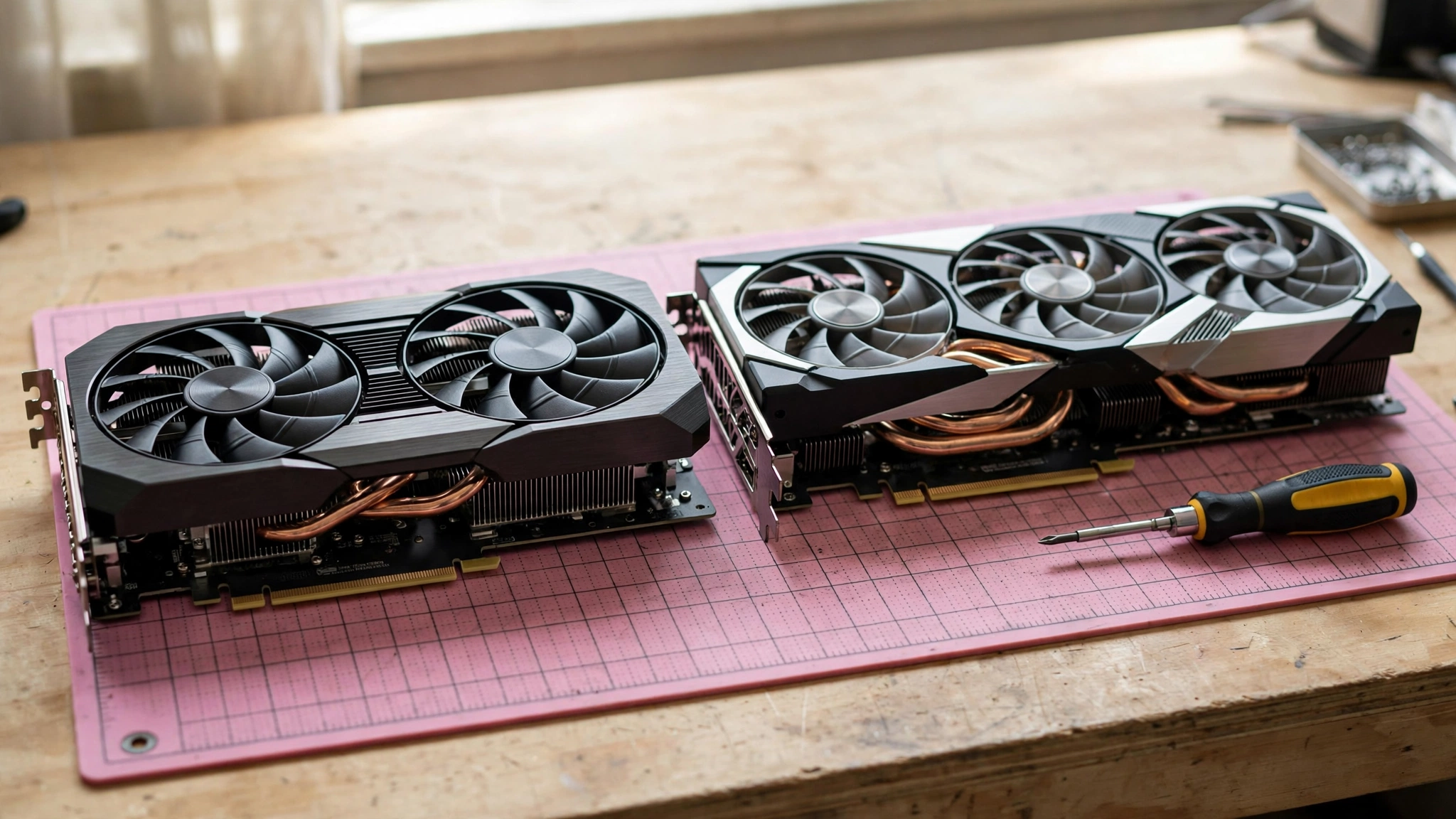
The table below ranks current GPU classes by tier, not by a fake precise score. Tiers reflect broad relative positioning from published third party reviews and vendor specifications, grouped by the resolution and settings each class is realistically built for. Within a tier, individual models vary by VRAM, cooling, power, and features, so use this table to narrow your search, then compare specific models head to head. No FPS numbers are claimed here, because a single number hides resolution, settings, game choice, and CPU pairing, all of which change the result.
| Tier | Built for | Relative standing | Key tradeoffs to check |
|---|---|---|---|
| Entry 1080p | Esports and lighter games at 1080p, medium to high settings | Lowest current gaming tier, best for tight budgets | VRAM and ray tracing are limited, check 8 GB versus 12 GB versions carefully |
| Mainstream 1080p | Most current games at 1080p, high settings | A clear step above entry, the sweet spot for many 1080p buyers | Ray tracing is usable but not the strength, upscaling helps a lot here |
| Mainstream 1440p | Comfortable 1440p gaming at high settings, good 1080p high refresh | The balanced middle of the market, strong all round value | VRAM choice matters, favor 12 GB or more for longer life |
| High end 1440p and entry 4K | High refresh 1440p, entry level 4K at sensible settings | Clearly above mainstream 1440p, with stronger ray tracing | Power and price rise sharply, check PSU and case fit |
| Enthusiast 4K | Demanding 4K gaming at high settings, heavy ray tracing | Near the top of the consumer range, built for 4K first | Needs a strong CPU, PSU, and cooling, overkill for 1080p |
| Flagship 4K | Maximum 4K performance, heavy ray tracing, creative work | Top consumer tier, fastest in raster and ray tracing alike | Highest power, size, and cost, only sensible with a matching high end system |
Use this table as a filter, not as a verdict. If you play at 1080p, the flagship tier will not make your games look better on a 1080p 60 Hz monitor, and the money is better spent on a better monitor, a stronger CPU, or saved for a future upgrade. If you play at 4K, an entry tier card will not become a 4K card because a review praised its value at 1080p. Match the tier to the job first, then argue about models inside the tier.
A note on older cards: a previous generation high end card can still be a good buy in the used market, and it can beat a new mainstream card in raw raster work. The tradeoff is age, warranty, driver support over time, VRAM generation, and missing features such as newer upscaling or ray tracing improvements. Compare older high end cards against new mainstream cards on the same seven factors above, not on launch reputation alone.
How to Read Benchmarks Without Being Misled
Benchmarks are useful only when you know what was tested and how. A chart that shows one average frame rate for one game at one resolution tells you very little about how a card will perform in your system. Use the checks below every time you read a review or a ranking.
First, always check resolution and settings. A card that looks dominant at 4K ultra may be ordinary at 1080p, and a card that wins at low settings may lose at high settings. Match the test to your monitor and to settings you would actually use, and ignore results at resolutions you will never play.
Second, look beyond the average. Average frame rate hides stutter. The 1 percent low figure, which describes the worst frame rates in a run, tells you far more about smoothness. A card with a high average and poor 1 percent lows will feel worse than a card with a slightly lower average and stable lows. If a review does not report lows or frame times, treat its conclusions with caution.
Third, check the test system. A benchmark run with a flagship CPU, fast memory, and a clean system will show a GPU’s full potential, but your PC may not match that system. If your CPU is weaker, the gap between two GPUs will shrink in CPU heavy games, because the CPU becomes the limit. Our guide on CPU bottleneck versus GPU bottleneck helps here: if your CPU cannot feed frames fast enough, a stronger GPU will sit idle in CPU heavy scenes, no matter how good its benchmark scores look.
Fourth, compare several games, not one favorite. Every card has games where its architecture shines and games where it struggles. A card that wins in three games and loses in three others is not clearly better than its rival, it is just different. Weight the games you actually play most heavily, and treat a blended average across many games as more reliable than a single headline result.
Fifth, watch for upscaling and frame generation in the numbers. Results with DLSS, FSR, or frame generation enabled are not directly comparable to native results, and they do not tell you the card’s base performance. Check whether the review states the settings clearly, and compare like with like. A useful independent reference is the TechPowerUp GPU database, which is a useful place to check specifications and relative positioning across many models, but use it alongside game benchmarks, not as a replacement for them.
Finally, be skeptical of single number rankings that claim precision. A difference of a few percent between two cards is within test variation and driver variation, and it will not be noticeable in real play. Treat close cards as tied on speed, and decide on VRAM, features, power, noise, and current price instead.
How to Match a GPU Tier to a CPU Tier
A balanced PC is one where neither the CPU nor the GPU is badly outmatched for the games and resolution you play. The table below is a starting guide, not a strict rule. At higher resolutions, the GPU does more work per frame, so a weaker CPU is less of a limit. At lower resolutions and high refresh rates, the CPU does more work per second, so a stronger CPU matters more.
| GPU tier | Sensible CPU tier | Watch out for |
|---|---|---|
| Entry 1080p | Entry to mainstream modern CPU | Very old CPUs can still limit esports frame rates, even with a modest GPU |
| Mainstream 1080p | Mainstream modern CPU | High refresh 1080p needs a stronger CPU than 1080p at 60 Hz |
| Mainstream 1440p | Mainstream to upper mainstream CPU | A weak older CPU will show up first at 1440p high refresh |
| High end 1440p and entry 4K | Upper mainstream to high end CPU | At 1080p this GPU will often wait on the CPU, which is normal if you plan to move to 1440p or 4K |
| Enthusiast 4K | High end CPU | At 4K the GPU leads, but a weak CPU still hurts minimum frame rates and smoothness |
| Flagship 4K | High end CPU, fast memory | Pairing a flagship GPU with a weak CPU wastes the GPU in most games below 4K |
If you already own a CPU and you are choosing a GPU for it, work backwards from this table. If you own a Ryzen 7 9800X3D, for example, our guide to the best GPU for Ryzen 7 9800X3D shows which tiers make sense for that chip. For help finding where your current system is actually limited, use our guide on how to find a PC bottleneck before you spend money on the wrong part. If your diagnosis points to the graphics card itself, our guide on what a GPU bottleneck is explains the signs and the fixes in detail.
A final pairing rule: do not buy a flagship GPU for a 1080p 60 Hz setup and expect a transformation, and do not buy an entry GPU for a 4K monitor and expect it to cope. The tier logic above exists to prevent exactly those two mistakes, which are the most expensive mistakes in GPU buying because they waste either money or performance.
What Is Happening in the Market Right Now
Market context matters for timing, even though it should not override the tier logic above. Three current stories illustrate why checking street prices on the day you buy matters more than launch prices or old reviews.
First, the October 2026 Steam Hardware Survey puts the GeForce RTX 3060 back in first place at 3.62 percent of surveyed systems, with the RTX 4060 and RTX 5070 close behind. That tells you two things: many gamers are still on older, midrange cards, and the most popular cards are not the flagship models that dominate headlines. The mainstream tiers in this guide are where most real buyers actually live.
Second, reports in early November 2026 describe further RTX 50 series price increases from manufacturers, citing memory costs and supply pressure. If those reports hold, the gap between tiers may widen, and cards that were borderline value at launch may become poor value at current prices. Check current prices, not launch prices, and be ready to step down a tier or wait if the card you want has risen sharply.
Third, an unconfirmed rumor reported on November 3, 2026 suggests Intel may consider discontinuing the Arc B580 to prioritize higher margin professional cards. That story, if true, would remove one of the best value options at the budget end of the market and push budget buyers toward more expensive alternatives. It is a reminder that the budget tier is the most sensitive to supply changes, and that a good card at a good price should not be assumed to stay available forever.
Together, these stories point to the same buying discipline: pick your tier, check current availability and price, compare specific models inside that tier on the seven factors above, and buy when the price is fair for the tier, not when a headline tells you to panic.
Common GPU Comparison Mistakes to Avoid
The most common mistake is comparing model numbers across brands as if they meant the same thing. An RTX 5060, an RX 9060, and an Arc B580 are not in the same tier just because their numbers look similar, and a higher number within one brand does not always mean a better card for your games. Compare tiers, specifications, and benchmark results at your resolution, not model numbers.
The second mistake is judging a card only by VRAM amount or only by clock speed. VRAM without GPU speed is wasted, clock speed without architecture context is meaningless, and memory bandwidth, cache, and driver efficiency all shape the result. Use the full seven factor framework instead of a single spec.
The third mistake is ignoring the rest of the PC. A great GPU in a PC with a weak power supply, slow storage, or too little system memory will not perform as reviewed. Check power, cooling, case fit, and system memory alongside the card, and remember that 16 GB of system memory is a common baseline for modern gaming, with 32 GB giving more headroom for multitasking and demanding titles.
The fourth mistake is buying for a benchmark instead of for your games. If you play one game most of the time, that game’s performance matters more than a blended average across twenty games you will never install. Find benchmarks for your game, at your settings, and weight them most heavily.
The fifth mistake is assuming a new card is always better than an older card. Newer cards often bring better efficiency, features, and driver support, but an older higher tier card can still beat a newer lower tier card in raw speed. Compare tiers and measured results, not launch years, and weigh warranty and feature support when the speed gap is small.
Frequently Asked Questions
Would a budget gamer be better off with an AMD or Nvidia GPU?
This is a real question asked on Quora, and the honest answer is that it depends on your games and your priorities. For pure raster gaming value, AMD cards often offer strong performance for the money, especially if you do not prioritize ray tracing. For ray tracing, upscaling in supported games, encoding, and certain creative software, NVIDIA cards often hold an advantage. Budget buyers should compare specific models inside the same tier, check VRAM, and look at results for their own games, rather than choosing a brand first and a card second.
Is it more cost-effective to purchase an older, high-end graphics card or a newer, lower-end one for better performance?
This is also a real question asked on Quora, and the answer depends on the exact pair. A newer lower tier card often wins on efficiency, features, driver support, and warranty, even when an older high end card is close or slightly ahead in raw speed in some games. An older high end card can still be good value, especially used, if it has enough VRAM and the features you need. Compare the two cards on the seven factors in this guide, check power and VRAM, and favor the newer card when speed is close, because efficiency and support age better than a small speed lead.
How much VRAM do I really need for 1440p gaming?
For most current games at 1440p high settings, 12 GB is a practical minimum and 16 GB is the safer long term choice. At 1440p ultra with high resolution textures and ray tracing, 16 GB gives much more headroom. If you only play lighter games, 12 GB is comfortable, but if you plan to keep the card for several years, favor the larger VRAM option inside your tier when the price step is reasonable.
Should I trust a single GPU ranking website?
No single ranking should decide your purchase. Rankings differ in which games they test, which settings they use, whether upscaling is on, and how they weight ray tracing, features, and value. Use two or three reputable sources, check results at your resolution, and treat cards within a few percent of each other as tied on speed. Then decide on VRAM, features, power, noise, and current price.
Does a faster GPU fix a CPU bottleneck?
Not on its own. If your CPU cannot prepare frames fast enough, a faster GPU will wait for work in CPU heavy scenes, especially at 1080p and high refresh rates. Raising resolution or settings can shift more work to the GPU and hide a CPU limit, but it does not remove it. The real fix for a CPU bottleneck is a stronger CPU, lower CPU heavy settings, or a higher resolution target where the GPU becomes the limit. Check your CPU and GPU usage together before upgrading either part.
Is ray tracing worth paying extra for?
It depends on whether you play ray traced games and whether you leave the feature on. In supported single player games, ray tracing can improve lighting and reflections noticeably. In esports titles, it rarely matters, and many competitive players turn it off for maximum frame rates. Pay extra for ray tracing strength only if your favorite games use it and you will keep it enabled. Otherwise, put that money toward VRAM, a higher tier, or a better monitor.
Conclusion
A good gpu comparison is not a race to the biggest number. It is a disciplined check of raster speed, ray tracing, VRAM, upscaling, power, features, and longevity, all measured at your resolution and your settings, and all read alongside several games rather than a single chart. Use tiers instead of fake precise rankings, match your GPU tier to a sensible CPU tier, and treat close cards as tied until VRAM, features, and current price break the tie.
Start from your monitor, pick the tier that serves it, compare specific models inside that tier with the framework in this guide, and check street prices and availability on the day you buy. That process will not give you a single magic answer, but it will give you something better: a card that fits your PC, your games, and your budget, without paying for performance your monitor cannot show or buying a tier your system cannot feed. When you are ready to narrow the choice further, revisit the bottleneck guides linked above, confirm your power supply and case fit, and choose the card that is strongest where your games actually need it.

Leave a Reply