

Quick answer: A CPU running hotter after a GPU upgrade is usually normal. A faster graphics card pushes more frames per second, which forces the CPU to do more work every second, and a bigger, hotter GPU also dumps more heat into your case. Expect gaming temperatures to rise by roughly 5 to 15 degrees Celsius. You should only worry if temperatures regularly cross 90C, idle temperatures jumped as well, or CPU-only stress tests now run hotter than they did before the upgrade.
You finally installed that new graphics card. Maybe it was an AMD RX 9000 series card you grabbed during the ongoing GPU price surge, when RTX 5090 street prices stayed far above what most gamers wanted to pay. Games look better and run faster than ever. Then you glance at your monitoring overlay and your stomach drops: your CPU is running 10, 15, sometimes 20 degrees hotter than it used to. The GPU upgrade was supposed to help your PC, not cook your processor.
Take a breath. The search term cpu hotter after gpu upgrade is one of the most common post-upgrade worries in PC building, and most of the time the answer is good news: your CPU is hotter because it is finally doing its job properly. In this guide you will learn exactly why a faster GPU raises CPU temperatures, how to tell normal behavior apart from a real cooling problem, and a step-by-step method to diagnose and fix the issue like a pro.
Why a Faster GPU Makes Your CPU Work Harder and Run Hotter
A graphics card upgrade changes the thermal balance of your whole system, not just the GPU slot. Five mechanisms work together to raise CPU temperatures after a GPU upgrade, and understanding each one makes the fix obvious.
Higher frame rates mean more CPU work per second
This is the biggest reason, and the one most builders miss. Your CPU prepares every frame your GPU draws: it runs the game logic, physics, AI, draw calls, and asset streaming. At 60 frames per second the CPU does that job 60 times each second. Jump to 120 or 144 frames per second with a new card and the CPU now does the same job twice as often. More work per second means more power drawn, and more power drawn means more heat.
Think of it this way: your old GPU was the slow cashier at a grocery store, and your CPU was the bagger who spent most of the time standing around waiting. Now the cashier scans twice as fast, and the bagger is suddenly sweating. One builder on a hardware forum put it perfectly: your CPU was bored waiting on the old card, and now the new GPU can actually handle everything the CPU sends it. If you want to check whether your CPU was being held back before, our guide to 10 signs your CPU is bottlenecking your GPU walks through exactly what to look for.
The new GPU dumps far more heat into your case
Almost every modern graphics card uses an open-air cooler: two or three fans blowing heat off the heatsink and into your case, where your case fans are supposed to carry it away. A card that draws 320 watts turns almost all of that 320 watts into heat inside your chassis. If your old card drew 120 watts, your new one just added a space heater to your PC.
This matters most for the CPU cooler, which breathes the air inside the case. Tower air coolers and top-mounted radiators both depend on cool intake air. When the GPU saturates the case with warm air, the CPU cooler has to work with warmer air, so CPU temperatures climb even though the CPU itself is doing nothing wrong. Builders with top-mounted all-in-one liquid coolers see this the worst, because hot air rises straight from the GPU into the radiator.
One useful insight from a popular Quora thread on overheating: the CPU is stressed by higher frame rates, not by higher resolution. Raising resolution mostly loads the GPU, while raising frame rates loads the CPU. So if your new card let you jump from 60 to 144 FPS at the same resolution, your CPU feels nearly all of that increase.
A larger card can physically block airflow
Modern GPUs are huge. Triple-slot, triple-fan cards can sit directly in front of your front intake fans or leave only a narrow gap between the card and the bottom of the case. That physical blockage reduces the cool air reaching your CPU cooler. In smaller cases the card can also trap a pocket of warm air between itself and the CPU socket area. Builders who went from a compact dual-fan card to a flagship model have reported exactly this: the CPU cooler fan spinning harder, yet temperatures refusing to come down.
PCIe activity, Resizable BAR and driver overhead
Modern CPU and GPU combinations enable Resizable BAR (AMD calls it Smart Access Memory) by default. This lets the CPU access the GPU’s full video memory at once instead of in small chunks, which improves performance but also increases traffic across the PCIe bus and keeps the CPU’s memory controller busier. The effect on temperature is small compared to the frame-rate effect, but it is real.
Drivers matter too. When you swap cards, especially when switching between NVIDIA and AMD, leftover driver files can cause extra CPU overhead and even stuttering. As of October 2026, NVIDIA’s 621.01 driver introduced Advanced Shader Delivery, which changes how shaders are compiled and delivered to the GPU. A clean driver install with Display Driver Uninstaller (DDU) after every GPU swap keeps CPU overhead as low as possible and rules out driver weirdness as a temperature cause.
Fan curves and BIOS settings tuned for the old card
Your fan curves were tuned for your old thermal load. Case fans, CPU cooler fans, and radiator fans that were whisper quiet with a 120-watt card may ramp up too late when a 300-watt card is installed. If you run a quiet fan profile, the system tolerates higher temperatures before the fans respond, and those extra degrees land on the CPU.
BIOS settings deserve a check too. Auto-overclocking features like AMD’s Precision Boost Overdrive (PBO) or motherboard “enhanced turbo” modes let the CPU boost harder and draw more power when thermal headroom allows. Some builders accidentally enable these while poking around the BIOS during an upgrade, and the result looks exactly like a GPU-caused temperature problem. One well-known 2026 forum case ended with the builder discovering he had turned on Precision Boost by accident, and turning it off returned his CPU power and temperatures to normal instantly.
Safe CPU Temperature Ranges After a GPU Upgrade
Before you change anything, learn what is actually normal. Modern CPUs are designed to run hot: they boost aggressively right up to their thermal limits, and that is by design, not a defect. The key question is not “did my temperature go up” but “did it go up into a danger zone.”
| CPU family | Typical gaming temps | Time to worry |
|---|---|---|
| AMD Ryzen 5000, 7000, 9000 | 70 to 85C | Sustained 90C+, throttling at 95C |
| Intel Core 12th, 13th, 14th gen | 70 to 90C | Sustained 95C+, throttling at 100C |
| Intel Core Ultra 200 series | 65 to 85C | Sustained 90C+ |
| Older CPUs (Intel 4th to 10th gen, Ryzen 1000 to 3000) | 60 to 75C | Sustained 85C+ |
A rise of 5 to 15C during gaming after a GPU upgrade is completely normal and expected. The same jump at idle, or temperatures that climb during a CPU-only stress test that does not involve the GPU at all, is not normal and points to a cooler or mounting problem.
If you want a quick read on how your CPU and GPU balance each other after the upgrade, run your combination through our CPU bottleneck calculator. It will not fix temperatures, but it tells you whether your new pairing is balanced or whether one part is being pushed unusually hard.
117W and 81C After Upgrading to an AMD RX 9070
Real stories teach better than theory, so here is one from the Tom’s Hardware forum in 2026. A builder upgraded from a Gigabyte RTX 3060 Ti to a Gigabyte RX 9070, installed the AMD driver, launched a game, and noticed the fans getting much louder. Opening HWiNFO, he saw his Ryzen 5 7600 hitting 116.7 watts and 81C. His words: “I’ve never seen my CPU reach this kind of wattage before, what could be the reason?”
The community gave him two answers that map perfectly onto this guide. First, his CPU was previously bored waiting on the 3060 Ti, and the RX 9070 finally let it work at full speed, drawing more power. Second, the larger card added more heat to the case. But the actual solution was a third thing: after checking his BIOS, he realized he had accidentally turned on Precision Boost, and turning it off returned his CPU power and temperatures to normal immediately. You can read the full thread here: CPU is suddenly hitting 117W and 81C after GPU upgrade?
Notice the important detail: 81C on a Ryzen 5 7600 is below AMD’s 95C thermal limit, so it was never dangerous. The wattage jump was the real clue. When CPU package power rises a lot after a GPU upgrade, the CPU itself is doing more work or boosting harder. When only temperature rises while power stays the same, the culprit is usually heat from the GPU warming the case air.
A second builder had the classic airflow version of the same problem. After swapping a GTX 1050 Ti for an RTX 2060 Super, his Ryzen 5 3600 ran about 10C hotter in games, while his Cinebench temperatures stayed exactly the same. Same CPU load, same cooler, hotter case air. The full discussion is a perfect illustration of the case-heat effect: CPU-only tests unchanged, gaming temps up.
Diagnosing CPU Temperatures Step by Step
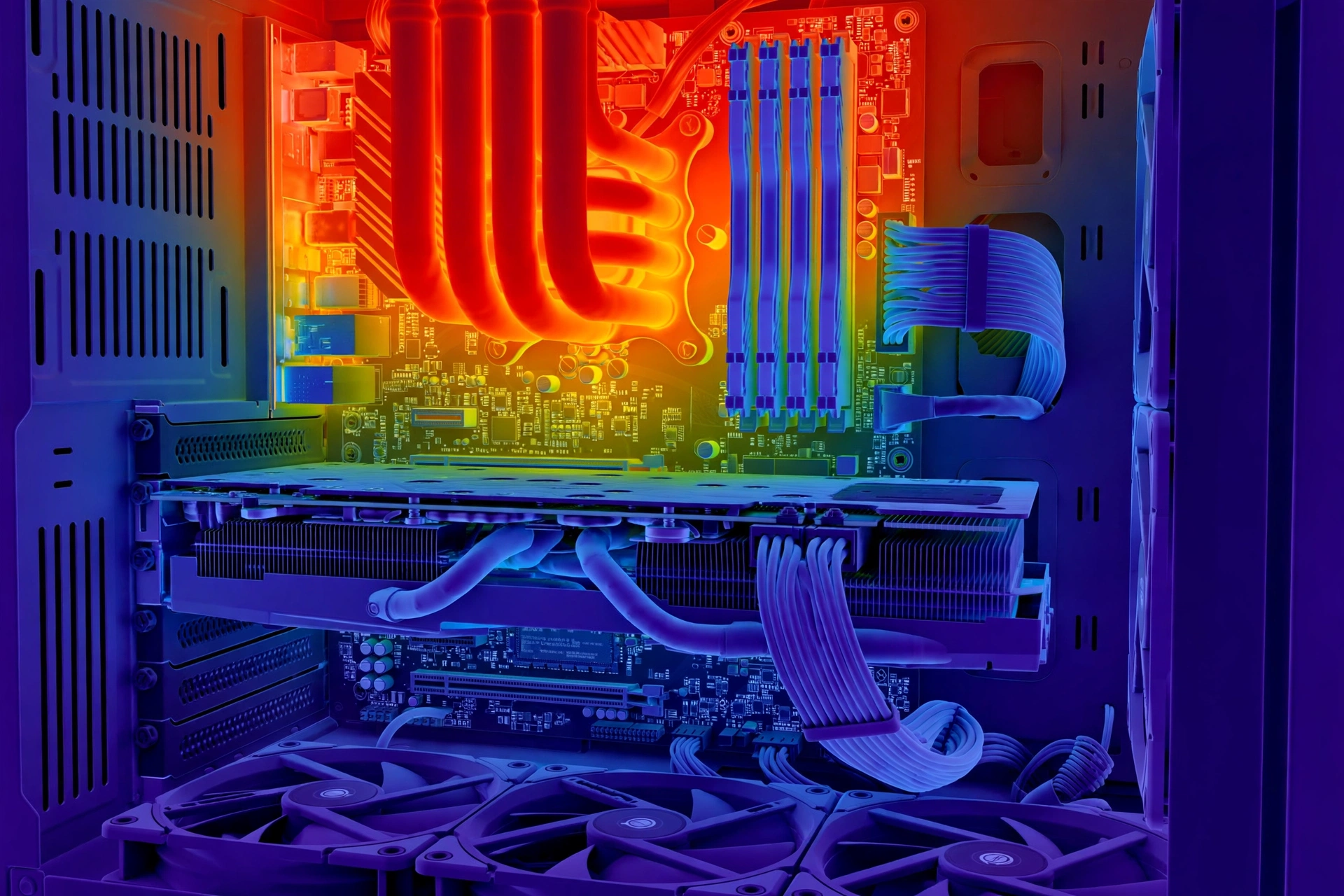
Follow these steps in order. Each one isolates a different cause, so by the end you will know exactly what is raising your temperatures instead of guessing.
Step 1: Record your baseline with HWiNFO
Install HWiNFO64 and run the same game scene or benchmark you used before the upgrade, for about 15 minutes. Write down four numbers: average CPU temperature, peak CPU temperature, CPU package power in watts, and average CPU utilization. Compare them to your old numbers if you have them. If package power is much higher than before, your CPU is genuinely working harder. If power is the same but temperature is higher, the heat is coming from the case environment, not from extra work.
Step 2: Run a CPU-only stress test
Run Cinebench R23 (free from Maxon) for 10 minutes with the GPU essentially idle. This removes the new graphics card from the equation entirely. If your CPU temperatures match what you saw before the GPU upgrade, your cooler and mounting are fine, and the extra heat during gaming comes from the new GPU’s workload or case heat. If temperatures are worse than before, something happened to the cooler during the upgrade: proceed to Step 3. For a deeper method on isolating which part limits your system, see how to find a PC bottleneck.
Step 3: Compare idle temperatures
Check CPU temperature at the Windows desktop with nothing running, before and after. Idle temperatures should barely change after a GPU upgrade, because a modern GPU at idle draws very little power and produces very little heat. If idle temps jumped 10C or more, suspect the cooler: mounting pressure, a disturbed thermal paste seal, or a fan cable knocked loose during the card swap.
Step 4: Check BIOS for auto-overclocking
Restart into your BIOS and look for Precision Boost Overdrive (AMD), Multi-Core Enhancement or enhanced turbo (Intel boards), or any “performance” preset you did not have enabled before. These features raise power limits and boost behavior, which raises temperatures. If you did not intentionally enable them, set them back to stock or Auto and retest. This single check solved the 117W mystery above in seconds.
Step 5: Run the side-panel test
Remove your case’s side panel and repeat the same gaming test for 15 minutes. If CPU temperatures drop by 8C or more, your case airflow cannot keep up with the new GPU’s heat output, and that is your answer. If temperatures barely change, airflow is not the main problem, and the extra heat is mostly coming from the CPU working harder on higher frame rates.
Step 6: Inspect the cooler mounting
Power down, open the case, and gently check that the CPU cooler has not shifted. Look for uneven gaps, loose screws, or a cooler that rocks when nudged. If you removed the cooler fan for cleaning during the upgrade, remember that even slightly disturbing an old thermal paste seal can break it permanently, and old paste does not reseal itself. One veteran forum helper notes that on older CPUs, even laying the PC on its side during a GPU swap can be enough to break a dried-out paste seal.
How to Fix a CPU That Runs Hot After a GPU Upgrade
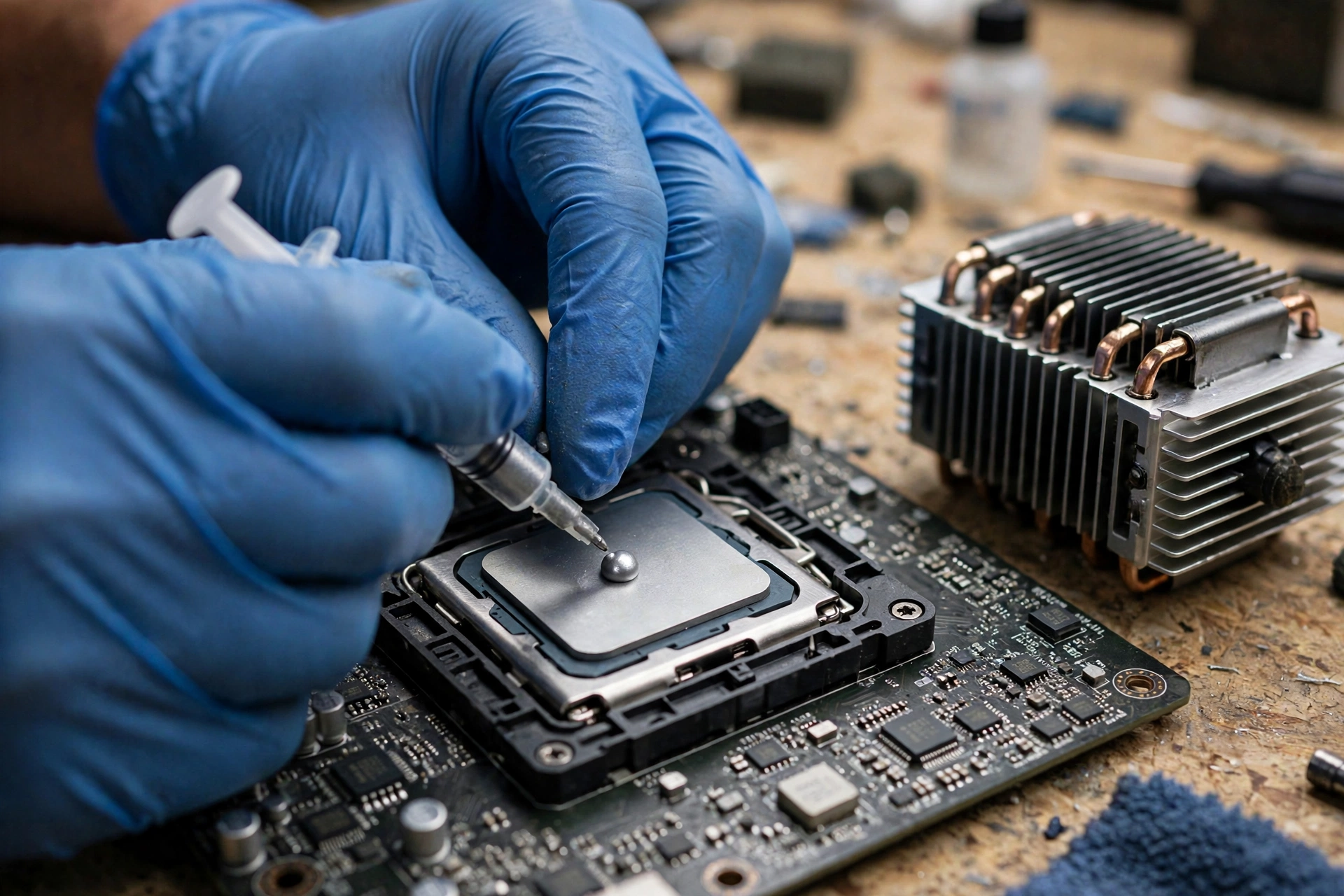
Work through these fixes from easiest to hardest. Most builders stop at fix two or three.
Set a more aggressive fan curve
Open your motherboard’s fan control software or the BIOS and raise the CPU and case fan curves so fans start ramping at 60C instead of 75C. A quiet profile that worked with your old card simply reacts too late now. Small RPM increases at mid temperatures cost little noise and buy several degrees. If your AIO pump has its own speed setting, make sure it runs at full or balanced speed rather than silent.
Fix case airflow for the bigger card
Make sure front intake fans have a clear path and that you have balanced intake and exhaust. Adding one rear or top exhaust fan often matters more than adding intake, because it pulls the GPU’s hot air out before it reaches the CPU cooler. Keep cables tidy so they do not block the space between the GPU and the front fans. Given the 2026 memory crisis has pushed DDR5 kit prices up, fixing airflow with a couple of inexpensive fans beats buying new parts you may not need.
Clean-install your GPU drivers
Use Display Driver Uninstaller in Windows Safe Mode to wipe old GPU drivers completely, then install the latest driver for your new card. This is mandatory when switching between NVIDIA and AMD, and good practice even for same-brand upgrades. A clean install removes driver conflicts that can add CPU overhead. With NVIDIA’s October 2026 621.01 driver introducing Advanced Shader Delivery, staying current also keeps shader-related CPU work as efficient as possible.
Cap your frame rate
This is the most underrated fix. If your new card pushes 200 FPS in a game your monitor displays at 144 Hz, those extra frames only generate heat and CPU load. Cap the frame rate at your monitor’s refresh rate using the in-game limiter or NVIDIA Control Panel / AMD Adrenalin. Your CPU immediately does less work per second, temperatures drop, and you lose nothing visible. This is especially worth doing when you bought a powerful card during a price surge and want it to run cool and quiet for years.
Remount the cooler with fresh thermal paste
If the side-panel test and Cinebench test pointed at the cooler, remove it, clean off the old paste with isopropyl alcohol, apply a pea-sized dot of fresh paste, and remount with even pressure in a cross pattern. Do not overtighten. While you are there, confirm every fan cable is seated and the pump header (for AIOs) is connected to the right motherboard header.
Tune boost behavior instead of killing performance
If temperatures are high but still safe, consider undervolting the CPU slightly or setting a modest power limit (PPT on AMD, PL1/PL2 on Intel) rather than disabling boost entirely. A small negative voltage offset often cuts 5 to 10C with no measurable gaming performance loss. Only do this if you are comfortable in the BIOS, and test stability with Cinebench afterward.
Is Your GPU Thermal Throttling?
Quick recap: thermal throttling is when a chip deliberately slows itself down to avoid overheating, and on a GPU it shows up as sudden FPS drops and stuttering after a few minutes of gaming. That is a GPU-side problem with its own causes and fixes, different from the CPU-side temperature rise covered in this article. If your new card itself seems to be the hot one, read our full breakdown in GPU thermal throttling explained.
Frequently Asked Questions
CPU is suddenly hitting 117W and 81C after GPU upgrade. I’ve never seen my CPU reach this kind of wattage before, what could be the reason?
Two things are likely happening at once. First, your old GPU was holding your CPU back, and the new card finally lets the CPU run at full speed, which raises package power. Second, check your BIOS for Precision Boost Overdrive or similar auto-overclocking, because accidentally enabling it produces exactly these symptoms. In the real 2026 case behind this question, a Ryzen 5 7600 paired with a new RX 9070 returned to normal temperatures as soon as the owner turned off the Precision Boost setting he had enabled by mistake. Note that 81C is still below AMD’s 95C limit, so it was never dangerous.
My CPU has high temps after a new GPU. I went from a GTX 1050 Ti to an RTX 2060 Super and now my CPU runs 10C hotter in games, but Cinebench temps are the same. What should I do?
This is the textbook case-heat pattern. Your CPU-only test is unchanged, which proves your cooler and mounting are fine. The bigger, hotter card is warming the air inside your case, so your CPU cooler is breathing warmer air during games. Improve case airflow, set a more aggressive fan curve, and run the side-panel test to confirm. This exact scenario was solved on the Tom’s Hardware forum with better ventilation rather than a cooler replacement.
I want to upgrade my GPU from a Radeon HD 6570 to an R9 280 and I have an i7 2600. Will my old heat sink be enough to cool the CPU?
The stock Intel heatsink on an i7 2600 is generally fine for the CPU itself, because the upgrade does not make the CPU draw more power at stock settings. What does change is case temperature: the R9 280 dumps far more heat into the case than an HD 6570. Add at least one good case fan and make sure intake and exhaust are balanced. As discussed in the original forum thread, the CPU cooler stays adequate but the case needs to breathe better.
I installed an HD 7770 and my CPU temperature went from 31 to 35 degrees at idle, and from 40 to 48-50 degrees while gaming. Are these normal ranges?
Yes, that is normal. A 4C idle increase and an 8 to 10C gaming increase after moving from integrated graphics (or a very weak card) to a real GPU is exactly what you expect from the extra case heat and extra CPU workload. Those absolute numbers are also well within safe limits for an i5 3470. Only investigate further if temperatures keep climbing over weeks, which would suggest dust buildup or a degrading cooler rather than the GPU upgrade.
After upgrading from a GTX 770 to a GTX 1660 Ti, my CPU hits 90C+ while gaming and 60C at idle on a stock Intel cooler. Do I need new thermal paste or a new cooler?
Both, probably in that order. Idle temperatures jumping to 60C suggest the cooler’s thermal paste seal was disturbed during the upgrade, and old paste does not reseal once broken. Repaste first, because it is cheap. But a stock Intel cooler on an older i5 was already marginal, and the extra case heat from the stronger card pushes it over the edge. A budget tower cooler like the classic Hyper 212 class is a big step up and usually solves this permanently.
Why are my CPU and GPU overheating so much when I play high resolution games?
High resolution by itself mostly loads the GPU, not the CPU. The CPU gets stressed by higher frame rates, because it must prepare every frame. If your new GPU raised your frame rates a lot, the CPU does far more work per second than before, which is why it runs hotter. Check your actual frame rates first: if they doubled after the upgrade, you have found your answer, and capping FPS to your monitor’s refresh rate is the quickest relief.
Key Takeaways
- A CPU running 5 to 15C hotter during gaming after a GPU upgrade is normal: more FPS means more CPU work per second, and a bigger GPU dumps more heat into the case.
- Rising CPU package power means the CPU is genuinely working harder. Rising temperature with flat power means the case air got warmer.
- A CPU-only stress test like Cinebench R23 separates cooler problems from GPU-related heat in one quick test.
- Check your BIOS for accidentally enabled auto-overclocking (PBO, Multi-Core Enhancement) before buying anything.
- The side-panel test is the fastest airflow diagnosis you can do: a big temperature drop means your case cannot keep up with the new card.
- Cap your frame rate at your monitor’s refresh rate to cut CPU load and heat with zero visible downside.
- Worry only about sustained temperatures above 90C, big idle temperature jumps, or worsening Cinebench results.
Conclusion
Your CPU running hotter after a GPU upgrade feels wrong, but it is usually the sound of a balanced system finally working at full speed. The faster card feeds your CPU more frames to prepare every second, and its extra heat warms the air your CPU cooler breathes. In most cases that explains the entire temperature rise, and a fan curve tweak, better airflow, or a simple FPS cap brings everything back under control.
The real problems are rarer but easy to spot with the diagnostic steps in this guide: a disturbed cooler mount, dried-out thermal paste, or a BIOS boost setting you never meant to enable. Work through the steps in order, fix what you find, and your upgraded PC will run fast and cool.
Still unsure whether your new pairing is balanced? Run both parts through our CPU bottleneck calculator and check what a good bottleneck percentage looks like, so your next upgrade targets the right component.

Leave a Reply