

Recording gameplay kills FPS when your CPU, GPU, or encoder runs out of headroom. Record once at 720p30, then open OBS Studio under View, then Stats. Skipped frames due to encoding lag means your encoder or CPU is the bottleneck. Rendering lag means your GPU is maxed out. Each symptom has a different fix, and this guide shows you which one applies to your PC.
Introduction
If recording gameplay kills FPS on your machine, you have probably already tried the obvious fixes. You lowered the game resolution. You dropped the recording resolution. Maybe you even reinstalled OBS Studio. And the FPS counter still tanks the moment you hit “Start Recording.”
The frustration comes from guessing. Most guides treat “recording lag” as one problem with one fix, but it is actually three different problems wearing the same costume. Your CPU can be choking on software encoding. Your GPU can be so maxed out by the game that OBS cannot render its own scene. Or your capture settings can be quietly multiplying the load until nothing has room to breathe. The fix that solves one of these does nothing for the other two, which is why random setting changes feel like throwing darts blindfolded.
This guide takes a different approach. Instead of a list of tips to try in no particular order, you will run a short diagnostic test, read two numbers in OBS Studio, and know exactly which component is guilty. Then you will learn the right fix for your specific GPU vendor (NVIDIA, AMD, or Intel), the capture settings that cost the most FPS, and a clear decision framework for whether you need a settings change, a driver update, or an actual hardware upgrade. If a demanding new release like Call of Duty MW4, launching October 23, is on your recording list, the same method will tell you exactly how much headroom you have before it drops.
Where the FPS Actually Goes The Three Culprits
Recording is not free. Every frame you save to disk goes through a pipeline that competes with your game for the same hardware. Understanding that pipeline is what turns “my FPS dropped” from a mystery into a measurement.
Culprit 1: CPU encoding overload. Software encoders like x264 compress video on your CPU, thread by thread, in real time. On a 4 or 6 core CPU that is also running a modern game, there simply may not be enough cores left. OBS shows this as the yellow “Encoding overloaded!” warning and a climbing “Skipped frames due to encoding lag” counter in the Stats window. An OBS forum helper diagnosed one case exactly this way: a 4-core i5-7300HQ was not strong enough to encode high-motion 1080p60 with x264 while the game demanded its own CPU time, and the recording looked like less than 10 FPS.
Culprit 2: GPU render starvation. OBS is not just encoding, it is also rendering your scene (compositing sources, overlays, the preview) on the GPU. When the game pins the GPU at 99 or 100 percent, OBS cannot get the slices of GPU time it needs to render frames, and you see “Rendering lag” in the log. This is the trap behind the most common complaint: “my game runs at 100+ FPS but my recording looks like a slideshow.” The game is fine. The capture pipeline is starving. OBS forum staff state the rule plainly: for smooth recording, the GPU needs to stay under roughly 90 percent load, and capping your in-game FPS or enabling V-Sync is what buys that headroom.
Culprit 3: Settings multiplying the load. Some settings quietly raise the cost of the whole pipeline: recording at 4K canvas resolution, using Display Capture instead of Game Capture, a heavy x264 preset, or overlapping capture sources fighting each other. Individually each one costs a few percent. Together they can push a healthy system into overload.
| Symptom you see | Likely culprit | Where to confirm it |
|---|---|---|
| “Encoding overloaded!” warning, choppy recording, game feels fine | CPU encoding overload (x264) | OBS View > Stats: skipped frames due to encoding lag |
| Game runs at high FPS but recording stutters | GPU render starvation | OBS log: lagged frames due to rendering lag/stalls |
| FPS drops the instant recording starts, at any resolution | Settings multiplying load | Change one setting at a time and re-test |
| Both in-game FPS and recording are bad | Both CPU and GPU overloaded, or RAM exhausted | Task Manager: CPU, GPU, and memory all near 100% |
Practical takeaway: before touching a single setting, decide which of the three culprits you are dealing with. The test in the next section does exactly that.
The 720p30 Baseline Test
This is the heart of the guide. Fifteen minutes of testing replaces hours of guessing, because it separates the capture pipeline’s cost from your game’s cost. The 720p30 resolution is deliberate: it is light enough that any modern system should handle it, so if you still see problems here, you know the issue is fundamental, not just “too much resolution.”
Step 1: Record your baseline without recording
Launch your game and play for five minutes in a busy scene (combat, a crowded area, a race start, not a menu). Note two numbers using an overlay like MSI Afterburner or the built-in Task Manager Performance tab: your average FPS and your GPU usage percentage. This is your “game alone” baseline. If your GPU is already sitting at 99 percent here, OBS will almost certainly starve during recording, and you already know Culprit 2 is in play. For a deeper read on how your specific CPU and GPU pairing behaves, run the numbers through the CPU Bottleneck Calculator to see which component is already the limiting one before recording enters the picture.
Step 2: Record at 720p30 with your current settings
In OBS, set Settings > Video > Output (Scaled) Resolution to 1280×720 and Common FPS Values to 30. Play the same five-minute scene and record it. Compare your in-game FPS to the baseline. Then watch the recording file and open OBS under View > Stats. Write down three numbers: skipped frames due to encoding lag, lagged frames due to rendering lag, and (if streaming) dropped frames due to network.
Step 3: Read the verdict
- Encoding lag climbing, rendering lag near zero: your encoder (usually x264 on the CPU) is the bottleneck. The game and GPU are fine; the compression step cannot keep up.
- Rendering lag climbing, encoding lag near zero: your GPU is maxed out and OBS cannot render its scene. The encoder is fine; the game is eating the GPU.
- Both climbing: you are short on headroom everywhere. Start with the cheapest fixes (FPS cap, hardware encoder) before concluding you need hardware.
- Neither climbing, but in-game FPS dropped: the recording pipeline itself is stealing game performance, usually because x264 is eating CPU cores the game needs. This also points at the encoder, not the GPU.
Step 4: Confirm with one swap
Switch your encoder to your GPU’s hardware encoder (NVENC for NVIDIA, AMF for AMD, QuickSync for Intel) and repeat the 720p30 test. If encoding lag vanishes, you have proven the CPU was the bottleneck, and you can move on to permanent settings with confidence instead of hope.
Practical takeaway: a 720p30 test that shows zero skipped frames and zero rendering lag proves your PC can record. Anything you add on top (1080p, 60 FPS, higher quality presets) is a luxury you buy with the headroom you just measured.
Reading the Warnings
OBS tells you what is wrong, but its messages are terse enough that most people misread them. Here is what each one actually means and what to do about it.
Encoding overloaded! This is a throughput warning, not a crash. It means the encoder could not compress frames within the time budget your FPS setting allows (about 16.6 ms per frame at 60 FPS, about 33.3 ms at 30 FPS), so OBS skipped frames to stay in sync with real time. On x264, this almost always means CPU overload: the preset is too slow for your core count, or the game is hogging the cores. On NVENC, true overload is rarer because encoding happens on a dedicated chip, but OBS forum staff note that the Max Quality preset, Lookahead, and Psycho Visual Tuning borrow CUDA cores from the game-rendering pipeline, which can reintroduce overload even on strong GPUs. If you use NVENC, switch the preset to Quality (not Max Quality) and turn those two features off.
Lagged frames due to rendering lag/stalls. This appears in the log file (Help > Log Files > View Current Log) and means OBS could not render your scene fast enough because the GPU was saturated. The game is not the problem and the encoder is not the problem: the GPU simply has nothing left for OBS. The fix is to free GPU time, not to change the encoder. Cap the game’s FPS, lower one or two heavy graphics settings, or run OBS as administrator (Windows then reserves some GPU capacity for it).
Dropped frames (network). Only relevant when streaming, not local recording. If your local recordings are fine but your stream stutters, the culprit is upload bandwidth, not your hardware. Record locally and stream from the recording later if your connection cannot sustain both.
What about a log that shows everything at 0 percent yet the recording still stutters? That usually means the encoder was skipping so aggressively that OBS never got clean numbers, or the stutter comes from the storage drive. One OBS forum thread was resolved when the user moved recordings from a slow HDD to an SSD: a 4.9 percent encoder overload dropped to zero. Record to your fastest drive, not an old spinning disk.
Practical takeaway: read the warning type before changing settings. Encoding lag is an encoder problem, rendering lag is a GPU headroom problem, and the two fixes are completely different.
NVENC vs x264 Pick the Right Encoder for Your GPU
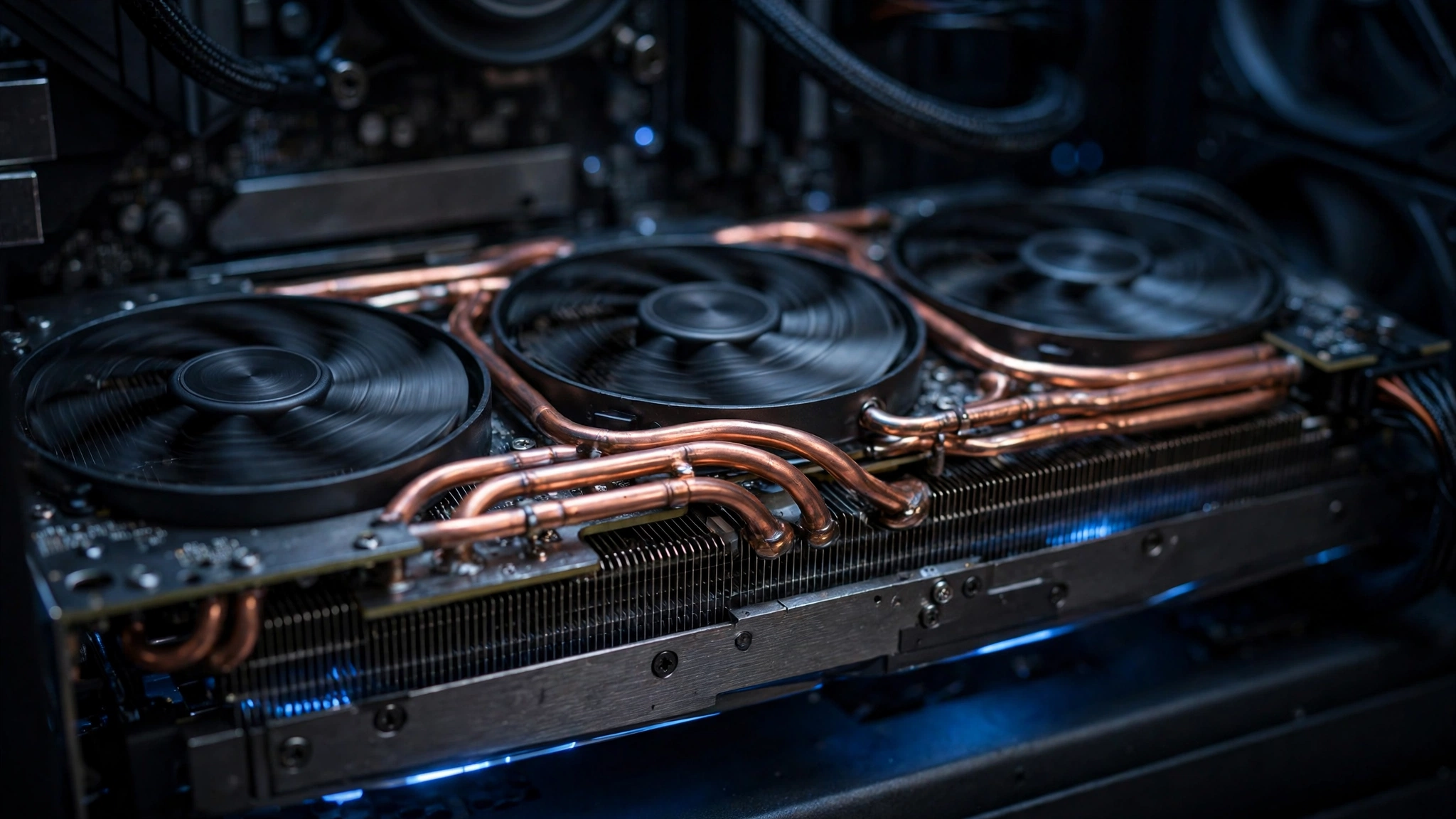
The single highest-impact decision in this whole guide is the encoder choice. Software encoding (x264) spends CPU cores. Hardware encoding (NVENC, AMF, QuickSync) spends a dedicated encoder chip that exists on the GPU or CPU specifically for video compression, leaving your game cores alone. For most single-PC gaming setups, hardware encoding wins on FPS while giving up very little visible quality on modern encoder generations.
| Encoder | Hardware | Uses CPU? | Best for | Watch out for |
|---|---|---|---|---|
| NVENC (NVIDIA) | Dedicated chip on GTX 10 series and newer | Almost none | Gaming PCs with any NVIDIA GPU; best quality per bitrate on RTX 30/40/50 series | Avoid Max Quality preset, Lookahead, Psycho Visual Tuning (they use game CUDA cores) |
| AMF / VCN (AMD) | Dedicated chip on RX 400 series and newer | Almost none | AMD GPU owners who want x264 off the CPU | Quality per bitrate historically trails NVENC; test at your target resolution |
| QuickSync (Intel) | Media engine in Intel iGPUs and Arc GPUs | Almost none | Laptops and systems with strong Intel integrated graphics | Shares power budget with the CPU on laptops; watch thermals |
| x264 (software) | CPU cores only | Yes, heavily | Systems with 8+ strong cores and headroom, or maximum quality purists | Presets slower than veryfast crush gaming FPS on 4 to 6 core CPUs |
NVIDIA owners: use NVENC. In OBS go to Settings > Output, set Output Mode to Advanced, and choose NVIDIA NVENC H.264 (or HEVC if your platform supports it) under the Recording tab. For local recording, use CQP rate control with a CQP value around 18 to 20 instead of CBR; CQP spends bits where the scene needs them and is the recording-focused choice the OBS community recommends. Keep your GPU drivers current: NVIDIA’s 621.01 driver release from October 2026 introduced Advanced Shader Delivery, which cuts shader compilation stutter in supported games, and fewer in-game hitches mean fewer surprise frame-time spikes while you record.
AMD owners: use AMF (listed as AMD HW H.264). The dedicated VCN encoder block on modern Radeon cards handles the compression with minimal CPU cost. If AMF quality at your bitrate disappoints you, fall back to x264 only if your CPU has genuine headroom (8+ cores, and the game is not CPU-heavy). Do not assume x264 is “better” by default: on a 6-core CPU running a CPU-intensive game, AMF at a slightly higher bitrate usually looks smoother than x264 veryfast that is constantly overloading.
Intel owners: use QuickSync. Modern Intel iGPUs and Arc graphics carry a capable media engine. On a laptop, QuickSync is often the difference between a recordable system and a hopeless one, because the alternative is x264 on a thermally limited mobile CPU. One caveat from OBS support threads: on laptops with both integrated and discrete graphics, make sure OBS is actually running on the GPU you intend, or encoding can silently misbehave.
Stuck on x264? Use the fastest preset that looks acceptable. In the x264 options, the CPU Usage Preset runs from ultrafast (least CPU, worst compression) to placebo (most CPU, pointless for recording). OBS defaults to veryfast, which is the sane starting point. If you see encoding overload, move toward superfast or ultrafast, not toward medium. Slower presets mean more CPU work, which is the opposite of what an overloaded system needs. This is the most common self-inflicted wound in recording setups.
Practical takeaway: if you have a discrete GPU from the last decade, your hardware encoder exists and is probably idle. Switching to it is the closest thing to a free FPS upgrade that recording has.
Capture Settings That Quietly Eat Your FPS
Even with the right encoder, these settings decide how much of your PC the capture pipeline consumes. They are ordered by impact, biggest first.
1. Use Game Capture, not Display or Monitor Capture. This is the highest-impact capture setting most people get wrong. Game Capture grabs the frame directly from the GPU. Display Capture forces the GPU to write the frame out to system RAM and read it back, which is dramatically slower and costs real FPS. Never mix Game Capture, Window Capture, and Display Capture sources in the same scene either; they interfere with each other. One Game Capture source per scene collection is the clean setup.
2. Cap your in-game FPS. An uncapped game will happily drive the GPU to 100 percent, leaving OBS nothing to render with. Cap the game a few frames above your monitor refresh rate (or below it if you record at 30 or 60 FPS) using the game’s limiter, RTSS, or the NVIDIA/AMD control panel. This is the fix behind countless “recording FPS drops, no in-game FPS problems” forum threads: the moment the GPU drops under 90 percent, OBS gets the headroom it needs. For how to measure what your GPU is actually doing during this, the MSI Afterburner setup guide walks through the overlay step by step.
3. Record to a sensible canvas. Your canvas (base) resolution should match your monitor, and your output (scaled) resolution should match what you actually need. Recording a 1440p monitor at 1440p60 costs far more than downscaling to 1080p60 or 720p30 in OBS. Downscaling inside OBS on the GPU is cheap; encoding 1440p60 is not.
4. Run OBS as administrator. On Windows, this lets OBS ask the OS to reserve GPU capacity for its rendering. OBS’s own troubleshooting guide lists it as the first quick fix for GPU overload issues, and it costs you nothing to try.
5. Disable Hardware-Accelerated GPU Scheduling if you see stutter. HAGS is a Windows feature that has a documented history of conflicting with OBS. If your drivers are current and everything else checks out, toggling HAGS off (and restarting) is a legitimate troubleshooting step recommended by OBS staff.
6. Save as MKV, not MP4. This does not change FPS, but it protects your work: if OBS or your PC crashes mid-recording, an MP4 file is usually unrecoverable while an MKV file survives nearly intact. You can remux to MP4 afterward inside OBS (File > Remux Recordings) with zero quality loss.
7. Keep the scene simple. Browser sources, animated overlays, multiple webcams, and chat docks all cost GPU and CPU time. If your baseline test passes on a bare scene but fails on your real streaming scene, the overlays are the difference, and you now know exactly what they cost.
Practical takeaway: Game Capture plus an in-game FPS cap plus running OBS as admin fixes the majority of “recording kills FPS” cases without spending a dollar.
How Your Game Settings Feed the Problem
Recording does not happen in a vacuum: the game’s own demands decide how much headroom is left for the capture pipeline. Two players with identical PCs can have completely different recording experiences because one plays a CPU-intensive game and the other plays a GPU-intensive one.
CPU-intensive games (strategy titles, simulators, open-world games with heavy AI and physics, and big multiplayer shooters with lots of players) eat the same CPU cores that x264 wants. If you play these and record with x264, you are running two CPU-hungry workloads on the same cores, and the encoder usually loses. For this profile, switching to NVENC or AMF is not optional, it is the fix. Read the full breakdown of which games stress which component in the CPU-intensive vs GPU-intensive games guide.
GPU-intensive games (high resolutions, ray tracing, ultra textures) pin the GPU at 100 percent, which starves OBS’s scene rendering and produces rendering lag even with NVENC handling the encode perfectly. For this profile, the FPS cap and one or two lowered graphics settings matter more than the encoder choice. Watch your 1% lows, not just the average FPS: recording magnifies stutter, and the frame time and 1% lows explainer shows why a “120 FPS average” can still feel terrible in a recording.
Settings that hit the CPU hardest (and therefore hurt x264 recording most): crowd density, draw distance, physics detail, and shadow quality in CPU-bound titles. Settings that hit the GPU hardest (and therefore hurt OBS rendering most): resolution scale, ray tracing, and ultra texture packs. If you are recording a demanding new release such as Call of Duty MW4, which launches October 23, start with a medium preset and the 720p30 baseline test from earlier, then raise settings only while the OBS Stats counters stay at zero. The MW4 PC benchmarks and pairing guide is a useful reference for which hardware combinations handle it comfortably.
Practical takeaway: match your fix to your game’s profile. CPU-heavy game plus x264 is a CPU problem; GPU-heavy game plus uncapped frame rates is a GPU headroom problem.
The Upgrade Decision CPU, GPU, RAM, or Nothing?
If the baseline test and the settings fixes above solved your problem, stop here and save your money. If they did not, the test results tell you exactly which component to upgrade, which is the entire point of diagnosing first. Buying blind is how people end up with a new GPU when their CPU encoder was the bottleneck all along.
If encoding lag persists on x264 and your CPU is pinned: your options in order are (a) switch to hardware encoding, which you should have already tried, (b) upgrade to a CPU with more cores and stronger single-thread performance so x264 has room, or (c) upgrade to a newer GPU whose NVENC or VCN block is a generation or two newer. On the CPU side, recent pricing moves have made strong encoding CPUs cheaper: Intel’s Core Ultra 7 265K recently saw its price cut to $299, which puts 20 cores of encoding headroom within reach of mid-range budgets (the full breakdown is in the 265K price cut analysis). Verify current street prices before buying, since they move quickly.
If rendering lag persists and your GPU is maxed: first confirm the game is actually GPU-bound at your resolution using the CPU Bottleneck Calculator. If it is, a stronger GPU genuinely helps both the game and the recording headroom. If the game is CPU-bound instead, a GPU upgrade will not fix recording stutter, because OBS’s render starvation comes from the GPU being saturated, and a CPU bottleneck keeps frame pacing uneven regardless. Read what a good bottleneck percentage looks like before deciding what “balanced” means for your build.
If Task Manager shows memory maxed out: modern games can use 12 to 16 GB alone, and OBS, a browser, and Discord on top can push a 16 GB system into paging, which shows up as stutter in both game and recording. Closing background apps is the free fix; 32 GB is the real fix for dedicated recording rigs.
The “nothing” option is legitimate. If your baseline test passes at 720p30 or 1080p30 with zero skipped frames, your PC records fine, and the honest answer may be that your target (4K60, max settings, heavy overlays) simply exceeds what one PC can do. A dual-PC setup with a capture card is the professional answer to that, not a bigger single GPU. And if you are still unsure which component is holding you back, the step-by-step bottleneck finding guide walks through the full diagnostic process for any workload, recording included.
Practical takeaway: upgrade the component the test indicted. Encoding lag means encoder or CPU, rendering lag means GPU headroom, and memory pressure means RAM. Anything else is guessing with your wallet.
7 Common Mistakes That Make Recording Slower
- Recording and streaming with CBR. CBR (constant bitrate) exists for streaming platforms that require a steady bitrate. For local recording it wastes bits on simple scenes and starves complex ones. Use CQP for recordings.
- Chasing slower x264 presets. Medium and slow presets look marginally better per bit but demand far more CPU. On a gaming PC, veryfast or faster is the realistic ceiling.
- Leaving the game uncapped. An uncapped 240 FPS game leaves OBS zero GPU time. Cap it.
- Using Display Capture for games. The RAM round-trip costs real performance. Use Game Capture.
- Recording to a slow HDD. The OBS forums have documented cases where moving recordings to an SSD eliminated encoder overload entirely. Your capture drive matters.
- Running OBS without admin rights. Windows can then give the game every GPU slice and leave OBS with scraps.
- Changing five settings at once. You will never know which one fixed it, or which one broke something else. Change one thing, re-run the 720p30 test, and keep notes.
Frequently Asked Questions
What’s bottlenecking my FPS? I’m testing local recording of gaming footage in 720p at 30 fps and encountering quite heavy FPS lag.”
This is a real question from the OBS Project forums, and it is exactly the scenario the baseline test in this guide was built for. Heavy lag at only 720p30 means the problem is fundamental, not resolution-related. Open OBS under View > Stats during a test recording: if “skipped frames due to encoding lag” climbs, your encoder or CPU is the bottleneck, so switch from x264 to your hardware encoder (NVENC, AMF, or QuickSync). If “rendering lag” climbs instead, your GPU is saturated and you need an in-game FPS cap to give OBS headroom. At 720p30, one of those two numbers will almost always name the culprit.
Why does my FPS drop when I record with OBS? I get 75 FPS normally and 50 to 55 when I press record.”
This real Tom’s Hardware forum question has the classic signature of CPU encoding theft: recording costs the game about 20 FPS the instant it starts. The cause is x264 consuming CPU cores the game needs. The fix that forum helpers recommended, and that still holds, is switching the OBS encoder to NVENC (on NVIDIA GPUs) so the dedicated encoder chip takes the load off the CPU. The same applies to AMD (AMF) and Intel (QuickSync) hardware encoders.
What’s a powerful, free screen recorder that doesn’t cause high performance games to lag and records in 60fps?”
This real Quora question gets asked constantly, and the answer is OBS Studio, but with a critical condition: it must be configured for hardware encoding. OBS with x264 on a mid-range CPU will lag high-performance games, exactly as the question fears. OBS with NVENC or AMF, Game Capture as the source, and the game FPS capped will record 60 FPS gameplay with minimal impact. The software is free and open source; the “lag-free” part comes from the settings, not the download.
My game runs at 100+ FPS but my recording looks like less than 10 FPS. OBS even says it is recording at 60. What is happening?”
This real OBS forum report describes encoder overload in its purest form. The game is fine and OBS’s status bar is technically honest: it is capturing at 60 FPS, but the encoder cannot compress frames fast enough, so most of them get skipped before they reach the file. The reporter saw the “encoding overloaded” warning pop up within a second of starting. The forum’s answer was to stop using x264 on an overwhelmed CPU and switch to the GPU’s hardware encoder with CQP rate control (around CQP 18) for local recording. Lowering game graphics settings does not fix this, because the bottleneck is in the encoder, not the renderer.
Should I record with NVENC or x264?”
Use NVENC (or AMF/QuickSync) if you have a discrete GPU from roughly the last decade, which covers the vast majority of gaming PCs. It offloads encoding to a dedicated chip and typically costs you 0 to 5 percent of in-game FPS. Use x264 only if you have a high-core-count CPU with genuine headroom while gaming, or if you need the absolute best quality per bitrate and your CPU can sustain a slower preset without overloading. When in doubt, test both with the 720p30 method and compare the Stats counters: the one with zero skipped frames wins, regardless of theory.
Key Takeaways
- Recording FPS loss comes from three distinct causes: CPU encoding overload, GPU render starvation, or settings multiplying the load. Diagnose before you fix.
- The 720p30 baseline test plus the OBS Stats window (skipped frames vs rendering lag) identifies your bottleneck in about 15 minutes.
- “Encoding overloaded” means the encoder cannot keep up: switch to NVENC, AMF, or QuickSync hardware encoding, or use a faster x264 preset.
- Rendering lag means the GPU is maxed: cap your in-game FPS, lower a heavy setting, and run OBS as administrator.
- Use Game Capture (never Display Capture for games), record locally with CQP, and save to MKV on a fast drive.
- Match the fix to your game’s profile: CPU-intensive games punish x264, GPU-intensive games punish uncapped frame rates.
- Upgrade only the component the test indicted: encoder or CPU for encoding lag, GPU headroom for rendering lag, RAM for memory pressure.
Conclusion
The next time recording gameplay kills your FPS, resist the urge to change settings at random. Run the 720p30 test, read the two counters in OBS Stats, and let them tell you whether your encoder, your GPU, or your settings are guilty. In most cases the fix is free: a hardware encoder you already own, a frame rate cap that costs nothing, and a capture source change that takes thirty seconds. Save the upgrade budget for the day the diagnostic test genuinely points at your hardware, because a bottleneck you can name is a bottleneck you can beat.

Leave a Reply