

A graphics card is the part of your PC that turns game data into the picture on your monitor. Your CPU decides what happens in a game, but the graphics card draws it: every character, every shadow, every explosion, sixty or more times a second. If your games stutter, look blurry, or refuse to run at the settings you want, the graphics card is usually the first part to look at, and this guide explains exactly why.
The short answer is simple. A graphics card is a small computer inside your computer, built around a chip called the GPU, with its own fast memory called VRAM, its own cooling, and its own power supply connection. It takes instructions from your CPU and turns them into finished images. The faster the card, the more detail it can draw, and the smoother your games feel.
This guide is about understanding a graphics card, not about picking one to buy. If you already know what you need and want help choosing a card by budget and resolution, read our best GPU for gaming buying guide. That guide covers which card to buy. This one covers what a graphics card is, how it works, what VRAM does, how it works with your CPU, and how to tell when it is the part holding your PC back.
Graphics Card at a Glance
| Part of the card | What it does | Why it matters for gaming |
|---|---|---|
| GPU | The chip that draws every frame | Sets the ceiling for frame rate and detail |
| VRAM | Fast memory that holds textures and frame data | Too little causes stutter at high settings |
| Cooling | Fans and heatsink that move heat away | A hot card slows itself down to stay safe |
| Power connectors | Draw extra power from the power supply | A weak power supply cannot feed a strong card |
| Display outputs | HDMI and DisplayPort sockets for your monitor | Decide which monitors and resolutions you can use |
| PCIe connector | The slot that connects the card to the motherboard | Carries data between the CPU and the card |
What Is a Graphics Card?
A graphics card is a circuit board that plugs into your motherboard, usually into the long PCIe x16 slot near the top. People often call the whole card a GPU, but that is not quite right. The GPU, short for graphics processing unit, is one chip on the card. The graphics card is the complete assembly: the GPU chip, the VRAM memory chips, the power delivery parts, the cooling system, and the display outputs, all on one board. Think of it this way: the GPU is the engine, and the graphics card is the whole car.
The card behaves like a small computer of its own. It has its own processor, its own memory, and its own cooling, and it runs independently once the CPU hands it work. When you launch a game, your CPU sends the card a description of the scene: where the objects are, where the camera is, where the lights sit. The card turns that description into a finished picture, sends it to your monitor through a cable, and then starts on the next picture. At 60 frames per second, it does that sixty times every second. At 144 frames per second, it does it 144 times.
A graphics card is not only for games. Video editors use one to preview and export footage faster. 3D artists use one to render scenes. Streamers use one to encode video while they play. Even a web browser leans on the card to draw smooth animations and video. But gaming is where the card works hardest, because a game asks it to draw a new, complex 3D scene dozens of times a second, with no pause.
The GPU the chip that does the drawing
The GPU is the big chip in the middle of the card, usually hidden under the cooler. It looks a little like a CPU, but it is built for a different kind of work. A CPU has a small number of very fast, very flexible cores that handle one complex task after another. A GPU has thousands of smaller, simpler cores that all work at the same time on the same kind of job. That design is perfect for graphics, because drawing a picture means doing the same small calculation millions of times, once for every pixel on the screen.
A modern GPU is made of thousands of processing cores. NVIDIA calls them CUDA cores. AMD calls them stream processors. Intel calls them Xe cores. The names differ, but the idea is the same: more cores, running at a higher clock speed, can do more drawing work per second. Core count alone does not tell you how fast a card is, because the design of each core matters too, and a newer design can do more work per core than an older one. That is why you should compare cards by tested performance in real games, not by core count on a spec sheet.
The GPU also carries special hardware for specific jobs. Ray tracing cores handle realistic light, shadows, and reflections. Tensor cores, or AI accelerators on AMD and Intel cards, run the AI models behind upscaling features like DLSS and FSR. Video encoders and decoders handle recording and streaming without loading the rest of the chip. All of this sits on one piece of silicon, and the card around it exists to feed it data, power, and cooling.
The board around the chip
The rest of the card exists to keep the GPU fed and cool. The VRAM chips sit right next to the GPU so data can move between them as fast as possible. Voltage regulators turn the power from your power supply into the exact voltages the chip needs. The heatsink, a block of metal fins, pulls heat off the GPU, and one, two, or three fans blow air through those fins. A backplate stiffens the board and sometimes helps with cooling. The metal bracket at the end of the card holds the display outputs: usually HDMI and DisplayPort sockets, and sometimes a USB-C port.
Most mid-range and high-end cards also need extra power beyond what the motherboard slot can supply. That comes through cables from your power supply, either the older 6-pin and 8-pin PCIe plugs or the newer 16-pin 12V-2×6 connector found on current NVIDIA cards. A card that draws 300 watts or more cannot run on motherboard power alone, so those cables are not optional.
Cards come in different sizes too. A flagship card can be more than 30 centimeters long and take up three or four slots of space in your case. A compact card can be half that length and fit in a small case. Length and thickness matter when you buy or upgrade, and this guide covers how to check them later.
Integrated Graphics vs a Dedicated Graphics Card
Not every PC has a separate graphics card. Many CPUs include basic graphics built into the same chip. That is called integrated graphics, and it shares your system memory instead of having its own VRAM. AMD calls its integrated graphics Radeon Graphics. Intel calls its version Intel Graphics, with the newer Xe graphics in its Core Ultra chips. Apple silicon Macs also use integrated graphics.
Integrated graphics are fine for everyday work: web browsing, office apps, video playback, and light photo editing. They can even run older games and popular esports titles at modest settings. What they cannot do is run demanding modern games at high settings, because they share slow system memory with the CPU and have far fewer graphics cores than a dedicated card.
A dedicated graphics card is a separate board with its own GPU and its own VRAM. It is much faster, but it costs extra money, uses more power, and takes up space in your case. The rule is simple: if you play modern AAA games, edit video seriously, or work in 3D, you need a dedicated card. If you only browse the web, watch videos, and play light games, integrated graphics may be all you ever need, and that is a genuine saving.
One common mistake is buying a powerful CPU with integrated graphics and assuming the PC can game. The CPU is not the part that draws the game. Without a dedicated graphics card, even the fastest CPU in the world will struggle with a modern game at high settings. The two parts have different jobs, and a strong CPU cannot cover for a missing or weak card.
Another point that confuses new builders: if your PC has both integrated graphics and a dedicated card, your monitor must be plugged into the dedicated card, not into the motherboard. The video sockets on the motherboard use the integrated graphics. The sockets on the graphics card use the card. Plug into the wrong one and your expensive card sits idle while the weak integrated graphics does all the work. Check the back of your PC before you assume the card is broken.
How a Graphics Card Renders a Game Frame
Rendering a frame sounds technical, but the steps are easy to follow. Here is what happens between you pressing a key and the picture changing on your screen.
First, the CPU works out what should happen. It runs the game logic: where your character moves, what the enemies do, how the physics play out. Then it sends the graphics card a list of instructions for the scene, describing every object, its shape, its position, and its surface.
Second, the GPU builds the geometry. It takes the 3D shapes in the scene and works out where each one sits from your camera’s point of view, which ones are in front and which are hidden behind something else. This is the vertex stage, and it is pure math, done thousands of times in parallel.
Third, the GPU paints the surfaces. It covers each visible shape with textures, the detailed images that make a brick wall look like brick and a metal door look like metal. It adds lighting, shadows, and reflections, working out how bright each pixel should be based on the lights in the scene. This is the most expensive step, and it is where most of the GPU’s cores spend their time.
Fourth, the GPU adds the finishing touches. It smooths jagged edges, adds effects like motion blur and depth of field, and assembles the finished frame in VRAM. Then it sends that frame to your monitor through the display cable.
The whole process repeats for the next frame, and the next, as fast as the card can manage. At 1080p, each frame has about 2 million pixels. At 1440p, about 3.7 million. At 4K, about 8.3 million. That is why 4K is so much harder on a graphics card than 1080p: the card has to paint four times as many pixels, sixty times a second. Our monitor resolution bottleneck guide explains how resolution and frame rate work together, and the same logic applies here.
A useful way to think about it: the CPU writes the script, and the graphics card performs the play. If the CPU is slow, the card waits for instructions and the frame rate drops. If the card is slow, the CPU waits for the finished picture and the frame rate drops. Either part can be the limit, and which one it is depends on the game, the settings, and the resolution.
What Video Memory Does and How Much You Need
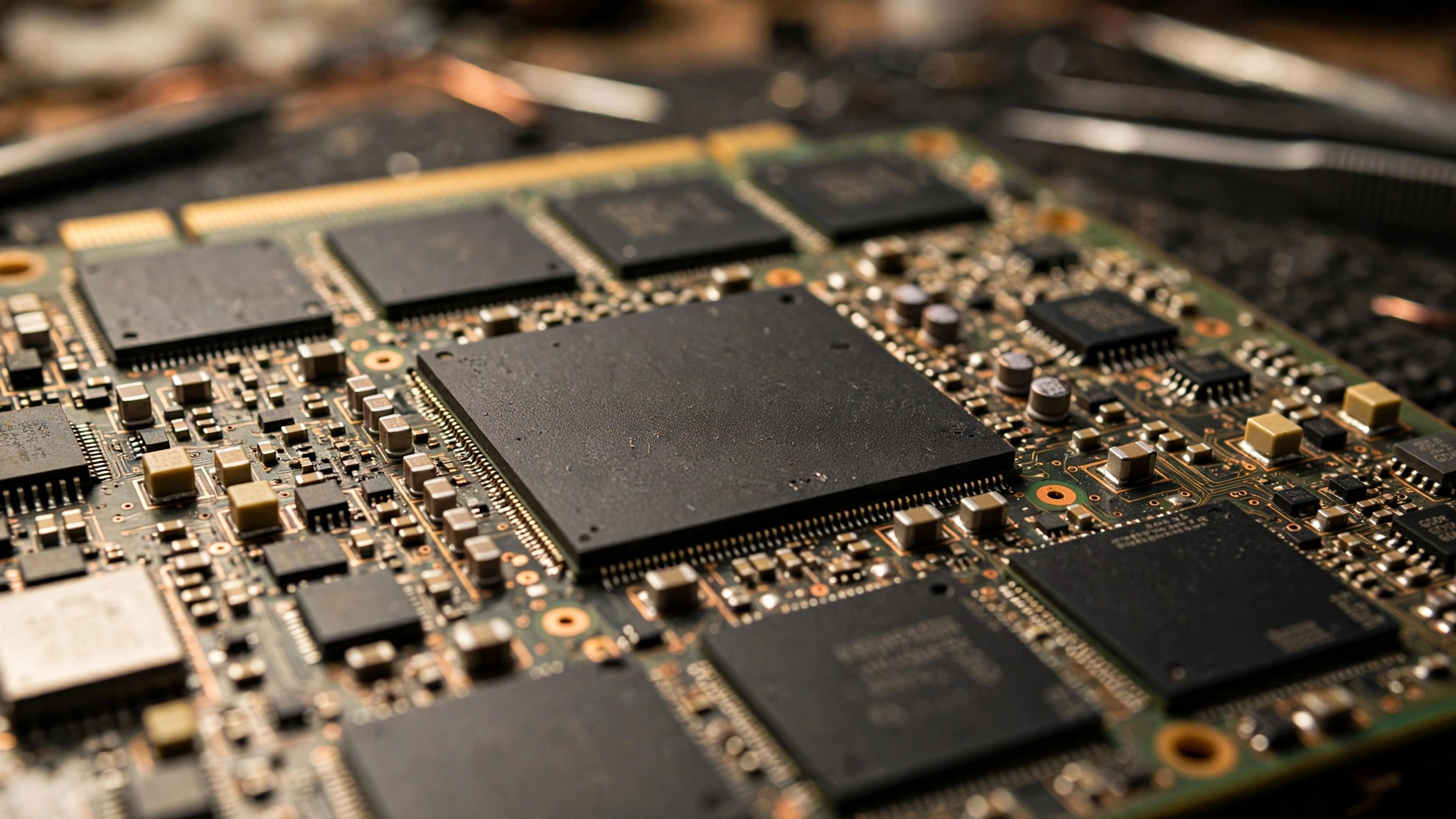
VRAM, short for video random access memory, is the fast memory built into a graphics card. It is the card’s workspace. While the GPU draws a frame, it keeps everything it needs in VRAM: the textures for every surface in the scene, the geometry data, the half-finished frame, and the finished frame waiting to go to your monitor. The closer that data sits to the GPU, the faster the GPU can reach it, and VRAM sits right next to the chip on the same board.
VRAM is different from the system RAM in your PC. System RAM is general purpose memory that the CPU uses for everything. VRAM is specialized for moving huge amounts of image data at very high speed. Modern cards use GDDR6 or GDDR7 memory, and the key number is bandwidth, how many gigabytes of data can move between the VRAM and the GPU every second. A card with a wide memory bus and fast memory chips can feed its GPU without starving it. A card with plenty of VRAM but a narrow bus can still stall, because the data cannot move fast enough.
The amount of VRAM matters most at high resolutions and high texture settings. Textures are the biggest thing VRAM holds, and high-resolution textures are large. At 1080p with medium textures, most games use 4 to 7GB. At 1440p with high or ultra textures, many recent games use 8 to 10GB, and ray tracing adds more on top. At 4K with ultra textures, usage regularly reaches 12 to 16GB. When a game needs more VRAM than the card has, the card has to swap data in and out of slower system memory, and that is when you get stutter: the frame rate looks fine on average, but the game hitches every time it loads new textures.
A common misunderstanding is that more VRAM always means a faster card. It does not. VRAM is capacity, not speed. A slow card with 16GB of VRAM is still a slow card; it just has room for more textures than it can draw quickly. What VRAM buys you is headroom: the ability to run high textures and high resolutions without stutter, and the ability to keep the card useful as games get more demanding over the next few years.
How much VRAM you need in 2026
| Resolution and use | Minimum VRAM | Comfortable VRAM | What to expect |
|---|---|---|---|
| 1080p, esports and older games | 8GB | 8GB | Smooth play, no texture compromises |
| 1080p, new AAA games at high settings | 8GB | 12GB | 8GB works with textures turned down a step |
| 1440p, high or ultra settings | 12GB | 16GB | 12GB is fine today, 16GB lasts longer |
| 4K, high or ultra settings | 16GB | 16GB or more | Ultra textures and ray tracing fill 16GB fast |
| 4K with ray tracing maxed, or heavy modding | 16GB | 24GB | Only flagship cards offer this much |
The evidence behind these numbers is consistent across independent testing. One useful comparison comes from cards sold in two VRAM versions: the 16GB version of the RTX 5060 Ti is only about 5 percent faster than the 8GB version at 1080p, but about 43 percent faster at 4K, because the 8GB card runs out of memory at the higher resolution. That gap is the whole VRAM story in one number: at low resolutions the extra memory barely matters, and at high resolutions it decides whether the game runs smoothly at all.
If you are buying a card today and plan to keep it for three or four years, 12GB is the realistic floor for 1080p and 1440p gaming, and 16GB is the safer choice if you play at 1440p with ray tracing or at 4K. An 8GB card is still fine for esports and older games at 1080p, but it is the bare minimum now, and new AAA games will keep pushing past it.
You can check your own VRAM usage while you play. Free tools like MSI Afterburner or HWiNFO64 show a live VRAM graph, and Windows Task Manager shows GPU memory under the Performance tab. If your VRAM usage sits at the card’s full capacity while the game stutters, you have found your problem, and lowering texture quality by one step is the fastest fix.
The Graphics Card Makers and Product Lines in Late 2026
Three companies make the GPUs inside modern graphics cards: NVIDIA, AMD, and Intel. Each one sells its own product lines, and each line covers a range of cards from budget to flagship. You do not buy a GPU directly from these companies in most cases. You buy a graphics card built by a board partner, such as ASUS, MSI, Gigabyte, Sapphire, or XFX, using one of their chips. The partner designs the cooling, the board, and the factory clock speeds, but the GPU itself comes from NVIDIA, AMD, or Intel.
NVIDIA GeForce RTX 50 series
NVIDIA is the largest maker of gaming graphics cards, and its current line is the GeForce RTX 50 series, built on the Blackwell architecture. The range runs from the entry-level RTX 5050 up to the flagship RTX 5090. The cards use GDDR7 memory, which is faster than the GDDR6 used in the previous generation, and they support the latest version of NVIDIA’s upscaling technology, DLSS. You can see the full lineup and specifications on NVIDIA’s official RTX 50 series page.
AMD Radeon RX 9000 series
AMD’s current line is the Radeon RX 9000 series, built on the RDNA 4 architecture. The range runs from the entry-level RX 9050 up to the RX 9070 XT, with the RX 9070 GRE filling the middle after AMD made it a global product in June 2026. AMD cards use GDDR6 memory and tend to offer more VRAM for the money than NVIDIA cards at the same tier. They support AMD’s upscaling technology, FSR, including the newer machine-learning based FSR 4 on RX 9000 cards. The AMD Radeon RX 9070 GRE product page shows the specifications of one of the most popular cards in the range.
Intel Arc B series
Intel is the newest of the three, and its current desktop line is the Arc B series, built on the Xe2 Battlemage architecture. The B580 and B570 target budget buyers who want solid 1080p performance with modern features, including Intel’s XeSS upscaling. Intel’s cards are the cheapest way into a modern feature set, but the range is small, with no high-end card, and stock has been hard to find in late 2026.
Current lineup at a glance
The table below lists the main desktop cards available in late 2026, with the specifications each maker publishes. Prices are launch prices, not street prices, because street prices in late 2026 are far above launch, a situation covered later in this guide. Relative performance comes from Tom’s Hardware GPU benchmarks hierarchy, which tests cards at the same settings without upscaling so the comparison is clean.
| Graphics card | VRAM | Power draw | Launch price | Best fit |
|---|---|---|---|---|
| NVIDIA RTX 5090 | 32GB GDDR7 | 575W | $1,999 | 4K at maximum settings |
| NVIDIA RTX 5080 | 16GB GDDR7 | 360W | $999 | 4K and high-refresh 1440p |
| NVIDIA RTX 5070 Ti | 16GB GDDR7 | 300W | $749 | 1440p ultra, 4K with upscaling |
| NVIDIA RTX 5070 | 12GB GDDR7 | 250W | $549 | 1440p at high settings |
| NVIDIA RTX 5060 Ti 16GB | 16GB GDDR7 | 180W | $429 | 1080p and 1440p with headroom |
| NVIDIA RTX 5060 | 8GB GDDR7 | 145W | $299 | 1080p gaming |
| AMD RX 9070 XT | 16GB GDDR6 | 304W | $599 | 1440p ultra, 4K with upscaling |
| AMD RX 9070 | 16GB GDDR6 | 220W | $549 | 1440p at high settings |
| AMD RX 9070 GRE | 12GB GDDR6 | 220W | $549 | 1440p at high settings |
| AMD RX 9060 XT 16GB | 16GB GDDR6 | 160W | $349 | 1080p and light 1440p |
| Intel Arc B580 | 12GB GDDR6 | 190W | $249 | 1080p gaming |
| Intel Arc B570 | 10GB GDDR6 | 150W | $219 | 1080p gaming |
A few things to notice in this table. First, the VRAM floor has moved up: even budget cards now ship with 10GB or 12GB, and 16GB is common in the mid-range. Second, power draw varies a lot, from 145W at the low end to 575W at the top, which is why the power supply matters so much when you upgrade. Third, the launch prices tell you where each card was meant to sit, not what it costs today. In late 2026, street prices are far above these numbers, and the reasons are covered in the price section below.
How the Graphics Card Works With the CPU
The graphics card and the CPU are partners, and the balance between them decides how your PC performs. The CPU prepares each frame and the card draws it. If one of them is much slower than the other, the slower one sets the pace, and the faster one waits. That is a bottleneck, and it is the core idea behind this whole site.
At higher resolutions, the graphics card does more work and the CPU does about the same, so the card is usually the limit. That is normal and healthy. At 1440p and 4K, you want your card running near 100 percent, because that means you are getting everything you paid for. At lower resolutions like 1080p, each frame is cheaper to draw, so the card finishes quickly and waits for the CPU. That is when a weak CPU shows up as the limit, and a faster card will not help, because the card is already waiting.
This is also why the same graphics card can feel fast in one PC and slow in another. Pair a strong card with an old, weak CPU and the card spends its time waiting. Pair a weak card with a fast CPU and the CPU spends its time waiting. The fix is different in each case, and guessing wrong wastes money. Our types of PC bottlenecks guide explains each kind of bottleneck in detail, and our how the bottleneck calculator works and what the score means guide shows how to check your own combination before you spend anything.
Three things about the CPU and card relationship catch people out. First, the PCIe slot matters. A modern card wants a PCIe x16 slot, and it runs best on a recent PCIe version, though the difference between PCIe 4.0 and 5.0 is small for most cards today. What hurts is a card running in a slow slot, or in an x4 slot meant for something else, because the data between the CPU and the card cannot move fast enough. Second, system RAM matters. Slow or single-channel RAM starves the CPU, and a starved CPU cannot feed the card. Third, the game itself matters. Some games lean heavily on the CPU, like strategy games and simulators with lots of objects to track, and some lean heavily on the card, like visually rich open-world games. The same PC can be CPU-limited in one game and card-limited in another.
Upscaling Explaine DLSS, FSR, and XeSS
Upscaling is the biggest change in graphics cards over the last few years, and it is worth understanding in plain language, because it changes what a card can do. The idea is simple: the card draws the game at a lower resolution than your monitor, then a smart piece of software rebuilds the image up to your monitor’s resolution. Because drawing fewer pixels is much less work, the frame rate goes up, often a lot. The rebuilt image looks close to native resolution, and in the best cases it can look sharper than the native image.
Each maker has its own upscaling technology. NVIDIA calls it DLSS, short for Deep Learning Super Sampling. AMD calls it FSR, short for FidelityFX Super Resolution. Intel calls it XeSS, short for Xe Super Sampling. They all do the same basic job, but they work differently. DLSS runs on dedicated AI hardware inside NVIDIA RTX cards called Tensor cores, and it uses a trained neural network to rebuild the image. FSR 4, the latest version, is also machine-learning based, but it runs on AMD RX 9000 cards. XeSS runs on Intel Arc cards using their matrix engines, and it can also run on other cards through a slower general path.
Each upscaler offers quality modes that control how low the internal resolution goes. Quality mode renders at about 67 percent of your screen resolution on each side, which is about 45 percent of the pixels, and it looks closest to native. Balanced mode renders lower, and Performance mode lower still, at about 50 percent on each side, which is only 25 percent of the pixels. Lower modes give you more frames, but the image gets softer and small details can shimmer or blur. At 1080p, upscaling helps less, because the internal resolution gets very low and the image softens sooner. At 1440p and 4K, where there are more pixels to work with, it helps a lot.
Frame generation is a separate feature layered on top of upscaling, and it is easy to confuse the two. Upscaling makes the card draw real frames faster. Frame generation invents entirely new frames between the real ones, so the frame counter on your screen jumps, sometimes doubling or more. NVIDIA’s Multi Frame Generation on RTX 50 cards can generate up to five frames for every real frame. The catch is latency: the card has to hold a finished frame back for a moment while it builds the invented one, so your inputs feel slightly delayed. Frame generation makes games look smoother, but it does not make them respond faster, and it works best when your real frame rate is already above 60. Turn upscaling on almost always. Turn frame generation on only when your base frame rate is already decent and you want extra smoothness in a slow-paced game.
One more thing worth knowing: upscaling helps most when the graphics card is the limit. If your CPU is the bottleneck, upscaling will not add frames, because the card is already waiting for the CPU. That is another reason to work out which part is the limit before you change settings.
Ray Tracing in Plain Language
Ray tracing is a way of drawing light that copies how light works in the real world. In real life, light bounces off surfaces before it reaches your eyes, and those bounces create reflections, shadows, and the soft glow of a room. Traditional game graphics fake those effects with shortcuts. Ray tracing actually traces the path of light rays through the scene, so reflections in a puddle show the real scene, shadows fall exactly where they should, and light bounces around corners in a way that looks natural.
The result can be striking, especially in games with wet streets, glass, and metal. But it is expensive. Tracing light rays costs a lot of GPU power, and turning ray tracing on can cut your frame rate in half on a card without dedicated hardware for it. That is why NVIDIA, AMD, and Intel all build special ray tracing cores into their modern cards, and why ray tracing runs best on newer, stronger cards.
For most players, the practical rule is simple. If you have a mid-range or better card from the current generation, try ray tracing at medium settings with upscaling turned on, and see how it feels. If you have a budget card or an older one, leave ray tracing off and enjoy the higher frame rate. The visual difference is real, but it is not worth a choppy game.
How to Tell If Your Graphics Card Is Holding You Back
The most common question about graphics cards is also the most practical: is my card the problem, or is it something else? You can answer it yourself in ten minutes with free tools, and it is worth doing before you spend money on an upgrade.
The tool is simple. Install MSI Afterburner, which is free, and turn on its on-screen display so you can see your numbers while you play. Or open Windows Task Manager with Ctrl, Shift, and Escape, click the Performance tab, and watch the GPU graph while the game runs. Play your actual games at your actual settings for a few minutes each, and watch two numbers: GPU usage and CPU usage.
Here is how to read what you see. If your GPU usage sits at 97 to 100 percent during demanding scenes, your graphics card is the limit, and that is normal and healthy. It means the card is working as hard as it can, and a faster card is the only way to get more frames. If your GPU usage keeps dropping into the 60s and 70s while your frame rate sags and one or two CPU threads are maxed out, your CPU is holding the card back, and a new graphics card will not fix it. If your GPU usage is at 100 percent but the frame rate is still lower than you want, the card is simply not fast enough for your settings, and your options are to lower the settings, turn on upscaling, or buy a faster card.
Other signs point to the card too. Stutter when you turn around quickly in a game often means the VRAM is full, because the card is swapping textures in and out of slow system memory. Games that look fine at medium settings but fall apart at ultra usually need a stronger card or more VRAM. A card that was fine last year but struggles with new games is usually just aging out, because new games ask for more than it can give.
Temperature is worth checking at the same time. Most graphics cards run between 65 and 85 degrees Celsius under load, and that is normal. If your card regularly passes 85 degrees and slows itself down, the problem may be dust in the fans, dried-out thermal paste, or poor airflow in your case, not the card itself. Clean the fans and check that your case has fresh air coming in and hot air going out before you blame the hardware.
One warning sign means stop and investigate right away: a graphics card running at 100 percent while your PC sits idle on the desktop. That is not normal. It can mean a background program is using the card, a driver is broken, or, in the worst case, malware is mining cryptocurrency on your machine. Check Task Manager to see which program is using the GPU, update your drivers, and run a malware scan.
What to Check Before You Upgrade Your Graphics Card
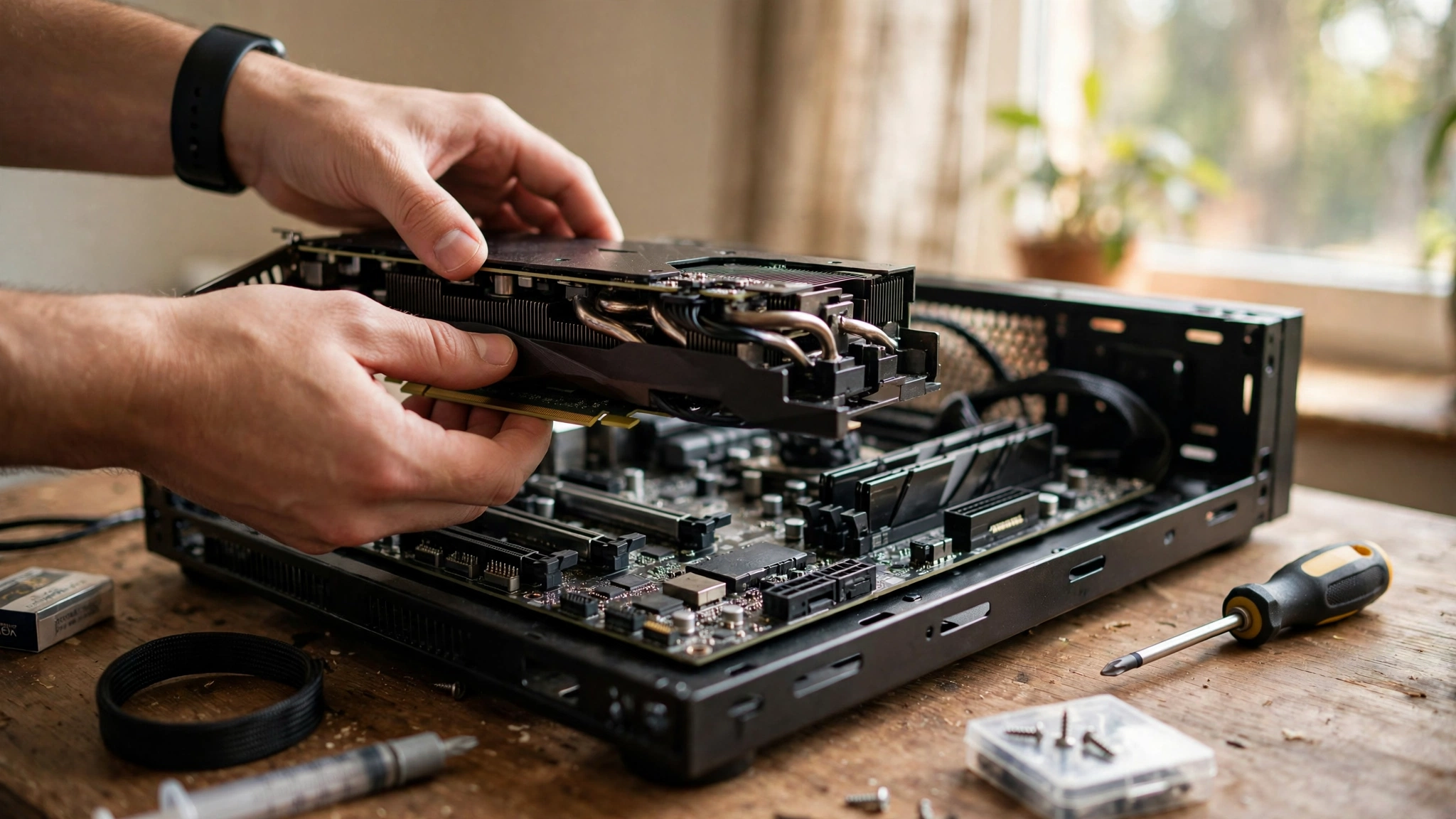
A new graphics card is the most expensive single upgrade most PC owners make, and a little checking beforehand saves the most common headaches. Four things matter: power, size, monitor, and the rest of your PC.
Power supply
Every card lists a recommended power supply wattage, and you should take it seriously. A card that draws 300 watts needs a power supply with enough headroom for the card, the CPU, and everything else, plus a safety margin. As a rough guide, a 550W supply suits most budget cards, 650W to 750W suits most mid-range cards, and 850W to 1000W suits high-end cards like the RTX 5080 and 5090. Check the connectors too. Older cards use 6-pin and 8-pin PCIe plugs. Current NVIDIA cards use the newer 16-pin 12V-2×6 connector, and many ship with an adapter in the box. If your power supply is old, check that it has the right plugs before you buy, and if it does not, budget for a new supply as well. A power supply that cannot feed a card will cause crashes under load, and those crashes look exactly like a faulty card.
Case size
Graphics cards have grown. A flagship card can be over 30 centimeters long, over 13 centimeters tall, and thick enough to cover three or four slots. Measure the space in your case before you order: the length from the back of the case to the nearest obstruction, and the number of free expansion slots. Small form factor cases often fit only short cards, and some compact cases need a card under 25 centimeters. Check the card’s published dimensions against your measurements, and leave a little room for airflow. A card squeezed against a drive cage or a case wall will run hot and loud.
Monitor
Your monitor decides what your new card needs to do. A card that is overkill for a 1080p 60Hz monitor is wasted money, because the monitor cannot show more than 60 frames a second. A card that is too weak for a 4K 144Hz monitor will disappoint you, because it cannot feed the screen. Match the card to the monitor you have, or plan to upgrade both together. If you are buying a whole new machine instead of upgrading one part, our desktop computer guide covers the full picture, and our how to build a gaming PC complete guide walks through matching every part, including the card.
The rest of your PC
A new card will not fix a slow CPU, slow RAM, or a full hard drive. Before you buy, check that your CPU can keep up with the card you want, that your RAM runs in dual channel at its rated speed, and that your games sit on an SSD. If any of those are weak, fix the cheapest one first, because a fast card behind a slow CPU is money left on the table.
The Late 2026 Price Situation
No honest guide to graphics cards in late 2026 can skip prices, because prices are the story right now. Graphics cards cost far more than their launch prices, and the reason is a global memory shortage. AI data centers are buying DRAM and GDDR memory faster than it can be made, and every graphics card is mostly a memory purchase. One industry forecast puts data centers at up to around 70 percent of world memory output in 2026, against 20 to 30 percent in 2022, which leaves far less memory for consumer cards and pushes prices up across the whole market.
The numbers, checked in mid-November 2026, show how far prices have moved. The RTX 5090, launched at $1,999, was listed at $6,249.99 in a Newegg restock on November 11 and 12, 2026, more than three times its launch price, and it sold out. The RTX 5060 Ti 16GB, launched at $429, was listed at $829.99 on Amazon on November 11, nearly double its launch price. The RX 9070 XT, launched at $599, was listed at $959.99 the same week. Intel’s Arc B580 and B570 had no new stock on Amazon at all on November 11. These are snapshots from one week, and prices move daily, but the direction has been the same for months: up.
The refresh that was supposed to help has not arrived. Reports through 2026 said NVIDIA’s RTX 50 Super cards, which would bring more VRAM to the mid-range, were delayed by the same memory costs, and as of early November 2026 NVIDIA had announced nothing, with the latest reports pointing to a possible reveal at CES in January 2027. Treat that as a report, not a promise: NVIDIA has confirmed nothing.
What does this mean for you? If you already own a card that plays your games well, now is a bad time to upgrade for the sake of it. Wait, lower a setting or two, and turn on upscaling, which is free performance. If you must buy now, look for the card that gives you the most VRAM per dollar at your resolution, check prices across several sellers on the same day, and be wary of marketplace sellers charging far above the major retailers. And if your current card still works, remember that the cheapest good graphics card is the one you already own.
Common Mistakes With Graphics Cards
The most common mistake is judging a card by one number. Core count, clock speed, and VRAM each tell part of the story, and none of them alone tells you how fast a card is. A card with more VRAM can still be slower than a card with less, and a card with a higher clock speed can still lose to a newer design. Compare cards by tested performance in real games at your resolution, not by the biggest number on the box.
The second mistake is plugging the monitor into the motherboard instead of the card. Your expensive graphics card does nothing if the cable goes to the wrong socket. The monitor cable belongs in the card’s outputs, at the bottom of the back of the PC, not in the motherboard’s sockets higher up.
The third mistake is buying a card your power supply cannot feed. A card that draws more power than the supply can deliver will crash under load, and those crashes look like a broken card. Check the wattage and the connectors before you buy.
The fourth mistake is ignoring the CPU. A flagship card paired with a weak, old CPU will sit waiting for instructions, and your frame rate will not improve. Balance the two parts, and check your combination before you spend.
The fifth mistake is buying for a resolution you do not play at. A 4K-capable card is wasted on a 1080p 60Hz monitor, and a budget card will struggle on a 4K screen. Match the card to the monitor you actually own.
Frequently Asked Questions
What is a graphics card in simple terms?
A graphics card is the part of your PC that draws the picture on your monitor. It takes instructions from the CPU about what a game scene should look like, and its GPU chip turns those instructions into a finished image, dozens of times a second. It has its own fast memory, called VRAM, and its own cooling, and it plugs into a slot on your motherboard.
Do I need a graphics card if I do not play games?
Not necessarily. If you only browse the web, watch videos, and use office apps, the integrated graphics built into most modern CPUs are enough. You need a dedicated graphics card if you play modern games, edit video, work in 3D, or use a high-resolution monitor for demanding work. For everyday computing, integrated graphics save you money, power, and space.
What makes one graphics card faster than another?
Four things matter most: the GPU chip itself, including how many cores it has and how new its design is; the VRAM, including how much there is and how fast data moves in and out of it; the clock speed, which is how fast the chip runs; and the cooling, because a card that overheats slows itself down. No single number tells the whole story, so the honest way to compare cards is tested performance in real games at your resolution.
How much VRAM do I need for gaming?
For 1080p gaming in 2026, 8GB is the minimum and 12GB is the comfortable choice. For 1440p, aim for 12GB at minimum and 16GB if you want ray tracing or plan to keep the card for several years. For 4K, 16GB is the realistic minimum. More VRAM does not make a card faster, but too little causes stutter when games need more memory than the card has.
Is 100 percent GPU usage bad?
No. A graphics card running at 97 to 100 percent usage while you play is healthy. It means the card is working as hard as it can, and you are getting everything you paid for. The problem is the opposite: a card that sits at 60 or 70 percent usage while your frame rate is low and your CPU is maxed out, which means the CPU is holding the card back. The only time 100 percent usage is a warning sign is when the PC is idle on the desktop, which can mean a background program or malware is using the card.
Can I use two graphics cards together?
In practice, no, not for gaming. Older technologies that linked two cards, called SLI by NVIDIA and CrossFire by AMD, are no longer supported by modern games or drivers. Today you buy one strong card instead of two weaker ones. A second card can still help in some professional workloads, like rendering or AI work, but for games it will sit idle.
Do I need a graphics card for video editing or 3D work?
Yes, for serious work. Video editors use the card to preview and export footage faster, and 3D software uses it to render scenes and show a live preview while you work. The more VRAM the card has, the larger the scenes and higher-resolution the footage it can handle without slowing down. For light editing, integrated graphics can manage, but a dedicated card makes a real difference once projects get large.
How long does a graphics card last?
A good graphics card typically stays useful for four to six years for gaming, depending on how demanding new games become and what settings you accept. It does not wear out like a battery. It becomes outdated when new games need more performance or more VRAM than it can give. Heat and dust shorten its life, so keeping the fans clean and the case airflow good helps it last longer.
What is the difference between a GPU and a graphics card?
The GPU is the chip that does the drawing. The graphics card is the whole board that holds the chip, along with VRAM, power parts, cooling, and display outputs. People use the two terms loosely, and most of the time they mean the same thing, but when you buy a card, you are buying the whole assembly, not just the chip.
Should I buy a graphics card now or wait?
It depends on what you own today. If your current card plays your games well, wait: prices in late 2026 are far above launch prices because of the global memory shortage, and there is no sign of a quick return to normal. If your card cannot run the games you want at all, buy the card that fits your monitor and budget, favoring more VRAM, and check prices across several sellers on the same day. Do not pay a scalper price for a card you do not need yet.
Key Takeaways
- A graphics card is a small computer inside your PC: a GPU chip that draws frames, VRAM that holds the data, cooling that keeps it safe, and display outputs that feed your monitor.
- The GPU is the chip. The graphics card is the whole board. Integrated graphics share system memory and suit light work, while a dedicated card has its own VRAM and is what modern gaming needs.
- A card draws each frame in four steps: the CPU describes the scene, the GPU builds the geometry, paints the textures and lighting, and sends the finished frame to your monitor.
- VRAM is workspace, not speed. Aim for 12GB at 1080p and 1440p, 16GB for 4K or ray tracing, and expect stutter when a game needs more VRAM than the card has.
- In late 2026, NVIDIA sells the RTX 50 series, AMD sells the RX 9000 series, and Intel sells the Arc B series. All three support upscaling, which renders at a lower resolution and rebuilds the image to gain frame rate.
- A card running at 97 to 100 percent usage during a game is healthy. A card stuck at 60 to 70 percent while the CPU is maxed out means the CPU is the bottleneck.
- Before you upgrade, check your power supply wattage and connectors, measure your case, and match the card to your monitor.
- Graphics card prices in late 2026 are far above launch prices because of a global memory shortage, with the RTX 5090 listed above $6,000 in mid-November. If your current card still plays your games, waiting is the smart move.
Conclusion
A graphics card is the part that decides how your games look and how smoothly they run, and now you know what it actually does. The GPU draws the picture, the VRAM holds the pieces, the cooler keeps it all safe, and the CPU and the card share the work between them. When one of them cannot keep up, your frame rate shows it, and now you know how to find out which one it is.
If you take one thing from this guide, let it be this: understand the card before you buy one. Check the VRAM against your resolution, check the power supply and the case against the card, and check whether the card or the CPU is your real limit. A card bought on one big number on the box is a gamble. A card bought after ten minutes of checking is an upgrade that actually works.
And if you already know what you need, our best GPU for gaming buying guide picks cards by budget and resolution, so you can move from understanding to buying with confidence. If your current card still plays your games, enjoy it, turn on upscaling, and let the prices settle. The card you own is already the cheapest good graphics card you can get.

Leave a Reply