

A desktop computer is a personal computer built to stay on a desk: a tower or a small box, a separate monitor, a keyboard, and a mouse. It gives you more power for the money than a laptop, it is easier to upgrade and repair, and it stays cool under heavy work. The right one depends on what you do most: everyday browsing and office work, gaming, or creative work like video editing.
That sounds simple, and it is, until you open a store page and meet the spec sheet. Cores, threads, DDR5, NVMe, wattage, VRAM. Every number looks important and none of them explain themselves. This guide translates all of it into plain English, shows you the types of desktop computer on sale in late 2026, explains each part in one paragraph, and ends with a decision framework you can use in ten minutes. It also covers the one thing most buying guides skip: the parts inside a desktop only perform as well as the weakest one lets them, so balance matters more than any single big number.
Desktop Computer at a Glance
A desktop computer is not one product. It is a shape with several forms, and picking the form first makes every other choice easier.
| Type | What It Looks Like | Best For | Room to Upgrade |
|---|---|---|---|
| Tower desktop | A tall box that sits on or under a desk | Gaming, creative work, heavy multitasking | The most: nearly every part can be swapped |
| Mini PC | A small box, often smaller than a book | Home offices, small desks, light gaming, media centers | Limited: usually RAM and storage only |
| All-in-one | The whole computer built into the back of the monitor | Clean desks, family rooms, simple setups | The least: often only storage, sometimes nothing |
| Custom-built tower | A tower you (or a builder) assemble from chosen parts | Getting exactly the parts you want, best long-term value | The most, and you choose every part from day one |
If you have a dedicated desk and you want the best performance for your money, a tower is the default answer. If your desk is small or you move the computer between rooms, a mini PC is worth a serious look. If you want one neat object with no cables to manage, an all-in-one is the tidy choice, but you pay for that tidiness with upgrade options later.
One more thing to settle early: a desktop computer usually arrives without a monitor, keyboard, or mouse unless the listing says they are included. Prebuilt towers often bundle a keyboard and mouse, but the monitor is almost always separate. Budget for it. A good screen is part of the computer experience, not an afterthought, and our gaming PC setup guide walks through the desk, monitor, and accessory choices that complete a build.
What Is a Desktop Computer?
A desktop computer is a personal computer designed to live in one place, on a desk, plugged into wall power. It has four pieces you can see and touch: the case (the box that holds the parts), the monitor, the keyboard, and the mouse. Inside the case sit the parts that do the work: the processor, the graphics card, the memory, the storage drive, the motherboard that connects them all, and the power supply that feeds them.
That split is the whole point. Because the parts live in a roomy case instead of a thin laptop shell, they can run at full power, with big fans or liquid cooling keeping them cool. A laptop processor and a desktop processor can share a name, but the desktop version is allowed to use far more electricity and make far more heat, and it has the cooling to handle it. That is why a desktop with the same budget usually beats a laptop on sustained performance, and why it keeps beating it an hour into a long task instead of slowing down as heat builds up.
Desktops also last longer in a practical sense. When a laptop gets slow, your options are usually limited to adding RAM or storage, and sometimes not even that. When a desktop gets slow, you can replace the single part that is holding it back: a faster graphics card, more memory, a bigger SSD. You keep the monitor, the keyboard, the case, and the power supply, and you pay only for the part that changed. Over five or six years, that difference adds up to real money.
Almost every desktop computer sold in the United States in 2026 runs Windows 11. Apple sells its own desktops, the Mac mini and the iMac, which run macOS, and a smaller number of machines run Linux. This guide focuses on Windows desktops, because that is where the widest choice of parts, games, and software lives. If you already use a Mac for everything, a Mac mini is a strong small desktop, but its parts are not user-upgradeable in the way a Windows tower is, so weigh that before you buy.
The Main Types of Desktop Computer
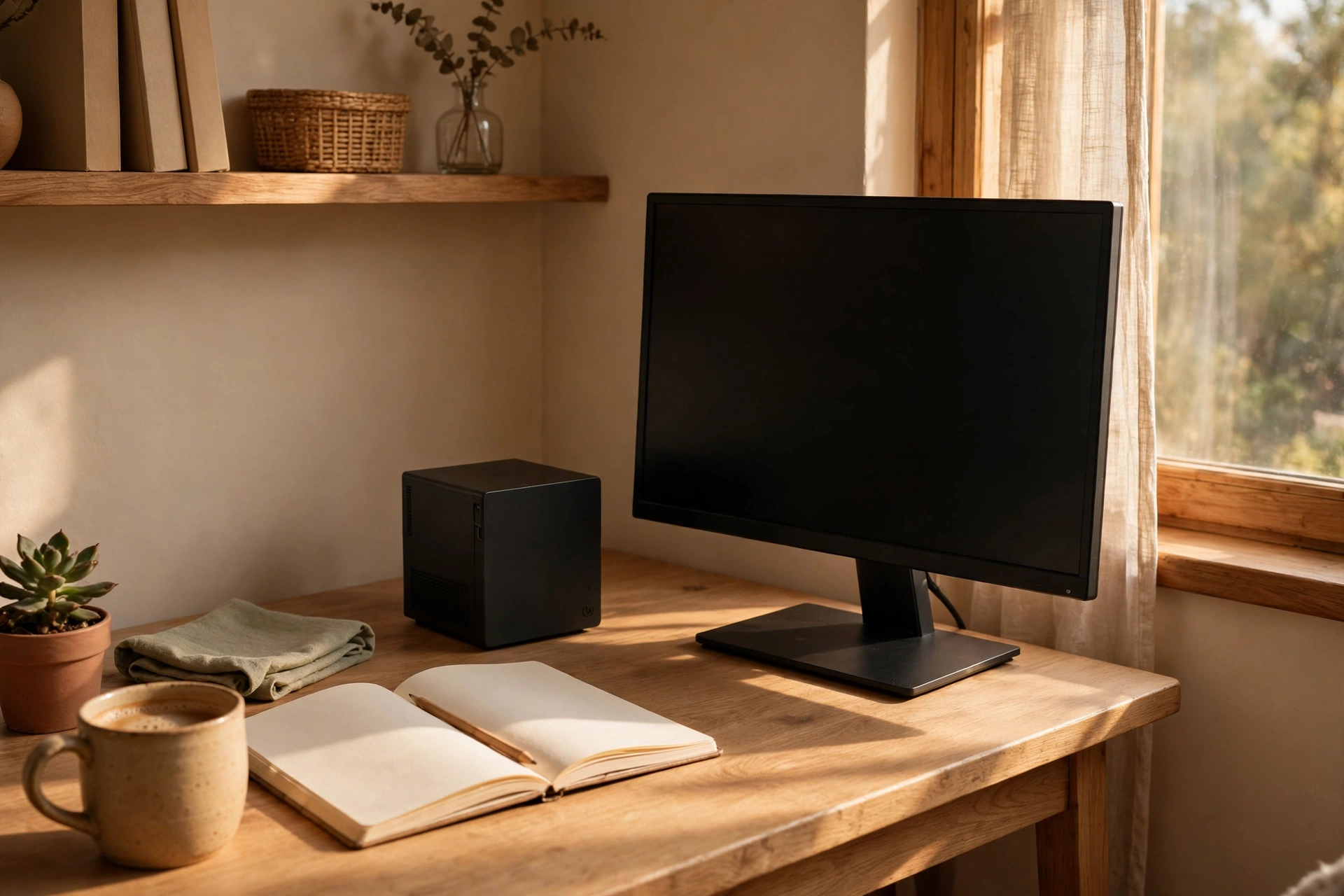
The shape you choose decides how much power you get, how much space the computer takes, and how much you can change later. There is no wrong answer, only a wrong match for your desk and your habits.
Tower Desktops
The tower is the classic desktop computer: a vertical box, usually between 35 and 55 centimeters tall, that holds full-size parts. It is the most powerful shape and the easiest to upgrade, because standard parts fit inside it and there is room for airflow. Towers come in three sizes. A full tower is the biggest and fits the largest graphics cards and the most drives. A mid tower is the common choice and fits nearly everything a gamer or creator needs. A small form factor tower is a compact box that still takes a real graphics card but needs careful part choices because space is tight.
A tower makes sense if you play demanding games, edit video, run virtual machines, or simply want a machine you can improve piece by piece for years. It also makes sense if you like quiet: a big case with large, slow-spinning fans moves the same air with less noise than a small case with small, fast fans.
Mini PCs
A mini PC is a desktop computer shrunk to the size of a book, or smaller. Early mini PCs were weak machines for basic browsing, but that is no longer true. Modern mini PCs use laptop-class processors with many cores, fast DDR5 memory, and built-in neural processing units for on-device AI features. Some gaming-focused mini PCs even pack a mobile graphics card into a two-liter case. Market researchers project the mini PC market at about 23.14 billion dollars in 2026, growing steadily through 2031, and the growth is driven by home offices, small desks, and people who want a quiet, tidy computer that disappears behind a monitor.
A mini PC is the right pick when desk space matters more than maximum power, when you want a second computer for the living room or a home office, or when your heaviest tasks are browsing, office work, streaming, and light games. It is the wrong pick when you want to add a big graphics card later, because most mini PCs have no room for one. Buy the mini PC with the performance you need on day one, because you will not add much to it later.
All-in-One Desktops
An all-in-one builds the whole computer into the back of the monitor. One object, one power cable, no tower on the floor. They look great on a clean desk and they are popular in family rooms, reception areas, and classrooms. The trade is real, though. The parts inside are usually laptop parts, because there is no room for full-size cooling, and upgrading is often limited to storage, or to nothing at all. When an all-in-one gets slow in four years, you usually replace the whole machine.
Buy an all-in-one if the look of your desk matters a lot and your work is light: browsing, email, documents, video calls, streaming. Skip it if you game seriously or if you want to upgrade the machine later. A tower with a slim monitor gives you nearly the same clean look and far more room to grow.
Prebuilt vs Custom-Built
A prebuilt desktop is assembled by a company, tested, and sold with one warranty that covers the whole machine. A custom-built desktop is assembled from parts you pick, either by you or by a specialist builder. Both are towers in most cases, so the choice is about who picks the parts and who fixes it when something goes wrong.
Prebuilt machines win on convenience and, in late 2026, often on price as well, because system builders bought memory and storage before prices climbed. Our prebuilt gaming PC guide explains how to read a prebuilt spec sheet and spot the cheap corners, like a weak power supply hiding behind a strong graphics card. Custom builds win on control: you choose every part, you know exactly what is inside, and you can upgrade anything later. Our how to build a gaming PC complete guide walks through the full build process step by step if you decide to go that way. The honest summary is that a first-time buyer who wants a working computer with one phone number to call should buy prebuilt, and a buyer who enjoys the process and wants exact parts should build.
The Parts That Matter, in Plain Language
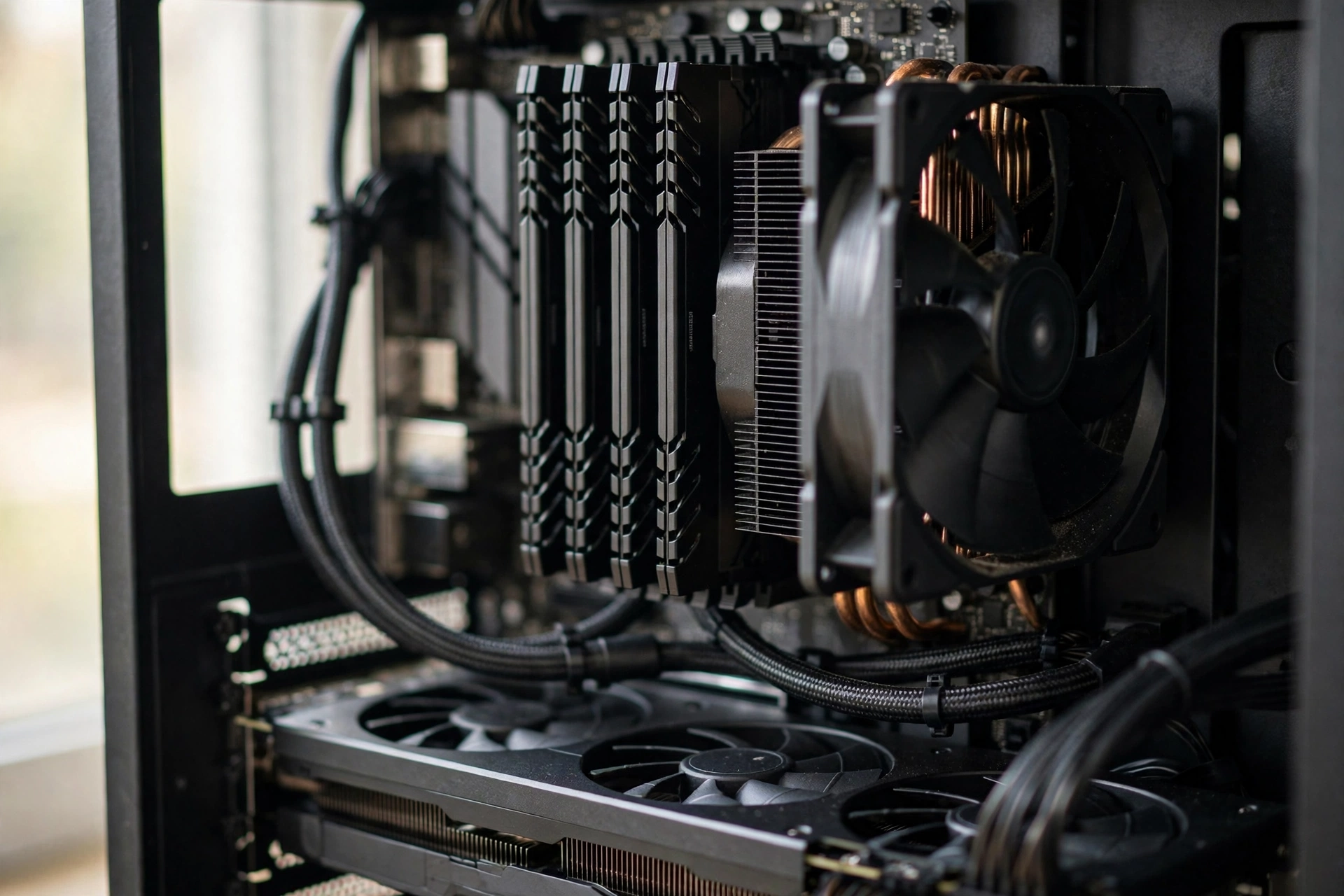
You do not need an engineering degree to buy a desktop computer. You need to know what seven parts do, in one paragraph each, and which one matters most for what you do.
The CPU (Processor)
The CPU is the brain. It runs your programs, opens your files, handles your browser tabs, and tells every other part what to do. More cores let it do more things at once, and a higher clock speed (measured in GHz) lets it do each thing faster. For everyday use, a modern six-core processor is plenty. For gaming, the CPU matters most in simulation games, strategy games, and competitive shooters at high frame rates. For video editing and 3D work, more cores finish renders faster.
The two brands that matter are Intel and AMD. Intel’s current desktop line is the Core Ultra Series 2 family, built on the LGA 1851 socket, with up to 24 cores and boost speeds up to 5.7 GHz on the top Core Ultra 9 285K, plus a built-in neural processing unit for AI tasks. Intel’s Core Ultra desktop processors Series 2 brief lists the full lineup, including the newer Core Ultra 200S Plus models, the Core Ultra 7 270K Plus at 299 dollars and the Core Ultra 5 250K Plus at 199 dollars, which launched in March 2026 with faster DDR5 support up to 7200 MT/s. AMD’s current desktop line is the Ryzen 9000 series, built on Zen 5, with up to 16 cores and 32 threads, boost speeds up to 5.7 GHz, PCIe 5.0, and DDR5 support, and AMD promises AM5 socket support through 2027 and beyond, which means a motherboard bought today can take a future Ryzen chip. AMD’s Ryzen 9000 series processors page covers the range, including the X3D models with extra cache that gamers favor. For gaming, the Ryzen 7 9800X3D is the chip most enthusiasts recommend, and for mixed work and play, a Ryzen 7 or Core Ultra 7 is the sweet spot.
Practical takeaway: spend on the CPU for your heaviest daily task, not for a number on a box. A mid-range CPU with a good graphics card beats a flagship CPU with a weak graphics card in almost every game.
The GPU (Graphics Card)
The GPU draws everything you see: game worlds, video timelines, 3D models, and your desktop itself. If you only browse, write, and watch videos, the graphics built into a modern CPU are enough, and you can skip a separate card entirely. If you game, edit video, or do 3D work, the GPU is the single most important part, and it is usually the most expensive one too.
The current generation is NVIDIA’s GeForce RTX 50 series, built on the Blackwell architecture, with fifth-generation tensor cores and fourth-generation ray tracing cores. NVIDIA’s GeForce RTX 50 Series page lists the range, from the RTX 5050 with 8GB of memory starting at 249 dollars up to the RTX 5090 with 32GB starting at 1999 dollars, with the popular RTX 5070 Ti at 16GB and the RTX 5080 at 16GB in between. AMD’s Radeon RX 9000 series is the main alternative, and it is often the better value at the same price, especially for pure rasterized gaming without ray tracing. Our graphics card guide compares the current cards in more detail.
Two numbers matter when you compare graphics cards: the amount of video memory (VRAM) and the card’s tier. For 1080p gaming in 2026, 8GB of VRAM is the floor and 12GB is comfortable. For 1440p, aim for 12GB or 16GB. For 4K, 16GB is the sensible minimum. A card with too little VRAM stutters in modern games even if its chip is fast, because it has to swap textures in and out of memory constantly. Never buy a graphics card on VRAM alone, though. A newer card with less VRAM can still beat an older card with more, because the chip itself matters too.
RAM (Memory)
RAM is the desk space your computer works on. It holds the programs and files you are using right now, so the CPU can reach them instantly. When RAM runs out, the computer starts using the storage drive as overflow, which is far slower, and everything stutters. More RAM does not make a computer faster in the way a faster CPU does. It stops the computer from slowing down when you have a lot open at once.
In late 2026, 16GB is the minimum for a comfortable desktop, and 32GB is the sweet spot for gaming, multitasking, and creative work. There is a catch this year: RAM prices have surged. Tom’s Hardware’s RAM price index listed the cheapest 32GB DDR5-6000 kit in the United States at 438 dollars on November 11, 2026, against about 100 to 200 dollars for the same capacity in October 2025, and the lowest price it ever tracked for that kit was 72 dollars. The shortage is driven by memory makers sending capacity to AI data centers, and SK Hynix has said its memory chips are sold out through 2029. That changes buying advice in a real way: if you buy a prebuilt machine now, the builder already paid for its memory, and if you build your own, budget for memory first, before you fall in love with a graphics card. A desktop with 16GB today and two empty RAM slots is a smarter buy than a machine with 32GB crammed into a board that cannot take more.
Storage (SSD)
Storage is where your files live when the computer is off: Windows, your games, your photos, your documents. The type of storage matters more than the size for how fast the computer feels. An NVMe SSD, which plugs straight into the motherboard, loads Windows in seconds and games in a fraction of the time a hard drive takes. A hard drive (HDD) is cheaper per gigabyte and fine for storing photos and videos you rarely open, but it should never hold Windows or your main games in 2026.
Aim for at least a 1TB NVMe SSD in any new desktop. Modern games are large, often 100GB or more each, and a 512GB drive fills up after a handful of installs. A 2TB drive is the comfortable choice for a gaming machine, and storage prices have also risen with the memory shortage, so check the drive’s size and type on the spec sheet instead of assuming the cheapest listing includes a big SSD. If the listing just says “1TB storage” with no mention of SSD or NVMe, ask, because a 1TB hard drive in a new desktop is a red flag.
The Motherboard
The motherboard is the circuit board everything plugs into. It decides which CPU you can use, how much RAM you can add, how many storage drives fit, and which ports you get on the back. You do not need the most expensive motherboard. You need one that fits your CPU’s socket, has the RAM slots you need, has an M.2 slot for your NVMe SSD, and has the ports you actually use, like USB-C and enough USB-A ports for your devices.
Two practical rules. First, match the socket: AMD Ryzen 9000 chips use the AM5 socket, and Intel Core Ultra desktop chips use the LGA 1851 socket. A CPU only fits its own socket, and no adapter fixes a mismatch. Second, buy a motherboard with room to grow: four RAM slots instead of two, and two M.2 slots instead of one. The extra slots cost little now and save a full replacement later.
The Power Supply (PSU)
The power supply converts wall power into clean, steady power for every part. It is the least glamorous part and the one that causes the most trouble when it is cheap. A bad power supply can shut the computer down under load, damage parts, or simply die early. A good one lasts through two or three builds.
Pick a power supply with enough wattage for your graphics card plus headroom, and with an 80 Plus Bronze rating at minimum, Gold if you can. A mid-range gaming desktop with a single graphics card is usually happy with 650 to 750 watts. A high-end machine with a powerful card needs 850 watts or more. Check the graphics card maker’s recommended wattage and add a little, because a power supply running near its limit is loud and hot. In prebuilt machines, this is the part most often cut to save money, so check the wattage and the brand before you buy, not after the computer starts crashing in games.
Cooling
Cooling is what keeps every other part running at full speed. A CPU cooler sits on top of the processor, case fans move air through the tower, and some machines use liquid cooling, where a pump moves coolant to a radiator. For most desktops, a good air cooler and two or three case fans are plenty, and they are simpler and cheaper to maintain than liquid cooling. Liquid cooling makes sense for high-end CPUs that run hot, or for small cases where a big air cooler does not fit.
Cooling matters because heat is the quiet limiter of desktop performance. When a CPU or GPU gets too hot, it slows itself down to protect itself, a process called throttling. A desktop with strong cooling holds its speed through a long gaming session or a long video render. A desktop with weak cooling is fast for ten minutes and then gets slower. If you buy a prebuilt machine, look for at least two case fans and a real CPU cooler, not a tiny stock cooler in a sealed box.
Specs That Matter A Quick Reference
When you compare two desktop computers, most of the spec sheet is noise. This table holds the numbers that actually change your experience, and what to aim for in late 2026.
| Part | What It Does | What to Aim For in 2026 |
|---|---|---|
| CPU | Runs programs and coordinates every part | 6 to 8 cores for most people, 8 or more for heavy work |
| GPU | Draws games, video, and 3D work | Integrated graphics for office work, a separate card with 12GB or more VRAM for serious gaming |
| RAM | Holds what you are using right now | 16GB minimum, 32GB the sweet spot, DDR5 on new machines |
| Storage | Holds files, games, and Windows | 1TB NVMe SSD minimum, 2TB for gaming |
| Motherboard | Connects everything, decides upgrades | Correct socket for your CPU, 4 RAM slots, 2 M.2 slots |
| Power supply | Feeds clean power to every part | 650W or more for gaming, 80 Plus Gold preferred |
| Cooling | Keeps parts at full speed | A real CPU cooler plus at least 2 case fans |
| Operating system | Windows 11 on nearly all new desktops | Windows 11 Home is fine for most people, Pro adds business features |
If a listing hides any of these numbers, that is information too. A seller who will not name the power supply wattage or the SSD type is usually hiding a cheap part. Ask before you pay.
Desktop vs Laptop Which One Wins for You?
This is the question people ask most, and the answer is not a tie. Each shape wins clearly at different things, and the right choice follows from how you actually live and work.
| Factor | Desktop Computer | Laptop |
|---|---|---|
| Performance for the money | Better: full-power parts, big cooling | Lower: parts are limited by heat and battery |
| Upgradeability | High: swap CPU, GPU, RAM, storage | Low: usually RAM and storage only |
| Repairability | Easy: standard parts, easy to open | Hard: glued or soldered parts, specialist repair |
| Portability | None: it stays on the desk | The whole point: work anywhere |
| Screen and keyboard | Your choice: any size, any keyboard | Fixed: the screen and keyboard it came with |
| Lifespan | Longer: upgrade the weak part, keep the rest | Shorter: when it slows down, you replace it |
| Price for the same power | Lower | Higher |
For gaming, the desktop wins on every measure except portability. A desktop graphics card runs at full power with real cooling, while a laptop graphics card with the same name runs slower to fit inside a thin shell and stay cool. A desktop monitor can be 27 inches with a high refresh rate, while a laptop screen is 15 or 16 inches. And when a new game needs more power in two years, a desktop takes a new graphics card, while a laptop takes a whole new laptop. Our best laptop for gaming guide is the right read if you genuinely need to game away from a desk, because some gaming laptops are very good, but they cost more for the same performance and they run hotter and louder doing it.
For work, the split is simpler. If you work at one desk, a desktop gives you a bigger screen, a better keyboard, a proper mouse, and a machine that stays fast all day. If you work in meetings, cafes, classrooms, or on the move, a laptop is not optional, it is the tool. Many people end up with both: a desktop at home for heavy work and a modest laptop for everything else. That combination often costs less than one flagship laptop trying to do both jobs.
There is one more honest point, and it is about your body. A desktop lets you set the screen at eye level, use a full-size keyboard, and sit in a proper chair. A laptop forces you to look down at a small screen with your hands close together. If you work at a computer for eight hours a day, the desktop setup is kinder to your neck, shoulders, and wrists. A laptop on a stand with an external keyboard and monitor gives you most of the same benefit, but at that point you have built a desktop out of a laptop, and paid laptop prices for it.
The Bottleneck Angle Why Balance Beats Big Specs
Here is the idea most buying guides never explain, and it is the one this site is built around: a desktop computer is only as fast as its weakest part. A fast graphics card paired with a slow processor waits for the processor. A fast processor paired with too little RAM waits for memory. A great gaming PC with a slow hard drive instead of an SSD waits for files to load. The slow part is called a bottleneck, and every desktop has one somewhere. The goal is not to eliminate it, which is impossible. The goal is to put it where it hurts least for what you do.
Three mismatches show up most often in real machines. The first is a powerful graphics card with a weak CPU, common in cheap prebuilt gaming PCs, where the headline card hides an old processor that cannot feed it frames fast enough. The second is too little RAM, which is more common than ever now that memory prices have climbed, and it shows up as stuttering when you have a game, a browser with twenty tabs, and a voice chat app open at once. The third is a fast computer held back by a slow drive or a weak power supply, which shows up as long loading times or random shutdowns under load.
The fix is balance, and it is simpler than it sounds. Match the CPU and GPU to the same tier: a mid-range CPU with a mid-range graphics card, a high-end CPU with a high-end card. Give the machine 32GB of RAM if you game or multitask heavily. Put Windows and your games on an NVMe SSD. Buy a power supply with headroom. Then check your work with real examples: our real PC bottleneck build examples show balanced combinations that work in practice, so you can see what a well-matched desktop looks like before you spend anything.
One more practical note: the monitor is part of the balance too. A graphics card that can push 144 frames per second is wasted on a 60Hz monitor that can only show 60, and a 4K monitor is wasted on a graphics card built for 1080p. Match the screen to the card, and the card to the games you play.
Buying vs Building a Desktop Computer in Late 2026
For most of the last decade, the standard advice was simple: building your own PC saves money. In late 2026, that advice has flipped, at least for now, and it is worth understanding why before you decide.
When Buying a Prebuilt Makes More Sense
The reason is memory. DRAM supply has been tight all year, DDR5 kit prices have climbed through 2026, and system builders bought their memory and storage before prices jumped, so many prebuilt machines now cost the same as, or less than, the same parts bought separately. A popular thread in the PC building community in late October 2026 asked how prebuilt machines with a Ryzen 7 9800X3D and an RX 9070 XT were coming in cheaper than the same parts list in a cart, and nobody in the replies seemed surprised. Tom’s Hardware reported back in December 2025 that some prebuilts already cost less than building the same machine yourself, and the gap has grown since.
A prebuilt also wins on convenience and support. It arrives assembled, tested, and with Windows installed. One warranty covers the whole machine, and one phone number handles problems. For a first desktop, for a gift, or for anyone who wants a working computer rather than a project, that is worth real money. The catch is the spec sheet: the headline CPU and GPU can hide cheaper choices elsewhere, especially the power supply, the motherboard, and the memory speed. Read the full parts list before you buy, check the RAM capacity and speed, check the SSD size and type, and check the power supply wattage and brand. If the listing will not tell you, buy a different machine.
When Building Wins
Building wins when you want exact parts, a specific case, a quiet cooler, or a machine you plan to upgrade for years. A custom build uses standard parts, so nothing is proprietary, and you can swap any part later. Building also teaches you how the machine works, which makes every future upgrade and repair easier. The cost is time and risk: you assemble it, you install Windows, you troubleshoot it when it does not boot, and each part has its own warranty instead of one system warranty.
If you build, buy the memory early in your parts list, because it is the part whose price is moving fastest, and check compatibility before you order anything. A parts list tool that flags mismatches is worth using, and a second pair of eyes on your list, from a friend or a community, catches mistakes like a CPU that does not fit the motherboard socket or a graphics card that does not fit the case. Our how to build a gaming PC complete guide covers the full process, from picking parts to the first boot, so read it before you order.
What to Check Before You Pay
Whether you buy prebuilt or build it yourself, run through this list before money changes hands. First, confirm the RAM: 16GB minimum, 32GB for gaming, and two empty slots for later if you start with 16GB. Second, confirm the storage: a 1TB NVMe SSD at minimum, not a hard drive. Third, confirm the power supply wattage and rating. Fourth, confirm the graphics card’s exact model and VRAM, not just the brand name. Fifth, confirm the warranty: one year minimum on a prebuilt, longer on the parts that matter. Sixth, confirm the monitor situation: if no monitor is included, budget for one. A checklist takes five minutes and saves the most common regret in desktop buying, which is discovering a cheap hidden part after the return window closes.
How Long Does a Desktop Computer Last?
A well-chosen desktop computer lasts five to seven years of useful life, and often longer, because you can replace the parts that age fastest instead of the whole machine. The upgrade path is the desktop’s greatest strength, and it is worth planning from the start.
The usual order of upgrades tells the story. First, storage fills up, so you add a second SSD. That takes ten minutes and a screwdriver. Then memory starts to feel tight, so you add two more RAM sticks, as long as your motherboard has free slots, which is why four RAM slots matter at purchase time. Then a new game needs more graphics power, so you swap the graphics card, which is the single biggest performance jump a desktop can get. The CPU is usually the last part to change, and when you do change it, you may need a new motherboard too, because CPU sockets change every few years. AMD’s promise of AM5 support through 2027 and beyond makes that step cheaper for Ryzen owners, since a newer Ryzen chip can drop into the same board after a BIOS update.
Two habits stretch a desktop’s life further. Keep it clean: dust in the fans and filters makes the machine run hotter and louder, and a quick clean every few months keeps temperatures down. Keep Windows and your drivers updated, because graphics driver updates regularly fix performance problems and add support for new games. A desktop that is cleaned and updated feels new far longer than one that is ignored.
A Simple Decision Framework
If you have read this far and still feel stuck, use this framework. Answer two questions: what do you do most, and what is your budget? Then read the matching row.
| Budget | What You Get | Best For |
|---|---|---|
| Everyday (under 600 dollars) | A mini PC or a basic tower with integrated graphics, 16GB RAM, 512GB SSD | Browsing, office work, streaming, video calls |
| Mainstream (600 to 1,200 dollars) | A tower with a 6-core CPU, 16GB to 32GB RAM, 1TB SSD, entry graphics card | 1080p gaming, school and home office, light creative work |
| Gaming (1,200 to 2,000 dollars) | A tower with an 8-core CPU, 32GB RAM, 1TB to 2TB SSD, mid-range graphics card | 1440p gaming at high settings, streaming, video editing |
| High-end (over 2,000 dollars) | A tower with a top CPU, 32GB or more RAM, 2TB SSD, high-end graphics card | 4K gaming, heavy video and 3D work, AI and local models |
Treat these bands as typical ranges, not promises. Prices move fast in late 2026, especially memory and graphics cards, so check current prices before you buy and treat any specific price you see online as a snapshot, not a guarantee.
Everyday Use and Home Office
If your heaviest tasks are browsing, documents, spreadsheets, and video calls, do not overspend. A mini PC or a basic tower with a modern 6-core CPU, 16GB of RAM, and a 512GB SSD is fast, quiet, and cheap to run. Spend the money you save on a good monitor and a comfortable chair, because those affect your day more than a faster chip you will never use.
Gaming
If gaming is the point, put most of the budget into the graphics card, then the CPU, then RAM, in that order. A mid-range CPU with a strong graphics card beats a flagship CPU with a weak card in nearly every game. Aim for 32GB of RAM, a 1TB SSD at minimum, and a monitor that matches your card: 1080p high refresh for entry cards, 1440p high refresh for mid-range cards, 4K for high-end cards. Our gaming PC under 1000 guide shows what a sensible budget gaming desktop looks like when every dollar has to earn its place.
Creative Work and AI
If you edit video, render 3D scenes, or run local AI models, prioritize cores, memory, and VRAM in that order. Video editing loves more CPU cores and more RAM. 3D rendering loves a strong GPU with plenty of VRAM. Local AI models love VRAM most of all, because the model has to fit in graphics memory to run fast. For this kind of work, 32GB of system RAM is the floor, not the ceiling, and a 2TB SSD keeps large project files close at hand.
Common Mistakes When Buying a Desktop Computer
The most common mistake is buying on one big number. A listing that shouts about a fast CPU or a big graphics card and hides the RAM, the storage type, and the power supply is selling you a headline, not a computer. Read the whole spec sheet.
The second mistake is buying too little RAM to save money, especially now. A desktop with 8GB of RAM in late 2026 will stutter with a game and a browser open at the same time, and upgrading later costs more than buying right the first time. Get 16GB at minimum, 32GB for gaming.
The third mistake is forgetting the monitor, keyboard, and mouse. A desktop tower is not a complete computer on its own. Budget for the screen, and remember that a good 1440p monitor with a high refresh rate changes gaming more than a slightly faster graphics card.
The fourth mistake is buying a machine with no upgrade path. An all-in-one or a mini PC with soldered memory and one storage slot cannot grow with you. If you think you will want more power in two years, buy a tower with free RAM slots, a free M.2 slot, and a power supply with headroom.
The fifth mistake is ignoring cooling and power. A beautiful glass tower with one fan and a cheap power supply will throttle under load and shut down in games. Airflow and a decent power supply are not optional extras. They are what let the expensive parts do their jobs.
Frequently Asked Questions
Which is better, a laptop or a desktop?
It depends on how you work. A desktop is better for performance, value, upgradeability, and long sessions at one desk, because it uses full-power parts with real cooling and a big screen. A laptop is better when you need to work in different places, because portability is the one thing a desktop cannot offer. If you work at one desk most of the time, buy a desktop. If you carry your computer daily, buy a laptop. Many people own both, with the desktop doing the heavy work at home.
Can laptops replace desktop PCs?
For light work, yes. A modern laptop handles browsing, office work, streaming, and even light photo editing without trouble, and for many people that is the whole computer. For heavy work, no, not at the same price. A laptop cannot match a desktop’s sustained performance in gaming, video editing, or 3D rendering, because it has less room for cooling and its parts run at lower power to protect the battery. A laptop can replace a desktop for everyday use, but a desktop remains the better tool for demanding work at a fixed desk.
Do you get what you pay for when purchasing a desktop computer?
Mostly, but only if you read the whole spec sheet. Paying more usually buys better parts, a better warranty, and a better build, but the price also pays for branding, lighting, and a fancy case that add nothing to performance. The best value is in the middle: a machine with a balanced CPU and GPU, 16GB to 32GB of RAM, a real NVMe SSD, and a decent power supply. The worst value is at the extremes: a suspiciously cheap machine that hides weak parts, and an expensive machine whose budget went to looks instead of hardware.
Is it cheaper to build a desktop computer or buy a prebuilt in 2026?
In late 2026, a good prebuilt is often as cheap as, or cheaper than, building the same machine yourself, because system builders bought memory and storage before prices climbed. That is a change from the old rule that building always saved money. Building still wins if you want exact parts, a specific case, or a machine you plan to upgrade for years, and it will likely win again on price when memory prices settle. Price both options on the day you buy, and check the full parts list of any prebuilt before you compare.
How much RAM do I need in a desktop computer?
For everyday use, 16GB is enough and comfortable. For gaming, multitasking with many browser tabs, or creative work, 32GB is the sweet spot in 2026. For heavy video editing, 3D work, or running local AI models, 64GB is worth considering, though memory prices make it expensive right now. Whatever you buy, make sure the motherboard has free RAM slots, so you can add more later instead of replacing what you have.
How long does a desktop computer last?
A well-chosen desktop lasts five to seven years, often longer. The case, power supply, monitor, and keyboard can last a decade. The parts that age are the graphics card and the storage, and both are easy to replace in a tower. The way to make a desktop last is to buy a balanced machine with free upgrade slots, keep it clean, and keep Windows and graphics drivers updated.
What is the difference between a desktop computer and a gaming PC?
A gaming PC is a type of desktop computer, not a different thing. Every gaming PC is a desktop (or a gaming laptop), but not every desktop is a gaming PC. A gaming PC is a desktop built with gaming in mind: a strong graphics card, plenty of RAM, fast storage, and good cooling. An office desktop uses the same shape with weaker parts, because its work is lighter. The label matters less than the parts list. Check the CPU, GPU, RAM, and storage, and you will know what any desktop can do, whatever the box calls it.
Should I buy a desktop computer or a mini PC?
Buy a mini PC if desk space matters, your work is light, or you want a quiet second computer for a living room or home office. Modern mini PCs handle everyday work and light gaming well, and some pack serious laptop-class processors and AI accelerators into a tiny box. Buy a full desktop tower if you game seriously, edit video, or want to upgrade the machine later, because a mini PC has almost no room for a bigger graphics card or extra parts. The mini PC is a complete answer for light work. The tower is the answer that grows.
Key Takeaways
- A desktop computer is a personal computer built for a desk: a case, a monitor, a keyboard, and a mouse, with full-power parts and real cooling.
- The three main shapes are the tower, the mini PC, and the all-in-one. Towers upgrade best, mini PCs save space, all-in-ones look tidiest but upgrade least.
- The parts that matter are the CPU, GPU, RAM, storage, motherboard, power supply, and cooling. For gaming, the GPU matters most. For everyday use, RAM and an SSD matter most.
- A desktop is only as fast as its weakest part, so balance the CPU, GPU, RAM, and storage instead of overspending on one big number.
- In late 2026, RAM prices have surged and good prebuilt machines are often as cheap as building yourself. Price both options on the day you buy.
- A well-chosen desktop lasts five to seven years, because you can upgrade the graphics card, RAM, and storage instead of replacing the machine.
- Buy for what you do most: 16GB of RAM and a fast SSD for everyday use, 32GB and a strong graphics card for gaming, more cores and more VRAM for creative work.
Conclusion
A desktop computer is still the best value in personal computing, and the reason has not changed in decades: it gives you more power for your money, it is easier to fix and upgrade, and it lasts longer than any other shape. The market in late 2026 adds two twists worth remembering. Memory prices have made RAM the part to budget first, and prebuilt machines are competitive on price in a way they were not a few years ago. Neither twist changes the fundamentals. Pick the shape that fits your desk, balance the parts instead of chasing one big number, leave room to upgrade, and buy the monitor to match.
Do that, and the computer on your desk will do its job quietly for years: fast in the morning, fast at midnight, and ready for a new graphics card when the games demand one. That is what a desktop computer is for, and it is why, for anyone with a desk to put it on, it remains the smartest computer to buy.

Leave a Reply