
For most gamers, the AMD Radeon RX 9070 XT is the best overall pick right now. It handles 1440p and light 4K gaming well, and it doesn’t cost a fortune. If you care more about ray tracing and AI-powered features, the Nvidia GeForce RTX 5070 Ti is the better high-end choice.
Introduction
Finding the best GPU for gaming is more confusing than it should be. New chips launch every few months. Store prices rarely match the official MSRP. And terms like DLSS, FSR, VRAM, and Frame Generation get thrown around without much explanation. You just want a card that runs your favorite games smoothly, at a price that doesn’t sting. You don’t want to spend money on something that stutters the moment you turn on modern graphics settings.
We looked past the marketing slides and tested what actually matters: real frame rates, current street prices, and how well each card fits into a typical gaming PC. Here’s what we found for 2026.
The 2026 Graphics Card Landscape
The market looks different than it did just a couple of years ago. Nvidia’s Blackwell architecture (RTX 50-series) and AMD’s RDNA 4 platform (RX 9000-series) are now the two big players. Intel has also carved out real space with its Battlemage architecture (Arc B-series), especially for budget builds.
One thing has changed for good: you can no longer judge a card by raw horsepower alone. Most modern games lean on AI upscaling and frame generation to hit smooth frame rates, especially at 1440p and 4K.
Practical takeaway: When you buy a GPU today, you’re not just buying hardware. You’re buying into a software ecosystem too, and that ecosystem affects how the card actually performs in the games you play.
Open your case and measure the clearance in front of your drive bays, then check the wattage label on your power supply. Once you know your system’s real limits, pick the tier of card that fits, and enjoy smoother, higher frame rate gameplay.
Crucial Buying Pillars What Actually Matters
Before you fall in love with a specific model, get clear on three things: how much VRAM you need, how upscaling affects image quality, and whether your power supply and case can actually handle the card.
The VRAM Reality Check
VRAM (Video RAM) is the memory built directly onto your graphics card. When a game needs more VRAM than the card has, you’ll see stutters, dropped frames, or textures that suddenly look blurry mid-game.
- 8GB VRAM: Fine for 1080p gaming, but you’ll likely need to dial back some settings in newer titles running at “Ultra.”
- 12GB VRAM: A solid baseline for mid-range builds. Enough headroom for maxed-out 1440p in most games.
- 16GB or more: Worth having if you want zero compromises at 1440p or you’re gaming at 4K.
A mistake we see a lot: buyers focus entirely on the GPU chip and treat VRAM as an afterthought. Two cards can share the same chip and performance tier, yet one ships with noticeably less memory. In modding heavy games or texture pack heavy titles, that difference shows up fast.
Native Resolution vs Upscaling Trade Offs
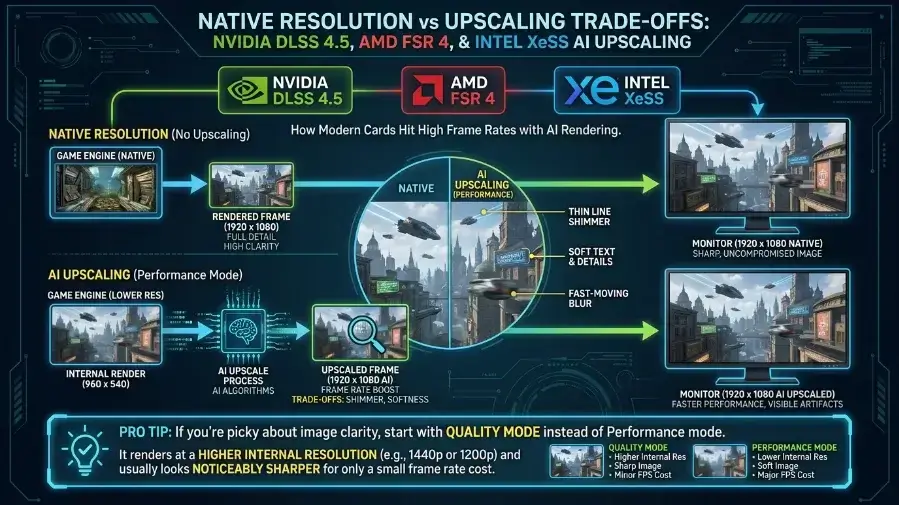
Nvidia DLSS 4.5, AMD FSR 4, and Intel XeSS all use AI to render a game at a lower resolution, then scale it up to fill your screen. This is how modern cards hit high frame rates, but the trade-off is real.
Turn on Performance Mode upscaling on a 1080p monitor, and the game may actually be rendering at roughly 960 × 540 internally before it gets stretched. That’s why thin lines can shimmer and small text can look soft, especially in fast-moving scenes.
Pro tip: If you’re picky about image clarity, start with Quality mode instead of Performance mode. It renders at a higher internal resolution and usually looks noticeably sharper for only a small frame rate cost.
Power Supply Safety and Case Space
High-end cards pull a lot of power and produce real heat. They also tend to be physically large. Before you buy, check the card’s Total Board Power (TBP) rating, not just its name.
High-end GPUs can also experience brief, sudden transient power spikes, momentary surges well above their normal power draw. A cheap or aging power supply that can’t absorb these spikes may shut your whole system down mid-game, right when the load gets heavy. Always check your PSU’s rated wattage and measure your case’s internal clearance before you buy a new card.
| Target Resolution | Safe VRAM Baseline | Minimum Recommended PSU | Target Visual Quality |
|---|---|---|---|
| 1080p Mainstream | 8GB to 12GB | 550W Standard | High Settings / No Ray Tracing |
| 1440p Sweet Spot | 12GB to 16GB | 650W to 750W | Ultra Settings / Light Ray Tracing |
| 4K Elite Tier | 16GB+ | 850W+ (PCIe 5.0 Native) | Maximum Settings / Heavy Path Tracing |
Practical takeaway: Don’t pair an expensive, power-hungry GPU with a budget power supply. It’s one of the most common (and avoidable) causes of random crashes during gameplay.
The Best Gaming GPUs Detailed Product Matrix
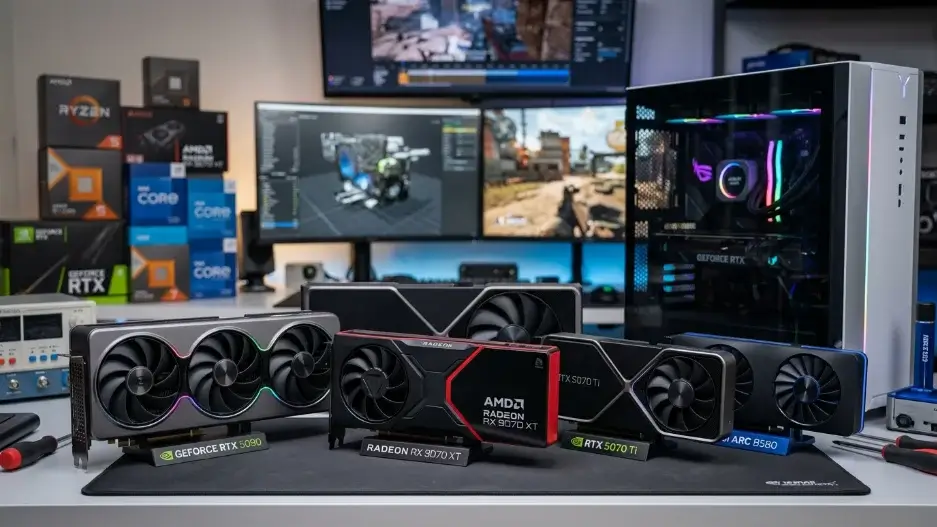
Here’s our breakdown of the strongest cards available right now, sorted by who they’re actually for.
AMD Radeon RX 9070 XT
If you want strong performance without paying an enthusiast-level price, start here.
- Architecture & Memory: RDNA 4 architecture, 16GB GDDR6 memory.
- Real-World Performance: Handles modern games at 1440p on max settings comfortably, often well past 90 fps. It can even do 4K gaming smoothly if you back off a few of the heaviest shadow or lighting settings.
- System Requirements: 700W minimum PSU, two standard 8-pin PCIe power connectors.
- Pros: Generous 16GB memory buffer, excellent raw frame rates for the price, fits comfortably in most mid-tower cases.
- Cons: Ray tracing lags behind Nvidia’s equivalent cards, no access to Nvidia’s proprietary DLSS suite.
- System Integration Check: 280mm card length. Make sure your case has at least 300mm of clearance in front of the drive cage.
Nvidia GeForce RTX 5070 Ti
Built for gamers who want cutting-edge visuals and don’t mind paying more for heavy ray tracing performance.
- Architecture & Memory: Blackwell architecture, 12GB GDDR7 memory.
- Real-World Performance: Matches or beats last generation’s flagship cards, with a clear edge in ray-traced titles like Alan Wake 2 and Cyberpunk 2077.
- System Requirements: 750W PSU, uses the 12V-2×6 power connector.
- Pros: Strong ray tracing performance, class-leading DLSS 4.5 frame generation, low idle power draw.
- Cons: 12GB of VRAM could feel tight for heavy texture mods at native 4K a few years down the line.
- System Integration Check: The 12V-2×6 connector needs to be fully seated. A half-inserted cable is a known cause of melted connectors on high-power cards, so push it in until it clicks and double-check the fit before closing your case.
Nvidia GeForce RTX 5090
A luxury pick for people who want the fastest card money can buy and aren’t watching the budget closely.
- Architecture & Memory: Flagship Blackwell chip, 24GB GDDR7 memory.
- Real-World Performance: Runs native 4K with full path tracing enabled at over 100 fps in most titles. Nothing else on the market matches it.
- System Requirements: 850W–1000W high-quality PSU, a full-size case.
- Pros: Unmatched gaming performance, huge memory pool that should stay relevant for years, top-tier AI feature support.
- Cons: Expensive, physically massive, pulls a lot of power from the wall.
- System Integration Check: This is a heavy 4-slot card. Use a GPU support bracket, sold separately by most case manufacturers, to stop it from sagging and stressing the PCIe slot over time.
Intel Arc B580
Intel’s second-generation card is a genuinely good option if you’re building on a tight budget.
- Architecture & Memory: Battlemage architecture, 12GB GDDR6 memory.
- Real-World Performance: Delivers 60+ fps in most major titles at 1080p on high settings, and can handle light 1440p gaming in well-optimized games.
- System Requirements: 550W PSU.
- Pros: Very affordable, generous 12GB VRAM for the price tier, strong AV1 video encoding.
- Cons: Older DirectX 9 and DirectX 11 titles occasionally show inconsistent driver performance.
- System Integration Check: Your motherboard must support Resizable BAR (ReBAR) in the BIOS. Without it, this card can lose a significant chunk of its performance, so confirm your board supports it before you buy.
Practical takeaway: Buy AMD if you want the best frame rate per dollar. Buy Nvidia if ray tracing and upscaling quality matter most to you. Buy Intel if you’re working with a tight budget.
Avoidable Building Pitfalls & Troubleshooting
A lot of gamers install a brand-new card and can’t figure out why their system still stutters or crashes. Here’s how to avoid the most common causes.
The Motherboard BIOS Trick (Resizable BAR)
Resizable BAR lets your CPU access your graphics card’s full memory pool at once instead of in small chunks, which can meaningfully improve performance in supported games.
- Restart your PC and tap Delete or F2 to enter the BIOS.
- Look under the Advanced or PCIe Subsystem settings.
- Turn on Resizable BAR and Above 4G Decoding.
- Save your changes and restart. This free setting can noticeably improve frame rates in supported titles, though the exact gain varies by game and system.
How to Clean Out Old Drivers Correctly
If you’re switching brands, say, moving from an old Nvidia card to a new AMD one, leftover driver files can cause instability even after the new card is installed.
- Download Display Driver Uninstaller (DDU), a well-known and widely trusted free tool.
- Boot your PC into Safe Mode.
- Open DDU, select your old driver brand, and click Clean and Restart.
- Once Windows boots normally again, install the latest official driver from your new card’s manufacturer.
Stop Daisy-Chaining Your Power Cables
High-power cards need multiple independent 8-pin connections. Don’t use a single splitter cable that branches into two plugs from one line.
Running two separate, dedicated cables from your PSU to your GPU gives each connector its own steady power delivery, and it’s one of the simplest ways to avoid crashes during intense gaming moments.
A mistake worth calling out: Even gamers who know about daisy-chaining sometimes reuse an old modular PSU’s cables with a new power supply. Cables aren’t always interchangeable between PSU brands and models, even if the connector looks like it fits. Always use the cables that are shipped with your specific power supply.
Practical takeaway: Spending ten extra minutes cleaning old drivers and wiring your power cables correctly now can save you hours of troubleshooting random crashes later.
Frequently Asked Questions
Is 8GB of VRAM enough for gaming in 2026?
Yes, for mainstream 1080p gaming at medium to high settings. It becomes limiting if you want to play newer AAA titles at 1440p with maximum texture quality.
Will my older CPU slow down my brand-new GPU?
It can. This is called a hardware bottleneck. Pair a flagship card like the RTX 5080 with an older CPU, such as a Ryzen 5 3600, and the CPU becomes the limiting factor. The GPU ends up waiting on the CPU to feed it data instead of running at full speed.
What happens if I forget to use independent power cables?
A single overloaded cable can overheat, especially during a demanding scene that suddenly pushes the card to draw more power. That’s often when you’ll see a crash, shutdown, or unexpected restart.
Do I need a native PCIe 5.0 power supply for Nvidia Blackwell cards?
Not necessarily. Nvidia includes an adapter in the box that works with standard power cables. Just make sure the adapter is fully seated in the card and isn’t bent sharply against the side panel or a cable management bar, since a partial connection is a known risk with these high-power connectors.
How often should I actually upgrade my GPU?
There’s no fixed rule, but a useful signal is when your current card can no longer hit your target frame rate at the settings you actually want to play at, not the settings marketing screenshots show. Many gamers get 3 to 5 solid years out of a mid-range or high-end card before an upgrade genuinely makes sense.
Key Takeaways
- Match your card to your monitor. A 4K card is wasted on a 1080p screen, and a budget card will struggle to keep up with a sharp 4K display.
- Check real prices, not just MSRP. A card that looks average on paper can be a great deal if it’s discounted at a major retailer.
- Confirm compatibility before you buy. Check your PSU wattage, your case’s internal clearance, and whether your motherboard supports Resizable BAR.
The right graphics card depends on your budget and what your system can actually support. For the best value at 1440p, look at the AMD Radeon RX 9070 XT. If ray tracing and top-tier upscaling matter more to you, the Nvidia GeForce RTX 5070 Ti is the stronger pick.
Conclusion
Choosing the best gaming GPU in 2026 depends on your budget, target resolution, VRAM needs, power supply, case size, and the games you play. The AMD Radeon RX 9070 XT is a strong choice for 1440p gaming and offers good value, while the Nvidia GeForce RTX 5070 Ti is a better option if ray tracing and advanced upscaling are important to you. Before buying, check that your GPU fits your PC and has enough power and memory for your needs. The best GPU is not always the fastest one it is the one that gives you the right performance for your budget and gaming setup.

Leave a Reply