

For most PC gamers, DisplayPort wins the hdmi vs displayport debate. It offers more bandwidth, the smoothest path to 144Hz, 240Hz, and 4K high refresh gaming, and the best support for G-Sync and FreeSync. HDMI 2.1 is the right choice for TVs and consoles, and it handles 4K 120Hz well. Check your monitor ports, then match the cable to them.
Introduction
Every gamer who buys a new monitor eventually hits the hdmi vs displayport question. The monitor box includes one cable, usually HDMI, and the graphics card has three DisplayPort outputs and one HDMI port. Which one do you plug in? Pick wrong and a 240Hz monitor can sit stuck at 60Hz, variable refresh rate can refuse to turn on, or 4K can drop to a lower refresh rate than the box promised.
The short version is that the cable is not just a wire. It is a data pipe with a fixed speed limit, and that limit decides which combinations of resolution, refresh rate, and color depth your screen can show. A cable that is too slow for your monitor quietly caps performance, and Windows will not warn you about it. You will simply see fewer refresh rate options in display settings and wonder why the expensive monitor feels ordinary.
This guide explains the real differences in plain English. You will learn what each version can carry, when compression steps in, how FreeSync and G-Sync behave on each connection, and which cable to buy for your exact monitor. No jargon without an explanation, and no made up numbers. Every bandwidth figure comes from the published specifications of VESA and the HDMI Forum.
One trend makes this choice matter more right now. High refresh rate monitors keep getting cheaper, and 240Hz panels that used to be a luxury are now within reach of ordinary builds. At the same time, the October 2026 Steam Hardware Survey puts the RTX 3060 back on top at 3.62 percent of surveyed systems, which means most gamers still play on mid range cards at 1080p or 1440p. The cable still matters at those resolutions, because a 144Hz or 240Hz monitor only delivers its smoothness when the cable can carry the signal.
What HDMI and DisplayPort Actually Are
HDMI and DisplayPort are both digital connections that carry video and audio from a graphics card to a display. They look similar at a glance, but they were built for different worlds, and that history still shapes which one wins in each situation.
HDMI stands for High-Definition Multimedia Interface. It was designed for living rooms: TVs, Blu-ray players, consoles, and soundbars. That is why nearly every TV has several HDMI ports and no DisplayPort at all, and why HDMI carries features made for home theater, such as ARC and eARC for sending TV audio back to a soundbar. Consoles only output through HDMI, so if you play on a PS5 or Xbox Series X, HDMI is not a choice. It is the only option.
DisplayPort was designed by VESA, the Video Electronics Standards Association, for computers. It was built for PC monitors, high resolutions, high refresh rates, and multi-monitor setups from the start. That is why graphics cards usually have three DisplayPort outputs and only one HDMI port, and why most gaming monitors treat DisplayPort as their main input. DisplayPort also supports a feature called Multi-Stream Transport, which lets one port drive more than one monitor through daisy chaining, something HDMI cannot do.
Both carry audio, so either cable will send sound to a monitor with speakers. Both support 4K. Both can deliver smooth, tear-free gameplay when paired with the right hardware. The differences show up at the edges: the highest refresh rates, the highest resolutions, variable refresh rate support, and multi-monitor setups. That is where the version numbers start to matter a lot.
A common point of confusion is that the version number on the port matters more than the cable name. “HDMI” alone tells you almost nothing. HDMI 2.0 caps out at 18 Gbps, while HDMI 2.1 reaches 48 Gbps. “DisplayPort” alone is just as vague: DisplayPort 1.4 tops out at 32.4 Gbps, while DisplayPort 2.1 can reach 80 Gbps at its fastest tier. Always check the version on both your graphics card and your monitor, because the whole chain runs at the speed of its slowest link.
Bandwidth Is the Number That Decides Everything
Bandwidth is the amount of video data a cable can carry per second, measured in gigabits per second (Gbps). Higher resolution, higher refresh rate, deeper color, and HDR all need more data. When the picture needs more data than the cable can carry, something has to give: the refresh rate drops, the color depth drops, or compression switches on.
Here is the key comparison. HDMI 2.1 supports up to 48 Gbps. DisplayPort 1.4 supports up to 32.4 Gbps. DisplayPort 2.1 supports up to 80 Gbps at its fastest tier, called UHBR20. That last number needs a warning, though. DisplayPort 2.1 is not one fixed speed. It has tiers called UHBR10 (40 Gbps), UHBR13.5 (54 Gbps), and UHBR20 (80 Gbps), and a port labeled DisplayPort 2.1 does not guarantee the top tier. You have to check the spec sheet for the UHBR tier, and you need a cable certified for that tier. VESA certifies DisplayPort cables as DP40, DP54, or DP80 to match these tiers.
This creates a trap that catches a lot of buyers. A monitor with HDMI 2.1 and DisplayPort 1.4 gives the HDMI port more raw headroom (48 Gbps versus 32.4 Gbps). In that specific pairing, HDMI 2.1 can be the better connection for 4K 120Hz, even though DisplayPort usually wins. The lesson is simple: compare the actual versions on your own hardware, not the brand names on the box. The VESA DisplayPort pages list the UHBR tiers and cable certifications if you want to confirm what your gear supports.
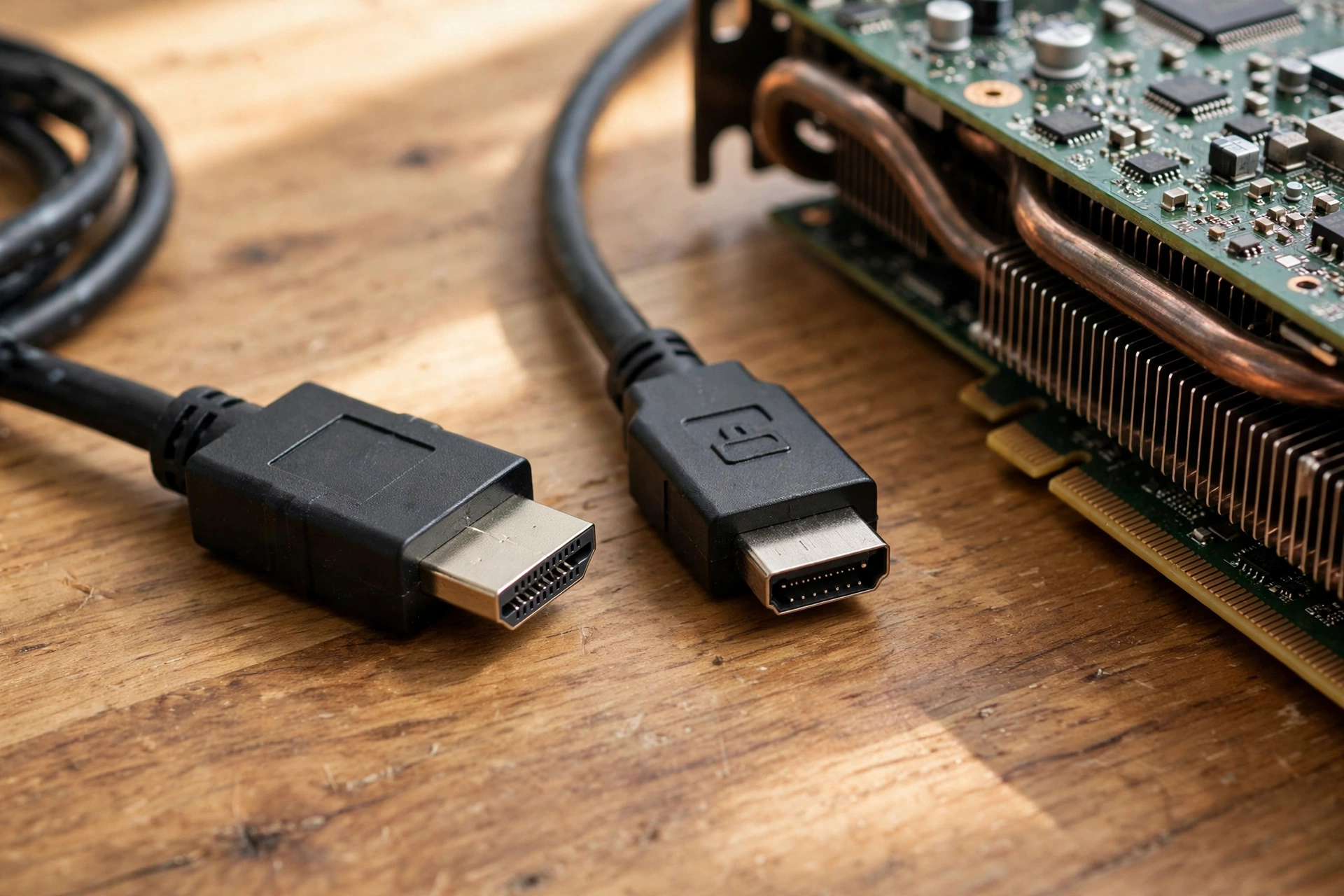
| Version | Max Bandwidth | 4K Without Compression | 1440p Without Compression | Best For |
|---|---|---|---|---|
| HDMI 2.0 | 18 Gbps | 4K 60Hz | 1440p 144Hz | Older TVs and basic monitors |
| HDMI 2.1 | 48 Gbps | 4K 120Hz | 1440p 240Hz | TVs, consoles, 4K 120Hz gaming |
| DisplayPort 1.4 | 32.4 Gbps | 4K 120Hz with DSC | 1440p 240Hz | Most current PC gaming monitors |
| DisplayPort 2.1 UHBR20 | 80 Gbps | 4K 240Hz | 1440p 360Hz and above | Flagship 4K 240Hz OLED monitors |
The numbers in this table are the published maximums for each version, and real monitors may cap lower because of their own scaler or firmware limits. Treat them as ceilings, not promises. The table also shows why DisplayPort 1.4 is still the sweet spot for most gamers: it covers 1440p 240Hz, which is where most competitive play happens, and it handles 4K 120Hz with compression that most eyes cannot detect. DisplayPort 2.1 matters mainly for 4K 240Hz OLED monitors and future high end panels.
Takeaway: bandwidth is the speed limit for everything else. Check the version and the UHBR tier, not just the connector shape.
What Each Version Can Really Run
The table above is useful, but most people want a simpler answer for their own monitor. Here it is, resolution by resolution.
At 1080p, almost any modern cable works. HDMI 2.0 and DisplayPort 1.2 or newer both handle 1080p at 144Hz and 165Hz without trouble. Even 1080p at 240Hz is fine on DisplayPort 1.4 and on HDMI 2.0 in most cases, though DisplayPort is the safer pick because monitor makers tune their high refresh modes around it. If you play at 1080p on a mid range card like the RTX 3060, the cable is rarely your bottleneck. Your CPU and GPU matter far more at this resolution, which is why 1080p exposes CPU limits so clearly. Our guide to 1080p vs 1440p monitor bottleneck impact explains that shift in detail.
At 1440p, the version starts to matter. DisplayPort 1.4 runs 1440p at 144Hz and 165Hz natively, with no compression. HDMI 2.0 can do 1440p at 144Hz, but some monitors need color compression to get there, which slightly reduces image quality. For 1440p at 240Hz, DisplayPort 1.4 is the standard choice, and it works natively on most panels. HDMI 2.1 also handles 1440p at 240Hz comfortably. This is the resolution where most serious PC gamers live, and it is where DisplayPort earns its reputation. If you are building around a high refresh 1440p panel, DisplayPort is the default answer.
At 4K, the version is everything. HDMI 2.0 caps at 4K 60Hz. HDMI 2.1 reaches 4K 120Hz natively, which is why it is the standard for console gaming on 4K TVs. DisplayPort 1.4 reaches 4K 120Hz too, but it needs DSC compression to get there. DisplayPort 2.1 at UHBR20 is the only common connection that runs 4K 240Hz with no compression at all. That matters most on the new 4K 240Hz OLED monitors, which are exactly the panels where buyers notice the difference. For a 4K 144Hz monitor, either DisplayPort 1.4 with DSC or HDMI 2.1 will work, and the choice comes down to which port your monitor tunes better.
At 8K, both current standards lean on compression. HDMI 2.1 manages 8K 60Hz with DSC, and DisplayPort 2.1 can push 8K at higher refresh rates with DSC. Very few gamers play at 8K, and no current mid range GPU can drive modern games at 8K anyway, so treat this as future headroom rather than a buying reason.
Ultrawide monitors follow the same rules with more pixels to push. A 3440×1440 ultrawide at 165Hz is roughly as demanding as 1440p at high refresh, and DisplayPort 1.4 handles it well. Our gaming on a 3440×1440 ultrawide guide covers how that wider frame shifts the load toward the GPU.
Takeaway: match the cable to your resolution and refresh rate, not to the cable that came in the box.
DSC Explained in Plain English
DSC stands for Display Stream Compression. It is a visually lossless compression standard from VESA that squeezes a video signal down so it fits through a cable that would otherwise be too slow. When your monitor needs more bandwidth than the cable offers, the graphics card turns DSC on automatically.
The important thing to know is that DSC is not like a blurry YouTube video. It is a light, line by line compression with latency under a microsecond, and in blind tests most people cannot tell it from an uncompressed signal. That is why DisplayPort 1.4 can claim 4K 144Hz and HDMI 2.1 can claim 4K 240Hz on some monitors: DSC makes the math work.
There are two catches. First, DSC has to be supported by both the graphics card and the monitor, and some older monitors or docks break the chain. Second, a small number of sensitive users report they can spot DSC artifacts in specific test patterns, though this is rare in normal gameplay. If you want zero compression on principle, you need a cable and ports whose raw bandwidth covers your mode, which today means DisplayPort 2.1 at UHBR20 for 4K 240Hz.
Do not fear DSC, and do not pay extra just to avoid it. For most gamers, a DisplayPort 1.4 connection with DSC at 4K 144Hz looks identical to an uncompressed connection. The place DSC matters is on paper: if a seller claims a monitor does 4K 240Hz over HDMI 2.1, DSC is doing heavy lifting behind that claim, and you should know it.
Takeaway: DSC is a normal, nearly invisible tool that lets older cables punch above their weight. It is not a defect.
Variable Refresh Rate FreeSync and G-Sync
Variable refresh rate, or VRR, is the feature that stops screen tearing by matching the monitor refresh rate to the frames your GPU actually produces. It is one of the biggest quality of life upgrades in modern gaming, and the cable you use affects how well it works.
AMD FreeSync is built on the VESA Adaptive-Sync standard. It works over both DisplayPort and HDMI on most modern monitors, but DisplayPort is the more mature and more widely supported path. NVIDIA G-Sync Compatible mode, which lets NVIDIA cards use Adaptive-Sync monitors, also works best over DisplayPort. On some monitors, G-Sync Compatible will only activate over DisplayPort and will not work over HDMI at all. If you own an NVIDIA card and a FreeSync monitor, DisplayPort is the safe choice, and it is the only choice on many panels.
HDMI has its own VRR support as part of the HDMI 2.1 specification, and it works well on TVs and consoles. The PS5 and Xbox Series X use HDMI VRR with compatible TVs, and that combination is excellent. On PC monitors, though, HDMI VRR support is less consistent. Some monitors support it, some only support it in a narrow refresh range, and some list it in marketing but behave poorly in practice. NVIDIA publishes a list of validated G-Sync Compatible monitors, and checking that list before you buy is worth the minute it takes.
There is also a difference in the refresh range. A monitor might offer VRR from 48Hz to 240Hz over DisplayPort but only from 48Hz to 120Hz over HDMI, or it might lose low framerate compensation on one input. Low framerate compensation, or LFC, duplicates frames when your frame rate drops below the VRR range, and it keeps motion smooth in demanding scenes. Losing LFC is the kind of small detail that shows up as stutter in exactly the moments where smoothness matters most.
If you play competitive shooters and you want the lowest latency and the most reliable sync, use DisplayPort. If you play on a TV or console, HDMI VRR is the right tool and it works as designed. Either way, turn VRR on in both the monitor menu and the GPU driver, because it is often off by default on one side or the other.
Takeaway: for FreeSync and G-Sync Compatible on PC, DisplayPort is the reliable path. For console VRR on a TV, HDMI 2.1 is the right one.
When HDMI Is the Right Choice
DisplayPort wins most PC gaming comparisons, but HDMI is the correct answer in several common setups. Using DisplayPort there would be worse, not better.
First, TVs. Almost no TV has a DisplayPort input, so HDMI is the only way to connect a PC to a TV. HDMI 2.1 handles 4K 120Hz with VRR and ALLM, which is the auto low latency mode that switches the TV into game mode, and it is the standard for couch gaming. If you run a PC into a living room TV, use the best HDMI port on the TV, usually the one labeled 4K 120Hz or Game, and use an Ultra High Speed certified cable.
Second, consoles. A PS5 or Xbox Series X only has an HDMI output. HDMI 2.1 is mandatory for 4K 120Hz console gaming, and it is the only cable that matters for that setup. The HDMI Forum publishes the Ultra High Speed certification standard, so look for that label rather than trusting a generic “4K cable” claim.
Third, home theater audio. HDMI supports ARC and eARC, which send audio from the TV back to a soundbar or receiver. DisplayPort has no equivalent. If your setup routes sound through a receiver or soundbar, HDMI keeps the audio chain simple.
Fourth, laptops and docks. Many laptops only offer HDMI out, or they offer USB-C with DisplayPort Alt Mode that still ends in an HDMI adapter. In those cases, use the best port the laptop actually has rather than fighting it with adapters. Adapters can strip features like VRR or cap the refresh rate, so a direct HDMI connection often beats a converted DisplayPort one.
Fifth, simple 60Hz setups. If your monitor is 1080p 60Hz or 4K 60Hz and you never play above 60 frames per second, HDMI is fully sufficient. Spending extra on a premium DisplayPort cable buys nothing there.
Takeaway: HDMI is the right cable for TVs, consoles, home theater audio, and any 60Hz setup. That is a large share of real gaming setups.
When DisplayPort Wins for PC Gaming
For a PC gaming monitor, DisplayPort is the default recommendation, and the reasons stack up.
The first reason is bandwidth headroom. DisplayPort 2.1 at UHBR20 is the fastest common display connection, and DisplayPort 1.4 already covers the 1440p high refresh modes where most PC gaming happens. That headroom means fewer compromises on color depth and HDR at high refresh rates.
The second reason is adaptive sync. G-Sync and FreeSync are most mature over DisplayPort, and G-Sync Compatible often only works over DisplayPort. If you bought a monitor partly for its sync support, the cable choice decides whether that feature works at all.
The third reason is refresh rate. Monitor makers tune their highest refresh modes around DisplayPort. A 240Hz monitor will almost always hit its full refresh rate over DisplayPort, while the same monitor over HDMI may top out lower depending on the HDMI version on that specific panel. High refresh monitors keep getting cheaper, and a 240Hz panel is now a realistic upgrade for many gamers, so this matters more than it did two years ago. If you are planning a 240Hz build, check what CPU you need for those frame rates too, because the cable only carries frames your system actually produces. Our guide on what CPU you need for 240Hz covers that side of the equation.
The fourth reason is port count. Most graphics cards have three DisplayPort outputs and one HDMI port. Using DisplayPort for your main monitor leaves the HDMI port free for a TV or a VR headset, which is a practical win in a multi-display setup.
The fifth reason is future headroom. DisplayPort 2.1 monitors and GPUs are still new, but they are the direction of travel for high end PC displays. Buying a DisplayPort capable monitor and a certified DP80 cable now gives you room to grow into 4K 240Hz later without replacing the cable.
Takeaway: for a PC gaming monitor, start with DisplayPort and only switch to HDMI if your specific monitor gives HDMI the better spec.
Multi-Monitor Setups and Daisy Chaining
DisplayPort has one feature HDMI simply does not offer: Multi-Stream Transport, or MST. MST lets a single DisplayPort output drive two or more monitors in a daisy chain, where the first monitor passes the signal to the second. This is common in offices and in sim racing rigs, and it cuts cable clutter dramatically.
There are limits. Daisy chaining splits the bandwidth of one port, so two 4K monitors on one chain will run at lower refresh rates than they would on separate ports. Check the monitor manual for the exact combinations it supports, because not every monitor supports MST output. Still, if you run two or three monitors and you are short on GPU outputs, MST is a genuine reason to choose DisplayPort.
A second monitor also has a small performance cost in gaming, because the GPU renders the extra desktop and any video playing on it. That cost is usually small, but it is real, and it is separate from the cable question. Our guide on does a second monitor bottleneck gaming measures that effect so you can decide whether a second screen is worth it.
For most dual monitor gamers, the simple setup is best: main gaming monitor on DisplayPort, second monitor on a second DisplayPort or HDMI output. That gives each screen its own full bandwidth and avoids the compromises of daisy chaining. Save MST for setups where you genuinely run out of ports.
Takeaway: only DisplayPort does daisy chaining. For normal dual monitor gaming, give each screen its own GPU output.
Cable Quality and Certification Pitfalls
The cable market is full of traps, and the cable in the monitor box is often the weakest link in the chain. A cheap or mislabeled cable can cause flickering, black screens, or a monitor that refuses to run above 60Hz, and the symptoms look exactly like a broken GPU or monitor.
For HDMI 2.1, look for the “Ultra High Speed HDMI Cable” certification label and the QR code on the packaging that verifies it. That certification guarantees the cable passed testing at the full 48 Gbps. A cable that just says “4K” or “High Speed” without the Ultra High Speed label is usually an older HDMI 2.0 cable, and it will cap at 18 Gbps no matter what the listing claims.
For DisplayPort, look for VESA certified cables. DisplayPort 1.4 cables should carry the DP8K or HBR3 certification, and DisplayPort 2.1 cables should be labeled DP40, DP54, or DP80 to match the UHBR tier you need. A cable labeled only “DisplayPort 2.1” with no tier marking tells you nothing about its speed. For the top UHBR20 tier, VESA certified passive DP80 cables are only guaranteed up to about one meter, so keep that cable short.
Length matters for both standards. Signal quality drops as cables get longer, and high bandwidth modes are the first to fail. For 4K 120Hz and above, keep the cable under two meters if you can. If you need a longer run, use a certified active cable or an optical cable rated for your speed, and test it at your full resolution and refresh rate before you route it through a wall or a desk channel.
Adapters are another common failure point. A passive DisplayPort to HDMI adapter can cap the refresh rate or drop VRR support, and cheap adapters often fail at high bandwidth entirely. If your monitor and GPU both have the port you need, use a direct cable. Only use an adapter when there is no direct option, and buy an active adapter rated for your exact resolution and refresh rate.
Price is a poor guide. A certified cable from a known brand for a fair price beats an expensive cable with no certification. Certification labels exist because the industry knows how many fake cables are sold, so trust the label, not the price tag or the product photos.
Takeaway: buy certified cables, keep them short, and avoid adapters unless you have no direct option.
Which Cable Should You Buy for Your Monitor
If the sections above feel like a lot, here is the whole guide in one table. Find your monitor, read across, and buy that cable.
| Your Monitor | Pick This Cable | Why |
|---|---|---|
| 1080p 144Hz or 165Hz | DisplayPort 1.4 or HDMI 2.0 | Both work, DisplayPort is the safer default |
| 1440p 144Hz or 165Hz | DisplayPort 1.4 | Native refresh, best sync support |
| 1440p 240Hz | DisplayPort 1.4 or 2.1 | DisplayPort is the esports standard here |
| 4K 120Hz gaming monitor | DisplayPort 1.4 or HDMI 2.1 | Either works, check which port your panel favors |
| 4K 144Hz or 165Hz monitor | DisplayPort 1.4 with DSC or DisplayPort 2.1 | DSC handles it well, DP 2.1 is the cleanest |
| 4K 240Hz OLED monitor | DisplayPort 2.1 UHBR20 with a DP80 cable | Only this runs it with no compression |
| 4K TV or console setup | HDMI 2.1 Ultra High Speed | Consoles and TVs only take HDMI |
| Dual monitors | DisplayPort for the main screen | Leaves HDMI free, supports MST if needed |
Two notes on this table. First, always check the actual port versions on your monitor, because a monitor with HDMI 2.1 and DisplayPort 1.4 breaks the usual rule and favors HDMI for 4K 120Hz. Second, the cable is only one link. If your GPU cannot produce the frames, no cable will create them. If your frame rate is low for no clear reason, check the usual suspects first. Our guide on why is my FPS so low walks through that diagnosis step by step.
Takeaway: find your row in the table, buy the certified cable listed there, and stop worrying about it.
Common Mistakes That Waste a Good Monitor
The most common mistake is using the cable that came in the box without checking what it is. Monitor makers often include a basic HDMI cable even with a 240Hz monitor, and that cable may cap the refresh rate. Check the cable version, and buy a certified cable if the included one is not rated for your mode.
The second mistake is plugging into the wrong port. Many monitors have one DisplayPort input that supports the full refresh rate and an HDMI input that caps lower, or one HDMI port that supports 4K 120Hz while the other only does 4K 60Hz. Read the labels next to the ports on the back of the monitor. They are printed there for a reason.
The third mistake is forgetting the monitor menu. High refresh rate, DSC, and VRR are often off by default in the monitor settings. If Windows only offers 60Hz, check the monitor menu first for a setting called Overclock, Overdrive, or DisplayPort version, and set the DisplayPort version to 1.4 if it is set to 1.2 or 1.1.
The fourth mistake is assuming an adapter is free. A cheap adapter can silently cap the refresh rate or kill VRR. Use direct cables wherever possible.
The fifth mistake is buying a cable by price instead of by certification. A five dollar cable with no certification and a forty dollar cable with no certification fail the same way. The label is what matters, not the price.
The sixth mistake is blaming the cable for a GPU problem. If your frame rate is low in games, the cable is almost never the cause. The cable only decides which modes the monitor can display, not how many frames the GPU renders. Diagnose low frame rates on the hardware side first.
Takeaway: check the cable version, the port labels, and the monitor menu before you blame the hardware.
How to Check What Your Monitor and GPU Support
You do not need special tools for this. Five minutes of checking will tell you exactly which cable to buy.
First, find your monitor model number on the back of the panel or in Windows display settings, then look up its spec sheet on the maker website. Write down the DisplayPort version, the HDMI version, the maximum refresh rate on each input, and whether it supports FreeSync or G-Sync Compatible. The spec sheet is the only source that counts. Marketing pages sometimes list the panel refresh rate without saying which input reaches it.
Second, check your graphics card the same way. The maker spec page lists the DisplayPort and HDMI versions on each output, and for newer cards it may list the UHBR tier. NVIDIA and AMD both publish these specs, and they are the authoritative source for what your card can output.
Third, open Windows display settings, go to Advanced display, and look at the refresh rate options for your monitor. If the top option is lower than the monitor spec, the cable or the port is the limit. Try the other cable type before you assume the monitor is faulty.
Fourth, check the monitor menu for the input version settings. Some monitors let you set the DisplayPort version manually, and a monitor set to DisplayPort 1.2 will cap at that speed even with a 1.4 cable. Set it to the highest version the monitor supports.
Fifth, test the cable at your full target mode. Set the resolution and refresh rate you want, play a game for ten minutes, and watch for flicker or black screens. A cable that works at 1080p 60Hz can still fail at 4K 144Hz, so test at the mode you actually use.
If everything checks out and the monitor still will not reach its rated refresh rate, try a different certified cable before you return the monitor. Cables fail more often than panels, and a swap takes two minutes.
Takeaway: the spec sheet, the port labels, and the Windows refresh rate list tell you everything you need.
Frequently Asked Questions
I have a new gaming PC and monitor. Should I use a display port or HDMI to connect?
Use DisplayPort for a PC gaming monitor. It is the safer default because it supports the highest refresh rates, the most reliable FreeSync and G-Sync Compatible operation, and multi-monitor daisy chaining. Use HDMI instead if you connect to a TV, a console, or a monitor whose HDMI port is a newer version than its DisplayPort input. This question was asked on Quora by a new PC owner, and the consensus answer matches what this guide recommends: DisplayPort first for PC gaming.
What cable do I need for a 240Hz monitor?
Use a DisplayPort 1.4 cable for the most reliable 240Hz performance, especially at 1440p or higher. An HDMI 2.1 cable is also an excellent choice if your monitor and GPU both have HDMI 2.1 ports. Avoid older HDMI cables for 240Hz, because HDMI 2.0 only manages 240Hz reliably at 1080p. Make sure the cable is certified for the version you need, and check that your monitor menu has the high refresh mode turned on. This question appears in buying guide FAQs because it is one of the most common cable questions gamers ask.
Can any HDMI cable do 144Hz?
No. You need at least an HDMI 1.4 cable for 1080p at 144Hz, and for 1440p or 4K at high refresh rates you need an Ultra High Speed HDMI 2.1 cable. A random old HDMI cable from a drawer is often an HDMI 1.4 or 2.0 cable, and it may cap your monitor at 60Hz or 120Hz. If your monitor is stuck below its rated refresh rate on HDMI, the cable version is the first thing to check. This question appears in monitor buying guide FAQs and reflects a very common real world problem.
Is it a bad idea to get a FreeSync monitor if I have an NVIDIA graphics card?
No, it is not a bad idea, but choose carefully. Modern FreeSync monitors work well with NVIDIA GPUs through G-Sync Compatible mode, and many are on NVIDIA validated list. The key is the connection: use DisplayPort for the best compatibility, because G-Sync Compatible works most reliably over DisplayPort, and some monitors only support it on that input. Check that the monitor is on NVIDIA list, look for a wide VRR range, and confirm low framerate compensation is supported. This question was asked on Quora, and the detailed answers there agree that DisplayPort is the connection to use for this combination.
Can HDMI 2.1 run 4K at 240Hz?
Some HDMI 2.1 implementations can, but only with Display Stream Compression and only if the GPU, the monitor, and the cable all support the full 48 Gbps mode. In practice, DisplayPort 2.1 at UHBR20 is the safer choice for 4K 240Hz, because it runs that mode with no compression at all. If you own a 4K 240Hz OLED monitor, use a certified DP80 cable on a DisplayPort 2.1 UHBR20 port. This question appears in 4K 240Hz buying guide FAQs, and the answer is the same across them: HDMI 2.1 can do it with compression, DisplayPort 2.1 does it cleanly.
Key Takeaways
- For PC gaming monitors, DisplayPort is the default pick: more bandwidth, better high refresh support, and the most reliable FreeSync and G-Sync Compatible operation.
- HDMI 2.1 is the right cable for TVs and consoles, and it handles 4K 120Hz well. Consoles only output through HDMI.
- Bandwidth decides everything. HDMI 2.1 offers 48 Gbps, DisplayPort 1.4 offers 32.4 Gbps, and DisplayPort 2.1 reaches 80 Gbps at the UHBR20 tier.
- DisplayPort 2.1 is not one speed. Check the UHBR tier (UHBR10, UHBR13.5, or UHBR20) and buy a cable certified for that tier.
- DSC compression is visually lossless for most people. Do not fear it, and do not pay extra just to avoid it.
- Buy certified cables: Ultra High Speed for HDMI 2.1, and DP40, DP54, or DP80 for DisplayPort 2.1. Keep high bandwidth cables under two meters when you can.
- Always check the port versions on your own monitor and GPU. A monitor with HDMI 2.1 and DisplayPort 1.4 favors HDMI for 4K 120Hz.
Conclusion
The hdmi vs displayport debate has a simple answer once you stop comparing brand names and start comparing version numbers. For a PC gaming monitor, DisplayPort is the better cable in most cases. It carries more data, reaches higher refresh rates more reliably, supports adaptive sync best, and leaves your HDMI port free for a TV or headset. For a TV or a console, HDMI 2.1 is the correct and only sensible choice, and it handles 4K 120Hz gaming with VRR exactly as designed.
Your buying decision takes one minute. Look up the DisplayPort and HDMI versions on your monitor and your graphics card, find your monitor in the decision table above, and buy the certified cable listed there. Then check the monitor menu, turn on the high refresh mode and VRR, and confirm Windows offers the refresh rate you paid for. If it does not, the cable or the port is the limit, and now you know exactly where to look.
A cable will never make your GPU faster, and no cable can fix a weak CPU or an old graphics card. What the right cable does is simpler and just as important: it gets out of the way and lets the hardware you already own run at its full speed. That is the whole point, and it costs less than a game to get right.

Leave a Reply