

Quick answer: A 3440×1440 ultrawide renders about 34% more pixels than 2560×1440, so your GPU works noticeably harder while your CPU load barely changes. Start with an RTX 5060 Ti 16GB or RX 9060 XT 16GB class GPU for 60fps, step up to an RTX 5070 or RX 9070 for 100fps and beyond, and keep any modern 6-core CPU.
Key Takeaways
- 3440×1440 has about 34% more pixels than 2560×1440 and 60% of 4K: closer to 1440p in demand.
- Your CPU load barely changes with aspect ratio, so the CPU is rarely the issue on ultrawide.
- Moving to 21:9 shifts systems toward GPU-bound, which often smooths out stutter.
- Sweet spot GPUs: RTX 5070 or RX 9070 class, preferably 16GB models.
- Pair the CPU to your frame rate target, not your monitor width.
- DLSS or FSR Quality mode effectively erases the ultrawide performance penalty.
- High refresh 144Hz+ ultrawide is the one scenario where CPU shopping genuinely matters.
Your GPU Works Harder, Your CPU Barely Notices
Getting into 3440×1440 ultrawide gaming is one of the most exciting upgrades a PC gamer can make. That extra-wide 21:9 view wraps around your vision in racing games, flight sims, and open worlds in a way a normal 16:9 panel never does. But it also raises the same question in every forum thread: how much more PC do you need to drive all those extra pixels?
The answer is simpler than most people expect. Going from 2560×1440 to 3440×1440 adds pixels, and pixels are the GPU’s job. Your CPU, meanwhile, does roughly the same amount of work per frame no matter how wide your monitor is. So an ultrawide upgrade is mostly a GPU question, not a CPU question.
Here is the pixel math that decides everything:
| Resolution | Aspect ratio | Total pixels | Load vs 2560×1440 |
|---|---|---|---|
| 1920×1080 | 16:9 | 2.07 million | 44% lighter |
| 2560×1440 | 16:9 | 3.69 million | Baseline |
| 3440×1440 | 21:9 | 4.95 million | 34% heavier |
| 3840×2160 | 16:9 | 8.29 million | 125% heavier |
A 3440×1440 panel renders about 34% more pixels than standard 1440p, about 2.4 times the pixels of 1080p, and roughly 60% of a full 4K image. That puts it closer to 1440p than to 4K in demand, but meaningfully above 1440p. Expect your frame rates to drop by roughly a quarter to a third compared to 16:9 1440p at the same settings, with the exact hit depending on the game.
Takeaway: 21:9 ultrawide sits between 1440p and 4K, closer to 1440p. Budget for a GPU step up, not a CPU step up.
Will Your CPU Bottleneck Your GPU?
That exact question was asked by a real buyer on the Tom’s Hardware forums when a friend received a 34-inch 21:9 monitor as a gift. He wanted to know whether the CPU would hold the new monitor back, and the short version of the answer the community gave him was: no, the CPU is not the problem here. The GPU is.
This matches how game engines actually work. Your CPU handles game logic, physics, AI, and telling the GPU what to draw. That per-frame workload barely changes when you go wider, because the game world is the same size. Your GPU, on the other hand, has to shade every single extra pixel, so its workload grows in direct proportion to the pixel count. This is the same principle we explained in our 1080p vs 1440p monitor bottleneck guide: raising resolution loads the GPU while the CPU’s per-frame work stays nearly flat, which is why higher resolutions usually move a system from CPU-bound toward GPU-bound. The same rule applies at 21:9, just with about a third more pixels than 16:9 1440p.
There is real published testing behind this. GamersNexus built a Ryzen 5 1600X system specifically for 3440×1440 ultrawide gaming and found that overclocking the CPU from stock to 4.0GHz improved Overwatch frame rates by only 2 FPS at that resolution, while the GTX 1070 was clearly the number one limiter in the system. When the resolution goes up, the CPU matters less, not more. You can read their full build log here: GamersNexus 3440×1440 ultrawide build.
So if your CPU already handles your games fine at 16:9 1440p, it will handle them fine at 21:9 too. The exceptions are worth knowing, and we will cover them in the high refresh rate section below: very high frame rate targets, competitive esports titles, and genuinely old CPUs can still make the processor relevant.
Takeaway: For most gamers, the CPU is not the issue on ultrawide. If your CPU is good enough for 1440p, it is good enough for 3440×1440.
How Ultrawide Shifts Your Bottleneck from CPU to GPU
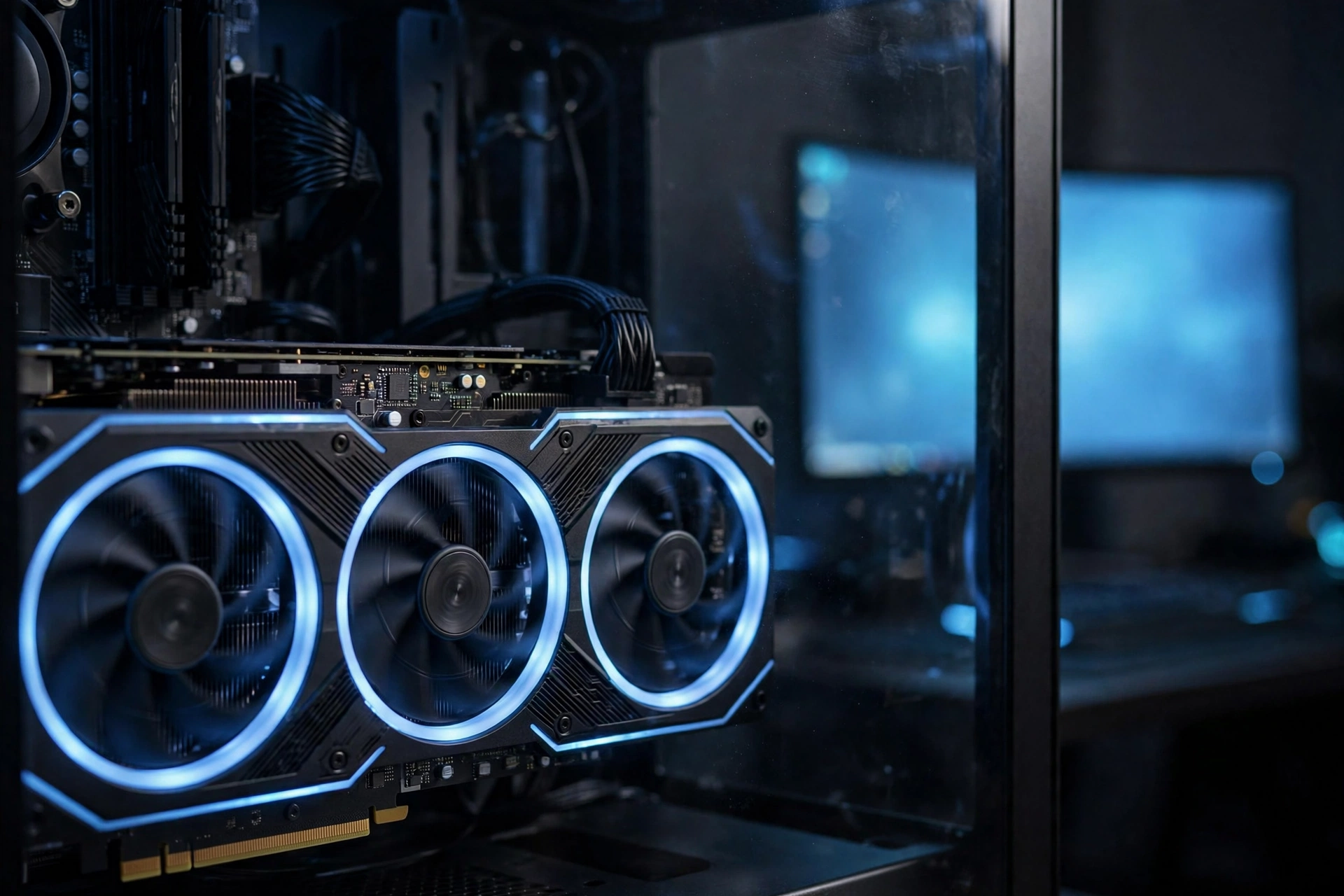
Here is where ultrawide gets interesting for bottleneck hunters. Because the CPU load stays flat while the GPU load climbs, moving to 21:9 can actually change which component limits your system.
Picture a PC with a strong CPU and a midrange GPU playing a demanding game at 2560×1440. The CPU can prepare 150 frames per second, but the GPU can only render 120, so the GPU is the limit and the game runs at 120fps. Now switch to a 3440×1440 ultrawide without changing anything else. The CPU still prepares 150 frames per second, but the GPU now has 34% more pixels to shade, so it drops to around 90fps. The system was GPU-bound before and is even more GPU-bound now.
But consider the opposite setup: a weaker CPU paired with a strong GPU, running a CPU-heavy game at 2560×1440. The CPU tops out at 100fps while the GPU could do 140, so the CPU is the bottleneck. Move that same system to 3440×1440 and the GPU falls to about 105fps while the CPU still does 100. The bottleneck barely moved, and the CPU is still the limit. In some in-between cases, though, the wider resolution pushes the GPU below the CPU’s ceiling, and a system that was CPU-bound at 16:9 becomes GPU-bound at 21:9. Your frame rate drops, but your 1% lows often get smoother because the GPU is now the steady limiter instead of a maxed-out CPU stuttering.
The practical lesson: if you are CPU-limited today at 1440p, an ultrawide will not fix it, but it usually will not make it much worse either. If you are GPU-limited today, expect the wider screen to cost you roughly a quarter to a third of your frame rate at the same settings, and plan your GPU budget around that.
Takeaway: Ultrawide pushes systems toward GPU-bound. Check which component limits you today before deciding what to upgrade.
What GPU Do You Need for 3440×1440?
This is the real buying question, and the current GPU market has clear tiers for it. The guidance below lines up with the practical tiering in Fix Gaming Channel’s September 2026 ultrawide GPU guide, which recommends starting around the 16GB mainstream cards and stepping up from there: What GPU Do You Need for Ultrawide Gaming.
| Tier | Target experience | Sensible GPU picks | Notes |
|---|---|---|---|
| Entry | 60fps at high settings | RTX 5060 Ti 16GB, RX 9060 XT 16GB | Fine for single-player games if you tune a few heavy settings |
| Sweet spot | 100fps+ at high settings | RTX 5070, RX 9070 | The best balance of price and 21:9 performance for most gamers |
| High refresh | 144Hz+ or ultra settings | RTX 5070 Ti, RX 9070 XT | For 144Hz and 165Hz panels and heavier ray tracing |
| No compromises | Max settings, heavy ray tracing | RTX 5080, RX 7900 XTX, RTX 5090 | For enthusiasts who refuse to touch a settings menu |
A few notes on these picks. First, favor 16GB cards at this resolution when your budget allows. The RTX 5070 carries 12GB, which is workable, but the RTX 5070 Ti, RTX 5080, RX 9070, and RX 9070 XT all carry 16GB, and that headroom matters for high-resolution texture packs at 21:9. Second, do not replace a strong older card without a reason. If you already own something like an RTX 4070 Ti Super, RTX 4080, or RX 7900 XT and your games run well, a new generation is not automatically required for ultrawide. Third, if you are also weighing a jump all the way to 4K instead, our best graphics card for 4K gaming guide covers that heavier tier, where the demands are roughly 65% higher than 3440×1440.
Takeaway: For most 3440×1440 gamers, the RTX 5070 or RX 9070 class is the sweet spot. Buy VRAM headroom (16GB) when you can.
The Right CPU for Every Ultrawide GPU Tier
Since the CPU question keeps coming up, here is the pairing logic in plain terms. Because ultrawide does not raise CPU demand, you pair the CPU to your frame rate target, not to your monitor’s width.
| GPU tier | Sensible CPU pairing | Why it works |
|---|---|---|
| Entry (60fps target) | Ryzen 5 7600X, Core i5-14600K | Any modern 6-core keeps up easily when the GPU is the limit at 60fps |
| Sweet spot (100fps+ target) | Ryzen 7 7800X3D, Core i7-14700K | Extra headroom for 1% lows in CPU-heavy scenes |
| High refresh (144Hz+ target) | Ryzen 7 9800X3D, Core i7-14700K | At very high frame rates the CPU becomes the ceiling, so buy single-thread speed |
| No compromises | Ryzen 7 9800X3D, Core i9-14900K | Removes the CPU from the equation entirely |
Notice what is missing: there is no “ultrawide tax” on the CPU column. A Ryzen 5 7600X that is fine for 16:9 1440p is fine for 21:9 1440p. The only reason to buy a stronger CPU for ultrawide is if you are chasing very high refresh rates, where the CPU has to prepare far more frames per second. For a 60Hz or 100Hz ultrawide, spending the CPU budget on a better GPU almost always buys more happiness.
One more practical point: fast RAM and a clean Windows install matter more than a CPU upgrade for most ultrawide owners. If your 1% lows are rough, check background apps and memory speed before blaming the processor.
Takeaway: Pair the CPU to your frame rate target, not your monitor width. Six modern cores are enough for most 21:9 gaming.
Ultrawide at 144Hz and 165Hz Where the CPU Finally Matters

Everything above changes slightly when you chase high refresh rates on a 21:9 panel. At 60fps, nearly any modern CPU keeps up. At 144fps or 165fps, the CPU must prepare a frame every 6 to 7 milliseconds, and that is where weaker or older processors start to cap your system even at ultrawide resolutions.
This is also where competitive games behave differently from cinematic ones. In Counter-Strike 2 or Valorant, the GPU is barely stressed at 3440×1440, so every frame the CPU can produce shows up on screen. In a heavy single-player game, the GPU is the wall long before the CPU breaks a sweat. Know which kind of game you play most before deciding where your money goes.
Two current trends make this section timely. First, high refresh 1440p-class panels keep selling strongly: the September 2026 Steam Hardware Survey (in the Windows-only reading highlighted by Digital Foundry) showed 1440p at over 27% of gamers, and the RTX 5070 became the most popular GPU at 6.2%, which is exactly the card class this article recommends for ultrawide. Second, most 165Hz ultrawides push that much bandwidth over DisplayPort 1.4 using Display Stream Compression, so use the DisplayPort cable that came with your monitor rather than an old HDMI cable if you want the full refresh rate. Our what CPU do you need for 240Hz guide goes deeper on the processor side of high frame rate gaming if you want the full breakdown.
Takeaway: High refresh ultrawide is the one case where CPU shopping matters. For 144Hz+ targets, prioritize strong single-thread CPUs like the X3D chips.
How Much VRAM Does 21:9 Gaming Really Need?
VRAM is the quiet spec that decides whether an ultrawide setup ages well. At 3440×1440, the frame buffer itself is about 34% larger than at 1440p, and high-resolution texture packs, ray tracing data, and mods all consume memory before a single extra frame is rendered.
The practical rule: 12GB is the minimum worth buying for a new 3440×1440 build in 2026, and 16GB is the comfortable choice. An 8GB card can still run many games at this resolution today, but it leaves little room for texture packs, ray tracing, or poorly optimized new releases. This is why the 16GB versions of mainstream cards exist and why they are worth the small premium for ultrawide owners specifically.
Takeaway: 12GB minimum, 16GB preferred. VRAM headroom is the cheapest future-proofing an ultrawide gamer can buy.
DLSS and FSR at 21:9 The Great Equalizer
Upscaling is the ultrawide owner’s best friend, and the math shows why. DLSS Quality mode renders at about two-thirds of each axis, so at 3440×1440 it internally renders roughly 2293×960, which is about 2.2 million pixels. That is fewer pixels than native 16:9 1440p at 3.69 million. In other words, quality upscaling at 21:9 roughly erases the ultrawide penalty and brings the GPU load back near standard 1440p, while the wider image still looks sharp because upscaling starts from plenty of detail at these resolutions.
The same logic applies to AMD’s FSR and Intel’s XeSS. At 3440×1440, quality-focused upscaling is a far more sensible compromise than dropping every graphics setting or spending hundreds more on a bigger card. One caution from experienced testers: frame generation improves visible smoothness, but it is not a replacement for a stable base frame rate. Get the game feeling responsive first, then add generated frames on top. If you want more ways to lift frame rates without new hardware, our how to increase FPS guide covers the settings that matter most.
This matters right now because new releases keep targeting the format. Call of Duty: Modern Warfare 4 launched on October 23, and its official PC trailer was released in ultrawide and HDR, which signals that major studios now treat 21:9 as a first-class PC format rather than an afterthought. Note that no published ultrawide benchmarks for the game exist yet at the time of writing, so treat any FPS claims you see online with skepticism until testers publish real numbers.
Takeaway: Quality DLSS or FSR at 3440×1440 renders fewer pixels than native 1440p, effectively erasing the ultrawide performance penalty.
What New Releases Mean for Ultrawide Owners
A quick look at the current release calendar shows why this guide is timely. Modern Warfare 4 arrived October 23 with an official ultrawide and HDR PC trailer, a clear sign that 21:9 support is now a marketing feature rather than a footnote. Gears of War: E-Day launched October 6 as a heavy, GPU-demanding showcase, exactly the kind of game where ultrawide pixel counts punish weaker cards. And the September Steam Hardware Survey showed 1440p-class resolutions climbing past 27% while the RTX 5070 took the top GPU spot, which means the mainstream is converging on exactly the resolution class and card class this article covers. If you are buying for the next two years of releases, the sweet spot tier above is the right budget line.
Takeaway: New AAA releases increasingly assume 21:9 support and punish weak GPUs, so buy for the games of the next two years, not just today’s.
5 Mistakes Ultrawide Buyers Keep Making
1. Upgrading the CPU instead of the GPU. The most common and most expensive mistake. If your games ran fine on your CPU at 16:9, the monitor upgrade did not change that. Put the money toward the graphics card.
2. Buying a GPU for “ultrawide” without checking the exact resolution. As one 2026 buyer’s guide put it, 3440×1440, 3840×1080, and 5120×1440 are all called ultrawide but need very different cards. A card that is perfect for 3440×1440 can struggle at 5120×1440, which renders nearly 50% more pixels.
3. Ignoring VRAM. An 8GB card that benchmarks well today can stumble on texture-heavy new releases at 21:9. The 16GB version of a mainstream card is usually the smarter ultrawide buy.
4. Expecting 165fps in AAA games from a midrange card. A 165Hz ultrawide does not obligate your PC to hit 165fps in Cyberpunk-style games. With adaptive sync, 90 to 110fps on a 165Hz panel still looks and feels excellent.
5. Using the wrong cable. A 3440×1440 165Hz signal needs real bandwidth. Use the DisplayPort cable bundled with the monitor, enable the full refresh rate in Windows display settings, and turn on G-Sync or FreeSync. Plenty of “my ultrawide feels laggy” complaints trace back to a 60Hz cable setup.
Takeaway: Most ultrawide disappointment comes from buying the wrong component or misconfiguring the right one, not from the format itself.
Quick Checklist Before You Buy or Upgrade
- Confirm your monitor’s exact resolution (3440×1440 is the common 34-inch 21:9, but check).
- Identify your current bottleneck: if the GPU is maxed while the CPU idles, the GPU is your upgrade.
- Pick a GPU tier from the table above based on your frame rate target, favoring 16GB models.
- Keep your current CPU unless it is more than a few generations old or you target 144Hz+.
- Use DisplayPort, enable the full refresh rate in Windows, and turn on adaptive sync.
- Turn on DLSS or FSR Quality mode before lowering other settings.
- If you are building on a budget, our best CPU and GPU combo under $1200 guide shows how far that money goes right now.
Frequently Asked Questions
As far as the CPU, that’s not going to be an issue, right?
Right, in most cases. This exact question came from a Tom’s Hardware forum buyer, and the answer holds up: resolution increases load the GPU, not the CPU. If your processor handles your games well at 16:9 1440p, it will handle them at 21:9. The full thread is here: 34″ Ultrawide 21:9 Monitor – CPU and GPU concerns. Only consider a CPU upgrade if you are chasing very high refresh rates or your CPU is several generations old.
Does 3440×1440 need almost the GPU power of 4K, or is it more like 1440p?
It is much closer to 1440p. A 3440×1440 image is about 4.95 million pixels versus 3.69 million for 2560×1440 (34% more) and 8.29 million for 4K (the ultrawide is only 60% of 4K). So think of it as 1440p with a meaningful surcharge, not as 4K lite. A GPU tier that is comfortable at 1440p high refresh will usually handle 3440×1440 at 60 to 100fps with minor settings tuning.
Not taking budget into account, what is the best GPU for 3440×1440 ultrawide?
This popular Quora question has a simple answer in 2026: the RTX 5090 is the fastest card you can buy, with 32GB of VRAM, followed by the RTX 5080 and RX 7900 XTX. But “best regardless of budget” is the wrong frame for most people, because an RTX 5070 Ti or RX 9070 XT already drives 3440×1440 excellently at high refresh rates. The sensible “best” is the strongest card your monitor’s refresh rate can actually use.
Is an RTX 3070 with a Ryzen 5 3600 enough for 1440p 144Hz ultrawide at max settings?
This real Quora question pairs two previous-generation parts, and the honest 2026 answer is: it will run 3440×1440, but not at max settings and not at 144Hz in modern AAA games. The RTX 3070’s 8GB of VRAM is the tighter limit at this resolution, and the Ryzen 5 3600 will cap high frame rate targets in CPU-heavy titles. For that combo, expect 60fps at tuned high settings with DLSS enabled, which still looks great on an ultrawide. If 144Hz is the goal, both parts want an upgrade.
Should I upgrade my GPU or CPU first when moving to ultrawide?
The GPU, almost always. As one Tom’s Hardware regular put it, most of the stress of moving to a higher resolution lands on the GPU. Check utilization while gaming: if the GPU sits near 100% while the CPU has headroom, the graphics card is your upgrade. Only when the CPU is pinned near 100% and the GPU is waiting should the processor go first, and that situation is rare at 3440×1440.
Will I lose a lot of FPS going from 2560×1440 to 3440×1440?
Expect roughly a quarter to a third fewer frames at identical settings, since the panel has about 34% more pixels. In practice the hit feels smaller than the number suggests, because ultrawide owners commonly enable DLSS or FSR Quality mode, which brings the render load back near native 1440p levels. Competitive games with light graphics may lose almost nothing, while heavy ray-traced single-player games lose the most.
Conclusion
A 3440×1440 ultrawide asks one clear question of your PC is the GPU strong enough for about a third more pixels than 1440p? Everything else is detail. Your CPU almost certainly does not need an upgrade, your RAM and PSU requirements do not change, and upscaling can wipe out most of the extra load in a single settings toggle.
Buy the GPU tier that matches your frame rate target, favor 16GB of VRAM, keep your current processor unless you are chasing very high refresh rates, and use the right cable with adaptive sync enabled. Do that, and the wider view becomes pure upgrade with no bottleneck anxiety attached. That is the whole secret of 21:9 gaming: feed the GPU, and the format takes care of the rest.

Leave a Reply