

For most owners of the Best GPU for i5 13400F in 2026 is an RTX 5060 Ti 16GB or an RX 7700 XT class card if you play at 1440p, and an RTX 5060 or RX 9060 XT class card if you play at 1080p. Both tiers keep the CPU and GPU in balance, so you pay for performance you actually use. The RTX 5070 and RX 9070 are the sensible stretch picks for 1440p ultra settings or entry level 4K gaming, while anything above an RTX 5070 Ti is more graphics card than this CPU can feed at 1080p or 1440p high refresh rates. If you only play at 4K, the ceiling is higher, because the GPU does far more of the work at that resolution. This guide sorts every tier by budget and resolution, explains where the CPU becomes the limit, and covers the power supply and upgrade questions that decide whether a card is really a good buy.
What the Best GPU for i5-13400F Can Actually Feed
The Intel Core i5-13400F is a 13th Generation Raptor Lake processor on the LGA 1700 socket, launched in January 2023. It has 10 cores and 16 threads, made up of 6 Performance cores and 4 Efficient cores, with a P-core base clock of 2.5 GHz and a maximum turbo frequency of 4.6 GHz. It carries 20 MB of L3 cache, a 65 W base power rating, and a 148 W maximum turbo power rating. Memory support covers DDR4-3200 and DDR5-4800 in dual channel, and the platform supports PCIe 5.0 and PCIe 4.0. You can check the full official specifications on Intel, and detailed specification tables on TechPowerUp.
Two details shape every GPU recommendation in this guide. First, the F suffix means this chip has no integrated graphics, so a discrete graphics card is not optional. If the card comes out, there is no fallback display output. Second, this is a locked processor, not a K series chip, so you cannot overclock it to rescue a mismatched pairing. The performance you buy is the performance you get, which makes choosing the right GPU tier more important than it is for an unlocked CPU that can be pushed harder later.
In practical terms, the i5-13400F is a strong mid-range gaming CPU. Its six Performance cores handle game logic, draw calls, and physics well, while the Efficient cores absorb background tasks like voice chat, a browser, or a recording tool. That combination feeds mid-range graphics cards comfortably at every common resolution. It is not a flagship high-refresh CPU, so it will show its limits when paired with a very fast card at 1080p on a high refresh monitor, or in simulation and strategy games with huge numbers of units on screen. Knowing that boundary is the whole point of this guide.
One more distinction matters. This is a wide buying guide covering many GPUs and budgets. It is not a repeat of the single-pair deep dive on one Intel chip and one card, which answers a narrower question about one specific combination. That pair gets a brief mention below where it belongs, in the 1440p sweet spot, and then this guide moves on to the wider decision most buyers actually face: which GPU tier fits their monitor, their games, and their wallet.
The Resolution Rule
Resolution decides the CPU and GPU balance more than any other single factor, so learn it before you look at any card list. At 1080p, each frame contains relatively few pixels, so the graphics card finishes quickly and waits on the CPU. The CPU becomes the limit more easily, especially at high refresh rates. At 1440p, the GPU works roughly 78 percent harder than at 1080p for the same scene, and the balance moves toward the middle. At 4K, the GPU works roughly four times as hard as at 1080p, so it almost always becomes the limiter, and the CPU matters least.
That is why the same CPU and GPU pair can look CPU limited at 1080p, balanced at 1440p, and GPU limited at 4K, all in the same game. It also explains why calculator percentages change with resolution. A pairing that shows a CPU limit at 1080p may show a balanced result at 1440p and a GPU limit at 4K. Treat those percentages as rough estimates for planning, never as verdicts about your PC. For the full explanation of the two limit types, see our guide to CPU bottleneck versus GPU bottleneck.
Game type matters just as much as resolution. Competitive shooters and esports titles run at very high frame rates and lean heavily on single core speed and cache. Simulation games, city builders, large strategy games, and open world titles with many characters lean on the CPU in a different way. Story driven, visually heavy games at ultra settings and high resolutions lean on the GPU. A good buying decision starts with your games and your monitor, not with a benchmark chart for a game you will never play.
Budget Tier Best 1080p Picks
If you play at 1080p, this is where your money goes furthest. The cards in this tier are fast enough for smooth 1080p high settings gaming with an i5-13400F, and the CPU has plenty of headroom to feed them, even at high refresh rates in most titles.
RTX 5060: The default 1080p pick
The RTX 5060 is the natural starting point for a new 1080p build or an upgrade from an older budget card. It brings current generation features, including DLSS upscaling and frame generation support, which stretch its performance in supported games. Calculator style results for the i5-13400F plus RTX 5060 describe the GPU as the limiting part, which is the healthy direction: the card is fully used, the CPU has headroom for background tasks, and nothing you paid for sits idle. For official feature information, see NVIDIA.
RX 9060 XT: The AMD alternative
The RX 9060 XT is the AMD card to compare against the RTX 5060, and it is often the better value choice when its larger memory version is priced near the 8GB cards. It leans on FSR upscaling instead of DLSS, which works across a wide range of games. If you play mostly at 1080p and want the most memory for your money in this tier, this card deserves a close look before you default to NVIDIA.
Intel Arc B580: The budget wildcard
The Intel Arc B580 earned its place on competitor shortlists for this CPU as the best Intel GPU option, and it makes sense for buyers who want modern features at a low price. Driver maturity for Arc cards has improved steadily, but it is still worth checking that your favorite games run well on Arc before buying, especially older or less common titles. For a pure budget 1080p build, it is a legitimate option, not a novelty.
Discounted RTX 4060: Only if the price is clearly lower
The previous generation RTX 4060 still pairs cleanly with the i5-13400F, and competitor guides continue to list it as their NVIDIA pick for this CPU class. Buy it only when it is clearly cheaper than the RTX 5060, because the newer card brings better features and a longer useful life for a small price gap. If the discount is small, buy the newer card.
Practical takeaway: at 1080p, buy in this tier and spend the savings on a better monitor, 32GB of dual channel memory, or a quality power supply. A faster card will not transform 1080p gaming on this CPU, because the CPU, not the card, sets the ceiling in the games that run fastest.
The Sweet Spot Best 1440p Picks
This is the tier most i5-13400F owners should aim for if they play at 1440p or plan to move to a 1440p monitor soon. These cards are fast enough for 1440p high settings at smooth frame rates, and the CPU can still feed them in the large majority of games.
RTX 5060 Ti 16GB: The safest 1440p buy
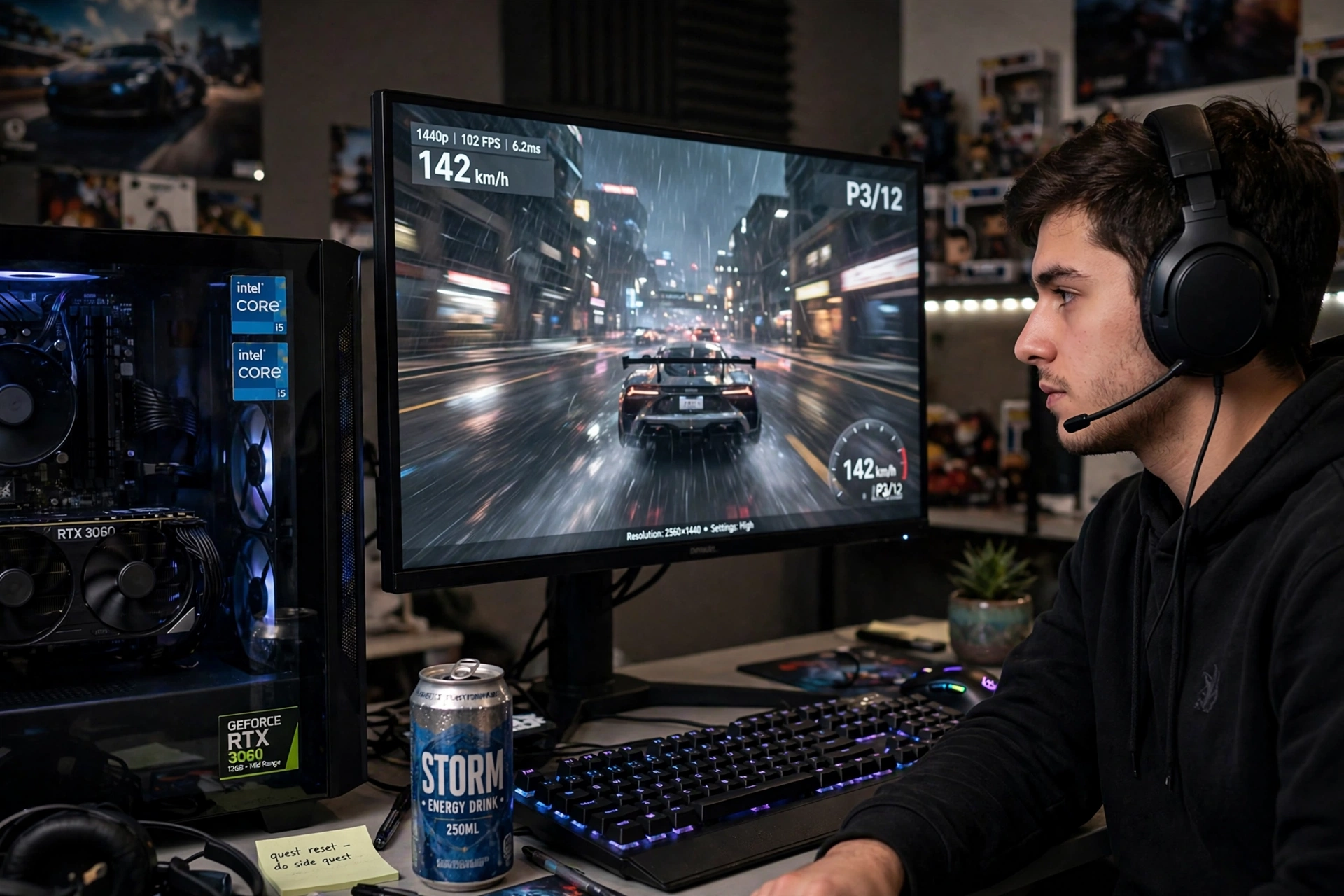
The 16GB version of the RTX 5060 Ti is the standout pick in this tier, and it is the card from the site’s single-pair deep dive, which covers that one combination in full detail. The reason it stands out is memory: 16GB gives real headroom for 1440p ultra textures and future games, while the 8GB version of the same card can run into memory limits that cause stutter in demanding titles. If you are choosing between the two versions, the 16GB version is worth the step up for a 1440p build you plan to keep for several years.
RX 7700 XT: The AMD sweet spot
The RX 7700 XT was the overall pick in one major competitor guide for this CPU class, and it earns that spot with 12GB of memory and strong rasterization performance at 1440p. It is a good choice for players who do not care about ray tracing leadership and want the most traditional rendering performance for their money. Its FSR upscaling support covers the games where you need extra headroom.
RX 7800 XT: The 1440p ultra option
The RX 7800 XT sits at the top of this tier, with 16GB of memory and the muscle for 1440p ultra settings in demanding games. It is the card to pick if you want to turn settings up and leave them there, or if you play at 1440p on a high refresh monitor and want extra headroom. It is also the point where you should stop and check your power supply, because it draws noticeably more power than the budget tier cards.
Practical takeaway: for 1440p gaming with an i5-13400F, the RTX 5060 Ti 16GB is the safest all round buy, the RX 7700 XT is the value AMD pick, and the RX 7800 XT is the maximum sensible card before you enter stretch territory. All three keep the pairing balanced at 1440p in most games.
The Stretch Tier RTX 5070 and RX 9070
The stretch tier is for buyers with a specific reason to go further: 1440p ultra settings at high refresh rates, entry level 4K gaming, or a plan to upgrade the CPU later while keeping the graphics card. The RTX 5070 and RX 9070 are both defensible here, and both are faster than the sweet spot cards by a clear margin.
At 1440p, this tier still works well with the i5-13400F in most games, because the GPU carries enough of the load. At 1080p, the picture changes: the CPU becomes the limit more often, especially in esports titles and CPU heavy games, so you will not see the full benefit of the faster card. At 4K, the GPU is the limit again, and these cards deliver a genuinely better experience than the sweet spot tier, though demanding games at 4K ultra will still challenge them.
Buy in this tier if one of these is true: you play at 1440p ultra or 4K, you plan a CPU upgrade within the next year or two and want a card that survives that upgrade, or you found a price that brings the card close to sweet spot pricing. Do not buy in this tier for 1080p gaming alone, because the extra money buys performance your CPU cannot unlock at that resolution.
Where to Stop The Ceiling for This CPU
Above the RTX 5070 and RX 9070, the i5-13400F becomes the limit too often to justify the price. Cards in the RTX 5070 Ti class and above are excellent hardware, but at 1080p and 1440p they will spend too much time waiting on this CPU in CPU heavy scenes and high refresh gaming. You would be paying flagship money for performance that only appears at 4K, where the GPU finally becomes the limit again.
There is one honest exception. If you already play at 4K, or you are buying the card now and upgrading the CPU soon, a faster card can make sense as a planned two-step upgrade. In that case, buy the card with your eyes open: you are accepting a CPU limit today in exchange for a better balanced system after the CPU upgrade. For everyone else, the ceiling stands. A balanced RTX 5070 class pairing that runs at full speed beats a faster card that waits on the CPU.
What about a percentage for the ceiling? Published guidance for this CPU class puts the RTX 4070 and 5070 class at the boundary where a stronger CPU class is recommended, and calculator results for the i5-13400F point to the same boundary. Our guide to what counts as a good bottleneck percentage explains how to read those numbers: a small imbalance is normal and fine, a large one means you are leaving performance on the table, and the number always depends on your resolution and your games.
Best GPU for i5-13400F Comparison Table
| GPU tier | Example cards | Best resolution | Memory note | Verdict with i5-13400F |
|---|---|---|---|---|
| Budget 1080p | RTX 5060, RX 9060 XT, Arc B580, RTX 4060 | 1080p | 8GB is workable, more is better | Balanced, CPU has headroom |
| Sweet spot 1440p | RTX 5060 Ti 16GB, RX 7700 XT, RX 7800 XT | 1440p | 12GB to 16GB recommended | Best all round pairing |
| Stretch | RTX 5070, RX 9070 | 1440p ultra, entry 4K | 12GB class and above | Sensible with a reason, not for 1080p alone |
| Above the ceiling | RTX 5070 Ti and above | 4K only | Plenty, but not the constraint | CPU limited at 1080p and 1440p, not recommended |
All specifications in this table are class level guidance, not measured results from this site. Real performance varies by game, resolution, settings, drivers, and cooling, and every FPS expectation in this article is an estimate, not a benchmark claim.
VRAM in 2026 Why 8GB Is Tight
Video memory is the quiet trap in this buying guide. An 8GB card can still play most games well at 1080p, but at 1440p with ultra textures, the card can run out of memory and start swapping textures, which shows up as stutter when you turn around or enter a new area. That stutter looks like a CPU problem, but it is not. It is a memory problem, and lowering texture quality one notch is the free fix.
The practical rule for 2026 is simple. For 1080p, 8GB remains workable, but buy more memory when the price gap is small. For 1440p, treat 12GB as the comfortable minimum and 16GB as the safe choice for a card you plan to keep for years. That is a major reason the RTX 5060 Ti 16GB leads the sweet spot tier, and why the RX 7700 XT with 12GB and the RX 7800 XT with 16GB both beat their 8GB rivals for 1440p buyers.
Do not confuse memory size with speed. A card with more memory is not automatically faster, and a fast card with too little memory is not a bargain. Match both: enough raw speed for your resolution, and enough memory for the texture settings you actually use.
PSU and Build Notes Before You Buy
The i5-13400F itself is modest on power, with a 65 W base rating and a 148 W maximum turbo rating, so the power supply question is really about the graphics card you pair it with. Budget tier cards sit comfortably on a quality 550 W unit, sweet spot cards generally want a quality 650 W unit, and stretch tier cards are safer on a 750 W unit with headroom for transient power spikes. These are planning figures, not guarantees: always check the card maker’s guidance and your power supply’s 12V rail rating before buying.
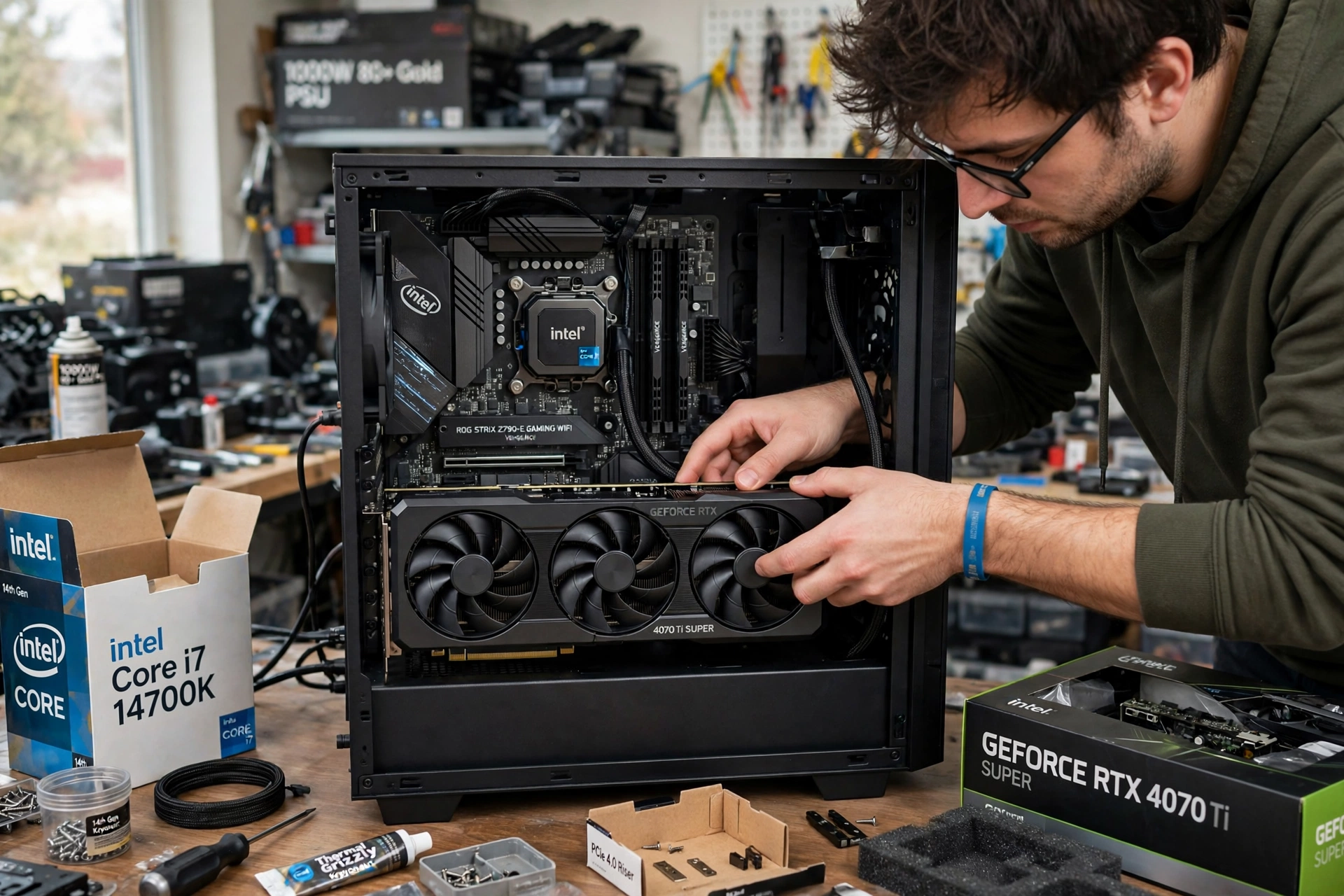
Three PSU checks matter more than the wattage number on the box. First, age and quality: a five year old budget unit cannot be trusted at its label rating anymore, because capacitors degrade with heat and time. Second, connectors: newer cards may need a 12V-2×6 connector or an approved adapter, so confirm your unit has the right cables before the card arrives. Third, the 12V rail: multiply its amp rating by 12 to see the real capacity available to your CPU and GPU, because some cheap units put most of their rating on rails your gaming hardware barely uses. Our guide to PSU bottleneck warning signs covers the symptoms of a struggling unit, from random shutdowns under load to unexplained stutter with fine temperatures.
Two build notes round out the picture. Check physical fit: longer cards can clash with front fans or drive cages in compact cases, so measure before ordering. And check your memory: 16GB of dual channel memory is the minimum for a smooth 2026 gaming build, and 32GB is the comfortable choice if you stream or keep many apps open. Slow single channel memory starves the CPU and makes CPU limits worse, which is exactly what this guide is trying to avoid.
Test Your Own Pairing in 5 Minutes
No guide, calculator, or percentage replaces a five minute test on your own PC, so run this before you blame any part. Install MSI Afterburner with its on-screen display, or open Task Manager’s Performance tab, then play a demanding game you actually own for ten minutes in a busy area, not a menu.
Read two numbers. If GPU usage sits at 95 to 100 percent while the CPU is relaxed, the GPU is the limit, which is the healthy state. If GPU usage sits well below 90 percent while a CPU core is pinned near 100 percent, the CPU is the limit. Then confirm with the settings test: drop graphics settings from Ultra to Low in the same scene. If frame rates jump up, the GPU was the limit. If they barely move, the CPU was the limit. Our guide on how to find a PC bottleneck walks through all eight diagnostic tests in detail, and our CPU bottleneck calculator gives a quick planning estimate before you buy.
One caution: turn off frame rate caps and VSync during the test, because a cap tells your hardware to stop working once a target is hit, which fakes low usage numbers and hides the real limit. Test with the cap off, then turn it back on for actual play.
Upgrade Advice GPU First or CPU First
Most i5-13400F owners should upgrade the GPU first, because the CPU still has headroom for mid-range cards and the GPU is the part that sets frame rates in most games. The exceptions are specific: if your own test shows a CPU limit in the games you play most, if you chase very high refresh rates at 1080p in competitive titles, or if you stream with CPU encoding while gaming.
Match the upgrade to where you are coming from. Coming from a GTX 1660, RX 6600, or older budget card, a jump to the RTX 5060 or RX 9060 XT class transforms 1080p gaming and opens up 1440p. Coming from an RTX 3060 or RTX 4060, only upgrade if you are moving to 1440p or want the extra memory of the 16GB sweet spot cards, because the raw speed gain at 1080p alone is smaller than the price suggests. Coming from nothing, because your system is new or the old card died, buy straight into the sweet spot tier if your monitor is 1440p, or the budget tier if it is 1080p.
If the CPU does need upgrading, know your options. The LGA 1700 socket gives you a same-board path to faster 13th and 14th Generation chips, but check your motherboard’s BIOS support and power delivery first, because a budget board that fed a 65 W chip may struggle with a far hungrier one. Otherwise, a CPU upgrade means a new motherboard and usually new memory too, which turns one upgrade into a platform rebuild. In that case, buy the GPU first, enjoy the improvement, and save the platform upgrade for when you can do it properly.
Common Mistakes
- Buying a flagship GPU for 1080p gaming on this CPU and expecting flagship frame rates. The CPU sets the ceiling there.
- Choosing the 8GB version of a card to save a little money, then running 1440p ultra textures and blaming the CPU for memory stutter.
- Trusting a single bottleneck percentage as a verdict instead of testing usage on your own PC.
- Keeping an old, weak power supply after a GPU upgrade and wondering why the PC shuts down under load.
- Running single channel memory, or slow memory without its rated profile enabled, and starving an otherwise capable CPU.
- Comparing cards by name alone instead of by tier, memory size, and the resolution you actually play at.
- Upgrading the CPU when the real problem is a GPU limit at 4K, where a faster CPU changes almost nothing.
Expert Tips
- For 1440p gaming, the RTX 5060 Ti 16GB is the safest single purchase in this guide.
- For 1080p gaming, spend the savings from the budget tier on a better monitor or 32GB of dual channel memory.
- Check your GPU usage in your most played game before buying. If it already sits near full load, your CPU is not the problem.
- Enable your memory’s rated profile in BIOS. It is free performance that many builders forget.
- Use upscaling (DLSS, FSR, or XeSS) before buying a faster card. It recovers frame rates without spending anything, though it can shift the limit back toward the CPU at lower internal resolutions.
- Buy the card for the monitor you own, not the monitor you might buy someday. Upgrade the monitor first if that is the real plan.
Pros and Cons
Pros of pairing an i5-13400F with a mid-range GPU
- Balanced pairings waste nothing: the GPU runs near full load and the CPU has headroom for background tasks.
- Mid-range cards cover 1080p and 1440p gaming well at a reasonable total build cost.
- The CPU’s modest power draw leaves power supply headroom for the graphics card.
- DDR4 and DDR5 board options keep upgrade paths flexible for existing LGA 1700 owners.
Cons of pairing an i5-13400F with a mid-range GPU
- High refresh 1080p esports and heavy simulation games can expose the CPU limit.
- Flagship GPUs are off the table without a CPU upgrade, so the upgrade ceiling is capped.
- As a locked chip, the CPU cannot be overclocked to close a gap with a faster card.
- Buyers who skip the memory check (8GB cards at 1440p ultra) will hit stutter that looks like a CPU problem.
Frequently Asked Questions
What is the best GPU for i5-13400F gaming?
For most gamers, the RTX 5060 Ti 16GB at 1440p or the RTX 5060 at 1080p. The RX 7700 XT is the strongest AMD alternative at 1440p, and the RX 9060 XT is the AMD alternative at 1080p. The right answer depends on your resolution first, your budget second, and your games third.
Will the i5-13400F bottleneck an RTX 5070?
At 1440p and 4K, generally no in a way that matters for most games, because the GPU carries the load. At 1080p high refresh rates, and in CPU heavy games, yes, the CPU will limit the card more often. That is why the RTX 5070 sits in the stretch tier here rather than the sweet spot: it is a good buy with a reason, not a default.
Does the i5-13400F work with AMD graphics cards?
Yes. Graphics cards connect through the universal PCIe standard, which is vendor neutral, so AMD cards work fine with Intel CPUs and NVIDIA cards work fine with AMD CPUs. Brand loyalty is not a technical requirement. Pick the card on performance, memory, features, and price.
Is 8GB of VRAM enough in 2026?
For 1080p, yes, in most games, though more memory is safer. For 1440p ultra settings, 8GB is tight and can cause texture stutter in demanding titles. For a 1440p card you plan to keep for years, 12GB is the comfortable minimum and 16GB is the safe choice.
Do I need a new power supply for a mid-range GPU?
Not necessarily. A quality 550 W unit covers the budget tier, a quality 650 W unit covers the sweet spot tier, and a 750 W unit with headroom covers the stretch tier. Check your unit’s age, quality, 12V rail rating, and connectors first, because an old budget unit is the real risk, not the wattage number alone.
Can the i5-13400F handle 4K gaming?
Yes, with the right card. At 4K the GPU is the limit in almost every game, so the CPU matters least. Pair it with a stretch tier card or better for entry level 4K, keep settings realistic, and use upscaling in demanding titles. A faster CPU would change 4K frame rates very little.
Should I upgrade my CPU or my GPU first?
Upgrade the GPU first in most cases, because it sets frame rates in most games and this CPU still feeds mid-range cards well. Upgrade the CPU first only if your own usage test shows a CPU limit in the games you play most, or if you chase very high refresh rates at 1080p.
Key Takeaways
- Best overall GPU for i5-13400F at 1440p: RTX 5060 Ti 16GB.
- Best budget GPU for i5-13400F at 1080p: RTX 5060 or RX 9060 XT.
- Best AMD alternative at 1440p: RX 7700 XT, with the RX 7800 XT for 1440p ultra.
- Stretch picks with a reason: RTX 5070 and RX 9070 for 1440p ultra or entry 4K.
- Ceiling: RTX 5070 Ti and above are not recommended with this CPU for 1080p or 1440p gaming.
- VRAM rule: 12GB minimum for comfortable 1440p, 16GB for a card kept for years.
- PSU rule: quality 550 W for budget, 650 W for sweet spot, 750 W for stretch, and always check the 12V rail and connectors.
- Test before you buy: GPU usage near 100 percent means a GPU limit, and a settings test confirms which part holds you back.
Conclusion
The i5-13400F remains a genuinely good gaming CPU in 2026, and it rewards buyers who match it honestly instead of overspending on a graphics card it cannot feed. Buy the budget tier for 1080p, the sweet spot tier for 1440p, and the stretch tier only when you have a real reason, like 1440p ultra settings, entry 4K, or a CPU upgrade on the horizon. Check your power supply, buy enough video memory for your resolution, and test your own system before blaming any part. Match the card to your monitor and your games, and this mid-range CPU will give you a balanced, stutter free build without wasting a dollar on performance you cannot use.

Leave a Reply