

Quick answer: For most PC gamers in 2026, the best gaming monitor is a 27-inch 1440p OLED at 240Hz, because it pairs sharp detail with fast motion and deep contrast without demanding a flagship graphics card. Budget buyers should pick a 1440p 180Hz mini-LED screen, while 4K buyers need a high-end GPU to make the extra pixels worth it.
The best gaming monitor is not the one with the biggest number on the box. It is the one that matches your graphics card, your games, and your budget. A 4K 240Hz screen looks amazing in a store demo, but it will feel slow and choppy if your GPU can only push 50 frames per second at that resolution. A cheap 1080p screen can feel great in Valorant and terrible in a dark horror game. This guide fixes that mismatch. It explains resolution, refresh rate, panel type, and HDR in plain words, then recommends eight real monitors for eight real situations, with prices checked on November 12, 2026.
How to Choose a Gaming Monitor
Start with your graphics card, not the monitor. A monitor can only show the frames your PC produces. If your card averages 90 frames per second in your favorite game at 1440p, a 240Hz screen will still only show 90 frames per second. The extra refresh headroom is nice for lighter games, but it does not create frames out of thin air. Before you spend anything, check what your current setup can actually do, because a monitor can limit how good your PC feels. Our guide on can a monitor bottleneck a PC explains that link in full.
Resolution sets sharpness and GPU load. 1080p (1920 x 1080) is the lightest load and the right pick for entry-level cards and competitive shooters. 1440p (2560 x 1440) is the sweet spot for most gamers in 2026: clearly sharper than 1080p, much easier to drive than 4K. 4K (3840 x 2160) has four times the pixels of 1080p and looks stunning on 27 to 32 inch screens, but it needs a high-end card or upscaling to stay smooth. If you want the deeper comparison, read our 1080p vs 1440p monitor bottleneck impact guide.
Refresh rate sets how many frames the screen can show each second. 60Hz is the old standard. 144Hz is the first big jump most people notice, and motion feels far smoother. 165Hz to 180Hz is the current value sweet spot. 240Hz suits competitive players and fast OLED panels. Above 240Hz, only serious esports players with very strong CPUs and GPUs will feel the difference. Response time matters too: OLED panels answer in about 0.03ms, while good IPS panels sit near 1ms. Slower VA panels can smear dark motion, so check reviews before buying a cheap VA screen for fast shooters.
Size follows resolution. Keep 1080p at 24 inches, where the pixels stay tight. Put 1440p on a 27 inch screen. Put 4K on 27 to 32 inches. A 27 inch 1080p screen looks soft because the same pixels stretch over a bigger area. A 32 inch 1440p screen has the same problem, just less severe. Curved screens suit ultrawide and very large monitors, but a flat screen is easier to live with for mixed work and play.
Takeaway: Pick resolution by your GPU, refresh rate by your games, and size by your resolution. Get those three right and the rest is fine tuning.
The 8 Best Gaming Monitors at a Glance
| Monitor | Size and Resolution | Panel | Refresh Rate | Price Snapshot (Nov 12, 2026) | Best For |
|---|---|---|---|---|---|
| MSI MAG 272QP QD-OLED X24 | 26.5 inch, 1440p | QD-OLED | 240Hz | $360 to $510 | Most gamers |
| AOC Q27G3XMN | 27 inch, 1440p | VA mini-LED | 180Hz | $230 to $300 | Budget HDR |
| LG UltraGear 27GP850-B | 27 inch, 1440p | Nano IPS | 165Hz | $340 to $360 | Work and play |
| LG 24GN600-B | 24 inch, 1080p | IPS | 144Hz | Around $129 | Budget esports |
| MSI MPG 321URX | 31.5 inch, 4K | QD-OLED | 240Hz | $830 to $900 | Best 4K OLED |
| Gigabyte MO27U2 | 27 inch, 4K | QD-OLED | 240Hz | Around $650 | Affordable 4K OLED |
| Alienware AW3425DW | 34 inch, 3440 x 1440 | QD-OLED | 240Hz | $650 to $800 | Ultrawide gaming |
| ASUS ROG Strix XG27UCG | 27 inch, 4K | Fast IPS | 160Hz | Mid-range tier | Dual-mode flexibility |
Prices are US street-price ranges found in published listings on November 12, 2026. Deals change fast, so treat every figure as a snapshot and check the live price before you buy.
Best Overall: MSI MAG 272QP QD-OLED X24
The MSI MAG 272QP QD-OLED X24 is our top pick for most gamers. It pairs a 26.5 inch QD-OLED panel with 2560 x 1440 resolution, a 240Hz refresh rate, and a 0.03ms response time. Dark scenes look truly black, colors pop, and fast motion stays clean. It supports FreeSync Premium and G-Sync Compatible, and it has HDMI 2.1 for consoles and modern GPUs.
The price is the pleasant surprise. The list price is $509.99, but US listings have shown it near $360 on sale, which puts real OLED within reach of a mid-range build. That is a big change from a year ago, when 1440p OLED cost far more. If you play a mix of competitive shooters and story games, this is the one screen that does both well.
Buy it if you want the best picture most gamers can afford. Skip it if you leave the same bright desktop on screen for many hours every day, because OLED panels carry a small long-term burn-in risk with static images. Mixed gaming use is fine, and modern OLED care features help a lot.
Best Budget 1440p: AOC Q27G3XMN
The AOC Q27G3XMN is the best budget gaming monitor for picture quality. It is a 27 inch 1440p VA panel with a mini-LED backlight, 336 dimming zones, a 180Hz refresh rate, and DisplayHDR 1000 certification. That combination gives you real HDR: bright highlights against dark backgrounds, not the washed-out fake HDR that cheap edge-lit screens offer.
Street prices sit around $230 to $300, which is remarkable for mini-LED and HDR1000. The trade-off is VA response time. Fast dark motion can trail a little, so hardcore esports players should look at an IPS or OLED pick instead. For single-player games, movies, and everyday play, the contrast and HDR more than make up for it.
Buy it if you want the best-looking budget screen for story games and HDR. Skip it if competitive shooters are your whole life.
Best 1440p IPS Value: LG UltraGear 27GP850-B
The LG UltraGear 27GP850-B is the safe, proven 1440p IPS pick. It offers a 27 inch Nano IPS panel at 165Hz (overclockable to 180Hz), a 1ms response time, and 98 percent DCI-P3 color coverage. Colors look rich and accurate, viewing angles are wide, and the fully adjustable stand is genuinely useful. It is also a strong dual-use screen: good for games in the evening and good for photo or video work during the day.
The price sits around $340 to $360 in US listings checked on November 12, 2026. It has no USB-C port, so laptop users who want a single-cable desk will need a dock. It also has only basic HDR400, so do not buy it for HDR. Buy it for speed, color, and reliability.
Buy it if you want one screen for gaming and creative work with zero OLED worries. Skip it if HDR is a priority.
Best Budget 1080p: LG 24GN600-B
The LG 24GN600-B is the best cheap way into smooth competitive gaming. It is a 24 inch 1080p IPS panel at 144Hz with a 1ms response time, FreeSync Premium, and G-Sync Compatible support. At around $129, it costs less than most games cost at launch, and it makes Valorant, CS2, and Fortnite feel far more responsive than a 60Hz office screen.
1080p is still alive in 2026 for a simple reason: it is easy to drive. Even a modest GPU can hold high frame rates at 1080p, which is exactly what competitive players need. Pair this screen with one of the cards in our best GPU under $300 guide and you have a fast, cheap esports setup.
Buy it if your budget is tight and you play competitive shooters. Skip it if you mostly play cinematic single-player games, where 1440p looks much better.
Best 4K OLED: MSI MPG 321URX
The MSI MPG 321URX is the best 4K gaming monitor for most high-end buyers. It is a 31.5 inch 4K QD-OLED panel at 240Hz with a 0.03ms response time, DisplayHDR True Black 400, a KVM switch, and USB-C power delivery. Reviewers keep naming it their top 4K pick, and the price has dropped into the $830 to $900 range in US listings.
4K OLED at 32 inches is the sharpest, most immersive gaming image you can buy right now. The catch is the GPU. You need a high-end card, or heavy use of DLSS and FSR upscaling, to keep frame rates high at 4K. If your card cannot do that, the same money buys a better 1440p OLED experience. Check whether your VRAM can handle the load first: our guide on is 8GB VRAM enough and our piece on does full VRAM cause stuttering both apply directly to 4K gaming.
Buy it if you own a high-end GPU and want the best 4K picture. Skip it if your GPU is mid-range.
Best Affordable 4K OLED: Gigabyte MO27U2
The Gigabyte MO27U2 is the cheapest real route into 4K OLED. It is a 27 inch 4K QD-OLED panel at 240Hz with USB-C, a KVM switch, two HDMI 2.1 ports, and a three-year burn-in warranty. US listings put it around $649.99, which undercuts every 32 inch 4K OLED by a clear margin.
The 27 inch size is actually a plus for many desks. 4K at 27 inches is extremely sharp, and the smaller screen is easier to fit and easier to see all at once. The trade-off is that text and HUD elements are small, so you may need to adjust scaling in Windows. For pure gaming, though, it is hard to beat at this price.
Buy it if you want 4K OLED without paying flagship money. Skip it if you want a big 32 inch screen for couch-distance viewing.
Best Ultrawide: Alienware AW3425DW
The Alienware AW3425DW is the best ultrawide gaming monitor for most buyers. It is a 34 inch QD-OLED panel at 3440 x 1440 with a 240Hz refresh rate and a gentle 1800R curve. The extra width pulls you into racing games, flight sims, and open worlds in a way a flat 16:9 screen cannot match, and it doubles as a huge productivity screen with room for two windows side by side.
Prices sit around $650 to $800 in US listings. Note the GPU math: 3440 x 1440 has about a third more pixels than standard 1440p, so it needs a stronger card than a normal 1440p screen. Also check game support first. Most modern games handle 21:9 well, but some competitive titles and older games do not, and you will see black bars. If you run two screens today, read our guide on does a second monitor bottleneck gaming before you decide between ultrawide and dual monitors.
Buy it if you love immersive single-player games and want one wide screen instead of two. Skip it if you mainly play competitive shooters that do not support ultrawide well.
Best Dual-Mode: ASUS ROG Strix XG27UCG
The ASUS ROG Strix XG27UCG is the cleverest screen on this list. It is a 27 inch Fast IPS panel with a dual mode: 4K at 160Hz for sharp, cinematic games, or 1080p at 320Hz for competitive shooters. One button switches modes, so you do not have to choose between resolution and speed.
That flexibility suits players who jump between story games and ranked matches. It also avoids OLED burn-in worries entirely, since it is an IPS panel. The trade-off is contrast: no IPS panel matches OLED blacks, and its HDR is basic. It sits in the mid-range price tier, and it is the right pick for the player who wants one screen to do two jobs.
Buy it if you split your time between competitive and cinematic games. Skip it if you want the deepest blacks and best HDR, where OLED wins.
OLED vs IPS vs VA Which Panel Type Wins?
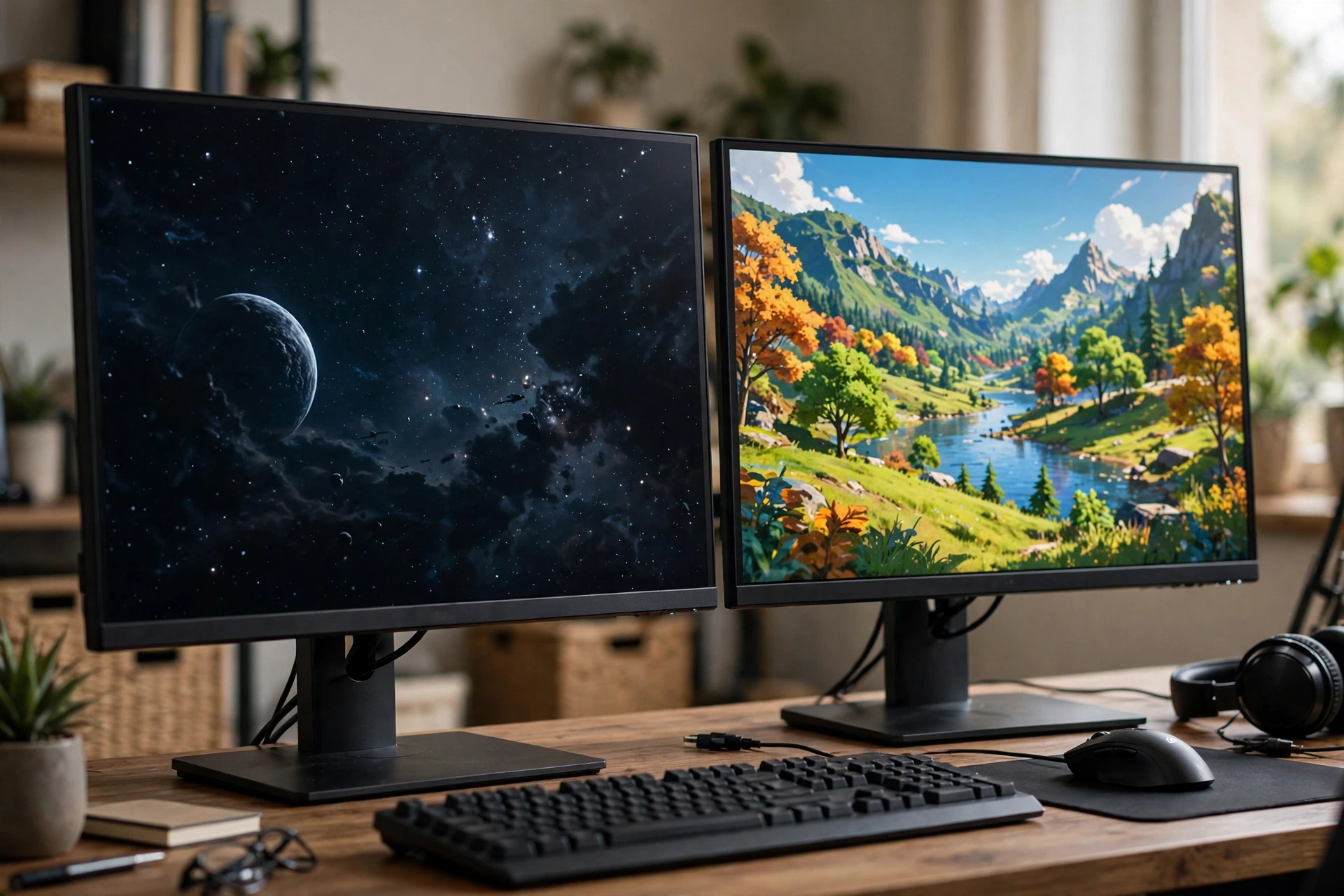
Panel type decides contrast, speed, and viewing angles more than any other single spec. There are three main types in 2026, and each one wins in a different situation.
OLED lights every pixel on its own. Black pixels turn fully off, so contrast is effectively infinite and dark scenes look stunning. Response time is near instant at about 0.03ms, so motion stays clean even at lower refresh rates. OLED costs more, cannot get as bright in full-screen white as a good LCD, and carries a small burn-in risk with static images. Modern panels include pixel refresh, screen shift, and logo dimming to reduce that risk, and mixed gaming use is generally fine. If your budget reaches it, a 1440p or 4K OLED is the most exciting upgrade you can make in 2026.
IPS uses a backlight with liquid crystals. Colors are accurate, viewing angles are wide, and response times on Fast IPS panels are now close to 1ms. IPS is the safe all-rounder: good for gaming, good for work, no burn-in, and available at every price. Its weakness is contrast. Blacks look dark gray in a dim room, and HDR is usually basic unless the panel has mini-LED or full-array local dimming.
VA sits between the two on contrast. It has much deeper blacks than IPS, which suits dark games and movies, but its pixels are slower, especially in dark transitions, so fast motion can smear. Mini-LED VA panels like the AOC Q27G3XMN fix the HDR side with hundreds of dimming zones, but they do not fully fix the response time side. VA is the right pick when contrast and price matter more than esports speed.
| Panel Type | Contrast | Response Time | Viewing Angles | Burn-in Risk | Best For |
|---|---|---|---|---|---|
| OLED | Excellent | About 0.03ms | Excellent | Small, with static images | Best picture, fast motion |
| IPS | Average | About 1ms | Excellent | None | Work and play, no worries |
| VA | Good | Slower in dark scenes | Average | None | Contrast and HDR on a budget |
| VA mini-LED | Very good | Slower in dark scenes | Average | None | Real HDR under $300 |
Takeaway: Choose OLED for the best picture, IPS for the safest all-rounder, and VA mini-LED for HDR on a budget.
Which Monitor Fits Which GPU?
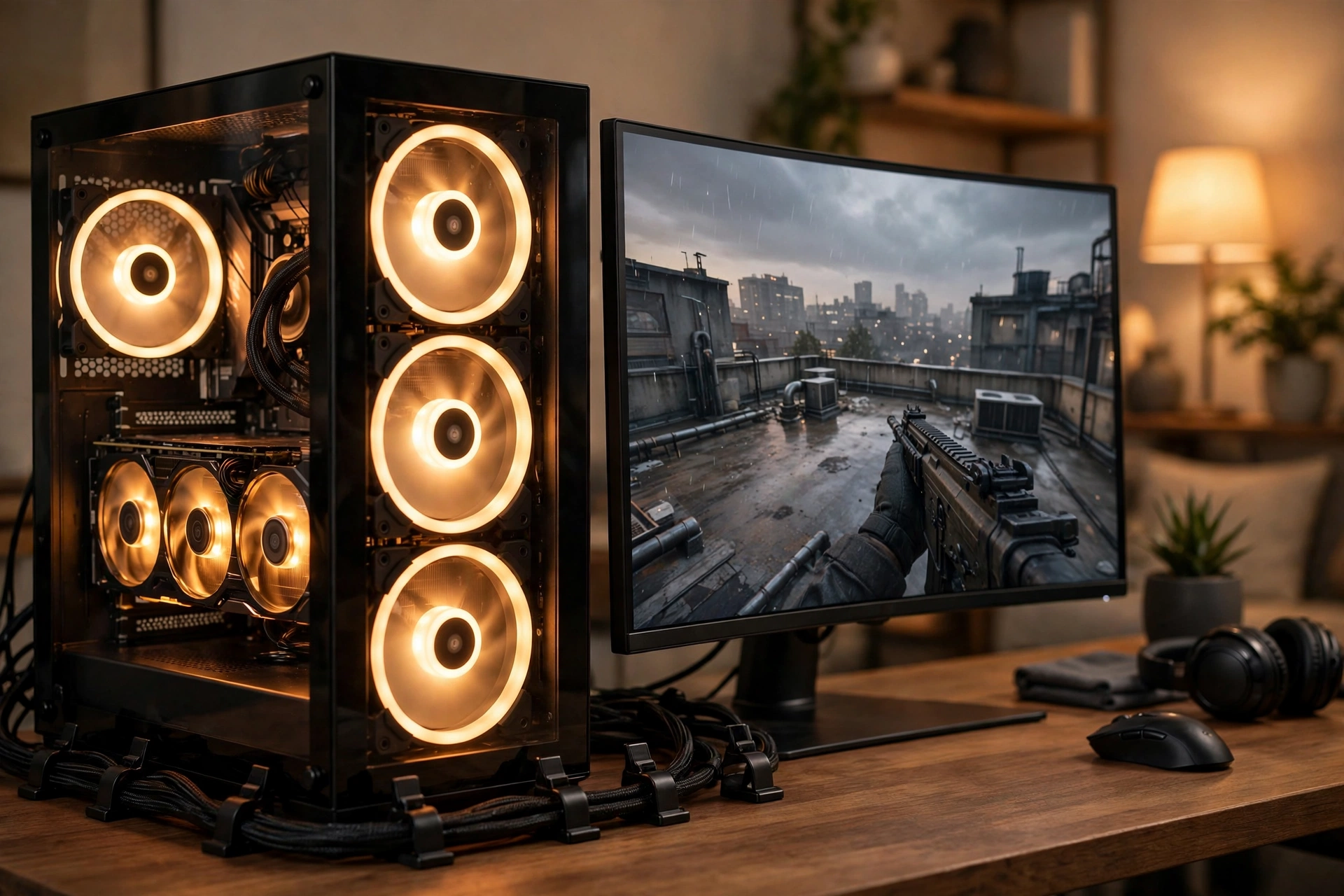
Match the monitor to the GPU you own or plan to buy. The table below is a practical starting point, not a promise for every game. Demanding single-player games need more power than esports titles at the same resolution, and upscaling with DLSS or FSR changes the math a lot.
| GPU Tier | Example Cards | Best Monitor Match | Why |
|---|---|---|---|
| Entry level | RTX 5060, RX 9060, Arc B580 | 1080p 144Hz to 240Hz | High frame rates stay easy to reach |
| Mid-range | RTX 5070, RX 9070 | 1440p 165Hz to 180Hz IPS or mini-LED | Sharp image, smooth in most games |
| Upper mid-range | RTX 5070 Ti, RX 9070 XT | 1440p 240Hz OLED | OLED speed with frames to match |
| High-end | RTX 5080, RTX 5090 | 4K 144Hz to 240Hz OLED | Only these cards feed 4K properly |
| Any tier, second screen | Any | 1080p 60Hz office panel | A second screen for chat and guides |
If you are still planning the build, our how to build a gaming PC complete guide walks through picking parts that fit together. And if your card is older, check its health before you spend on a monitor: a struggling card will not suddenly run 4K well. Our guide on how to check GPU health before buying used covers the warning signs, and if you play Monster Hunter Wilds, our Monster Hunter Wilds PC optimization guide shows how much that game asks of your hardware.
Two practical rules help more than any chart. First, buy the monitor for the games you actually play. A Valorant player with a mid-range card gets more from 1440p 240Hz than from 4K 60Hz. A Cyberpunk player with a high-end card gets more from 4K OLED than from 500Hz. Second, leave headroom. A monitor lasts longer than a GPU, so a 240Hz screen you cannot fully feed today still makes sense if you plan a GPU upgrade within a year or two.
Takeaway: The GPU decides the resolution. Buy the monitor your card can feed today, with a little room for your next upgrade.
Ports, Sync, and HDR The Details That Matter
Ports decide what your monitor can actually display. DisplayPort 1.4 handles 1440p at 240Hz and 4K at 144Hz with compression. HDMI 2.1 handles 4K at 120Hz and is the port consoles use, so it matters if you also play on PS5 or Xbox. DisplayPort 2.1 is needed for uncompressed 4K at 240Hz. Check the exact port list before you buy, because two monitors with the same panel can have very different ports. Our HDMI vs DisplayPort guide compares the two in detail.
Adaptive sync stops screen tearing. NVIDIA calls it G-Sync, AMD calls it FreeSync, and most modern monitors support the open VESA Adaptive-Sync standard, which works with both. In practice, almost every gaming monitor on this list supports both NVIDIA and AMD cards. NVIDIA keeps an official list of validated monitors on its G-Sync monitors page, which is worth checking if you run a GeForce card.
HDR is where marketing lies most. DisplayHDR 400 means the screen can hit 400 nits of peak brightness, which is barely HDR at all. DisplayHDR 600 is a real step up. DisplayHDR 1000, found on the AOC Q27G3XMN, means genuinely bright highlights. OLED screens use a different scale, DisplayHDR True Black, where True Black 400 already looks great because black is truly black. VESA publishes the full tier table on its DisplayHDR site, and it is the fastest way to tell real HDR from a badge. Ignore any monitor that just says HDR10 with no VESA tier.
USB-C matters if you use a laptop. A USB-C port with power delivery lets one cable carry video and charge the laptop. The Gigabyte MO27U2 and MSI MPG 321URX both offer it. A KVM switch, built into several picks here, lets one keyboard and mouse control two computers through the same monitor. Both features cost little and save real desk hassle.
Takeaway: Check ports before you buy, trust VESA HDR tiers over marketing badges, and treat adaptive sync as standard, not a bonus.
Common Mistakes When Buying a Gaming Monitor
The most common mistake is buying resolution your GPU cannot feed. A 4K screen on a mid-range card means low settings, upscaling, or low frame rates in every demanding game. The second mistake is the opposite: buying a 500Hz screen for a PC that produces 120 frames per second. Refresh rate above your frame rate is wasted money.
The third mistake is judging a monitor by one number. A 1ms response time can mean different things on different panels, and some makers quote the fastest possible mode rather than the mode you will actually use. Independent lab testing is the antidote. RTINGS buys and tests hundreds of monitors with the same method, and its best gaming monitors roundup is a solid second opinion before you spend.
The fourth mistake is ignoring the stand and the desk. A monitor that cannot adjust height will hurt your neck, and a 32 inch screen on a shallow desk sits too close to your eyes. Measure your desk depth before you buy anything above 27 inches. The fifth mistake is forgetting the cable. High refresh 4K needs a good DisplayPort or HDMI 2.1 cable, and the short cable in the box is sometimes not up to the job.
Takeaway: Match the monitor to your real frame rates, check independent tests, measure your desk, and budget for a proper cable.
Setup Checklist After You Buy
Setting up a monitor takes fifteen minutes and changes the picture more than most people expect. First, connect with DisplayPort for a PC and HDMI 2.1 for a console, and set the refresh rate in Windows display settings, because Windows often defaults to 60Hz even on a 240Hz screen. Second, turn on adaptive sync in your GPU control panel and in the monitor menu. Third, set the resolution to native and check scaling so text stays readable. Fourth, pick the right picture mode: most monitors ship in a vivid store mode that oversaturates color. A standard or sRGB mode usually looks more natural. Fifth, update the firmware if the maker offers it, since monitor firmware fixes real bugs. Sixth, if you bought OLED, turn on the panel care features and hide your taskbar or set it to auto-hide during long desktop sessions.
Takeaway: Set the refresh rate by hand, turn on sync, and fix the picture mode. Those three steps alone are worth more than a more expensive monitor left on defaults.
Frequently Asked Questions
What is the best gaming monitor for most people in 2026?
A 27-inch 1440p OLED at 240Hz, such as the MSI MAG 272QP QD-OLED X24. It is sharp, fast, and has the best contrast most gamers can afford, and a mid-range GPU can drive it well.
Is 1440p or 4K better for gaming?
1440p is better for most gamers because it looks sharp on a 27-inch screen and runs at high frame rates on mid-range cards. 4K is better only if you have a high-end GPU and sit close to a 27 to 32 inch screen.
Is 1080p still worth buying in 2026?
Yes, for competitive shooters and tight budgets. A 24-inch 1080p 144Hz IPS screen is cheap, easy for any GPU to drive at high frame rates, and feels far smoother than a 60Hz screen.
Is OLED or IPS better for gaming?
OLED is better for picture quality, contrast, and motion clarity. IPS is better if you want zero burn-in worry, a brighter screen in daylight, and one monitor for work and play.
What refresh rate do I actually need?
144Hz is the big jump most people notice. 165Hz to 180Hz is the value sweet spot. 240Hz suits competitive players and OLED panels. Above 240Hz, only serious esports players with very strong PCs will feel the difference.
Do I need HDMI 2.1 or DisplayPort 2.1?
Use DisplayPort for a gaming PC and HDMI 2.1 for a console. DisplayPort 2.1 is only needed for uncompressed 4K at 240Hz. Check the exact port list on the monitor you buy, because it varies by model.
Can a monitor bottleneck my PC?
Yes. A monitor with low resolution or a low refresh rate limits what your PC can show, even if your GPU is fast. A screen your GPU cannot feed is wasted money in the other direction. Match the two.
Key Takeaways
- For most gamers, a 27-inch 1440p OLED at 240Hz is the best gaming monitor in 2026.
- Budget buyers get the most picture per dollar from the AOC Q27G3XMN mini-LED at 1440p and 180Hz.
- 4K OLED is the best picture you can buy, but only with a high-end GPU behind it.
- OLED wins on contrast and speed, IPS wins on safety and mixed use, VA mini-LED wins on budget HDR.
- Match the monitor to your GPU first, check ports and HDR tiers second, and set the refresh rate by hand after you buy.
Conclusion
The best gaming monitor is the one that fits your PC, your games, and your budget at the same time. For most people that means 1440p OLED at 240Hz. For tight budgets it means 1440p mini-LED or 1080p IPS at 144Hz. For high-end rigs it means 4K OLED. Pick your resolution by your GPU, your refresh rate by your games, and your panel by your room and habits, then check the live price on November 12, 2026 snapshot ranges above before you order. If you are still unsure which tier your PC belongs in, run our bottleneck check first, then come back and pick the screen that matches what your PC can actually do.

Leave a Reply