

Quick answer: In VR, your CPU must deliver every frame in under 11.1 milliseconds to hold 90 FPS miss that budget and you get stutter, not just lower FPS. A modern 6-core CPU (Ryzen 5 5600 / i5-12400F or better) is the minimum for a stable 90 FPS; older 4-core and 6-core chips will bottleneck even mid-range GPUs. Diagnose with frame-time graphs, not average FPS.
You bought the headset. You bought the GPU. You launch your favorite VR game, and instead of smooth immersion you get a stuttery mess that makes your stomach turn. The GPU utilization sits at 60%, mocking you. What went wrong?
More often than you would think, the answer is your CPU. VR is uniquely brutal on processors: it demands not just high average frame rates, but rock-steady frame times, with two high-resolution views rendered per frame and zero tolerance for hitches. A CPU that feels fine on a flat monitor can fall apart in a headset.
This guide explains why VR punishes CPU bottlenecks harder than flat gaming, the 11.1ms rule that governs everything, how to diagnose whether your CPU is the problem, which CPUs actually hold 90 FPS, and the exact settings and upgrades that fix stutter for good.
Why VR Punishes a CPU Bottleneck More Than Flat Gaming
On a flat monitor, a CPU bottleneck is an annoyance: your FPS drops from 144 to 110, the game feels slightly less smooth, you lower a setting and move on. In VR, the same bottleneck is a physical assault. When a frame misses its deadline, the headset does not just show a lower number it shows you a frozen or reprojected world while your head keeps moving. That disconnect between your inner ear and your eyes is what causes nausea.
VR renders two views per frame one for each eye which roughly doubles the CPU’s per-frame workload for draw calls, physics, and scene management. A CPU that can just barely feed a GPU at 1440p flat may collapse when asked to prepare two high-resolution views 90 times per second.
Then there is the compositor tax. The VR runtime (SteamVR, Oculus) runs its own processes for tracking, reprojection, and distortion correction all competing with your game for CPU cores. Background tasks that are invisible on flat gaming (Windows updates, Discord, browser tabs) become frame-time spikes in VR.
Motion smoothing and reprojection mask small misses by synthesizing intermediate frames, but they are a band-aid, not a fix. Reprojected frames add latency and visual artifacts; at 45 FPS reprojected to 90, fast head movements smear. The goal is always native 90 FPS, not reprojected 45.
This is why VR has a hard floor for CPU performance that flat gaming does not. On a monitor, a weak CPU gives you a lower but playable frame rate. In VR, a weak CPU gives you motion sickness.
The good news: once your CPU can hold the frame-time budget, VR becomes dramatically more forgiving. A mid-range GPU on a strong CPU delivers a better VR experience than a flagship GPU on a weak one — the opposite of what most builders expect.
The 11.1 Millisecond Rule (and Why It Changes Everything)
At 90 Hz, each frame must be fully rendered CPU work plus GPU work in 11.1 milliseconds. Not on average. Every single frame. One 15ms hitch is a visible stutter; a cluster of them is nausea.
- 90 FPS target: 11.1ms total frame budget (CPU + GPU combined).
- 80 FPS (Quest native): 12.5ms budget slightly more forgiving.
- 120 Hz mode: 8.3ms budget brutally demanding, needs a top-tier CPU.
This is why average FPS lies in VR. A system that averages 90 FPS but has 1% lows at 45 FPS will feel terrible those slow frames are the ones that make you sick. What matters is frame-time consistency: 99% of frames under 11.1ms. Learn why 1% lows matter more than averages.
The CPU’s share of that 11.1ms is typically 4–6ms for game logic, draw calls, and physics. If your CPU needs 8ms, the GPU only gets 3ms not enough for high-resolution VR rendering, and the frame misses. This is the math that kills weak CPUs in VR.
Higher refresh headsets tighten the screws further. The Quest 3 can run at 120 Hz (Meta Quest 3 specs), which demands 8.3ms frames a budget that even some modern mid-range CPUs struggle to hit in demanding titles.
Bottom line: stop thinking in FPS and start thinking in milliseconds. If your CPU cannot consistently finish its work in under ~6ms, it cannot hold 90 FPS in VR, no matter how powerful your GPU is.
How to Tell Whether Your CPU Is the Problem

Forget average FPS in VR, you diagnose with frame times. Here is the exact procedure:
Step 1: Enable the SteamVR frame timing graph. In SteamVR settings, turn on the advanced frame timing overlay. Play your game for 10 minutes and watch the CPU graph (not the GPU graph). If the CPU line consistently spikes above 11.1ms while the GPU line stays comfortably below it, your CPU is the bottleneck.
Step 2: Check GPU utilization. If your GPU sits at 60–70% while you are stuttering, the CPU is not feeding it fast enough. A healthy VR system shows 90%+ GPU utilization with smooth frame times. Low GPU usage plus stutter equals CPU bottleneck see how to find a PC bottleneck for the general method.
Step 3: Look at 1% lows, not averages. Use CapFrameX or PresentMon to capture a benchmark run. If your average is 90 FPS but 1% lows dip to 50, those slow frames are CPU hitches. In VR, 1% lows below 80 FPS are felt immediately.
Step 4: Test with lowered resolution. Drop the headset’s render resolution significantly. If the stutter persists unchanged, the CPU is the limiter (the GPU was never the problem). If stutter disappears, you were GPU-bound.
Step 5: Monitor per-core usage. VR games often hammer 2–4 threads. If you see individual cores pegged at 100% while overall CPU usage looks modest, you have a single-thread bottleneck the most common kind in VR. These are classic signs your CPU is bottlenecking your GPU.
Step 6: Close background apps and retest. The VR compositor is sensitive to CPU contention. Discord overlays, browser tabs, and RGB software can all cause frame-time spikes. A clean retest isolates the real bottleneck.
If the diagnosis points to the CPU, do not despair the fixes range from free (settings, background apps) to straightforward (a CPU upgrade on the same platform).
Native PCVR vs Quest 3 Link and Air Link
Quest 3 owners have an extra CPU cost that native PCVR headsets (Valve Index, HTC Vive) do not: video encoding. Link and Air Link compress each rendered frame with H.264/H.265 before sending it to the headset and that encoding eats CPU (or GPU encoder) cycles on top of the game itself.
On Link (wired), the encoding overhead is modest roughly 1–2ms of extra frame time if you use the GPU’s hardware encoder (NVENC/AMF). But if the encoder falls back to software (CPU) encoding, it can add 3–5ms nearly half your 11.1ms budget gone before the game even renders.
Air Link (wireless) is worse: network jitter adds latency variance on top of encoding, and the CPU must manage the network stack alongside the game. A CPU that holds 90 FPS on a native headset may stutter on Air Link in the same title.
The fix: always prefer the hardware encoder (NVENC on NVIDIA, AMF on AMD), use Link over Air Link for demanding games, and if you must use Air Link, give the CPU headroom by lowering the encode bitrate slightly.
This encoder tax is why Quest 3 CPU requirements are effectively one tier higher than native PCVR. A CPU that is “enough” for an Index may struggle on a Quest 3 via Air Link.
For the full breakdown of game types and their demands, see CPU-intensive vs GPU-intensive games.
The i5-8400 Plus GTX 1080 Story
This is a real scenario from the forums: a gamer with an i5-8400 and a GTX 1080 a combo that handles flat 1080p gaming beautifully — tries VR and gets a stuttery mess. The GTX 1080 is more than capable of VR rendering, but the i5-8400’s 6 cores without hyperthreading and modest single-thread performance cannot keep up with VR’s frame-time demands.
The symptoms are textbook CPU bottleneck: GPU utilization hovering at 50–60%, frame-time spikes in the SteamVR graph, and stutter that persists even at low render resolutions. The GPU is waiting on the CPU, not the other way around. This exact question comes up repeatedly see how important the CPU is in VR gaming.
The fix is not a better GPU it is a better CPU. Upgrading to a Ryzen 5 5600 or i5-12400F (often on an affordable platform) transforms the experience: GPU utilization jumps to 90%+, frame times stabilize, and the stutter disappears.
This story illustrates the golden rule of VR builds: the CPU sets the ceiling. A balanced VR system pairs a mid-range GPU with a strong CPU, not a flagship GPU with a weak one.
If you are chasing high refresh rates on flat gaming too, see what CPU you need for 240Hz the single-thread demands are similar.
Which CPUs Actually Hold 90 FPS: A Tier Guide
Not all CPUs are created equal for VR. Here is where common chips land for holding a stable 90 FPS in demanding VR titles:
| Tier | Example CPUs | VR readiness verdict |
|---|---|---|
| Struggles | i5-8400, Ryzen 5 2600, i3-10100 | Will bottleneck; expect stutter in demanding titles. |
| Minimum viable | Ryzen 5 5600, i5-12400F | Holds 90 FPS in most titles; the smart budget pick. |
| Comfortable | Ryzen 7 5800X, i7-12700K | Rock-solid 90 FPS with headroom for background tasks. |
| Overkill (120Hz) | Ryzen 7 7800X3D, i7-14700K | Handles 120Hz mode and the most demanding sims. |
The minimum viable tier is the sweet spot for most VR gamers. A Ryzen 5 5600 or i5-12400F is affordable, widely available, and holds 90 FPS in the vast majority of VR titles when paired with an appropriate GPU.
Single-thread performance matters more than core count for VR. Most VR games use 4–6 threads heavily; beyond 8 cores, you hit diminishing returns. This is why a 6-core Ryzen 5 5600 often beats an older 8-core in VR.
For more on how CPUs and GPUs interact, see Intel’s VR vs AR guide.
GPU Guidance by Headset Class
Your headset’s resolution determines how much GPU you need but remember, the CPU must keep up regardless:
| Headset class | Per-eye resolution and refresh | Sensible GPU pairing |
|---|---|---|
| Entry (Quest 2, Rift S) | 1832×1920 at 90Hz | RTX 3060 / RX 6600 XT or better |
| Mid-range (Quest 3, Index) | 2064×2208 at 90–120Hz | RTX 4070 / RX 7800 XT or better |
| High-end (Pimax, Varjo) | 2880×2880+ at 90Hz+ | RTX 4080 / RX 7900 XTX or better |
Do not overspend on GPU if your CPU is weak — a flagship GPU on a struggling CPU is the worst value in VR. Balance first, then upgrade the GPU.
For Quest 3 specifically, remember the encoder tax: budget one CPU tier higher than the table suggests if you use Air Link.
Settings That Shift the Bottleneck
Not all settings are created equal. Some relieve the CPU; others only tax the GPU. Knowing the difference is the key to fixing VR stutter without blindly lowering everything.
Settings that help the CPU: Reducing draw distance, shadow quality, and crowd/NPC density directly cuts the CPU’s per-frame work. These are the first dials to turn when frame times spike on the CPU graph.
Physics and destruction: Games with heavy physics (Blade & Sorcery, Boneworks) punish weak CPUs. Lowering physics detail or object persistence can reclaim milliseconds.
Render resolution: This is primarily a GPU lever lowering it helps a GPU bottleneck, not a CPU one. If you are CPU-bound, dropping resolution will not fix stutter (but it is still worth testing for diagnosis).
Anti-aliasing: MSAA is expensive on the GPU; in VR, try FXAA or the headset’s native upscaling instead. This will not fix a CPU bottleneck, but it frees GPU headroom for higher render resolutions.
Motion smoothing / reprojection: As a last resort, forcing reprojection at 45 FPS can make a weak CPU playable but it is a compromise, not a fix. Use it to confirm the diagnosis, then address the root cause.
Refresh rate: Dropping from 90Hz to 80Hz (Quest) buys you 1.4ms of extra budget. It is a small but real relief for borderline CPUs.
What cannot be fixed with settings: Single-thread bottlenecks in the game engine itself. Some VR titles are just poorly threaded; no setting will make a dual-core-era CPU hold 90 FPS in them. That is an upgrade situation.
The golden rule: fix CPU problems with CPU settings (draw calls, physics, NPCs), GPU problems with GPU settings (resolution, AA, shadows). Mixing them up wastes time.
Upgrade Path What to Replace First
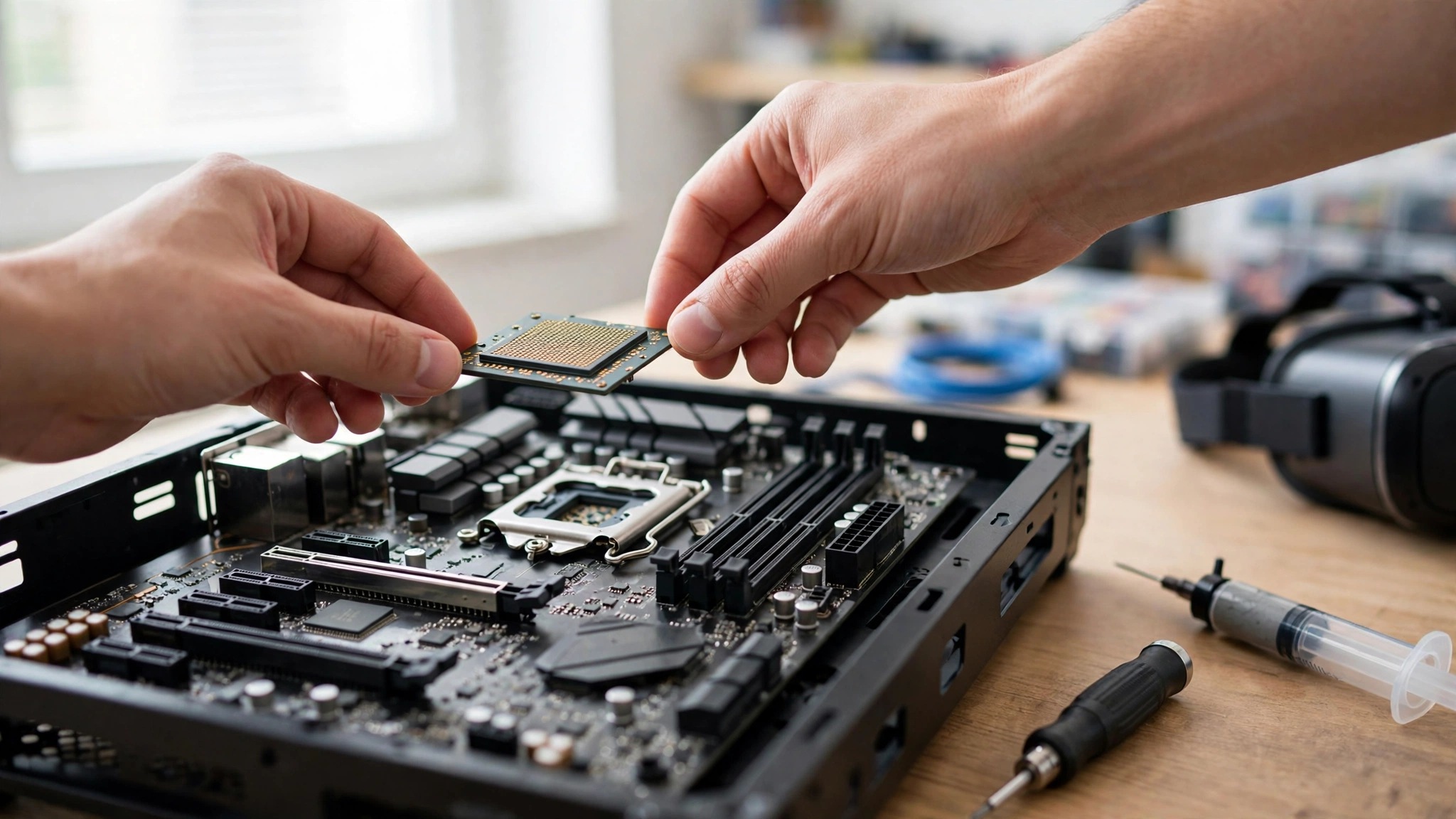
If the diagnosis says CPU, upgrade the CPU not the GPU. This is the single most common mistake in VR builds: throwing a better graphics card at a CPU bottleneck.
On AM4: A Ryzen 5 5600 ($130-ish) drops into most B450/X470/B550 boards with a BIOS update and transforms VR performance. The 5800X3D is the ultimate AM4 VR chip if you can find one.
On LGA1700: An i5-12400F is the budget king; the i7-13700K gives you headroom for 120Hz and heavy sims.
On AM5: The Ryzen 5 7600 is excellent; the 7800X3D is the best gaming CPU on the planet for VR and flat alike.
Do not forget the platform costs: A CPU upgrade may need a new motherboard and RAM (DDR4 to DDR5). Budget the full platform, not just the chip. Sometimes a used last-gen platform (e.g., AM4 + 5800X3D) beats a new budget platform on value.
After the CPU is sorted, then consider the GPU and use our bottleneck calculator to verify the pairing before you buy.
Common Mistakes VR Builders Make
Buying GPU first, CPU later: The classic blunder. In VR, the CPU is the foundation build on a weak one and no GPU will save you.
Ignoring the encoder tax: Quest 3 Link/Air Link users who budget for native PCVR requirements end up a tier short. Plan for the encoding overhead.
Chasing 120Hz too early: 120Hz mode demands 8.3ms frames nearly 35% harder than 90Hz. Get 90 FPS rock-solid first, then consider 120Hz.
Too many background apps: The VR compositor needs consistent CPU time. Streaming, Discord, and browser tabs all steal milliseconds that VR cannot spare.
Skipping the frame-time graph: Diagnosing by “feel” wastes hours. The SteamVR frame timing graph tells you in 30 seconds whether the CPU or GPU is at fault — use it.
Frequently Asked Questions
Is 6 cores enough for VR in 2026?
Yes, if they are modern cores a Ryzen 5 5600 or i5-12400F (6 fast cores) holds 90 FPS in most VR titles. Older 6-cores (i5-8400, Ryzen 5 2600) struggle due to weaker single-thread performance.
Does RAM speed matter for VR CPU bottlenecks?
Yes, more than in flat gaming. Faster RAM (DDR4-3600 or DDR5-6000) improves 1% lows and frame-time consistency exactly what VR needs. It will not fix a fundamentally weak CPU, but it helps a borderline one.
Can I use a laptop for VR?
Yes, but pick carefully gaming laptops with H-series CPUs (not U-series) and a decent GPU. Thin-and-lights will CPU-bottleneck in VR just like weak desktops.
Why does my VR stutter even though my PC is fast?
Almost always a CPU frame-time issue: background apps, the encoder tax (Quest Link), or a game that hammers single-thread performance. Run the SteamVR frame timing graph to confirm before spending money.
Key Takeaways
- VR demands 11.1ms frames a CPU bottleneck causes stutter and nausea, not just lower FPS.
- Diagnose with frame-time graphs and 1% lows, not average FPS.
- A modern 6-core (Ryzen 5 5600 / i5-12400F) is the minimum for stable 90 FPS.
- Quest 3 Link/Air Link adds an encoder tax budget one CPU tier higher.
- Fix CPU bottlenecks with CPU settings (draw distance, physics, NPCs), not resolution.
Conclusion
CPU bottlenecks hit VR harder than any other kind of gaming because VR has no tolerance for frame-time spikes. The 11.1ms rule is unforgiving: miss it and you do not just lose frames, you lose your lunch. But the fix is straightforward diagnose with frame times, upgrade the CPU before the GPU, and tune the settings that actually affect the processor.
A balanced VR system a modern 6-core CPU, an appropriate GPU for your headset, and clean background processes delivers the smooth, immersive 90 FPS that makes VR magical. The headset gets the glory, but the CPU does the work.
Check your pairing with our free bottleneck calculator before you buy, and never let a weak CPU stand between you and a stable 90 FPS.

Leave a Reply