

Quick answer: The error “FATAL ERROR: Vulkan encountered unrecoverable error VK_ERROR_DEVICE_LOST” means your GPU stopped responding to Vulkan calls mid-render. It is a symptom, not a diagnosis. The most reliable fixes are verifying your game files, clean-installing your GPU drivers, reverting any GPU overclock, clearing the shader cache, and switching between the DX11 and Vulkan renderers. Intel Arc users hit by the September 29 “City Never Sleeps” update should use DX11 as a workaround until Intel ships a fix, and Linux players on Nvidia should know a DXVK-side fix exists but has not reached a released Proton build yet.
You queue up for a Deadlock match, the game loads, and instead of the Hideout you get a black box of doom: FATAL ERROR. Vulkan encountered unrecoverable error VK_ERROR_DEVICE_LOST. The game dies, your lobby is gone, and if you were mid-match you are about to catch an abandon penalty for something that was not your fault.
This deadlock vk error device lost fix guide walks you through the problem honestly. There is no single guaranteed fix because the error can come from corrupt game files, unstable drivers, an aggressive GPU overclock, a game update that broke one specific GPU family, or even a translation-layer bug on Linux. What follows is the full picture: what the error actually means, the eight fixes ordered by how likely they are to solve it, and the two verified October 2026 triggers that most other guides have not caught up with yet.
A quick note before we start: Deadlock is still unreleased and under active development. Valve has not issued an official statement on these crashes, and because Valve usually stays silent until a fix ships, you should not expect one soon. Nothing here can promise a guaranteed cure, but everything below is either a standard, well-established fix or a verified development from October 2026.
What the VK ERROR DEVICE LOST Error Actually Means
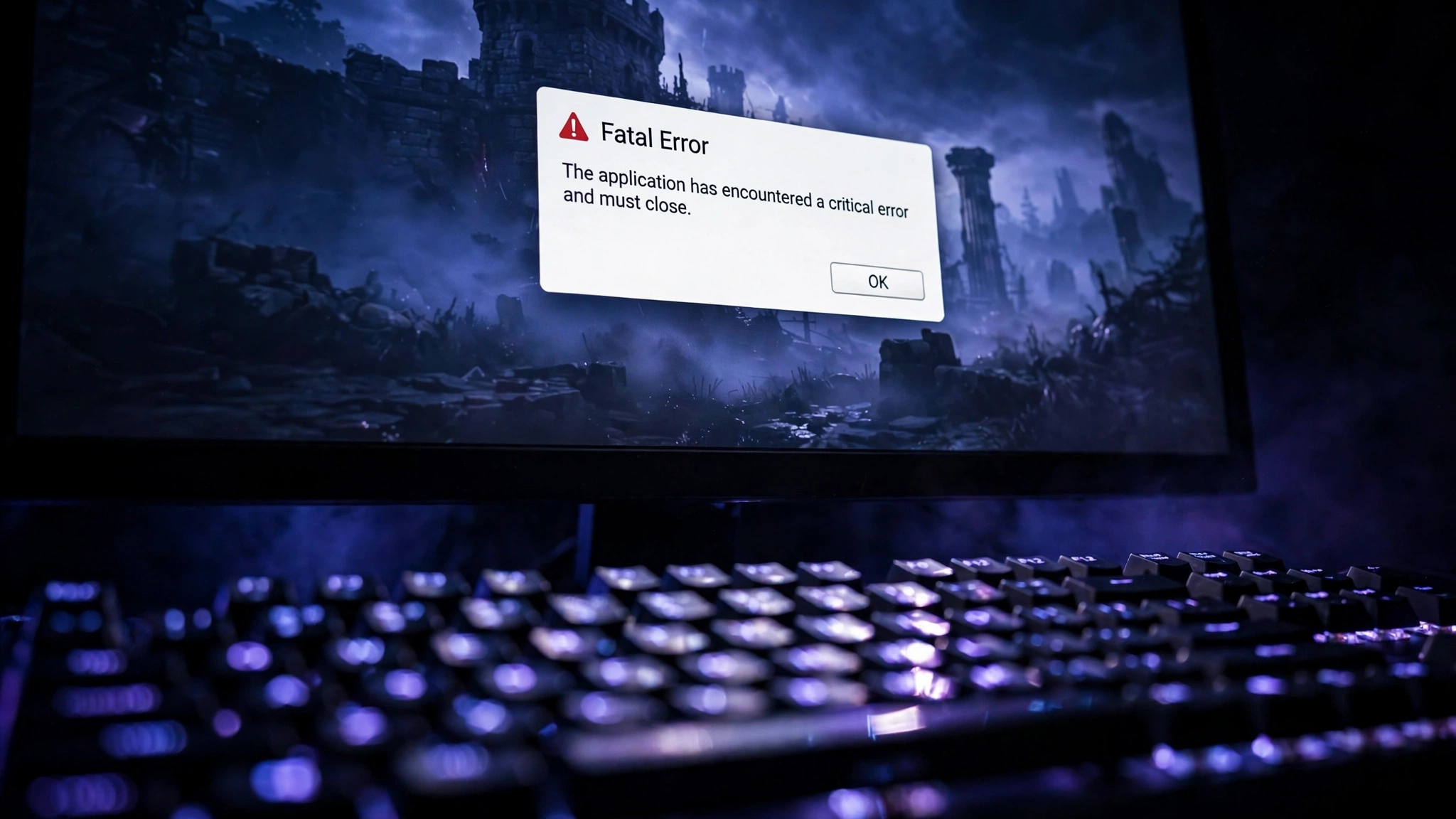
Vulkan is the graphics API Deadlock uses to talk to your GPU. When the game says VK_ERROR_DEVICE_LOST, it is telling you that the GPU device stopped responding to Vulkan commands in the middle of rendering. The graphics driver gave up waiting and reported the device as lost, so the game shut itself down rather than keep running blind.
Think of it like a phone call where the other person suddenly stops answering. The problem could be on your end (a bad connection), their end (they hung up), or the network in between. The error message tells you the call dropped, not why.
In practice, the most common reasons are:
- Corrupt or half-updated game files, which happens easily since Deadlock updates constantly.
- A GPU driver that is outdated, partially installed, or buggy with this specific game build.
- An unstable GPU overclock or undervolt, which is the classic trigger for device-lost crashes in almost every Vulkan game.
- A CPU that is boosting too aggressively, causing full system instability during Deadlock’s heavy CPU load.
- A game update that introduced a bug for one specific GPU family, which is exactly what happened to Intel Arc cards in late September.
- A driver or translation-layer issue on Linux, which is exactly what happened to Nvidia users on Proton in October.
The key takeaway: do not treat the error as one problem with one cure. Work through the fixes below in order, and pay special attention to the section that matches your GPU.
The 8 Fixes Ranked by Likelihood
Work through these from the top. Most players fix the crash within the first three steps. Skip ahead only if you already know your setup matches one of the verified October 2026 triggers described later in this guide.
Fix 1: Verify the Integrity of Your Game Files
Deadlock pushes updates almost constantly, and a half-finished or corrupt update is the single most common cause of sudden crashes. Verifying your files takes about five minutes and should always be your first step.
- Open Steam and find Deadlock in your library.
- Right-click it and select Properties.
- Go to the Installed Files tab.
- Click “Verify integrity of game files” and wait for Steam to finish.
- If Steam finds and replaces any files, launch the game again.
This costs you nothing and rules out the most common culprit. If the crash started right after an update, this fix alone solves it more often than anything else.
Fix 2: Update Your GPU Drivers With a Clean Install
VK_ERROR_DEVICE_LOST is, more often than not, a driver problem. An outdated driver can choke on the Vulkan calls the current Deadlock build makes, and a driver that was updated in place can carry broken leftovers from the old version. A clean install removes both risks.
For Nvidia users, grab the latest driver from the GeForce app or Nvidia’s site and choose the “Custom (Advanced)” install option, then check “Perform a clean installation.” Our guide on Windows 10 Nvidia drivers walks through the process if you want the details. For AMD users, the Adrenalin installer has a “Factory Reset” option that does the same job. For Intel Arc users, download the newest Arc graphics driver directly from Intel.
One special note for Intel Arc owners: Intel’s support team is actively investigating the Deadlock Vulkan crash and is asking affected players for SSU system reports, exact driver versions, and crash dumps. Install the newest driver and test again, because if it still crashes, your report genuinely helps the investigation move forward. There is more on the Arc situation in the dedicated section below.
A practical takeaway: if the crash appeared right after a driver update, roll back to the previous driver instead. New drivers occasionally break specific games, and Deadlock is a moving target.
Fix 3: Revert Any GPU Overclock or Undervolt to Stock
Here is something most generic guides bury at the bottom: VK_ERROR_DEVICE_LOST is the textbook symptom of an unstable GPU overclock. Vulkan is less forgiving of borderline-stable clocks than DirectX, so an overclock that survives every other game can still crash Deadlock on Vulkan.
If you are running any of the following, reset them to stock before you try anything else:
- A core or memory clock overclock in MSI Afterburner, Asus GPU Tweak, or similar tools.
- An undervolt that you tuned for efficiency. Undervolts that are stable in benchmarks can crash in specific games.
- A custom fan curve or power limit change. Restore defaults while troubleshooting.
Once the game runs stable at stock settings, you can re-tune from scratch if you want, but test with Deadlock specifically. A card that is stable everywhere except one Vulkan game is still unstable for your purposes.
This applies to factory-overclocked cards too. If your card ships with a boosted clock and you keep crashing, try dropping the power limit by a few percent in your tuning tool. It costs a couple of frames and often buys full stability.
Fix 4: Disable Turbo Mode (Intel) or Precision Boost (AMD)
This one surprises people, but Deadlock is a CPU-first game. It pushes processors harder than most shooters, and several players have reported not just game crashes but full system shutdowns from CPU load. If your crash is accompanied by the whole PC rebooting or freezing, the CPU is your prime suspect.
Enter your BIOS and look for the boost setting: Turbo Mode or Turbo Boost on Intel boards, Precision Boost or Core Performance Boost on AMD boards. Disabling or limiting it lowers peak clock speeds, which reduces power draw and heat spikes. The trade is a small FPS loss for much more consistent behavior.
Do not worry about “wasting” your CPU. Deadlock’s performance scales well enough that the difference is small, and a stable 120 FPS beats a crashing 140 FPS every time. If your crashes include full shutdowns rather than just the Vulkan dialog, treat this fix as a priority, not a last resort.
Fix 5: Clear Your Shader Cache
Games compile shaders the first time they run, and a corrupt shader cache can crash a game at the exact same loading point every time. If your VK_ERROR_DEVICE_LOST crash happens at the same moment, such as every time the Hideout loads, a stale cache is a strong suspect. Intel’s own support staff have suggested this exact test to affected players.
On Windows 10 and 11, the simplest method is Disk Cleanup:
- Press the Windows key, type “Disk Cleanup,” and open it.
- Select your system drive.
- Check the “DirectX Shader Cache” box.
- Click OK and let it clear.
You can also clear it through Settings, then System, then Storage, then Temporary files. After clearing, launch Deadlock and let it rebuild the cache. The first load will take a bit longer than usual. That is normal.
Fix 6: Switch Your Render API Between DX11 and Vulkan
Deadlock lets you choose between DirectX 11 and Vulkan, and this is both a diagnostic tool and a workaround. If the game crashes on one API but runs on the other, you have narrowed the problem enormously.
In Steam, right-click Deadlock, open Properties, and look at the Launch Options field. Add -dx11 to force DirectX 11, or -vulkan to force Vulkan. Remove the flag to go back to the default.
What the results mean:
- Crash on Vulkan but stable on DX11: the problem is in the Vulkan path, which points at drivers, the shader cache, or a game-side Vulkan bug like the Intel Arc issue below.
- Crash on DX11 but stable on Vulkan: rarer, but it points at a DirectX-side problem instead.
- Crash on both: the problem is more likely files, hardware stability, or the CPU, so go back to Fixes 1 through 5.
For Intel Arc players, DX11 is currently the practical workaround. It runs with noticeably lower FPS and less even frametimes than Vulkan, so it is not a real solution, but it keeps the game playable while Intel works on the actual fix.
Fix 7: Lower Your Settings and Cap Your FPS
High settings and uncapped frame rates push your GPU to its limit, and a card running at 100 percent with aggressive boost behavior is exactly where device-lost errors love to appear. Dropping to the “Fastest” preset in Deadlock’s video settings and setting a frame rate cap gives your GPU breathing room.
Set the FPS cap to your monitor’s refresh rate. If you have a 144 Hz monitor, cap at 144. This alone removes a huge amount of load because the GPU stops rendering hundreds of extra frames you never see. Our guide on how to increase FPS covers the settings that actually matter if you want to tune further without destabilizing the game.
Two current notes worth knowing. First, NVIDIA released a faster DLSS 5 model on October 16, and if you are on an RTX card, the newest DLSS build can give you back some of the performance you lose by lowering settings. Our breakdown of whether DLSS reduces CPU bottleneck explains how the upscaler interacts with CPU-limited games like Deadlock. Second, do not treat a settings change as proof your hardware is dying. If the game only crashes at max settings, that is a stability tuning problem, not a dead GPU.
Fix 8: Update Windows, Run as Admin, and Check Your Antivirus
The last round of general fixes covers the operating system and security software getting in the way.
- Install all pending Windows updates. Cumulative updates regularly include WDDM display-driver model changes that affect how Vulkan presents frames.
- Run Deadlock as administrator. Right-click the game in Steam, go to Properties, then Installed Files, then Browse, and set the executable to run as administrator. This rules out permission problems when the game writes to its folders.
- Add your Steam library folder, or at least the Deadlock folder, as an exclusion in Windows Security. Real-time scanning can interfere with the game’s file access during loading, and some players trace their crashes to exactly this.
- If other Vulkan games also crash on your PC, not just Deadlock, reinstall the Vulkan runtime libraries from LunarG’s site. That points to a broken system-wide Vulkan install rather than a Deadlock problem.
If you have worked through all eight fixes and the game still crashes, the sections below describe the two verified October 2026 triggers. One of them may be your actual problem.
Intel Arc B580 and the City Never Sleeps Update
If you play Deadlock on an Intel Arc GPU and the crashes started in late September 2026, stop troubleshooting generic causes for a moment. This one is specific, verified, and not your fault.
Deadlock’s “City Never Sleeps” update shipped on September 29, 2026. Since that update, Intel Arc B580 users report the exact VK_ERROR_DEVICE_LOST crash every single time the game loads the Hideout on Vulkan. The pattern is strikingly consistent: Vulkan crashes at the Hideout load, DirectX 11 stays stable but runs with noticeably lower FPS and uneven frametimes, and the game is effectively unplayable on the API that is supposed to run best.
This is not just a B580 problem. Arc A770 owners reported Deadlock crashing in Vulkan mode as far back as 2024, and at least one B570 owner has confirmed the same post-update crash. The Arc family and Deadlock’s Vulkan renderer have a long, unhappy history.
One technically detailed report on Intel’s community forum dug into the actual mechanism. The game issues storage-buffer offsets that are not multiples of the B580’s required 64-byte minStorageBufferOffsetAlignment, and the crash surfaces at vkQueueSubmit. That report is one user’s analysis, not an official diagnosis, so treat the mechanism as a strong lead rather than confirmed fact. What is confirmed is the crash pattern itself, reported by many users.
Here is where things stand as of October 17, 2026:
- The issue is assigned to an Intel engineer in Intel’s community issue tracker (IGCIT issue 1569).
- Intel’s support staff are actively asking affected users for SSU system reports, exact driver versions, and crash dumps.
- No fix has shipped yet. Not in a driver, not in a game update.
What Arc owners should do right now: keep your drivers current, because Intel needs test data from the newest builds. Use the -dx11 launch option as a workaround to keep playing. Consider a DXVK-based workaround only if you understand the risk: at least one player warned that swapping in a third-party translation layer could theoretically trip anti-cheat, and that risk is unconfirmed either way. And do not buy a new GPU just to dodge this bug. Current-generation GPU prices are running about 33 percent above their 90-day median according to mid-October market tracking, which is a terrible time to panic-buy hardware. Our GPU shortage and pricing overview has the full picture if you are weighing an upgrade.
For the full technical thread with Intel’s responses, see the community discussion on Intel’s forum.
Nvidia, Linux and the Xid 109 Hang
The second verified October 2026 trigger affects a much smaller group, but if you are in it, none of the standard fixes will help. This section is only for Linux players running Deadlock through Proton on Nvidia GPUs.
The symptom looks a little different from the Windows crash. On Nvidia’s open kernel driver under Proton, Deadlock freezes permanently, the picture stops but the audio keeps playing, and the kernel log shows Xid 109 with the string CTX SWITCH TIMEOUT. That is the driver reporting that a GPU context switch ran out of time. Like VK_ERROR_DEVICE_LOST, it is a symptom, not a diagnosis.
What makes this case remarkable is that one affected user did the detective work before filing the report. Running the same driver, same kernel, same Proton build, and the same four steps in Deadlock’s testing range, three times over, they showed the hang follows one Vulkan extension: VK_NV_raw_access_chains. With the extension in use, Xid 109 every time. With it disabled via the dxvk.enableNvRawAccessChains=False setting, no hang, no Xid, no device lost. The fault tracks the extension and ignores everything else. The same hang was reported on an RTX 2070, an RTX 5070, and an RTX 3050 laptop GPU, so it is not tied to one card generation.
The fix, interestingly, did not come from Nvidia. A DXVK contributor landed pull request 5958, “Merge overlapping buffer loads,” into DXVK’s master branch on October 10, 2026. The author, DXVK maintainer Philip Rebohle, hedged the claim himself, writing that the change “for some reason” seems to resolve hangs with NV_raw_access_chains. Merged to master is not the same as shipped, though: Proton bundles its own DXVK build rather than tracking the master branch, so as of October 17 no released Proton build carries this fix. It is also scoped to D3D11 only, and Nvidia has not commented in the issue thread at all.
What Linux players should do: if you are comfortable editing Proton settings, disabling the raw access chains extension is the verified workaround for now. Otherwise, wait for a Proton release that picks up the DXVK change. The full technical breakdown is covered in mixed-news’s report on the DXVK fix.
A Different Bug The Crash on Reconnect Problem
While researching this guide, one more Deadlock crash kept coming up, and it is important not to confuse it with VK_ERROR_DEVICE_LOST. There is a separate, going-around bug where the game crashes or black-screens when you reconnect to a match, and players worry it can trigger anti-AFK penalties. That is a different bug with different causes, and none of the Vulkan fixes in this guide address it.
If your crash happens specifically when reconnecting after a disconnect, look at the official Deadlock forum thread on the reconnect crash instead. Mixing the two bugs up is one of the most common reasons players try every Vulkan fix and get nowhere.
Frequently Asked Questions
Why does Deadlock crash on Vulkan but run fine on DX11?
Because the two renderers exercise your GPU and driver in completely different ways. Vulkan gives the game lower-level control over the hardware, which means driver bugs and game bugs in the Vulkan path show up there first. If DX11 is stable, your hardware is almost certainly fine, and the problem is in the Vulkan pipeline: drivers, the shader cache, or a game-side issue like the Intel Arc bug described above.
Can I use DXVK as a workaround without risking a VAC ban?
This is an honest “we do not know.” At least one Intel Arc player reported DXVK as the only working workaround but flagged the possible VAC ban risk themselves. Valve has not said anything about DXVK use in Deadlock either way. Until there is an official word, treat it as a use-at-your-own-risk option, not a recommendation.
My Deadlock closes right after the Valve logo with no error message at all. Is that the same bug?
Probably not. The VK_ERROR_DEVICE_LOST crash shows its error dialog explicitly. A silent close right after the Valve logo is a different failure, and players on the official forums have chased it with the same toolkit: verifying file integrity, reinstalling, running as administrator, trying the -vulkan and -dx11 launch options, disabling the Steam overlay, and deleting or resetting video.txt. Work through those before assuming it is a Vulkan problem.
Will Intel fix the Arc Vulkan crash?
All signs say they are trying. The issue is assigned to an Intel engineer, support staff are collecting SSU reports and crash dumps, and the community thread is active. But as of October 17, 2026, no fix has shipped in any driver or game update. Arc owners should keep drivers current, use the DX11 workaround, and check Intel’s community thread for updates rather than expecting a surprise patch.
Does disabling Turbo Mode really stop Deadlock crashes?
For some players, yes. Deadlock is unusually CPU-heavy for a shooter, and players have reported full system shutdowns, not just game crashes, from CPU load and heat. Disabling Turbo Mode on Intel or Precision Boost on AMD lowers peak clocks and smooths out power spikes. If your crashes include reboots or hard freezes rather than just the Vulkan dialog, this fix deserves to move near the top of your list.
I tried every fix and still crash. What now?
First, make sure you are fixing the right bug: confirm the error dialog actually says VK_ERROR_DEVICE_LOST and that you are not dealing with the reconnect crash or a silent launch failure. Second, check whether your setup matches one of the two verified October 2026 triggers above, because those need their specific workarounds, not the general list. Third, report your case with your GPU model, driver version, and when the crashes started. For Arc users that means Intel’s community thread; for everyone else, the official Deadlock forums. Detailed reports are what turn “random crashes” into fixed bugs.
Conclusion
The VK_ERROR_DEVICE_LOST crash in Deadlock is frustrating precisely because it is not one problem. For most players it is corrupt files, a driver issue, or an unstable overclock, and the eight fixes above resolve it in that order of likelihood. For Intel Arc owners, it is a verified game-update regression that Intel is actively investigating with no fix shipped yet, and DX11 is the bridge until one arrives. For Linux players on Nvidia, it is a Vulkan extension interaction that a DXVK fix addresses on paper but that has not reached a released Proton build.
Work the list from the top, match your setup to the right section, and keep your expectations honest: Deadlock is still in active development, Valve has said nothing official, and no guide can promise a guaranteed fix. What you can do is eliminate every cause within your control, apply the right workaround for your GPU, and add your voice to the official threads so the remaining bugs get the data they need to die. If your crashes are tied to heat or instability under load rather than this specific error, our guide to GPU thermal throttling is the right next read.

Leave a Reply