
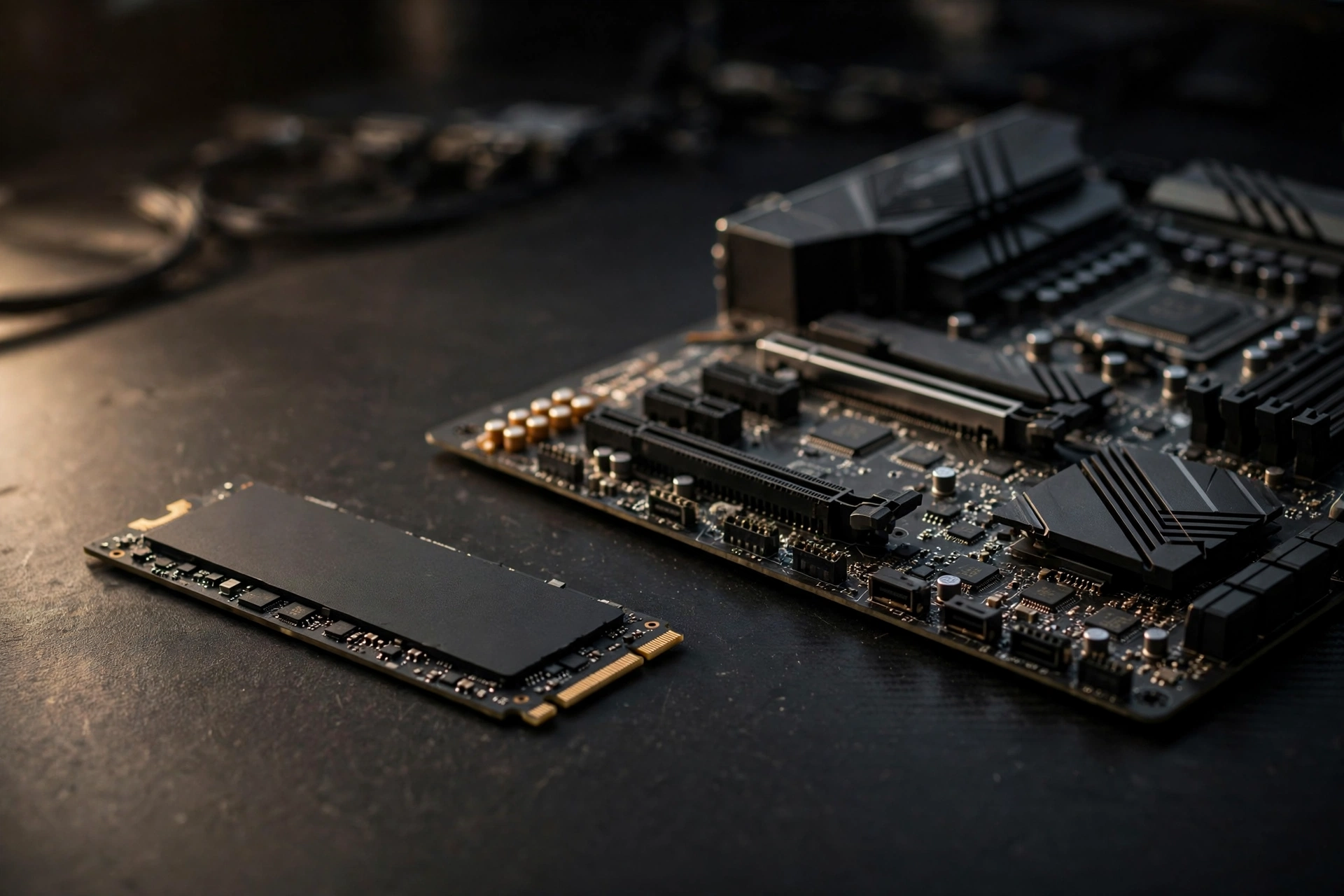
The best SSD for gaming is a 2TB PCIe 4.0 NVMe drive with TLC flash and a DRAM cache, and for most players that sentence is the whole buying decision. It loads games in seconds, keeps open world textures streaming without hitches, and costs far less per gigabyte than the flagship Gen 5 drives sitting above it. This guide explains why that is the right pick, when a faster or cheaper drive makes sense instead, and how to tell whether your storage is the part holding your games back.
If you want the short version, buy a 2TB PCIe 4.0 NVMe SSD from a major brand, with TLC NAND and a DRAM cache. The Samsung 990 Pro 2TB is the safest all round pick, the WD Black SN850X 2TB is the closest rival and the easiest PS5 choice with its heatsink version, and the Crucial T500 2TB is the value pick when it goes on sale. On a tight budget, a 1TB WD Blue SN580 still transforms any PC that is running games from a hard drive. Gen 5 drives are the fastest SSDs for gaming on paper, but they only earn their price in a handful of DirectStorage titles and heavy file work.
Best SSD for Gaming Our Top Picks
Most buyers only need one of four drives. The table below is the short list, and the sections after it explain the reasoning so you can adjust the pick to your own PC, console, or budget.
- Best overall: Samsung 990 Pro 2TB. The fastest PCIe 4.0 drive in independent testing, with a DRAM cache, TLC flash, and a five year warranty. It is the default answer for a new gaming PC.
- Best alternative: WD Black SN850X 2TB. Nearly identical real world gaming performance, with a Game Mode feature and a heatsink version that drops straight into a PS5.
- Best value: Crucial T500 2TB. Similar speeds to the two drives above, often cheaper on sale, and the best gaming SSD for PC players who want value over a brand name.
- Best budget SSD for gaming: WD Blue SN580 1TB. The top budget SSD in this guide, and the best budget SSD for gaming PC builds on a tight budget. It is a DRAMless Gen 4 drive that still loads games far faster than any SATA drive or hard drive, at the lowest price of entry. If you need a cheap SSD for PC gaming, this budget friendly SSD is the place to start, and it is a cheap and good SSD for a first build.
- Fastest SSD for gaming: Crucial T705 2TB or Samsung 9100 Pro 2TB. Both are PCIe 5.0 drives with sequential reads above 14,000 MB/s. Buy one only if you also do heavy video editing or file transfers, or you want the most future proof drive available.
Practical takeaway: a good SSD for gaming is usually a 2TB Gen 4 drive, which is the sweet spot. Spend the money you save over Gen 5 on a better graphics card or more capacity instead.
How an SSD Changes Your Games
A solid state drive changes gaming in three places: load times, texture streaming, and system responsiveness. When you click Play, the game reads gigabytes of data from storage into memory. A fast drive delivers that data sooner, so menus, levels, and fast travel screens disappear faster. In open world games, the drive keeps working while you play, streaming textures and models as you move. A slow drive cannot keep up, so you see blurry ground textures that sharpen a second late, buildings that appear out of thin air, and brief freezes when you turn a corner fast.
What an SSD does not do is raise your average frame rate. Your graphics card renders frames, and your CPU prepares them. Storage only feeds them data. That is why a storage upgrade feels dramatic in loading screens and invisible in a frame rate counter. The improvement shows up in frame time consistency, the smoothness between frames, rather than in the average number. A game can hold 120 frames per second on average and still feel rough if the drive stalls the pipeline for a few dozen milliseconds at a time.
This is the bottleneck angle that matters most. A storage bottleneck rarely lowers average FPS. It ruins the worst moments, the 1% lows, with hitches and pop-in that no graphics setting can fix. If your average frame rate looks fine but the game feels bad, storage is one of the first suspects. Our full guide explains what a storage bottleneck is and walks through all nine warning signs, including disk usage pinned at 100% in Task Manager.
Practical takeaway: buy an SSD for load times and smoothness, not for FPS. If your frame rate is low, the graphics card or CPU is the problem, and our best GPU for gaming buying guide is the better place to start.
NVMe vs SATA for Gaming The Real Difference
The first choice is the interface, and it is also the easiest one. NVMe drives connect over PCIe lanes, the same high speed bus your graphics card uses. SATA drives use the older AHCI protocol that was designed for spinning hard drives. A SATA SSD tops out around 550 MB/s. A PCIe 3.0 NVMe drive reaches about 3,500 MB/s, a Gen 4 drive reaches about 7,500 MB/s, and a Gen 5 drive can pass 14,000 MB/s.
Those numbers look like a landslide, but game loading does not scale with them directly. Loading a level is a mix of reading compressed files from the drive and decompressing them on the CPU. The decompression step can eat 40 to 70 percent of the load time on some titles, and it runs at the same speed no matter how fast the drive is. That is why independent load time comparisons consistently find only a 1 to 3 second gap between a budget NVMe drive and a budget SATA SSD in most current games, even though the sequential speed gap is four times or more. For a plain language breakdown of why headline speeds barely move load times, this PCIe 5.0 vs 4.0 SSD comparison shows games loading just as fast on Gen4 as on Gen5.
DirectStorage changes the math. Microsoft’s DirectStorage technology lets games stream compressed assets straight from an NVMe SSD to the graphics card, where the GPU handles decompression instead of the CPU. In the small but growing list of DirectStorage titles, such as Forspoken and Ratchet and Clank: Rift Apart on PC, the gap between NVMe and SATA widens to a real, visible difference. The catalog is still measured in dozens of titles rather than hundreds, but it grows every year, and Windows 11 is the platform where DirectStorage works best.
So which should you buy? If your motherboard has a free M.2 slot, buy NVMe every time. The best NVMe M.2 SSD for gaming is a Gen 4 drive with TLC flash and a DRAM cache, and it costs little more than a good SATA drive. Buy a SATA SSD only when you have no free M.2 slot, when you are adding a second large drive for a game library on the cheap, or when you are upgrading an older laptop that only takes a 2.5 inch drive. The best 2.5 SSD for gaming is a SATA drive from a major brand, bought only when your PC has no free M.2 slot. The best SATA SSD for gaming is still a fine drive, and it is a huge upgrade over any hard drive, but it is a fallback, not a first choice.
| Drive type | Max sequential read | Typical load time gap vs NVMe | Best for |
|---|---|---|---|
| Hard drive (7,200 RPM) | 120 to 160 MB/s | Several times slower | Nothing modern, replace it |
| SATA SSD | Around 550 MB/s | 1 to 3 seconds slower in most games | Old PCs with no M.2 slot, cheap second drive |
| NVMe Gen 3 | Up to 3,500 MB/s | Small gap vs Gen 4 in most games | Budget builds, older motherboards |
| NVMe Gen 4 | Up to 7,500 MB/s | The sweet spot for gaming in 2026 | Most gaming PCs, PS5 expansion |
| NVMe Gen 5 | 10,000 MB/s and up | Tiny gain over Gen 4 in games today | Creators, future proofing, DirectStorage fans |
Practical takeaway: NVMe is the default. SATA only earns its place when there is no M.2 slot free.
PCIe Gen 3 vs Gen 4 vs Gen 5 Where the Money Goes
Once you have settled on NVMe, the generation question decides the price. Gen 3 drives are the cheapest, Gen 4 drives are the mainstream pick, and Gen 5 drives are the premium tier. The trap is assuming each step up buys the same improvement in games. It does not.
Gen 3 to Gen 4 is a real step for large file copies and for DirectStorage titles, but in ordinary game loading the difference is usually a second or two. Gen 4 to Gen 5 is smaller still for gaming. The fastest Gen 5 drives double the sequential speed of Gen 4, yet published load time tests show only small gains in most games, because loading is limited by decompression and random reads, not by sequential throughput. Gen 5 drives also run hotter and often need a heatsink, and they need a motherboard with a Gen 5 M.2 slot to reach full speed at all. In a Gen 4 slot, a Gen 5 drive simply runs at Gen 4 speed.
That does not make Gen 5 pointless. If you edit video, move huge files, or run workloads that read sequentially for minutes at a time, Gen 5 earns its price. It is also the most future proof choice if you keep drives for five years or more, because DirectStorage adoption should keep growing. But for pure gaming in 2026, the smart money is a larger Gen 4 drive. A 2TB Gen 4 SSD beats a 1TB Gen 5 SSD for almost every gamer, because capacity decides how many games you can keep installed, while the extra speed mostly sits unused.
Check your motherboard before you buy. A Gen 4 drive works in a Gen 3 slot, just at Gen 3 speed, and a Gen 5 drive works in a Gen 4 slot at Gen 4 speed, because PCIe is backwards compatible. The reverse is also true: a Gen 3 drive works fine in a Gen 5 slot. The only mistake is paying for speed your board cannot use.
Practical takeaway: the best NVMe for gaming is a Gen 4 drive. Gen 5 is for creators and early adopters, not for frame rates.
DRAM Cache, SLC Cache, TLC vs QLC The Specs That Matter
Box speeds hide the specs that decide whether a drive stays fast after six months of use. Three of them matter for gamers.
DRAM cache. A DRAM cache is a small amount of fast memory on the drive that stores the map of where data lives. Drives with a DRAM cache keep their speed up during long writes and when the drive is nearly full. DRAMless drives borrow a slice of system RAM instead, using a feature called Host Memory Buffer, and they are fine for gaming reads, which is most of what games do. But as a main drive that also holds Windows, a DRAM drive holds up better over time. The rule is simple: main drive, get DRAM if the budget allows. Second game library drive, DRAMless is fine.
SLC cache. Most consumer SSDs write first to a fast SLC cache, then move the data to slower storage in the background. When the cache fills up during a very large write, such as installing a 150GB game, speeds drop to the native speed of the flash. Bigger caches and TLC flash handle this better than small caches and QLC flash. For gaming, this matters most when you install several big games back to back.
TLC vs QLC. TLC flash stores three bits per cell, QLC stores four. QLC is cheaper per gigabyte and slower when writing large amounts, with lower endurance ratings. TLC is the safer pick for a main drive. QLC is acceptable for a second drive that mostly holds games you read from and rarely rewrite. Check the endurance rating, listed as TBW (terabytes written), on the spec sheet. A 2TB TLC drive rated at 1,200 TBW will outlast any realistic gaming workload by years.
The best SSD drive brand question comes up constantly, and the honest answer is that the brand matters less than the spec sheet. The major solid state drive brands, Samsung, Western Digital, Crucial, Kingston, and SK hynix, all make good drives and all make budget drives. There is no single best SSD brand for PC gaming. The best brand SSD for gaming is the one whose spec sheet fits your build, so compare the interface, the flash type, the cache, the TBW rating, and the warranty, not the logo. The best solid state drives in any roundup share the same recipe: PCIe 4.0, TLC flash, DRAM cache, and a five year warranty.
Practical takeaway: TLC plus DRAM cache plus a five year warranty is the quality checklist. Everything else is marketing.
How Much Storage Do You Need for Gaming?
Capacity is the decision most buyers underweight, and it is the one they regret first. Modern AAA games regularly pass 100GB each, Windows 11 needs tens of gigabytes, and game updates can demand as much free space as the game itself. A 1TB drive sounds generous until two big games, the operating system, and a few apps leave almost nothing spare.
Here is the honest capacity guide for 2026.
| Capacity | Who it fits | What goes wrong |
|---|---|---|
| 500GB | Esports only, one or two light games | Full within weeks of installing a single AAA title |
| 1TB | The floor for gaming in 2026, tight but workable | Constant uninstalling, no room for big updates |
| 2TB | The sweet spot for most gamers | None for most players, holds the OS plus several AAA games |
| 4TB | Big libraries, creators, no uninstalling | Costs more, only worth it if you hate deleting games |
The best 1TB SSD for gaming is still a reasonable buy for a second PC or a tight budget, but for a main drive in a new build, 1TB is the floor, not the target. The best 2TB SSD for gaming is the pick that keeps you from thinking about storage for years, because it holds Windows, your current rotation of games, and room for updates without juggling installs. That is why every recommendation in this guide defaults to 2TB: the extra capacity is worth more than the extra speed of a smaller flagship drive.
One more rule: keep 10 to 15 percent of any SSD free. A drive that is nearly full slows down, because the controller needs free space for wear leveling and garbage collection. If your drive is over 90 percent full and games feel slower, free up space before you blame anything else. Our storage bottleneck guide covers this in detail, along with the other signs that a full or aging drive is holding games back.
Practical takeaway: 1TB is the floor, 2TB is the sweet spot, and free space is performance.
Best SSDs for Gaming by Category
The table below compares the best gaming SSD M.2 drives that appear in every serious 2026 roundup. The top SSD drives in this table all share the same recipe: PCIe 4.0, TLC flash, and a five year warranty. Speeds are manufacturer rated maximums, which describe large sequential transfers, not guaranteed game load times. Real world load times between these drives are much closer than the numbers suggest.
| Drive | Type | Rated read speed | Best for | Endurance and warranty |
|---|---|---|---|---|
| Samsung 990 Pro 2TB | PCIe 4.0 NVMe | Up to 7,450 MB/s | Best overall gaming SSD | 1,200 TBW, 5 year warranty |
| WD Black SN850X 2TB | PCIe 4.0 NVMe | Up to 7,300 MB/s | Best alternative, PS5 ready | 1,200 TBW, 5 year warranty |
| Crucial T500 2TB | PCIe 4.0 NVMe | Up to 7,400 MB/s | Best value high capacity | 1,200 TBW, 5 year warranty |
| WD Blue SN580 1TB | PCIe 4.0 NVMe | Up to 4,150 MB/s | Best budget gaming SSD | 600 TBW, 5 year warranty |
| Crucial T705 2TB | PCIe 5.0 NVMe | Up to 14,500 MB/s | Fastest SSD for gaming | 1,200 TBW, 5 year warranty |
| Samsung 9100 Pro 2TB | PCIe 5.0 NVMe | Up to 14,700 MB/s | Fastest Gen 5 alternative | 1,200 TBW, 5 year warranty |
A few notes on the picks. The Samsung 990 Pro remains the reference Gen 4 drive, and its rated speeds of up to 7,450 MB/s read and 6,900 MB/s write come from Samsung’s own specifications. Check the Samsung 990 Pro specifications before you buy, because capacities differ in cache size and endurance rating. The WD Black SN850X trades blows with it in game load tests and adds a Game Mode feature, and its heatsink version is the simplest PS5 upgrade. The Crucial T500 is the quiet value pick: nearly the same speeds, often cheaper on sale. The WD Blue SN580 is the best cheap gaming SSD for a reason. It is DRAMless, but its gaming read performance is strong, and it costs far less than the flagships.
For Gen 5, the Crucial T705 and Samsung 9100 Pro are the two names that top the speed charts, with rated reads of up to 14,500 MB/s and 14,700 MB/s. They are the fastest SSD for PC gaming you can buy, and they are also the hardest to justify for gaming alone. Buy one if you also move large video files or you want the most future proof drive on the market. Everyone else should buy the 2TB Gen 4 drive and put the savings toward the graphics card.
The best NVMe SSD for gaming is not always the fastest one on the chart. The best SSD for PC gaming is the drive that matches your motherboard, your capacity needs, and your budget without forcing a compromise somewhere else, and the best SSD drive for PC builds is the one that does that at a fair price. A balanced build beats a lopsided one every time, and our complete gaming PC build guide shows how storage fits into the whole system, from part selection to first boot.
Practical takeaway: shortlist the 990 Pro, the SN850X, and the T500, then let the sale price decide.
Best SSD for PS5 Storage Expansion
The PS5 is the one place where the spec sheet is not a suggestion. Sony publishes strict requirements for the M.2 expansion slot, and a drive that misses any of them either will not be recognized or will be flagged as too slow.
Sony requires a PCIe Gen 4 NVMe M.2 SSD with a sequential read speed of 5,500 MB/s or faster, in one of the supported form factors (2230, 2242, 2260, 2280, or 22110), with capacity between 250GB and 8TB. A heatsink or other heat dissipation structure is required, and the whole assembly must fit within 25mm wide and 11.25mm thick. SATA M.2 drives do not work, and PCIe Gen 3 drives do not meet the speed requirement. Sony also warns that it cannot guarantee every drive that meets the spec will work, so buying a drive sold in a with heatsink version is the simplest route.
The best PS5 storage expansion picks are the drives that meet every requirement with a factory heatsink: the WD Black SN850X with heatsink and the Samsung 990 Pro with heatsink are the two most recommended options, and both clear Sony’s speed bar by a wide margin. The best internal hard drives for PS5 are Gen 4 NVMe drives with a heatsink. The best internal storage for PS5 is a 2TB Gen 4 drive with a heatsink, because 1TB fills up fast when PS5 games regularly pass 100GB. The best PS5 internal storage upgrade is a 2TB model, and our recommended SSD for PS5 is the WD Black SN850X with heatsink. The best storage for PS5 is the cheapest 2TB drive that meets every Sony requirement, so the best SSD PS5 owners should buy is the one that clears the spec at the lowest price, and the best SSD for PS5 is whichever heatsink model that turns out to be. Budget hunters should look for the best budget SSD for PS5 on sale, but only among Gen 4 drives rated above 5,500 MB/s with a heatsink that fits Sony’s size limits. A cheap Gen 3 drive is wasted money here, because the console will reject it.
The best PS5 hard drive question deserves a direct answer too: there is no hard drive option for PS5 games. An external USB drive can store PS5 games and play PS4 games, but PS5 games must be copied back to internal or M.2 storage before they will launch. If you want to play PS5 games from expanded storage, the M.2 slot is the only way.
Check Sony’s requirements against the exact drive and heatsink you plan to buy before ordering. The PS5 SSD upgrade guide from Lexar walks through the same requirements with clear examples of what fits and what does not.
Practical takeaway: for PS5, buy a Gen 4 drive rated above 5,500 MB/s with a heatsink that fits. Anything else is a gamble.
Best SSD for Xbox Series X and Series S
Xbox handles storage differently from PlayStation. The Xbox Series X and Series S play current generation games only from internal storage or from an official Seagate Storage Expansion Card, which slots into the back of the console. That card is the best Xbox storage expansion, and it is the only expansion that runs Series X and S games directly.
A USB external SSD still has a job on Xbox. It can store Series X and S games, so you can move them back to internal storage quickly instead of re-downloading them, and it can play Xbox One and older backward compatible games directly. An Xbox One S external SSD can also play Xbox One games directly from USB, which is handy if you still play older titles on the console. That makes a fast external SSD for gaming a useful second purchase for Xbox owners with big libraries. The best SSD for Xbox Series X owners who mostly play older titles is a 1TB or 2TB portable SSD over USB, while Series X and S players should budget for the official expansion card first.
The best storage expansion for Xbox Series S deserves a special note, because the Series S ships with only 512GB of internal storage. After the operating system, that leaves room for only a few large games. An expansion card or a USB drive for cold storage is almost mandatory for Series S owners, not a luxury.
Practical takeaway: on Xbox, the official expansion card plays new games, and a USB SSD stores them and plays old ones. You may want both.
Best SSD for Steam Deck
The Steam Deck uses a smaller M.2 2230 form factor, so the best SSD for Steam Deck is a 2230 drive, not the 2280 size that fits desktop PCs. The common upgrade is a 1TB or 2TB 2230 NVMe drive, which replaces the stock storage and holds far more games. Check the drive’s power draw and thermals before you buy, because the Deck is a handheld with limited cooling, and a hot drive can throttle under sustained writes.
A portable SSD is the easier alternative if you do not want to open the Deck. A fast external SSD for gaming over USB-C can hold your library and works across the Deck and a PC, though games will load a little slower than from the internal slot. For most Deck owners, the internal 2230 upgrade is the better long term fix, and the external drive is the flexible second option.
Practical takeaway: Steam Deck takes 2230 drives. Measure twice, because a desktop 2280 drive will not fit.
Best External SSD for Gaming
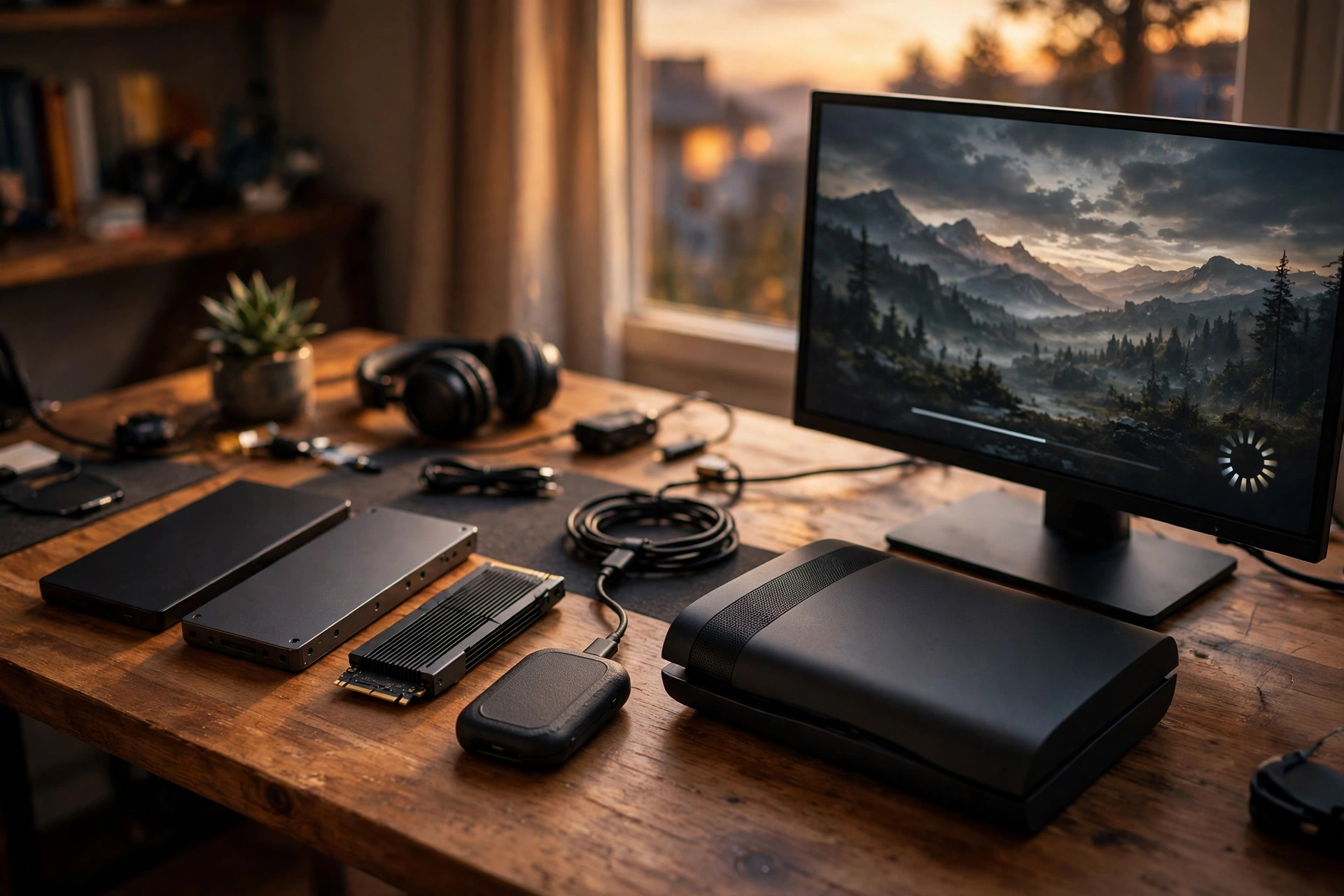
External SSDs earn their place in three situations: carrying a game library between PCs, expanding a laptop that has no free slot, and storing console games. For external SSD gaming on the go, a compact rugged drive is the practical pick. A good external SSD for gaming needs two things: a fast USB interface and a good drive inside. USB 3.2 Gen 2 (10 Gbps) is the minimum worth buying, and USB4 or Thunderbolt is better if your PC supports it. A slow USB port will bottleneck even the fastest external SSD drive for gaming, so check the port before you blame the drive.
The best portable SSD for gaming is usually a compact rugged drive from a major brand, with read speeds around 1,000 to 2,000 MB/s over USB. That is slower than an internal NVMe drive, but it is still far faster than a portable hard drive, and it is enough for most games. An SSD external hard drive for gaming in this class is also the simplest way to move a Steam library between two PCs without re-downloading hundreds of gigabytes. Solid state external hard drives beat portable hard drives on speed and durability, which is why they cost more per gigabyte.
A few buying notes. The WD external solid state drive range is a common pick for console and PC use, and the best external SSD for PC gaming is usually whichever major brand drive is on sale with the fastest USB interface your PC supports. The best gaming external SSD is the same idea: whichever major brand drive is cheapest on the day you buy, as long as the USB interface is fast enough. Buy external SSD drives when you need portability or a laptop upgrade, not as a replacement for an internal drive in a desktop. The best SSD drive for desktop gaming is an internal M.2 drive, which is faster and usually cheaper per gigabyte. The best internal SSD for gaming is always an M.2 NVMe drive, while external drives are for portability.
If you are shopping for deals, the best deals on SSD drives tend to cluster around Black Friday and other major sales, but compare against the going rate, not the inflated crossed out price on the listing. More on timing in the prices section below.
Practical takeaway: external SSDs are for portability and laptops. Desktops should use internal M.2 drives.
Best SSD for a Gaming Laptop
Laptops are trickier than desktops, because the upgrade path depends on the model. Most gaming laptops have one or two M.2 slots, and some have a 2.5 inch bay as well. The best SSD for gaming laptop owners is a single sided M.2 2280 NVMe drive, because double sided drives can be too thick for the slot in thin laptops. Check your laptop’s manual or the manufacturer’s spec page before ordering.
The best SSD laptops ship with often surprise buyers: many gaming laptops still ship with a 512GB drive, which fills up after two or three big games. Upgrading to a 1TB or 2TB drive is the single best laptop storage upgrade, and it is usually a ten minute job with one screw. A solid state drive for a gaming PC and a gaming laptop follows the same rules, TLC flash, DRAM cache if possible, and a five year warranty, but the laptop adds two constraints: single sided form factor and power efficiency, because a hot, power hungry drive drains battery and heats the chassis.
If your laptop has a second M.2 slot, the smart layout is a fast 1TB drive for Windows and your current games, plus a larger, cheaper drive for the rest of the library. If it has only one slot, buy the biggest good drive you can afford, because swapping later means cloning or reinstalling everything. The best external SSD for gaming laptop owners who cannot open their machine is a fast portable drive over USB-C, though it loads games a little slower than an internal drive.
Practical takeaway: gaming laptops want single sided M.2 2280 drives. Check the manual before you buy.
Is Your Storage the Bottleneck?
Before you spend money, spend ten minutes checking whether storage is actually your problem. A slow drive and a weak graphics card can feel similar, but they leave different fingerprints.
Open Task Manager with Ctrl, Shift, and Esc while your most demanding game is running, go to the Performance tab, and watch your game drive. If it sits at 100 percent Active Time for long stretches during gameplay, the drive is saturated. Also watch the response time: healthy SSDs answer in fractions of a millisecond, while a struggling drive can take tens or hundreds of milliseconds per request. Check free space too. A drive over 90 percent full is a warning sign on its own.
The RAM check matters just as much, because RAM and storage bottlenecks share symptoms. If Task Manager shows memory above 90 percent while the disk is also busy, Windows is paging data to the drive to cover the memory shortfall, and RAM may be the root cause. Our best RAM for gaming guide explains how much memory you actually need and how to read the numbers. Fixing RAM first often reduces disk load as well.
If the disk is pinned at 100 percent while RAM sits comfortably below 80 percent, storage is the culprit, and a drive upgrade will help. If neither is maxed out and frame rates are still low, the graphics card or CPU is the limit instead. For a full diagnostic walkthrough, including how to tell a storage limit from a CPU or GPU limit, read our guide on what a storage bottleneck is.
Practical takeaway: Task Manager tells the truth in two minutes. Check disk usage and RAM usage before you buy anything.
What to Know Before You Buy
Storage prices in late 2026 deserve a frank paragraph, because timing affects what you pay. A NAND flash shortage pushed SSD prices up sharply through 2026, and the same AI driven demand that lifted memory prices is squeezing flash supply too. Reports from October 2026 describe rising contract prices and higher retail prices on popular capacities, and several buying guides updated that month note that prices change daily. That means two things for your purchase.
First, do not wait for a return to the low prices of a year ago. If you need a drive now, buy the capacity you need now and compare prices across a few reputable retailers on the same day. Second, sale events still matter. Black Friday falls on November 27, 2026, and it remains the best single day to catch a real discount on a good SSD, but only if you compare against the going rate rather than the inflated crossed out price. A high speed SSD drive at a genuine discount is a good buy. A mediocre drive at a fake discount is not.
One more late 2026 story belongs in any SSD guide. AMD confirmed on November 9, 2026 that a bug in its Radeon graphics drivers can make a background service write to your SSD nonstop, even when the PC is idle. AMD says a fix should arrive with the Adrenalin 26.11.1 driver later in November 2026. The writes are small, but they spend your drive’s write budget around the clock, so Radeon owners should check their systems. Our guide covers the AMD Radeon driver SSD writes bug, the fix, and the checks in full, including how to stop the writes in two minutes. This is also a good reminder that endurance ratings matter: a drive with a generous TBW rating shrugs off background writes that would wear a budget drive faster.
Practical takeaway: prices are up and moving daily. Buy the capacity you need now, and use Black Friday for a real discount, not a fake one.
How to Install an M.2 SSD in 10 Minutes
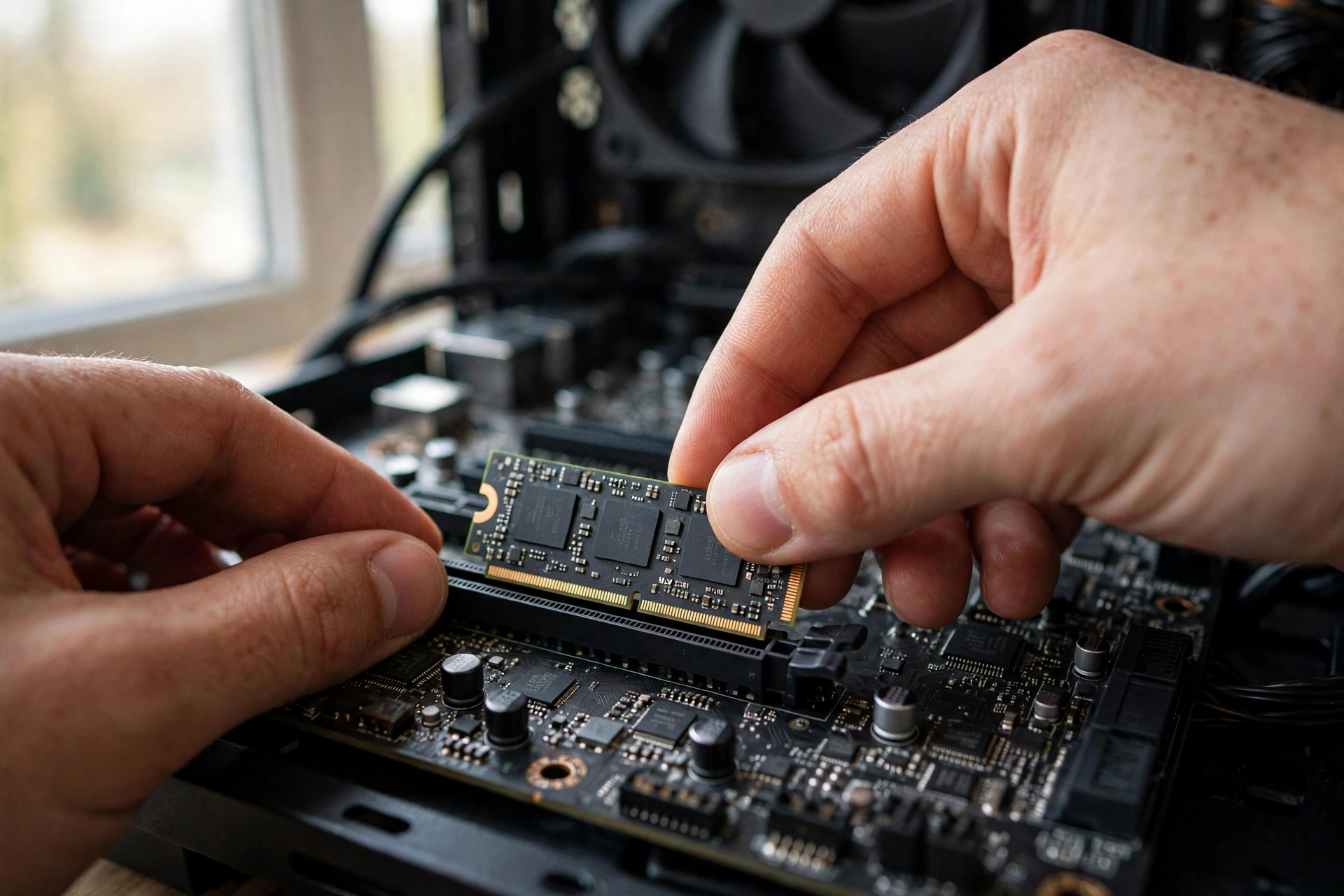
Installing an M.2 solid state hard drive is one of the easiest upgrades in PC building, and it needs no special tools beyond a small Phillips screwdriver. Follow these steps in order.
- Power down fully. Shut down Windows, flip the power supply switch off, and unplug the PC. Touch a metal part of the case to discharge static.
- Open the side panel. Remove the screws or thumb screws and set the panel aside.
- Find a free M.2 slot. Check your motherboard manual for the slot locations. Most boards have at least one slot near the CPU, sometimes under a heatsink cover.
- Remove the heatsink cover if there is one. Unscrew it gently and set the screws aside.
- Insert the drive at a slight angle. Line up the notch on the drive with the notch in the slot, push it in at about 30 degrees, then press it down flat.
- Secure it. Use the screw or the tool-less latch your board provides. Do not overtighten.
- Replace the heatsink cover. If your board has a motherboard heatsink, refit it over the drive.
- Close up and boot. Plug in, switch on, and enter the BIOS to confirm the drive is detected.
- Format the drive in Windows. Open Disk Management, initialize the disk if asked, create a volume, and format it as NTFS.
- Move games onto it. In Steam, use Settings, then Storage, to add the new drive and move games over. Other launchers have similar library move options.
If your motherboard manual is unclear about which slot is Gen 4 and which is Gen 3, put your fastest drive in the slot closest to the CPU, which is usually the Gen 4 or Gen 5 slot. Our complete gaming PC build guide covers the full assembly order, including where the M.2 step fits among the other parts.
Practical takeaway: one screw, ten minutes, and your games live on a fast drive. There is no easier upgrade.
Common Mistakes to Avoid
Buying Gen 5 speed your board cannot use. A Gen 5 drive in a Gen 4 slot runs at Gen 4 speed. Check the motherboard spec page first.
Buying 500GB for a main drive. It fills up fast, and a nearly full SSD slows down. The best storage for gaming starts at 1TB and is happiest at 2TB.
Ignoring the flash type. A cheap QLC drive with no DRAM cache is fine as a second game library drive, but it is a poor choice as the only drive in a PC. Read the spec sheet, not the headline speed.
Filling the drive past 90 percent. Free space is performance. Leave 10 to 15 percent free or move games to a second drive.
Forgetting the heatsink on PS5. Sony requires a heat dissipation structure. A bare drive in a PS5 can throttle during long sessions, and a tall aftermarket heatsink may stop the bay cover from closing. Buy a with heatsink version that fits Sony’s size limits.
Assuming an SSD fixes low FPS. Storage fixes load times, pop-in, and hitching. It does not raise average frame rates. If FPS is the problem, check the CPU and GPU first, and read our gaming PC setup guide for the desk and monitor side of smooth play.
Skipping the BIOS check after install. If Windows does not see the new drive, the BIOS usually does. Confirm detection there before assuming the drive is faulty.
Practical takeaway: most SSD regrets come from buying the wrong size or the wrong interface, not from buying the wrong brand.
Frequently Asked Questions
What type of SSD is best for gaming?
A PCIe 4.0 NVMe M.2 SSD with TLC flash and a DRAM cache is the best type for most gamers, in 2TB if the budget allows. It loads games fast, supports DirectStorage, and holds several large games at once. SATA SSDs still work well and are far faster than hard drives, but NVMe is the better buy whenever your motherboard has a free M.2 slot.
Does an SSD increase FPS?
No, not directly. An SSD improves load times, texture streaming, and frame time smoothness, but your average frame rate is set by the CPU and graphics card. What an SSD does fix is stuttering and hitching caused by slow data delivery, which shows up in the worst frame times rather than the average. If your FPS is low, the graphics card or CPU is the bottleneck, not the drive.
Is NVMe faster than SATA for gaming?
Yes, but the gap is smaller than the spec sheets suggest. A SATA SSD tops out near 550 MB/s, while a Gen 4 NVMe drive can pass 7,000 MB/s, yet most games load only 1 to 3 seconds faster on NVMe, because decompression on the CPU limits the load. The gap widens in DirectStorage titles, where the GPU handles decompression and the NVMe drive can stream data directly. NVMe is still the right buy, because the price gap is small and only NVMe supports DirectStorage.
How much SSD storage do I need for gaming?
1TB is the floor for gaming in 2026, and 2TB is the sweet spot for most players. Modern AAA games regularly pass 100GB each, Windows needs tens of gigabytes, and updates need free space to install. A 1TB drive works if you only play a few games at a time and uninstall often. A 2TB drive holds the operating system plus several large games with room to spare, and it is the capacity we recommend for a new build.
Should I upgrade my SSD if I have a small SSD and a 1TB hard drive?
Yes, if your games live on the hard drive. A 125GB SSD with a 1TB hard drive was a common budget layout, but modern games belong on flash storage, not spinning disks. Move your operating system and your most played games to a 1TB or 2TB NVMe SSD, and keep the hard drive for files you rarely open. The difference in load times and texture streaming is large enough to feel immediately.
Is 256GB SSD enough on a laptop for games?
It can work, but it is tight for modern games. A single large title can take 100GB or more, and Windows plus apps take a big share of what is left. A 256GB drive fits if you play a few smaller or older games and move everything else to external storage. For most gamers, 512GB is the practical minimum on a laptop, and 1TB is the comfortable pick. If your laptop has a second M.2 slot or a free 2.5 inch bay, adding a second drive is the easiest fix.
Key Takeaways
- The best SSD for gaming for most players is a 2TB PCIe 4.0 NVMe drive with TLC flash and a DRAM cache.
- NVMe beats SATA for gaming, but the load time gap is 1 to 3 seconds in most games. DirectStorage widens it.
- Gen 5 is the fastest tier on paper and the hardest to justify for gaming alone. Buy capacity instead.
- 1TB is the floor in 2026, 2TB is the sweet spot, and keeping 10 to 15 percent free keeps the drive fast.
- PS5 expansion needs a Gen 4 drive rated above 5,500 MB/s with a heatsink that fits Sony’s size limits.
- Xbox Series X and S need the official expansion card for new games, while a USB SSD stores games and plays older titles.
- Steam Deck takes 2230 drives, and gaming laptops want single sided M.2 2280 drives.
- Check Task Manager before you buy: disk usage pinned at 100 percent points at storage, while high RAM usage points at memory.
Conclusion
The best solid state drive for your PC is not the fastest drive on the chart. It is the drive that matches your system: the right interface, the right capacity, and a spec sheet that holds up after months of use. For most gamers in 2026, that means a 2TB PCIe 4.0 NVMe SSD with TLC flash and a DRAM cache, from a major brand, bought at a fair price. It loads games quickly, streams open worlds without hitches, and leaves room for the next few years of game installs.
Check your motherboard slot, check your free space, and check Task Manager before you spend anything. If storage is your bottleneck, the upgrade takes ten minutes and changes how every game feels. If it is not, the money belongs on the graphics card, the memory, or the monitor instead. Either way, you now know which one it is, and that is the whole point.

Leave a Reply