

Yes, full VRAM can cause stuttering. When a game needs more video memory than your graphics card has, the driver spills textures and other data to slower system RAM over the PCIe bus. That spill creates sudden frame time spikes, texture pop-in, and blurry surfaces, even while your average FPS looks fine. But a VRAM meter sitting near 100 percent does not always mean trouble. Games often reserve memory they never use, so the real test is whether the stutter lines up with the memory reading.
Introduction
You are flying through an open world at a smooth 70 frames per second. You turn a corner into a new district, and the game freezes for half a second. The picture comes back, the textures look like mud for a moment, then they sharpen. A few minutes later it happens again. Your FPS counter still says 70. Nothing overheated. Your GPU usage looks normal. So what just happened?
For a lot of gamers, the answer is video memory. Your graphics card ran out of VRAM, and the game had to shuffle data through a much slower path to keep going. That shuffle is what you felt as a stutter.
This guide explains the full VRAM mechanism in plain language: what happens inside your card when memory fills up, why a full meter is sometimes harmless, how to read VRAM usage correctly, which settings push you over the edge first, and how 8GB, 12GB, and 16GB cards behave differently. You will also get a repeatable test that proves whether VRAM is your problem before you spend a dollar on new hardware.
What VRAM Does in a Game
VRAM, short for video random access memory, is the fast memory built onto your graphics card. It holds the data your GPU needs right now or very soon: textures, models, lighting data, frame buffers, shaders, and render targets. When you play a game, the GPU pulls from VRAM thousands of times per second. Because VRAM sits on the card itself, right next to the graphics processor, that access is extremely fast.
Think of VRAM as the desk your GPU works on. A big desk holds everything the GPU needs within arm’s reach. A small desk forces the GPU to keep getting up and fetching things from a storage room down the hall. The work still gets done, but every trip costs time, and time in a rendering pipeline shows up as a missed frame.
System RAM is different. It is the memory on your motherboard that the CPU uses for the operating system, game logic, and applications. System RAM is fast for the CPU, but for the GPU it is far away. Data has to travel over the PCIe bus to reach the graphics card, and that trip is far slower than reading from VRAM. The two kinds of memory are not interchangeable, and adding more system RAM does not give your graphics card more VRAM. That point matters, because it is one of the most common misunderstandings in PC gaming, and we answer it directly in the FAQ below.
Modern games also use VRAM for more than textures. Ray tracing stores acceleration structures in VRAM. Upscaling features such as DLSS and FSR keep their own buffers there. High resolutions need bigger frame buffers. Open world games stream new textures constantly as you move. All of it competes for the same fixed pool of memory on your card.
Full Meter Is Not Always a Problem
Does full VRAM cause stuttering? Yes, it can, and when it does, the stutter has a recognizable pattern. Play is smooth, then it breaks for a fraction of a second. A freeze of 100 to 500 milliseconds, a sudden hitch when you enter a new area, textures that pop in late or stay blurry, and a frame time graph full of sharp spikes. Average FPS often stays decent, which is exactly why this problem confuses so many people. The average hides the spikes.
But here is the twist that most short guides skip: a VRAM reading near 100 percent is not proof of a problem. Modern games routinely reserve large pools of memory up front because it is more efficient than loading assets on demand. A game can allocate 90 percent of your VRAM and run perfectly, because most of that allocation just sits there unused in most frames. Real trouble starts only when the game needs more memory than the card holds and is forced to evict data it still needs, then reload it moments later. That eviction and reload cycle is the stutter.
So the question is not really “is my VRAM full?” The question is “is my VRAM full and is the game being forced to swap data in and out because of it?” The rest of this guide shows you how to answer that second question with confidence.
If your problem turns out to be low FPS in general rather than hitching, the cause may be different. A weak GPU, a CPU bottleneck, or heat can all hold your frame rate down. Our guide on why your FPS is so low walks through those causes one by one.
What Happens When VRAM Fills Up
When the data a game needs fits inside VRAM, rendering is a smooth loop. The GPU reads textures from VRAM, draws the frame, and moves on. The moment the working set grows larger than the card’s memory, the driver has to make room, and every option it has costs performance.
First, the driver evicts data. Textures for objects behind you, or for an area you just left, get dropped from VRAM so new textures can load in. If you turn back a second later, those textures must be fetched again. That fetch is the hitch you feel.
Second, the driver spills data to system RAM. The overflow goes across the PCIe bus into your motherboard memory. System RAM bandwidth is far below VRAM bandwidth, and the latency is far higher, so the GPU ends up waiting for data instead of rendering. Published guides describe this spill as the main reason VRAM overflow feels like a cliff rather than a slope: performance is fine until the limit is crossed, then it falls off sharply.
Third, the game itself starts compensating. Many engines detect memory pressure and quietly swap in lower resolution textures, or delay loading high detail versions until there is room. You see this as blurry surfaces that sharpen a moment later, or distant scenery that switches abruptly from low detail to high detail. That abrupt switch is texture pop-in.
Fourth, in severe cases, the game crashes. Some engines, especially Unreal Engine 5 titles, can show an out of video memory error and close to the desktop when the overflow is large enough. A crash is the extreme end of the same mechanism, not a different problem.
The PCIe generation of your system plays a role here too. A PCIe 4.0 or 5.0 connection moves spilled data faster than PCIe 3.0, so the hitches may be shorter on a newer platform. But no PCIe generation is fast enough to make system RAM feel like VRAM. The spill path is a safety net, not a performance equivalent.
Storage speed matters as well. When VRAM is full, textures that were evicted may need to be read back from your SSD. A fast NVMe drive reloads them quicker than a hard drive, which is one reason the same game can stutter less on one PC than another even with the same graphics card. An SSD helps the recovery, but it does not fix the underlying shortage.
The key takeaway from this section is simple. Full VRAM does not slow your GPU down directly. It forces constant shuffling, and the shuffling is what you feel as stutter, pop-in, and blurry textures.
Why a Full VRAM Meter Does Not Always Mean Stuttering
This is the section most guides get wrong, and it is the one that saves people from buying a new graphics card they do not need. There are three different numbers hiding behind the phrase “VRAM usage,” and confusing them leads to wrong conclusions.
Allocation is the amount of memory a game asks the driver to reserve. Games reserve generously. An engine may claim a large texture pool at startup so it never has to ask for memory in the middle of a busy scene. That allocation number can sit at 95 percent while the game runs perfectly.
Usage, or residency, is the amount of memory the GPU is actively touching in a given moment. This is the number that matters for stutter. A game can allocate 10GB on a 12GB card while actively using only 6 or 7GB in most frames. The reserved memory is a buffer, not a burden.
Budget is the amount Windows and the driver are willing to let the game use, reported through the DXGI memory management interface. Microsoft’s own documentation distinguishes budget from current usage for exactly this reason: a game can allocate far more than it actively needs, and the budget figure alone does not prove a problem exists.
Task Manager and MSI Afterburner can also disagree, and both can be right in their own way. Task Manager shows dedicated GPU memory use as reported by Windows video memory manager, which is a cleaned up figure that excludes some reserved memory. Tools such as GPU-Z and MSI Afterburner report allocation, which is usually higher. Neither number is lying. They measure different things. That is why a single screenshot of a VRAM meter proves nothing on its own. You need the number plus the symptom, in the same scene, at the same time.
There are also games that simply use whatever VRAM is available. Give them 8GB and they use 7.5GB. Give them 16GB and they use 14GB. The number rises because the engine keeps more textures cached for convenience, not because it needs them to run. If the game plays smoothly at 95 percent allocation, with no hitching, no pop-in, and steady 1 percent lows, then the meter is just full, not overflowing. Leave it alone.
The practical rule is this: high VRAM usage is only a problem when it produces stutter, texture pop-in, or crashes tied to memory. A full meter with smooth play is normal behavior for a modern game. A full meter with hitches at every scene change is a diagnosis.
How to Read VRAM Usage Correctly
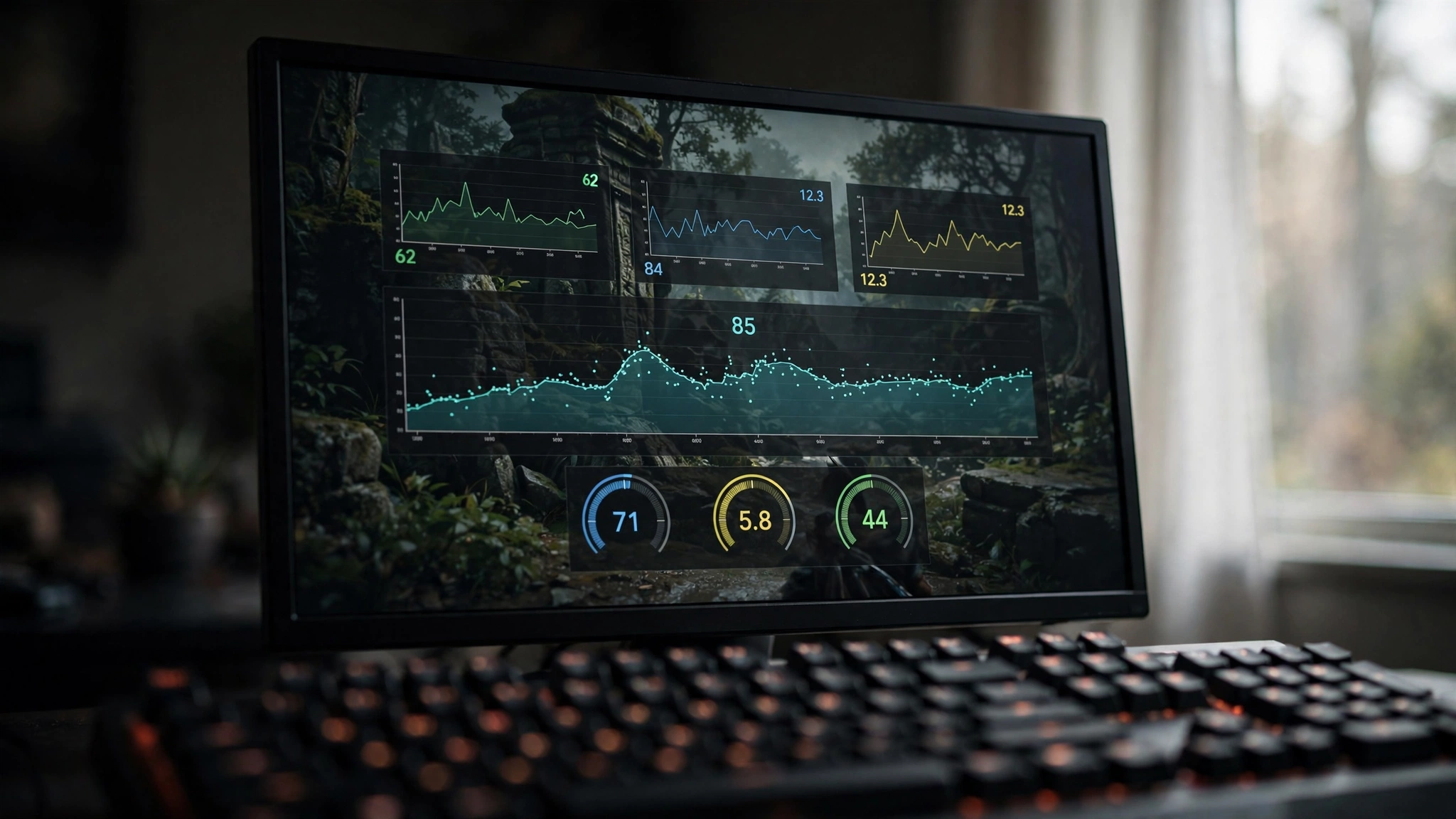
Guessing from one number is how people waste money. Reading VRAM correctly takes about ten minutes and three tools, all of them free.
Start with MSI Afterburner and its companion, RivaTuner Statistics Server. Install both, open the settings, go to the Monitoring tab, and enable GPU memory usage and frametime in the on-screen display. Play your game for ten minutes in a demanding area, and watch both graphs at the same time. The frame time graph is the important one. A flat line means smooth play. Sharp spikes that line up with hitches are the signature of a memory problem, a shader problem, or a streaming problem, and the VRAM graph tells you which one it is.
Next, open GPU-Z and look at the Sensors tab while the game runs. GPU-Z shows memory used across every process, including background programs and the Windows desktop compositor. If your browser with twenty tabs is holding a chunk of VRAM while you game, GPU-Z will show it. Close the browser and the number drops. This is the fastest way to spot background apps stealing memory from your game.
Then check Windows Task Manager. Press Ctrl plus Shift plus Esc, go to Performance, and select GPU. Task Manager shows dedicated GPU memory and shared GPU memory separately. Shared GPU memory is not extra video memory on your card. It is a reserve of system RAM that Windows may lend the graphics card when dedicated memory runs short. The shared figure is a ceiling, not current use, so a large shared number on its own means nothing. What matters is whether the shared memory in use climbs while the dedicated memory sits at its limit and the game hitches. That combination is strong evidence of spill.
In-game overlays add a fourth source. Many games show their own estimated VRAM usage in the graphics settings menu. Red Dead Redemption 2, for example, shows a running estimate and will happily let you set values above your card, which leads to texture streaming hitches rather than an obvious FPS drop. Treat the in-game estimate as a clue about that specific game and its settings, not as a universal measurement.
When you compare tools, expect small differences and do not chase them. What you are looking for is a pattern: dedicated memory pinned near its limit, shared memory climbing, frame time spikes at scene changes, and stutter that gets worse when you raise texture quality. One reading is a hint. The full pattern is a diagnosis.
If you want to record frame times properly instead of eyeballing an overlay, our guide to the best free benchmark software covers the free tools that log 1 percent lows and frame time graphs you can compare before and after a settings change.
The Signs of Real VRAM Stutter
VRAM stutter has a fingerprint. Learn it, and you can separate it from CPU stutter, shader compilation stutter, and thermal throttling in a few minutes.
The first sign is timing. VRAM stutter clusters around scene changes. You turn quickly, enter a new area, load a new level, or cut to a new camera angle, and the game freezes for a fraction of a second. Then it recovers and plays smoothly until the next change. Stutter that is constant no matter what is on screen points somewhere else, usually the CPU or heat.
The second sign is texture behavior. Surfaces stay blurry for a moment and then sharpen suddenly. Distant objects switch abruptly from low detail to high detail. Sometimes a texture never fully loads and stays soft for the whole session. This is the engine falling back to lower detail versions because the high detail versions cannot fit in memory.
The third sign is the 1 percent low. Average FPS can look fine while 1 percent lows collapse. A game running at 70 FPS average with 1 percent lows of 25 FPS feels rough, because the slowest one percent of frames are the hitches you notice. NVIDIA describes the 1 percent low as the average of the slowest one percent of frames during a measurement period, and it is the single most useful number for this problem. If your average is healthy but your 1 percent lows are terrible, and VRAM is pinned at its limit, you have found your culprit.
The fourth sign is the response to a settings change. Drop texture quality one step and replay the same scene. If the hitches shrink or vanish while average FPS barely moves, VRAM was the problem. If nothing changes, the stutter comes from something else, and lowering textures further will not help.
The fifth sign is a crash with a video memory error. Some games close with an out of video memory message when the overflow is severe. This is most common in Unreal Engine 5 titles at high settings on 8GB cards. A crash is not proof by itself, since drivers and unstable overclocks can also crash games, but a memory error combined with the other signs above is strong evidence.
What VRAM stutter is not: it is not a steady low frame rate, it is not stutter that happens in the same spot every time regardless of settings, and it is not a problem that appears only in the first minute of play and then goes away. First minute hitches are usually shader compilation, which improves on later runs once shaders are cached. Learn more about the difference in our GPU bottleneck guide, which explains how a memory limit differs from a raw speed limit.
Which Settings Fill VRAM First
Not all graphics settings cost the same amount of memory. If you need to free VRAM fast, start at the top of this list and work down. The settings at the top free the most memory for the smallest visible loss.
Texture quality is the biggest VRAM consumer by far. Ultra textures can use far more memory than High textures, and the visible difference on a 1080p or 1440p monitor is often small. Dropping from Ultra to High is the single most effective change you can make, and it is the first thing to try.
Resolution is next. A 4K frame buffer is four times the size of a 1080p frame buffer, and every texture and render target scales with it. Going from 4K to 1440p, or from 1440p to 1080p, frees a large amount of memory at once. Upscaling features such as DLSS and FSR help here, because they render at a lower internal resolution and rebuild the image, which keeps memory use closer to the lower resolution.
Ray tracing adds acceleration structures and extra buffers to VRAM, and the cost grows quickly with resolution. Turning ray tracing off, or dropping it from Ultra to Medium, can free enough memory to end the stutter on a borderline card.
Texture streaming settings, sometimes called texture pool size, control how much VRAM the engine is allowed to use for cached textures. A smaller pool means more streaming from storage, but also less pressure on VRAM. Some games expose this directly, and lowering it is a good middle step before cutting texture quality.
Shadow quality, anti-aliasing, and post processing cost some VRAM, but far less than textures and resolution. Lowering shadows first is a common mistake: it costs you visible quality while freeing very little memory. The same goes for view distance in some games, which costs more CPU and streaming work than VRAM.
Here is the order that works, from most memory saved to least:
| Setting | VRAM freed | Visible cost of lowering it |
|---|---|---|
| Resolution or render scale | Very high | Noticeable, but upscaling softens the loss |
| Ray tracing | High | Noticeable in reflections and lighting |
| Texture pool or streaming budget | Medium to high | More pop-in if set too low |
| Shadow quality | Low to medium | Noticeable in dark scenes |
| Anti-aliasing | Low to medium | More jagged edges |
| Post processing effects | Low | Minor in most games |
The practical takeaway is to lower textures first, then resolution or render scale, then ray tracing. Only touch shadows and post processing after those three are settled. Our guide on how to increase FPS covers the same settings from the frame rate side, which is useful if you want both smoother play and higher averages.
How Different Cards Behave
VRAM capacity is not a quality score. It is a budget, and different budgets behave differently in the same game at the same settings. What matters is the gap between what the game wants and what the card holds.
An 8GB card is the most likely to hit the VRAM wall in 2026. At 1080p with High textures, most games still fit comfortably. Push to Ultra textures, add ray tracing, or jump to 1440p, and the budget gets tight fast. Many modern open world and Unreal Engine 5 titles want more than 8GB at 1440p Ultra, so the driver starts evicting and spilling. The result is the classic 8GB pattern: good average FPS, bad 1 percent lows, hitches on every scene change. The card is not slow. It is full.
A 12GB card has real breathing room. At 1440p, most games fit with Ultra textures and room to spare. At 4K, the budget gets tight again, especially with ray tracing on. A 12GB card usually stutters only when several memory hungry settings stack up at once: 4K plus Ultra textures plus ray tracing plus a high resolution texture pack. Drop one of those and the card is comfortable again.
A 16GB card rarely hits a true VRAM wall in current games. At 4K with Ultra textures and ray tracing, most titles still fit. The exceptions are extreme cases: heavily modded games, very high resolution texture packs, and some professional workloads such as large AI models. For gaming, 16GB is headroom, not a requirement, and a 16GB card with a slow GPU will still be slow. Memory cannot fix a weak graphics processor.
Here is how the three capacities compare in practice:
| Capacity | 1080p gaming | 1440p gaming | 4K gaming |
|---|---|---|---|
| 8GB | Comfortable at High and Ultra in most games | Tight at Ultra, fine at High | Often over budget, expect hitches |
| 12GB | Comfortable everywhere | Comfortable at Ultra in most games | Tight with ray tracing, fine without it |
| 16GB | Plenty of headroom | Plenty of headroom | Comfortable at Ultra in most games |
Two warnings belong here. First, capacity alone does not make a card fast. A 16GB card with an entry level GPU will still struggle at 4K, because the processor cannot shade fast enough even though memory is plentiful. Second, do not buy VRAM you will never use. If you play at 1080p on a 144Hz monitor, a 12GB card and a 16GB card will feel the same in most games, and the money is better spent on a faster GPU or a better monitor.
For the full capacity question, including which games need how much memory at each resolution, read our guide on whether 8GB of VRAM is enough. That guide covers the capacity question in depth. This article stays focused on the stutter mechanism itself.
Prove VRAM Is Your Problem
Do not guess. Run this test once, in one game, in one repeatable scene, and you will know whether VRAM is your problem. The whole test takes about fifteen minutes.
Pick a game that stutters and a scene you can replay. A busy town, a fast drive through an open world, or a combat sequence with lots of effects all work well. Avoid the main menu and loading screens. You need real gameplay.
Set up your monitoring first. Open MSI Afterburner with RivaTuner, enable GPU memory usage and frame time in the overlay, and start the game. Play the scene for three minutes at your normal settings and watch the frame time graph. Note where the spikes happen and what the VRAM reading says at those moments. If you want a clean record, log the session with a free benchmark tool instead of eyeballing the overlay.
Now change exactly one thing: drop texture quality one step, from Ultra to High or High to Medium. Replay the same scene, the same route, the same fight, for another three minutes. Compare the two runs. If the hitches shrink or disappear while your average FPS barely changes, VRAM was the problem. If the spikes are identical, VRAM was not the problem, and you should look at the CPU, thermals, or shader compilation instead.
For a stronger test, run the same comparison at a lower resolution. Drop from 1440p to 1080p and replay the scene. If the stutter vanishes, memory pressure was involved, because resolution is one of the biggest VRAM costs. If it stays exactly the same, the cause is somewhere else.
Check the shared memory number while you test. In Task Manager, watch whether shared GPU memory in use climbs while dedicated memory sits at its limit. Spill into shared memory during the exact moments the game hitches is strong confirmation.
Finally, test with background apps closed. Browsers, streaming software, and chat apps with hardware acceleration can hold hundreds of megabytes of VRAM. Close them, replay the scene, and see if the spikes shrink. If they do, you just fixed the problem for free.
Write down what you found. A note that says “Ultra textures, 1440p, VRAM 7.9 of 8GB, spikes at every town entrance, gone at High textures” is worth more than any forum guess. It also tells you exactly how much headroom you need, which is useful if you do decide to upgrade later.
How to Fix VRAM Stutter Without Buying a New Card
Most VRAM stutter can be fixed in settings, and the fixes are free. Work through them in this order, testing after each change, and stop as soon as the stutter is gone. There is no reason to cut quality you do not need to cut.
Lower texture quality one step first. This is the biggest lever, and it is the fix that works most often. Ultra to High frees the most memory for the smallest visible loss, especially at 1080p and 1440p.
Turn on upscaling. DLSS on NVIDIA cards and FSR on AMD cards render the game at a lower internal resolution and rebuild the image to your monitor resolution. That keeps VRAM use closer to the lower resolution while the picture stays sharp. FSR keeps improving too: AMD brought FSR 4.1.2 to Xbox consoles in early November 2026, which shows how widely upscaling is now used as a standard performance tool rather than a niche feature. If your game supports DLSS or FSR, use it before you cut resolution directly. DLSS also has a side benefit worth knowing: by lowering the render resolution it can reduce the load on the CPU as well, which we explain in our guide on whether DLSS reduces a CPU bottleneck.
Lower the render scale or resolution next. If upscaling is not available, drop the render scale to 85 or 90 percent, or step down a resolution. The visual cost is real but small on most monitors, and the memory saving is large.
Turn ray tracing down or off. Ray tracing is expensive in memory as well as in raw speed. Medium ray tracing with good textures usually looks better than Ultra ray tracing with constant hitches.
Close background programs that use the GPU. A browser with hardware acceleration, a streaming app, or a second monitor showing a video can hold VRAM your game needs. Close the browser before you play, or turn off hardware acceleration in its settings.
Update your graphics driver, but do it once and test. New drivers sometimes improve memory management for specific games. A driver update can also clear the shader cache, which causes one-time hitches on the first run afterward while shaders compile again. That is normal and goes away, so do not mistake it for a VRAM problem.
Check your texture streaming settings. Some games let you set a texture pool size or streaming budget. If the game lets you raise it, do not. If it is set too high for your card, lower it so the engine streams more aggressively instead of trying to hold everything in VRAM at once.
Make sure your system RAM is not also full. VRAM spill goes to system RAM, and if system RAM is full too, Windows starts paging to your SSD, which is slower still. Sixteen gigabytes of system RAM is the practical minimum for modern gaming, and 32GB gives the spill path more room to work. This does not give your GPU more VRAM, but it keeps the fallback path from getting even slower.
If you have done all of this and the game still hitches in the same spots with VRAM well below its limit, stop cutting settings. The problem is not VRAM. Check temperatures next, because a hot GPU will throttle its clocks and cause a different kind of stutter. Our guide to GPU thermal throttling explains how to spot it.
When the Fix Is a New Graphics Card
Sometimes the honest answer is that the card is too small for the games you want to play at the settings you want. If you play at 1440p or 4K with Ultra textures and ray tracing, and you have already cut settings to the point where the game no longer looks the way you want, no settings change will fix that. The working set is simply bigger than the memory on the card.
Before you buy, check the VRAM on any card you are considering against the games you actually play. A card with 12GB or 16GB is the sensible target for 1440p Ultra and 4K in 2026. Look up the exact memory size in a specs database such as the TechPowerUp GPU database, because model names alone do not tell you the memory size: the same GPU name can ship with different VRAM amounts in different versions.
The market keeps moving toward larger memory pools. Unconfirmed reports in late 2026 point to a possible RTX 5080 with 24GB of VRAM, expected around December 2026 or January 2027. Those reports are unconfirmed, and the specifications and launch timing may change, so treat them as rumors rather than facts. They are still a useful signal: even the rumors assume that 16GB is becoming the floor for high end cards, not the ceiling. If you are buying a card to keep for several years, that trend matters.
Also check the rest of your system before you upgrade. A new graphics card will not fix stutter caused by a slow CPU, a hard drive, or 8GB of system RAM. A balanced upgrade beats a single expensive part. And if your current card still plays your games well at High settings, the smartest move may be to wait: keep the settings that work, and upgrade when a card with the memory and speed you need fits your budget.
Common Mistakes That Make VRAM Stutter Worse
The first mistake is reading one number and panicking. A VRAM meter at 95 percent with smooth play is not a problem. People have bought new graphics cards over a number that meant nothing. Always pair the reading with the symptom.
The second mistake is lowering the wrong settings first. Shadows and post processing look like easy wins, but they free little memory. Textures, resolution, and ray tracing are the levers that matter. Cut those first.
The third mistake is adding system RAM to fix a VRAM problem. More system RAM helps the spill path and keeps Windows from paging to disk, but it does not give the graphics card more VRAM. A forum user on Quora asked exactly this: they were choosing between a better 4GB graphics card and adding 16GB of system RAM, and wanted to know if the extra RAM would make up for the smaller VRAM. It will not. The GPU still has 4GB of video memory, and the game still has to fit its textures into that 4GB.
The fourth mistake is running the game at settings the card cannot hold and then blaming the game. Some games let you set texture quality above your VRAM without warning you. The settings menu is not a promise. Use the in-game VRAM estimate if the game shows one, and stay near 90 percent of your card’s capacity or below.
The fifth mistake is ignoring background apps. A browser, a video call, or a streaming tool can hold a surprising amount of VRAM. The game does not get to use memory that is already taken.
The sixth mistake is confusing VRAM stutter with shader compilation stutter. Shader hitches are worst on the first run after a driver update or a game update, and they fade as shaders are cached. VRAM hitches repeat every time you enter the same area. If the stutter goes away on the second playthrough, it was shaders, not memory.
Frequently Asked Questions
Does full VRAM cause stuttering?
Yes, full VRAM can cause stuttering, but only when the game needs more memory than the card holds. When that happens, textures spill to slower system RAM, the driver evicts and reloads data constantly, and you feel hitches, frame time spikes, and texture pop-in. A VRAM meter near 100 percent with smooth play is not a problem, because games often reserve memory they never actively use. Test with the one-change method in this guide: drop texture quality one step and replay the same scene. If the hitches go away, VRAM was the cause.
Is 100 percent VRAM usage bad?
Not by itself. A game using all of its available VRAM is often just caching textures for convenience. It becomes a problem only when it causes stutter, texture pop-in, or crashes. A forum user in a DCS World thread put it plainly: their VRAM was always near 100 percent, and they suspected it was the reason for stuttering. That suspicion is worth testing, but the number alone does not prove it. Pair the reading with the symptom: if the game hitches at scene changes and shared memory climbs at the same time, the usage is a real problem. If play is smooth, the full meter is normal.
Will adding more system RAM help if my graphics card only has 4GB of VRAM?
No. This is a real question asked on Quora, where a user wondered whether buying 16GB of system RAM would make up for choosing a graphics card with only 4GB of VRAM. System RAM and VRAM do different jobs. The GPU can only hold textures in its own VRAM, and when that fills up, data spills to system RAM over the PCIe bus, which is far slower. More system RAM gives the spill path more room, but it does not increase the graphics card’s memory. If your card has 4GB of VRAM, the fix is lower texture quality and lower resolution, or a card with more memory.
How do I fix stuttering on an older card like a GTX 1070?
This is a real question asked on Quora, and the answer starts with diagnosis, not spending. First, monitor VRAM usage and frame times with MSI Afterburner while you play. A GTX 1070 has 8GB of VRAM, which is workable at 1080p but tight at 1440p with Ultra textures. Drop texture quality one step, turn on any upscaling the game offers, close background apps, and update the driver. If the stutter disappears at lower textures, VRAM was the cause. If it stays the same, check CPU usage and temperatures, because an older CPU or a hot card can cause the same symptom for a different reason.
Can VRAM cause stuttering even when my FPS looks high?
Yes. This is one of the most confusing parts of the problem. Average FPS hides frame time spikes. A game can average 70 FPS while its 1 percent lows drop to 25 FPS, and those slow frames are the hitches you feel. VRAM overflow behaves like a cliff, not a slope: performance is fine until the memory limit is crossed, then it breaks suddenly. Watch the frame time graph and the 1 percent lows, not just the average.
Does lowering resolution fix VRAM stutter?
Usually yes, because resolution is one of the biggest VRAM costs. A 4K frame buffer is four times the size of a 1080p one. But it is not always the best first move. Lowering texture quality one step often frees more memory with less visible loss, and turning on DLSS or FSR gives you most of the memory saving of a lower resolution while keeping the image sharp. Try textures first, then upscaling, then resolution.
Does full VRAM damage my graphics card?
No. Running out of VRAM does not damage the card. It causes stutter, pop-in, and sometimes crashes, but the hardware itself is fine. The card is simply being asked to hold more data than it can. Lower the settings, and the card goes back to normal. Heat is the thing that can damage hardware over time, not a full memory pool.
Key Takeaways
- Full VRAM can cause stuttering, but only when the game needs more memory than the card holds and is forced to spill data to slower system RAM.
- A VRAM meter near 100 percent is not proof of a problem. Games reserve memory they never use. Pair the reading with the symptom.
- Real VRAM stutter clusters around scene changes, shows up as frame time spikes and bad 1 percent lows, and improves when you lower texture quality.
- Texture quality, resolution, and ray tracing are the settings that fill VRAM first. Lower those before touching shadows.
- 8GB cards are tight at 1440p Ultra and often over budget at 4K. 12GB is comfortable at 1440p. 16GB is comfortable at 4K in most current games.
- The one-change test proves the cause in fifteen minutes: drop textures one step, replay the same scene, and compare.
- More system RAM does not fix a VRAM shortage. It only gives the slow spill path more room.
Conclusion
Does full VRAM cause stuttering? Yes, when it is truly full, not just nearly full. The difference between those two states is the whole story. A game that reserves 95 percent of your VRAM and plays smoothly is using memory the way it was designed to. A game that needs more than the card holds, and has to shuffle textures through system RAM to keep going, will hitch, pop, and blur exactly when the action gets busy.
You do not need to guess which situation you are in. Watch the frame time graph next to the VRAM reading, replay one scene with textures dropped a step, and let the result tell you the answer. If the stutter goes away, you fixed it for free, and you know exactly which setting matters. If it stays, you just saved yourself from buying a new graphics card for a problem that was never about memory.
Check your card’s memory size in a specs database such as the TechPowerUp GPU database if you are unsure what you have, compare it with the games you play, and set your textures to fit the card you own. Your games will feel smoother, your 1 percent lows will climb, and the next time the VRAM meter touches 100 percent, you will know whether to worry or to keep playing. For more on squeezing smooth performance from the hardware you already own, read our guide on how to increase FPS and our look at whether DLSS reduces a CPU bottleneck.

Leave a Reply