

How much CPU usage is normal while gaming? For most games on a modern PC, total CPU usage between 30 and 85 percent is normal, and the exact number depends on the game genre, your resolution, your frame rate target, and how many cores your processor has. A single percentage on its own tells you very little. The number that actually matters is per-core usage, because one maxed-out core can cap your frame rate even while total usage sits at a calm 35 percent. This guide explains the healthy ranges by genre, shows you how to read per-core load in Task Manager, HWiNFO, and MSI Afterburner, and gives you a simple test that separates a harmless 100 percent reading from a real CPU bottleneck.
There Is No Single Normal Number
If you want one quick rule, here it is. Total CPU usage of 30 to 85 percent during gameplay is normal for most titles, and brief spikes to 100 percent during loading screens, big battles, or scene changes are also normal. Sustained 100 percent total usage is only a problem when it comes with symptoms: stuttering, unstable frame times, low GPU usage, or a frame rate that will not rise no matter how much you lower the graphics settings.
That range is wide on purpose. A light esports title at 1080p on a 16-core processor might use 15 percent of the CPU. A city builder with thousands of simulated citizens can pin the same processor at 90 percent or more. Both readings can be perfectly healthy. The game, not the percentage, decides what is normal.
Most guides stop at a flat range like 50 to 85 percent and leave you guessing. That advice fails because it treats every game and every processor as the same. A 4-core CPU and a 16-core CPU will show very different totals while running the exact same game at the exact same frame rate. The rest of this guide replaces that flat number with genre tables, a per-core reading method, and a decision test you can run in one minute.
What CPU Usage Percentage Actually Measures
CPU usage is the share of your processor’s available processing time that is busy doing work. At 100 percent, the processor has no spare capacity at that moment. At 25 percent, three quarters of its capacity is idle. That sounds simple, but the single number hides the most important detail in gaming: how the work is spread across cores.
Total Usage Versus Per-Core Usage
Modern processors have many cores, and Windows reports total usage as an average across all of them. That average can lie to you in both directions.
Imagine an 8-core, 16-thread processor. A game has one main thread that does the heavy work: game logic, draw call preparation, and frame pacing. If that one thread is fully saturated, it uses one of 16 threads, which adds only about 6 percent to the total. The game can be completely CPU limited, with stuttering and a capped frame rate, while Task Manager shows a relaxed 40 percent total. Tom’s Hardware makes exactly this point in its guide to checking CPU usage: a single core can be maxed out while the overall percentage looks low, and that single core can limit the frame rate of the whole game.
The reverse is also true. A game that spreads its work well across many cores can show 90 percent total usage and run beautifully, because no single core is the limiting factor and the graphics card is still fully fed. Total usage alone cannot tell these two situations apart. That is why every serious diagnosis starts with per-core usage, not the headline number.
If you take one idea from this article, take this one: never judge a bottleneck from total CPU usage alone. Always check per-core load and GPU usage at the same time.
What the CPU Actually Does During a Game
While you play, the CPU handles a long list of jobs that the graphics card cannot do on its own. It runs game logic and artificial intelligence, calculates physics, prepares draw calls that tell the GPU what to render, processes player input, manages audio, handles networking, and runs the operating system and background apps at the same time. Some of these jobs split neatly across cores. Others, especially the main game thread, do not split at all.
That split is why genre matters so much. A strategy game with hundreds of units needs the CPU to calculate paths and decisions for every unit, and that work scales with unit count. A cinematic story game at 4K mostly asks the GPU to render detailed scenes, so the CPU waits between frames. Same processor, same evening, wildly different usage numbers.
Intel explains this split in its description of hybrid processor design: performance cores handle heavy single-threaded game work, while efficient cores take background tasks such as chat apps and antivirus scans, so the game thread is less likely to be interrupted. AMD’s desktop Ryzen lineup follows the same idea from the other side, with high core counts and large caches that let many game threads run at once. The architecture differs, but the lesson is the same: how work is divided across cores matters more than the total percentage.
Normal CPU Usage by Game Genre
The table below gives typical total CPU usage ranges by genre on a modern 8-core processor. These are approximate ranges drawn from published guides, not measurements from our own testing, and your numbers will shift with your core count, clock speed, settings, and background apps. Use them as a sanity check, not as a pass or fail line.
| Game Genre | Typical Total CPU Usage | Why It Loads the CPU This Way |
|---|---|---|
| Esports shooters (Counter-Strike 2, Valorant) | 20 to 60 percent | High frame rates push draw calls, but simple scenes keep per-frame work light |
| Battle royale (Fortnite, Apex Legends, PUBG) | 40 to 75 percent | Large maps, many players, constant networking and physics |
| Open world action (GTA V, Cyberpunk 2077, Elden Ring) | 50 to 85 percent | Streaming world data, NPC AI, physics, and dense scenes |
| Simulation and city builders (Cities: Skylines 2, Factorio) | 70 to 95 percent | Thousands of simulated agents, pathfinding, and economy math |
| Strategy (Civilization, Total War, StarCraft 2) | 60 to 90 percent | Unit AI, pathfinding, and late-game turn calculations |
| Racing and sports (Forza Horizon, FIFA) | 30 to 60 percent | Predictable tracks and physics, heavy GPU rendering |
| Story-driven AAA (God of War, The Last of Us) | 40 to 75 percent | Balanced load, GPU usually does the heavy lifting |
| MMORPGs (World of Warcraft, Final Fantasy XIV) | 40 to 80 percent | Crowded areas spike CPU load, quiet zones drop it fast |
| Indie and casual games | 10 to 40 percent | Simple logic, small worlds, low draw call counts |
Three patterns in that table deserve attention. First, simulation and strategy games are the most CPU-hungry genres by a wide margin, because their work grows with the number of things being simulated. Second, esports titles look light on total usage but are often limited by one fast core, because they chase very high frame rates and the main thread has to prepare hundreds of frames per second. Third, indie games barely touch a modern CPU, and a low number there is a sign of a light game, not a problem.
Normal CPU usage while gaming also changes inside a single session. Menus and loading screens often spike usage as the game builds shaders and loads assets. A quiet walk through an empty field uses far less CPU than a 100-player firefight in the same game. Judge your numbers during typical gameplay, not during a loading screen or a pause menu.
Normal CPU Usage by Resolution and Frame Rate
Resolution and frame rate change CPU usage in opposite directions, and understanding that trade is one of the fastest ways to diagnose a problem.
Higher resolution shifts work to the GPU. At 4K, the graphics card takes longer to render each frame, so the CPU spends more time waiting and less time preparing new frames. Total CPU usage usually drops when you move from 1080p to 1440p or 4K at the same settings. That is normal and healthy.
Higher frame rates do the opposite. At 240 frames per second, the CPU must prepare a new frame every 4 milliseconds. At 60 frames per second, it gets nearly 17 milliseconds per frame. Chasing high refresh rates is the single biggest driver of CPU load in esports titles, and it is why a competitive player at 1080p and 360 Hz can see far higher CPU usage than a casual player at 4K and 60 Hz on the same hardware.
Here is the practical rule. If your CPU usage is high at 1080p with an uncapped frame rate, try two quick experiments before you worry. First, cap the frame rate at your monitor’s refresh rate. Second, raise the resolution or the graphics settings. If CPU usage falls and the frame rate stays smooth, your processor was simply being asked to prepare more frames than your monitor could show. That is wasted work, not a broken PC.
This trade also explains why CPU bottlenecks show up most at 1080p. At low resolution, the GPU finishes frames fast and waits on the CPU. At 4K, the GPU becomes the limit and the CPU gets breathing room. If someone tells you a pairing is bottlenecked without naming a resolution and a frame rate target, the claim is incomplete.
How to Read Per-Core Usage Like a Pro

You do not need paid software to read CPU usage properly. Windows has the tools built in, and two free tools cover everything else. Set them up once and the numbers stop being a mystery.
Task Manager: The Fastest Check
Task Manager is the fastest way to see both total and per-core usage on Windows. Press Ctrl, Shift, and Escape together, then open the Performance tab and click CPU. The big graph shows total usage, clock speed, core count, and utilization history. To see per-core load, right-click the graph and choose Change graph to, then Logical processors. Each small graph is one thread. Watch for one or two graphs pinned near the top while the rest sit low. That pattern is the classic sign of a main-thread limit, and it is the pattern total usage hides.
The Processes tab adds the other half of the picture. Click the CPU column header to sort by usage and look for anything besides your game using a large share. A browser with many tabs, a Windows update, or an antivirus scan can add 10 to 20 percent of CPU load during a game, and that background load is often the real reason a borderline system stutters.
MSI Afterburner: The In-Game Overlay
Task Manager cannot help while you are in a full-screen game, unless you have a second monitor. MSI Afterburner solves that with an on-screen display. Install it with its companion app, RivaTuner Statistics Server, then open Settings, go to the Monitoring tab, and enable CPU usage, CPU temperature, GPU usage, and framerate. The overlay draws those numbers over your game in real time, so you can see usage, temperature, and frame rate change together during actual gameplay.
The overlay matters because the numbers only mean something together. CPU at 100 percent with GPU at 98 percent is a system working hard. CPU at 100 percent with GPU at 45 percent is a system waiting on the processor. You cannot see that pairing without an overlay or a second screen.
HWiNFO: The Deep Dive
HWiNFO is the tool to reach for when Task Manager and Afterburner leave questions unanswered. It shows per-core usage, per-core temperatures, clock speeds, power draw, and thermal throttling flags in one window. If your CPU usage looks strange, HWiNFO can tell you whether the processor is slowing itself down because of heat, a power limit, or a BIOS setting.
A practical routine is to run HWiNFO in sensors-only mode during a 10 minute gaming session, then look at the maximum and average columns for each core. Cores that spent the session near 100 percent while others idled point to a thread-limited game. Clock speeds that drop well below the processor’s rated boost speed while temperatures are high point to thermal throttling, which is a cooling problem rather than a usage problem.
When 100 Percent CPU Usage Is Fine
Is 100 CPU usage normal gaming? Sometimes, yes. Here are the situations where a maxed-out processor is doing its job and you can relax.
First, demanding simulation and strategy games can legitimately use all of a processor. A late-game city builder or a huge Total War battle has real work for every core, and using all of it is efficient, not broken. If the frame rate is stable, frame times are even, and temperatures are under control, the CPU is simply being used properly.
Second, brief spikes to 100 percent are normal. Loading a new area, compiling shaders, starting a match, or hitting a big scripted event can pin the CPU for a few seconds. Spikes only matter when they turn into sustained saturation with stuttering attached.
Third, streaming or recording while you play adds real CPU work. Software encoding with x264 in OBS, for example, compresses video on the processor in real time. A game that used 60 percent of the CPU on its own can easily reach 95 percent once encoding starts. Switching to hardware encoding on your graphics card usually removes most of that extra load.
Fourth, older or lower-core-count processors will hit 100 percent more often, because there is simply less capacity to share. A 4-core CPU running a modern open world game at high frame rates is expected to sit near its limit. The question is still the same: is the game smooth? If yes, the CPU is earning its keep.
The common thread in all four cases is the absence of symptoms. Smooth frame rate, stable frame times, controlled temperatures, and a responsive system mean high usage is fine, even at 100 percent. The number alone is not a diagnosis.
When 100 Percent CPU Usage Means a Bottleneck
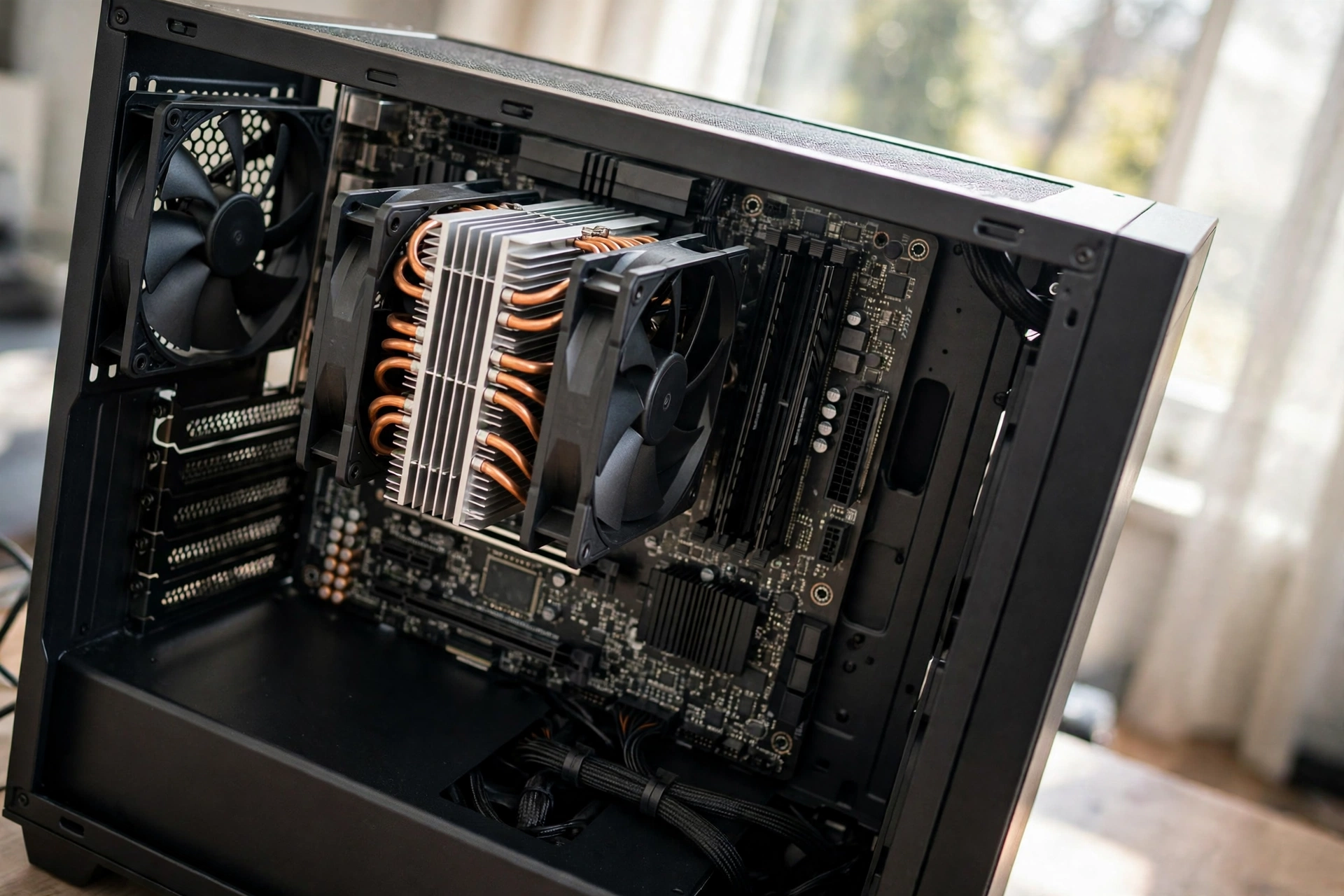
A bottleneck happens when one component limits the rest of the system. For the CPU, the pattern is specific: the processor is saturated while the graphics card waits for work. That is the moment 100 percent stops being fine and starts costing you frames.
Look for these five signs together. One sign on its own is weak evidence. Three or more together make the diagnosis strong.
- Total CPU usage stays at 90 to 100 percent for minutes at a time, not seconds.
- GPU usage sits well below 90 percent, often under 70 percent, while the CPU is maxed out.
- The frame rate stays low or stutters even after you lower resolution and graphics settings.
- One or two cores sit near 100 percent in the logical processor view while the rest are quiet.
- Frame time spikes appear as hitching or micro stutter, even when the average frame rate looks acceptable.
The GPU usage test is the most reliable of the five. A graphics card that is fully used is doing its job. A graphics card that is half idle while the CPU is maxed out is starved of instructions, and no graphics setting will fix that, because the limit sits upstream of the GPU. Our guide to the 10 signs your CPU is bottlenecking your GPU covers this pattern in more detail, including the frame time symptoms that a simple FPS counter misses.
The resolution test confirms it. Raise the resolution or the graphics quality. In a GPU-limited system, the frame rate should fall because the GPU has more work to do. In a CPU-limited system, the frame rate barely changes, because the processor was already the limit. If your FPS is the same at 1080p low settings and 1440p high settings, your CPU is almost certainly holding the frame rate down.
A real example makes this concrete. A Quora user with an older Core i7-4790 paired with a much newer graphics card reported smooth gameplay problems with CPU usage around 35 percent and GPU usage around 30 percent. The community answer pointed out that total CPU usage is a poor metric here: the old processor’s main thread could be saturated even at low total usage, and the low GPU usage was the real clue. The fix was not a setting. It was a platform upgrade to a modern CPU, motherboard, and RAM. Low GPU usage plus a capped frame rate is the bottleneck signature, whatever the total CPU number says.
The 60 Second Bottleneck Test
Run this test the next time you suspect a problem. It takes one minute and it replaces guesswork with evidence.
| Step | What to Do | What the Result Means |
|---|---|---|
| 1 | Open MSI Afterburner overlay with CPU usage, GPU usage, FPS, and frame time | You need all four numbers at once |
| 2 | Play normally for 60 seconds in a busy scene | Busy scenes stress the CPU most |
| 3 | Note average CPU usage, GPU usage, and FPS | Write the three numbers down |
| 4 | Lower the resolution one step and repeat | CPU limit shows as unchanged FPS |
| 5 | Cap the frame rate at your monitor refresh rate | Frees CPU headroom if the cap was the cause |
Read the results this way. CPU near 100 percent and GPU near 100 percent means the system is balanced and working hard. CPU near 100 percent and GPU under 80 percent means a CPU bottleneck is likely. CPU under 50 percent and GPU under 80 percent with low FPS means something else is wrong, such as a frame rate cap, a power limit, thermal throttling, or a background app. CPU low and GPU near 100 percent means the GPU is the limit, which is the healthy outcome for most AAA games.
If the test points to a CPU limit, the next section on fixes tells you what to try, in order, before you spend money. If the test is unclear, our guide on why your FPS is so low walks through the wider checklist, including driver, power, and background app causes that look like a bottleneck but are not one.
What Else Can Push CPU Usage to 100 Percent
Not every 100 percent reading comes from the game itself. Check these causes before you blame your hardware.
Background apps are the most common culprit. A browser with video tabs, Discord, a game launcher updating in the background, or a Windows update can add heavy CPU load. Close everything non-essential and test again. If usage drops by 15 percent or more, the game was never the problem.
Streaming and recording software adds load as well, especially software encoding. Hardware encoding through NVENC on NVIDIA cards or the equivalent AMD encoder moves that work to the graphics card and usually frees the CPU immediately.
Malware and runaway processes are rarer but worth a check. If CPU usage sits near 100 percent at idle on the desktop, with no game running, sort Task Manager by CPU and look for an unknown process. A healthy idle system usually sits between 1 and 10 percent.
Outdated or corrupted drivers can also waste CPU cycles. A graphics driver that mishandles draw calls forces the CPU to work harder for every frame. A clean driver reinstall is a cheap test when usage jumped after a driver update.
Finally, Windows power settings matter. A power plan that caps the processor, or a laptop running on battery saver, can leave the CPU throttled at low clocks. At low clock speed, the processor needs a higher usage percentage to do the same work. Switching to the High Performance or Balanced plan, and checking the maximum processor state setting, can change the numbers without touching the game.
How to Fix 100 Percent CPU Usage While Gaming
Work through these fixes in order, from free and fast to expensive. Most cases are solved in the first four steps.
1. Close background apps. Shut the browser, launchers, and chat apps you do not need. Check Task Manager for anything using more than a few percent and close it. Retest the game before you change anything else.
2. Cap the frame rate. Set an FPS limit at your monitor’s refresh rate, either in the game settings or through your graphics driver. Uncapped frame rates ask the CPU to prepare hundreds of frames your monitor cannot show. This one change can cut CPU usage by a large margin in esports titles.
3. Raise resolution or graphics settings. This sounds backwards, but it works when the GPU is idle. Higher settings shift work to the graphics card and give the CPU breathing room between frames. If your monitor supports 1440p, try it. If not, raise render scale slightly instead.
4. Lower CPU-heavy settings. Shadows, view distance, crowd density, physics quality, and NPC counts load the processor far more than textures or anti-aliasing do. Lower those first. Leave texture quality high, since textures mostly load the GPU and VRAM.
5. Switch recording and streaming to hardware encoding. In OBS, choose NVENC or the AMD hardware encoder instead of x264 software encoding. This single change often removes the extra CPU load that pushes a borderline system to 100 percent.
6. Update drivers and Windows. Install the latest graphics driver with a clean install option, and install pending Windows updates. Driver overhead and scheduler fixes in updates can reduce CPU usage in real games.
7. Check temperatures and cooling. A hot CPU slows itself down, which raises usage for the same work. Clean dust from fans and heatsinks, check that the cooler is mounted firmly, and replace dried thermal paste if the system is old. Our guide on a CPU running hotter after a GPU upgrade explains why a new graphics card can raise CPU temperatures and what to do about it.
8. Adjust BIOS settings. Features such as Resizable BAR, XMP or EXPO memory profiles, and balanced power limits can change how much work the CPU does per frame. Our BIOS guide for reducing a CPU bottleneck walks through the settings that are safe to change and the ones to leave alone.
9. Upgrade the CPU, or the platform. If the fixes above do not help and the 60 second test still shows a CPU limit, the processor is simply too slow for the games and frame rate you want. A modern 6-core or 8-core CPU with strong single-thread performance is the usual answer, and older platforms may also need a new motherboard and RAM. Before you buy, read our comparison of CPU bottlenecks versus GPU bottlenecks and the guide on whether to upgrade the CPU or GPU first, so the money goes to the part that is actually limiting you.
CPU Usage Temperature, and Safety
A common worry is whether 100 percent CPU usage damages the processor. Modern CPUs are designed to run at full load, and they protect themselves by slowing down or shutting off if temperatures get dangerous. High usage on its own does not harm the chip. Heat is the real risk, and usage is only a proxy for it.
As a rough guide, most desktop gaming CPUs are comfortable between 65 and 85 degrees Celsius under load. Brief spikes toward 90 degrees during heavy scenes are common on laptops and compact builds. Sustained temperatures above 95 degrees, or frequent thermal throttling, mean the cooling needs attention, whatever the usage number says.
Watch temperature and clock speed together with usage. A CPU at 100 percent usage, 70 degrees, and full boost clocks is healthy. A CPU at 100 percent usage, 98 degrees, and clocks well below its rated boost speed is throttling, and the fix is cooling, not a usage tweak. HWiNFO shows all three numbers in one place, which is why it is the best tool for this check.
One Quora question captures this worry well: “What is the safe limit of a CPU usage? I have Core2Duo and it goes 100% while playing a certain game.” The answer from the community is that the processor has built-in safety mechanisms and will throttle or shut down before damage occurs, but a processor that old running at 100 percent in a modern game is also a clear bottleneck. The chip is safe. The gaming experience is not.
Trending Hardware in Late 2026 and What It Means for CPU Load
Hardware news in late 2026 adds useful context to CPU usage, even if it does not change the rules in this guide. Reports in recent weeks have suggested that an RTX 5080 with 24GB of memory may be delayed, though that remains unconfirmed and NVIDIA has not announced such a card, so treat it as a rumor rather than a buying signal. Separately, GPU prices have been surging in late 2026, which makes a CPU upgrade the cheaper path to smoother frame rates for many players who cannot justify a graphics card at current prices.
The RAM market matters too. A shortage of memory has been reported as lasting through 2030, linked to AI demand and statements from suppliers such as SK Hynix, and that shortage is already pushing up the cost of the DDR5 kits that a CPU platform upgrade needs. If you are planning a processor upgrade, budget for RAM early rather than assuming today’s prices will hold.
The practical takeaway is simple. In a market where graphics cards and memory cost more, fixing CPU usage with free steps, frame rate caps, settings changes, and cooling, matters more than ever. Spend money only after the 60 second test proves the CPU is the limit.
Common Mistakes When Reading CPU Usage
Judging by total usage alone. This is the biggest mistake, and this whole guide exists to fix it. Total usage hides per-core saturation. Always check the logical processor view and GPU usage together.
Panicking over a loading screen spike. Loading screens, shader compilation, and scene changes pin the CPU briefly. That is normal work, not a bottleneck. Judge usage during typical gameplay.
Chasing 100 percent GPU usage as a goal. A fully used GPU is healthy in AAA games, but in esports titles at high refresh rates the GPU will often sit below 100 percent because the CPU prepares frames faster than the GPU needs. Low GPU usage is only a problem when the frame rate is also low.
Blaming the CPU when the frame rate is capped. A 60 FPS cap, VSync, or a power limit can hold the frame rate down while both CPU and GPU look idle. Check for caps before you diagnose a bottleneck.
Ignoring background apps. A browser, an update, or a recording tool can add 20 percent CPU load. Test with a clean desktop before you conclude the game is at fault.
Comparing percentages across different processors. A game that uses 80 percent of a 4-core CPU might use 40 percent of an 8-core CPU while delivering the same frame rate. Percentages only make sense on your own system, compared against your own GPU usage and frame rate.
Frequently Asked Questions
Is 100 percent CPU usage normal while gaming?
It can be. Simulation, strategy, and city builder games can legitimately use all of a processor, and brief spikes to 100 percent are normal in most titles. It becomes a problem when sustained 100 percent CPU usage comes with low GPU usage, stuttering, or a frame rate that will not rise when you lower settings. Check per-core usage and GPU usage together before you decide.
Is 100 percent CPU usage harmful while gaming?
This is a real question asked on Quora, and the short answer is no, not on its own. Modern processors are designed to run at full load and will throttle or shut down before heat can damage them. The risk is not the usage number. It is sustained high temperature, so watch temperatures and clock speeds alongside usage, and fix cooling if the CPU is throttling.
What is the safe limit of CPU usage? I have a Core2Duo and it goes 100 percent while playing a certain game.
This question comes from Quora, where a user with an old Core 2 Duo processor and a gaming graphics card asked about safe limits. The community answer is that the processor will protect itself from heat, but a processor that old running at 100 percent in a modern game is a clear bottleneck. Newer games are designed for 8-core processors, and a dual-core chip from that era cannot keep up. The safe move is to upgrade the platform, not to keep pushing the old chip.
I have an i7-4790 and a GTX 3060 Ti but the game is not running smooth. RAM usage is 2GB, graphics card usage is 30 percent, and CPU usage is 35 percent. What should I do?
This is a real Quora question, and it shows why total CPU usage misleads. The answer given by the community is that total usage is a poor metric: the old processor’s main thread can be saturated even at 35 percent total, and the graphics card sitting at 30 percent is the real clue that the CPU is holding the game back. The recommended fix was a platform upgrade to a modern CPU, motherboard, and RAM, and checking per-core usage and 1 percent low frame rates to confirm the diagnosis first.
Why is my CPU usage low but my FPS is also low?
Low total CPU usage with low FPS usually means one of three things. A single core is saturated while the total looks low, a frame rate cap or VSync is holding the frame rate down, or the CPU is throttled by heat or a power limit. Open the logical processor view in Task Manager and check clock speeds and temperatures. If one core is near 100 percent, the game is main-thread limited.
Should CPU usage be 100 percent while gaming?
No, it does not need to be. A gaming CPU does not have to reach 100 percent to perform correctly, and most games run best with some headroom left. High usage is not a goal. Smooth frame rates, stable frame times, and a fully used GPU are the goals, and CPU usage is only a clue on the way to them.
How do I lower CPU usage while gaming?
Cap the frame rate at your monitor’s refresh rate, close background apps, lower CPU-heavy settings such as shadows, view distance, and crowd density, and switch recording or streaming to hardware encoding. Raising resolution or graphics settings can also help, because it shifts work to the GPU. If none of that helps and the 60 second test still shows a CPU limit, a processor upgrade is the remaining fix.
Does high CPU usage cause stuttering?
It can, but only when the CPU is the limiting factor. When the processor cannot prepare frames fast enough, frame times become uneven and you feel hitching even if the average frame rate looks fine. If usage is high but frame times are stable and the game feels smooth, the high usage is not causing stuttering.
Key Takeaways
- Normal CPU usage while gaming is usually 30 to 85 percent total, but the genre, resolution, frame rate, and core count change the number so much that no single percentage fits every game.
- Total CPU usage is a misleading number on its own. One saturated core can cap your frame rate while total usage sits at 35 percent, so always check per-core usage and GPU usage together.
- Simulation, strategy, and city builder games use the most CPU. Esports and indie games use the least, and that is normal.
- 100 percent CPU usage is fine when the game is smooth, frame times are stable, and temperatures are controlled. It means a bottleneck when GPU usage is low, the frame rate will not rise, and stuttering appears.
- The 60 second test is the fastest diagnosis: record CPU usage, GPU usage, and FPS, then lower the resolution. If FPS barely changes, the CPU is the limit.
- Fix free things first: close background apps, cap the frame rate, adjust CPU-heavy settings, and switch to hardware encoding. Upgrade the processor only after the test proves it is the limit.
Conclusion
How much CPU usage is normal while gaming comes down to context, not a single number. A calm 40 percent in an esports title, a busy 80 percent in an open world game, and a pinned 100 percent in a city builder can all be healthy, and the difference is written in per-core load, GPU usage, frame rate, and frame times rather than in the headline percentage. Learn to read those four numbers together, run the 60 second test when something feels off, and fix the free things first. Most high CPU usage turns out to be a game doing its job, a frame rate cap doing its job too well, or a background app stealing cycles. When the test does point at a real CPU bottleneck, you will know it from evidence instead of from a scary number, and the fix, whether settings or a new processor, will be the right one.

Leave a Reply