

Getting the streaming bottleneck cpu gpu balance right is the difference between a stream that looks smooth and a stream that stutters, pixelates, or drags your game down with it. Most new streamers blame their internet connection or graphics card when a stream goes wrong. In reality, streaming is a balancing act: your PC runs a game and produces a live video feed at the same time, and whichever part runs out of headroom first becomes the bottleneck for everything else. This guide explains how to find that balance before you spend money, how to choose between NVENC, x264, and AV1 encoding, how many CPU cores you need, and which hidden limits (RAM and upload bandwidth) quietly ruin streams that should otherwise work fine.
A bottleneck is simply the slowest link in a chain. When you play without streaming, your CPU prepares each frame and your GPU renders it. If the CPU cannot keep up, you get a CPU bottleneck; if the GPU cannot keep up, a GPU bottleneck. Our guide to CPU bottlenecks versus GPU bottlenecks explains that distinction in full.
Streaming adds a second, parallel job: encoding those frames into compressed video and sending it to Twitch or YouTube in real time. That job needs its own resources. If it steals too much from the game, or if it cannot keep up itself, the result shows up as a stream that looks worse than the game feels, a game that feels worse than it should, or both at once. The goal is not to eliminate the bottleneck entirely, because every PC has one. The goal is to put the bottleneck where it costs you the least.
What a Streaming Bottleneck Actually Is
A streaming bottleneck appears when one part of your PC cannot keep up with everything streaming asks it to do. The symptoms are distinct enough that you can usually tell which part is struggling before you open a monitoring tool.
- CPU overload: The game stutters, frame times spike, and OBS reports skipped frames due to encoding lag. Your stream may freeze while your game still runs.
- GPU overload: The game frame rate drops, OBS reports rendering lag, and the stream looks choppy even though your CPU has headroom.
- Encoder overload: The game feels fine, but the stream pixelates during fast motion, even at a reasonable bitrate. The encoder simply cannot compress fast enough.
- Bandwidth limit: The stream drops frames to the platform, viewers see buffering or disconnections, and OBS reports dropped frames due to network issues. No hardware upgrade fixes this one.
- RAM pressure: The game, the stream, the browser, and chat tools compete for memory. Stutters appear when Windows starts paging to disk, and they often look random.
Most streamers experience a mix of these, not a single clean cause. That is why upgrading the wrong part so often fails to help. A faster GPU will not fix CPU encoding overload. More CPU cores will not fix a bandwidth limit. Diagnosis comes first, and it costs nothing.
Recording Problems Are Not the Same as Streaming Balance
It is easy to confuse streaming with recording, because both involve encoding video. The demands are different, and the fixes are different too. Recording can use higher bitrates, variable frame rates, and quality settings that would be impossible live, because the file does not need to leave your PC in real time. Streaming must hit a fixed bitrate, a fixed frame rate, and a platform’s ingest limits, all while the game keeps running.
If your recordings stutter but your live streams are fine, or the other way around, the cause is usually the encoder settings, not your hardware balance. Our guide to why recording gameplay kills FPS explains that split in detail, including why a setup that records beautifully can still struggle live.
The Two Jobs Your PC Runs During a Stream
Think of a stream as two jobs sharing one PC. Job one is the game: the CPU simulates the world and prepares frames, the GPU renders them, and RAM holds textures, assets, and game state. Job two is the broadcast: the encoder compresses those frames into video, and your network connection uploads them to Twitch or YouTube.
The jobs compete for the same parts in different ways. The CPU is the most contested resource, because it runs the game logic, the operating system, background apps, and, if you use x264, the encoder as well. The GPU is contested when hardware encoding uses the same chip that renders the game, though modern hardware encoders are separate blocks on the GPU die and cost far less performance than software encoding.
Balance means giving each job enough headroom that neither one starves the other. A good rule is to leave at least 10 to 20 percent of CPU and GPU capacity unused during a stream. That headroom absorbs scene changes, browser sources, chat overlays, and the occasional background task without pushing the system into overload.
NVENC vs x264 vs AV1
Your encoder choice is the single biggest lever on streaming balance, because it decides which part of your PC carries the live video job. Choose it first, then build around it.
NVENC (NVIDIA Hardware Encoding)
NVENC is a dedicated hardware encoder on NVIDIA graphics cards, separate from the cores that render games. On RTX 40 series and newer cards, NVENC produces excellent quality at Twitch and YouTube bitrates with almost no measurable impact on game performance, usually 1 to 3 percent. It is the default recommendation for single-PC streamers, because it frees the CPU entirely for the game. You can read NVIDIA’s own overview of its broadcasting and encoding features on NVIDIA’s website.
Older NVENC generations (GTX 10 series and earlier) are noticeably weaker, especially at lower bitrates, where they can look blocky during fast motion. If you stream on an older NVIDIA card, test at your target bitrate before committing to NVENC, and consider x264 on a strong CPU as an alternative.
x264 (CPU Software Encoding)
x264 runs on the CPU and, at slower presets, can beat hardware encoders on quality, especially for detailed scenes at lower bitrates. The cost is CPU load: a medium preset at 1080p60 can consume 30 to 50 percent of a modern 8-core CPU, and slower presets need even more. That load competes directly with the game, so x264 only makes sense when you have cores to spare, or when you run a dedicated second PC for encoding.
For most single-PC streamers, x264 on the veryfast or faster preset is a reasonable compromise, but it rarely beats modern NVENC on quality per CPU cycle. If your CPU is already near its limit in the game alone, x264 will make both the game and the stream worse. Our guide to how to fix a CPU bottleneck covers the steps to free up CPU headroom, from closing background apps to capping frame rates, before you spend money on a new processor.
AV1 (The New Hardware Standard)
AV1 is a newer codec that delivers better quality at the same bitrate than H.264, especially for high-motion content. Hardware AV1 encoding is available on NVIDIA RTX 40 series and newer, AMD RX 7000 series and newer, and Intel Arc GPUs. YouTube supports AV1 ingest, and Twitch has rolled out AV1 support for supported streamers, though H.264 remains the safer choice for maximum compatibility.
AV1 encoding on a modern GPU costs about as little performance as NVENC H.264, and the quality gain is real, often 20 to 30 percent better at the same bitrate. If your GPU supports it and your platform accepts it, AV1 is the best choice for a single-PC stream today. Software AV1 encoding on a CPU is still too slow for live use on most systems, so do not attempt it unless you have a very high core count and a low target resolution. AMD publishes details of its own hardware encoding features on AMD’s website.
| Encoder | Runs on | Effect on game performance | Best for | Watch out for |
|---|---|---|---|---|
| NVENC H.264 | NVIDIA GPU (dedicated block) | Minimal, 1 to 3 percent | Single-PC streaming, Twitch | Older generations look weaker at low bitrates |
| x264 | CPU | High, 30 to 50 percent at medium preset | Two-PC setups, high core-count CPUs | Competes with the game for CPU time |
| AV1 | Modern GPU (dedicated block) | Minimal, similar to NVENC | YouTube, best quality per bitrate | Platform support still rolling out on Twitch |
| AMD hardware encoder | AMD GPU (dedicated block) | Minimal | Single-PC streaming on AMD GPUs | Quality trails NVENC and AV1 at low bitrates |
How Many CPU Cores Does a Streamer Really Need?
The answer depends on your encoder. With NVENC or AV1 hardware encoding, the CPU only runs the game, the operating system, and streaming software overhead, so 6 cores is usually enough, and 8 cores gives comfortable headroom for browser sources, chat, and music. With x264, you need more: 8 cores is the practical minimum for 1080p60 at a faster preset, and 12 or more cores is better for medium preset or higher resolutions.
More cores do not automatically help if the game itself is limited by single-thread performance. A fast 8-core CPU will beat a slower 16-core CPU for most games, because games still depend heavily on a few fast threads. When you compare CPUs, look at gaming benchmarks first, then check that the core count covers your encoder choice. Do not buy a 16-core chip for NVENC streaming if a faster 8-core chip costs less and games better.
Hyperthreading and simultaneous multithreading help streaming, because the encoder and background tasks can use logical threads without blocking game threads as often. They do not double performance, but they do smooth out the spikes that cause stutters. If you already have a 6-core CPU with multithreading and you use hardware encoding, an upgrade to 8 cores is rarely worth the money on its own.
GPU Encoder Load The Hidden Cost Nobody Mentions
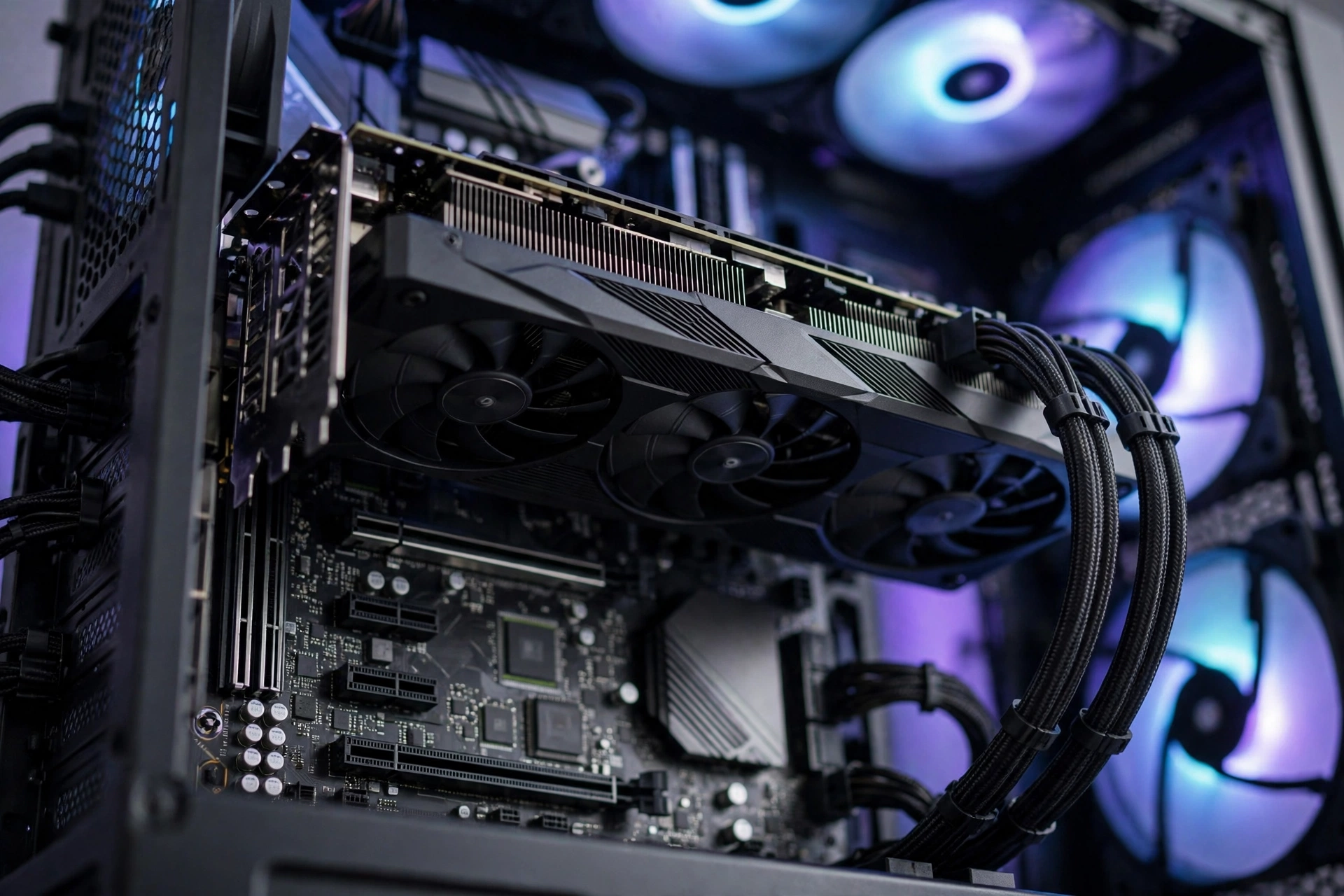
Streamers often assume hardware encoding is free. It is not free, it is cheap, and the difference matters when your GPU is already at its limit. Hardware encoders use a separate block on the GPU, but they still share memory bandwidth, power limits, and, on some cards, the video engine with game rendering.
In practice, the cost is small: 1 to 3 percent of frame rate on modern NVIDIA and AMD cards at 1080p60, rising to perhaps 5 percent at 1440p or with multiple encoder sessions. The problem appears when you stream at a resolution and frame rate your GPU cannot sustain in the game alone. If your GPU is already at 100 percent in the game, adding any encoder load, even a small one, pushes it over the edge and causes rendering lag in OBS.
The fix is to cap your game frame rate or lower a GPU-heavy setting before you blame the encoder. Locking the game to your stream frame rate, or to a stable value below your monitor refresh rate, frees GPU headroom for encoding and produces a smoother stream than an uncapped frame rate that spikes and dips. Our guide to what a GPU bottleneck is explains how to tell whether your GPU is the limit, and what to change first.
RAM and Upload Bandwidth The Hidden Limits
RAM is the most overlooked streaming bottleneck. A game alone may use 10 to 12 GB, OBS and browser sources add 2 to 4 GB, and chat tools, music, and the operating system add more. On a 16 GB system, that leaves almost no headroom, and Windows will start paging to disk when you open one more tab. The result is stutters that look like a CPU or GPU problem but disappear the moment you add RAM.
For streaming, 16 GB is the floor, and 32 GB is the comfortable recommendation, especially if you run browser sources, multiple monitors, or a second game client. RAM speed matters less than capacity for streaming, but dual-channel memory (two sticks, not one) is essential, because single-channel RAM can cut memory bandwidth in half and cause frame-time spikes. Our guide to RAM bottlenecks explained covers the signs of memory pressure and how to confirm them with Task Manager.
Upload bandwidth is a hard limit no hardware purchase can exceed. Twitch recommends 6,000 Kbps for 1080p60, and YouTube allows higher, up to 51,000 Kbps for 4K, but your actual upload speed must exceed your stream bitrate by at least 30 to 50 percent to absorb spikes. If your upload speed is 10 Mbps, do not stream at 8,000 Kbps, because a single dip will drop frames. Test your upload speed at different times of day, use a wired Ethernet connection instead of Wi-Fi, and set your bitrate to no more than 70 percent of your measured upload speed.
Twitch vs YouTube Different Platforms
Twitch and YouTube impose different limits, and those limits change the optimal balance. Twitch caps most streamers at 6,000 Kbps for video, with 8,000 Kbps available to Partners and some Affiliates, and it transcodes only for Partners and popular streams. That means most Twitch viewers watch your source stream directly, so encoder quality at 6,000 Kbps matters more than raw resolution. A 1080p60 stream at 6,000 Kbps on NVENC or AV1 will look better than a 1440p stream squeezed into the same bitrate.
YouTube allows much higher bitrates, supports AV1 ingest, and transcodes for all streamers, so viewers can choose lower resolutions if their connection struggles. That makes YouTube more forgiving of higher resolutions and bitrates, and a better fit for AV1. The trade-off is that YouTube’s discoverability and chat culture differ from Twitch, so platform choice is not purely technical. For balance purposes, plan for Twitch’s 6,000 Kbps cap if you stream there, and use YouTube’s higher headroom only if you actually stream there.
Tiered Build Recommendations for Streamers
These tiers assume a single PC, hardware encoding, and a 1080p60 target. Adjust up if you stream at 1440p or use x264, and adjust down if you stream at 720p or use a dedicated encoding PC.
| Tier | CPU class | GPU class | Encoder choice | Best for |
|---|---|---|---|---|
| Starting streamer | 6-core, modern | RTX 3060 or RX 6600 class | NVENC or AMD hardware | 720p60 or 1080p60 at 4,500 Kbps |
| Serious hobbyist | 8-core, fast single-thread | RTX 4060 / 5060 or RX 7700 XT class | NVENC or AV1 | 1080p60 at 6,000 Kbps, browser sources |
| Full-time streamer | 8 to 12 cores, high clock | RTX 4070 / 5070 or RX 7800 XT class | AV1 or NVENC | 1080p60 high quality, multiple scenes |
| Dedicated two-PC setup | 8+ cores on gaming PC, 8+ cores on encoding PC | Any modern GPU on gaming PC | x264 medium on encoding PC | Maximum quality, zero game impact |
A two-PC setup is the only way to completely separate the game job from the encoding job. It is also the most expensive and complex option, and it only makes sense if you stream full-time or need the absolute best x264 quality. For everyone else, a single PC with hardware encoding and enough headroom is simpler, cheaper, and nearly as good.
Stream How to Protect Your Budget
GPU prices swing with supply, tariffs, and new launches, and streamers feel that volatility more than most, because a GPU upgrade is often the first thing they consider. Before you buy in a tight market, check whether your current GPU already has a hardware encoder that meets your needs. Many streamers upgrade from a card with perfectly good NVENC to a newer card for a small gaming gain, when the real limit was CPU, RAM, or bandwidth all along.
If you do need a GPU, prioritize encoder generation over raw gaming performance for streaming. An RTX 4060 with modern NVENC and AV1 will stream better than an older, faster gaming card with an older encoder, even if the older card wins in pure frame rates. Buy the encoder first, the gaming performance second, and keep your old card as a backup if you can. Our best GPU for gaming buying guide explains how to weigh price, performance, and encoder features when the market is tight.
A Simple Settings Starting Point
Settings are where balance becomes concrete. These are starting points for OBS Studio, not magic values: adjust them while watching OBS’s stats panel and your game’s frame rate, and change one thing at a time so you know what helped. OBS Studio’s own documentation is the authoritative reference for its current options, on OBS Studio’s website. If you are setting up OBS for the first time, start here, then adjust based on your stats panel, not on forum advice. These settings work for most single-PC streamers on Twitch at 1080p60.
- Encoder: NVENC H.264 or AV1, if your GPU supports it. Use x264 only on a dedicated encoding PC or a high core-count CPU.
- Bitrate: 6,000 Kbps for Twitch, or 70 percent of your measured upload speed, whichever is lower.
- Resolution: 1920×1080 output, or 1664×936 if your bitrate cannot sustain full 1080p without pixelation.
- Frame rate: 60 fps for fast games, 30 fps for slow, detailed games where bitrate is tight.
- Preset: Quality or P5 on NVENC, veryfast on x264. Do not use Max Quality on NVENC unless you have GPU headroom to spare, because it uses more GPU resources for a small gain.
- Keyframe interval: 2 seconds, as required by Twitch and YouTube.
- Game frame rate cap: Cap the game to your monitor refresh rate or below, to leave GPU headroom for encoding.
After your first stream, open OBS, go to View, then Stats, and check for skipped frames due to encoding lag, rendering lag, and dropped frames due to network. Zero in all three categories means your balance is right. Any non-zero number tells you exactly which part to adjust, and that is far more useful than a generic upgrade recommendation.
Frequently Asked Questions
Do I need a second PC to stream?
No, not for most streamers. A single PC with hardware encoding, 8 cores, and 32 GB of RAM handles 1080p60 easily. A second PC only makes sense for full-time streamers who need maximum x264 quality or who play CPU-heavy games that already saturate a single PC.
Is NVENC better than x264?
For single-PC streaming, yes, in practice. Modern NVENC matches or beats x264 veryfast on quality, with almost no CPU cost. x264 wins only at slower presets on a dedicated encoding PC, where CPU cost does not matter. If you have to choose on one PC, choose NVENC or AV1.
How much upload speed do I need to stream at 1080p60?
At least 8 to 10 Mbps of stable upload speed for a 6,000 Kbps Twitch stream, because you need headroom above your bitrate. Test at different times of day, use Ethernet, and do not stream at more than 70 percent of your measured upload speed.
Will upgrading my GPU fix my stream stutter?
Only if the GPU is the actual limit. Check OBS Stats first: rendering lag points to the GPU, encoding lag points to the encoder or CPU, and network drops point to bandwidth. Upgrading the GPU will not fix CPU overload, RAM pressure, or a slow upload connection.
Does RAM speed matter for streaming?
Capacity matters more than speed. Go from 16 GB to 32 GB before you worry about RAM speed, and make sure you run dual-channel memory. Faster RAM helps marginally, but it will not fix a stream that stutters because Windows is paging to disk.
Conclusion
A good streaming PC is a balanced streaming PC. Choose your encoder first, because that choice decides whether your CPU or your GPU carries the live video job. Favor hardware encoding on a single PC, buy cores for x264 only if you actually run x264, keep 16 GB of RAM as your floor, and treat upload bandwidth as a hard limit no hardware purchase can exceed. Test with OBS’s stats panel, upgrade the part the stats point at, and stay flexible on GPU tier while the market stays tight.

Leave a Reply