

No, a second monitor on its own almost never bottlenecks gaming in a way you will notice. An idle second screen with just a desktop background costs roughly 1 percent of FPS or less in published third party tests, which is within normal run to run variation. What costs FPS is what you run on that screen: a video stream, a second game, streaming software, or a pile of heavy browser tabs. Fix the workload on the second screen and the “second monitor problem” usually disappears.
Does a Second Monitor Bottleneck Gaming
Not all second screen use is equal. A static desktop and a live video stream are very different jobs for your PC, even though both sit on the same monitor. This table gives rough estimates from published third party tests, not guarantees. Your numbers will vary with your GPU, your CPU, the game, and what else is running.
| Second screen activity | Rough FPS cost estimate | What it feels like |
|---|---|---|
| Desktop idle, wallpaper only | Under 1 percent | Nothing noticeable |
| Chat app and static browser tabs | About 1 to 3 percent | Nothing noticeable in most games |
| Video stream at 1080p | About 3 to 7 percent on GPU heavy games | Possible small stutter in demanding scenes |
| Video stream at 4K | Higher than 1080p video | More likely stutter, especially on weaker GPUs |
| Streaming or recording software | Noticeable, varies widely | Depends on encoder settings and CPU headroom |
| A second game running | Large, often very large | Both games suffer, do not do this for serious play |
| Animated wallpaper or live dashboard | Small to moderate | Usually fine, but check it if you chase every frame |
The pattern is simple. The second monitor is a display, not a second game. Light work on it is cheap. Heavy work on it competes for the same CPU, GPU, and memory your game needs.
Why a Second Monitor Costs Anything at All
A GPU driving two displays has to produce two pictures instead of one. The second picture is usually simple: a desktop, a chat window, a browser page. Rendering a simple picture is cheap compared with rendering a modern 3D game, so the extra cost is small.
Three other things can add cost, and they matter more than the display itself.
First, video decode. Playing a video on the second screen asks the GPU to decode a video stream at the same time as it renders your game. Modern GPUs have dedicated video decode hardware, so this is efficient, but it is not free, and it uses some memory bandwidth.
Second, CPU and RAM work. A browser with many tabs, a chat app, and a music player all use CPU time and RAM. In a CPU heavy game, that background work can be the difference between smooth frames and a dip at the worst moment.
Third, VRAM. Every open window, texture, and video frame takes some video memory. On a card with plenty of VRAM this is trivial. On a card that is already near its VRAM limit in a game, the second screen can push it over the edge, and that shows up as stutter rather than a clean FPS drop. For help reading those signs, see our guide to what a GPU bottleneck feels like.
Practical takeaway: if your game stutters only when something is playing on the second screen, suspect the second screen workload, not the monitor hardware.
What Costs the Most on a Second Screen
Video streams
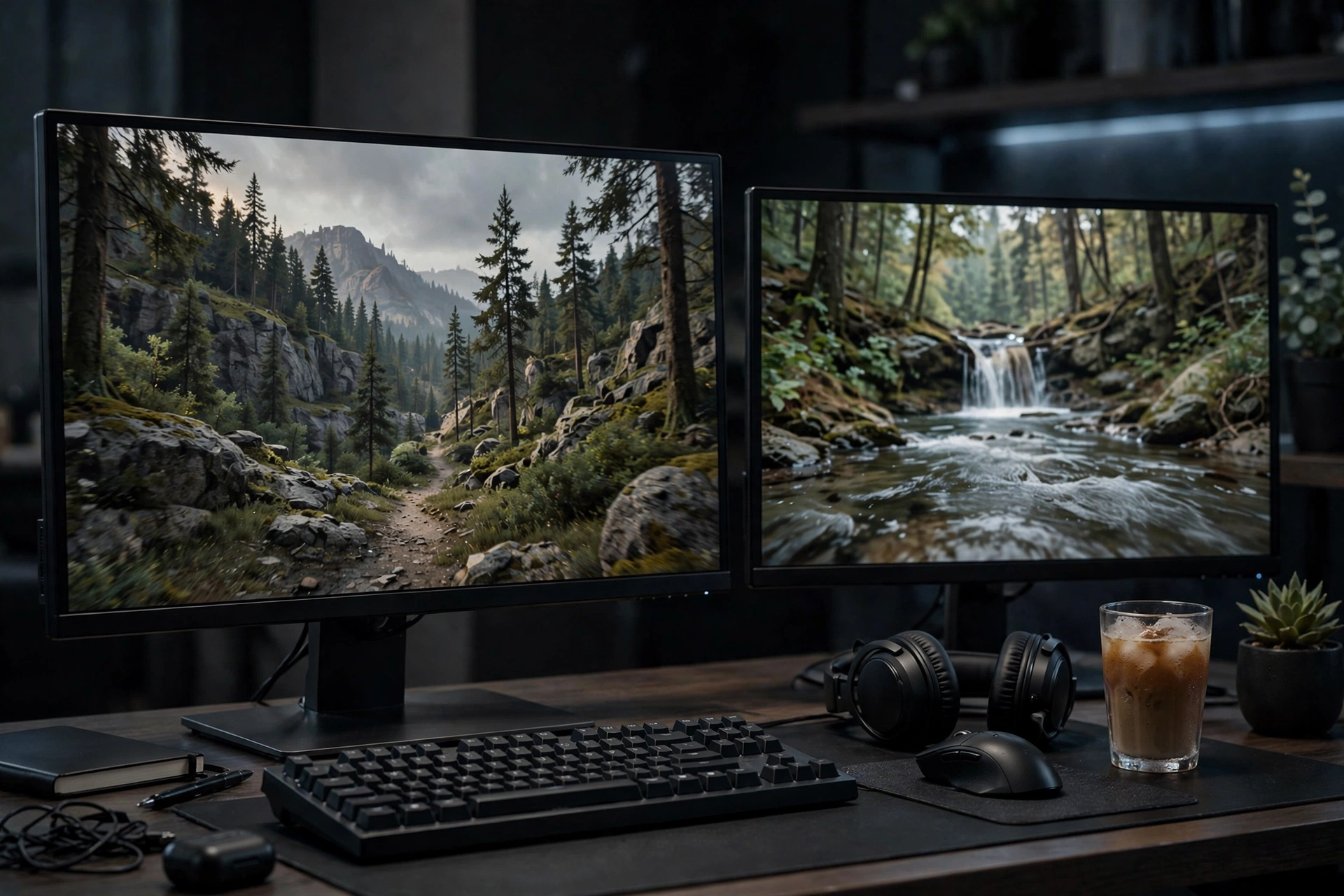
A video stream is the most common culprit. It is not the monitor, it is the decode work plus the browser work around it. A 1080p stream on a modern GPU is usually a small cost. A 4K stream, a stream with a busy chat overlay, or several video tabs at once costs more. If you watch streams while you play, try pausing the video for one match and comparing. That single test tells you more than any forum thread.
Streaming and recording software
Running OBS or a similar tool on the second screen while you game is a real workload. Encoding video uses CPU or GPU encoder resources, and preview windows add GPU work. This is a legitimate use case, and it is also the one where a stronger CPU or a hardware encoder setting makes the biggest difference. If you stream, test your encoder settings with the game running, not with the game closed.
Browser tabs
One or two static tabs are cheap. Dozens of tabs, especially tabs with auto playing video, ads, or live updating pages, are not. Browsers also keep background tabs alive, so “I only have it open” can still mean real CPU and RAM use. Close what you are not reading.
A second game
Running a second game on the other monitor is the one case where the answer is a clear yes, it will hurt. Both games compete for the GPU, and the game in focus usually still loses performance to the background game. If you idle in a second game while playing your main game, expect a real cost, and do not judge either game’s performance that way.
Animated wallpapers and dashboards
Animated wallpapers, live system dashboards, and stock tickers look light, but they redraw constantly. On a strong PC the cost is small. On a weaker PC or a laptop it can be enough to notice. If you chase high refresh rates, a static wallpaper is the boring and correct choice.
Practical takeaway: rank your second screen apps by work, not by window size. A small video window can cost more than a large static window.
Mixed Refresh Rates and Stutter
A classic dual monitor complaint goes like this: the main monitor is 144Hz or 165Hz, the second monitor is 60Hz, and the game feels choppy even though the FPS counter looks fine. This was a well known Windows behavior in older versions, where a moving window on the 60Hz screen could drag the whole desktop timing down.
Modern Windows 11 handles mixed refresh rates much better than older versions did, and for most people this is no longer a daily problem. But it is still worth checking if you feel micro stutter that does not match your FPS number.
What to check, in order:
- Make sure each monitor is actually running at its rated refresh rate in Windows display settings. A 144Hz monitor accidentally set to 60Hz is a common setup mistake.
- If stutter appears only when something animates on the second screen, pause that animation and see if the stutter goes away.
- Try the game in true fullscreen rather than borderless windowed, since borderless mode ties the game more closely to desktop timing.
- Update your GPU driver. Display timing fixes land in driver updates more often than people expect.
If none of that changes anything, your stutter probably comes from the game or the CPU, not from the refresh rate mix. Our guide to how to find a PC bottleneck walks through telling a CPU limit apart from a GPU limit.
Test Your Own Setup in 5 Minutes
You do not need anyone else’s benchmark. Your PC, your game, and your second screen apps are the only combination that matters. Here is a test you can run in one gaming session.
- Open your game and turn on an FPS and frame time overlay. The free tool in our MSI Afterburner guide works well for this.
- Play one repeatable section, such as the same mission start or the same map area, with the second monitor disconnected or set to show only the desktop. Note the average FPS and how smooth it feels.
- Repeat the same section with your normal second screen apps open: chat, browser, and video if that is your normal setup.
- Repeat once more with the video paused or closed, but chat and browser still open.
- Compare the three runs. The gap between run 2 and run 4 is the cost of your video. The gap between run 4 and run 1 is the cost of your light apps.
Two rules make this test honest. Keep the game scene the same, because different scenes have different FPS. And run each test for at least a couple of minutes, because a 10 second sample is mostly noise.
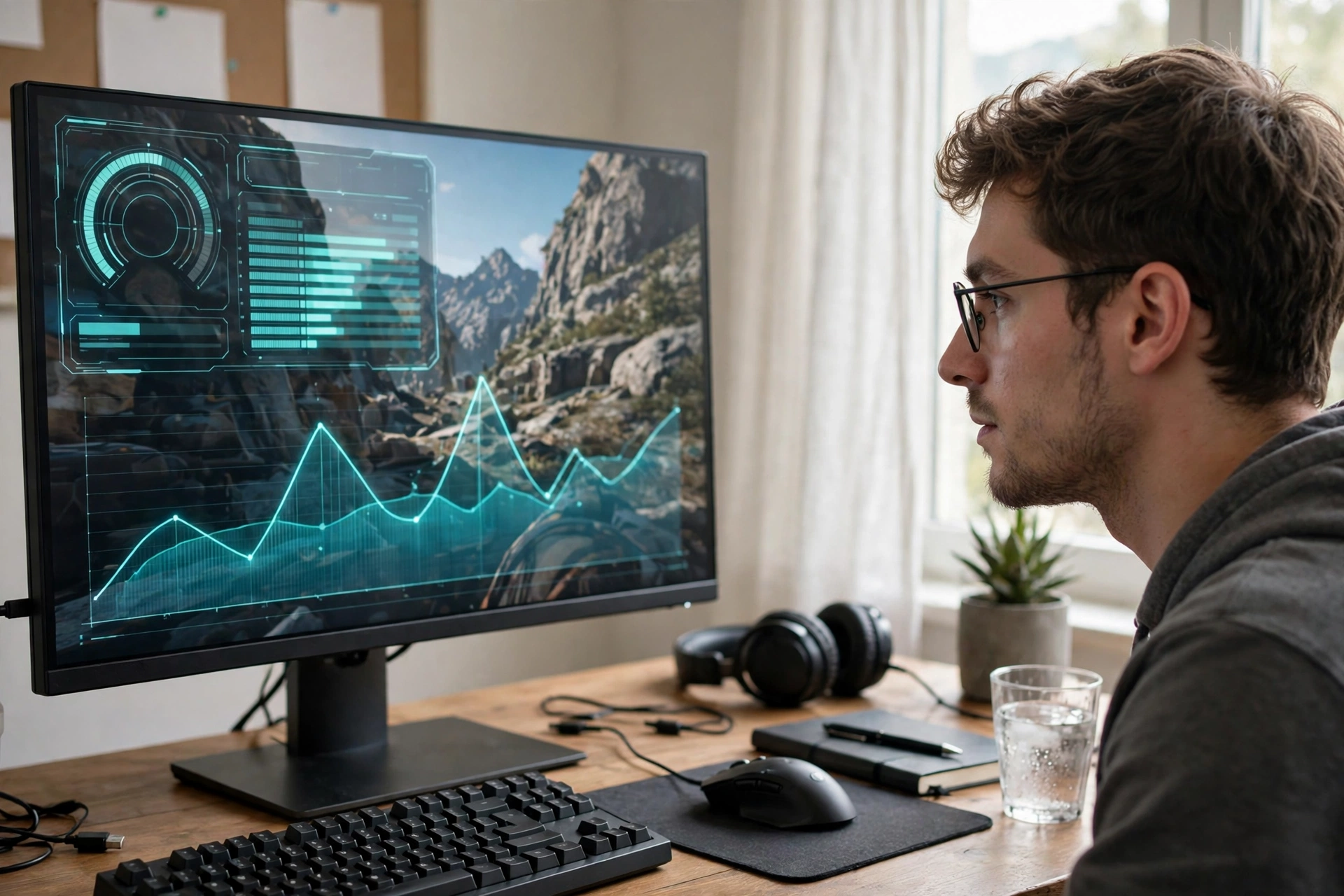
Practical takeaway: if the gap is under about 3 percent, stop worrying. That is normal variation, and no upgrade is worth chasing for it.
Fixes That Actually Work, Ranked
Start at the top. Most people only need the first two.
- Pause or close video on the second screen during demanding games. This is the single biggest win, and it costs nothing.
- Close browser tabs you are not using, especially tabs with video or live updates.
- Plug both monitors into the graphics card, not one into the motherboard. A monitor plugged into the motherboard may run on integrated graphics, which can cause odd behavior and, on some systems, worse performance.
- Use true fullscreen for competitive games if borderless mode feels choppy with a second screen active.
- Cap background app frame rates where the app allows it, and turn off animated wallpapers while gaming.
- Lower the video quality on the second screen. A 720p stream instead of 4K is a big saving for a small window you glance at.
- If you stream, use hardware encoding and test encoder settings under real gaming load, not at the desktop.
- Only consider a GPU upgrade if your card is already at its limit in the game itself, with the second screen idle. Upgrading to fix a video stream problem is usually spending money on the wrong part.
One more check: heat. A GPU working harder runs hotter, and a hot GPU can throttle. If your FPS drops after 20 minutes but not in the first 5, heat may be part of the story. Our guide to GPU thermal throttling explains how to spot it.
The Laptop Case
Laptops deserve a special note, because the rules change slightly. Many gaming laptops route the external monitor through integrated graphics unless you use the right port, and some laptops share cooling between the CPU and GPU in a tight chassis. A second screen on a laptop can therefore cost more than the same setup on a desktop, and heat builds faster.
If you game on a laptop with a second monitor, check which port drives the external display, keep the laptop ventilated, and be more aggressive about closing video on the second screen. The 5 minute test above works exactly the same on a laptop, and it is the fastest way to know whether your setup is fine or struggling.
Setup Checklist Before You Buy
You do not need an expensive second monitor for chat, video, and browsing while you game. What matters is the setup, not the price tag.
- Buy a second monitor for its job: a basic 1080p panel is plenty for chat and video.
- Match the connection to your GPU: use DisplayPort or HDMI ports on the graphics card itself.
- Set the correct refresh rate for each monitor in Windows after plugging it in.
- Keep some VRAM headroom. If your game already uses nearly all your card’s VRAM, a heavy second screen is more likely to cause stutter.
- Put the second monitor where you can glance at it without turning your head far. Comfort matters more than size for a side screen.
- Use one good cable per monitor. A flaky cable causes flicker that people sometimes mistake for a performance problem.
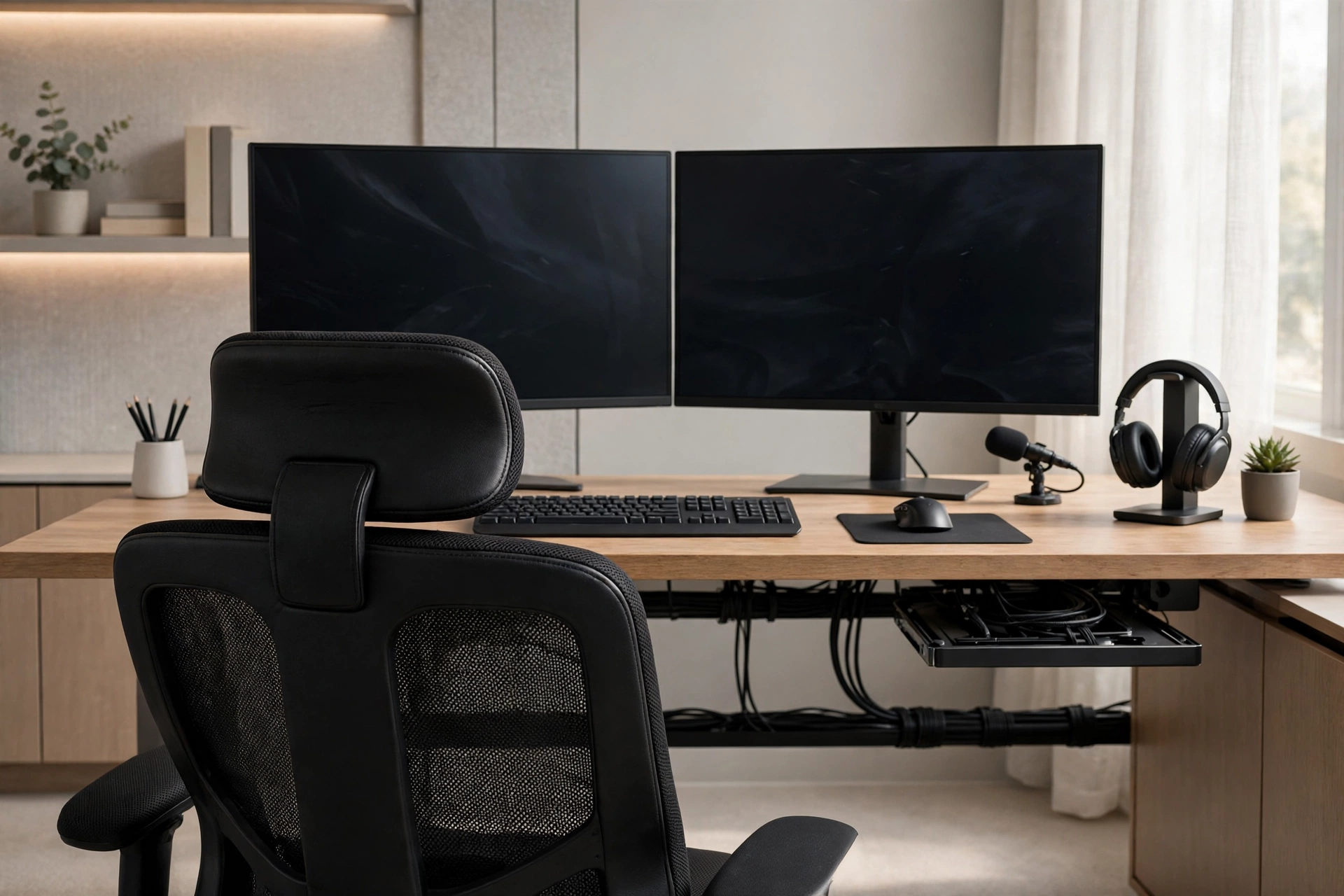
Practical takeaway: for a side screen, spend on a comfortable stand and a clean cable run before you spend on a higher refresh rate you will barely look at.
Common Mistakes
- Blaming the monitor when a video stream is the real cost. The monitor is passive, the stream is work.
- Testing with a different game scene each time and calling the difference a second monitor effect.
- Plugging the second monitor into the motherboard and wondering why behavior is odd.
- Running a second game in the background and judging the main game’s performance.
- Judging smoothness by average FPS alone. Frame time spikes and 1 percent lows are what stutter feels like, even when the average looks fine.
- Assuming a second monitor doubles the GPU load. It does not, unless you run demanding content on both screens.
Expert Tips
- For competitive games, go minimal on the second screen: chat only, no video, no animated wallpaper.
- For story games at 60 FPS, a video or stream on the second screen is usually fine on a modern GPU. Enjoy it.
- If you use Discord a lot, the desktop app and the browser version can behave differently. If one stutters, try the other.
- Keep your GPU driver current. Display and multi monitor fixes are a regular part of driver updates from both major GPU makers.
- For official driver and specification pages, check AMD and NVIDIA, and for detailed specification tables check TechPowerUp.
Pros and Cons
Pros of a second monitor
- Chat, guides, and music without alt tabbing out of the game.
- Easier streaming, with chat and controls visible at a glance.
- Better multitasking between games: homework, work chat, and game guides side by side.
- Almost no cost when the second screen is idle or showing light content.
Cons of a second monitor
- Video and heavy apps on the second screen do cost FPS and can add stutter.
- More things competing for CPU, RAM, and VRAM in demanding games.
- Mixed refresh rates can still cause occasional timing quirks.
- More desk space, more cables, and one more thing to configure.
Frequently Asked Questions
Does a second monitor lower FPS?
Only a little, in most cases. An idle second screen costs roughly 1 percent or less in published tests. A video stream costs more, roughly 3 to 7 percent on GPU heavy games in one published test, and a second game costs a lot. The activity matters far more than the monitor.
Does a second monitor use GPU or CPU?
Both, in different amounts. The GPU renders the second picture and decodes video. The CPU runs the apps on that screen. Light apps are cheap on both. Heavy apps, especially video and streaming software, use real resources on both.
Will a second monitor bottleneck a weak GPU?
It can make an existing limit worse, but it rarely creates one from nothing. If your GPU is already at 100 percent in a game, any extra work costs frames. If your GPU has headroom, a light second screen will not be noticed. This is the same logic as any CPU versus GPU bottleneck: the part with no headroom decides the result.
Should I unplug my second monitor for competitive games?
You do not need to unplug it. Just close video and heavy apps on it. An idle second screen is not worth unplugging for, and keeping chat visible is part of why you bought it.
Does turning off the second monitor help if it stays plugged in?
Turning the monitor off does not remove it from Windows. The GPU still treats the display as connected as long as the output is active. To fully remove the cost, disconnect it in display settings or unplug the cable.
Is a 60Hz second monitor a problem next to a 144Hz main monitor?
Usually not on modern Windows. Older systems had more trouble with mixed refresh rates. If you feel stutter only when something moves on the 60Hz screen, try pausing that animation and testing in true fullscreen.
Key Takeaways
- The monitor itself is almost free. The workload on it is what costs FPS.
- Idle or light second screens cost roughly 1 to 3 percent, which is not worth worrying about.
- Video streams are the most common real cost, and pausing them is the best free fix.
- Test your own setup with the same game scene, three ways, before spending money.
- Plug both monitors into the graphics card, set the right refresh rates, and keep video off the second screen during competitive play.
Conclusion
A second monitor is one of the best quality of life upgrades a PC gamer can buy, and the fear that it will bottleneck gaming is mostly overblown. Buy it, set it up on the graphics card, keep heavy video off it during demanding games, and enjoy the extra screen. If your FPS drops, check what is running on that screen first. Nine times out of ten, that is your answer, and it costs nothing to fix.

Leave a Reply