

Quick answer: A laptop GPU bottleneck happens when the graphics chip cannot reach its desktop-level performance because of power limits, heat, and shared cooling. A laptop RTX 4070, for example, usually performs like a desktop RTX 4060 Ti, not a desktop RTX 4070. Total graphics power (TGP) matters more than the model name.
What a laptop GPU bottleneck really means
You bought a gaming laptop with an RTX 4070. The box says RTX 4070. Your friend’s desktop has an RTX 4070. Same name, same game, but your frame counter sits 30 to 50 percent lower. Nothing is broken. That gap is the laptop GPU bottleneck in its purest form: a graphics chip that cannot reach its desktop-class potential because the laptop around it cannot feed it enough power or pull away enough heat.
A laptop gpu bottleneck is not just a slower version of a desktop bottleneck. On a desktop, a bottleneck usually means the CPU cannot keep up with the GPU, or the reverse. On a laptop, the entire system is one shared thermal and power budget, and the GPU is the first component to hit the ceiling. The chip is deliberately designed down to fit that ceiling, so the limitation is baked in from the factory. Understanding that distinction is the difference between buying the right laptop and overpaying for a name on a sticker.
Here is the mental model that makes everything else click: a desktop GPU is like an engine with its own radiator and fuel line. A laptop GPU is the same engine brand shrunk into a suitcase, sharing one tiny radiator and one fuel line with the CPU, the memory, and everything else. Physics does not negotiate. Every choice in this article flows from that one reality.
Why mobile GPUs trail their desktop namesakes
The gap between mobile and desktop graphics is not new, but it has changed shape over the generations. Years ago, NVIDIA put an “M” on mobile chips, so buyers knew the GTX 980M was a different animal from the GTX 980. Then the M disappeared, and the names became identical. The hardware never caught up with the naming. If you want the full background on how GPU-side limitations work in general, our guide to what a GPU bottleneck actually is covers the fundamentals that still apply here.
Three forces create the gap: power limits, smaller silicon, and heat. Every laptop lives under all three at once, and no driver update can change that. The sections below break each one down, because once you see how the pieces connect, buying decisions get a lot easier.
Power limits: the single biggest lever
Total graphics power, or TGP, is the maximum wattage the GPU is allowed to draw. It is the single most important number in laptop graphics, and for years it was also the hardest to find. A desktop RTX 4080 Super runs with a 250 to 320 watt envelope. A laptop RTX 4080 lives somewhere between 60 and 175 watts depending on the chassis. That is not a small difference. It is a different universe.
The RTX 5090 generation makes the point even sharper. The desktop RTX 5090 carries a TGP of 575 watts. Its laptop sibling tops out at 150 watts, and thin models drop as low as 95 watts. As Digital Trends reported on the mobile RTX 5090, the laptop version delivers well under half the desktop card’s performance, and even the VRAM advantage of the mobile 5090 cannot close that gap. Power is the hard wall. When a chip is allowed half the watts, it runs lower clocks and produces less work. There is no clever architecture trick that escapes that math.
What surprises most buyers is that TGP varies wildly within the same model name. Two laptops with the “same” RTX 3070 Ti can perform 15 to 17 percent apart, simply because one runs a 150 watt TGP and the slim one runs 105 watts, as Notebookcheck’s testing of two MSI laptops showed. The full-power laptop’s card even beat some lower-TGP versions of the more expensive chip. The lesson is blunt: a cheaper-tier GPU at full power often outruns a higher-tier GPU that is starved. For that reason, NVIDIA now pushes vendors to list TGP on spec sheets, a rule Digital Trends highlighted as the most important buying change in years. Always look for it before you buy.
Smaller chips, fewer cores, less memory
The name on the lid often hides a smaller die. The laptop RTX 3080 was not a cut-down desktop RTX 3080 chip. It used the GA104 die, the same silicon family as the desktop RTX 3070 Ti, while the desktop 3080 used the much larger GA102. An investigation by ek.ua documented how this naming quietly carried through later generations too. The laptop RTX 4080 uses the AD104 chip with 12 GB of memory, while the desktop RTX 4080 uses AD103 with 16 GB. The laptop RTX 4090 does share its desktop sibling’s silicon, but with 8 GB less memory and lower clocks, and its real-world result lands around a desktop RTX 4080 class card.
The one honest exception proves the rule. The laptop and desktop RTX 4060 are nearly twins: both use the AD107 chip with 3072 CUDA cores, a 128-bit bus, and 8 GB of memory, so their gaming results sit close together. But that is the low end, where the desktop card itself is already a 115 watt part that fits a laptop envelope. At the high end, the desktop cards keep growing in power while laptop chassis stay thin, so the gap widens. This is why the laptop GPU ladder never maps cleanly onto the desktop ladder. You are not buying a smaller 4070. You are buying a different, weaker GPU that happens to share the name.
Thermal throttling and shared cooling
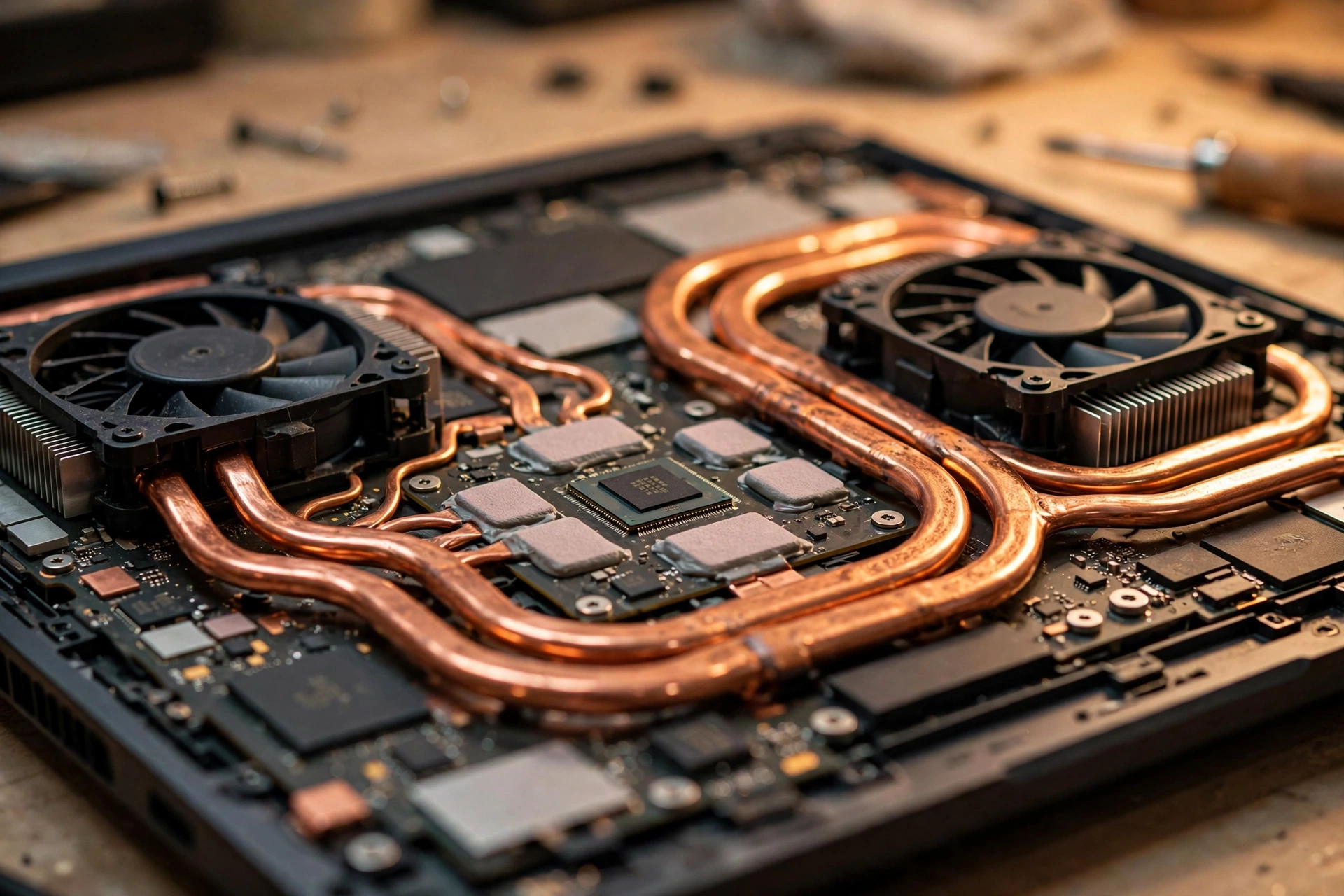
Even a full-power mobile GPU cannot sustain its peak clocks for long if the cooling cannot keep up. A desktop card has its own triple-fan cooler, kilograms of heatsink, and fresh case airflow. A laptop GPU shares two small fans and a couple of heat pipes with the CPU, the voltage regulators, and often the SSD. When total heat exceeds what the chassis can exhaust, the system clocks something down. The GPU is usually first in line because it draws the most power.
This is thermal throttling, and on laptops it is a daily event, not a rare failure. Watch a monitoring overlay during a long session and you will see GPU clocks slide down as temperatures climb past the high 80s, then bounce back after a loading screen. The chip protects itself. That protection costs you frames. Dust makes it worse, and so does a laptop sitting flat on a bed or a couch, where the intake vents are smothered. A cooling pad that lifts the rear by an inch can recover a surprising amount of sustained performance, simply by giving those tiny fans air to breathe.
The CPU side how laptops bottleneck their own GPUs
Everything said so far is about the GPU being held back by the laptop. But laptops also create classic CPU bottlenecks, and they do it in a uniquely mobile way. A thin chassis gives the CPU a short thermal leash: PL1 and PL2 power limits. PL2 is the short burst a laptop CPU can pull for seconds; PL1 is what it can sustain. On a thin ultrabook-class machine, PL1 might be 45 watts, while a desktop i7 sustains several times that. When the CPU hits its sustained limit, clocks drop, and a game that needs fast single-thread performance starts stuttering even though the GPU is barely warm.
The cruel twist is that the CPU and GPU share one budget. NVIDIA’s Dynamic Boost technology shifts power between the CPU and GPU depending on which one needs it more. That is clever engineering, but it also means the two components compete. In a CPU-heavy game at 1080p, the GPU can be starved of both power and frames at the same time. Our breakdown of 10 signs your CPU is bottlenecking your GPU lists the classic symptoms, and on a laptop they often appear together with high temperatures, which is your clue that the chassis, not the silicon, is the real limiter.
Low-resolution gaming makes CPU bottlenecks worse on laptops, exactly as it does on desktops. At 1080p, a fast GPU finishes frames quickly and waits on the CPU; at 1440p or 4K, the GPU works harder and the load balances out. Most gaming laptops ship with 1080p or 1440p panels, so CPU limits show up often. If your FPS barely changes when you drop from Ultra to Medium, the CPU or the power budget is your ceiling, not the GPU’s raw muscle.
Hidden bottlenecks RAM, storage, and the display pipeline
Some of the worst laptop bottlenecks have nothing to do with the CPU or GPU at all. They hide in the parts of the spec sheet nobody reads.
The single-channel RAM epidemic
Budget and mid-range laptops routinely ship with a single stick of RAM. One 16 GB stick runs in single-channel mode, which halves the memory bandwidth available to the CPU, and on many laptops it also feeds the integrated graphics. Reviewers have repeatedly found that adding a second matching stick, moving to dual-channel, produces meaningful FPS gains, especially in CPU-limited scenes and 1% lows, the stutters you actually feel. It is one of the cheapest upgrades in all of PC gaming, and it fixes a bottleneck the buyer never knew existed.
The trend data backs up why this matters now. According to Digital Foundry’s write-up of Valve’s September 2026 Steam Hardware Survey, published here: Digital Foundry, the RTX 5070 surging to 6.2 percent of Windows systems, with AMD’s CPU share climbing to 48.4 percent, while separate coverage noted 32 GB overtaking 16 GB as the most common system memory size. Games keep getting hungrier for memory, and a laptop stuck on a single 8 GB stick is fighting the last war. If you want the deeper explanation of how memory starves a system, our RAM bottleneck guide walks through it step by step.
Slow SSDs and full drives
A spinning hard drive in a gaming laptop is a stutter machine, but even SSDs can bottleneck you. A nearly full SSD slows down because it has no free blocks for fast writes. A cheap SATA SSD in a budget laptop is far slower than the NVMe drive the game was tuned for. The symptoms are unmistakable: texture pop-in, hitching when you turn the camera, and loading screens that feel broken. Windows also leans on the page file when RAM runs short, so a slow drive compounds a RAM bottleneck into a slideshow. Keep at least 15 to 20 percent of your SSD free, and if your laptop still boots from a hard drive, that upgrade comes before anything else.
The iGPU detour and the MUX switch
Most gaming laptops route the discrete GPU’s frames through the CPU’s integrated graphics before they reach the screen. This passthrough costs a few percent of performance and adds latency, and it exists so the laptop can switch to the efficient iGPU for battery life. A MUX switch, short for multiplexer, lets the discrete GPU talk to the display directly, bypassing the iGPU entirely. NVIDIA’s Advanced Optimus does this switching automatically on newer models.
The real-world gain is modest but free: typically a few percent more FPS, sometimes more at high refresh rates. If your laptop has a MUX switch or Advanced Optimus, turn it on for gaming. It is one of the rare settings that improves performance with zero downside while plugged in. Budget laptops often omit the MUX switch to save cost, which is one more reason two laptops with the “same GPU” can benchmark differently.
How to check for a bottleneck on your laptop

You do not need a calculator to diagnose a laptop. You need fifteen minutes, a free monitoring tool, and a demanding game. Here is the exact process.
Step 1: Install an overlay. MSI Afterburner with RivaTuner Statistics Server is the standard free choice. It draws GPU usage, CPU usage per core, temperatures, clocks, and frame times on screen while you play.
Step 2: Pick the right test scene. Load a demanding area of a real game, not a menu. Menus and loading screens always show low GPU usage. That is normal and means nothing.
Step 3: Read the usage numbers. If the GPU sits at 95 to 100 percent while the CPU has headroom, the GPU is your limiter, which on a laptop usually means power or thermals, not a weak chip. If any single CPU core is pegged near 100 percent while the GPU idles at 60 or 70 percent, the CPU or the power budget is bottlenecking you. Watch for at least five minutes. A genuine bottleneck is a sustained pattern, not a one-second spike.
Step 4: Check temperatures and clocks together. If the GPU is at 100 percent but its clock speed keeps sliding down as temperature climbs past the mid 80s Celsius, you are watching thermal throttling in real time. The fix is cooling and airflow, not settings.
Step 5: Check memory and storage. Open Task Manager’s performance tab. RAM pinned near 100 percent means a memory bottleneck. Disk pinned at 100 percent during hitches means storage is the culprit.
Step 6: Test the settings response. Drop resolution or detail settings. If FPS jumps, the GPU was the limit. If FPS barely moves, the CPU or memory subsystem is holding you back. This one test tells you more than any bottleneck percentage calculator, because it measures your laptop, your game, and your cooling.
One more laptop-specific check: verify whether you are actually running on the discrete GPU. Laptops sometimes silently run games on the integrated graphics after a driver update. If your “RTX 4070 laptop” is getting 25 FPS in an old game, check which GPU the game is using before you diagnose anything else.
Settings that shrink a laptop GPU bottleneck
You cannot upgrade a laptop GPU, so the wins come from settings and system behavior. These are the ones that actually move the needle.
Raise the resolution or detail before lowering it. This sounds backwards, but if your CPU is the bottleneck, pushing more work onto the GPU balances the load. Moving from 1080p to 1440p, or turning up GPU-heavy settings like shadows, shifts the bottleneck toward the graphics chip, which raises GPU utilization and often smooths frame pacing. Our guide to fixing a GPU bottleneck explains this counterintuitive trick in more detail.
Use DLSS or FSR. Upscaling renders the game at a lower internal resolution and reconstructs a sharp image, which unloads the GPU massively. On a power-limited mobile chip, that headroom is precious. DLSS Quality at 1440p on a laptop RTX 4060 can be the difference between a stuttery 45 FPS and a smooth 70. If you are unsure how upscaling interacts with CPU limits, our article on whether DLSS reduces CPU bottleneck covers the nuances.
Cap your frame rate. An uncapped frame rate makes the GPU sprint, overheat, and throttle, which produces worse sustained performance than a steady lower target. Capping at 60 or 120 FPS with vsync or a limiter keeps clocks stable, temperatures lower, and fans quieter. Stable beats spiky on a laptop every time.
Use the right power mode, plugged in. Windows power plans and the laptop vendor’s control software gate how much wattage the system can pull. “Balanced” on battery can cut GPU power dramatically. For serious gaming, plug in the full-size charger, select the performance or turbo mode, and close background apps. A laptop on a 65 watt USB-C charger instead of its 200 watt brick will silently throttle everything. This is the single most common “my laptop suddenly got slow” cause we hear about.
Update drivers, but verify the GPU selection. Fresh GPU drivers occasionally reset per-game GPU preferences. After every driver update, confirm demanding games are still assigned to the discrete GPU in Windows graphics settings.
Elevate the laptop and clean the vents. Sustained performance lives or dies on airflow. A simple stand that lifts the rear, plus compressed air through the vents every few months, can be worth several percent of sustained FPS. Repasting is a deeper project for experienced owners only, and it can void warranties, so treat it as a last resort.
Buying smart the specs that actually matter
Here is the uncomfortable market context first. Graphics card prices have surged: 3DCenter’s tracking across German retailers, reported by kad8 in October 2026, found RTX 50 series prices up 66 percent in twelve months, with the RTX 5090 up 132 percent. Desktop upgrades are brutally expensive right now, which makes laptops relatively more attractive, but only if you buy the right one. A bad laptop purchase at these prices hurts twice.
TGP wattage beats the model name. This is the golden rule. An RTX 4070 at 115 watts will comfortably beat an RTX 4070 at 80 watts, and it can embarrass a throttled RTX 4070 Ti at 90 watts. NVIDIA now requires vendors to disclose TGP, so check the spec sheet or the manufacturer’s product page. If a retailer hides the TGP, treat that as a warning sign.
Cooling design beats thinness for gaming. Vapor chambers, dual fans with real exhaust area, and thick chassis designs sustain higher wattage. Ultra-thin “creator” laptops with gaming GPUs look sleek and throttle hard. If gaming is the priority, accept the extra half pound.
Check for a MUX switch or Advanced Optimus. It is a free few percent and lower latency. Its absence is a quiet tax on every frame.
Get dual-channel RAM from the start. Two sticks, or at minimum a laptop with a free second slot and easy access. Soldered single-channel memory on a gaming laptop is a trap.
Match the GPU to the screen. A laptop RTX 4060 pairs beautifully with a 1080p 144 Hz panel. Feeding a 4K display with a mid-range mobile GPU just moves the bottleneck to a place no setting can fix. And remember the resolution rule from our 1080p vs 1440p bottleneck breakdown: higher resolutions shift load to the GPU, which on a laptop is usually the healthier place for it to sit.
Do not pay the flagship tax blindly. The price jump from a laptop RTX 4080 to a 4090 is enormous, while the real-world gap is far smaller than the names suggest, because both hit the same thermal ceiling. The sweet spot is usually one tier down at full TGP.
Mobile vs desktop GPU reality check
Names lie. TGP tells the truth. The table below maps popular mobile GPUs to the desktop cards they actually resemble in gaming, based on published reviews and testing. Treat these as approximate: a full-power mobile chip lands near the listed equivalent, while a low-TGP version of the same chip can sit a full tier lower.
| Laptop GPU (full-power TGP) | Approximate desktop equivalent | Typical gap vs its desktop namesake |
|---|---|---|
| RTX 5090 Laptop (150W) | RTX 5080 Desktop | Nearly half the desktop 5090’s performance |
| RTX 5080 Laptop (150W) | RTX 5070 Ti Desktop | Roughly one tier below its namesake |
| RTX 5070 Ti Laptop (115W) | RTX 5070 Desktop | Close to one tier below its namesake |
| RTX 5070 Laptop (100W) | RTX 5060 Ti Desktop | One to two tiers below its namesake |
| RTX 4090 Laptop (175W) | RTX 4070 Ti Desktop | About 30 percent below the desktop 4090 |
| RTX 4080 Laptop (175W) | RTX 4070 Ti Desktop | About 30 percent below the desktop 4080 |
| RTX 4070 Laptop (115W) | RTX 4060 Ti Desktop | Nearly half in the worst cases |
| RTX 4060 Laptop (115W) | RTX 4060 Desktop | Nearly identical, same AD107 chip |
Two things stand out. First, the RTX 4060 is the honest one: same chip on both sides, so the name actually means something. Second, every flagship mobile card lands one to two tiers below its name. That is not a defect in your specific laptop. It is the physics of a 150 watt ceiling meeting a 575 watt desktop card.
The mistakes almost every laptop buyer makes
Mistake 1: Assuming the laptop RTX 4070 equals the desktop RTX 4070. It does not, and it never did. Budget for the real performance tier, not the name. Check the table above before you pay.
Mistake 2: Ignoring TGP. Two laptops, same GPU name, same price, 20 percent performance apart. The spec sheet had the answer the whole time. Buyers who skip the TGP line are gambling blind.
Mistake 3: Buying the thinnest laptop with the biggest GPU. A 140 watt GPU in a chassis that can only cool 90 watts is wasted money and constant fan noise. Match the GPU tier to the cooling, not to your ambition.
Mistake 4: Skipping the RAM check. A single 8 GB stick in a 2026 gaming laptop is a bottleneck you paid extra to inherit. Confirm dual-channel or an open slot before checkout.
Mistake 5: Gaming on battery or a weak charger. Performance modes only work at full power. A laptop sipping from a 65 watt USB-C charger will throttle a 115 watt GPU no matter what the settings say.
Mistake 6: Judging by menus and loading screens. Low GPU usage outside gameplay is normal everywhere. Diagnose with real gameplay scenes or your conclusions will be wrong.
Mistake 7: Expecting desktop upgrade paths. You cannot swap a laptop GPU later. The buying decision is permanent, which is exactly why the research matters more here than on a desktop.
FAQs
Are gaming laptops worth buying? They have the same name, but how can they shove that massive card into a laptop?
This is one of the most asked questions on the Tom’s Hardware forums, and the honest answer is: worth it if you need portability, with eyes open. They cannot fit the massive desktop card, so they use a smaller, lower-power version of it. You pay a premium per frame versus a desktop. If the machine never leaves your desk, a desktop or a small-form-factor PC gives you far more performance per dollar. If you game in two places, the laptop premium buys real freedom.
What desktop GPU is my laptop RTX 4070 actually equal to?
Roughly a desktop RTX 4060 Ti at full laptop TGP, based on published testing. This exact equivalence question comes up constantly on r/GamingLaptops, and the answer always disappoints first-time buyers. Use the reality-check table above rather than the model name when setting expectations.
Should I pick the laptop with the RTX 4080 or save money with the RTX 4070?
A popular Quora buying question. The useful answer is not the model tier, it is the TGP and cooling of each specific laptop. A full-power 115 watt RTX 4070 in a well-cooled chassis can match or beat a power-starved RTX 4080 in a thin one, for much less money. Compare wattage and reviews of the exact models, never just the GPU badge.
Will adding an external GPU to my laptop increase my gaming performance?
Asked on Tom’s Hardware forums. Yes, usually substantially, because an external enclosure holds a real desktop card with desktop power and cooling. But the laptop’s CPU and the Thunderbolt or OCuLink connection become the new limits, and weak laptop CPUs can bottleneck a strong external GPU. It is a great upgrade for GPU-bound games on a laptop with a decent CPU, and a disappointing one if the CPU was already the ceiling.
Why do some people say a mobile 1070 or 1080 benched the same as desktop?
Another real Tom’s Hardware forum question from the GTX 10 era. That generation was the closest mobile ever got to desktop, because NVIDIA used nearly identical chips and the desktop cards were relatively efficient. It was the exception, not the rule. Every generation since has widened the gap as desktop power draw climbed far beyond what a laptop chassis can handle.
Does it matter that my laptop has no MUX switch?
It costs you a few percent of FPS and some latency in most games, because frames take a detour through the integrated graphics. It is not a dealbreaker, but when two laptops cost the same and one has a MUX switch, that one is the better gaming machine.
Key takeaways
- A laptop GPU bottleneck is structural: power limits, smaller chips, and shared cooling cap mobile graphics far below their desktop namesakes.
- TGP wattage matters more than the model name. A full-power lower-tier GPU beats a starved higher-tier one.
- Thin chassis create CPU bottlenecks too, through PL1 and PL2 power limits and heat shared with the GPU.
- Single-channel RAM, nearly full SSDs, and missing MUX switches are hidden bottlenecks that cost real frames.
- Diagnose with MSI Afterburner during real gameplay: sustained usage patterns, temperatures, and clocks tell the true story.
- When buying, prioritize TGP, cooling design, dual-channel RAM, and a MUX switch, in that order.
- Expect a flagship laptop GPU to perform one to two tiers below its desktop name, and budget accordingly.
Conclusion
Nobody sold you a broken laptop. They sold you a different product than the name implied, and now you know how to read the label. A laptop GPU bottleneck is not a flaw to fix so much as a design reality to plan around: check the TGP, respect the thermals, feed it dual-channel RAM and full charger power, and tune settings for the chip you actually have. Do that, and a gaming laptop is a genuinely great machine. Skip it, and you will keep wondering why your RTX 4070 does not feel like one.
If this guide helped you decode your own laptop, run the bottleneck check on your next upgrade before you buy. Our bottleneck calculator and the signs of a CPU bottleneck walkthrough will tell you whether your CPU can actually keep up with the GPU you are eyeing, on desktop or mobile.

Leave a Reply