

Fortnite does not have one simple answer to the CPU or GPU question, and that is exactly why so many players upgrade the wrong part. On one PC the game is held back by the processor, on another it is held back by the graphics card, and on a third it changes from one match moment to the next. The deciding factors are your render mode, your settings, your resolution, and the frame rate you are chasing. A player chasing 240 FPS in Performance Mode faces a very different limit from a player chasing 60 FPS with Epic settings in DirectX 12.
This guide gives you a Fortnite only diagnosis. It explains when Fortnite is CPU bound, when it is GPU bound, how Performance Mode and DirectX 12 change that balance, and which CPU and GPU pairing fits 120, 144, and 240 FPS. It also covers the pattern that frustrates players most: a high average frame rate that still feels bad because 1 percent lows collapse in late game build fights and dense zones.
The Short Answer Is Fortnite CPU or GPU Bound
If you play competitively at low settings and chase a high refresh rate, Fortnite is usually CPU bound. The processor has to prepare each frame, track players, process builds and edits, handle physics, and feed the graphics card fast enough to hit 144 or 240 FPS. Once the CPU cannot prepare frames any faster, a stronger graphics card will not raise your frame rate in that mode, because the graphics card is waiting for work.
If you play at high or Epic settings, especially with DirectX 12, higher resolution, shadows, effects, and post processing turned up, Fortnite becomes GPU bound much more often. The graphics card now has far more pixels and lighting work to finish for every frame. In that case a faster processor alone will not fix low FPS, because the graphics card cannot finish frames inside your refresh window.
The useful rule is simple. Lower the visual load and raise the frame rate target, and the CPU limit appears first. Raise the visual load and lower the frame rate target, and the GPU limit appears first. Most diagnosis mistakes happen because players test only in the lobby or in a quiet drop, where neither part is stressed, and then assume that result will hold in a stacked endgame.
For a general refresher on how the two limits differ, read CPU Bottleneck vs GPU Bottleneck. That guide explains the core idea, while this article applies it only to Fortnite, its engine, and its settings.
How Fortnite Uses Your CPU and GPU
Fortnite runs on Unreal Engine 5, and it asks your PC to do three jobs at once. First, it runs a 100 player Battle Royale match with constant player movement, shooting, and network updates. Second, it runs a building and destruction system where every wall, floor, ramp, and edit is a physical object with collision and structural logic. Third, it renders a large island with changing zones, effects, and player made structures.
The CPU carries most of the first two jobs. It processes game logic, player actions, build and edit inputs, physics checks, and draw calls that tell the GPU what to draw. That work is heavily dependent on single core speed, because the main game thread cannot simply split all of its work evenly across every core. This is why total CPU usage can look modest, for example 40 or 50 percent, while one core is at or near 100 percent and the game still stutters. You are not looking at the wrong number, you are looking at the wrong level of detail. Per core usage matters more than total usage in Fortnite.
The GPU carries the third job. It draws geometry, textures, shadows, lighting, and effects. Its load rises with resolution, render scale, texture quality, shadows, effects, post processing, and anti aliasing. It also rises when you enable demanding visual features in DirectX 12. When the GPU is the limit, you will usually see GPU usage near 98 to 100 percent, while CPU cores still have headroom. Lowering resolution should then raise FPS clearly, because you are directly cutting the GPU workload.
RAM sits between those two jobs, and it deserves more attention than it usually gets. Fortnite needs fast, dual channel RAM, and 16 GB is the practical minimum for clean play in 2027. On a 16 GB system with a browser, Discord, and a recording app open, memory pressure can push Windows to page data to disk, and that shows up as hard stutters even when the CPU and GPU look fine. A slow single stick of RAM, or RAM running without its XMP or EXPO profile, can also starve a fast CPU and lower 1 percent lows. Storage matters in a related way. An NVMe SSD keeps shader and asset streaming smoother than an old hard drive, especially in the first minute of a match and when you rotate quickly into a new area.
Performance Mode vs DirectX 12 Which Path Fits Your PC?
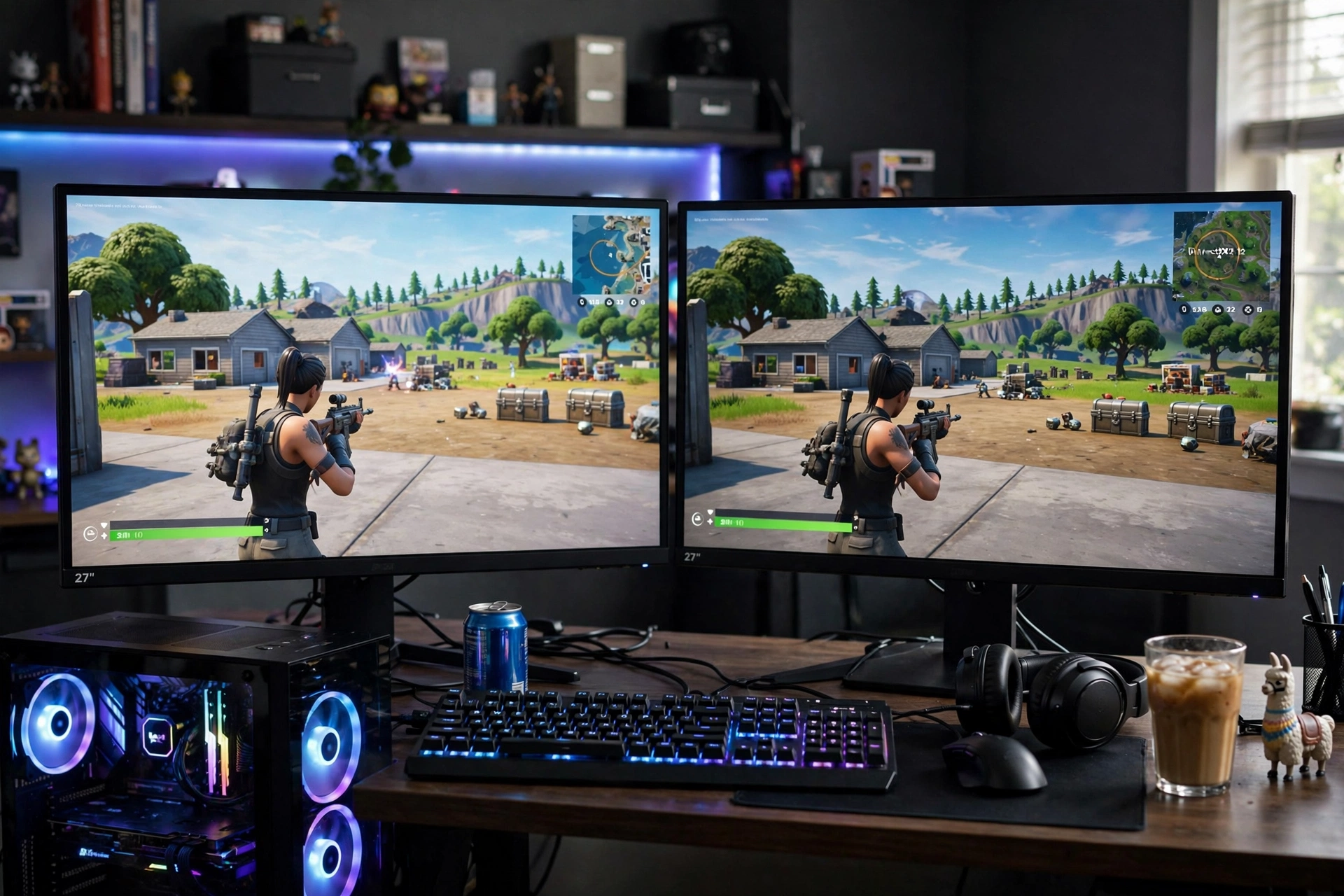
This is the single biggest fork in Fortnite performance, and it changes the bottleneck before you touch any other setting.
Performance Mode
Performance Mode is the lighter, competitive focused render path. It cuts shader complexity, simplifies material work, and removes much of the heavy Unreal Engine 5 visual pipeline. The result is a much higher frame rate ceiling on the same hardware, and much lower input latency, which is why competitive players use it even on strong PCs.
In Performance Mode, Fortnite becomes CPU bound on most balanced and strong PCs. The GPU finishes its lighter workload quickly, then waits for the CPU to prepare the next frame. That is not a fault in your graphics card. It is the expected trade of this mode. If you are in Performance Mode at 1080p, low settings, and your GPU usage sits at 50 to 70 percent while FPS will not climb past a certain point, your CPU, your RAM speed, or a frame cap is the likely limit, not your GPU.
Performance Mode is the right choice when your goal is stable high FPS, when your GPU is older or entry level, when you play on a 144 Hz or 240 Hz monitor, or when you value frame consistency over visual detail. It is the wrong choice to judge if you only care about how the game looks, because it deliberately gives up visual richness to buy frames.
DirectX 12
DirectX 12 is the fuller visual path. It supports the modern Unreal Engine 5 rendering features, richer lighting, more detailed materials, and heavier effects. On a modern six core or better CPU, it can also spread work across cores more effectively than the older lighter path, which can improve smoothness even if average FPS is lower than Performance Mode.
In DirectX 12, Fortnite becomes GPU bound much more often, especially at 1440p, at high or Epic settings, or with shadows and effects enabled. A mid range or older GPU can quickly become the limit here, even when paired with a strong CPU. That is also why a PC that feels fast in Performance Mode can feel heavy in DirectX 12. You have not broken anything. You have changed the workload.
DirectX 12 is the right choice when your GPU is strong enough for your resolution and settings, when you want the game to look its best, and when you are targeting 60 to 120 FPS rather than maximum competitive frames. It is the wrong choice when you are already struggling to hold your monitor refresh rate, because it adds GPU work without adding competitive advantage.
| Render path | Main limit on a balanced PC | Best for | Watch out for |
|---|---|---|---|
| Performance Mode | CPU, especially single core speed and RAM | Competitive play, 144 FPS and 240 FPS targets, older GPUs | Low GPU usage is normal, it does not mean your GPU is broken |
| DirectX 12, low to medium settings | Balanced, can flip by scene | A mix of good looks and solid FPS at 1080p | Dense zones can still expose a weak CPU |
| DirectX 12, high to Epic settings | GPU, especially at 1440p and above | Visual quality, 60 to 120 FPS play | Shadows, effects, and post processing add heavy GPU cost |
Competitive Low Settings vs High and Epic Settings
Settings do not just change how Fortnite looks. They move work between the CPU and the GPU, and that is why two players with the same PC can report opposite bottlenecks.
Competitive low settings usually mean Performance Mode, shadows off, effects low, post processing low, anti aliasing off or low, textures low, and view distance near or medium. This stack removes GPU work first. The remaining work is mostly CPU work: preparing frames, tracking builds, and handling player actions. On this stack, the upgrade that matters most is usually a faster CPU with strong single core performance, faster dual channel RAM, and a clean system with few background apps. A flagship GPU bought for this stack alone will often sit underused, because it is waiting for frames.
High and Epic settings mean DirectX 12, shadows on, effects high, post processing high, textures high, and often a higher render scale or resolution. This stack adds GPU work first. The upgrade that matters most here is usually a stronger GPU with enough VRAM for your resolution and texture setting. A faster CPU will help only up to the point where the GPU can keep up. Beyond that point, extra CPU headroom does not raise FPS, because the GPU still needs more time per frame.
View distance deserves a special note, because it affects both parts. Far view distance increases the number of objects the CPU must prepare and the GPU must draw. Near or medium view distance is a competitive staple for a reason. It cuts work on both sides without removing information you can actually fight with in most engagements. If you drop from Far to Medium and your late game dips improve, you have found a real bottleneck, not a placebo tweak.
Upscaling also changes the balance. DLSS, FSR, and Temporal Super Resolution can lower the internal render resolution and raise FPS on a GPU bound setup. They help less on a CPU bound setup, because the CPU still has to prepare the same number of frames. If upscaling gives you almost no gain, that is useful evidence. It points back to the CPU, RAM, or a frame cap, not to a weak GPU.
The FPS Target Changes the Answer 120, 144, and 240 FPS
Your monitor refresh rate is not just a display setting. It is a deadline. At 120 FPS, your PC must finish a frame every 8.33 milliseconds. At 144 FPS, every 6.94 milliseconds. At 240 FPS, every 4.17 milliseconds. As the deadline shrinks, CPU work becomes harder to hide, because the CPU must prepare each frame faster, and any single slow frame becomes visible as a stutter.
At 120 FPS, Fortnite is reachable on a wide range of modern hardware in Performance Mode. A modern six core CPU such as a Ryzen 5 5600 class or Intel Core i5 12400 class processor, paired with an RTX 3060 or RX 6600 class GPU and 16 GB of fast dual channel RAM, is a realistic 120 FPS bracket at 1080p with low competitive settings. Weaker GPUs in the GTX 1660 Super or RX 580 class can still reach this target in many cases by using a stretched resolution or by accepting dips in the densest fights, but headroom will be tight.
At 144 FPS, the CPU requirement steps up, especially for 1 percent lows. You want a modern six core or better CPU with strong single core speed, fast RAM, and a GPU that is not already saturated at your resolution. An RTX 3060, RTX 4060, RX 6600 XT, or similar class GPU is a sensible 144 FPS partner at 1080p in Performance Mode. At 1440p, or in DirectX 12 with higher settings, you should expect to need a stronger GPU tier, because the GPU workload grows faster than the CPU workload when resolution rises.
At 240 FPS, Fortnite is firmly a CPU first game in Performance Mode. The practical bracket is a high single core CPU such as a Ryzen 5 7600X class, Intel Core i5 13600K class, or Ryzen 7 7800X3D class processor, paired with an RTX 4070 class or equivalent GPU, 16 to 32 GB of fast RAM, and an NVMe SSD. Even then, the honest expectation is not a flat 240 FPS in every endgame. It is an average well above 240 FPS in normal play, with dips that stay high enough to feel smooth on a 240 Hz monitor. A weaker CPU paired with a flagship GPU will often show the classic 240 FPS problem: a high average in quiet moments, then a sharp drop when builds and players pile up.
| FPS target at 1080p, Performance Mode | CPU class to aim for | GPU class to aim for | RAM and settings note |
|---|---|---|---|
| 120 FPS | Modern six core, Ryzen 5 5600 or i5 12400 class | RTX 3060, RX 6600, or similar class | 16 GB fast dual channel RAM, low competitive settings |
| 144 FPS | Modern six core or better with strong single core speed | RTX 3060, RTX 4060, RX 6600 XT, or similar class | 16 GB fast RAM, shadows off, view distance near or medium |
| 240 FPS | High single core CPU, Ryzen 5 7600X, i5 13600K, or Ryzen 7 7800X3D class | RTX 4070 or equivalent class, higher tier only helps if the CPU keeps up | 16 to 32 GB fast RAM, NVMe SSD, background apps closed |
These are brackets, not guarantees. Map density, Chapter updates, driver versions, and background apps can move a borderline PC from one bracket to another. Use them to choose an upgrade direction, then confirm with the diagnosis test below on your own PC.
Why 1 Percent Lows Collapse in Late Game Fights
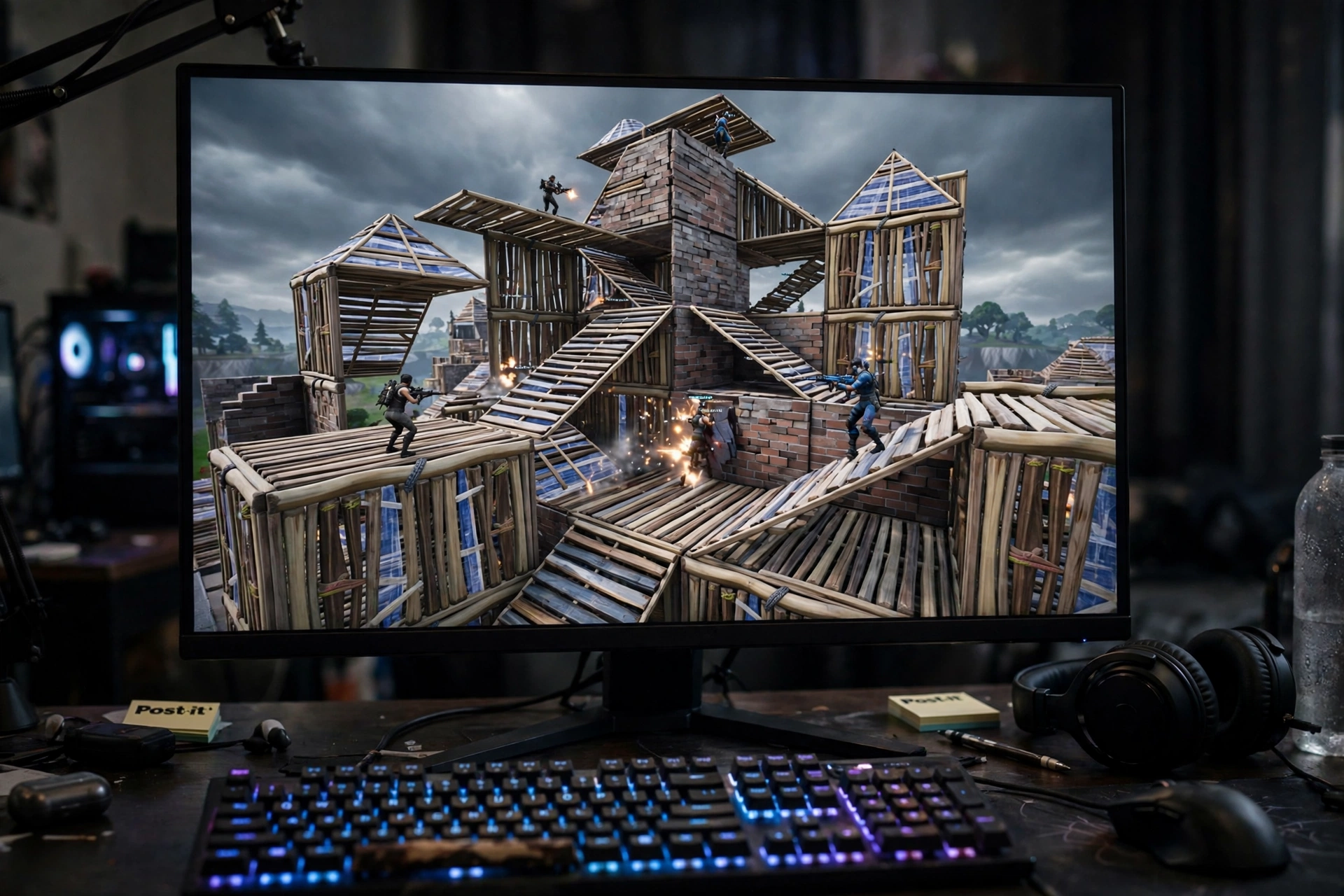
Average FPS is the most quoted number in Fortnite guides, and it is also the most misleading. A PC that averages 240 FPS can still feel terrible if its 1 percent lows fall to 60 or 80 FPS during the moments that matter. The 1 percent low is the frame rate during the worst 1 percent of frames. It measures the dips, not the average, and in Fortnite those dips cluster in exactly the wrong places.
Late game build fights and dense zones are the worst case for the CPU. Many players are building, editing, shooting, and moving at once. The game must process more physics checks, more draw calls, and more network updates in the same few milliseconds. If your CPU has one core that saturates, or your RAM is under pressure, frames queue up and the game hitches. The average over a whole match hides this, because quiet early game frames pull the average back up.
A second pattern is RAM pressure on 16 GB systems. Fortnite itself can use a large share of system memory in a long session, and Discord, a browser with many tabs, a launcher, and a recording app can push total use toward 90 percent or higher. When Windows starts paging to disk, you get hard stutters that look like a CPU or GPU problem but are actually a memory problem. Closing background apps is a free test, and it often improves 1 percent lows more than a settings change.
A third pattern is thermal or power throttling over time. A PC that starts a session fast and gets worse after 30 minutes may be hitting a CPU or GPU temperature or power limit. That is different from a permanent bottleneck, and it needs a cooling or power answer, not a new graphics card. Check temperatures during a match, not only in a menu, because menus do not load the system the same way.
If you take only one measurement habit from this guide, make it this one. Record average FPS and 1 percent lows together, in the same late game scenario, before and after each change. A change that raises the average but leaves 1 percent lows unchanged has not fixed the feel of the game. A change that raises 1 percent lows, even with a smaller average gain, is usually the better competitive fix.
Diagnose Your Own PC in Five Minutes
You do not need to guess your bottleneck, and you do not need to buy a part to find it. Use the same match conditions for each test, ideally a repeatable Creative map or the same type of late game fight, and change only one thing at a time.
First, turn on an overlay that shows GPU usage, per core CPU usage, RAM usage, and frame time or 1 percent lows. Total CPU usage alone is not enough. You need to see whether one core is pinned near 100 percent while the others are lower.
Second, run the resolution test. Drop your resolution or render scale sharply for one test, for example from 1080p to 720p, without changing anything else. If FPS rises a lot, you were GPU bound at your normal resolution. If FPS barely moves, you were CPU bound, RAM bound, or frame capped. This test works because it cuts GPU work while leaving CPU work almost unchanged.
Third, check for a cap before you blame hardware. An in game frame rate limit, VSync, a driver level cap, a streaming app limit, or a monitor refresh mismatch can all hold FPS flat no matter what you change. Set the in game limit above your target, turn VSync off for testing, and confirm Windows is set to your monitor refresh rate. If FPS never moves at all across settings changes, a cap is the first suspect.
Fourth, test view distance and background apps separately. Drop view distance from Far to Medium for one match, then restore it and close background apps for the next match. If either change lifts 1 percent lows in late game fights, you have found a real limit in CPU preparation work or in memory pressure, and you can keep the cheaper fix.
Fifth, compare Performance Mode and DirectX 12 on the same hardware. If Performance Mode gives you much higher FPS but worse feeling stutters on your PC, and DirectX 12 gives you lower average FPS but steadier 1 percent lows, your PC may prefer the fuller path for smoothness even though the average looks lower. Do not choose by average alone. Choose by which mode holds its lows better in a build fight.
This same diagnostic logic appears in other per game guides on this site. For a different engine and a different verdict, see Is CS2 CPU or GPU Bound? and Is Valorant CPU or GPU Bound?. Those games are not Fortnite, and their settings do not transfer directly, but the test method, GPU usage, per core CPU usage, and 1 percent lows, is the same. If your FPS is low in many games, not only Fortnite, also check Why Is My FPS So Low? and How to Fix CPU Bottleneck for the broader checklist.
Settings That Shift Load Between CPU and GPU
Use this section as a tuning map, not as a list to apply all at once. Change one setting, test in a real fight, and keep only changes that improve 1 percent lows.
Shadows off is the highest value competitive change for most PCs. It cuts a large GPU cost and also reduces CPU preparation work in dense scenes. Effects low and post processing low cut GPU work with little competitive cost. Anti aliasing off or low cuts GPU work, and in Performance Mode it is often unnecessary for clarity at 1080p.
Textures low or medium is a VRAM and streaming decision. High textures on a GPU with limited VRAM can cause texture downgrades and hitches mid match, which feel like stutters even when FPS looks stable. If you see textures pop in or downgrade during a match, lower textures before you blame the CPU.
View distance near or medium is the main CPU side lever in settings. Far view distance looks better in screenshots, but it adds preparation and draw work in every direction, including directions you cannot fight in. Medium is the usual competitive compromise. Near is worth testing if your late game dips are severe and your CPU is older.
Frame rate limit is a stability tool, not just a cap. Setting a limit slightly above your monitor refresh rate, for example 144 FPS on a 144 Hz monitor with headroom, or a limit just above 240 FPS on a 240 Hz monitor, can reduce wild swings and make frame times steadier. An uncapped frame rate that swings from 300 FPS to 90 FPS feels worse than a capped frame rate that holds near your target. Test a cap only after you have fixed the underlying bottleneck, because a cap cannot fix a saturated core.
NVIDIA Reflex or AMD Anti Lag, when available, reduces input latency and can improve feel even when FPS does not change much. Turn background recording off for testing, because a permanent recorder taxes both CPU and GPU and can hurt frame consistency on borderline PCs. The same applies to overlays, RGB suites, and launchers running in the background. They are small individually, but together they take CPU time and RAM from the game.
What to Upgrade First A Fortnite Only Decision
Upgrade decisions should follow your diagnosis, not a generic ranking list.
If the resolution test shows almost no FPS gain at lower resolution, GPU usage stays below 85 percent in fights, and one CPU core is pinned, upgrade the CPU first, or fix RAM first if RAM is the real limit. For Fortnite, that means a CPU with stronger single core performance, not simply more cores. A modern six core or eight core CPU with high boost clocks and, where budget allows, large cache, is usually a better Fortnite upgrade than a many core workstation CPU with lower per core speed. Pair it with fast dual channel RAM running at its rated XMP or EXPO speed, because slow RAM can recreate the same bottleneck on a new CPU.
If GPU usage sits near 100 percent, FPS rises clearly when you lower resolution, and CPU cores still have headroom, upgrade the GPU first. For DirectX 12 high settings, that means a stronger GPU tier and enough VRAM for your resolution. For Performance Mode at 1080p, do not overspend on a flagship GPU unless your CPU can already feed it at your target. A mid range to upper mid range GPU is often the sweet spot for competitive Fortnite, and money saved there can go to a better CPU, faster RAM, or a higher refresh monitor that you can actually use.
If RAM usage sits above 90 percent during matches, or stutters appear when Discord, a browser, and a recording app are open, upgrade RAM first, or at least close background apps and test again. Moving from 16 GB to 32 GB is a cheaper and often more effective fix than a new GPU for a player who streams, records, or multitasks while playing. It also removes paging stutters that no settings tweak can fully fix on a full memory system.
If your PC is already balanced but your monitor is 60 Hz, a monitor upgrade changes what you can feel, not what your PC can render. A 144 Hz or 240 Hz monitor only helps if your PC can hold that frame rate with good 1 percent lows. Buy the monitor after the PC can feed it, or buy them as a pair with a realistic target in mind. A 240 Hz monitor paired with a CPU that dips to 90 FPS in endgames will not feel like a 240 Hz experience.
Competitive guides from outside this site reach the same split. A detailed Fortnite FPS troubleshooting guide explains the low GPU usage pattern and the per core check in plain terms, and it is worth reading alongside your own overlay test: How to Fix Fortnite FPS Drops. For a current settings breakdown by hardware tier, see Best Fortnite Settings 2027. For a broader 2027 setup view that covers the high refresh hardware bracket, see Best Fortnite Setup 2027.
Common Mistakes That Waste Money in Fortnite
The most common mistake is buying a flagship GPU to fix a CPU bound Performance Mode setup. The new card will show low usage, FPS will barely move in build fights, and the player will conclude that Fortnite is badly optimized. The game is not necessarily badly optimized. The upgrade was aimed at the wrong limit.
The second mistake is judging a PC by lobby FPS. The lobby, Creative hub, and early drops are light workloads. They tell you almost nothing about late game performance. Always test in a build fight, a dense zone, or a late game circle, because that is where the CPU and RAM limits appear.
The third mistake is copying a pro player settings file without copying the hardware behind it. A pro on a top tier CPU and a 360 Hz monitor can run settings that will stutter on a budget PC, and a budget PC setting that helps a weak GPU can hurt a strong CPU setup by shifting work to the wrong part. Use pro settings as a starting point, then run the five minute diagnosis on your own PC.
The fourth mistake is ignoring RAM speed and channel configuration. A single 16 GB stick, or two sticks running at a low JEDEC speed because XMP or EXPO was never enabled, can cost real 1 percent low performance in a CPU heavy game like Fortnite. Check RAM speed in Task Manager or your BIOS before you buy a new CPU, because enabling the rated profile is free.
The fifth mistake is chasing average FPS while ignoring frame caps, thermals, and background apps. A silent 60 FPS cap from a stream setup, a thermal limit after 30 minutes, or a background recorder can all mimic a hardware bottleneck. Rule those out first, because they cost nothing to fix and they change the upgrade answer completely.
Frequently Asked Questions
Is Fortnite more CPU intensive or GPU intensive?
Fortnite is more CPU intensive than most shooters at competitive settings and high frame rates, because of its building system, player count, and per frame game logic. It becomes more GPU intensive at high or Epic settings, higher resolutions, and in DirectX 12 with heavy visual features enabled. The mode and settings decide which side dominates on your PC.
Does Performance Mode make Fortnite CPU bound?
Yes, in most cases. Performance Mode removes a large share of GPU work, so the CPU becomes the limit sooner, especially at 1080p and at 144 FPS or 240 FPS targets. Low GPU usage in Performance Mode is expected on a balanced PC and does not by itself mean your graphics card is faulty.
Is DirectX 12 better than Performance Mode for Fortnite?
DirectX 12 is better for visual quality and, on a modern multi core CPU, it can feel smoother even with a lower average FPS, because it spreads work across cores more effectively. Performance Mode is better for maximum FPS and lowest latency. Choose DirectX 12 if your GPU can hold your target with good lows. Choose Performance Mode if you need every frame for a high refresh monitor.
Why does my FPS drop only in late game?
Late game increases CPU work faster than GPU work. More players, more builds, more edits, and a smaller zone mean more physics, more draw calls, and more network updates per frame. If one CPU core saturates, or RAM pressure rises, 1 percent lows fall even when early game FPS looked strong. Lowering view distance, closing background apps, and improving single core CPU headroom are the first fixes to test.
Is 16 GB RAM enough for Fortnite in 2027?
Yes, for playing Fortnite alone with a clean system, 16 GB of fast dual channel RAM is enough for 120 FPS and 144 FPS targets in Performance Mode. It becomes tight if you also run Discord, a browser, streaming, or recording at the same time. In that case 32 GB is the comfortable upgrade, because it removes paging stutters and protects 1 percent lows.
Do I need an expensive GPU for 240 FPS in Fortnite?
No, not in Performance Mode. At 240 FPS the CPU is usually the bigger investment, and a mid range to upper mid range GPU is often enough at 1080p if the CPU can feed it. An expensive GPU helps more at 1440p, at high settings, or in DirectX 12, where the GPU workload is much larger. Spend on the CPU and RAM first for a 240 FPS competitive target, then match the GPU to that CPU.
Conclusion
Fortnite is CPU bound when you chase high FPS in Performance Mode at low settings, and GPU bound when you chase visual quality in DirectX 12 at high settings or higher resolution. That split is the whole diagnosis. Performance Mode buys frames by cutting GPU work and exposing the CPU limit. DirectX 12 buys visuals by adding GPU work and exposing the graphics card limit. Your FPS target tightens the deadline further, and at 240 FPS the CPU must prepare a frame every 4.17 milliseconds, which is why single core speed, fast RAM, and clean 1 percent lows matter more than a headline average.
Before you upgrade anything, run the five minute test. Check per core CPU usage, check GPU usage, run the resolution test, rule out a frame cap, and compare Performance Mode with DirectX 12 in a real late game fight. If one core is pinned and lower resolution barely helps, fix the CPU or RAM side first. If the GPU is pinned and lower resolution helps a lot, fix the GPU side first. If RAM is full and background apps are open, fix memory pressure first, because no new part will help a system that is paging to disk.
Choose your target honestly, match your CPU, GPU, RAM, and monitor to that target, and judge every change by 1 percent lows in a build fight, not by lobby FPS. Do that, and Fortnite stops feeling random. It becomes a system you can measure, tune, and upgrade in the right order.

Leave a Reply