
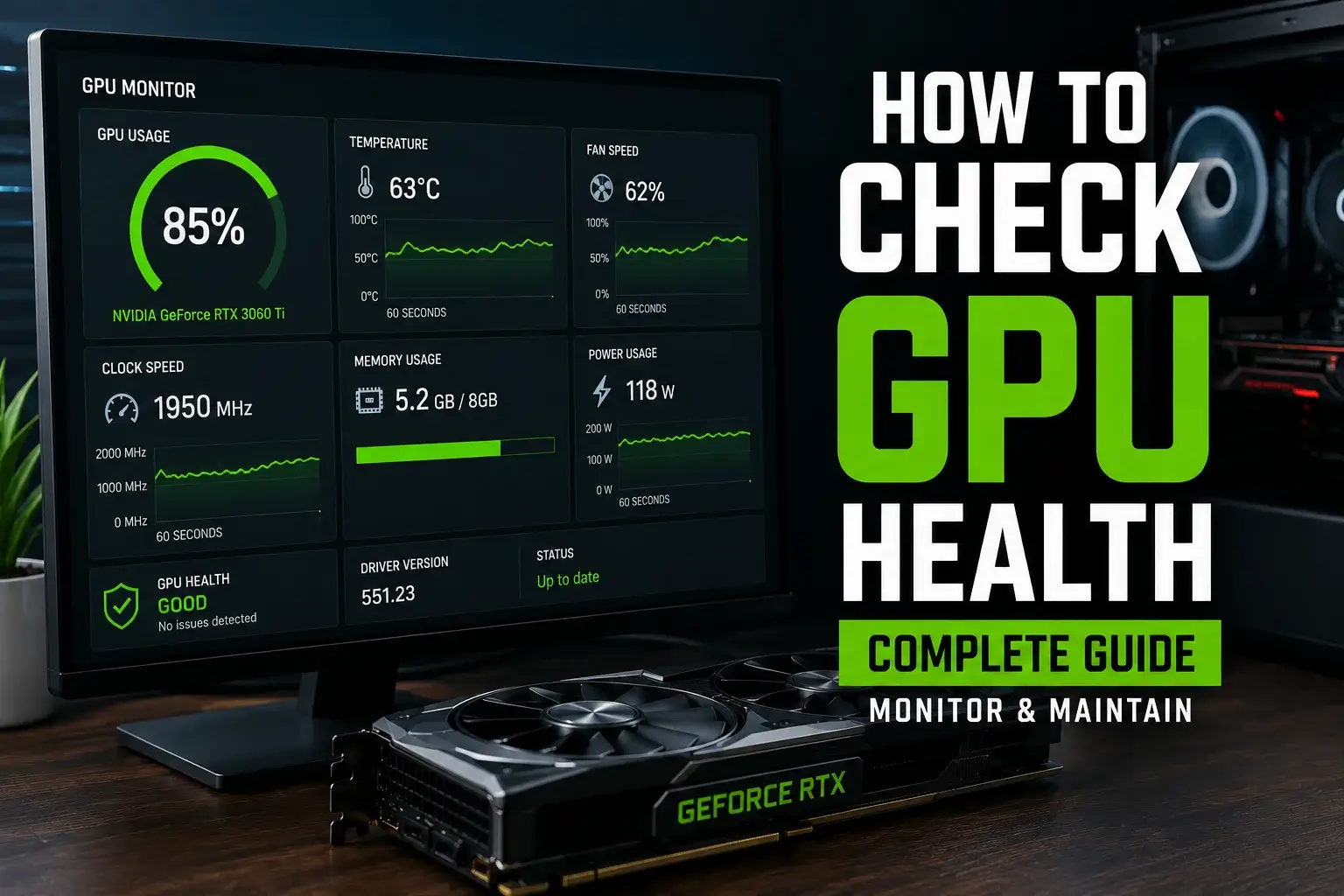
To check GPU health, start with Windows Task Manager (Ctrl+Shift+Esc → Performance → GPU) for a quick look at temps, usage, and VRAM. For deeper checks, use HWiNFO or MSI Afterburner to monitor temps and throttling, then run FurMark 2 for a stress test. Healthy gaming temps stay between 60°C–80°C anything above 90°C signals trouble.
Introduction
Your GPU works very hard every day. It powers your games, your videos, your design work, and even AI tools. Over time, heat, dust, and heavy use can wear it down without you even knowing. Many people only notice a problem when their screen goes black or their game crashes. By then, the damage may already be serious.
The good news? Checking your GPU health takes less than 10 minutes. And doing it regularly can save you from expensive repairs or from having to buy a whole new graphics card. This guide will show you everything you need to know. We will go from the simplest free checks all the way to expert stress tests. Before diving into advanced thermal metrics, make sure you know how to use a bottleneck calculator for gaming PC configurations to avoid artificial software performance drops.
Check GPU Health Warning Signs Has a Problem
Before we get into the checks, let us look at the signs something is already wrong. If you see any of these, run a GPU health check today.
Performance Problems:
- Games run slower than before
- FPS drops suddenly during play
- Screen freezes or the PC crashes
- Games or apps close without warning
Visual Problems:
- Strange colors or lines on screen
- Flickering or flashing display
- Weird dots or blocks on the image
- Black screen with no signal
Heat and Power Problems:
- GPU fans are very loud all the time
- PC shuts off during gaming
- The case feels very hot near the GPU
Software Problems:
- Driver keeps crashing
- Windows says it cannot find the GPU
- Error messages when starting a game
If you see two or more of these signs, your GPU may be in trouble. Let us check it now.
How to Check GPU Health Step by Step Guide
Check GPU Health Using Built In Windows Tools
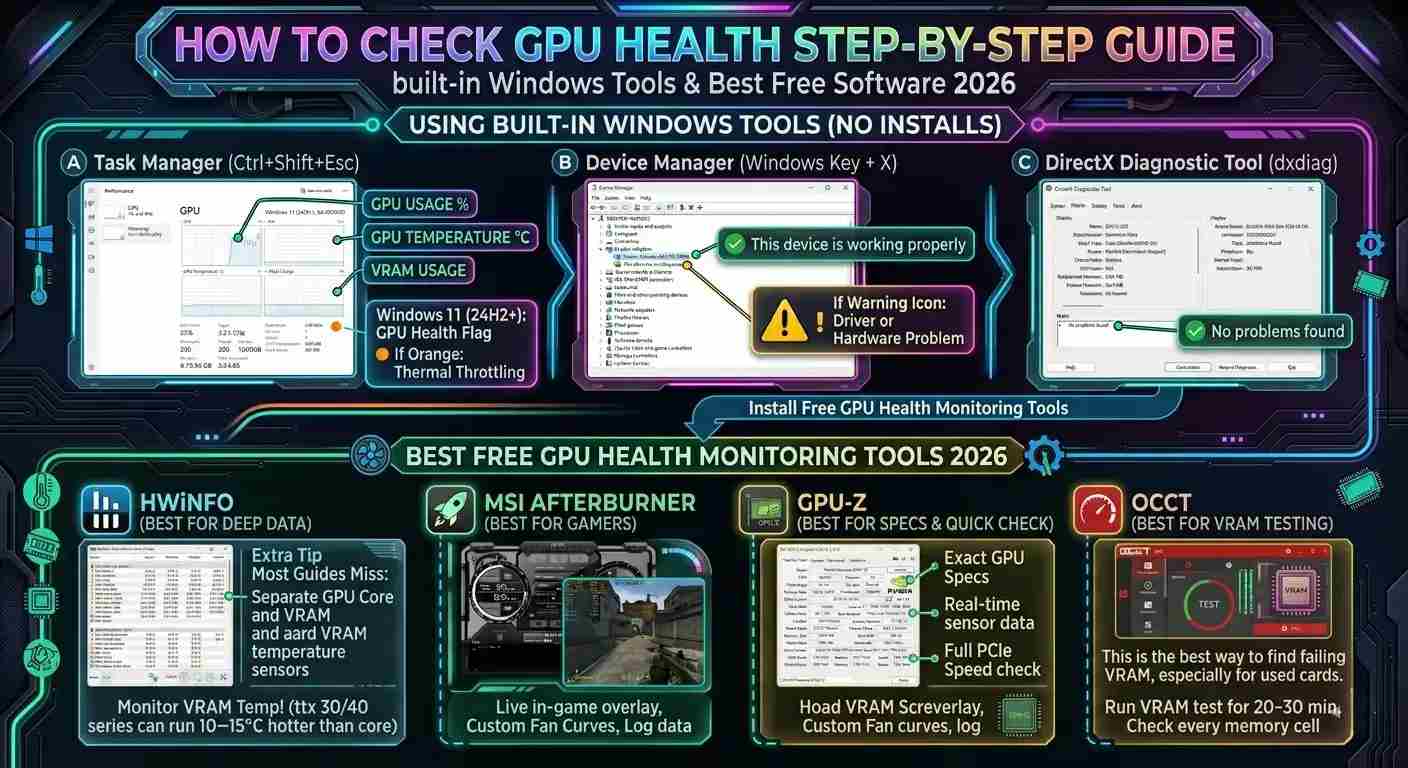
You do not need to install anything to do a basic GPU health check. Windows already has three powerful tools ready to use.
Tool A: Task Manager
This is the fastest way to see your GPU in action right now.
- Press Ctrl + Shift + Esc on your keyboard
- Click the Performance tab on the left side
- Scroll down and click on GPU
You will now see live data including:
- GPU Usage % how hard your GPU is working
- GPU Temperature how hot it is (shown on most modern systems)
- VRAM Usage how much video memory is being used
- Clock Speed how fast the GPU is running
What to look for: If GPU usage is very low while your game runs poorly, your CPU might be the bottleneck not your GPU. If temps are high and usage is fine, your cooling may be the issue.
Windows 11 Update Tip: In Windows 11 version 24H2 and later, Task Manager shows a “GPU Health” flag next to temperature readings. If it shows an orange dot, your GPU may be thermal throttling. This flag was added quietly and most users do not know it exists yet.
Tool B: Device Manager
This tool tells you if Windows sees your GPU and if there are any errors.
- Press Windows + X on your keyboard
- Click Device Manager
- Look for Display adapters
- Click the arrow to expand it
- Double click your GPU name
If it says This device is working properly that is a good sign. If you see a yellow warning icon or an error code, your GPU has a driver or hardware problem that needs fixing.
Tool C: DirectX Diagnostic Tool (DxDiag)
This tool gives a full report on your GPU in seconds.
- Press Windows + R
- Type dxdiag and press Enter
- Click the Display tab
Look at the bottom of the window for the Notes section. If it says “No problems found,” your GPU is working fine at the system level. If you see warnings here, make note of them.
Install Free GPU Health Monitoring Tools
Built in tools are good for quick checks. But for real detail, you need a monitoring tool. Here are the best free options in 2026.
HWiNFO (Best for Deep Data)
HWiNFO shows every sensor on your GPU. This includes:
- Core temperature AND hotspot temperature
- Power draw in watts
- VRAM temperature (important most tools miss this)
- Voltage readings
- Throttling warnings
Download it free from hwinfo.com. Run it in Sensors only mode for the clearest view.
Extra Tip Most Guides Miss: Check the VRAM temperature separately from the GPU core temp. On many RTX 3000 and 4000 series cards, VRAM can run 10–15°C hotter than the core. If VRAM temp goes above 100°C regularly, your card may have a thermal pad issue not just a fan problem.
MSI Afterburner (Best for Gamers)
MSI Afterburner is the most popular GPU tool in the world. It works on all GPU brands NVIDIA, AMD, and Intel Arc.
You can use it to:
- Watch GPU temp and load while gaming with an on-screen overlay
- Set custom fan curves to keep temperatures lower
- Log performance data to a file for later review
- Monitor FPS alongside GPU stats
Download it free from the MSI website.
GPU-Z (Best for Specs + Quick Check)
GPU-Z is a tiny tool that opens instantly. It shows:
- Exact GPU model and specs
- Real time sensor data
- Whether your GPU is running at full PCIe speed
- Signs of thermal throttling (clock drop under load)
It is great for quickly checking if your GPU is being recognized correctly and running at its rated speed.
OCCT (Best for VRAM Testing)
OCCT has a special VRAM stress test that checks every memory cell on your graphics card. This is the best way to find failing VRAM before it causes problems in games.
Run the VRAM test for 20 To 30 minutes. Any errors mean your memory cells are failing. This is especially important if you bought a used GPU or a card that was used for crypto mining
Understand GPU Temperature What Is Safe in 2026?
Temperature is the most important number to watch. Here is what the numbers mean.
Desktop GPU Temperature Guide
| Situation | Safe Range | Warning Zone | Danger Zone |
|---|---|---|---|
| Idle (not in use) | 30°C – 50°C | 55°C – 60°C | Above 65°C |
| Gaming or heavy work | 60°C – 80°C | 83°C – 87°C | Above 90°C |
| Stress test (max load) | 75°C – 85°C | 87°C – 90°C | Above 92°C |
Laptop GPU Temperature Guide
| Situation | Safe Range | Warning Zone | Danger Zone |
|---|---|---|---|
| Idle | 40°C – 55°C | 58°C – 63°C | Above 65°C |
| Gaming or heavy work | 75°C – 88°C | 89°C – 92°C | Above 95°C |
2026 Update New GPU Hotspot Temps: The latest NVIDIA RTX 5000 series (Blackwell architecture) uses a new multi chip design. The GPU hotspot sensor can safely read up to 110°C before throttling kicks in. This is higher than older cards. Do not panic if you see 100°C on the hotspot sensor of an RTX 5080 or 5090 it is by design. The core sensor still should stay under 83°C.
Run a GPU Stress Test to Find Hidden Problems
A stress test pushes your GPU to 100% load for several minutes. This reveals problems that only show up under heavy use not in basic checks.
FurMark 2 (Best for Thermal Testing)
FurMark 2 puts your GPU under extreme heat stress. It is the fastest way to check if your cooling system works properly.
How to use it:
- Download FurMark 2 from geeks3d.com
- Open it and choose your screen resolution
- Click Stress Test
- Run it for 15 to 20 minutes
- Watch the temperature the whole time
What healthy results look like:
- Temperature rises and then stabilizes between 70°C and 85°C
- GPU usage stays near 99%
- No crashes, freezes, or visual glitches
Stop the test immediately if:
- Temperature goes above 90°C
- You see strange colors or artifacts on screen
- The PC crashes or restarts
MSI Afterburner + In Game Testing (Best for Real World Results)
FurMark is great, but your game might behave differently. For the most realistic test, run a demanding game for 30–60 minutes while MSI Afterburner logs the data.
After the session, review the log file. Look for:
- Temperature spikes above 85°C
- Clock speed drops while load stays high (this means throttling)
- FPS dropping without reason
AIDA64 (Best for Full System Stress)
AIDA64 stresses your GPU and CPU at the same time. This is the best test if you suspect your power supply is too weak. A weak PSU under combined CPU+GPU load can cause random shutdowns. Run AIDA64 for 20–30 minutes and monitor total system power draw and both temperatures.
Check Your GPU VRAM Health Separately
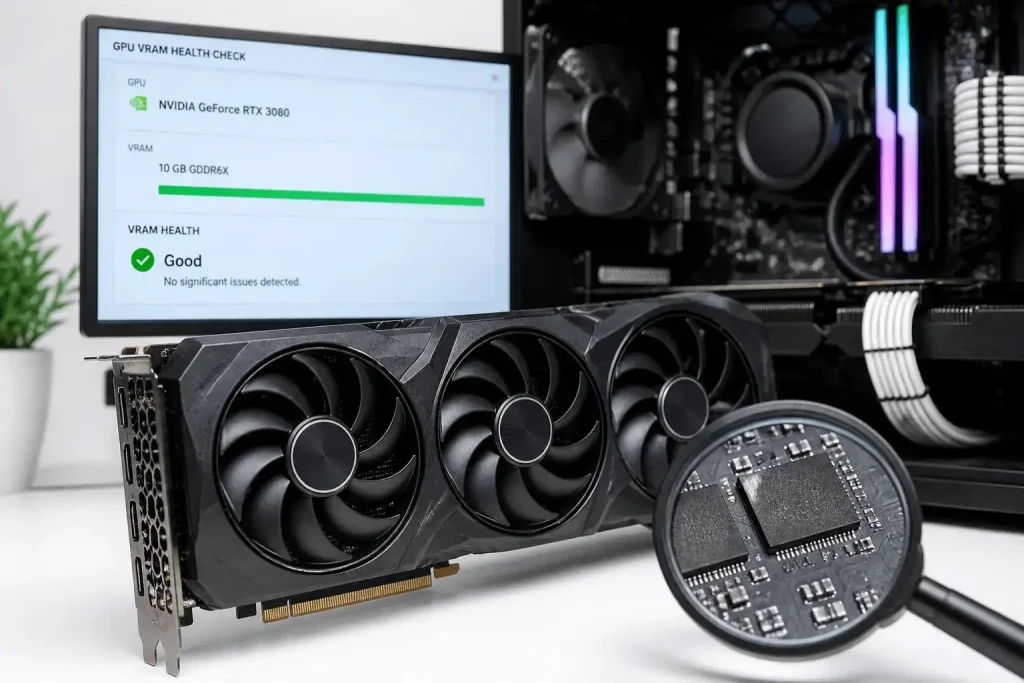
VRAM (Video RAM) is the memory built into your GPU. It stores game textures, shadows, and frame data. Failing VRAM causes some of the most confusing GPU problems things like:
- Textures loading as grey or checkerboard patterns
- Random colored pixels scattered on screen
- Stuttering that gets worse the longer you play
How to Test VRAM
Use OCCT’s VRAM test or MemTestG80 (for older NVIDIA cards).
Run either tool for at least 30 minutes. If any errors are reported, your VRAM cells are failing. This is not fixable with a driver update it is hardware damage.
New VRAM Warning in 2026: Many RTX 5060 Ti cards with 8GB VRAM are now running into VRAM limits at 1440p with modern games like GTA VI and Black Myth: Wukong at high texture settings. If you have one of these cards and see stuttering in new games, run the OCCT VRAM test AND lower your texture settings by one step. If stuttering stops, it was a VRAM capacity issue not a failing chip.
How Much VRAM Do You Actually Need in 2026?
| Resolution | Minimum VRAM | Recommended VRAM |
|---|---|---|
| 1080p Gaming | 8GB | 10GB–12GB |
| 1440p Gaming | 10GB | 12GB–16GB |
| 4K Gaming | 16GB | 20GB–24GB |
| Video Editing (4K) | 12GB | 16GB–24GB |
| AI / Machine Learning | 16GB | 24GB+ |
Physical Inspection (What Software Cannot See)
Software can tell you a lot. But some GPU problems can only be found by looking at the card itself.
Check these things every 3 to 6 months:
Dust buildup : Dust blocks airflow and traps heat. Use a can of compressed air to blow out the fans and heatsink. Do this outside or near an open window.
Fan spin : Open your PC case and watch the GPU fans when a game starts. They should spin up as load increases. If one fan is not moving or makes a grinding sound, it needs to be replaced.
Power cables : Make sure the power cables going into the GPU are pushed in fully. A loose cable can cause crashes and black screens.
Thermal paste condition : The paste between the GPU chip and its heatsink dries out over time. After 2–3 years, replacing it can drop temperatures by 10–15°C. This is an advanced task look up a guide for your specific GPU model before doing it.
Capacitors on the PCB : Look for any dark spots, swelling, or burn marks on the circuit board. If you see any of these, stop using the GPU and have it inspected by a professional.
Fix Common GPU Health Problems
Problem: GPU Is Running Too Hot
Fixes in order of ease:
- Clean the fans and heatsink with compressed air
- Improve airflow inside your PC case (add intake and exhaust fans)
- Set a more aggressive fan curve in MSI Afterburner
- Replace the thermal paste (every 2 to 3 years)
- Repad the GPU (replace thermal pads on VRAM chips)
Problem: Driver Keeps Crashing
Fixes:
- Open Device Manager → Display adapters → Uninstall device (check “Delete driver software”)
- Restart your PC
- Download the latest driver from NVIDIA, AMD, or Intel directly
- Install with a clean install option
Problem: Low FPS With GPU Usage Below 60%
This is usually a CPU bottleneck, not a GPU health problem. Your GPU is waiting for the CPU to send it data. Check your CPU usage in Task Manager at the same time. If CPU is near 100% while GPU is low, you need a faster processor or lower in game settings that stress the CPU.
Problem: GPU Not Detected After Restart
Fixes:
- Power off the PC completely (not just restart)
- Remove and reseat the GPU in the PCIe slot
- Check the power cables again
- Try a different PCIe slot if your motherboard has one
- Update your motherboard BIOS
Laptop GPU Health Special Rules
Laptop GPUs follow different rules because they have less space to cool down.
- Laptops run hotter by design 85°C to 90°C during gaming is often normal
- Do not run extreme stress tests like FurMark for more than 10 minutes on a laptop
- Use a laptop cooling pad to drop temps by 3–8°C
- Keep laptop vents clear never use a laptop on a soft surface like a bed or couch
- Clean the vents every 6 months with compressed air (do not fully disassemble unless you know what you are doing)
2026 Laptop Note: Many 2025/2026 gaming laptops now use a shared thermal system between the CPU and GPU. This means if your CPU is hot, your GPU will be hotter too even if the GPU itself is fine. In HWiNFO, check both CPU and GPU temps at the same time to understand what is really causing the heat.
Long Term GPU Maintenance Expert Tips
These tips come from real hardware experience and are rarely mentioned in basic guides.
- Undervolt Instead of Overclock Undervolting reduces the voltage your GPU uses while keeping the same performance. This lowers heat, reduces fan noise, and extends GPU life. You can do it safely in MSI Afterburner using the Voltage/Frequency Curve editor. Many GPUs can undervolt by 50 to 100mV with zero performance loss.
- Keep One Old Driver Version Saved Sometimes new drivers break games or cause crashes. Always keep the previous driver version downloaded before updating. If a new driver causes problems, roll back quickly using Device Manager.
- Check PCIe Lane Speed GPU Z shows whether your GPU is running at PCIe x16 or x8 speed. Some motherboards drop to x8 when a second device (like an NVMe SSD) is installed. For most people this does not matter, but if you notice lower than expected performance, this could be why.
- Monitor Power Limit Hits In HWiNFO, look for the Power Limit throttling sensor. If it is active often, your GPU is hitting its power ceiling and slowing itself down. This can happen with weak power supplies or when running power hungry games. Raising the power limit slightly in MSI Afterburner (if your card allows it) can fix this.
- Do a Health Check After Every Major Driver Update After installing a new driver, run a 10-minute stress test and check temps. New drivers sometimes change how the GPU manages power and heat, and catching a problem early is much easier than diagnosing one week later.
FAQs
How often should I check GPU health?
Every 2 to 3 months for regular users. Check after every major driver update, after a game crash, or whenever you notice performance dropping.
Can my GPU pass a stress test and still be failing?
Yes. Some problems only appear after hours of use or during specific game engines. Monitoring over time is more reliable than one test.
Is Undervolting safe for my GPU?
Yes. Undervolting only reduces voltage it does not push the card beyond its limits. It is actually safer long term than running at stock settings under heavy heat.
My GPU temp is 75°C during gaming. Should I worry?
No. 75°C is perfectly healthy for a gaming GPU. You do not need to do anything unless it regularly exceeds 85°C.
How do I know if my GPU is dying or just dirty?
Clean it, replace the thermal paste, and test again. If temperatures drop and stability returns, it just needs maintenance. If crashes and errors continue after cleaning, the hardware may be failing.
Does updating drivers always help GPU health?
Not always. Drivers fix bugs but can also introduce new ones. Only update if you are having problems or if a new game requires it. Always keep the previous version backed up.
Can a bad PSU hurt GPU health?
Yes. An unstable or under powered PSU can send irregular voltage to your GPU. Over time this causes hardware stress and early failure. Always use a quality PSU with enough wattage for your GPU.
Conclusion
Checking your GPU health is not hard. You just need to know where to look and what the numbers mean. Start with the Task Manager for a quick daily check. Use HWiNFO or MSI Afterburner when you want more detail. Run a stress test with FurMark 2 every few months. Clean your GPU every 3 to 6 months. And replace thermal paste every 2 to 3 years.
These simple steps can add years to your GPU’s life. A healthy GPU means smoother games, faster work, and no sudden surprises. Your graphics card is one of the most expensive parts in your PC. Give it the care it deserves.

Leave a Reply