
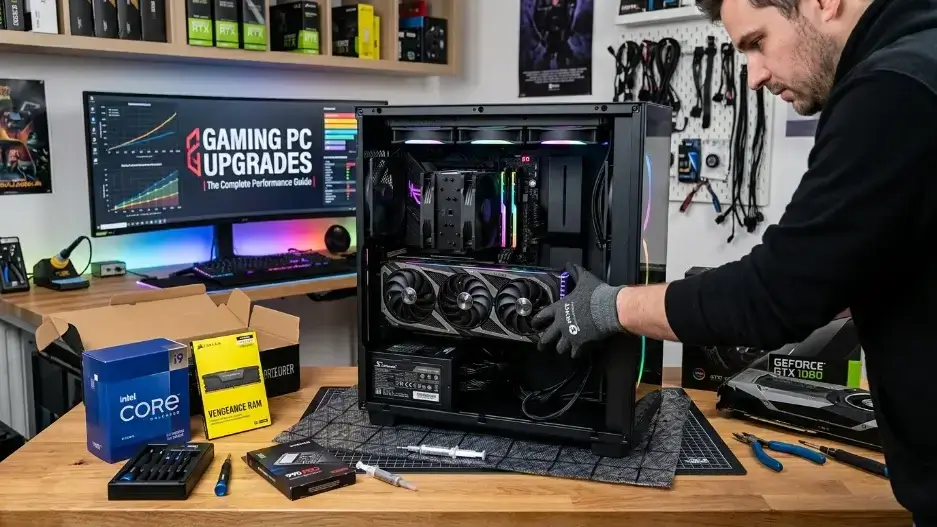
To get the best performance boost in 2026, upgrade your parts in this specific order: First, swap your old HDD for an NVMe PCIe 4.0 SSD to eliminate stuttering and cut load times. Second, upgrade your GPU (like an RTX 4070 Super or RX 7800 XT) for an immediate jump in FPS and resolution. Third, ensure you have at least 32GB of RAM to handle modern AAA gaming smoothly. Always open Windows Task Manager or MSI Afterburner while gaming first to identify whether your CPU or GPU is causing a performance bottleneck before buying new hardware.
What Is a Gaming PC Upgrade?
A gaming PC upgrade means swapping out one or more old parts inside your computer for newer, faster ones. You keep your case and most of your parts. You just replace the pieces that are slowing you down. Smart upgrades can make your PC run 2x to 3x better. And they cost much less than buying a whole new system.
How to check what is limiting your PC
Open a game. Then open Task Manager (press Ctrl + Shift + Esc). Click on Performance.
- If your GPU is below 80% while your CPU is above 90%, your CPU is the problem.
- If your GPU is above 95% and your CPU is relaxed, your GPU is the problem.
- If your RAM usage is above 85%, you need more memory.
You can also download MSI Afterburner for free. It shows your GPU and CPU usage while you play. This is the most reliable way to find your bottleneck. In some games like Fortnite, Warzone, and Cities: Skylines, the bottleneck can jump between CPU and GPU depending on what is happening on screen. Check your usage in a busy area of the game like a crowded city or a big battle, not in the menu. Menu usage numbers are almost always misleading. For safety validation of your hardware tools, you can cross-check official guidelines on Asus Support portals.
The Best Gaming PC Upgrades in 2026
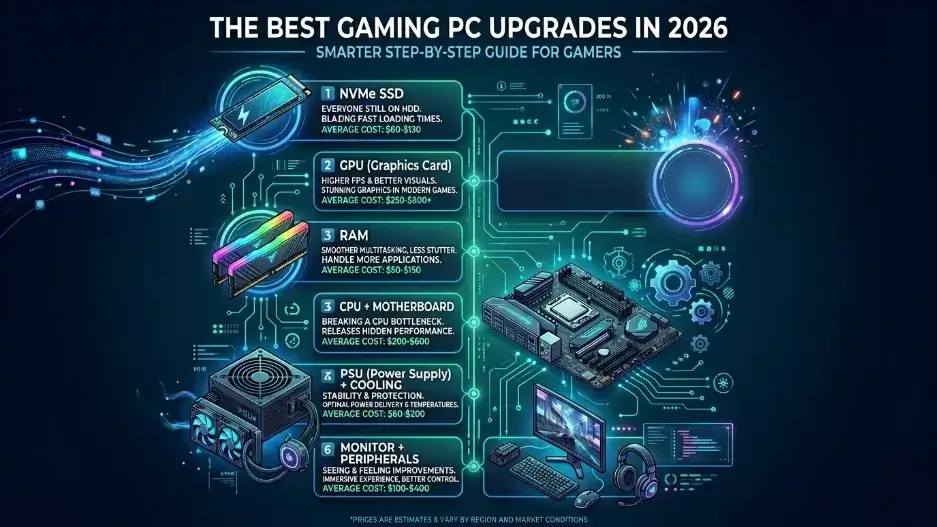
Here is the smartest upgrade order for most gamers. Start at the top and work your way down.
| Order | Upgrade | Best For | Average Cost |
|---|---|---|---|
| 1 | NVMe SSD | Everyone still on HDD | $60–$130 |
| 2 | GPU | Higher FPS and better visuals | $250–$800+ |
| 3 | RAM | Smoother multitasking, less stutter | $50–$150 |
| 4 | CPU + Motherboard | Breaking a CPU bottleneck | $200–$600 |
| 5 | PSU + Cooling | Stability and protection | $60–$200 |
| 6 | Monitor + Peripherals | Seeing and feeling the improvements | $100–$400 |
SSD (The First Thing Almost Everyone Should Do)
If you are still using an old spinning hard drive (HDD), this is the single best upgrade you can make. Full stop.
An HDD reads data at around 80 to 160 MB per second. A basic SATA SSD goes up to 550 MB per second. A modern NVMe Gen 4 SSD hits over 7,000 MB per second.
What changes when you switch to an SSD:
- Windows starts in 10 to 15 seconds instead of over a minute
- Games load 3x to 10x faster
- No more stuttering when the game loads new areas
- Your whole computer feels more responsive
Which SSD Should You Buy?
| Type | Speed | Best For |
|---|---|---|
| SATA SSD (2.5″) | ~550 MB/s | Older PCs without M.2 slot |
| NVMe PCIe 3.0 | ~3,500 MB/s | Most PCs from 2018 and later |
| NVMe PCIe 4.0 | ~7,000 MB/s | Best value for performance |
| NVMe PCIe 5.0 | ~12,000 MB/s | Not needed for gaming yet |
How much storage do you need?
- 1TB: Good starting point. Fits your OS and several big games.
- 2TB: Better. Modern AAA games like Call of Duty and Red Dead Redemption 2 each take over 100GB.
- 4TB: Great if you hate uninstalling games.
Something most guides do not tell you: PCIe 5.0 SSDs are the fastest drives you can buy in 2026. But they do not make games load faster than a good PCIe 4.0 drive. Why? Because most games are designed around slower storage. The speed difference only shows up in file transfers and special workloads. Save your money and buy a 4.0 drive instead.
Another tip: Always keep at least 15% of your SSD free. When an SSD gets nearly full, it slows down. A 2TB drive that is 90% full will feel slower than a 1TB drive that is half full.
GPU (The Most Important Part for Gaming Performance)
Your graphics card, also called a GPU, does the heavy work in every game. It draws every pixel on your screen. Upgrading your GPU gives you the biggest jump in FPS out of any single part.
How to Match Your GPU to Your Screen
| Screen Resolution | Target Performance | Good GPU Picks (2026) |
| 1080p gaming | 100–144 FPS | RTX 4060, RX 7600 |
| 1440p gaming | 60–120 FPS | RTX 4070 Super, RX 7800 XT |
| 4K gaming | 60+ FPS | RTX 4080 Super, RX 7900 XTX |
| 4K at 120+ FPS | Highend | RTX 5080, RTX 5090 |
Before You Buy Check These Things
- Physical size: Modern GPUs can be very long (280mm to 340mm). Measure the space inside your PC case before buying.
- Power connector: Newer NVIDIA cards use a 12VHPWR connector. Older PSUs may not have this. Check before buying.
- Your PSU wattage: See the PSU section below.
- PCIe slot version: PCIe 3.0 vs 4.0 vs 5.0 makes almost no real world difference for gaming. Do not stress about this.
Should You Buy New or Used?
Used GPUs from the RTX 30series (2020/2022) can save you 30 to 50%. But be careful:
- Check that the seller is honest about how the card was used. GPUs used for crypto mining may have worn fans or old thermal paste.
- Avoid any GPU older than 2018. These cards lack support for DLSS, FSR, and modern ray tracing.
- Test any used GPU for at least 30 minutes using Fur Mark before the return window closes.
What most guides miss about GPU upgrades in 2026: AI upscaling has completely changed the value equation. NVIDIA’s DLSS 4 and AMD’s FSR 3 let a midrange card like the RTX 4060 perform near the level of the last generation’s highend cards. If you turn on Frame Generation in supported games, a $300 GPU can push well over 100 FPS at 1440p. Always check if your games support these features before assuming you need a more expensive card.
Another hidden fact: The RTX 5060 Ti (released in 2025) brought DLSS 4 with Multi Frame Generation, a feature that creates multiple frames between real rendered ones. In supported games, this can more than double your displayed frame rate from a single midrange card. This makes the cost-per-FPS better than ever for budget builds.
RAM (Stop the Stutters)
RAM is your computer’s short term memory. When a game runs out of RAM, it starts pulling data from your much slower SSD. This causes hitching, stuttering, and freezing even if your GPU is brand new.
How Much RAM Do You Need in 2026?
| Amount | Reality Check |
| 8GB | Not enough. You will stutter in almost every modern game. |
| 16GB | The minimum for smooth gaming in 2026. |
| 32GB | The sweet spot. Best for gaming plus streaming plus multitasking. |
| 64GB | Only needed for video editing, 3D rendering, or virtual machines. |
Speed Matters Too
- DDR4 at 3200–3600 MHz is still great for most PCs. Going faster gives about a 5–10% FPS boost.
- DDR5 at 5600–6400 MHz is the new standard. It pairs especially well with AMD Ryzen 7000 and 9000 processors.
Always buy RAM in pairs. Two 8GB sticks are much faster than one 16GB stick. This is called dual channel mode. It can improve FPS by 20 to 50% in games that are sensitive to memory bandwidth. This is one of the most overlooked free performance tricks.
Something not widely talked about in 2026: DDR5 RAM prices shot up a lot in late 2025 due to supply problems. As of early 2026, DDR5 kits cost roughly 60–80% more than equivalent DDR4 kits. If you are on an older AM4 or Intel 12th/13th gen platform with DDR4, it is often smarter to buy faster DDR4 than to switch platforms just to get DDR5. The real world gaming difference between fast DDR4 and DDR5 is usually under 10%.
CPU and Motherboard
Your CPU handles game logic, AI behavior, physics, and networking. In most modern games, a good GPU paired with an outdated CPU leads to a CPU bottleneck where your processor cannot keep up with your graphics card.
Signs You Have a CPU Bottleneck
- Your GPU usage sits below 70% even in demanding games
- You get big FPS drops in crowded scenes but not in empty areas
- Games like Warzone, Fortnite, or Microsoft Flight Simulator run poorly even with a good GPU
What Are the Best CPUs for Gaming in 2026?
The AMD Ryzen lineup with 3D VCache technology leads for gaming:
| CPU | Platform | Why It Is Great |
| Ryzen 5 5600 | AM4 | Cheapest good upgrade for older AMD boards |
| Ryzen 7 7800X3D | AM5 | Best midrange gaming CPU in the world |
| Ryzen 7 9800X3D | AM5 | Best overall gaming CPU as of 2026 |
| Ryzen 9 9950X3D | AM5 | Top gaming and productivity chip |
Intel’s Core Ultra 200series (Arrow Lake) disappointed many reviewers in gaming tests. AMD’s X3D chips dominate for pure gaming in 2026.
Hidden Cost Warning
A CPU upgrade almost always costs more than just the chip itself. You may also need:
- A new motherboard (if your socket changes)
- New RAM (if switching from DDR4 to DDR5)
- A new CPU cooler (some CPUs do not include one in the box)
Budget an extra $150 to $300 on top of the CPU price for a full platform upgrade.
Something newer guides are starting to cover: AMD’s 3D VCache works by stacking extra cache memory on top of the CPU die. This huge L3 cache (up to 128MB on the 9950X3D) keeps more game data close to the processor. It cuts the time wasted waiting for data from RAM. This is why an X3D chip at 5.0 GHz can beat a competing chip running at 6.0 GHz in gaming. Clock speed is no longer the only number that matters.
Power Supply & Cooling
These two upgrades do not directly add FPS. But they protect every other part you just spent money on.
Power Supply (PSU)
A weak or old power supply is like a bad foundation. Even great parts will fail or perform poorly if the PSU cannot deliver clean, stable power.
Recommended wattage by build level:
| Build Type | Minimum PSU |
| Budget (RTX 4060 or RX 7600) | 550W 80+ Gold |
| Midrange (RTX 4070 or RX 7800 XT) | 750W 80+ Gold |
| Highend (RTX 4080 or RX 7900 XTX) | 850W 80+ Gold |
| Top tier (RTX 5080, RTX 5090) | 1000W+ 80+ Gold |
Signs your PSU may be failing:
- PC shuts off randomly during heavy gaming
- System restarts when you start a demanding game
- Coil whine gets louder over time
- PC takes multiple tries to turn on
Replace any PSU that is more than 6 to 8 years old. Old capacitors inside can degrade and damage other parts.
A fact most PSU guides ignore: In 2025 and 2026, many users with RTX 40 and 50series cards reported problems with the 12VHPWR power connector burning when it was not pushed in fully. Always push this connector all the way in until it clicks. Check it again after your first gaming session. If it feels loose, do not use the PC until it is seated properly. Stick with the cable included in the box, some third party cables are lower quality.
Cooling
High temperatures quietly kill performance. Modern CPUs and GPUs slow themselves down when they get too hot. This is called thermal throttling. It can rob you of 10 to 20% of your performance without any obvious warning signs.
Target temperatures while gaming:
- CPU: Below 85°C
- GPU: Below 83°C
Simple cooling upgrades:
- Replace the stock CPU cooler with a midrange air cooler or a 240mm AIO liquid cooler. This can drop CPU temps by 15 to 25°C.
- Add 1 to 2 case fans to improve airflow.
- Clean dust from your PC every 3 to 6 months. Clogged fans and heatsinks are one of the most common hidden causes of poor gaming performance.
- Replacing the thermal paste on a GPU that is 3+ years old can drop its temperature by 5 to 10°C.
Monitor and Peripherals
Once your PC can push more frames, you need a screen that can actually show them.
Monitor Guide for Gamers
| Type | Best For | Price Range |
| 1080p 144Hz | Budget competitive gaming | $100–$160 |
| 1440p 144–165Hz | Sweet spot for most gamers | $200–$350 |
| 1440p 240Hz | Competitive gaming at high quality | $300–$500 |
| 4K 120–144Hz | Highend immersive gaming | $400–$900 |
Adaptive sync matters. GSync (NVIDIA) and FreeSync (AMD) keep your frame rate and monitor refresh rate in sync. This removes screen tearing and makes gameplay feel smoother even at lower frame rates like 55 to 70 FPS.
Peripherals That Change How You Play
- A gaming mouse with a good optical sensor at 800 to 1600 DPI improves aim consistency.
- A mechanical keyboard with fast, low-actuation switches reduces missed inputs in fast games.
- A headset with spatial audio helps you hear footsteps and shots from the right direction. This is a real advantage in games like Valorant, PUBG, and Rainbow Six Siege.
How to Upgrade on a Budget: The Smart Order
If you cannot afford everything at once, here is the order that gives you the most improvement for the least money:
- SSD first — $60 to $130. Biggest quality of life change. Do this before anything else.
- RAM to 16GB — $40 to $80. Removes stuttering in most modern games. Very cheap fix.
- GPU — Save up and buy the best you can afford. This is where most gaming performance comes from.
- CPU + Motherboard — Only after you confirm a CPU bottleneck.
- PSU + Cooling — Needed before or alongside a big GPU or CPU upgrade.
- Monitor — The final reveal of all your hard work.
When to Repair Instead of Upgrade
Sometimes your PC is not slow because parts are old. Something may be broken or worn out.
Warning signs to look for:
- Random shutdowns during gaming (usually PSU or overheating)
- Blue screens or game crashes (could be RAM, drivers, or a dying drive)
- Loud grinding or clicking from fans (failing bearings, replace soon)
- A burning smell from inside the case (stop using the PC right away)
Before spending money, try these free fixes:
- Update your GPU drivers — huge FPS gains are sometimes hidden in driver updates
- Do a clean reinstall of Windows every 2 to 3 years
- Run MemTest86 to check your RAM for errors (free tool, takes about 30 minutes)
- Reapply thermal paste to your CPU if it is 4 or more years old
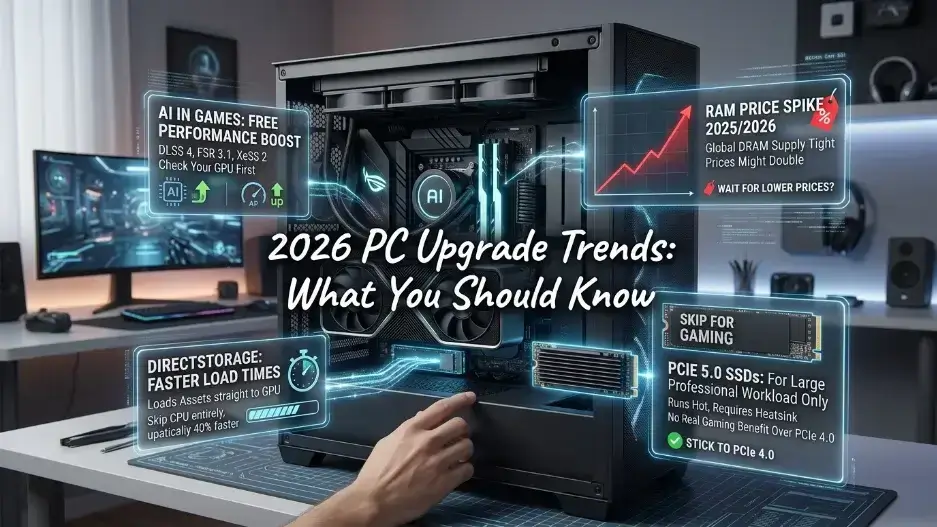
2026 Trends You Should Know Before Upgrading
AI Is Now Built Into Games
Game engines now use AI tools built into modern GPUs and CPUs. NVIDIA’s DLSS 4 with Multi Frame Generation, AMD’s FSR 3.1, and Intel’s XeSS 2 all let games run at higher frame rates with no extra hardware cost. Before you buy a new GPU, check if your current card supports these features in your favorite games. You might get a big boost for free just by turning on a setting.
The RAM Price Spike of 2025/2026
Global DRAM supply got tight in late 2025. RAM prices went up sharply, in some cases doubling compared to 2024 prices. If you are reading this in 2026, check current prices before assuming RAM is cheap. It may be worth waiting a few months for prices to come back down.
DirectStorage A Quiet Revolution for Load Times
Windows 11’s DirectStorage feature lets games load assets straight to the GPU, skipping the CPU entirely. This can cut loading times by up to 40% in supported games. To take full advantage, you need an NVMe SSD and a modern GPU (NVIDIA RTX 30series or newer, or AMD RX 6000series or newer). If you are still on a SATA SSD or HDD, upgrading to NVMe unlocks this benefit too.
PCIe 5.0 SSDs Fast But Skip Them for Gaming
PCIe 5.0 drives hit speeds above 12,000 MB/s. They also run very hot and need a heatsink. For gaming in 2026, there is no measurable benefit over a good PCIe 4.0 SSD. The extra speed only helps with large professional file work. Save the money.
Frequently Asked Questions
What is the single best gaming PC upgrade for most people?
For most people still on a hard drive, the answer is an NVMe SSD. If you already have an SSD, a GPU upgrade gives the biggest FPS boost in games.
How do I know if my PC can handle a new GPU?
Check your PSU wattage, the physical length of the new card, and your PCIe slot. Most PCs with a 550W or higher PSU and a midtower case can fit a midrange GPU without any other changes.
Is it better to upgrade or buy a new PC?
If your PC is less than 5 to 6 years old, upgrading is almost always cheaper. If your whole build is very old Intel 8th gen or earlier, or Ryzen 1000 series a full platform change may be smarter in the long run.
Can better cooling actually improve FPS?
Yes. If your CPU or GPU is running above 85 to 90°C, it is already slowing itself down. Better cooling directly restores the performance you are losing to heat.
What does dual-channel RAM mean and why does it matter?
Dual-channel means your two RAM sticks work together to double the memory bandwidth. This boosts FPS in CPU heavy games by up to 50%. Always buy RAM in matched pairs.
Do I need to reinstall Windows after a big upgrade?
Not always. But after a CPU and motherboard change, a clean Windows install is strongly recommended. It stops driver conflicts and gives your new hardware a fresh start.
Conclusion
The best gaming PC upgrades are not the most expensive ones. They are the ones that fix the right problem in the right order. Start with your SSD if you are on a hard drive. Then look at your GPU. Then check your RAM. Use real tools like MSI Afterburner to see where your bottleneck actually is before spending money. A well-planned upgrade can double your gaming performance for a few hundred dollars and keep your PC competitive for the next 3 to 5 years without buying a whole new system.

Leave a Reply