
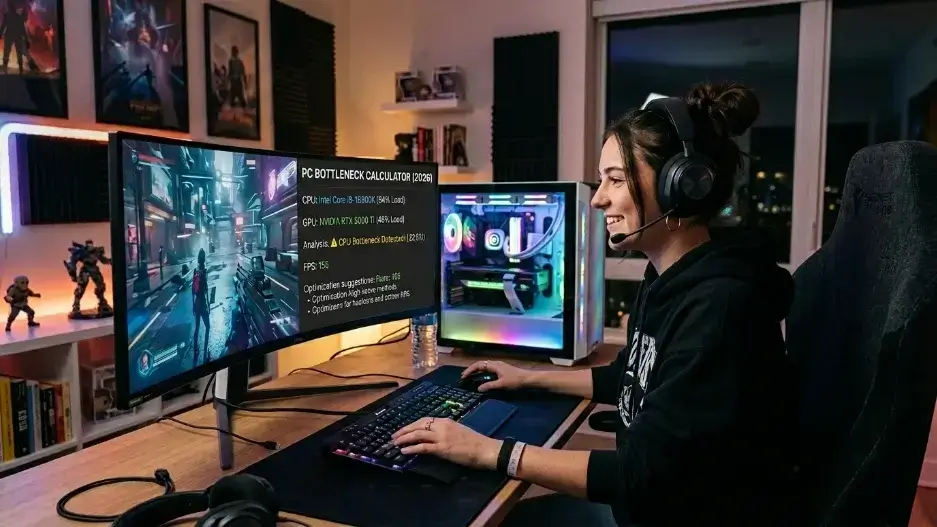
A bottleneck calculator for gaming PC builds gives you a rough compatibility check before you buy a CPU or GPU enter your exact hardware, resolution, and use case to see which part might limit the other. Under 5% is fine, 5 to 15% depends on your goals, and 15%+ signals an unbalanced pairing. Always confirm with real tools like MSI Afterburner or HWiNFO64 after building.
Introduction
Building or upgrading a gaming PC gets confusing fast. You might know how to use a bottleneck calculator for gaming PC builds to get a rough compatibility check, but hardware changes rapidly. In 2026, dropping a high-end graphics card into an older setup isn’t the only risk; running slow memory, single-channel configurations, or outdated DDR4 and poorly optimized DDR5 RAM kits can severely tank your FPS and ruin your 1% lows.
A bottleneck calculator won’t solve that completely, but it gives you a starting estimate of how your CPU and GPU will work together before you spend a dollar. It’s not a replacement for real game testing. Think of it as a sanity check that saves you from an obvious mistake.
This guide walks through how to actually use a bottleneck calculator for a gaming PC, how to make sense of the numbers it spits out, and how to confirm those numbers with real tools like MSI Afterburner, RivaTuner, 3DMark, Task Manager, and HWiNFO64.
When to Use a Bottleneck Calculator
The best time to run a bottleneck calculator is before you commit to an upgrade. It stops you from dropping money on a CPU or GPU that doesn’t actually fit the rest of your build.If you’re eyeing a GPU upgrade and wondering whether your current processor can keep pace, this is the tool for that. This comes up a lot when someone wants to jump from an older card to something newer and faster.
It works the other direction too. Maybe your GPU is still solid, but your games feel stuttery or your 1% lows are rough no matter what you try. That’s often a sign the CPU is the actual problem, and a calculator can help confirm it before you buy the wrong part.
Building a PC from scratch? Same logic applies. New builders frequently pair an expensive GPU with a weak CPU, or go the opposite direction and blow the budget on the processor while shortchanging the graphics card. Running the numbers through a calculator first gives you a rough balance check before you start ordering parts.
Resolution changes things too, and it’s worth checking the calculator again if you switch. The same CPU and GPU pairing behaves differently at 1080p versus 1440p versus 4K. At 1080p, the CPU tends to matter more since the GPU can chew through frames quickly. Push that up to 4K, and the GPU starts carrying more of the load simply because each frame has so many more pixels to render. Treat the calculator as an early filter, not a final verdict. It points you in a direction. The games you actually play tell you the truth.
What You Need Before Starting
Don’t guess at your hardware specs going into this. Bad input means a bad estimate, and you’ll walk away with the wrong impression of what you actually need.
Start with your exact CPU model. Core i5 or Ryzen 7 on its own tells the calculator almost nothing useful. A Core i5-12400F and a Core i5-14600K are not remotely the same chip, even though they share that i5 label. Same story with AMD a Ryzen 5 3600 and a Ryzen 5 7600 will not perform anywhere close to each other in modern titles.
You’ll need the exact GPU model too. An RTX 4060 sits in a completely different tier than an RTX 4070 Super, RX 7800 XT, or RX 9800 XT. Laptop GPUs deserve extra caution here, since a laptop RTX 4070 performs nothing like its desktop counterpart despite sharing the name. RAM matters more than most calculators give it credit for. A lot of tools focus almost entirely on CPU and GPU, but slow memory, single-channel configurations, or older DDR4 kits can still tank your FPS and especially your 1% lows, particularly in open-world games.
Know your actual gaming resolution, not the resolution your monitor or TV is theoretically capable of. If you game at 1080p, enter 1080p. Don’t pick 4K just because the screen supports it if that’s not how you actually play day to day. Your target refresh rate matters as well. Someone gaming at 60Hz has very different needs than someone chasing 144Hz or 240Hz. A CPU that feels perfectly fine at 60 FPS can fall apart once you start pushing for 200+ FPS in competitive shooters.
For pulling your current specs, Task Manager works fine for a quick glance, but HWiNFO64 gives you far more detail if you want temperatures, clock speeds, power limits, and the kind of sensor data that actually matters for diagnosing problems. CPU-Z and GPU-Z are solid alternatives too if you just need to confirm exact model numbers.
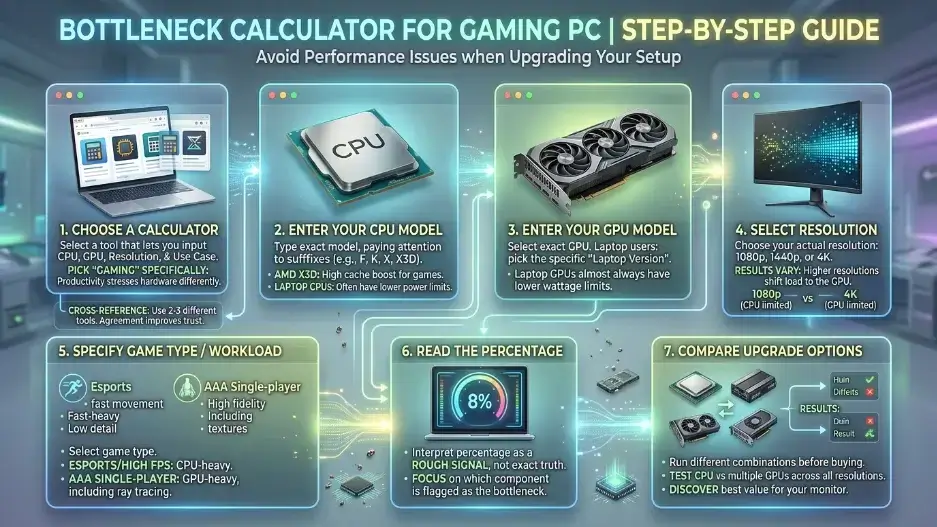
Bottleneck Calculator for Gaming PC Step by Step Guide
Choose a Calculator
Look for a calculator that lets you input your CPU, GPU, resolution, and intended use case. Some go a step further and ask whether you’re using the PC mainly for gaming, streaming, productivity, or general tasks. Pick gaming specifically if that’s your priority, since productivity workloads stress hardware differently and mixing those results with gaming expectations will throw off your read.
No single calculator gets everything right. If you’re about to drop serious money on an upgrade, it’s worth running your specs through two or three different tools. When multiple calculators agree on the general direction, you can trust the result a lot more than relying on just one.
Enter Your CPU
Type in the exact processor model, and pay attention to those small letter suffixes at the end. They matter more than people expect. An F,K,X, or X3D tag can mean a meaningfully different chip even within the same product line.
X3D chips from AMD tend to punch above their weight in gaming specifically, thanks to the extra cache they pack in. Laptop processors are a different story entirely. They can carry a name similar to a desktop chip but run noticeably slower because of power and thermal limits baked into the laptop chassis.
Enter Your GPU
Add the exact graphics card model, and if you’re on a laptop, select the laptop-specific version when the calculator offers one. This distinction matters because laptop GPUs almost always run at lower power limits than their desktop equivalents. Even two laptops sharing the exact same GPU name can perform quite differently depending on cooling design and the wattage cap the manufacturer set. If you are adjusting settings for next-gen setups, make sure to verify the RTX 50 Series power supply guidelines as well.
Select Resolution
Pick your real resolution: 1080p, 1440p, or 4K. This setting probably swings the results more than anything else in the calculator. At 1080p, a powerful GPU can churn through frames so fast that the CPU becomes the limiting factor. At 1440p, things tend to balance out more evenly. By the time you’re at 4K, the GPU is usually doing most of the heavy lifting and becomes the bottleneck in demanding titles.
Select Game Type or Workload
Some calculators let you specify the type of game you’re playing. Esports titles or anything chasing high FPS should go in a CPU-heavy category. AAA single-player games running heavy graphics settings belong in the GPU-heavy bucket.
Games like Valorant, Counter-Strike, or Fortnite running in performance mode tend to expose CPU limitations quickly. On the flip side, anything leaning on ray tracing, high-res textures, and 4K rendering is going to lean hard on the GPU instead.
Read the Percentage
The calculator will usually spit out a bottleneck percentage. Don’t treat this number as gospel, more like a rough signal. A result showing 5% doesn’t mean you’re losing exactly 5 FPS out of every 100 frames. It just means the calculator’s model thinks one component is somewhat limiting the other under the conditions you entered. Pay more attention to which component gets flagged as the limiter than to the precise number itself. That detail tells you a lot more than the percentage does.
Compare Different Upgrade Options
Run a few different combinations before pulling the trigger on a purchase. Try your current CPU paired against two or three different GPU options, and test each one across 1080p, 1440p, and 4K. You might discover a high-end GPU isn’t worth the premium for your current monitor setup. Or you might find that bumping your resolution from 1080p to 1440p actually puts a strong GPU you already own to better use.
How to Interpret Bottleneck Results
These percentages trip people up constantly. A small number is completely normal and nothing to stress over. A large one is more of a flag to dig deeper, not necessarily a problem on its own. Anything under 5% is generally fine for gaming purposes. Game engines vary enough that small differences like this rarely translate into anything you’d actually notice while playing.
Once you’re in the 5% to 15% range, context starts mattering. That gap might genuinely affect you if you’re chasing high refresh rates in competitive titles, but it probably won’t register much if you’re playing single-player games locked around 60 FPS. Cross 15%, and the pairing is likely unbalanced for whatever resolution or workload you selected. That doesn’t mean your PC will run poorly, just that one component probably isn’t being used as efficiently as it could be.
The simplest way to think about it: if the calculator flags a CPU bottleneck, expect your processor to potentially cap FPS, hurt frame pacing, or weaken your 1% lows. A GPU bottleneck flag usually means your graphics card is the thing holding back higher settings or a higher resolution target.
Don’t fixate purely on average FPS either. 1% lows tell you how the game actually feels during the rough moments, like a chaotic firefight or a busy city scene. A system pulling 120 average FPS with bad 1% lows can genuinely feel worse to play than one sitting at 100 FPS with smooth, consistent frame pacing.
Using a Bottleneck Calculator Before Upgrading
This is where a bottleneck calculator earns its keep: helping you choose between a CPU upgrade and a GPU upgrade before you spend the money.
Say you’re running an older 6-core CPU paired with a mid-range GPU, and you want more FPS at 1080p in competitive games. The calculator flags a CPU bottleneck. In that situation, buying a faster GPU probably won’t give you the jump you’re hoping for, since the CPU is already struggling to keep frames flowing fast enough.
Now flip the scenario. You’re gaming at 1440p with everything cranked up, and your GPU sits at 99% usage constantly. The calculator points to a GPU bottleneck here, and a graphics card upgrade is the move that actually makes sense.
Before you upgrade anything, take a look at your monitor too. There’s no point chasing 200 FPS hardware if you’re still on a 60Hz screen with no plans to replace it. Sometimes a monitor upgrade changes your whole approach to the build.
Your game library matters here as well. Simulation games, strategy titles, battle royales, and large multiplayer games tend to lean CPU-heavy. Ray-traced AAA titles running at high resolution usually lean GPU-heavy instead.
Don’t forget to check your power supply, case airflow, motherboard compatibility, and RAM situation while you’re at it. A new GPU might draw more power than your current PSU can comfortably handle. A new CPU could need a BIOS update or, worse, a completely new motherboard. Upgrading a PC is rarely just about swapping the two main chips and calling it done.
The smartest use of a bottleneck calculator is narrowing things down before you go digging through actual benchmarks. Once you’ve got two or three realistic upgrade paths in mind, that’s when you switch to comparing real-world gaming tests for your specific resolution.
DLSS, FSR and Frame Generation Explained
DLSS and FSR change how bottlenecks feel in actual gameplay, but they don’t make weak hardware disappear. It’s worth understanding what they’re actually doing before you count on them to fix a problem.
DLSS is NVIDIA’s upscaling and frame generation tech, available on supported GeForce RTX cards. FSR is AMD’s equivalent, covering upscaling and frame generation across a wide range of supported games and hardware.
Upscaling works by rendering the game internally at a lower resolution, then reconstructing that image up to your target output resolution. So a game might render below 1440p internally and then upscale the result to 1440p. Since the GPU has less raw work to do, FPS goes up.
Frame generation works differently. Instead of changing how each frame is rendered, it inserts extra frames between the ones the GPU traditionally renders. This can make motion look smoother and bump up the displayed frame rate, but it doesn’t necessarily improve how responsive the game feels, since those inserted frames aren’t reacting to your actual input.
This distinction matters quite a bit when you’re dealing with a bottleneck. If you’re GPU-bound at 4K, DLSS or FSR upscaling genuinely helps by easing the load on your graphics card and lifting your FPS. That’s the scenario these technologies were designed for.
If you’re CPU-bound at 1080p, though, upscaling probably won’t do much for you, since the GPU was never the actual bottleneck to begin with. In some cases, dropping resolution can make a CPU bottleneck even more obvious rather than less.
Frame generation performs best when your base frame rate is already reasonably solid. If a game is already running at low native FPS with noticeable stutter, frame generation might make the displayed number look better while the controls still feel sluggish or inconsistent underneath.
For competitive gaming, be cautious with frame generation specifically. Smoother visuals are nice to look at, but input latency is what actually matters when you’re trying to win a gunfight. For single-player games where reaction time isn’t as critical, frame generation can feel genuinely great as long as your base FPS is stable to begin with.
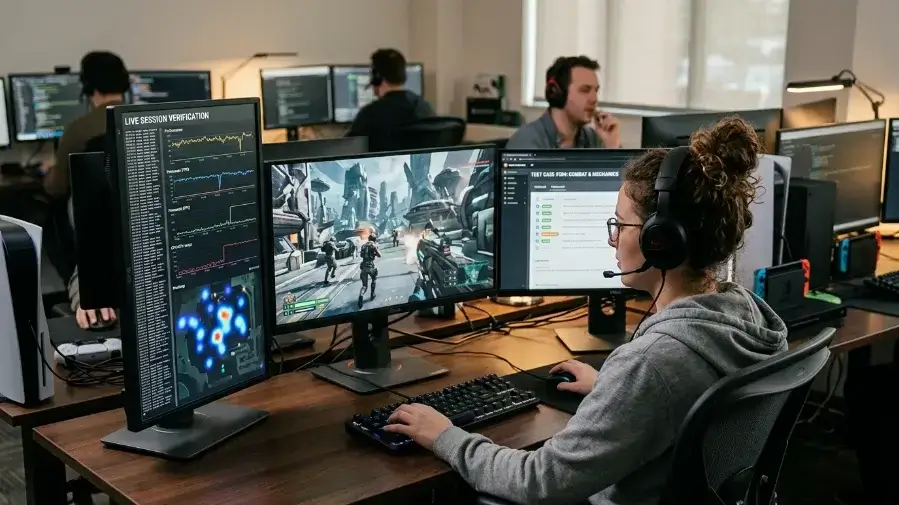
How to Verify Results with Real Game Testing
A calculator gives you an estimate. Actually playing the game with the right tools running tells you what’s really happening on your specific PC. Start with MSI Afterburner paired with RivaTuner. Together they give you an on-screen overlay showing GPU usage, CPU usage, per-thread activity, temperatures, clock speeds, RAM and VRAM usage, FPS, and frame time.
Run the same game in the same area for several minutes straight. Don’t test a quiet menu screen or a calm walking section and assume that represents the whole game. Pick a busy combat area, or use a built-in benchmark if the game has one, so you’re getting a fair read. Watch GPU usage first. If it’s holding steady around 95% to 99%, you’re typically GPU-bound, which means the graphics card is working about as hard as it can.
If GPU usage is on the lower side while FPS is also underwhelming, the CPU might be the actual limit. Check CPU usage per core or thread rather than just the overall number, since overall usage can be misleading. A game can max out two or three threads while the total usage figure still looks moderate on paper.
Pay attention to frame times too, not just FPS. A clean, consistent frame time graph feels noticeably better to play than a jagged one, even when the average FPS numbers look similar. Bad 1% lows usually show up as visible spikes on that frame time graph.
3DMark is useful for comparing your score against similar systems online. If your combination of CPU and GPU scores well below what others with the same hardware are getting, that’s often a sign of a driver issue, thermal throttling, a power limit problem, faulty RAM, or some background software fighting for resources.
Run HWiNFO64 alongside your testing to keep an eye on temperatures, clock speeds, CPU package power, GPU power draw, and any throttling flags that pop up. An overheating CPU or GPU can quietly tank your performance and create what looks like a bottleneck but is really a cooling problem in disguise.
Task Manager isn’t the most precise tool here, but it’s still worth a glance. It can quickly show you if memory is maxed out, if some background app is quietly eating CPU cycles, or if your disk is unusually active during gameplay.
Quick Decision Flowchart
Run through this before buying any new parts:
Step 1: What is your target?
Chasing more FPS at 1080p in competitive games? Check CPU performance first. After better visuals at 1440p or 4K instead? Check GPU performance first.
Step 2: What does your overlay show?
GPU usage sitting near 95% to 99% generally points to a GPU bottleneck. Low GPU usage paired with weak FPS usually points to a CPU bottleneck, or possibly some other system issue worth investigating.
Step 3: Are your 1% lows bad?
If the average FPS looks fine but the game still feels choppy in practice, check your CPU load, RAM speed, background apps, temperatures, and frame time spikes for clues.
Step 4: Does changing graphics settings help?
A big FPS jump after lowering graphics settings usually points to the GPU as the limiting factor. Barely any change after lowering settings? The CPU is probably the actual limit here.
Step 5: Does changing resolution help?
Dropping from 1440p to 1080p and seeing a big FPS boost means the GPU was likely holding you back. If FPS barely moves at all, the CPU may be the one limiting frame delivery instead.
Step 6: What should you upgrade?
Go for a CPU upgrade if you’re playing high-FPS games and dealing with poor 1% lows, low GPU usage, or persistent stutter. Go for a GPU upgrade if you’re gaming at higher resolution, running heavy graphics settings, want better ray tracing, or consistently see your GPU pegged at 99% usage.
CPU Bottleneck Fixes
If your CPU is running at 90-100% usage while the GPU is underutilized, you may be experiencing a CPU bottleneck. Here are a few ways to reduce it:
- Close unnecessary background applications.
- Enable XMP or EXPO profiles for your RAM.
- Keep your CPU drivers and BIOS up to date.
- Lower CPU-intensive game settings such as view distance and crowd density.
- Consider upgrading your CPU if the bottleneck is severe.
GPU Bottleneck Fixes
If your GPU is constantly running at 95-100% usage and you’re not getting the desired frame rates, a GPU bottleneck may be the cause. You can improve performance by:
- Lowering graphics settings in games.
- Enabling DLSS or FSR if supported.
- Monitoring GPU temperatures to prevent thermal throttling.
- Checking VRAM usage during gameplay.
- Upgrading to a more powerful graphics card if necessary
Laptop vs Desktop Bottlenecks
Bottleneck calculators are generally more accurate for desktop PCs than laptops. Laptop CPUs and GPUs often run at lower power limits and can be affected by thermal throttling, which impacts real-world performance. When evaluating a gaming laptop, monitor temperatures, clock speeds, and power usage alongside calculator results for a more accurate assessment.
Common Bottleneck Myths
Myth 1 : Any Bottleneck Is Bad
Every PC has a bottleneck somewhere, full stop. If nothing limited performance at all, FPS would theoretically be infinite, which obviously isn’t how reality works. The real question isn’t whether a bottleneck exists. It’s whether that particular bottleneck actually hurts the experience you’re going for.
Myth 2 : A Bottleneck Calculator Is Always Accurate
A calculator gives you a useful estimate of balance, but it has no way of knowing every game engine quirk, driver version, specific map area, background app running on your system, RAM configuration, cooling setup, or exact graphics setting you’re using. Treat it as a planning tool first, then confirm with real testing afterward.
Myth 3 : GPU Usage Below 99% Always Means CPU Bottleneck
Not necessarily. FPS caps, V-Sync, engine-imposed limits, RAM issues, storage bottlenecks, driver bugs, and background tasks can all pull GPU usage down too, even when the CPU isn’t actually the problem.
Myth 4 : More CPU Cores Always Mean More FPS
Games need a reasonable number of cores to run well, sure, but single-core speed, cache size, memory performance, and how the game engine itself is built all matter just as much. A newer 6-core CPU regularly beats an older 10-core chip in plenty of modern titles.
Myth 5: 4K Always Needs a New CPU
At 4K, the GPU is usually the bigger factor by far. A CPU upgrade can still help your 1% lows in certain games, but the graphics card is typically the first place worth investigating.
Myth 6 : Frame Generation Fixes Weak Hardware
Frame generation makes motion look smoother, but it works best when your base frame rate is already reasonably stable to start with. It’s not a fix for severe stutter or genuinely low native performance, no matter how good the marketing makes it sound.
Final Thoughts
A bottleneck calculator can genuinely help you make smarter decisions about your gaming PC, especially right before a CPU or GPU upgrade. It shows whether your planned parts actually make sense for 1080p, 1440p, or 4K, and it can catch an obvious mismatch before you overspend on hardware your system can’t fully take advantage of anyway. That’s the approach that gets you a better gaming PC without throwing money at the wrong part.
That said, the calculator is only the first step in the process. Real gaming performance comes down to your specific games, your settings, your monitor, your drivers, your RAM, your cooling, and whatever else is running in the background while you play.

Leave a Reply