
An FPS calculator predicts how smoothly a game will run on your computer. Enter your CPU, GPU, and RAM, and it estimates your average frame rate and 1% lows for the game and resolution you pick. This tells you if a game will lag or run smoothly before you spend any money on new hardware.
Introduction
You just spent $60 on a new game. You waited hours for it to download. Then you hit Play, and it stutters like a slide show. Or maybe you’re eyeing a new graphics card, but you’re not sure it will actually fix your lag. What if you could know exactly how a game will run on your PC before you spend a single dollar? That’s what a good FPS calculator does. Pick your parts, pick your game, and in seconds you’ll see your expected performance, no guesswork required.
This guide covers how these calculators actually work, what counts as good FPS for different platforms and game types, why even powerful PCs still stutter, and how to boost your frame rate without buying new parts.
What Is an FPS Calculator?
An FPS calculator is an online tool that predicts how many frames per second your PC or any other device will produce in a specific game, based on the hardware you tell it you have. Instead of buying a game or a new part and hoping for the best, you plug in your CPU, GPU, and RAM, pick a title and resolution, and get back an estimated average frame rate along with expected 1% lows.
It’s different from a basic can you run it checker, which only tells you whether your PC meets a game’s minimum or recommended requirements. An FPS calculator goes a step further and gives you an actual predicted number, so you know not just whether a game will run, but how well it will run smoothly at 60 FPS, a choppy 25, or somewhere in between.
Most people use one of two ways checking a build they already own to explain poor performance, or checking a build they’re planning to buy before spending any money on it.
FPS Performance Breakdown Table
For most gamers, 60 FPS is the ideal balance of smooth gameplay and hardware requirements. Competitive players often aim for 120 FPS or higher to reduce input lag, while professional esports players typically prefer 240 FPS with a high-refresh-rate monitor.
How Does an FPS Calculator Work?
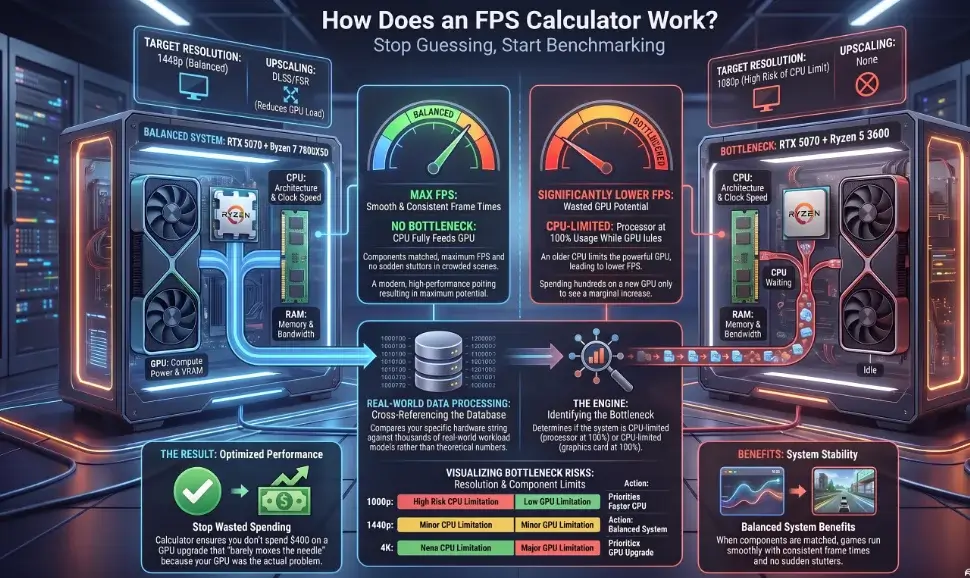
A reliable FPS calculator tool doesn’t guess. It compares your hardware against a large set of real-world benchmark results, the same way a “can you run it” checker matches your specs against a game’s requirements except it goes further and gives you an actual number instead of a pass/fail.
Here’s what a system FPS calculator typically looks at:
- Your processor (CPU): the brain of your computer, responsible for game logic, physics, and AI.
- Your graphics card (GPU): the part that actually draws the image on screen.
- Your system memory (RAM): short-term storage your PC pulls from while a game is running.
- Screen resolution: whether you play at 1080p, 1440p, or 4K.
- Upscaling settings: whether DLSS, FSR, or frame generation is turned on.
The calculator matches those specs against tested performance data for dozens of games, then estimates your average frame rate and expected lows. Some calculators also let you check performance without a dedicated GPU at all, using only integrated graphics useful if you’re on a laptop or a budget office PC and just want a rough idea before buying anything.
One thing worth knowing: this is an estimate, not a guarantee. How accurate is an FPS calculator? Results can shift based on your specific in-game settings, background software, driver version, and how well your PC is cooled. Think of it as a strong starting point, not a lab-certified number.
Real World Example: During benchmark testing, pairing a modern high-end processor with the same graphics card often delivers noticeably higher FPS and better 1% lows than using an older mid-range CPU. For example, an RTX 5070 paired with a Ryzen 7 7800X3D typically performs much better in CPU-intensive games than the same GPU paired with an older Ryzen 5 3600, especially at 1080p and high refresh rates.
What Affects FPS?
Frame rate isn’t decided by one part alone it’s the combined result of several things working together, and any one of them can drag the rest down:
- CPU speed: handles game logic, AI, and physics. A weak or older CPU can cap your FPS even if your GPU is powerful.
- GPU power: draws every frame you see. This matters more the higher your resolution goes.
- RAM amount and speed: not enough RAM causes stutter as the game swaps data in and out; faster RAM can also help in CPU-heavy titles.
- Screen resolution: 1080p, 1440p, and 4K each demand very different amounts of GPU work for the same game.
- In-game settings: shadows, reflections, draw distance, and ray tracing are some of the most expensive settings to render.
- Monitor refresh rate: a 60Hz screen caps what you can see, no matter how many frames your PC produces.
- Background software: browsers, overlays, and chat apps quietly use CPU and RAM that could go to the game.
- Temperatures: an overheating CPU or GPU throttles itself, silently lowering your FPS mid-session.
- Drivers: outdated GPU drivers can leave real performance on the table, especially for newly released games.
An FPS calculator essentially runs this whole list against benchmark data at once, which is why it’s faster and more reliable than guessing which single part is the problem.
What Is a Good FPS for Gaming?
Not every game needs blistering speed. A slow-paced farming sim feels fine at 30 FPS. A fast shooter does not.
Worth knowing: your monitor sets a hard ceiling on what you can actually see. A standard 60Hz monitor can only display 60 frames per second, no matter how many your GPU produces. If your card is pushing 200 FPS but your screen refreshes at 60Hz, you’re only seeing 60 of them. A 144Hz or 240Hz monitor is what actually lets those extra frames matter.
FPS Calculators for Different Platforms
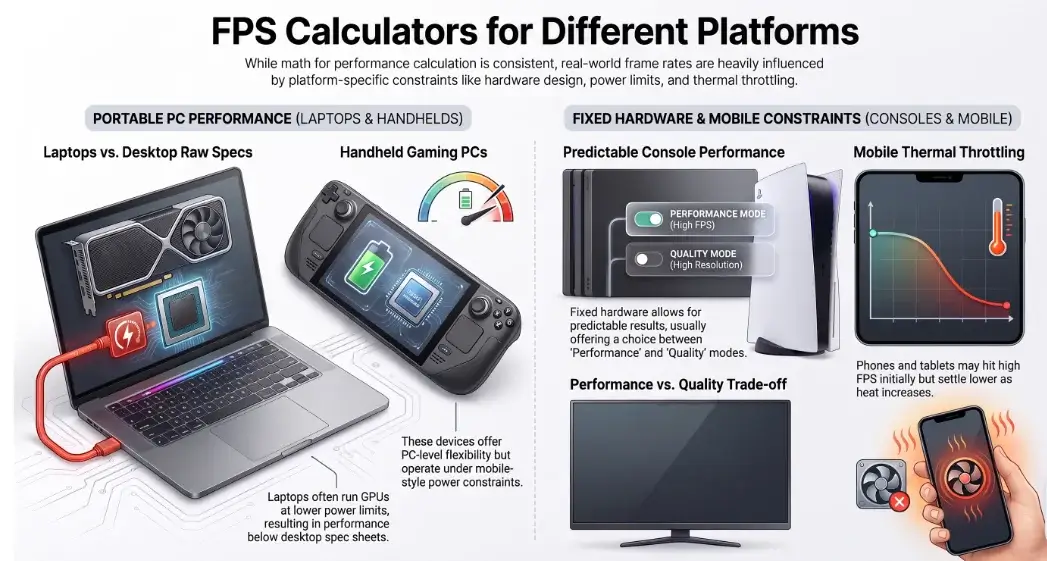
Most people searching for an FPS calculator have a desktop tower in mind, but the same idea applies well beyond that:
- Laptop and gaming laptop FPS calculators work the same way, but laptops often run their GPU at a lower power limit than the same chip in a desktop, so real-world results can land a bit below what the raw spec sheet suggests.
- Console performance (current-generation systems) is more predictable than PC, since the hardware is fixed but many games still offer a “performance mode” versus a “quality mode” trade-off, which is really just a frame rate versus resolution choice.
- Mobile and tablet gaming depends heavily on thermal throttling. A phone or tablet might hit a high frame rate for the first few minutes, then settle lower as it heats up.
- Handheld gaming PCs, like the newer Windows-based handhelds, sit somewhere between a laptop and a console you get PC-level flexibility with mobile-style power constraints.
Whatever device you’re on, the underlying question is the same one this calculator answers: given this hardware, at this resolution, what frame rate should you expect.
Gaming Resolution Guide
Resolution changes everything about which part of your PC is working hardest.
- 1080p is the most forgiving resolution and puts more of the workload on your CPU, since the GPU has fewer pixels to draw per frame.
- 1440p is the current sweet spot for a lot of gamers, a solid step up in clarity without demanding a flagship GPU.
- 4K shifts almost all the strain onto the GPU. Even a strong CPU won’t help much if your graphics card can’t keep up with four times the pixels of 1080p.
- Ultrawide monitors (like 5120×1440) effectively ask your GPU to render two 1440p screens side by side, so expect frame rates closer to what a 4K setup would produce.
If you’re planning to upgrade from 1080p to 1440p, or from 1440p to 4K, running the numbers through a calculator first can save you from buying a monitor your GPU can’t actually push.
Average FPS vs 1% Lows Why Does My Game Stutter?
A common source of confusion: your average FPS reads 100, but the game still feels jerky. The culprit is usually a hidden metric called your 1% lows.
Think of it like a road trip. Your average FPS is your normal cruising speed. Your 1% lows are the worst moments of the sudden potholes. Hit one hard enough, even for a second, and the whole ride feels rough.
In gaming, those potholes are sudden frame drops, often during intense moments like explosions or crowded scenes. If your average FPS is 100 but your 1% low drops to 15 during a firefight, you’ll feel every one of those dips as stuttering, even though your average number looks great on paper. A well-balanced PC keeps both numbers high, not just the average.
Always run your RAM in Dual Channel mode (e.g., 2x8GB instead of 1x16GB). Single-channel RAM severely limits memory bandwidth, which can cause severe 1% low frame drops and micro stuttering even if you’re using a high end GPU.
CPU vs GPU What’s Bottlenecking Your FPS?
Your CPU and GPU work as a relay team. The CPU calculates game logic and hands instructions to the GPU, which then draws the image. If one part is much weaker than the other, it holds the whole system back. That gap is called a bottleneck.
- CPU bottleneck: the GPU finishes drawing quickly and sits waiting for the CPU to catch up. This shows up most often at 1080p, where the GPU has less work to do per frame.
- GPU bottleneck: the CPU is ready, but the GPU is straining to render the image. This is common at 4K, where every frame has far more pixels to draw.
If the calculator returns a lower number than you expected, a bottleneck is a likely reason. Our Bottleneck Calculator can tell you which part of the CPU or GPU is actually holding your system back, so you know what to upgrade first, whether you’re running a fresh high-end GPU with an aging processor or pairing a strong CPU with integrated graphics.
FPS Calculator Popular Games Supported
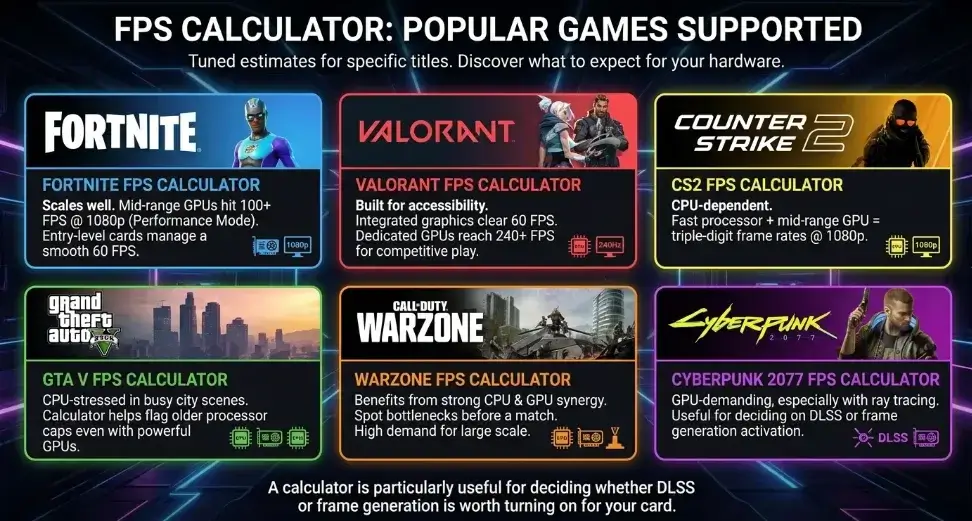
Beyond general estimates, a calculator is most useful when it’s tuned to the specific title you’re about to play. Here’s what to expect from a few of the most-searched games:
Fortnite FPS Calculator Fortnite scales well across older and newer hardware, so most mid-range GPUs can hit 100+ FPS at 1080p on Performance Mode, with even entry-level cards managing a smooth 60.
Valorant FPS Calculator Built to run on almost anything, Valorant is one of the easiest titles to hit high frame rates in even integrated graphics can often clear 60 FPS, while a dedicated GPU opens the door to 240+ for competitive play.
CS2 FPS Calculator CS2 leans more on CPU performance than older Source-engine titles did, so a fast processor paired with a mid-range GPU is usually enough for triple-digit frame rates at 1080p.
GTA V FPS Calculator Despite its age, GTA V still stresses the CPU in busy city scenes. A calculator can flag whether an older processor is capping your frame rate even if your GPU has plenty of headroom.
Warzone FPS Calculator As a large-scale battle royale, Warzone benefits heavily from both a strong CPU and GPU together checking your build against it is a good way to spot a bottleneck before a match, not during one.
Cyberpunk 2077 FPS Calculator One of the more GPU-demanding titles on this list, especially with ray tracing enabled. A calculator here is particularly useful for deciding whether DLSS or frame generation is worth turning on for your card.
Popular Games People Check FPS For
FPS expectations vary enormously by genre. A few patterns worth knowing before you check a specific title:
- Competitive shooters and battle royales (fast-paced online multiplayer titles) are typically well-optimized and can hit high frame rates even on modest hardware, since responsiveness matters more to players than visual fidelity.
- Open-world and story-driven titles with dense environments, detailed lighting, and long draw distances tend to be the most demanding on both CPU and GPU, especially in busy city or crowd scenes.
- Simulation and strategy games (city builders, racing sims, flight simulators) often lean harder on the CPU than the GPU, since they’re tracking huge numbers of objects or physics calculations at once.
- Live-service and looter titles get patched frequently, so performance can shift noticeably between updates worth rechecking after a major patch if your frame rate suddenly changes.
Because new games launch constantly and older ones get performance patches, any FPS number is really a snapshot in time. A calculator that’s updated regularly against current benchmark data will always beat a number you remember from a review a year ago.
Key Takeaways
- Use an FPS calculator to check whether your PC can handle a game before you spend money on it, whether you’re on desktop, laptop, or a handheld gaming PC.
- Aim for at least 60 FPS for a smooth, comfortable experience, and higher for competitive multiplayer.
- Resolution changes which part of your PC does the heavy lifting 1080p leans on the CPU, 4K leans on the GPU.
- Stutter is usually caused by poor 1% lows, not a low average frame rate.
- If your FPS is lower than expected, check for a CPU or GPU bottleneck using a Bottleneck Calculator.
- Lowering shadows, enabling DLSS/FSR, and keeping drivers updated are free ways to boost your frame rate today.
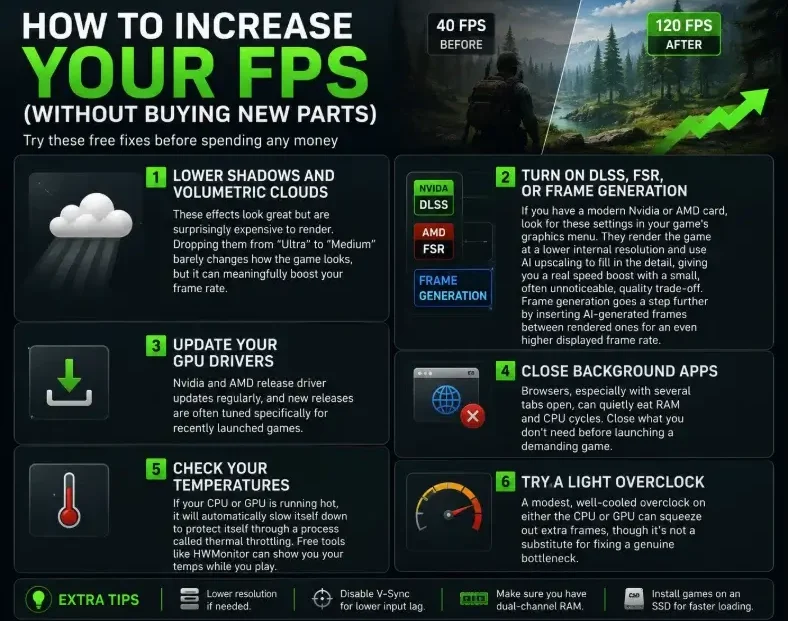
How to Increase Your FPS (Without Buying New Parts)
Try these free fixes before spending any money:
- Lower shadows and volumetric clouds. These effects look great but are surprisingly expensive to render. Dropping them from “Ultra” to “Medium” barely changes how the game looks, but it can meaningfully boost your frame rate.
- Turn on DLSS, FSR, or frame generation. If you have a modern Nvidia or AMD card, look for these settings in your game’s graphics menu. They render the game at a lower internal resolution and use AI upscaling to fill in the detail, giving you a real speed boost with a small, often unnoticeable, quality trade-off. Frame generation goes a step further by inserting AI-generated frames between rendered ones for an even higher displayed frame rate.
- Update your GPU drivers. Nvidia and AMD release driver updates regularly, and new releases are often tuned specifically for recently launched games.
- Close background apps. Browsers, especially with several tabs open, can quietly eat RAM and CPU cycles. Close what you don’t need before launching a demanding game.
- Check your temperatures. If your CPU or GPU is running hot, it will automatically slow itself down to protect itself through a process called thermal throttling. Free tools like HWMonitor can show you your temps while you play.
- Try a light overclock. A modest, well-cooled overclock on either the CPU or GPU can squeeze out extra frames, though it’s not a substitute for fixing a genuine bottleneck.
FPS Common Mistakes Gamers Make
- Pairing a high-end GPU with an old CPU. A top-tier graphics card paired with a decade-old processor will bottleneck hard the GPU spends much of its time waiting.
- Plugging the monitor into the motherboard instead of the GPU. This is an easy mistake on a new build. It forces your system to use weak integrated graphics instead of your dedicated graphics card, and it’s one of the most common reasons a brand-new PC runs games badly.
- Assuming more RAM always means more FPS. Going from 16GB to 32GB only helps if the specific game you’re playing actually needs that much. For most current titles, 16GB is still plenty.
- Ignoring RAM speed. Capacity isn’t the only factor faster RAM (measured in MHz) can noticeably help FPS in CPU-bound games, particularly on some AMD platforms.
- Trusting a single online score at face value. Community benchmark sites vary in methodology, so treat any single number, calculator included, as an estimate rather than gospel.
Don’t guess your performance test it! Scroll up to use our free PC FPS Calculator 2026 to check your estimated FPS and bottleneck score before buying your next game or component.
Frequently Asked Questions
Is 60 FPS good enough for gaming?
Yes, for most people. 60 FPS is smooth and comfortable for single-player story games, racing games, and casual play. You’d only need more than that for fast, competitive shooters where reaction time matters.
Why is my FPS so low on a brand-new PC?
Start by checking the cable at the back of your case make sure the monitor is plugged into the graphics card, not the motherboard. After that, check your temperatures. If your PC is overheating, it will throttle itself to protect the hardware.
Does a better motherboard increase my FPS?
Not directly. A motherboard doesn’t render frames itself. But a good one lets your CPU and RAM run stably at their rated speeds, which can matter for overall performance and reliability.
How do I test my PC’s FPS while playing?
Free tools like MSI Afterburner will show a live FPS counter and let you log performance over a session. Steam and Epic Games also have built-in FPS counters you can turn on in their settings.
Can I check FPS without a dedicated graphics card?
Yes. Integrated graphics can run lighter or older games at 1080p on low settings, and a calculator can still give you a realistic estimate before you decide whether a GPU upgrade is worth it.
How often should I recheck my expected FPS?
Whenever you change a part, upgrade your monitor’s resolution or refresh rate, or a game you play often gets a major patch. Driver updates can shift numbers too, though usually by less.
Conclusion
A PC FPS Calculator helps you estimate how well your computer will run a game before you spend money on upgrades. By analyzing your CPU, GPU, RAM, and screen resolution, it predicts expected FPS and highlights potential bottlenecks. This makes it easier to choose the right hardware, optimize game settings, and avoid unnecessary upgrades. Whether you’re a casual gamer or a competitive player, using an FPS calculator can help you achieve smoother, more consistent gaming performance with confidence.

Leave a Reply