

Quick answer: A GPU stress test pushes your graphics card to full load for a set time so you can check stability, heat, power draw, and visual errors. Run FurMark or a 3DMark stress test for 15 to 30 minutes while you watch temps and the screen. If the card stays cool, holds its clocks, and shows no artifacts or crashes, it passes.
Your graphics card can look fine on the desktop and still crash ten minutes into a game. That is the exact problem a gpu stress test solves. It loads the card hard on purpose, in a controlled way, so weak cooling, a tired power supply, or a dying chip shows up now, not in the middle of a ranked match.
This guide walks you through the whole process. You will learn what a stress test is, which free gpu stress test software to pick, how to run it step by step, and how to read the results. You will also learn what to do when the test fails, and why a stress test is not the same thing as a benchmark. By the end, you will know whether your card is healthy, or whether it needs help before it lets you down.
What Is a GPU Stress Test?
A gpu stress test is a controlled workload that pushes your graphics card close to 100 percent load and keeps it there for minutes at a time. People also call it a graphic stress test or a stress test video card check. The goal is simple: find out whether the card stays stable when it works as hard as it possibly can.
Normal gaming rarely holds a card at full load without a break. A game has menus, loading screens, and quiet scenes. A stress test has none of that. It gives the card a constant, heavy job, so any weakness shows up fast. That is why it is the best tool for checking stability, thermals, power draw, and visual errors in one run.
A good gpu stress test checks five things at once:
- Stability: Does the card finish the test without crashing, freezing, or restarting the PC?
- Thermals: How hot does the chip get, and does the temperature settle or keep climbing?
- Power: Does the card draw steady power, or does it spike and trip the power supply?
- Artifacting: Do strange colors, flickering squares, or broken shapes appear on screen?
- Burn-in behavior: Does the card hold its clock speed over time, or does it slow down as it heats up?
Think of it like a doctor asking you to run on a treadmill while they watch your heart. Walking around the room would never show the problem. A hard, steady effort does. A gpu stress test does the same thing for your graphics card. It is not about getting a high score. It is about proving the card can handle hard work without falling apart.
GPU Stress Test vs Benchmark What Is the Difference?
New builders often mix these two up, and the mix-up matters, because each one answers a different question. A benchmark measures how fast your card is. A stress test checks whether your card is stable. You need both, but for different reasons.
A benchmark runs a short, fixed scene and gives you a score or a frame rate. You use it to compare cards, or to see if an upgrade helped. A stress test runs a heavy load for a long time and gives you a pass or fail answer about health. It does not care about your score. It cares about whether the card survives.
Here is the difference in plain terms:
| Feature | GPU Stress Test | Benchmark |
|---|---|---|
| Main question | Is my card stable and healthy? | How fast is my card? |
| What it measures | Temps, stability, artifacts, power | Score, frame rate, frame times |
| How long it runs | 15 to 60 minutes of steady load | A few minutes, then it stops |
| Result you get | Pass or fail, plus temp and clock logs | A number you can compare |
| Best use | New card, used card, overclock check | Comparing cards or settings |
| Example tools | FurMark, OCCT, Kombustor | 3DMark benchmark, Unigine benchmark |
A gpu benchmark stress test can blur the line. Tools like 3DMark offer looped stress test modes that run a benchmark scene over and over. That gives you a stability check with a repeatable, game-like workload. It is a great middle ground, and this guide covers it below. But a single benchmark run is never a stability test. A card can score well for three minutes and crash in minute ten. If you only benchmark, you will miss that.
Why Run a GPU Stress Test?
There are four moments when a stress test earns its keep. If any of these sounds like you, run one before you trust the card.
You Just Bought a New Graphics Card
A new card should pass a stress test without breaking a sweat. Run one in the first few days, while the return window is still open. If the card overheats, shows artifacts, or crashes at stock settings, you found a bad unit early. That is far better than finding out two months later when the store will not take it back. A quick 15 minute gpu stress test is cheap insurance on an expensive purchase.
You Bought a Used Card
This is the most important case of all. A used card may have spent years mining, or running hot in a dusty case. Its fans may be worn, its thermal paste may be dry, and its memory may be flaky. A stress test is the fastest way to catch those problems before you pay. Run FurMark for 15 minutes, watch the screen for artifacts, and check the temps. If you want a full pre-purchase checklist, read our guide on how to check a used GPU before you buy it. A card that fails a stress test is a card you walk away from.
You Overclocked Your Card
An overclock is only good if it is stable. A card can boot fine, open games fine, and still crash under a heavy load. A gpu overclock test proves the new settings hold up. After every clock or voltage change, run a stress test. If it passes, keep the settings. If it crashes or shows artifacts, back the clocks down a little and test again. This loop is how safe overclocking works. Never skip it.
Your Games Keep Crashing
Random crashes, black screens, and driver resets often point at the graphics card, but they can also come from drivers, RAM, or the power supply. A stress test helps you narrow it down. If the card crashes during a stress test too, the card, its cooling, or its power delivery is the likely cause. If it sails through a 30 minute test but still crashes in one game, the problem is more likely that game or its drivers. Either way, you now have real evidence instead of a guess.
The Best GPU Stress Test Software
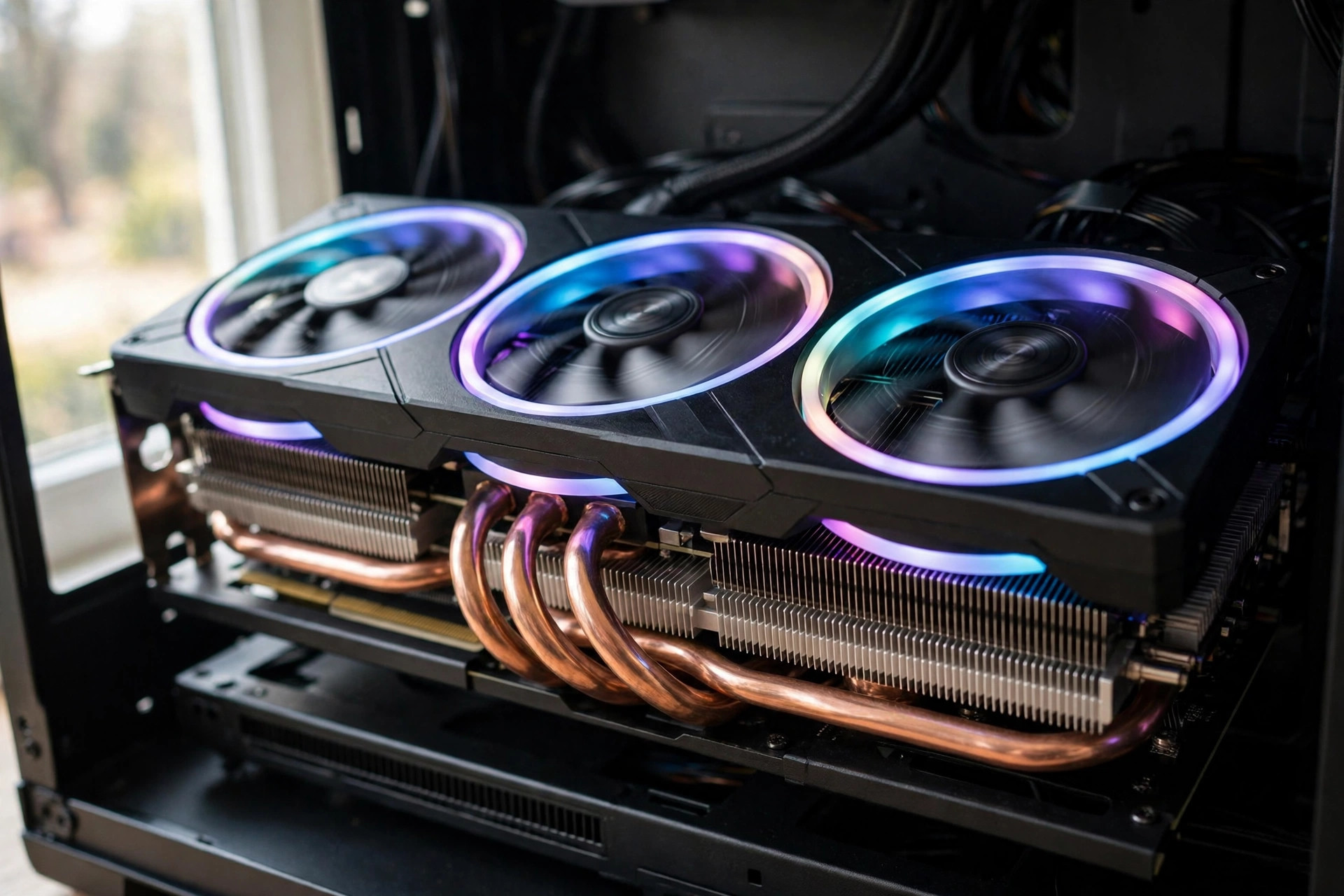
There is no single best gpu stress test for every job. Each tool stresses the card in a different way, and each one is better at catching a different kind of problem. The smart move is to pick the right tool for your goal, and to use more than one when something looks off. Every tool below is a real gpu stress test program used by gamers, reviewers, and repair shops. Most of them are free.
| Tool | Best For | Price | Platform |
|---|---|---|---|
| FurMark | Heat, power, and artifact checks | Free | Windows, Linux |
| 3DMark stress tests | Realistic looped stability checks | Paid, free demo | Windows |
| MSI Kombustor | Quick artifact and thermal checks | Free | Windows |
| OCCT | Error detection and VRAM testing | Free for personal use | Windows, Linux |
| Unigine Superposition | Game-like load with a score | Free basic version | Windows, Linux, Mac |
| AIDA64 | Full system stability testing | Paid, free trial | Windows |
A proper validation process uses several workloads, not one tool, because a single test can miss faults that only show up under a different kind of load. That is the same point made in a detailed guide to properly stress testing a modern GPU, and it is worth taking seriously. Start with one tool, then confirm with a second one if you need real confidence.
FurMark The Classic GPU Stress Test
FurMark is the most famous gpu stress test software in the world. It renders a spinning, furry donut that pushes your card to full load and holds it there. The furmark gpu stress test is brutal on purpose. It creates more heat and power draw than any game will, which makes it perfect for finding weak cooling fast.
A typical furmark test runs for 15 to 30 minutes. Watch the screen the whole time. You are looking for artifacts, which are colored squares, flickering lines, or broken shapes. You are also watching the temperature graph. A healthy card climbs to a plateau and stays there. A card with a cooling problem keeps climbing.
Download FurMark only from the official Geeks3D page, never from a random mirror. Some fake download sites bundle junk software with the installer. The official page is the Geeks3D FurMark page, and the current version is FurMark 2, which supports Windows and Linux. A furmark test download is small and needs no install, so you can run it from a folder.
One warning: FurMark is a worst-case load, not a game. If your card hits 90 degrees in FurMark but stays under 80 in games, the card is probably fine for real use. Use FurMark to find cooling problems, not to judge normal gaming temps. The furmark gpu test is a torture test, and it should be treated like one: supervised, short, and at stock settings.
3DMark Stress Tests: The Realistic Option
3DMark is best known as a benchmark, but its stress test mode is one of the best stability checks you can run. It loops a benchmark scene 20 times, which takes about 20 minutes, and then reports a frame rate stability score. A card that passes with 97 percent stability or better is holding its performance well under a sustained, game-like load.
Use 3DMark when you want a test that feels like real gaming. Pick a test that matches your card: Time Spy for modern DirectX 12 cards, or Steel Nomad for the newest GPUs. Run the stress test, not the single benchmark run, when stability is the question. The result tells you how much performance the card loses as it heats up, which FurMark cannot show you.
MSI Kombustor: The Quick Check
MSI Kombustor is a free gpu stress test tool from MSI, built on the same engine family as FurMark. A msi kombustor stress test is a good middle ground: it is heavy enough to find thermal and artifact problems, but it is quick to set up and easy to read. It pairs well with MSI Afterburner, which shows live temps, clocks, and fan speed in the same window.
Use Kombustor when you want a fast answer. Run it for 10 to 15 minutes at your monitor resolution. If the card stays stable and the temps level off, you have a solid first pass. If anything looks wrong, follow up with a longer FurMark or 3DMark run.
OCCT: The Fault Finder
OCCT is a gpu stability test with a big advantage over the others: it detects errors instead of asking you to spot them with your eyes. Its 3D adaptive test changes the load the way games do, with sudden spikes and drops, which catches instability that a steady load can miss. Its dedicated VRAM test checks graphics memory for errors, which is something FurMark cannot do at all.
A card can pass FurMark and still fail OCCT, because memory errors do not always show up as visible artifacts. They can quietly lower performance instead. That is why OCCT is the best second opinion when a game keeps crashing but FurMark looks clean. You can get it from the official OCCT download page. The free version covers personal use, and it runs on Windows and Linux.
Unigine Heaven and Superposition
Unigine Heaven and Superposition are beautiful, game-like scenes that loop for as long as you let them run. They are less brutal than FurMark, which makes them a good choice for older cards or for a first test when you are nervous about heat. Run Superposition in a loop for 30 minutes. If the card holds steady clocks and the temps stay in range, it handles real game engines well.
AIDA64: The Whole System Test
An aida64 gpu stress test checks the graphics card at the same time as the CPU, RAM, and storage. That matters when you suspect the problem is not the card alone. A weak power supply, for example, can look like a GPU problem until you load the whole system at once. AIDA64 is paid software with a free trial, so use it when you want a full-system answer, not just a GPU answer.
MSI Afterburner and GPU-Z: Your Monitoring Tools
No stress test is complete without monitoring. A msi afterburner gpu stress test setup means running Afterburner next to your test so you can watch temps, clocks, fan speed, and power draw live. Afterburner also lets you set a custom fan curve and test an overclock. A gpu z stress test check means opening GPU-Z, the small free tool from TechPowerUp, to confirm the card model, BIOS, and live sensor readings before you start. Run one of these monitors during every test. A stress test without monitoring is like a blood test with no results page: you did the hard part and learned nothing.
Before You Run a GPU Stress Test
A little prep makes the test safer and the results far more useful. Work through this checklist before you click Run.
- Update your graphics drivers. Old or broken drivers cause crashes that look like hardware faults. Get the latest stable driver from NVIDIA, AMD, or Intel first.
- Check your power supply. A stress test pushes the card to maximum power draw. Make sure your PSU meets the card maker wattage recommendation, with headroom to spare. Our PSU tier list can help you check whether your unit is up to the job.
- Return the card to stock settings. Turn off any overclock before a first test. Test the card as it came from the factory, then test your overclock separately.
- Clean the dust out. A dusty card runs hot for a silly reason. Blow out the fans and heatsink with compressed air before you judge the temps.
- Close heavy apps. Close browsers, game launchers, and recording software so nothing else loads the card or the CPU during the test.
- Open your monitoring tool. Start GPU-Z, HWiNFO, or MSI Afterburner first, so you can see temps, clocks, and fan speed from the first second.
- Note your baseline temps. Write down the idle temperature before the test starts. You need it to judge how far the temp climbs.
- Stay at the PC. Never start a stress test and walk away. You need to see artifacts and stop the test fast if temps spike.
How to Run a GPU Stress Test Step by Step
Here is the full process using FurMark, the most common gpu stress test program. The steps are almost the same for Kombustor or OCCT, so you can follow along with any of them.
- Download the tool from the official site. For FurMark, use the Geeks3D page linked above. Extract the zip file to a folder on your desktop.
- Open your monitor first. Start GPU-Z or MSI Afterburner. Check that the card name, temps, and fan speed look normal at idle.
- Open FurMark. Pick your monitor resolution from the list, usually 1920 by 1080. Leave the anti-aliasing setting at its default for a first test.
- Set a temperature alarm. In FurMark, turn on the GPU temperature alarm and set it to 90 degrees. The test will warn you before things get dangerous.
- Click Run and watch the first two minutes. The temperature should climb fast, then slow down. The fans should spin up. The screen should show a smooth furry donut with no flicker, no colored blocks, and no tearing.
- Let it run for 15 to 30 minutes. Stay nearby and glance at the screen every minute or two. Write down the peak temperature, the settled temperature, the fan speed, and the clock speed once the numbers stop moving.
- Stop the test. Click the close button or press Escape. Let the card cool back to idle temps before you run anything else.
- Play a real game. A stress test pass is strong evidence, but games use the card differently. Play your most demanding game for 30 minutes. If that is stable too, the card is in good shape.
To run a 3DMark stress test instead, open 3DMark, pick a test that matches your card, choose the stress test option, and let it loop 20 times. When it finishes, check the frame rate stability score and the temperature graph. A stability score above 97 percent is a clean pass.
How Long Should a GPU Stress Test Run?
How long you test depends on what you are trying to prove. A longer test is not always better. It just gives heat more time to build up, which is useful for finding cooling problems but adds wear for no reason if you already have your answer.
| Goal | Suggested Run Time | Notes |
|---|---|---|
| Quick health check | 5 to 10 minutes | Enough to catch big problems fast |
| Standard stability test | 15 to 30 minutes | The sweet spot for most users |
| Overclock validation | 30 to 60 minutes, then games | Confirm with real games after |
| Used card burn test | 30 minutes | A burn test gpu check before you pay |
| Troubleshooting crashes | 20 to 30 minutes | Run it twice if the first pass is clean |
For most people, 15 to 30 minutes is the right answer. Most faults show up in the first ten minutes, once the card reaches its peak temperature. If the card is still stable at 30 minutes, an extra hour rarely teaches you anything new. Overclockers are the exception: they often run longer tests plus several hours of gaming, because a small clock bump can fail in ways that take time to appear.
How to Read Your Stress Test Results
A stress test gives you four numbers that matter, plus what your eyes see on screen. Here is how to read each one.
Temperature: This is the number most people watch, and it is the easiest to misread. A gpu temp test is not a pass or fail check against one magic number, because safe limits vary by card model, cooler, and room temperature. Use this as general guidance only, and check your card maker spec for the exact limit.
| Temperature Range | What It Usually Means | What to Do |
|---|---|---|
| Under 75 degrees | Excellent cooling | Nothing, the card is happy |
| 75 to 85 degrees | Normal under full load | Nothing, this is typical |
| 85 to 90 degrees | Running hot but often within limits | Check airflow and dust |
| Over 90 degrees | Too hot for most cards | Stop the test and fix cooling |
What matters more than the peak is the shape of the curve. A healthy card climbs, levels off, and stays flat. A card with a cooling problem keeps climbing slowly for the whole test. If your temps look high, read our guide on GPU thermal throttling to understand what happens when a card protects itself from heat.
Clock speed: Watch whether the card holds its boost clock. A small drop under sustained load is normal. A big, sudden drop means the card is throttling hard, which usually means heat or a power limit. If clocks fall off a cliff while temps look fine, suspect the power supply or a power limit in the card firmware.
Power draw: A steady power reading is a good sign. Wild swings, or a reading far below the card rated power while the load is at 100 percent, can point at a power delivery problem. If the PC shuts off during the test, the power supply is the first suspect, not the card.
Fan speed and noise: Fans should spin up smoothly as temps rise. A fan that stays slow while temps climb, or a fan that rattles and grinds, needs attention. A sudden jump to 100 percent fan speed with a loud whine often means the card is fighting heat it cannot shed.
Frame rate stability: In a looped test like 3DMark, watch the frame rate and the 1 percent lows. A steady frame rate means a stable card. Big swings mean the card is throttling or the test is hitting a limit somewhere else. If frame pacing confuses you, our guide on frame time and why 1 percent lows matter explains it in plain terms.
What It Means When a GPU Stress Test Fails
A failed test is useful news, not a disaster. It tells you exactly where to look next. Match what you saw to this table, then work the fix.
| Symptom | Likely Cause | Next Step |
|---|---|---|
| Colored squares or flickering | Bad VRAM or a dying chip | Back off any overclock, test again at stock |
| Screen goes black, PC stays on | Driver crash or power issue | Update drivers, check PSU cables |
| Whole PC reboots | Power supply too weak or faulty | Check PSU wattage and connectors |
| Test freezes, mouse still moves | Unstable overclock | Lower clocks and test again |
| Temp climbs past 90 and keeps rising | Dust, bad paste, or dead fan | Clean the card, check fans, replace paste |
| Clocks drop hard under load | Thermal or power throttling | Improve airflow, check power limit |
| Card passes the test but games crash | Game, driver, or API issue | Test other games, try a clean driver install |
If artifacts appear at stock settings, even once, take it seriously. Artifacts at stock usually mean a hardware fault, and no driver update will fix a dying chip. If the card is still under warranty, a failed stress test is strong evidence for a return or RMA claim. Save a photo of the artifacts and note the temps when they appeared.
If your games stutter or crash but the stress test passes clean, the card itself is probably fine. Look at drivers, game settings, and the rest of the system. Our guide on why your FPS is so low walks through the other common causes one by one.
Can You Run a GPU Stress Test Online?
Yes, and this is where the gpu stress test online idea comes in. Browser-based tests use WebGL to load your card through a web page, with no download. They are quick and easy, and they work on almost any computer. But they have real limits, and you should know them before you trust the result.
A gpu stress test browser check can only push the card as hard as the browser allows. WebGL tests are light compared to FurMark or OCCT, so a card can pass an online test and still fail a real one. Think of an online test as a quick health check, not a full exam. It is useful for a fast sanity check on a laptop or a borrowed PC, but it cannot replace a proper desktop gpu stress test tool.
Online tests also cannot read your temps, fan speed, or power draw the way a desktop tool can. You see a spinning scene and a frame rate, and that is about it. If you want a real answer about stability and heat, download a proper gpu stress test program and run it on your own machine. Use the online option only when you cannot install software.
GPU Stress Test on Linux and Mac
Most stress test tools are built for Windows first, but Linux users are well covered. A linux gpu stress test is easy to set up, and Ubuntu users have the most options of all. On Linux, FurMark 2 has a native Linux build, and OCCT also offers a Linux version. An ubuntu gpu stress test can also use Unigine Superposition, which has a Linux build, or the classic glmark2 and stress-ng tools for a quick load check. Monitor with nvidia-smi on NVIDIA cards or the built-in AMD tools on Radeon cards. The steps are the same as on Windows: run at stock settings, watch temps, stop if anything looks wrong.
Mac users have fewer options. A gpu stress test mac setup is limited because Apple Silicon Macs use their own integrated graphics, and most Windows stress tools have no Mac version. Unigine Heaven and Superposition offer Mac builds, and GFXBench can load the GPU through a browser or app. The same rules apply: watch temps, watch for artifacts, and keep the test short, since Macs have tight cooling and little room for extra heat. If your Mac is an older Intel model with a dedicated AMD card, Unigine is your best bet.
Is a GPU Stress Test Safe?
A gpu stress test is safe for a healthy card when you run it the right way. Modern cards have built-in protections that throttle clocks or shut the card down before real damage happens. The risk comes from running the test blindly: no monitoring, no time limit, and no plan to stop.
Follow these safety rules and the risk stays tiny:
- Never disable the card protections. NVIDIA has warned that FurMark can push power draw well beyond any real game, and that turning off over-temperature or over-current protection to force a test can permanently damage a card and void the warranty. Leave every protection on.
- Test at stock settings first. An overclock plus a torture test is the riskiest combination. Prove the card is healthy at stock, then test the overclock separately.
- Watch the temps the whole time. Set a temperature alarm in your tool. Stop the test if temps pass 90 degrees and keep climbing, or if you see artifacts at any point.
- Keep tests short. Fifteen to 30 minutes is enough for almost every goal. An hour-long FurMark run adds heat and wear for very little extra information.
- Be extra careful with old cards. A ten-year-old card with dried thermal paste and a tired fan can fail a stress test that a new card would pass. Start with a short, gentle test, like a looped Unigine scene, before you try FurMark.
- Check your power supply first. A stress test draws maximum power. If your PSU is weak, old, or low quality, the test can trip it and shut the PC down. That is the PSU protecting itself, but it is still a sign to upgrade before you test again.
Heat is the main danger, and it is easy to manage. Good airflow, clean fans, and a sensible time limit keep the card well inside its safe range. If you respect those three things, a stress test is one of the safest diagnostic tools you can run.
Common Mistakes to Avoid
- Testing with an overclock on. A crash during the test then tells you nothing. You cannot tell if the card is bad or the overclock is bad. Always test stock first.
- Running only one tool and calling it done. FurMark tests heat. OCCT tests errors. 3DMark tests game-like stability. One pass does not prove everything. Use two tools when the answer matters.
- Ignoring the fans. A stress test that passes with fans at 100 percent and a screaming whine is telling you the cooler is struggling. Listen as well as watch.
- Judging by FurMark temps alone. FurMark runs hotter than any game. A card that hits 88 degrees in FurMark and 75 in games is normal, not broken.
- Walking away mid-test. Artifacts and temp spikes need a human watching. A test that runs unsupervised can cook a card with a dead fan while nobody notices.
- Forgetting to test games after. A synthetic pass is strong evidence, but games load the card in ways no synthetic test copies exactly. Always finish with 30 minutes of real gameplay.
- Skipping the driver update. Old drivers cause crashes that look exactly like hardware failure. Update first, test second.
Frequently Asked Questions
How long should I run a GPU stress test?
Fifteen to 30 minutes is right for most people. That is long enough for the card to reach its peak temperature and for most faults to show up. A quick 5 minute check can catch big problems, and overclockers may run 30 to 60 minutes plus real games to confirm a new setting. Longer than an hour rarely adds useful information.
Is FurMark safe for my GPU?
Yes, when you use it correctly. Run it at stock settings, keep the card protections on, watch the temps, and stop after 15 to 30 minutes. It becomes risky only when you disable protections, run it with a heavy overclock, or leave it going for hours on a card with weak cooling. A furmark stress test is a worst-case load, so treat it with respect and it will not hurt a healthy card.
What temperature is too hot during a GPU stress test?
There is no single number for every card, because safe limits vary by model and cooler. As general guidance, under 85 degrees is normal under full load, 85 to 90 is hot but often within limits, and over 90 with temps still climbing means you should stop and fix the cooling. Check your card maker spec sheet for the exact limit on your model.
Can I stress test my GPU online in a browser?
Yes, browser tests exist, and they use WebGL to load your card without a download. But they are much lighter than a desktop tool, and they cannot read your temps, fan speed, or power draw. A gpu stress test online check is fine for a quick look, but it cannot prove stability the way FurMark, OCCT, or a 3DMark stress test can.
What does it mean if I see artifacts during a stress test?
Artifacts are visual glitches like colored squares, flickering lines, or broken shapes. At stock settings, they usually mean a hardware fault in the chip or the video memory. Back off any overclock and test again. If artifacts still appear at stock, the card is likely failing, and you should contact the seller or the maker about a warranty claim.
Can I stress test a laptop GPU?
Yes, but be careful. Laptop GPUs run hotter than desktop cards because the cooling space is small. Keep the laptop on a hard, flat surface, plug in the charger, and use a shorter test, around 10 to 15 minutes. Watch the temps closely and stop if they climb past the laptop maker safe range. Never stress test a laptop on a bed or a blanket, where the vents are blocked.
Why does my PC crash or reboot during a GPU stress test?
A crash or reboot usually points at the power supply, the drivers, or the card itself. If the whole PC reboots, the power supply is the most likely cause, because the test draws maximum power. If the screen goes black but the PC stays on, suspect a driver crash. Update your drivers, check that all power cables are seated firmly, and test again.
Do I need to stress test a brand new graphics card?
Yes, and the best time is in the first few days, while you can still return it. A short gpu stress test proves the card is stable, cools properly, and has no factory fault. It takes 15 minutes and can save you from finding a bad card months later, when a return is no longer possible.
Key Takeaways
- A gpu stress test checks stability, heat, power, and visual errors. A benchmark only measures speed.
- FurMark is best for heat and power checks, OCCT is best for finding hidden errors, and 3DMark stress tests are best for game-like stability.
- Fifteen to 30 minutes is the sweet spot for most tests. Longer runs rarely add useful information.
- Watch temps, clocks, fan speed, and the screen at the same time. A test without monitoring teaches you nothing.
- Artifacts at stock settings usually mean a hardware fault, not a software problem.
- Online browser tests are light checks only. A real answer needs a desktop tool.
- Never disable card protections, never test with an overclock on, and never walk away mid-test.
Conclusion
A gpu stress test is the fastest honest answer to one simple question: can my graphics card handle hard work? It takes 15 to 30 minutes, it costs nothing, and it catches problems that a benchmark will never show you. Pick the right tool for your goal, prep the PC first, watch the numbers while it runs, and finish with real gameplay to confirm the result. If the card passes, you can game with confidence. If it fails, you now know exactly what went wrong and what to fix, whether that is dust, airflow, drivers, or a card that needs to go back. That is the whole point of the test: find the weakness now, on your terms, instead of finding it later, in the middle of a game.
Once your card is proven stable, the next step is getting the most out of it. Our guide on how to increase FPS shows you the safe settings and tweaks that turn a healthy card into a faster gaming experience.

Leave a Reply