

Apex Legends does not have one fixed answer to the CPU or GPU question. It is a balanced game that flips between the two limits depending on your frame rate target, your resolution, your settings, and what is happening in the match at that moment. At 60 to 100 frames per second, it is usually GPU bound. At 144Hz and above, especially at 240Hz, single core CPU speed often becomes the ceiling, even when the graphics card still has headroom.
That split is the key to this guide. If you only look at average frames per second in a quiet lobby or an empty drop, you can miss the real problem. Apex punishes drops in the moments that matter most, in hot drops, in third party fights, in ability exchanges, and in crowded final circles. A PC that averages 180 frames per second but falls to 90 frames per second in a final circle will feel worse in ranked play than a PC that holds a steady 144 frames per second through the whole match.
This article stays focused on Apex Legends only. It explains how its modified Source engine creates load, when each part of your PC becomes the limit, which settings move load from one component to the other, and how to diagnose your own system in a real match. It does not try to be a general performance guide for every game.
Is Apex Legends CPU or GPU Bound Overview
If you want one sentence for each common target, here it is. At 1080p on competitive low settings, your CPU decides whether you hold high refresh rates. At 1440p on high or ultra settings, your GPU decides whether you hold your target. At 1080p on high settings with a mid range card, both parts matter, and the limit can change from one fight to the next.
| FPS target and setup | Main limit | Why this limit appears |
|---|---|---|
| 60 to 100 FPS at 1080p, high settings | GPU | The graphics card is doing most of the rendering work, and the CPU has time to prepare each frame. |
| 144 FPS at 1080p, competitive settings | CPU | The GPU finishes frames quickly, so single core CPU speed and memory speed set the pace. |
| 240 FPS at 1080p, competitive settings | CPU, strongly | Each frame must be ready in about 4.2 milliseconds, so any CPU delay shows up as a dip in 1 percent lows. |
| 144 FPS at 1440p, high to ultra settings | GPU | More pixels and heavier effects put the load back on the graphics card. |
| 144 FPS at 1440p, competitive settings | Balanced | A fast CPU is still needed for high refresh, but a mid range GPU can become the limit in open areas. |
The table also explains why two players with the same graphics card can report very different results. One player on a 60Hz monitor at high settings may be GPU bound and happy. Another player on a 240Hz monitor at low settings may be CPU bound on the same card and frustrated, because the second player is asking the CPU to prepare far more frames every second.
Why Apex Legends Is Different From Other Shooters
Apex Legends runs on a heavily modified version of the Source engine, inherited through Titanfall 2. That is not the same engine as Counter-Strike 2, which uses Source 2, and it does not behave like a small map tactical shooter. Apex maps are large and open. A match can hold up to 60 players. Legends use abilities with particles, smoke, shields, and area effects. Movement is fast, with sliding, climbing, ziplines, and jump towers that constantly change what the game must draw and track.
In practice, the engine splits work roughly evenly in many scenes, rather than putting almost all of the load on one component. The GPU draws volumetric lighting, open terrain, foliage, and effects. The CPU tracks player positions, physics, game logic, netcode, and the draw calls that tell the GPU what to render next. When many players, abilities, and effects appear at once, CPU work spikes. When you look across a large open area at high settings, GPU work spikes. That is why the bottleneck in Apex shifts from scene to scene, and why a single benchmark number can mislead you.
Apex also has a default frame rate cap to check. The game defaults to a 144 FPS cap unless you change it. If you are chasing 240 FPS and your counter stops at 144 FPS, check your launch options and in game settings before you blame your hardware. Adding an unlimited frame rate option removes that cap and lets the hardware show its natural rate. This is an Apex specific check, not a general Windows tweak, and it should be done before any upgrade decision.
For a wider view of how CPU and GPU limits differ in general, see this guide to CPU bottleneck vs GPU bottleneck. The rest of this article applies that idea to Apex only.
When Apex Legends Becomes CPU Bound
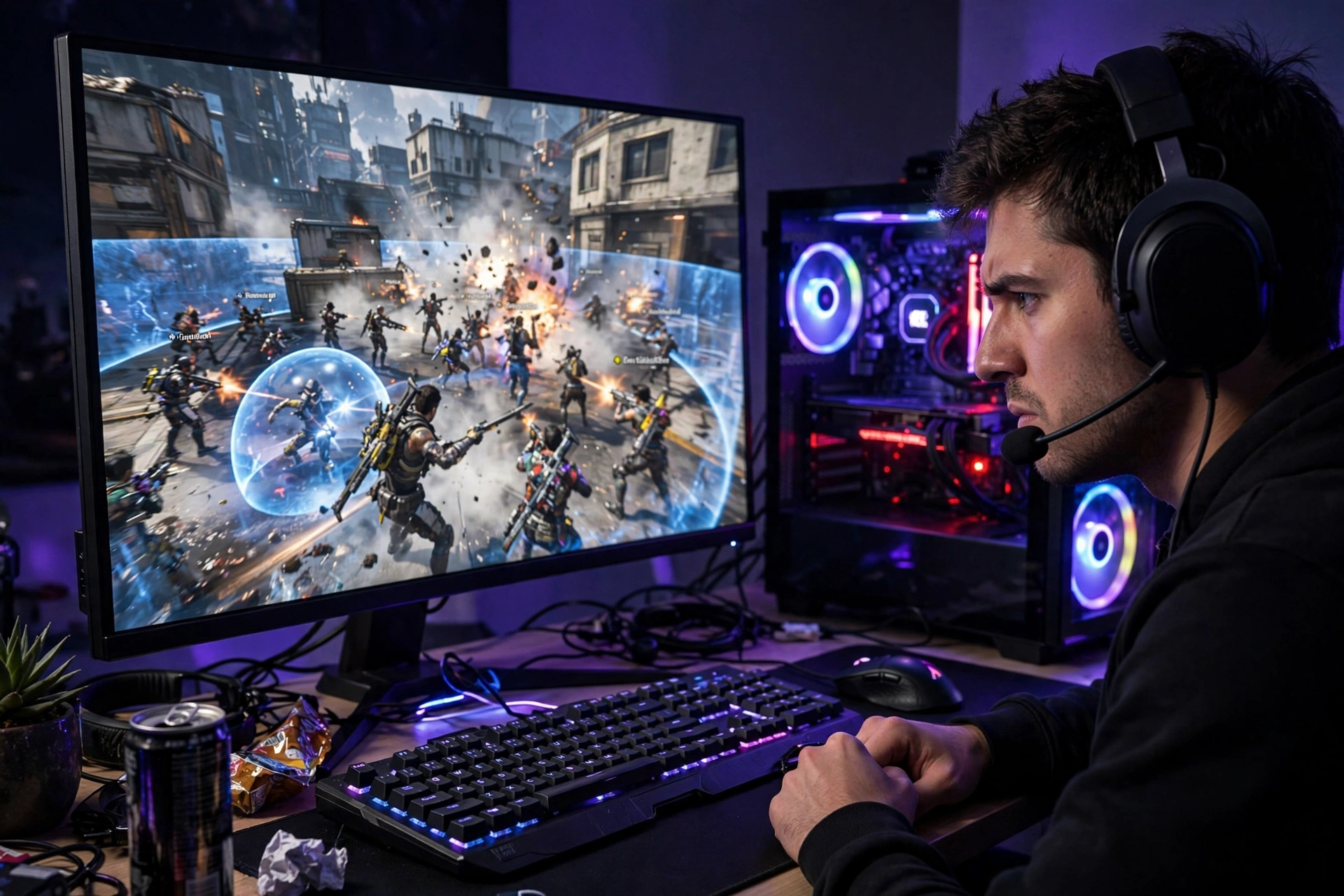
Apex becomes CPU bound when the processor cannot prepare frames fast enough for the graphics card, even though the graphics card could render more frames. The classic signs are low GPU usage while frames per second stay below target, strong average frames per second with weak 1 percent lows, and little improvement when you lower graphics settings.
Single core speed matters more than core count here. Apex needs fast single thread performance for game logic, physics, and draw calls. A modern six core or eight core processor with strong single core speed is a good base for high refresh play. More cores help with streaming, recording, and background tasks, but they do not replace single core speed for the main game thread. Large cache designs, such as AMD 3D V-Cache models, can also help frame stability in crowded fights, because the processor spends less time fetching data from memory.
Memory speed matters too. The Source based engine leans on RAM for texture streaming and game data. Slow or single channel RAM can hurt 1 percent lows even when average frames per second look fine. Dual channel memory at a modern speed, such as DDR4 3600 or DDR5 6000 class kits, is a sensible baseline for high refresh Apex. If you are on 16GB, close heavy background apps during ranked play, because Apex plus a browser, a launcher, and recording software can push memory pressure higher in long sessions.
The moments that expose a CPU limit are easy to recognise once you know what to watch for. Hot drops, where many squads land close together, create a sudden burst of player tracking and draw calls. Final circles, where several squads fight in a small zone with ultimates and area effects active, do the same thing on a larger scale. Ability exchanges, especially when smoke, shields, and area damage overlap, add particle and physics work. Open maps with long draw distances, such as Storm Point and Broken Moon, add more objects for the CPU to prepare than tighter maps such as Kings Canyon or Worlds Edge.
Two settings are unusually CPU heavy in Apex, and they deserve attention before you buy anything. Model Detail and Spot Shadow Detail increase CPU draw call work. Lowering them often improves frame stability in fights with little visual loss during fast combat. An Apex Legends FPS optimisation guide also notes that forcing multithreaded rendering can help on six core and larger processors, and that RAM speed can change 1 percent lows by a large margin. Those are Apex specific points, and they fit the diagnosis in this article: when the CPU is the limit, the fix is usually to reduce CPU side work first, not to raise graphics quality.
If you suspect a CPU limit, the detailed steps for that part of the system are covered in this guide on how to fix a CPU bottleneck. Use it as a companion to the Apex checklist later in this article, not as a replacement for testing in Apex itself.
When Apex Legends Becomes GPU Bound
Apex becomes GPU bound when the graphics card is fully loaded and cannot render frames any faster, while the CPU still has room. The classic signs are high GPU usage, close to full load, frames per second that rise clearly when you lower resolution or graphics settings, and stable frame times that simply sit at a lower level than you want.
This is the normal case at 1440p on high or ultra settings, and at 1080p on high settings when you are targeting 60 to 100 frames per second. Volumetric lighting, ambient occlusion, sun shadow coverage, texture quality, and anti aliasing all add GPU work. Texture streaming budget also matters, because a setting above your available video memory can cause stutter as textures stream in and out, even if average frames per second look acceptable.
Video memory is a practical limit in Apex. A card with 8GB of video memory can handle competitive settings at 1080p well, but high texture settings at 1440p can push it harder. A 12GB or 16GB card gives more room for higher texture budgets at 1440p. If you see stutter when you turn quickly or enter a new area, check your texture streaming budget before you assume the whole card is too slow. Setting it to fit your video memory is often better than setting it to the highest option.
Upscaling can move a GPU bound system back toward balance. DLSS Quality or FSR Quality can recover headroom at 1440p without the blur of a much lower render resolution. For competitive play, avoid frame generation, because it can add latency and it does not help the CPU side of the game. The goal in Apex is consistent frame delivery and low latency, not the highest counter number in a menu.
At 1440p, a GPU upgrade is usually the right first move if your GPU is at full load, your CPU has headroom, and lowering settings raises frames per second in a clear way. At 1080p competitive settings, a GPU upgrade alone often disappoints, because the CPU limit appears as soon as the new card finishes frames faster.
Apex Legends Pairings by FPS Target
The pairings below are classes, not a promise for one exact model in every match. Map, settings, driver version, and game updates can shift results. Use them to choose a balanced pair for your target, and to see which side is likely to hold you back first.
| Target | CPU class | GPU class | Memory and notes |
|---|---|---|---|
| 144Hz at 1080p, competitive settings | Modern fast six core, such as Ryzen 5 7600 class or Core i5 14600K class | RTX 5060 class or RX 9060 XT class | 16GB dual channel minimum, 32GB better for long sessions and background apps. |
| 240Hz at 1080p, competitive settings | Fast eight core with strong single core speed or large cache, such as Ryzen 7 9800X3D class or Core i7 class | RTX 5060 Ti 12GB class or better | Fast dual channel memory matters for 1 percent lows. Remove the 144 FPS cap first. |
| 144Hz at 1440p, high settings | Modern fast six core or eight core | RTX 5070 class or RX 9070 XT 16GB class | Use DLSS Quality or FSR Quality if open maps dip below target. Fit texture budget to video memory. |
| 144Hz at 1440p, competitive settings | Fast six core or eight core | RTX 5060 Ti class or better, higher if you want high settings too | This is the balanced case. Test open maps, not just tight indoor fights. |
| 60 to 100 FPS at 1080p, high settings | Modern quad core or six core from recent generations | Mid range card such as RTX 3060 class or better | Older CPUs can still work here, but high refresh targets will expose them quickly. |
A few pairing warnings help avoid wasted money. Do not pair a flagship graphics card with an old quad core processor and expect 240 FPS in Apex. The card will wait for the CPU in fights. Do not pair a top end CPU with an entry level graphics card and expect high settings at 1440p. The GPU will be the limit in open areas. Do not buy a 240Hz monitor before your PC can hold 240 frames per second in final circles, because the monitor cannot create frames your PC does not render.
For comparison, the per game verdicts for other shooters are different, because their engines and map sizes are different. A brief recap is enough here: Counter-Strike 2 is more strongly CPU bound at high refresh rates, and Valorant is lighter and even more CPU leaning at competitive settings. If you want those verdicts in full, see the CS2 CPU or GPU bound guide and the Valorant CPU or GPU bound guide. Do not copy their CPU picks into Apex without checking the Apex pairing table above, because Apex needs more GPU headroom at the same frame rate target.
The general high refresh CPU question is also covered in the guide to what CPU you need for 240Hz. That guide is useful for the 240Hz target in general, but the Apex table above is the one to use for Apex, because it accounts for 60 player fights, ability effects, and large maps.
Settings That Move Load Between CPU and GPU
Settings are not just quality sliders. In Apex, some settings mainly tax the CPU, some mainly tax the GPU, and some tax both. Knowing which is which lets you test your limit without guessing.
| Setting | Mainly affects | Competitive starting point |
|---|---|---|
| Model Detail | CPU, draw calls | Low or Medium |
| Spot Shadow Detail | CPU, draw calls | Low or Disabled |
| Sun Shadow Coverage and Detail | GPU, with CPU cost for dynamic shadows | Low |
| Volumetric Lighting | GPU | Disabled |
| Ambient Occlusion | GPU | Disabled |
| Effects Detail | CPU and GPU in fights | Low |
| Texture Streaming Budget | GPU video memory | Fit to your card, Medium or High on 12GB and above |
| Anti-Aliasing | GPU | TSAA for stable long range targets, or Off for maximum frames |
| Adaptive Resolution | GPU, by lowering render resolution when needed | 0, Off, unless you need dynamic scaling |
| V-Sync | Frame pacing and latency | Disabled for uncapped competitive play |
| NVIDIA Reflex | Latency, not raw frames | Enabled plus Boost on supported cards |
Start from competitive settings, then raise one group at a time and test in a real match, not in the firing range alone. The firing range is useful for aim, but it does not reproduce hot drops, third party fights, or final circles. Test on the map you actually play, and test a full match if you can.
A current Apex Legends NVIDIA settings guide makes the same practical point for driver settings: keep the control panel close to default for Apex, set a per game power profile, and let in game NVIDIA Reflex control the render queue, rather than forcing every driver option to maximum. That approach avoids driver settings that fight the game engine.
For AMD cards, the equivalent principle applies. Use Radeon Anti-Lag for Apex, leave Anti-Lag Plus off if it appears in older drivers, and leave Radeon Chill and Radeon Boost off for competitive play, because they can lower frames per second unpredictably. These are driver level choices, not game quality choices, and they should be set once and left alone while you test game settings.
Apex Legends Diagnosis Checklist
Use this checklist in order. It takes about 15 minutes and it separates a CPU limit, a GPU limit, a cap, and a memory or thermal limit without buying anything first.
- Remove caps and confirm the target. Check that V-Sync is off, that no driver frame rate cap is active, and that the Apex frame rate cap is removed if you are chasing more than 144 frames per second. Confirm your monitor is set to its full refresh rate in Windows.
- Record a baseline in a real match. Use an overlay that shows average frames per second, 1 percent lows, GPU usage, per core CPU usage, temperatures, and clock speeds. Play a full match on your usual map. Note where drops happen, in hot drops, in fights, in final circles, or in open areas.
- Read the usage pattern. If GPU usage is near full and frames per second are below target, you are likely GPU bound. If GPU usage is well below full, one or more CPU cores are near full, and frames per second stay below target, you are likely CPU bound. If both are low, check for a cap, a thermal limit, or a background app using the CPU.
- Test with lower settings. Drop Model Detail and Spot Shadow Detail first, then Effects Detail. If frames per second rise clearly, the CPU side was a major limit. If they barely move, drop resolution or GPU heavy settings next. If frames per second rise clearly then, the GPU was the major limit.
- Test the same fight type twice. A quiet loot phase and a final circle are different tests. A system can be GPU bound in an open loot phase and CPU bound in a final circle. Judge the upgrade by the worst case you care about, which for ranked play is usually the final circle.
- Check memory and thermals. If RAM usage is near full, close background apps and test again. If CPU or GPU temperatures are high and clock speeds fall during fights, fix cooling or airflow before you judge either component. Thermal throttling can look like a bottleneck, but it is a cooling problem.
- Check the map. If Storm Point or Broken Moon dip more than Kings Canyon or Worlds Edge on the same settings, long draw distance and foliage are part of the load. Lowering view related and shadow settings helps more on those maps than a general quality increase would suggest.
- Decide by the pattern, not by one number. A CPU upgrade helps if the CPU test in step 4 moved frames per second and GPU usage stayed low. A GPU upgrade helps if the GPU test moved frames per second and GPU usage was full. If neither test moved frames per second, look for a cap, a driver issue, or a thermal limit first.
This checklist is Apex specific in its test scenes, but the logic is the same as any good bottleneck test: change one side, watch usage and 1 percent lows, and repeat the test in the same type of fight. A single screenshot of total CPU usage is not enough, because Apex can max one core while total CPU usage looks modest.
Map Differences That Change the Bottleneck
Map choice matters more in Apex than in most shooters, because map size and foliage density change both CPU and GPU work. Storm Point and Broken Moon have longer draw distances and higher foliage density than Worlds Edge or Kings Canyon. A build that holds 144 frames per second comfortably on a tighter map may dip on Storm Point open zones on the same settings.
For open maps, start by lowering Model Detail, Spot Shadow Detail, and sun shadow settings, and by checking texture streaming budget. Those changes reduce the work of preparing and drawing distant objects. For tighter maps, the same settings help in fights, but the difference between maps will be smaller, because fewer distant objects are in view at once.
If you only play one map in ranked play, test on that map. If you rotate maps, judge your PC by the most demanding map you play regularly, not by the easiest one. That is the honest way to set expectations for a pairing table, and it avoids the common surprise where a PC feels fine for a week and then dips badly on a new map rotation.
Should You Upgrade the CPU or the GPU First for Apex
Use your diagnosis result, not a general rule, to choose.
Upgrade the CPU first if GPU usage stays low in fights, 1 percent lows are weak even though average frames per second look good, lowering Model Detail and Spot Shadow Detail raises frames per second clearly, or you are chasing 240Hz at 1080p and your current processor is an older quad core or a slower six core. In that case, a faster single core processor, with fast dual channel memory, will usually help more than a larger graphics card, because the new card would still wait for the CPU in fights.
Upgrade the GPU first if GPU usage is near full, lowering resolution or GPU heavy settings raises frames per second clearly, you are playing at 1440p on high or ultra settings, or your card has too little video memory for your texture budget. In that case, a stronger card, or a card with more video memory, will usually help more than a CPU change, because the CPU already has room.
Upgrade neither first if a cap, a thermal limit, or a background app is the real cause. Remove the frame rate cap, fix cooling, update drivers from the official GPU maker site, and close heavy background apps, then retest. Spending money on a component that was never the limit is the most common Apex upgrade mistake.
A current guide to the best CPUs for Apex Legends reaches a similar conclusion for high refresh play: single core performance and cache help stability in chaotic end game fights, and a modern six core to eight core processor is the sensible range for most competitive players, rather than chasing core count alone. Use that as a cross check for CPU choices, and use the pairing table in this article for the full CPU plus GPU combination.
Frequently Asked Questions
Is Apex Legends CPU or GPU bound at 60 FPS?
At 60 frames per second on normal settings, Apex is usually GPU bound or balanced. The CPU has enough time to prepare each frame, so the graphics card and its settings set the pace. Older CPUs can still work at this target, but they will show their limits quickly if you raise the target to 144Hz.
Is Apex Legends CPU or GPU bound at 240Hz?
At 240Hz at 1080p on competitive settings, Apex is usually CPU bound. Single core speed, cache, and memory speed set the ceiling, and ability exchanges and crowded zone fights create the spikes that hurt 1 percent lows. A strong CPU and fast memory matter more here than a flagship graphics card alone.
Does Apex Legends need a good CPU for 144Hz?
Yes, for stable 144Hz play, Apex needs a modern fast processor, not just a strong graphics card. A modern six core processor with strong single core speed is a good baseline. A slower or older processor can still average high frames per second in quiet areas, but it will dip in fights, which is where stability matters most.
Why does Apex stutter in final circles but not in early game?
Final circles combine many players, abilities, particles, and area effects in a small zone. That creates a burst of CPU work for tracking and draw calls, plus GPU work for effects. If your 1 percent lows fall in final circles while average frames per second stay high, the system is hitting a CPU side spike, a memory pressure spike, or both, rather than a steady GPU limit.
Is 16GB RAM enough for Apex Legends in 2026?
16GB is enough for Apex alone on competitive settings, but it leaves less room for background apps, browsers, launchers, and recording software. For high refresh ranked play with background apps open, 32GB is the safer choice, and dual channel memory at a modern speed is more important than capacity alone.
Should I use DLSS or FSR in Apex Legends?
Use DLSS Quality or FSR Quality at 1440p if you are GPU bound and need headroom, especially on open maps. At 1080p competitive settings, upscaling helps less, because the CPU is more often the limit. Avoid frame generation for competitive play, because it does not reduce the CPU limit and it can add latency.
Conclusion
Apex Legends is CPU bound at high refresh rates and GPU bound at higher resolutions and heavier settings, and it can be both in the same match in different scenes. That is not a contradiction. It is the result of a large map, 60 player battle royale design on a modified Source engine, where player tracking and ability effects load the CPU while open terrain and effects load the GPU.
The practical answer for 2026 is simple. For 144Hz at 1080p, buy a fast modern CPU first and pair it with a solid mid range GPU. For 240Hz at 1080p, buy an even faster CPU with strong single core speed and fast memory, and remove the 144 FPS cap before you judge the result. For 144Hz at 1440p on high settings, buy a stronger GPU with enough video memory, and keep the CPU fast enough to hold high refresh in fights.
Diagnose before you upgrade. Test in a real match, watch GPU usage and per core CPU usage together, watch 1 percent lows in final circles, and test the settings that move load from one side to the other. That one test will tell you more about your Apex bottleneck than any calculator, any average frame rate number, or any single upgrade recommendation.

Leave a Reply