
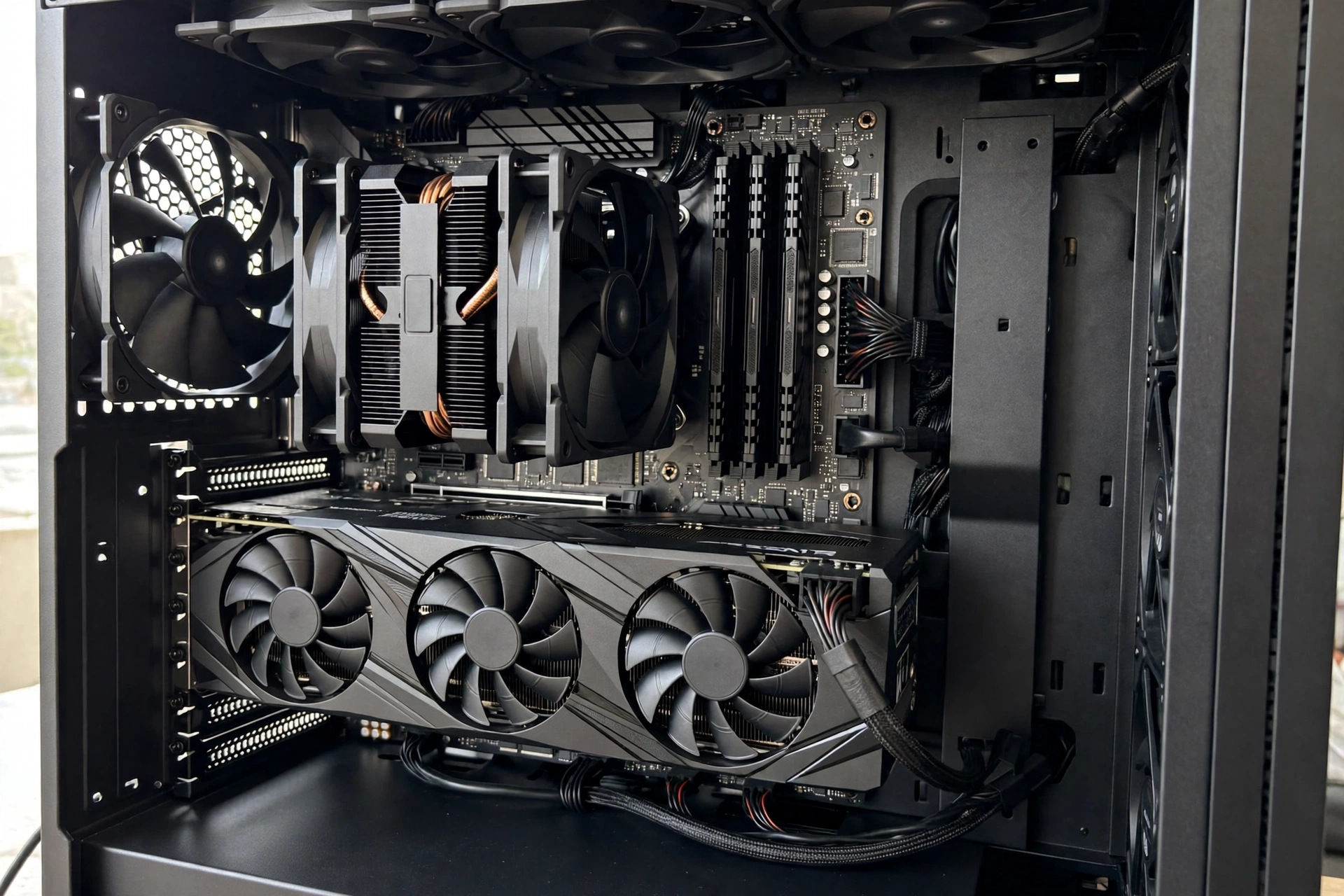
Every gaming PC has a bottleneck. That sounds like bad news, but it is really just how computers work. Your PC is a team of parts, and the team can only move as fast as its slowest member. When one part cannot keep up with the rest, it holds the whole system back. That part is your bottleneck. The good news is that a bottleneck is not a mystery. Once you know the six types of PC bottlenecks, you can spot which one is slowing you down, fix it in the right order, and stop wasting money on upgrades that do not help. This guide walks through each type with its cause, its symptoms, and its fix, in plain English.
What Is a PC Bottleneck?
Think of your PC like a highway. The CPU, GPU, RAM, storage, power supply, and cooling all move data along that highway. If one lane narrows to a single car width, traffic backs up behind it, no matter how wide the rest of the road is. That narrow lane is the bottleneck.
In a game, the CPU prepares each frame. It handles game logic, physics, artificial intelligence, and the instructions that tell the graphics card what to draw. The GPU then draws that frame. The RAM holds the data both parts need right now. The storage drive loads new data when the game needs it. The power supply feeds electricity to all of it. The cooling system keeps temperatures low enough for everything to run at full speed.
If any one of these parts falls behind, the rest of the system has to wait. Your frame rate drops, your game stutters, or your load times stretch out. The trick is to find out which part is the one falling behind, because upgrading the wrong part changes nothing.
Before you spend a dollar, you can check your own build with our free bottleneck calculator. It compares your CPU and GPU and shows you which part is likely holding the other back. If you want to understand how that result is worked out, read our guide on how the bottleneck calculator works and what the score means.
How to Spot Your Bottleneck in Two Minutes

You do not need special skills to find a bottleneck. You only need to watch two numbers while you play a game: CPU usage and GPU usage. Windows Task Manager shows both. Press Ctrl, Shift, and Escape together, open the Performance tab, and watch the graphs while your game runs.
A free tool called MSI Afterburner can show the same numbers on screen while you play, which makes the test even easier. The pattern you see tells you the story.
| What you see | What it usually means |
|---|---|
| GPU usage near 95 to 100 percent, CPU usage low | GPU bottleneck. This is the normal, healthy state for gaming. |
| CPU usage near 90 to 100 percent, GPU usage low | CPU bottleneck. The processor cannot feed the graphics card fast enough. |
| Memory usage near 100 percent, game stutters when new areas load | RAM bottleneck. The system is running out of memory. |
| Long load screens, texture pop-in, slow boot | Storage bottleneck. The drive cannot move data fast enough. |
| Performance drops after a few minutes of play, then recovers | Thermal bottleneck. A part is overheating and slowing itself down. |
| Random crashes or restarts under heavy load | Possible power supply bottleneck. The PSU may not deliver enough stable power. |
There is one more quick test that costs nothing. Lower your screen resolution. If your frame rate jumps up a lot, your GPU was the limit. If your frame rate barely changes, your CPU was the limit, because the processor was already the thing holding you back. This simple test is explained in more detail in our guide on monitor resolution and bottlenecks at 1080p, 1440p, and 4K. For a fuller list of warning signs, see common signs of a PC bottleneck.
CPU Bottleneck
A CPU bottleneck happens when the processor runs out of processing capacity while the graphics card waits for instructions. The GPU is ready and able to draw more frames, but the CPU cannot prepare them fast enough. The result is a powerful graphics card sitting partly idle while the processor works at its limit.
Cause
The most common cause is a simple mismatch. An older or budget processor is paired with a much stronger graphics card, so the CPU becomes the narrow lane. This shows up most in high refresh rate gaming, where the CPU must prepare a very large number of frames every second, and in simulation and strategy games, where the processor must track many units, physics objects, and AI decisions at once.
Background programs make it worse. A browser with many tabs, a streaming app, or a recording tool all take processor time that your game needs. Slow RAM can add to the problem too, because the CPU has to wait longer for the data it needs.
Symptoms
- CPU usage sits at 90 to 100 percent most of the time while GPU usage stays low.
- Stuttering or freezing during heavy physics, AI calculations, or crowded scenes with many characters on screen.
- Frame rates lower than what the graphics card should be able to push, even on modest settings.
- Lowering the resolution or turning down graphics settings barely changes the frame rate.
Fix
- Lower CPU-heavy settings first. Crowd density, physics quality, shadow distance, and view distance are the biggest ones. These settings ask the processor to do more work, so turning them down frees it up.
- Close background apps and browser tabs before gaming. This is free and it often helps right away.
- Raise the resolution or graphics settings if your GPU has spare power. This shifts work to the graphics card and can give you a better looking image at the same frame rate.
- Upgrade to a stronger processor that is compatible with your motherboard. Check the socket and chipset first, because not every CPU fits every board. A CPU upgrade sometimes means a new motherboard and RAM too, so check compatibility before you buy.
A classic example is an i5-9600K paired with an RTX 4070. At 1080p in competitive gaming, that combination is a CPU bottleneck. The graphics card is far stronger than the processor can feed, so the CPU holds the whole system back. For step by step fixes, see our guide on how to fix a CPU and GPU bottleneck.
Current processors make the same point in a newer form. AMD Ryzen 9000 series processors use the Zen 5 design on the AM5 socket, with up to 16 cores and 32 threads, DDR5 memory, and PCIe 5.0 support, and AMD has said the AM5 socket will be supported through 2027 and beyond. Intel Core Ultra 200S desktop processors, launched in October 2024, use the new LGA1851 socket and DDR5 memory only, so they cannot drop into an older LGA1700 board. Either way, a jump to a current generation processor usually means a new motherboard and new DDR5 RAM as well, so budget for the platform, not just the chip. See the AMD Ryzen 9000 series processors page for the current lineup and platform details.
GPU Bottleneck
A GPU bottleneck happens when the graphics card is working at full capacity while the CPU has room to spare. The processor prepares frames quickly, but the graphics card cannot draw them fast enough. This is the most common bottleneck in gaming, and it is also the one you should worry about least.
Cause
The main cause is a demanding visual workload. High resolutions, high texture quality, ray tracing, and heavy shadow effects all ask the GPU to do more work per frame. An entry level or older graphics card paired with a strong processor will also hit its limit early. In short, the GPU becomes the bottleneck when the game asks it to draw more than it can handle.
Symptoms
- GPU usage stays at 95 to 100 percent while CPU usage stays low or moderate.
- Frame rates drop as you raise the resolution or turn up graphics settings.
- Lowering the resolution or turning down settings raises the frame rate right away.
- The game looks smooth but slow, with steady frame pacing rather than sudden stutters.
Fix
- Lower the heaviest graphics settings first, such as ray tracing, shadow quality, and volumetric effects. These cost the most GPU power for the least visible gain.
- Turn on upscaling if your game supports it. DLSS, FSR, and XeSS render the game at a lower internal resolution and then sharpen the image, which gives the GPU breathing room. The newest versions are DLSS 4 on NVIDIA RTX 50 series cards, which adds Multi Frame Generation, and FSR 4 on AMD RX 9000 series cards, which is AMD’s first machine learning based upscaler.
- Drop the resolution one step, for example from 4K to 1440p, if you need a bigger frame rate gain.
- Upgrade the graphics card only if the frame rate is still too low after these steps. A GPU bottleneck is a normal state, not a fault, so upgrade only when the performance you get is not enough for you.
Here is the key point most guides skip: a GPU bottleneck is the healthy state for a gaming PC. It means you are getting full value from the most expensive part in your system. Do not spend money to fix a problem that is not a problem.
Current graphics cards show how fast this part of the market moves. The NVIDIA GeForce RTX 50 series, launched in January 2025, uses the Blackwell design with PCIe 5.0, GDDR7 memory, and DLSS 4, and its cards use the newer 12V-2×6 power connector. AMD Radeon RX 9000 series cards, launched in March 2025, use the RDNA 4 design, and the RX 9070 XT carries 16GB of GDDR6 memory with FSR 4 upscaling. A new card only helps if the rest of your system can feed it, so check your CPU, RAM, and power supply before you buy. See the NVIDIA GeForce RTX 5070 family page for the current RTX 50 series lineup and features. For a deeper look at how resolution shifts the load between the CPU and GPU, read our guide on monitor resolution and bottlenecks at 1080p, 1440p, and 4K.
RAM Bottleneck
A RAM bottleneck happens when your system does not have enough memory, or fast enough memory, to keep up with what the CPU and GPU need. The memory is the short term workspace where the game keeps the data it is using right now. When that workspace is too small, the system has to keep moving data back and forth to the much slower storage drive, and everything slows down.
Cause
The most common cause is simply not enough RAM for the workload. Modern games, a browser with many tabs, and a chat or streaming app running at the same time can fill up memory fast. Single channel memory, which is one RAM stick instead of two, is another common cause, because it cuts the memory bandwidth in half. Slow RAM speed, or RAM running without its XMP or EXPO profile turned on, can also hold the CPU back.
Symptoms
- Memory usage sits near 100 percent in Task Manager while you play.
- Stuttering or hitching when the game loads a new area or a lot of new objects appear.
- Slow switching between apps, and long pauses when you tab out of a game.
- The storage drive works very hard during gameplay, because the system is using it as overflow memory.
Fix
- Close background programs before you play, especially browsers with many tabs open.
- Turn on XMP or EXPO in your BIOS. This is a free setting that makes your RAM run at its rated speed instead of a slower default speed.
- Use two matching RAM sticks in dual channel mode instead of one stick. This doubles the memory bandwidth.
- Add more RAM if you are consistently near your limit. For most gamers, 16GB is the practical minimum today, and 32GB gives comfortable headroom for gaming plus multitasking. Match the speed and type to what your motherboard supports.
RAM is often the cheapest meaningful upgrade you can make, and it is also one of the most skipped. If your memory usage is always near the top, a RAM upgrade can fix stutters that a new graphics card never would.
On a new build, DDR5 is now the standard. AMD AM5 boards and Intel LGA1851 boards use DDR5 only, so a move to a current CPU platform also means new DDR5 RAM. For AMD AM5 systems, a DDR5-6000 kit with CL30 timings and an EXPO profile is widely treated as the sweet spot, because it lines up well with the processor memory controller. The catch is that a fast kit does not run at its rated speed out of the box. Without XMP or EXPO turned on, it starts at a slower default speed, often around 4800 MT/s, so the free BIOS setting in the fix list above matters even more on a DDR5 build.
Power Supply Bottleneck
A power supply bottleneck happens when the PSU cannot deliver enough stable power for the parts in your system. This is the quietest bottleneck of the six, because it rarely shows up as low frame rates. Instead, it shows up as instability, and it is the one most likely to be missed.
Cause
The most common cause is a PSU with too low a wattage rating for the parts it must feed. Modern graphics cards can draw large spikes of power for very short moments, and a PSU that is only just enough on paper may not handle those spikes. An old PSU that has lost capacity over years of use, or a cheap unit with poor voltage regulation, can cause the same problem even if its label claims a high wattage.
Symptoms
- Random crashes, restarts, or blue screens that happen mainly during heavy gaming or stress tests.
- The PC shuts off suddenly when a demanding scene starts.
- Strange behavior such as fans spinning up loudly, coil whine that gets worse under load, or the system failing to boot with a new graphics card installed.
- Performance that looks fine in light use but falls apart under full load.
Fix
- Add up the power needs of your parts, including the graphics card, CPU, and drives, and leave headroom above that total. A PSU that runs near its limit all the time is not a good place to save money.
- Replace an old or low quality PSU with a unit from a known brand that has proper safety certifications and enough wattage for your build, plus room for spikes.
- Check the power cables. A graphics card that needs two power connectors must have both connected, and each connector should come from its own cable run where the PSU manual asks for it. On a current card with a 16-pin connector, use the native 12V-2×6 cable from an ATX 3.1 power supply where you can, and push the plug in until it clicks.
- Do not use cheap adapters to force a high power card onto a low power PSU. If the PSU does not have the right connectors, it is not the right PSU for that card.
A weak power supply can also look like other problems, so rule it out before you blame the CPU or GPU. If your PC only crashes under heavy load, the PSU is one of the first parts to check. Real build examples, including power supply pairings that worked and ones that did not, are covered in our real PC bottleneck build examples.
New builds have one more thing to check: the power supply standard. Intel ATX 3.1 power supplies, introduced in 2023, replace the original 12VHPWR connector with a revised 16-pin connector called 12V-2×6. It keeps the same 600W ceiling, but its shorter sense pins mean the card only draws full power when the plug is pushed in all the way, which is a safety fix for the melting problems seen with loose 12VHPWR plugs. ATX 3.0 and ATX 3.1 units are also built to absorb short power spikes of up to 200 percent of their rated power for 100 microseconds, which is exactly the kind of spike a modern graphics card produces. If you are building a new PC with a current high end graphics card, an ATX 3.1 unit with a native 12V-2×6 cable is the sensible default.
Storage Bottleneck
A storage bottleneck happens when the drive cannot read or write data fast enough to keep up with the rest of the system. This type rarely lowers your frame rate, which is why many people overlook it, but it can make a fast PC feel slow in everyday use.
Cause
The usual cause is an old hard disk drive, or HDD, doing a job that a solid state drive should be doing. HDDs move data far more slowly than SSDs, and far more slowly than NVMe drives. A nearly full drive is another common cause, because drives slow down when they have little free space left to work with. A failing drive can also become a bottleneck as it retries bad reads.
Symptoms
- Long load screens when you start a game or move to a new area.
- Textures that pop in late, or objects that appear after you have already arrived.
- Slow boot times and slow loading of large apps, even though the CPU and GPU are strong.
- Stuttering in open world games when the game streams new data from the drive.
Fix
- Move your operating system and your most played games to an SSD. This is the single biggest fix for a storage bottleneck, and it is the one upgrade almost every PC owner notices right away.
- Use an NVMe SSD for your main drive if your motherboard supports it, since NVMe drives move data faster than SATA SSDs.
- Keep at least 10 to 20 percent of each drive free, so the drive has room to work properly.
- Check drive health with a free tool such as CrystalDiskInfo if load times have become much worse over time. A failing drive should be replaced before it loses your data.
Storage is the one bottleneck where the fix is almost always worth it, even on an older PC. A fast drive does not raise your frame rate much, but it changes how fast and responsive the whole computer feels.
Speeds have moved on a lot in the last few years, so it helps to know the numbers. A SATA SSD tops out at around 550 MB/s. A good PCIe 4.0 NVMe drive, such as the Samsung 990 PRO, is rated for sequential reads of up to 7,450 MB/s. A current PCIe 5.0 NVMe drive can reach up to about 14,000 MB/s in sequential reads, which is roughly double the PCIe 4.0 ceiling. Do not expect that headline number to cut game load times in half, though. Loading a game means many small reads, not one long one, and in that kind of work a good PCIe 4.0 drive and a PCIe 5.0 drive are close, often within a second or two of each other. PCIe 5.0 drives also run hot, so use a motherboard heatsink or a drive that ships with one. For most gamers, a good PCIe 4.0 NVMe drive is still the sweet spot, and the money saved is better spent on capacity or on the part that is actually limiting the system.
Thermal Bottleneck (Cooling)
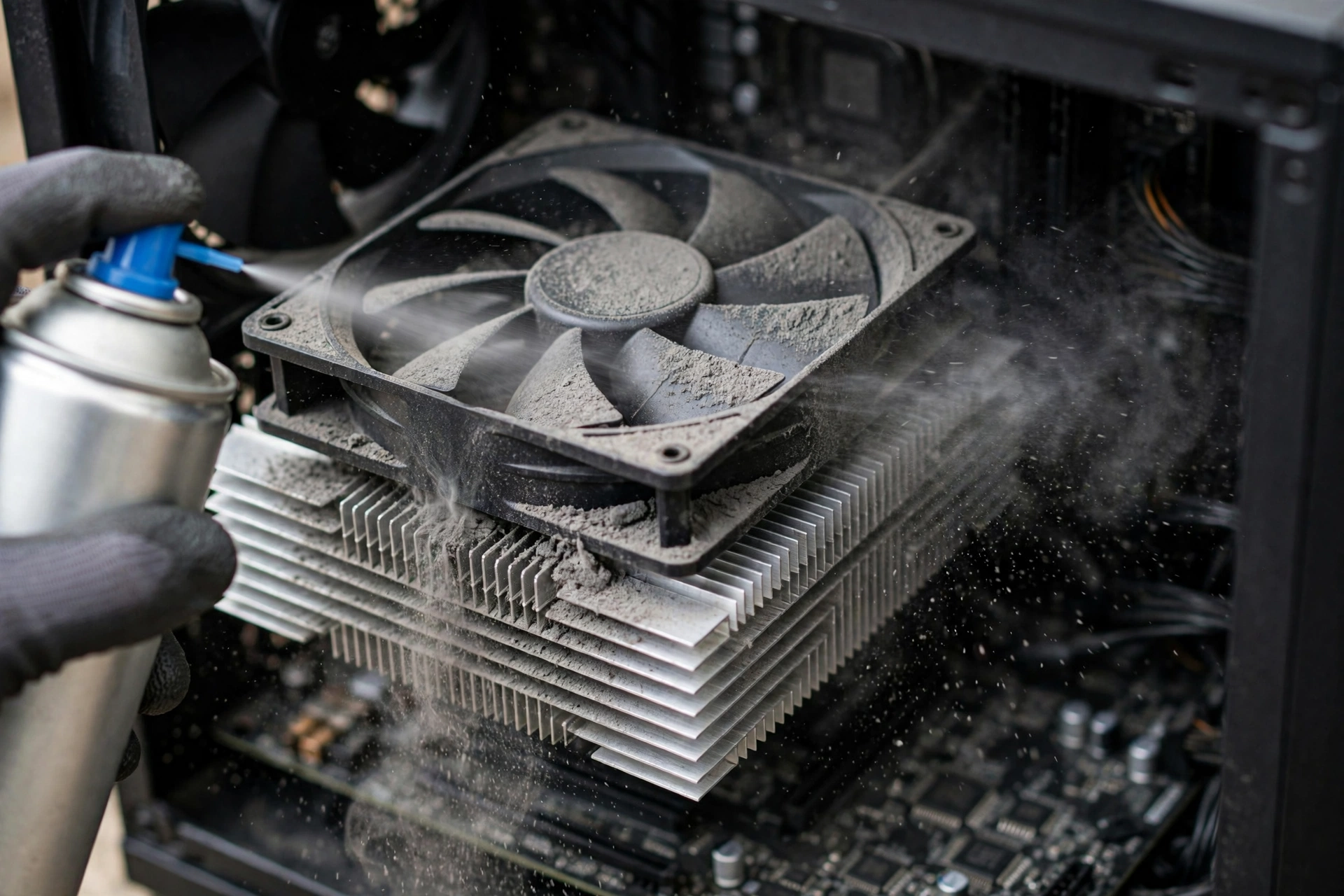
A thermal bottleneck happens when a CPU or GPU gets too hot and slows itself down to protect itself. This self slowdown is called thermal throttling. The part is not broken, and it is not too weak. It is simply too hot to run at full speed, so it runs slower until it cools down.
Cause
The most common causes are poor case airflow, dust clogging the fans and heatsinks, a cooler that is too small for the part it must cool, or old thermal paste that no longer transfers heat well. Gaming laptops are more prone to this than desktop PCs, because their small cases leave little room for air to move. A PC placed in a closed cabinet, or against a wall that blocks its air vents, can overheat for the same reason.
Symptoms
- Performance is good for the first few minutes of play, then drops off and stays lower.
- Frame rates fall during long sessions, then recover after a break or a restart.
- Fans run very loud all the time, even in light use.
- CPU or GPU temperatures sit near their limit during gaming. As a rough guide, sustained temperatures well above 90 degrees Celsius on either part are a warning sign worth checking.
Fix
- Clean the dust out of the case, fans, and heatsinks with compressed air. This is free, and it is the most skipped fix in PC building.
- Improve airflow. Make sure intake and exhaust fans are pointed the right way, cables are not blocking air, and the case has room to breathe.
- Replace old thermal paste on the CPU, and on the GPU if you are comfortable doing it. Fresh paste can lower temperatures by a clear margin on an older build.
- Upgrade the cooler if the stock cooler cannot keep up, especially on a hot running CPU. A better air cooler or an all in one liquid cooler is a normal upgrade, not an extreme one.
Thermal throttling is tricky because it can look like a CPU or GPU bottleneck in a benchmark. If your usage numbers look normal but performance drops after a few minutes, check temperatures before you buy anything. Cooling fixes are usually cheap, and they can restore performance you already paid for.
Modern parts also run hotter than older ones, so cooling matters more than it used to. For example, the Intel Core Ultra 9 285K is rated at 125W base power and up to 250W maximum turbo power, which is a lot of heat for a small cooler to handle. Some current desktop processors ship without a cooler in the box at all, so a cooler is a real part of the budget, not an afterthought. The same goes for storage: a PCIe 5.0 NVMe drive runs hot enough to need a heatsink to hold its top speed, so check that your board has one on the M.2 slot or buy a drive that ships with one. If you upgrade to a current CPU or a Gen 5 drive and keep the old cooler or leave the drive bare, the new part may throttle and give you no more speed than the old one.
All 6 Types at a Glance
| Bottleneck type | Main symptom | First fix to try |
|---|---|---|
| CPU | CPU near 100 percent, GPU low, stutter in busy scenes | Close background apps, lower CPU-heavy settings |
| GPU | GPU near 100 percent, CPU low, FPS rises when settings drop | Lower heavy graphics settings, turn on upscaling |
| RAM | Memory near 100 percent, hitching when new areas load | Enable XMP or EXPO, close background apps |
| Power supply | Crashes or restarts under heavy load | Check wattage headroom and cables, replace weak PSU |
| Storage | Long load times, texture pop-in, slow boot | Move OS and games to an SSD or NVMe drive |
| Thermal | Performance drops after a few minutes, loud fans | Clean dust, improve airflow, check temperatures |
Stop Wasting Money on the Wrong Upgrade
Here is the most expensive mistake in PC building. A builder feels their PC is slow, so they rush to buy the most expensive graphics card they can afford, expecting an instant frame rate boost. The new card arrives, they install it, and almost nothing changes. The money is spent, the frame rate is the same, and the frustration is worse than before.
The reason is simple. A PC is only as fast as its slowest part. Pairing an expensive GPU with a budget processor or slow RAM caps performance at the level of the weakest link. The graphics card can only draw the frames the CPU prepares, and it can only work with the data the RAM can deliver. If the CPU or the memory is the real culprit, a new graphics card just waits faster.
Before you open your wallet, identify the weakest link. Run the two minute usage test from the start of this guide. Check your CPU and GPU usage while you play. Check your memory usage. Check your temperatures. Then check your build with the free bottleneck calculator to see which pairing is likely holding you back. If you want to see how this plays out in real builds, our real PC bottleneck build examples show pairings that worked and pairings that wasted money.
Follow the fixes in order, from free to paid. Close background apps. Turn on XMP or EXPO. Clean the dust out of your case. Lower the settings that load the part that is struggling. Only then, if the performance is still not enough, spend money, and spend it on the part that is actually limiting you. That is how you get a real upgrade instead of an expensive disappointment.
The same trap applies to new parts. A current RTX 50 series or RX 9000 graphics card dropped into a system with an old processor, slow DDR4 memory, or a weak power supply will still be held back by the weakest link, and the new card will wait just like the old one did. Balance the whole build first, then buy the card.
One more rule will save you money for years. Match your parts to your monitor and to the games you actually play. A 4K monitor shifts the load to the GPU, so the CPU matters less. A high refresh rate 1080p monitor shifts the load to the CPU, so the processor matters more. There is no single best part, only the best balanced build for your use. The classic Intel guide to what is bottlenecking my PC makes the same point: every system has a limiting part, and the goal is balance, not zero bottleneck. For more on this, read our guide on monitor resolution and bottlenecks at 1080p, 1440p, and 4K.
Frequently Asked Questions
What is the most common type of PC bottleneck?
The GPU bottleneck is the most common type in gaming, and it is usually the healthy one. When your graphics card runs at 95 to 100 percent while your CPU has room to spare, you are getting full value from your graphics card. A CPU bottleneck is the one worth fixing first, because it leaves graphics performance unused.
Can a PC have more than one bottleneck at the same time?
Yes. A PC can have a CPU bottleneck in one game and a GPU bottleneck in another, and it can have a RAM bottleneck on top of either one. A hot running part can also add a thermal bottleneck during long sessions. Fix the biggest limiter first, then test again, because removing one bottleneck often reveals the next one.
Does a bottleneck damage your PC?
No, a normal CPU, GPU, RAM, or storage bottleneck does not damage your hardware. It only limits performance. A thermal bottleneck is different in the sense that sustained high heat can shorten a part’s life over a long time, which is why good cooling matters. A weak power supply is the one bottleneck that can cause instability, so it should not be ignored.
How do I know if my RAM is bottlenecking my PC?
Open Task Manager while you play and look at memory usage. If it sits near 100 percent, and your game stutters when new areas load or when you switch apps, RAM is likely the limiter. Try closing background programs first. If the problem stays, check that you have two matching sticks in dual channel mode with XMP or EXPO turned on, and consider adding more memory.
Is it better to have a CPU bottleneck or a GPU bottleneck?
A GPU bottleneck is better for most gamers. It means your graphics card is fully used, and your frame rate responds when you change graphics settings. A CPU bottleneck means you paid for graphics power you cannot use, and lowering settings barely helps. If you must pick one limiter, pick the GPU.
Can a bottleneck calculator tell me which type I have?
A bottleneck calculator gives you a useful estimate for the CPU and GPU pairing, and it is a good starting point before you spend money. It cannot measure RAM, storage, power supply, or thermal limits, so use it together with the usage test in this guide. Watch your CPU, GPU, memory, and temperatures while you play, and you will see the full picture. Our guide on how the bottleneck calculator works and what the score means explains what the result can and cannot tell you.
Conclusion
Every PC has a bottleneck, and that is normal. What matters is knowing which of the six types is holding your system back, and fixing that one first. A CPU bottleneck leaves your graphics card waiting. A GPU bottleneck is usually the healthy state you want. A RAM bottleneck starves the system of working memory. A power supply bottleneck causes crashes under load. A storage bottleneck makes a fast PC feel slow. A thermal bottleneck quietly steals speed as temperatures climb.
Find your limiter with the two minute usage test, try the free fixes first, and only spend money on the part that is actually holding you back. That is the whole skill. Do it in that order, and your next upgrade will be the one that finally makes a difference.

Leave a Reply