

CPU temperature is one of the most misunderstood numbers in PC gaming. A reading of 80 degrees during a demanding game can be perfectly normal on one processor and a warning sign on another, and a single spike to 95 degrees does not mean the same thing as a sustained 95 degrees for an hour. The difference matters because temperature controls how fast your CPU can run, and a hot CPU that throttles will cost you frames even if the rest of your PC is fast enough.
This guide explains what a safe CPU temperature actually is, how the limits differ between Intel and AMD, how to check your own temperatures with tools such as HWiNFO, Ryzen Master, and MSI Afterburner, and how to fix the heat problems that cost performance. It also explains when a high reading is a real problem and when it is just a modern processor doing its job.
Why CPU Temperature Matters for Gaming Performance
A CPU turns electrical power into computation, and a large share of that power becomes heat. The cooler moves that heat away from the chip and out of the case, and the CPU’s clock speed depends on how well that system works. When the chip gets too hot, it protects itself by lowering clock speeds, a process called thermal throttling. Lower clocks mean fewer instructions per second, which means fewer frames prepared for the graphics card, which means lower and less stable frame rates in games.
A heat limited CPU behaves much like a CPU bottleneck. In CPU heavy games, open world titles, strategy games, and simulation games, the CPU is often the limiting factor anyway, and heat makes that limit tighter. That is why it is worth checking both sides of the problem: our guide on how to find a PC bottleneck covers the general diagnosis, and checking temperatures at the same time, since the two checks answer different halves of the same question.
Heat also matters for consistency over a whole session. A PC that benchmarks well for five minutes can still stutter after 30 minutes, once the case air has warmed up, the cooler has saturated, and the CPU has started to throttle. Gamers often blame the game, the graphics card, or a driver for that late session stutter, when the real cause is heat building up slowly. Monitoring a full session, not just a quick test, is the way to catch this pattern.
What Is a Safe CPU Temperature?
There is no single safe number that fits every processor, but there are well established general ranges for desktop gaming PCs. Use these as a starting point, then check your own processor’s published maximum, known as TjMax, for the exact ceiling.
| Workload | Typical temperature range | What it usually means |
|---|---|---|
| Idle or light desktop use | 30 to 50 degrees Celsius | Normal. Room temperature, background apps, and cooler quality move this around. |
| Web browsing and streaming | 40 to 60 degrees Celsius | Normal. Short bursts of activity raise temperatures briefly. |
| Gaming | 60 to 85 degrees Celsius | Normal for most modern CPUs. Brief spikes above this are common. |
| Rendering, encoding, or stress testing | 70 to 90 degrees Celsius | Expected under full load. Sustained readings near the chip’s limit deserve attention. |
| Sustained above 95 degrees Celsius | 95 degrees Celsius and higher | Investigate. The CPU is likely throttling, and cooling needs improvement. |
Two ideas in that table deserve emphasis. First, a brief spike is not the same as a sustained temperature. A CPU can touch 90 degrees for a few seconds during a loading screen or a sudden burst of activity and still be perfectly healthy, because the cooler has time to catch up. A CPU that sits at 90 degrees for an hour is a different story, because it is likely throttling for much of that time. Second, temperature alone does not tell you whether throttling is happening. A CPU at 90 degrees holding full boost clocks is fine. A CPU at 85 degrees with clocks that have dropped hundreds of megahertz is throttling. Always check temperature and clock speed together.
Laptops run hotter than desktops by design. A thin chassis, shared heat pipes, and smaller fans mean less room to move heat, so a laptop CPU gaming at 85 to 90 degrees is often normal, while the same reading on a well cooled desktop would be worth investigating. Judge a laptop by whether it throttles and whether performance drops over time, not by comparing its temperature directly to a desktop.
Safe CPU Temperature Ranges by CPU Class
Intel and AMD set different thermal ceilings, and some product lines differ from others within the same brand. The table below gives the published maximum and a practical gaming target for each major family. The practical target is lower than the maximum on purpose: staying well below TjMax gives you headroom for hot rooms, dust buildup, and sustained loads.
| Processor family | Published maximum (TjMax) | Practical gaming guidance |
|---|---|---|
| Intel desktop Core processors, most recent generations | Around 100 degrees Celsius | Aim to stay under 85 degrees in gaming for comfortable headroom. |
| Intel Core Ultra desktop processors | Around 100 to 105 degrees Celsius, depending on model | Same practical target: under 85 degrees in gaming is comfortable. |
| AMD Ryzen 7000 and 9000 desktop processors | 95 degrees Celsius for most models | These chips are designed to boost up to 95 degrees under heavy load. Sustained gaming under 85 degrees is comfortable. |
| AMD Ryzen X3D processors, such as the 7800X3D | 89 degrees Celsius | The stacked cache design sets a lower ceiling, so a good cooler matters more here. |
| AMD Ryzen 5000 desktop processors | 90 to 95 degrees Celsius, depending on model | Check your exact model, since the ceiling varies within the family. |
| Laptop processors, Intel and AMD | Often 95 to 105 degrees Celsius, depending on model | Expect higher gaming temperatures than a desktop. Judge by throttling, not by the number alone. |
AMD has stated publicly that Ryzen 7000 series processors are designed to run at their 95 degree limit under heavy multithreaded workloads, using the available thermal headroom to deliver maximum performance. That is intentional behavior, not a defect. It does mean, however, that a Ryzen owner should look at clock speeds alongside temperature. A chip sitting at 95 degrees while holding strong boost clocks is doing its job. A chip sitting at 95 degrees while its clocks have collapsed is throttling, and that is the problem to fix.
Intel’s specifications work a little differently. Intel publishes Tjunction, the maximum temperature at the die, which is typically around 100 degrees Celsius for desktop Core processors, and a separate Tcase figure that refers to the temperature at the processor’s integrated heat spreader. Monitoring software reports the core (junction) temperature, so TjMax is the number to compare against. If you want the exact figure for your chip, look it up on Intel’s official processor pages or AMD’s official product pages, since the ceiling varies by model and neither vendor publishes one universal number.
How to Check CPU Temperature
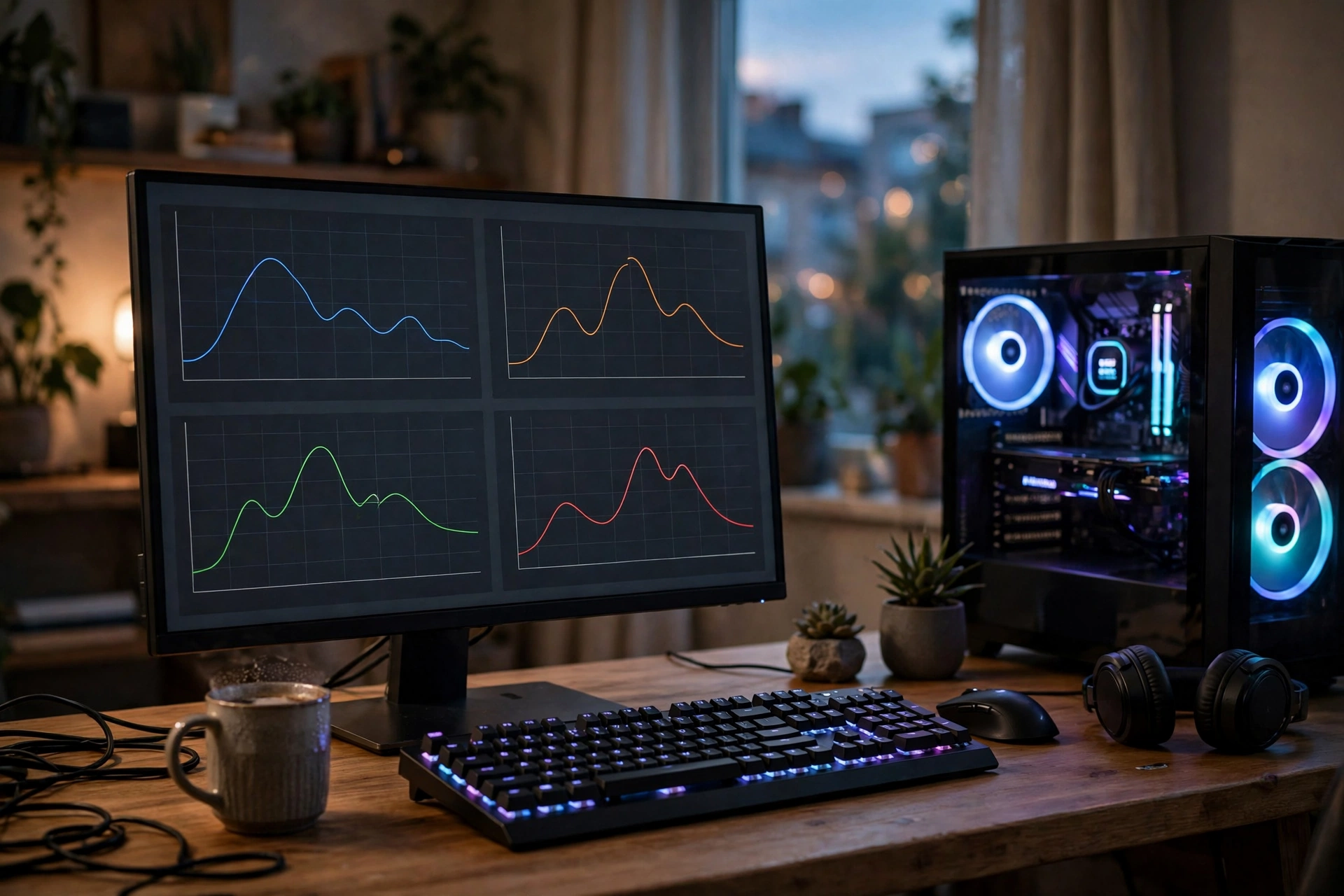
You cannot fix a temperature problem you cannot see, so monitoring comes before any hardware change. The tools below are free, widely used, and safe when downloaded from the developer’s own site.
- HWiNFO is the most complete option. It shows per core temperatures, package temperature, clock speeds, power draw, and whether the CPU is throttling, which makes it ideal for detailed diagnosis.
- HWMonitor is simpler and easier to read at a glance. It lists current, minimum, and maximum temperatures for the CPU, GPU, drives, and mainboard, which is useful for a quick check.
- Ryzen Master is AMD’s own utility for Ryzen processors. It reports temperatures in AMD’s terms and also lets you adjust clock speeds, voltages, and fan curves on supported chips.
- Intel Extreme Tuning Utility (XTU) is Intel’s equivalent for supported Intel processors. It shows temperature, clock speeds, and power draw, and it allows undervolting on supported chips.
- The BIOS or UEFI shows a temperature reading before Windows even loads, which is useful for ruling out software problems, but it only shows an idle reading, not a load reading.
- MSI Afterburner with RivaTuner Statistics Server puts an overlay on screen while you play, showing CPU temperature, GPU temperature, frame rate, and clock speeds without leaving the game. Our MSI Afterburner setup guide walks through configuring that overlay step by step.
When you monitor, watch three things together, not temperature alone: temperature, clock speed, and power draw. A high temperature with full clocks is a chip using its thermal headroom. A high temperature with falling clocks is throttling. A low temperature with low clocks may be a power limit, not a heat problem. Record the peak temperature, the average clock speed, and whether performance drops over time, rather than taking a single screenshot at the start of a session.
What Is Thermal Throttling and How Heat Costs You FPS
Thermal throttling is the processor’s built in safety response. As the die approaches TjMax, the CPU reduces clock speed and voltage to reduce heat generation, and in extreme cases it can skip clock cycles entirely. This protects the chip from damage, but it also reduces performance. Short bursts of throttling during a heavy scene are normal and usually unnoticeable. Sustained throttling, where the CPU spends minutes at reduced clocks, is the problem that costs frames.
The gaming cost of throttling shows up in three ways. First, average frame rates drop, because the CPU prepares fewer frames for the graphics card. Second, 1% lows and frame times get worse, so the game stutters and feels uneven even if the average frame rate looks acceptable. Our guide to frame time and why 1% lows matter explains why those lows affect perceived smoothness more than the average does. Third, performance becomes unpredictable, good at the start of a session and worse as heat builds, which makes benchmarking unreliable and makes it hard to tell whether a settings change actually helped.
This is why heat deserves to be called a hidden bottleneck. A system can pass a parts comparison with a fast CPU and a fast GPU, yet still underperform because cooling limits the CPU in practice. Our low FPS troubleshooting guide covers the other common causes, but heat is one of the cheapest to diagnose and often one of the cheapest to fix, since cleaning dust or adjusting a fan curve costs nothing.
A useful test is to run the same game scene twice: once with the case side panel on, and once with it off and a desk fan pointed at the case, if you can do so safely. If frame rates improve noticeably with the panel off, airflow and cooling are part of the problem. If nothing changes, the limit probably lies elsewhere, and our guides on CPU bottlenecks versus GPU bottlenecks and how to fix a CPU bottleneck will help you work through the remaining possibilities.
CPU Temperature vs GPU Temperature
CPU temperature and GPU temperature are separate readings from separate chips, and they have separate limits and separate cooling systems. A hot GPU does not automatically mean a hot CPU, and cooling one does not necessarily cool the other, although they share case air, so a suffocating case hurts both. Check both readings in your monitoring software, and do not assume that a GPU temperature problem explains a CPU problem, or vice versa.
The short version is this: graphics cards are generally designed to run hotter, with many models targeting the low 80s under load, and they have their own throttling behavior when they hit their limit. If the GPU is the part running hot, or you want the full explanation of that behavior, read our GPU thermal throttling guide. For this article, keep the two readings separate in your monitoring software, and fix whichever one is actually throttling.
Why Your CPU Runs Hot Common Causes
Most high CPU temperature problems come from a short list of causes, and working through them in order saves money. Start with the free and easy checks, then move to hardware changes only if the free checks do not help.
- Dust buildup is the classic culprit. Dust on intake filters, fan blades, and cooler fins acts as insulation and blocks airflow, so the cooler cannot move heat away from the chip. A PC that ran cool when new and now runs hot after a year or two often just needs cleaning.
- Dried or poorly applied thermal paste is next. Thermal paste fills microscopic gaps between the CPU and the cooler. Over several years it can dry out, and a cooler that was never seated properly can leave air gaps that trap heat. Both problems show up as high temperatures even at moderate loads.
- Weak airflow is the most overlooked cause. A case with only one exhaust fan, intake fans blocked by a solid front panel, or cables blocking the airflow path will trap hot air inside, and no cooler can work well in a hot case.
- An undersized cooler matters when the CPU is more powerful than the cooling it shipped with. Many processors include a basic stock cooler that is adequate for light use but not for sustained gaming loads, especially on higher power chips.
- Aggressive motherboard settings can add heat without adding meaningful performance. Some boards enable multicore enhancement or remove power limits by default, which pushes the CPU harder than its stock specification and raises temperatures for a small performance gain.
- High ambient temperature sets the floor for everything else. A room at 30 degrees will always produce higher CPU temperatures than a room at 20 degrees, because the cooler can only bring the chip down toward room temperature, not below it.
How to Lower CPU Temperature
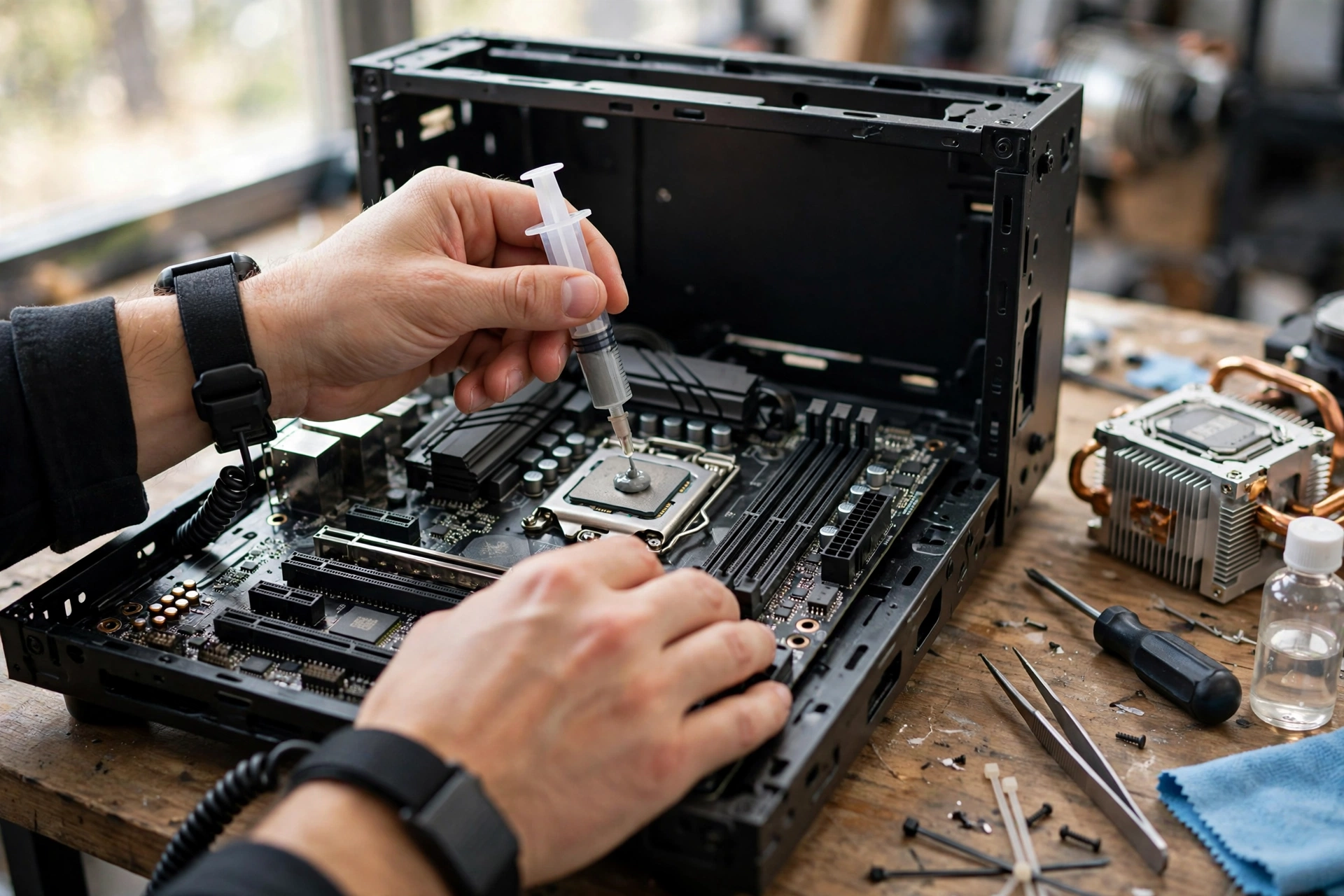
Work through these fixes cheapest first, and remeasure after each change so you know what actually helped. Changing five things at once makes it impossible to tell which one worked.
- Clean the dust. Power the PC off, take it outside if possible, and use short bursts of compressed air on the intake filters, fan blades, and cooler fins. Hold fans still while you blow them, so they do not spin up beyond their rated speed. Clean filters alone can drop temperatures several degrees.
- Improve airflow. Make sure intake fans at the front or bottom bring cool air in, and exhaust fans at the rear or top push hot air out. Aim for a slight positive pressure, with a little more intake than exhaust, to reduce dust entry. Remove any cables or drive cages blocking the main airflow path.
- Reseat the cooler and replace the thermal paste. Remove the cooler, clean the old paste off the CPU and cooler base with isopropyl alcohol and a lint free cloth, apply a pea sized amount of new paste in the center, and remount the cooler evenly. Uneven pressure is a common cause of hot spots.
- Upgrade the cooler if the current one is undersized. A good tower air cooler handles most gaming CPUs comfortably, and a 240mm or 360mm liquid cooler suits higher power chips or small cases with limited airflow. Our complete gaming PC building guide covers cooler selection alongside the rest of the parts.
- Set a sensible fan curve. In the BIOS or your motherboard software, set fans to ramp up smoothly with CPU temperature rather than staying quiet until the chip is already hot. A fan curve that starts rising at 50 degrees and reaches full speed by 80 degrees usually balances noise and cooling well.
- Consider undervolting. Undervolting reduces the voltage supplied to the CPU while keeping the same clock speeds, which cuts heat generation without a large performance loss. It is safe when done gradually and tested for stability, but it requires care and a stress test after each step. Do not combine undervolting with overclocking until you understand both.
- Check motherboard power settings. If your board removes power limits by default, consider restoring the CPU’s stock power limits in the BIOS. The performance loss is usually small, and the heat reduction can be large, especially on high end chips that were running well above their rated power.
- Improve the room, not just the PC. Moving the case off the floor, away from a heater vent, and out of a closed cabinet can lower intake air temperature by several degrees, which directly lowers CPU temperature. A PC in a hot, enclosed space will always run hotter than the same PC on an open desk.
What This Means for Typical Gaming PCs Right Now
The October 2026 Steam hardware survey is a useful reality check on what most gamers actually run. The RTX 3060 returned to the top of the GPU chart at 3.62 percent of surveyed systems, and 16GB of system memory moved back ahead of 32GB at 41.42 percent. In other words, the typical gaming PC is not a brand new flagship build. It is a mid range system that is a few years old, and those are exactly the systems where dust, dried paste, and tired stock coolers start to matter.
That context also changes upgrade priorities. With reports of RTX 50 series price rises in November 2026, many gamers are likely to keep their current graphics card longer rather than upgrade immediately. If your card is staying put, making sure your CPU is not throttling is one of the best free performance improvements available, because it protects the frame rates your existing hardware is already capable of. A cooler that costs far less than a graphics card upgrade, or even just a cleaning and a fan curve adjustment, can recover performance that heat was silently taking away. NVIDIA’s official site is the place to check current graphics card specifications and driver updates if you are weighing that decision.
Frequently Asked Questions
Is 80 to 90 degrees safe for a gaming laptop CPU? I get this on GTA V and worry it may harm the lifespan of my Acer Nitro 5.
This is a real question asked on Quora, and the short answer is that it is generally within the design limits of a gaming laptop, though it is on the warm side. Laptop processors are built for tighter spaces and often have maximum temperatures around 95 to 105 degrees, so 80 to 90 degrees under a demanding game is not automatically dangerous. What matters more is whether the laptop throttles, crashes, or becomes uncomfortably hot to use. If it holds steady clocks and stays stable, it is doing its job. If you want lower temperatures, a laptop cooling pad, a power limit in the manufacturer’s software, or a repaste (if you are comfortable opening the laptop) can all help, and limiting background apps reduces the load further.
Why do my PC games keep crashing when my CPU temperature is around 70 to 80 degrees?
This question, also asked on Quora, has a reassuring answer: at 70 to 80 degrees, temperature alone is very unlikely to be the cause of your crashes. Most desktop CPUs do not throttle until around 90 to 100 degrees, so a crash at 75 degrees points elsewhere. Common causes include unstable overclocks or undervolts, faulty memory, driver problems, a failing power supply, or a game specific bug. Check whether crashes happen in one game or all games, test your memory, and make sure your graphics card drivers are current. If temperatures spike higher than the 70 to 80 degrees you measured at the moment of the crash, logging with HWiNFO during play will show the real peak.
Is it okay for an older i3 processor to get up to 70 degrees Celsius while gaming with almost 60 percent usage?
This Quora question describes a situation that is generally fine. Seventy degrees under gaming load is comfortably within the safe range for that generation of Intel processors, and 60 percent usage during a game is normal, since games rarely load every core evenly. Older dual core and quad core chips also tend to run a bit warmer relative to their performance than modern efficient designs. As long as temperatures stay below the mid 80s and the system is stable, there is nothing to fix. If temperatures climb toward 90 degrees, cleaning dust and checking the cooler mount are the first steps.
My laptop CPU stays around 90 degrees almost all the time. Is it okay?
This question comes from a Quora user running a small server workload on a laptop processor nearly continuously. Ninety degrees under sustained full load is close to the limit for many laptop chips, but it is usually within specification, and the processor will throttle to protect itself before damage occurs. The real concern with a constant 90 degrees is not instant damage but long term comfort and longevity: fans running at full speed constantly, a hot chassis, and faster wear on surrounding components. If the workload is continuous, improving cooling is worth doing. A cooling pad, better ventilation underneath the laptop, limiting the processor’s maximum power in Windows power settings, and cleaning dust from the vents can all bring sustained temperatures down. If the laptop shuts down or throttles hard despite those steps, the cooling system itself may need servicing.
Does a high CPU temperature damage the processor permanently?
Modern processors are designed with multiple layers of protection, including throttling and emergency shutdown, specifically to prevent heat damage. Running at high temperatures for years can contribute to gradual wear, and sustained operation near the limit is not ideal, but a processor that throttles correctly is unlikely to fail from heat alone within its useful life. Voltage abuse and poor power delivery are generally more dangerous than temperature by itself. The practical rule is simple: keep sustained gaming temperatures under 85 degrees where you can, act promptly if the CPU throttles or the system becomes unstable, and do not panic over brief spikes.
Should I worry if my CPU hits 95 degrees for a few seconds?
A brief spike to 95 degrees during a loading screen or a sudden burst of activity is usually not a problem, especially on AMD Ryzen 7000 and 9000 chips that are designed to boost up to that limit. What should worry you is a sustained reading at the limit combined with falling clock speeds, repeated crashes, or fans stuck at maximum speed for an entire session. Compare the sustained temperature and the clock speeds, not the single highest spike, and act on the sustained picture.
Conclusion
CPU temperature only looks complicated because the safe number changes with the processor, the workload, and the form factor. Once you know your chip’s maximum temperature and you monitor temperature together with clock speeds, the picture becomes simple. Gaming temperatures between 60 and 85 degrees are normal for most desktop CPUs, brief spikes higher are usually harmless, and sustained temperatures at the limit with falling clocks are the signal to act.
Start with the free checks: monitor a real gaming session, clean the dust, and set a sensible fan curve. Move on to paste and airflow if those do not help, and consider a cooler upgrade or careful undervolting only when the cheaper fixes have done their work. Heat is a hidden bottleneck, but it is also one of the most fixable ones. A cooler CPU holds its boost clocks longer, and longer boost clocks mean steadier frame rates from the hardware you already own.

Leave a Reply