

When people talk about a motherboard bottleneck cpu gpu performance problem, they usually mean something narrower than a slow board making everything slow. A motherboard does not render frames or add processing cores. It supplies power, moves data between parts, and sets the rules for what those parts are allowed to do. When it does that job well, it mostly disappears. When it does it badly, it can hold back a CPU that should boost higher, a graphics card that should run at full width, or memory that should run at its rated speed.
The short answer is yes, a motherboard can limit CPU and GPU performance, but it rarely does so in the simple way people imagine. A more expensive board does not automatically make the same CPU and GPU faster. A weak board, on the other hand, can stop those parts from reaching the performance they were designed to deliver. You do not need the most expensive board, but you do need one whose power delivery, PCIe layout, chipset, memory support, and BIOS fit the parts you own or plan to buy.
This guide explains each limit, shows how to tell whether your board is the problem, and explains when a board upgrade is the right fix. It is a diagnostic explainer, not a ranked buying list.
What a Motherboard Actually Does, and What It Does Not Do
Think of a motherboard as the platform everything else stands on. The CPU plugs into its socket, the graphics card into a PCIe slot, memory into DIMM slots, and storage through M.2 slots or SATA ports. The chipset helps route traffic between many parts, while some high priority links, such as the main graphics slot, connect more directly to the CPU.
That platform role explains both the power and the limits of a board. A board cannot make a midrange CPU behave like a flagship CPU. What it can do is decide whether the CPU gets steady power, whether the graphics card gets its designed lane width and PCIe generation, whether memory runs in dual channel mode at a stable speed, and whether features such as Resizable BAR are available.
It also helps to separate a true board limit from a normal CPU or GPU limit. In a healthy gaming PC, one part is almost always the limiting factor at any given moment. That is normal. A CPU bottleneck versus a GPU bottleneck is not automatically a fault. The board question is narrower: is it preventing a part from doing what that part could do on a suitable platform at the same settings?
If your CPU never reaches its expected boost clocks under load, if your graphics card negotiates a narrower link than its slot should provide, or if memory will not hold its rated profile, the board belongs on the suspect list. If all three behave as expected and games still run slowly, the limit is more likely the CPU, the GPU, the settings, or another part entirely.
The Most Common Board Limit
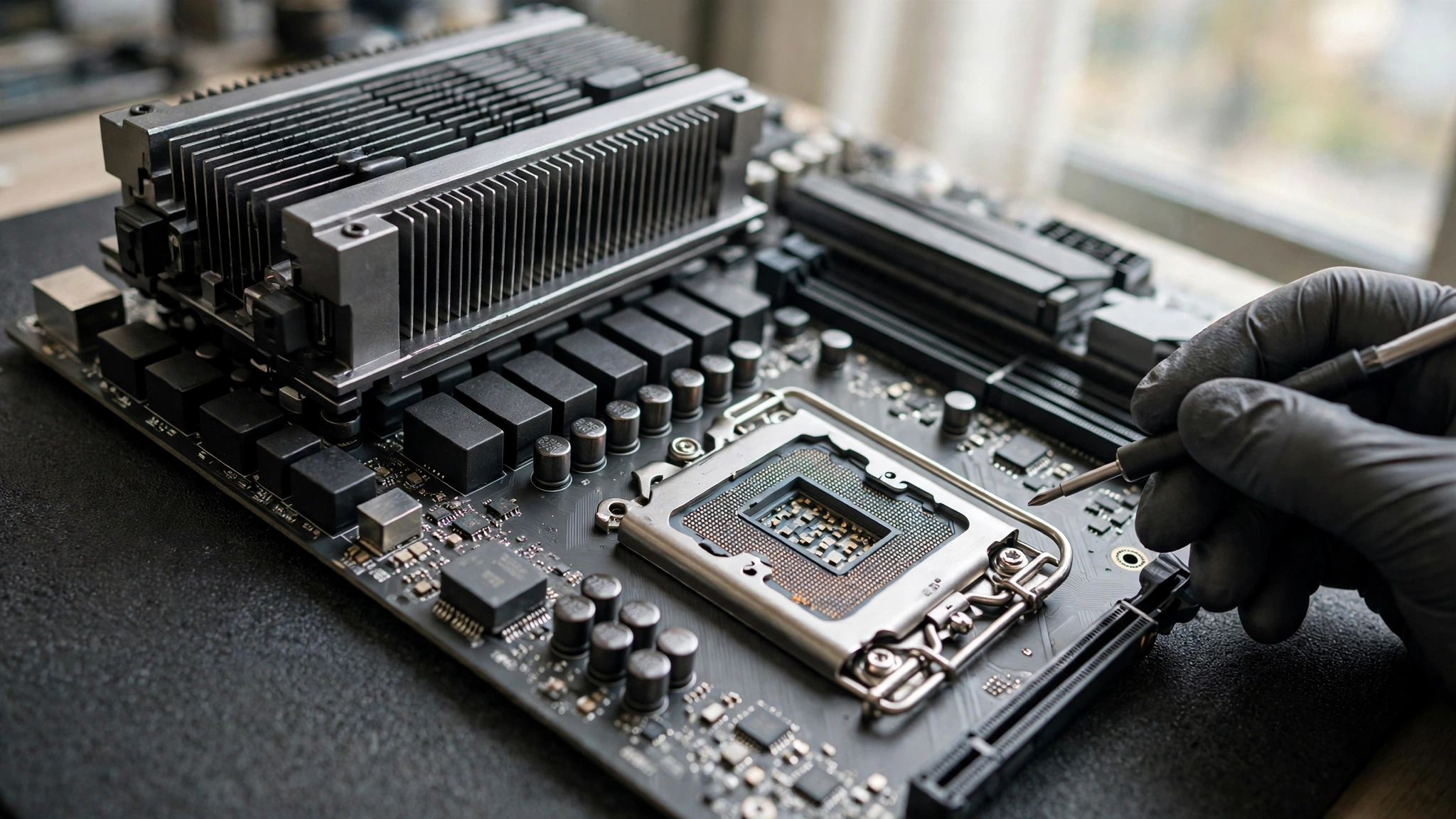
The voltage regulator module, usually shortened to VRM, converts power from your power supply into the lower, tightly controlled voltage your CPU needs. It sits near the CPU socket, usually under heatsinks, and works hardest under sustained all core load: long renders, heavy compiles, or game scenes that keep many cores busy for minutes rather than seconds.
A board with modest power delivery can still run a modest CPU perfectly well. Problems tend to appear when a high power CPU is paired with a board designed for lighter loads, especially with weak airflow over the top of the board. As VRM components heat up, the board may reduce power to the CPU to protect them. The CPU then lowers its clocks, not because it is too hot, but because delivery around it has reached its limit. Clocks sag, frame times become uneven, and a benchmark that starts strong fades as the run continues.
Phase count alone is not a reliable score. Component quality, heatsink design, and case airflow all matter, and a modest but well cooled design can hold up better than a larger but poorly cooled one. Reviews that measure VRM temperature under sustained load are more useful than a single number on a product page, but treat any single review as a data point for that setup, not a universal verdict.
BIOS power limits matter too. Many boards apply a sustained or short duration limit more conservative than the CPU maker’s guidance, particularly on entry level boards and in prebuilt systems. That is not always a defect, but it becomes a bottleneck when it stops your CPU from sustaining expected performance and raising the limit safely is not possible.
Practical signs include clocks that start high and then step down under a steady load while CPU temperatures stay moderate. Check case airflow first: a fan pushing air across the VRM heatsinks can change VRM behavior more than many builders expect. If airflow is already good and the limit persists, the board’s delivery design is more likely the ceiling.
PCIe Lanes, PCIe Generation, and Lane Sharing
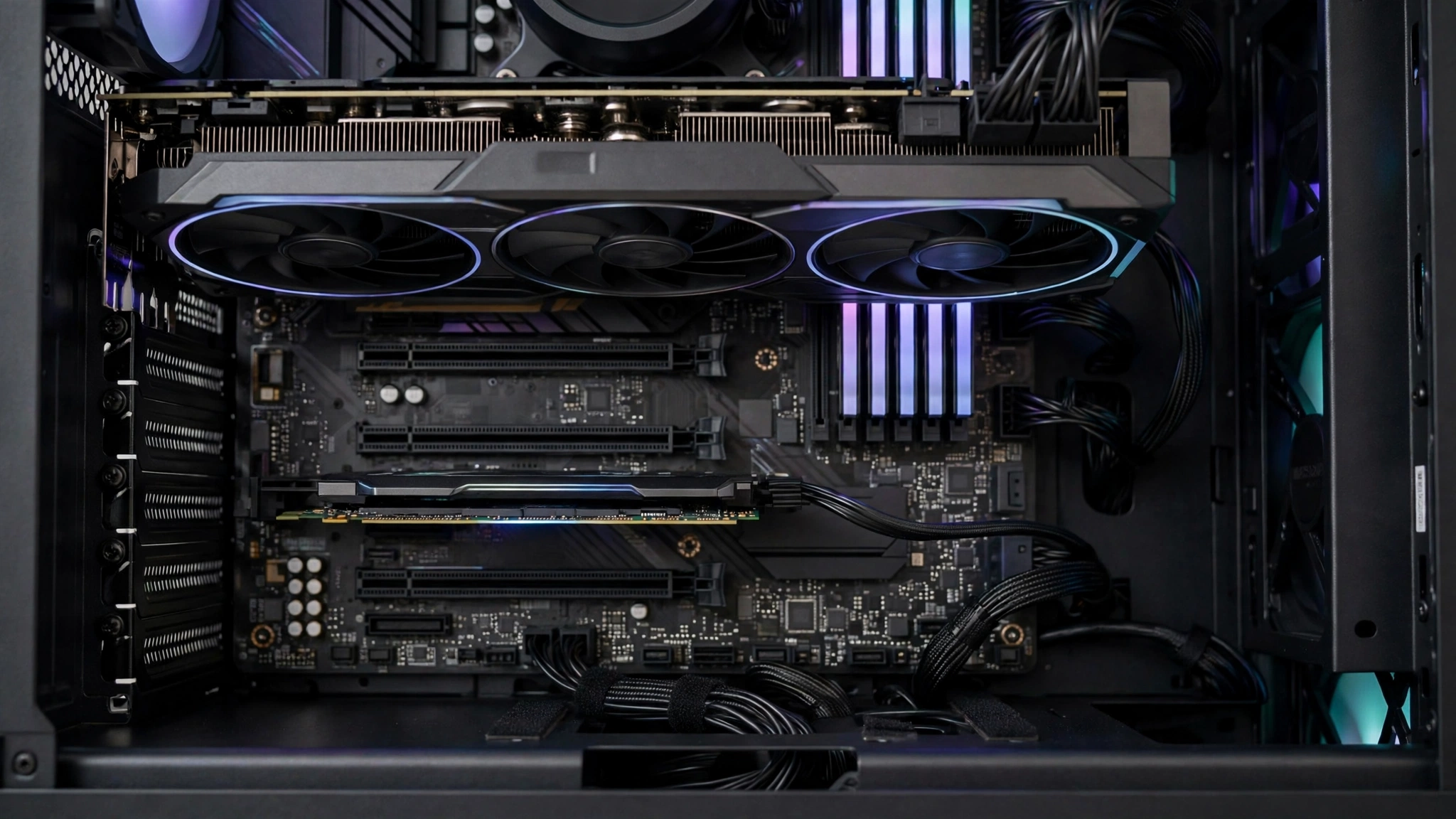
PCIe is the high speed link your graphics card uses to talk to the rest of the system, and it is also used by fast NVMe storage and expansion cards. Two things decide its bandwidth: the PCIe generation and the lane width. Each newer generation roughly doubles per lane bandwidth, and a slot can run at x16, x8, x4, or narrower depending on the card, the slot, and what else is installed.
For most gaming with a full width graphics card and enough video memory, the difference between recent PCIe generations is often small. The risk grows for cards wired for x8 or x4, which have less bandwidth to begin with, and when video memory fills up and the card must stream data across the bus more often. In those cases, stutter can appear even when average frame rate does not collapse.
Lane sharing is the part many builders miss. A board may advertise a top slot at x16, but its manual may state that adding a second M.2 drive or expansion card splits that slot to x8. Lower slots may run through the chipset, or be electrically x4 even though they look full size. Read the board manual’s block diagram or slot table; that is the most reliable step in this guide.
The slot you use matters as well. A graphics card belongs in the primary slot the manual identifies for graphics, usually the top slot closest to the CPU. Moving a card to a lower slot for clearance or looks can silently change its link width. If you must use a lower slot, check what width it actually provides and whether it shares lanes with storage or other devices.
Monitoring tools can confirm the negotiated link. Run a graphics load, then check the reported bus interface. A card that should run at x16 but reports x8 under load, or at PCIe 4.0 but reports PCIe 3.0, gives you a concrete fact to investigate, though a BIOS setting, a poorly seated card, a riser cable, or a CPU limitation can also change the result.
For a closer look at a card running below full width, read the guide on a GPU running at x8 PCIe. For whether PCIe bandwidth itself limits a graphics card, see whether PCIe bandwidth bottlenecks a GPU. The PCIe 4 versus PCIe 5 gaming bottleneck guide separates marketing around the newest standard from its practical effect on games today.
Chipset Limits The Rules Your Board Must Follow
The chipset is the board’s traffic manager and feature gatekeeper. It helps decide how many high speed ports, storage connections, and expansion lanes are available, whether CPU and memory overclocking are unlocked, and which memory speeds are officially supported. The socket decides physical fit. The chipset decides much of what that fit can actually do.
Entry level chipsets are built for efficiency and cost. They may limit memory overclocking, offer fewer high speed ports, or restrict CPU tuning. That is a reasonable trade for a modest build, but it becomes a limit when paired with a CPU you intend to overclock or several high bandwidth devices that all need chipset lanes.
Mainstream chipsets usually strike the balance most gamers need: tuning on the relevant platforms, enough storage for a single graphics card plus a couple of fast drives, and power delivery matched to mainstream CPUs. Enthusiast chipsets add more lanes, ports, and tuning headroom, but those additions do not make games faster on their own. They remove ceilings for builders who actually need the extra connectivity.
AMD publishes chipset comparisons showing how lane counts, graphics link options, and overclocking support differ across its AM5 families. See AMD’s AM5 chipset page for the current lineup. Intel’s documentation works the same way, though the exact split changes by generation, so always check the chipset for the generation you are buying.
Memory Support DDR Generation, Slots Speed Channels
Memory is another place where a board sets hard limits. A board supports either DDR4 or DDR5, never both on the same board, even when a CPU’s memory controller can handle both types on different boards. The slot notch, voltage, and signaling differ, so if you are keeping old memory for a new build, the board’s memory type is a first filter.
Slot count and population rules matter too. Two sticks in the correct slots usually give dual channel operation, the normal setup for a gaming PC. One stick alone leaves single channel mode and can reduce performance in CPU bound games. Four sticks can be harder to run at high speed than two, especially with weaker memory routing. The manual’s recommended slots and qualified memory list are useful starting points.
Rated memory speed also depends on the board. Many kits advertise a fast profile speed through Intel XMP or AMD EXPO, but that profile is an overclock beyond the base standard. The board, CPU memory controller, and kit must all cooperate for it to hold under load. If memory falls back, check the profile first, then test two sticks in the recommended slots.
BIOS, Firmware, Power Limits, and Feature Switches
The BIOS, or UEFI firmware, is where many board limits are actually enforced. It decides which CPUs the board recognizes, which power limits apply, whether memory profiles are available, whether Resizable BAR or AMD Smart Access Memory can be enabled, and how aggressively the board handles boost behavior. Two boards with the same chipset can behave differently because their firmware defaults differ.
CPU support is the most important firmware question for upgraders. A board may need a newer BIOS before it recognizes a newer CPU on the same socket, and that update may have to be installed while an older, supported CPU is still installed, unless the board offers BIOS flashback. Check the maker’s CPU support list for your exact board revision and BIOS version.
Resizable BAR is a good example of a feature switch that can matter without being a board quality issue. When supported by the CPU, graphics card, and firmware, it lets the CPU access the graphics card’s full video memory in larger chunks. The benefit varies by game, but a board that lacks the option, or a BIOS where it is turned off, leaves that feature unused.
Firmware updates deserve care. An update can add CPU support or fix stability issues, but a failed update can leave a board unusable, and a new BIOS can change default power behavior. Update for a clear reason, such as adding support for a CPU you own, not on a guess, and do not change several BIOS settings at once.
For settings that commonly affect CPU performance, the guide on BIOS settings to reduce a CPU bottleneck is a useful checklist. Record your original settings, change one thing at a time, and test with the same game or workload so you can compare fairly.
Why Board Compatibility Is a Live Question in 2027
Storage rarely limits gaming frame rate directly, but a board can still shape it. A second M.2 slot that shares lanes with the graphics slot can change the graphics link, a chipset slot can share bandwidth with other devices, and a drive that overheats under poor airflow can slow during long writes. Check the manual’s sharing table before adding a second high bandwidth device.
Board compatibility is also a live question because platforms outlive a single CPU generation. Gigabyte has confirmed BIOS support for upcoming Intel LGA1700 processors across its B760, H610, and later Z790 lineups, with those processors expected in early 2027. Reporting has described them as a Raptor Lake Next style refresh, but Intel has not formally named the lineup in the material covered here, and exact models, specifications, and performance remain unconfirmed.
The practical lesson is simple. A builder with an existing LGA1700 board and DDR4 memory may move to a newer CPU on the same board with a BIOS update, while a DDR5 only board cannot reuse DDR4 memory. A board that gains CPU support through firmware does not gain new lanes, slots, or a stronger VRM. Before such an upgrade, check exact board support, memory type, and whether power delivery and cooling can sustain the new CPU.
How to Check Whether Your Board Is the Limit
A board diagnosis works best as a short, controlled test. Pick one game or workload that shows the problem reliably, note the settings, and log CPU clocks, package power, temperature, GPU clocks, utilization, link width, and memory speed during a sustained run. HWiNFO for CPU and board sensors and GPU-Z for graphics link data make this practical on Windows. A TechPowerUp GPU-Z validation record shows the bus interface detail to look for, including a PCIe x8 link at PCIe 4.0.
Then work through the checks in order, changing one thing at a time:
- Confirm the graphics card is in the primary slot the manual specifies, fully seated, and not running through a riser that changes its link.
- Check the reported PCIe generation and width under load, not only at idle, because some links downshift when idle to save power.
- Check memory configuration: two sticks, correct slots, dual channel mode, and the rated profile actually applied and stable.
- Check CPU behavior under a sustained load: do clocks hold steady, or do they step down while temperatures stay moderate and a power or current limit flag appears?
- Check BIOS settings: memory profile, Resizable BAR, power limits, and any performance or efficiency preset the board applied by default.
- Check airflow over the VRM area and the graphics card, including whether a front panel or cable bundle starves the top of the board.
- Check the manual’s lane sharing table after adding any second M.2 drive or expansion card, and test with that device removed if the graphics link changed at the same time.
The table below turns common symptoms into a first check, so you do not jump straight to a board replacement.
| Symptom you can observe | First thing to check | Board link to consider |
|---|---|---|
| CPU clocks sag under sustained load, CPU temperature looks moderate | Power limit flags, VRM temperature if reported, case airflow over the board | VRM or BIOS power limit |
| Graphics card reports x8 instead of x16 under load | Slot used, second M.2 or expansion card installed, riser cable, BIOS slot setting | Lane sharing or wrong slot |
| Memory runs below its rated profile or falls back after stress | Profile setting, slot population, two stick test, lower speed test | Memory routing or profile stability |
| New CPU is not recognized at all | Exact board revision, CPU support list, BIOS version, flashback option | Firmware support, not a speed limit |
If every check passes and clocks, link width, memory speed, and temperatures all behave as expected, the board is probably not your limit. Look again at CPU and GPU balance, game settings, background software, and the power supply, which can mimic a board problem if it sags under peak load. For a modern high end build, the guide on RTX 50 series power supply requirements covers the headroom and connector planning a new graphics card can demand.
Intel’s own documentation shows why power limits cannot be treated as a single number. Its datasheets list sustained and short duration limits and timing notes that vary by processor line. See Intel’s processor thermal and power documentation for an example, and use your exact CPU’s documentation for your own build.
When a Board Upgrade Makes Sense When It Does Not
A board upgrade makes sense when you have evidence of a specific board limit that no setting, airflow fix, or reseat can remove: a VRM that cannot sustain your CPU, a lane layout that forces your graphics card to x8, a chipset that blocks the memory speed or tuning you need, or a socket, firmware, or memory wall that blocks the CPU or memory you want. Name the limit before you shop, because the replacement must fix that limit specifically.
A board upgrade does not make sense as a general speed boost when your current board already lets your CPU hold its clocks, your graphics card run at its full link, and your memory hold its profile. In that situation, the same money usually buys more performance as a better CPU, graphics card, cooling, memory, or storage. A board swap also costs time for reinstallation and retesting, which is worth paying for a real limit but a poor trade for a hoped for boost with no evidence.
| Board class | Typical design emphasis | When it usually limits performance |
|---|---|---|
| Entry class | Cost, basic connectivity, modest power delivery, limited tuning | High power CPUs under sustained load, high memory profiles, heavy expansion |
| Mainstream class | Balanced power delivery, mainstream tuning, enough lanes for one graphics card plus fast storage | Very high power CPUs with weak airflow, heavy multi device lane sharing |
| Enthusiast class | Stronger power delivery, more lanes and ports, wider tuning range | Rarely the limit for a single graphics card gaming PC, unless airflow or settings are wrong |
If you are buying a new board, check in order: socket and chipset against the exact CPU, including the BIOS version required; memory type, DDR4 or DDR5, with two sticks in the recommended slots; the primary graphics slot, its generation and width, and what happens when you add a second M.2 drive; power delivery against your CPU class and case airflow, not a marketing phase count alone; and the power supply, since a board cannot fix a supply that sags under peak load.
Frequently Asked Questions
Can a motherboard bottleneck a CPU?
Yes, it can, mainly through power delivery, BIOS power limits, chipset tuning limits, or memory support limits. A board that cannot supply steady power to a demanding CPU, or that applies a conservative sustained limit, can force that CPU below its expected boost behavior under load. A modest board paired with a modest CPU, with good airflow, often runs exactly as expected.
Does the second PCIe slot deliver the same performance as the first PCIe x16 slot?
Not necessarily, and on many boards it does not. This question comes from a real Quora discussion about using a second PCIe slot for a graphics card on an ASRock B450 board. The second full length slot may run at x8 or x4, may run through the chipset instead of directly from the CPU, and may share lanes with storage or other slots. Always check the manual’s slot table for your exact board, and use the primary slot the manual specifies when you need full graphics bandwidth.
My CPU usage is almost 100% and my GPU is around 40% in every game. Is it a bottleneck?
That pattern usually points to a CPU limit in those games, not automatically to a motherboard fault. This question comes from a real Quora post describing a Ryzen 3 3200G with an A320 board and a GTX 1650, where CPU usage sat near 100% while GPU usage stayed near 40%. Check the board only after confirming the CPU itself is the limit: are clocks holding, is memory in dual channel mode at its rated speed, and is a board power limit holding the CPU back? If the CPU is simply outmatched at those settings, a board swap will not fix it.
Is there a CPU/GPU combination that has absolutely no bottleneck at all?
No, not in practical terms. This question comes from a real Quora discussion, and the useful answer there is that some part is always the limiting factor for a given task at given settings. A well balanced PC still has a limit; it just has one that does not hurt the experience. If the graphics card is the limit at high resolution and high settings, that is often the desired outcome. The goal is to make sure the limiting part is the one you chose, running as it should, on a board that does not hold it back.
Conclusion
A motherboard bottleneck is real, but it is specific. It shows up as a VRM that cannot sustain power, a PCIe link that narrows when you add storage, a chipset that blocks tuning or memory speed, a memory type that cannot change, or a BIOS that does not recognize the CPU you want. It does not show up as a magic speed boost from buying the most expensive board, and it does not explain every slow game on its own.
Check the board with evidence, not with a shopping list. Confirm the graphics link under load, confirm memory speed, watch CPU clocks and limit flags during a sustained run, read the manual’s lane sharing table, and check the CPU support list before any upgrade. Fix airflow and settings first when they can remove the limit.
That approach protects both kinds of builders: it stops a new builder from overspending on unused features, and it stops an upgrader from keeping a board that quietly holds back parts they already own. The board should disappear into the build, letting your CPU and GPU decide performance.

Leave a Reply