
A used graphics card can be the smartest upgrade you ever buy, or the most expensive mistake in your PC. The difference is rarely luck. It is a short, boring checklist done before money changes hands, plus a pairing rule that matches the card to your CPU, your power supply, and the resolution you actually play at. This used gpu buying guide bottleneck method starts with that simple idea: buy the card your system can feed, prove it works under load, and walk away from any deal that will not let you do both.
Most buyers do the steps in the wrong order. They find a card first, fall in love with the price, and only then ask whether their CPU can keep up or their power supply has the right cables. A better order is the reverse. Check your CPU tier, your power supply wattage and connectors, your case length, and your monitor resolution. Then shortlist cards that fit all four limits. That is how you avoid a card that is fast on paper and stuttery in your PC, and it is also how you avoid paying for performance your processor can never unlock.
Used GPU Buying Guide Bottleneck Card Your System Can Feed
For most 1080p gamers with a modern six core CPU, a used midrange card with at least 12GB of VRAM is the sweet spot in 2026, provided it passes a stress test and your power supply has the right connectors. For 1440p, step up one tier and treat 12GB as a minimum, not a luxury. For an older quad core CPU or a weak power supply, buy a smaller, efficient card now and save the rest of your budget for a platform upgrade later. Never buy a card you cannot test, a card your power supply cannot safely power, or a card whose exact model and memory size you have not verified.
That verdict sounds cautious, and it is meant to be. A used card has no return counter at a retail store and often no warranty. Your testing time is your warranty. If a seller will not give you that time, the deal is not a bargain. It is a risk priced to look like a bargain.
Which Older Cards Still Make Sense
Older does not mean obsolete. It means you must judge the card by what games and drivers demand today, not by what it could do at launch. A card that was a flagship five years ago can still be a strong 1080p or 1440p card today, because raster performance ages more slowly than marketing cycles suggest. The cards that age badly are usually the ones that were already short on video memory, already limited by a narrow memory bus, or already dropped from current driver support.
As a general rule, look for cards with current driver support, hardware support for the features your games use, and enough VRAM for your resolution and texture settings. For 1080p, 8GB remains workable for many games if you are willing to adjust texture quality, but 12GB gives you far more headroom. For 1440p, 12GB should be your starting point, and 16GB is worth seeking out when the price is close. For 4K, a used purchase only makes sense at the high end, with plenty of VRAM and a CPU that can keep up, otherwise you are buying a resolution your system cannot serve smoothly.
Cards built on older architectures can still be fine for esports titles and older games, but check driver support before you pay. A card that no longer receives current game ready drivers may still run, yet new releases can bring bugs, missing features, or poor performance that no buyer can fix. If you plan to play current releases, favor architectures that are still supported and still appear in current published reviews.
If you are upgrading an older PC rather than building fresh, start with a guide built for that exact situation. Our guide to the best GPU for an old PC upgrade explains how case size, power supply limits, and older PCIe slots change the choice. That advice pairs well with this buying guide, because a card that fits a new build may not fit a ten year old case or a prebuilt power supply.
A Brief Note on the Used Combo Comparison
Readers sometimes ask how this guide differs from a straight card versus card comparison. The short answer is that this guide is about the buying process, not about crowning one used card over another. Our RTX 3080 vs RX 6800 XT used combo comparison covers that specific head to head in detail, including where each card wins. Use that comparison when you have narrowed your choice to those two cards, and use this guide to decide whether any used card, including those two, is safe to buy and correctly matched to your system.
Takeaway: judge an older card by driver support, VRAM, and fit for your resolution, not by its launch price or its age alone.
Bottleneck-Free Pairing Rules by CPU Tier
A bottleneck happens when one part waits on another. In gaming, the most common version is a CPU that cannot prepare frames fast enough for a strong GPU, so the GPU sits idle and frame rates stall no matter how much you raise graphics settings. The opposite problem also exists: a weak GPU paired with a strong CPU means you paid for processor power your graphics card cannot use. The goal is balance at your resolution, not the strongest card you can afford.
Resolution changes the balance. At 1080p, the CPU works harder relative to the GPU, because frames are cheaper to draw and the processor must prepare more of them per second. At 1440p and 4K, the GPU carries more of the load, so a modest CPU can often pair with a stronger card without the same penalty. That is why a pairing that stutters at 1080p can feel smooth at 1440p, and why resolution must be part of every pairing decision.
Use the table below as a starting rule, then adjust for your exact CPU model, your games, and your target frame rate. Esports titles at high refresh rates stress the CPU far more than story driven games locked at 60 frames per second, so competitive players should stay on the conservative side of each row.
| CPU tier | Sensible used card tier | Best resolution | Watch out for |
|---|---|---|---|
| Older quad core or early six core CPU | Entry to lower midrange card with 8GB or more VRAM | 1080p | CPU limits in open world and CPU heavy games, low 1 percent lows |
| Modern six core CPU | Midrange card with 12GB or more VRAM | 1080p to 1440p | 8GB cards at 1440p with high textures, weak power supply |
| Modern eight core CPU | Upper midrange to former flagship card with 12GB to 16GB VRAM | 1440p | Power supply connectors, case length, CPU cooling under sustained load |
| High end eight core or better CPU | Former flagship or high end card with 16GB or more VRAM | 1440p to 4K | VRAM limits at 4K, power draw, driver support for very old flagships |
If you are unsure how much bottleneck your current pairing already has, measure it rather than guessing. Our guide on how to find a PC bottleneck walks through the monitoring steps, and the CPU bottleneck calculator can give you a quick pairing estimate to compare against your own testing. A useful rule of thumb is that a small bottleneck is normal and often harmless, while a large, persistent bottleneck in the games you actually play means the pairing is wrong. Our explanation of what a good bottleneck percentage looks like puts that judgment in plain terms, so you do not chase a perfect zero that real systems rarely achieve.
One more pairing rule matters for used buyers: PCIe generation and lane width. Most modern cards run fine on PCIe 3.0 for gaming, but a card with a narrow x8 interface can lose more performance on an older PCIe 3.0 slot than the same card on PCIe 4.0, especially when VRAM runs short and the card must fetch data across the bus more often. If your motherboard is PCIe 3.0 only, favor cards with a full x16 interface and plenty of VRAM, and be skeptical of any listing that hides the exact model variant.
Takeaway: match the card to your CPU tier and your resolution, and treat a large bottleneck in your own games as a failed pairing, not a setting you can fix with sliders.
VRAM and PSU Checks Before You Pay
VRAM is the memory on the graphics card itself, and it stores textures, frame buffers, and other data the GPU needs instantly. When VRAM runs out, the card must swap data with system memory across the PCIe bus, which is far slower. The result is stutter, sudden frame time spikes, and texture pop in, even when average frame rates look acceptable. That is why two cards with similar names but different VRAM sizes can feel like different products, and why you must verify the exact variant, not just the family name.
Before you pay, confirm the exact model, VRAM capacity, memory type, and bus width from the card label and from software, never from the listing title alone. Listings sometimes reuse a photo of a higher tier card, or list a card by its chip family while hiding that it is a cut down variant. A reliable way to cross check is to look up the exact model in the TechPowerUp GPU database, which lists specifications for thousands of cards, and compare them with what the seller shows. If the numbers do not match, stop and ask questions before you hand over money.
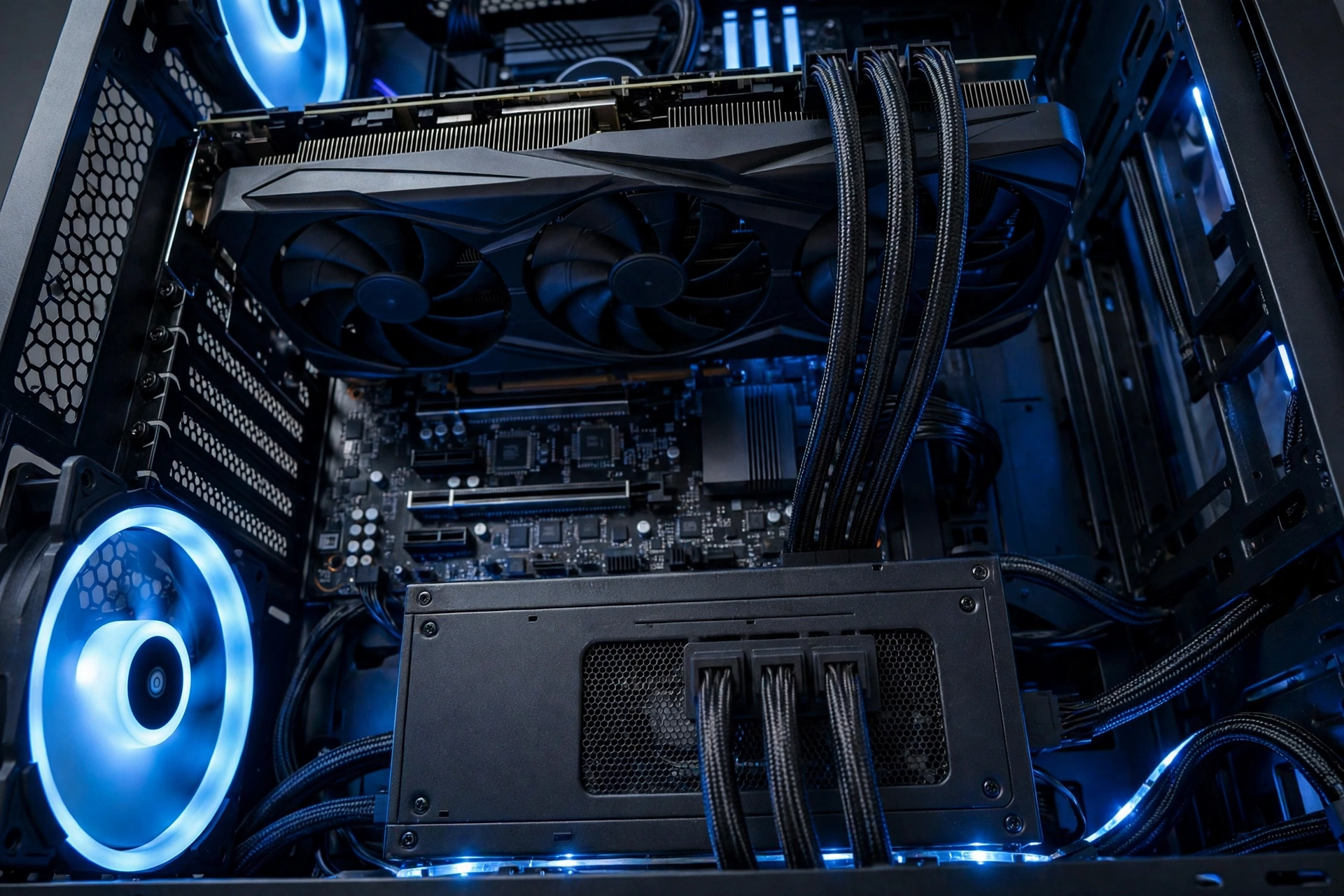
Power supply checks are just as important, and they are where buyers make the most dangerous mistakes. First, find your power supply wattage, brand, and age, and check whether it has the PCIe connectors the card needs. An adapter can solve a missing connector in some cases, but it cannot make a weak or failing power supply safe, and a card that needs two 8 pin connectors should never be run from a single daisy chained cable if the manufacturer advises against it. Second, check the card length against your case, including front fans and radiators, and check slot thickness, because many used cards are two and a half or three slots thick and can block neighboring slots. Third, check airflow. A powerful used card in a closed case with one exhaust fan will throttle, run loud, and age faster, no matter how good the deal looked.
Also confirm that your power supply is not already near its limit. A system that was stable with a 120 watt card may not be stable with a 250 watt card, even if the wattage label seems to allow it, because older power supplies lose capacity, and cheap units often cannot deliver their labeled wattage cleanly under sustained load. When in doubt, budget for a power supply upgrade as part of the purchase, or choose a more efficient card. A cheaper card that runs safely beats a faster card that shuts your PC down mid game.
Takeaway: verify VRAM and the exact model variant, then verify power connectors, wattage headroom, case length, and airflow, in that order.
How to Test a Used Card Before Paying
Testing is the heart of safe used buying. A card that shows a desktop image is not proven. Many failing cards boot fine, display Windows, and only fail under sustained load, when VRAM heats up, or when a demanding game pushes clocks and power. Your test must therefore include a sustained load test, a VRAM test, and a real game session, with temperatures and clocks monitored throughout.
If you can test in person, bring a system or use the seller system, and run this sequence:
- Boot and identify the card. Open GPU-Z or a similar tool and confirm the exact model, VRAM size, memory type, bus width, and BIOS version. Compare those values with the manufacturer specifications. Any mismatch is a reason to stop.
- Check idle behavior. Fans should spin up and settle, idle temperatures should be reasonable for the room, and there should be no artifacts, flicker, or strange lines on the desktop.
- Run a sustained stress test for 20 to 30 minutes. Use a demanding benchmark or stress tool, watch GPU temperature, hotspot temperature, fan speed, and clock speed, and listen for grinding, rattling, or sudden fan stops. Artifacts, driver crashes, black screens, or a card that throttles far below its expected clocks at stock settings are all fail signs.
- Test VRAM specifically. A dedicated VRAM test or a memory heavy benchmark can catch memory errors that a short core test misses. Errors, artifacts that grow worse over time, or crashes during the memory test mean the card is not a safe buy at any price.
- Play a real game for at least 30 minutes. Choose a demanding title you own, at settings close to what you will actually use, and watch for stutter, texture problems, crashes, or a sudden performance drop after the card heats up. A card that only passes synthetic tests but fails in games has still failed.
- Check ports and physical fit. Test each video output you plan to use, confirm the bracket is straight, and confirm the card seats firmly without forcing the PCIe slot.
If you cannot test in person, ask the seller for a live video or a recorded test that shows the card model in software, the stress test running with temperatures visible, and the full system, not just a cropped screenshot. A single photo of a benchmark score proves nothing, because scores can come from another card. A seller who refuses any live proof, rushes you, or insists on payment methods with no buyer protection is giving you information too. Believe it.
Published reviews are useful for setting expectations before you test. Check what temperatures, noise, and performance reviewers reported for the same model, for example in current coverage on Tom’s Hardware, so you know whether the card you are testing behaves normally or is running hot, loud, or slow for its model. Treat published benchmark figures as estimates from third party testing, never as a promise for the specific used card in front of you, because cooling condition, paste age, and previous use all change the result.
Takeaway: a card has not passed until it survives a sustained load test, a VRAM test, and a real game session at stock settings, with no artifacts or crashes.
Pre-Purchase Inspection Checklist
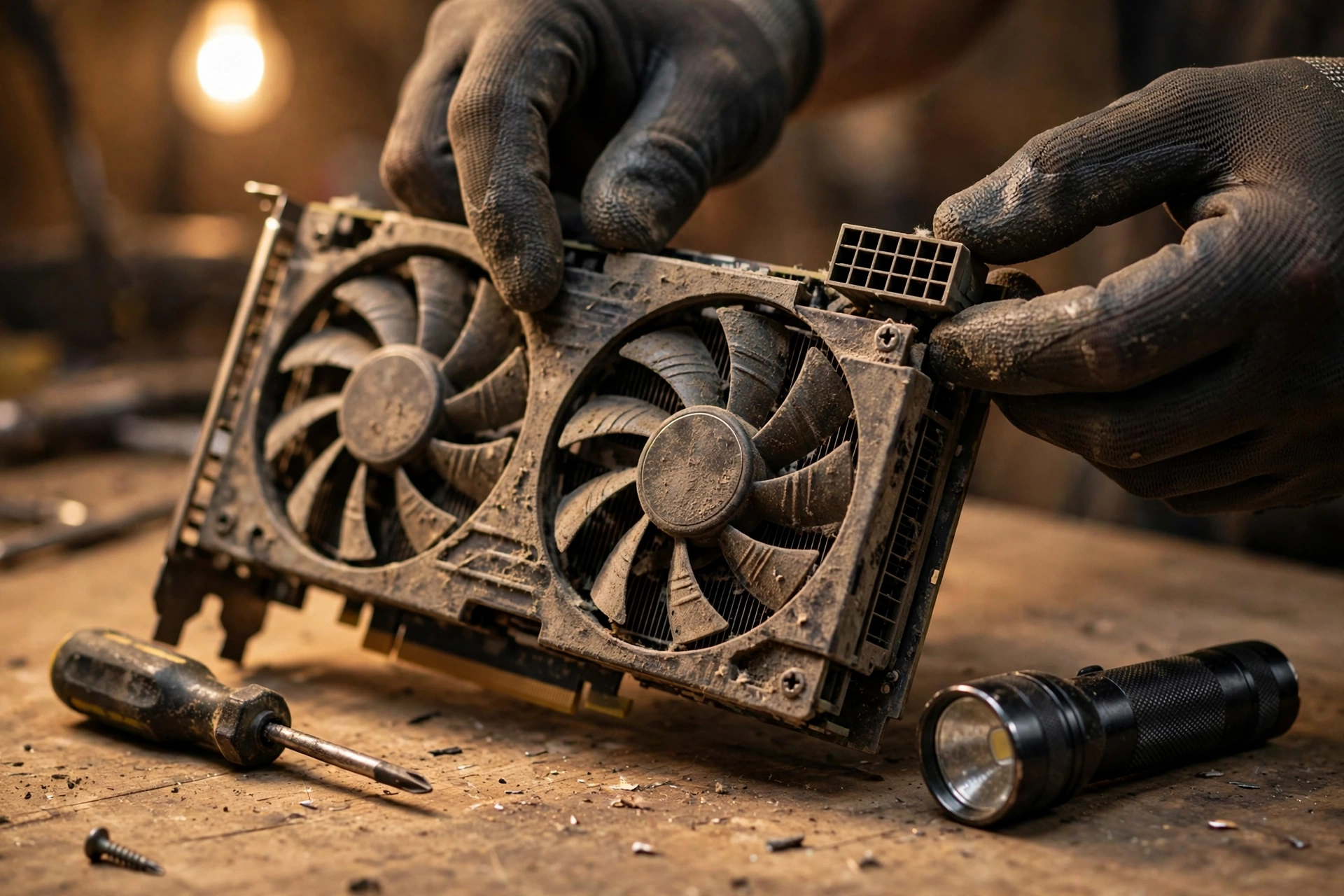
Use this checklist on every card, even one from a seller you trust. Work through it in order, and treat any failed item as a reason to renegotiate, demand a test, or walk away. Cosmetic dust alone is not a fail, but damage to the board, connectors, or cooler is a different matter.
| Check | What to look for | Pass or fail rule |
|---|---|---|
| Exact model and label | Model name, part number, VRAM size on the sticker match the listing and software | Fail if the label is missing, altered, or does not match software |
| Board condition | Bent board, cracked PCB, burnt smell, swollen capacitors, corrosion, missing screws | Fail on any board damage, burn marks, or heavy corrosion |
| Fans and cooler | Fans spin freely by hand when powered off, no grinding, no broken blades, heatsink firmly attached | Fail on grinding fans, broken blades, or a loose cooler |
| Power connectors | Pins straight and clean, no melted plastic, no discoloration, correct connector count | Fail on melted, burnt, or damaged connectors |
| Video outputs | HDMI and DisplayPort sockets firm, not loose or damaged, all planned outputs tested | Fail if your planned output is loose, damaged, or untested |
| Software identity | GPU-Z model, VRAM, bus width, and BIOS match manufacturer specifications | Fail on any mismatch or modified BIOS you did not agree to |
| Load and VRAM test | 20 to 30 minute stress test plus VRAM test, stable clocks, no artifacts or crashes | Fail on artifacts, crashes, or errors at stock settings |
| Seller and payment | Clear photos of the actual card, written return terms, payment with buyer protection | Fail on stock photos only, no return window, or irreversible payment |
Also ask the seller direct questions and keep the answers in writing: How long did you own the card, what was it used for, was it overclocked or had its BIOS modified, has it been repasted or repaired, and why are you selling it? Honest sellers usually answer plainly. Evasive answers, changing stories, or anger at normal questions are signals, not just personality. A card can be a good buy even after mining or heavy use, but only when the price, the test results, and the seller honesty all line up. Without all three, the risk is yours alone.
Takeaway: run the checklist in order, keep seller answers in writing, and let a single failed hardware check override a good price.
How to Spot a Mined or Fake Card
Mining history alone does not condemn a card. Some mining cards were run at steady loads with undervolting and good cooling, while some gaming cards were run hot in dusty cases with no maintenance. The problem is not the word mining, it is unknown history combined with worn fans, tired thermal paste, and VRAM that spent years under sustained memory load. Your job is to look for evidence, not to guess from a label.
Signs that deserve closer testing include uniform dust across all fans and heatsink fins, fans that are equally worn rather than one worn fan, a missing or altered BIOS, a card that reports odd clocks or memory sizes in software, and a seller who cannot explain the card history or refuses testing. Fake cards are a separate and more serious problem. They are often older or lower tier chips flashed to report as a higher tier card, sold with copied boxes or misleading listings. The defense is the same software check used above: if GPU-Z, the driver, and the manufacturer specifications disagree, or if performance in a real game is far below published third party estimates for that model, do not buy it.
Also watch for cards with missing display outputs, unusual brackets, or boards that do not match reference photos for the claimed model. Mining cards sometimes had outputs removed or boards modified for rack use, and those changes can limit your ability to connect monitors or resell the card later. A modified card is not automatically worthless, but it must be priced and disclosed as modified, and it must still pass every test in this guide.
If you suspect a fake or a modified BIOS, ask the seller to restore the stock BIOS and retest, or walk away. Restoring a BIOS is not a casual fix for a buyer to attempt on a card they do not own, and a card sold as working should work with stock firmware at stock settings. A seller who asks you to underclock, lower the power limit, or accept artifacts as normal is asking you to accept a defective card at a working card price.
Takeaway: judge mining history by test results and physical evidence, and treat any software identity mismatch as a fake or modified card until proven otherwise.
What the 2026 Market Means for Used Buyers
Three current trends change the used market in 2026, and each one rewards patient buyers who test carefully. First, NVIDIA driver 621.01, released in October 2026, adds Microsoft Advanced Shader Delivery support for RTX cards on Windows 11, with Gears of War: E-Day and Call of Duty: Modern Warfare 4 as the first supported titles. That matters for used RTX buyers because shader compilation stutter has been a real annoyance in modern games, and a card that still receives current drivers benefits from fixes like this, while a card outside current driver support does not. Check driver support for the exact card before you buy, on NVIDIA for GeForce cards and on the AMD site for Radeon cards, and favor cards that are still in the current driver branch.
Second, the Steam Hardware Survey for September 2026 puts the RTX 5070 at the top of the GPU list at 6.2 percent, with AMD at 48.4 percent of CPU share, and 32GB overtaking 16GB as the most common system memory size. Treat those survey numbers with care, because the same reports note a large shift in survey composition that month, but the direction is still useful: 1440p is growing, 32GB systems are common, and modern midrange cards are the mainstream. For a used buyer, that means a used card that only makes sense at 1080p with 8GB is swimming against the current, while a used 12GB or 16GB card that handles 1440p fits where most gamers are heading.
Third, DDR5 memory prices have risen sharply through 2026, with reports in October 2026 putting a common 32GB DDR5-6000 kit around 450 dollars, up from about 400 dollars in August, as AI demand tightens supply. That price pressure makes a full new build more expensive and makes a used GPU upgrade more attractive, because it lets you improve gaming performance without replacing your whole platform and buying expensive new memory. It also means you should protect your budget: do not spend so much on a used card that you cannot afford the power supply, cooling, or memory your system actually needs.
None of these trends changes the core rule. A trend can tell you which tier to shop in, but only testing can tell you whether the specific card in front of you is healthy. Use trends to choose your shortlist, then use the checklist to choose your card.
Takeaway: current drivers, the move to 1440p and 32GB systems, and high DDR5 prices all favor a tested used card with enough VRAM, not a rushed purchase of the cheapest listing.
Common Mistakes That Waste Money
The most common mistake is buying for a monitor you do not own. A 4K capable card for a 1080p 60Hz monitor wastes money, while a 1080p card for a new 1440p high refresh monitor disappoints on day one. Buy for your current monitor and the games you play, with a little headroom, not for a future setup you have not budgeted for.
The second mistake is ignoring the rest of the system. A used card cannot fix a slow CPU, single channel memory, a failing hard drive, or a power supply that is already struggling. If your PC stutters in CPU heavy scenes before the upgrade, a stronger GPU may not help, and you may need a different upgrade first. If you already own a card and your CPU is the limit, our guide on how to fix a CPU bottleneck without upgrading covers settings and steps that can help before you spend anything.
The third mistake is trusting a single benchmark number, a single photo, or a seller story without verification. Benchmark scores vary with cooling, drivers, and system configuration, and a score from another system proves nothing about the card you are buying. Always test the actual card, in a system, under load, with temperatures visible.
The fourth mistake is paying with no protection to save a small amount. A payment method with no recourse turns a defective card into a total loss, while a marketplace with buyer protection and a written return window turns the same defect into a return. The small saving is not worth the total risk, especially on a high value card.
The fifth mistake is skipping the boring fit checks: card length, slot thickness, power connectors, and case airflow. These checks take five minutes and prevent the most embarrassing outcome in used buying, which is owning a fast card that does not fit, cannot be powered safely, or throttles in your case.
Takeaway: buy for your real monitor and games, fix the true system limit first, test the actual card, pay with protection, and check fit before you pay.
Frequently Asked Questions
What are the pros and cons of buying used graphics cards?
The main pros are lower cost and access to higher tier performance for the same money, including discontinued models that still play modern games well. The main cons are limited or no warranty, unknown history, higher failure risk than a new card, and the chance of hidden damage that only shows under load. The way to keep the pros and limit the cons is testing, verification, and payment with buyer protection, as described in this guide. A used card bought that way is a calculated purchase. A used card bought on trust alone is a gamble.
Is buying a graphics card that was previously used for cryptocurrency mining a good idea or bad, and why?
It can be either, and the test results decide which. Mining cards often ran for long hours under sustained load, which can wear fans and stress VRAM, but some were maintained carefully with steady temperatures and undervolting. A former mining card that passes a sustained stress test, a VRAM test, and a real game session, with normal temperatures and honest seller disclosure, can be a fair buy at the right price. A card with evasive history, worn fans, artifacts, or failed tests is a bad buy no matter what it was used for. Do not pay a normal used price for a card with mining wear and no test proof.
Is buying a used graphics card worth the risk in 2026?
For many gamers, yes, provided the risk is managed rather than ignored. In 2026, new card prices and DDR5 costs make a full new build expensive, while many used cards still offer strong 1080p and 1440p performance. The risk becomes worth it when you buy a card with current driver support, enough VRAM, a power supply that can run it safely, and a full test before payment. The risk stops being worth it when the seller will not allow testing, the card identity does not match its specifications, or the price leaves no room for a power supply or cooling fix your system needs. This question was raised in a Tom’s Hardware forum discussion in October 2026, and the practical advice there matches this guide: test immediately, test under load, and return a card that crashes or artifacts at stock settings.
How do I test a used GPU before buying it?
Start by confirming the exact model and VRAM in software, then run a sustained stress test for 20 to 30 minutes, a dedicated VRAM test, and a real game session, while monitoring temperatures, clocks, and fan behavior. Look for artifacts, crashes, black screens, or clocks far below expected values at stock settings. Test the video outputs you plan to use, inspect the board and connectors, and keep the seller answers and test results in writing. If you cannot test in person, ask for a live video test showing the same steps. A card that passes all of these checks is not guaranteed for life, but it has cleared every practical screen a buyer can run.
Is buying a used graphics card safe, or will it die in a month?
No test can guarantee a used card for years, and any seller who promises that is overselling. What testing can do is remove the cards most likely to fail quickly: cards with artifacts, VRAM errors, crashes under load, damaged boards, or fake identities. Many well maintained used cards run for years after purchase, especially midrange models from recent generations, but lifespan depends on previous use, cooling, and luck as well as testing. Protect yourself with a return window, a payment method with buyer protection, and immediate testing on arrival, so a card that fails in the first days can be returned rather than absorbed as a loss.
Conclusion
A safe used GPU purchase is not complicated, but it is disciplined. Define your CPU tier and resolution first, shortlist cards with enough VRAM and current driver support, verify the exact model and power requirements, and test the actual card under sustained load before you pay. Walk away from any deal that blocks testing, hides the exact model, or asks you to accept defects as normal. The used market rewards buyers who do that work, with strong gaming performance for far less than a new card, and it punishes buyers who skip it, with a fast looking card that stutters, crashes, or fails.
Start with your system limits, use the pairing table and checklist in this guide, and let the test results make the final decision. When a card passes every check and fits your CPU, power supply, and resolution, buy it with confidence. When it fails even one hardware check, keep your money and keep looking. The next listing is always cheaper than a broken card.

Leave a Reply