

Quick answer: Low FPS is usually caused by background apps stealing resources, thermal throttling from dust or bad cooling, outdated or corrupt GPU drivers, wrong in-game settings, or a hardware bottleneck. Work through the causes below in order, starting with the free 5-minute checks, and most low FPS problems are fixed without spending money.
There is a special urgency to fixing low FPS right now. Reports from hardware leakers suggest next-generation GPUs from both NVIDIA and AMD may be delayed until 2028 (Insider Gaming), and graphics card prices keep climbing on memory shortages. If you were hoping a new card would solve your frame rate problems, you might be waiting a long time. The good news is that most low FPS issues have nothing to do with how new your hardware is. A dusty five-year-old PC and a brand-new RTX 5070, currently the most popular GPU on Steam according to the September 2026 hardware survey, can both suffer the exact same stuttering, and both can usually be fixed with the same steps.
This guide walks you through diagnosis first, then fixes in order of likelihood. By the end, you will know exactly what is wrong with your setup and how to fix it.
Start Here Which Symptom Matches Yours?
Low FPS is not one problem. It is at least four different problems that feel similar, and each one points to a different cause. Matching your symptom first saves you from trying fixes that were never going to help.
| Your symptom | What it usually means | Jump to |
|---|---|---|
| FPS is always low, in every game, from the moment you launch | Weak hardware for your settings, wrong settings, or a constant bottleneck | Causes 4, 5, 6 |
| FPS starts fine, then drops after 10 to 30 minutes | Thermal throttling as heat builds up | Cause 2 |
| FPS suddenly tanks for a few seconds, then recovers | Background app spike, VRAM overflow, or a driver hiccup | Causes 1, 3, 8 |
| Game stutters but the FPS counter shows high numbers | Frame time spikes, often RAM or storage related | Causes 6, 8 |
| Low FPS even though your PC is expensive and new | Misconfiguration: wrong GPU selected, power plan, RAM not running at rated speed | Special Case section |
Takeaway: Identify your symptom pattern before changing anything. The pattern is the diagnosis.
Background Apps Eating Your CPU and RAM
This is the most common cause of sudden FPS drops, and the easiest to check. Your game is not the only program running. Browsers with dozens of tabs, Discord, Spotify, Windows Update, antivirus scans, and cloud backup tools all compete for the same CPU cores and RAM your game needs. A single Chrome window with video tabs can eat several gigabytes of RAM and a meaningful slice of CPU.
The tricky part is that background spikes are intermittent. Windows Update loves to start downloading in the middle of a gaming session. Antivirus software often schedules scans at the worst possible moment. These produce the classic pattern: smooth gameplay, then a sudden drop to 20 FPS for ten seconds, then recovery.
How to Check for Resource-Hogging Apps
Open Task Manager (Ctrl plus Shift plus Esc), click the Performance tab, and sort processes by CPU and memory while your game runs in the background. Anything using more than a few percent of CPU during gaming is suspicious. Pay special attention to:
- Web browsers (Chrome, Edge, Firefox)
- Windows Update and antivirus scans
- Discord hardware acceleration
- Cloud sync tools (OneDrive, Dropbox, Google Drive)
- Game launchers you are not using (Steam, Epic, EA App all running at once)
How to Fix Close and Tame Background Apps
- Close browsers and unnecessary apps before gaming. This alone fixes a surprising number of cases.
- Open Windows Settings, go to Apps, then Installed apps, and disable background permission for apps you never use.
- Turn on Windows Game Mode (Settings, then Gaming, then Game Mode). It tells Windows to prioritize your game process.
- Disable hardware acceleration in Discord and your browser if you keep them open while gaming.
- On laptops, plug in the charger and set the power mode to Best Performance. Battery saver modes cap your CPU and GPU clocks.
Gaming laptop still slow in turbo mode?
If your gaming laptop gives low FPS even in turbo or performance mode while plugged in, check three laptop-specific traps. First, manufacturer bloatware and preinstalled antivirus can eat a surprising amount of CPU. Second, thin laptop coolers hit thermal limits fast, so turbo mode cannot sustain boost clocks for long. Third, confirm the game is actually running on the dedicated GPU and not the integrated graphics, in both Windows graphics settings and the NVIDIA or AMD control panel.
Takeaway: Close everything you are not using before you blame your hardware. Background apps cause more FPS drops than most gamers expect.
Thermal Throttling Is Silently Slowing Your Hardware
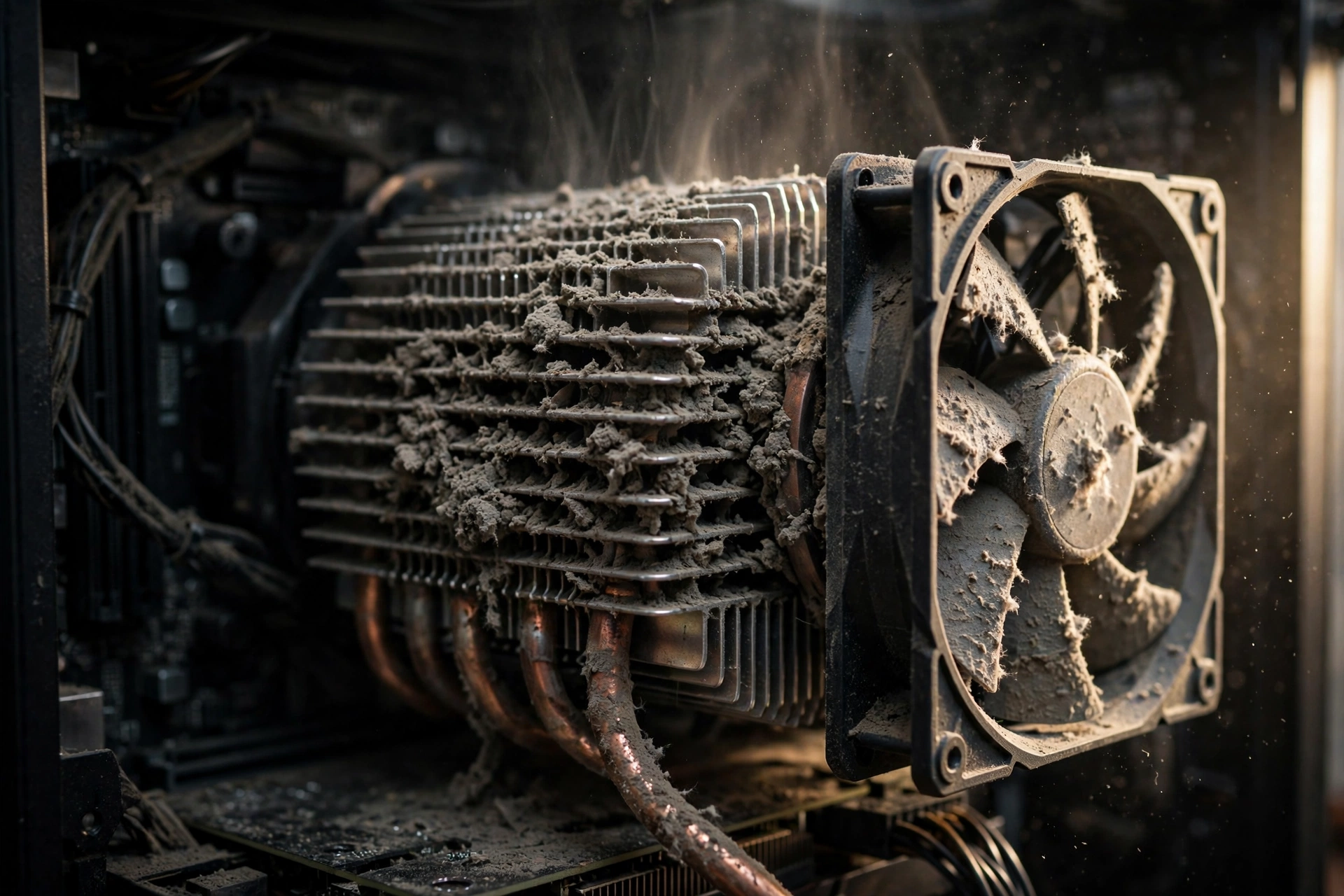
If your FPS starts fine and gets worse the longer you play, heat is almost certainly the problem. Modern CPUs and GPUs protect themselves from damage by slowing down when they get too hot. This is called thermal throttling. Your hardware literally runs slower to cool off, and your frame rate drops with it.
Dust is the number one cause. A heatsink clogged with dust cannot move heat away from the chip, no matter how fast the fans spin. The photo below is not an exaggeration. This is what coolers look like after a year or two in a dusty room, and it is enough to cost you a large chunk of your performance as the chip constantly throttles to protect itself.
Laptops suffer the most because their cooling has almost no headroom. A laptop that boosts to full speed for five minutes and then throttles is behaving exactly as designed. Poor ventilation, like gaming on a bed or couch that blocks the vents, makes it far worse.
How to Check Your Temperatures
Install HWiNFO or MSI Afterburner and watch CPU and GPU temperatures while gaming. As a rough guide:
- CPU consistently above 90C under load: throttling likely
- GPU consistently above 83 to 85C under load: throttling likely
- Clock speeds dropping as temperatures rise: throttling confirmed
Also listen to your fans. If they scream at full speed constantly, your cooling is overwhelmed.
How to Fix Cool Your PC Down
- Clean the dust. Power off the PC, open the case, and use compressed air on heatsinks, fans, and filters. Hold fan blades still while you blow so you do not damage the bearings.
- Improve airflow. Make sure intake and exhaust fans are not fighting each other, and that cables are not blocking airflow.
- Replace dried thermal paste if your CPU or GPU is more than three or four years old and temperatures keep climbing. This is an advanced step, so watch a guide for your specific hardware first.
- For laptops, use a cooling pad and always game on a hard flat surface. Consider undervolting the CPU if you are comfortable with it, since less voltage means less heat at the same performance.
- Check that your CPU cooler mounting is tight. A loose cooler, or one with a forgotten plastic peel sticker on the contact plate, causes instant overheating.
For a deeper look at keeping your system cool, our PC cooling guide covers airflow layouts that actually work.
Takeaway: If FPS decays over a gaming session, check temperatures before you change a single setting. Heat is a silent performance killer.
Outdated or Corrupt GPU Drivers
Graphics drivers are the translator between your games and your GPU. When they are outdated, buggy, or corrupted by a bad update, FPS can tank overnight. Many gamers report that their FPS was fine yesterday and terrible today, and the only thing that changed was an automatic driver update.
The most reliable fix is a clean driver installation, not just an update over the top. Leftover files from old driver versions are a surprisingly common source of conflicts, which is why a simple update sometimes does not help.
How to do a clean driver install
- Download Display Driver Uninstaller (DDU), the free tool the PC community trusts for this job.
- Download the latest driver for your card directly from NVIDIA or AMD, but do not install it yet.
- Boot Windows into Safe Mode.
- Run DDU, select your GPU brand, and choose Clean and Restart.
- After the restart, install the fresh driver you downloaded.
- During NVIDIA installation, tick the clean installation checkbox for extra safety.
AMD publishes its own clean uninstall instructions and driver install guide if you prefer the official route.
One more tip from community troubleshooting: disable automatic driver updates through Windows Update after a clean install. Windows has a habit of replacing your gaming driver with an older generic one, which brings the problem right back.
Takeaway: If FPS dropped suddenly after an update, do a clean driver reinstall with DDU before anything else.
Wrong In Game and Windows Settings
Sometimes the hardware is fine and the settings are the problem. A few settings have an outsized impact on FPS, and getting them wrong can halve your frame rate on any hardware.
The settings that matter most
- Resolution: Running at 4K on a mid-range card is the fastest way to get low FPS. Dropping from 4K to 1440p can nearly double frame rates in many games because the GPU renders roughly half the pixels.
- Shadows and ambient occlusion: Among the most expensive effects. Lower these first.
- Anti-aliasing: MSAA at high levels is brutal. Try FXAA or TAA instead, or use DLSS/FSR if your card supports it.
- Volumetric fog and lighting effects: Beautiful and extremely GPU-hungry.
- V-Sync: Can cap your FPS at your monitor’s refresh rate and add input lag. Try it off if your FPS is stuck at exactly 60.
- Fullscreen vs borderless: Exclusive fullscreen usually gives slightly better performance than borderless windowed.
Windows settings that hurt FPS
- Power plan set to Balanced or Power Saver instead of High Performance or Best Performance.
- Xbox Game Bar background recording left on (Settings, then Gaming, then Captures).
- Hardware-accelerated GPU scheduling is worth trying both on and off, since results vary by system.
If your card supports it, upscaling is the single biggest free FPS boost available. Our DLSS vs FSR guide explains which one to use on your hardware.
FPS vs refresh rate not the same thing
FPS is how many frames your GPU generates per second. Refresh rate is how many times per second your monitor redraws the image, measured in hertz. As Wikipedia’s frame rate article explains, in PC gaming these are two separate numbers, and smooth motion needs them to work together. A 200 FPS game on a 60Hz monitor still shows you 60 images per second, and a 60 FPS game on a 144Hz monitor can look uneven without sync technology.
Why 60 FPS can feel choppy
If 60 FPS feels choppy on a high refresh rate monitor, the mismatch is usually the reason. Without G-Sync or FreeSync, the monitor redraws at fixed intervals while frames arrive at uneven times, which your eyes read as judder. Turning on adaptive sync, or matching the game’s frame cap to a clean divisor of your refresh rate, usually fixes it.
Takeaway: Before blaming hardware, drop shadows and anti-aliasing one notch. It is the fastest FPS gain in gaming.
Your CPU Is Bottlenecking Your GPU
Here is a scenario many gamers miss: the GPU is fast enough, but the CPU cannot feed it frames quickly enough. Your expensive graphics card sits at 60 percent usage while the processor is maxed out, and your FPS refuses to climb no matter how low you set the graphics. Lowering settings can even make it worse, because less GPU load just exposes the CPU limit further.
This is called a CPU bottleneck, and it is especially common at 1080p, where the GPU finishes frames so quickly that the CPU becomes the limiting factor. Competitive games like Valorant and CS2 are notoriously CPU-heavy, which is why players with mid-range processors see disappointing frame rates even with strong graphics cards.
How to Check for a CPU Bottleneck
Watch GPU usage with MSI Afterburner while gaming. If your GPU usage stays well below 95 percent while your FPS is low and at least one CPU core is maxed out, you have a CPU bottleneck. Our CPU bottleneck calculator can estimate this for your exact CPU and GPU pairing before you spend money.
As a rule of thumb from our good bottleneck percentage guide, anything under 10 percent is noise you can ignore. Above 20 percent, rebalancing starts to make sense.
How to Fix a CPU Bottleneck
- Raise your resolution or graphics settings. This sounds backwards, but giving the GPU more work balances the load and can smooth out frame times.
- Cap your FPS slightly below your average. A stable 120 FPS feels far better than a bouncing 140 to 90.
- Close background apps to free CPU cores (see Cause 1).
- Enable Resizable BAR in your BIOS if your platform supports it. It lets the CPU access the GPU’s full memory and helps in CPU-limited scenarios.
- If the bottleneck is severe, a CPU upgrade is the real fix. Check our RAM bottleneck guide too, since slow RAM makes CPU bottlenecks worse.
FPS got worse after a CPU upgrade?
A new, hotter CPU on an old cooler is the classic cause. The chip boosts for a few seconds, overheats, and throttles below its old speeds. Update the motherboard BIOS and chipset drivers for the new processor, check that power limits are not holding it back, and confirm temperatures under load. If the board’s voltage regulators run hot with no heatsinks, they can throttle the CPU even when the chip itself looks cool.
Takeaway: Low GPU usage plus low FPS means the CPU is the limit. Check the bottleneck before buying a new graphics card you do not need.
Single Channel RAM or Too Little Memory
RAM problems cause a specific and maddening symptom: stuttering. Your average FPS looks fine on the counter, but the game hitches every few seconds. Frame time spikes make 100 FPS feel like 40.
The most common culprit is single-channel RAM. Many prebuilt PCs ship with one stick of RAM instead of two, which halves your memory bandwidth. Open-world games and CPU-heavy titles are extremely sensitive to this. Forum troubleshooting threads are full of gamers who fixed years of stuttering simply by adding a second matching stick.
Too little RAM is the other version. With 8GB in 2026, Windows plus a modern game can easily exceed your physical memory, forcing the system to swap to the SSD. That swapping shows up as brutal hitches.
How to Check Your RAM Setup
- Open Task Manager, Performance tab, Memory section. It shows how many slots are used and your total RAM.
- If it says 1 of 2 slots or 1 of 4 slots, you are running single-channel.
- Check whether XMP or EXPO is enabled in BIOS. RAM running at slow default speeds instead of its rated speed is free performance left on the table.
How to Fix: Upgrade or Reconfigure RAM
- Run two matched sticks (dual-channel) rather than one. This is the single biggest stutter fix for prebuilt PCs.
- For modern gaming, 16GB is the realistic minimum. Upgrade if you are on 8GB.
- Enable XMP (Intel) or EXPO (AMD) in BIOS so your RAM runs at its advertised speed.
Takeaway: Stuttering with decent average FPS usually means a memory problem. Check that you are running dual-channel with XMP enabled.
Power Delivery Problems
This cause is rare but serious, and almost nobody checks it. If your power supply cannot deliver clean, stable power during sudden load spikes, your GPU throttles, your FPS collapses during intense scenes, or your whole PC shuts off.
The warning signs are specific: sharp FPS drops during explosions or heavy action scenes, GPU usage fluctuating wildly, or shutdowns under load. In October 2026, a documented case showed an RTX 3090 whose standard 8-pin power connectors melted from prolonged high current, even though the GPU die itself sat at a cool 65C. The owner added fans over the connector area as a temporary measure, but stability never fully returned until the damaged connectors were professionally repaired. Power problems hide behind normal temperature readings, which is why they get missed.
How to Check Your Power Supply
- Is your PSU wattage comfortably above your system’s peak draw? A high-end card on an old 600W unit is asking for trouble.
- Inspect GPU power cables and connectors for discoloration, warping, or a burnt smell. Power down first.
- Make sure each GPU power connector uses its own cable from the PSU rather than daisy-chained splitters on high-power cards.
- Check that the connectors are fully seated. A partially inserted 12VHPWR connector is a known failure point.
How to Fix Power Delivery Problems
- Reseat all GPU power cables, ensuring they click fully into place.
- Replace any cable that shows heat damage. Do not keep using it.
- If your PSU is old, underpowered, or a no-name unit, replace it with a quality unit from a reputable brand with enough headroom. This is not the component to cheap out on.
Takeaway: FPS drops during intense scenes plus any shutdowns means checking power delivery, not just temperatures.
Full VRAM or Slow Storage
Every graphics card has a fixed amount of video memory (VRAM). When a game needs more VRAM than your card has, the GPU starts shuffling data to system RAM, which is far slower. The result is sudden, severe FPS drops, especially at higher resolutions and texture settings.
This hits 8GB cards hardest at 1440p and above. Ultra textures in modern games can exceed 8GB easily. The September 2026 Steam hardware survey named NVIDIA’s 12GB RTX 5070 the most popular GPU on Steam, and part of that card’s appeal is simply having enough VRAM headroom for modern titles.
Slow storage causes a related problem. Games installed on an old hard drive can hitch when streaming open-world data. An SSD mostly eliminates this class of stutter.
How to Check VRAM and Storage
- Watch VRAM usage in MSI Afterburner. If it sits pegged at your card’s maximum during drops, VRAM is the limit.
- Check where the game is installed. HDD versus SSD makes a real difference in open-world titles.
How to Fix VRAM and Storage Issues
- Lower texture quality one notch. Textures are the biggest VRAM consumer and the visual difference is often minor.
- Turn off ray tracing if your card struggles. It is extremely VRAM hungry.
- Move games to an SSD if they are still on a hard drive.
Takeaway: Sudden drops at high resolutions with textures maxed out usually mean VRAM overflow. Lower textures first.
The Game Itself
Sometimes your PC is innocent. Poorly optimized launches, buggy patches, and games with known performance issues can tank FPS on hardware that runs everything else perfectly. If only one game has low FPS while others run fine, the game is the prime suspect.
Check the game’s forums and patch notes before you tear your PC apart. A day-one patch or a settings workaround from the community often fixes what looks like a hardware problem. Some games also ship with resolution scaling or frame generation settings that behave badly on certain hardware combinations.
Takeaway: One bad game out of ten means a game problem, not a PC problem. Check patch notes and forums first.
Special Case Low FPS on a High-End PC
This deserves its own section because it is so common and so frustrating. You spent good money, your parts are strong, and your FPS is embarrassing. In almost every case, the cause is configuration, not defective hardware. Work through this list:
- Monitor plugged into the motherboard, not the GPU. This is the classic. If your display cable is in the motherboard’s HDMI port, you are gaming on integrated graphics. Move it to the GPU’s port.
- Wrong GPU selected on laptops. Laptops with both integrated and dedicated graphics sometimes run games on the weak iGPU. Force the dedicated GPU in Windows graphics settings and in the NVIDIA or AMD control panel.
- RAM running at slow default speed. High-end builds with XMP or EXPO disabled leave significant performance behind. Enable it in BIOS.
- Power plan on Balanced. High-end desktops on power saver plans will not boost properly.
- Fresh Windows install with no chipset drivers. Motherboard chipset drivers from AMD or Intel matter more than people think.
- BIOS far out of date. Early BIOS versions for new platforms often have performance bugs that later updates fix.
Takeaway: On a strong PC, low FPS is a settings problem until proven otherwise. Check the cable, the GPU selection, and XMP before anything else.
The 15-Minute Low FPS Diagnosis Checklist
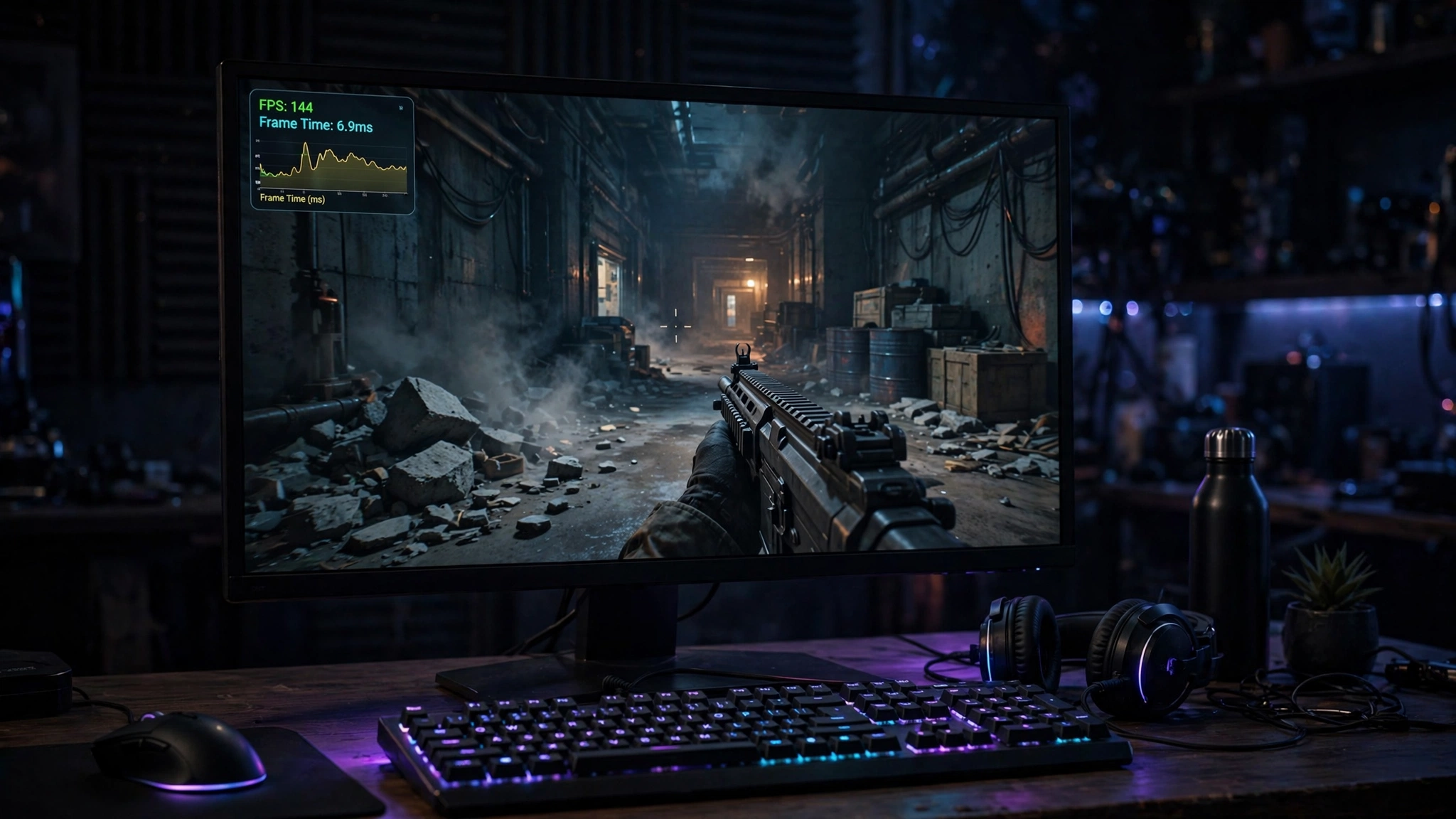
Do these in order. Stop when your FPS is fixed.
- Close all background apps and browsers. Retest.
- Check Task Manager for anything eating CPU or RAM during gaming.
- Set Windows power mode to Best Performance and plug in laptops.
- Enable Game Mode and disable Xbox Game Bar background recording.
- Update GPU drivers with a clean install (DDU method from Cause 3).
- Lower shadows and anti-aliasing one notch in-game. Retest.
- Monitor temperatures with HWiNFO during 15 minutes of gaming. Clean dust if anything throttles.
- Check GPU usage with MSI Afterburner. Low usage plus low FPS means CPU bottleneck or misconfiguration. (How to check FPS on Windows)
- Verify RAM is dual-channel with XMP or EXPO enabled.
- Inspect GPU power cables and confirm the PSU has enough headroom.
If you want a quick estimate of what frame rates your hardware should deliver, our FPS calculator gives you a baseline to compare against. If your measured FPS is far below the estimate, something on this checklist is the culprit.
Takeaway: Work the checklist top to bottom. Most low FPS is fixed by step 5.
Fix It or Upgrade It? How to Decide
With next-generation GPUs reportedly delayed to 2028 and prices elevated, the upgrade math has changed. Here is how to think about it:
- Fix it first if: your FPS dropped suddenly, only one game is affected, temperatures are high, or drivers recently changed. These are free fixes.
- Consider a targeted upgrade if: you have completed the checklist, temperatures are fine, drivers are clean, and your GPU still sits at 100 percent usage while FPS is too low. That means your hardware is simply outmatched, and no setting will change that.
- Upgrade the right part: if GPU usage is low and the CPU is maxed, a new graphics card will not help. Run your pairing through a bottleneck calculator before spending money.
For general guidance on raising frame rates once the underlying problem is fixed, our how to increase FPS guide covers every optimization worth doing.
Takeaway: Diagnose before you buy. Most upgrades bought in frustration fix the wrong component.
Common Mistakes That Waste Your Time
- Reinstalling Windows first. It is the nuclear option and rarely necessary. Work the checklist first.
- Buying a new GPU for a CPU bottleneck. Check GPU usage before spending money.
- Updating the BIOS recklessly. Update it if you have a reason, but a bad flash can brick a board. Read the changelog first.
- Installing “game booster” software. Most of it does what closing your browser does, but with ads and background services of its own.
- Chasing a single FPS number. Stable frame times matter more than peak FPS. A locked 90 FPS feels better than a bouncing 120.
FAQs
Why is my FPS so low all of a sudden?
The most common sudden causes are a background app spike (Windows Update, antivirus scan, browser), a driver update that went wrong, or thermal throttling as dust builds up. Check Task Manager first, then do a clean GPU driver reinstall. If it started right after a Windows or driver update, that update is your prime suspect.
Why do I get low FPS on a high-end PC?
Usually misconfiguration: the monitor cable plugged into the motherboard instead of the GPU, the laptop running on integrated graphics, XMP or EXPO disabled so RAM runs slow, or a power saver plan capping performance. Check these before suspecting faulty hardware.
Can dust really lower FPS?
Yes. Dust-clogged heatsinks trap heat, which triggers thermal throttling, which forces your CPU or GPU to run slower. Cleaning dust with compressed air is one of the highest value-to-effort fixes in PC gaming.
Does low FPS always mean I need a new graphics card?
No. Check GPU usage while gaming. If usage is well below 95 percent while FPS is low, your graphics card is waiting on something else, usually the CPU, RAM, or a software issue. A new GPU will not fix that.
Why does my FPS drop after playing for a while?
This is the classic thermal throttling pattern. As heat builds up over 10 to 30 minutes, the CPU or GPU slows itself to stay safe. Monitor temperatures during a longer session and clean your cooling if anything runs hot.
Can a bad power supply cause low FPS?
Yes, though it is uncommon. An underpowered or failing PSU can cause throttling and shutdowns during intense scenes when the GPU demands peak power. Inspect power cables for heat damage and make sure your PSU has enough headroom for your graphics card.
Why is my FPS high but the game still stutters?
High average FPS with stuttering means frame time spikes. The usual causes are single-channel RAM, a game installed on a slow hard drive, or VRAM overflow. An FPS counter shows the average, but a frame time graph in MSI Afterburner shows the spikes.
Why is my FPS capped at 60?
Three things commonly cap FPS at 60: V-Sync syncing to a 60Hz monitor, an in-game frame rate limiter, or a driver-level max frame rate set in the NVIDIA or AMD control panel (sometimes left over from tools like RivaTuner). Check all three. Turning V-Sync off and clearing any frame caps usually restores your full frame rate immediately.
Will more RAM increase my FPS?
Only if RAM is your current limit. Moving from 8GB to 16GB, or from single-channel to dual-channel, can fix stuttering and raise minimum FPS noticeably. But if you already have 16GB or more in dual-channel with XMP enabled, adding more RAM will not raise FPS. Our RAM bottleneck guide shows how to check which side you are on.
Why did my FPS get worse after upgrading my CPU?
The most common reason is cooling: the new chip runs hotter than the old one, and the old cooler cannot keep up, so it throttles below the old CPU’s speeds. Also update the motherboard BIOS and chipset drivers for the new processor, and check power limits in BIOS. Weak motherboard voltage regulators without heatsinks can throttle a powerful CPU even when the chip temperature looks fine.
Why is my gaming laptop FPS low even in turbo mode while plugged in?
Turbo mode cannot fix the three classic laptop traps: preinstalled bloatware and antivirus eating CPU, thin coolers that hit thermal limits within minutes, and the game running on integrated graphics instead of the dedicated GPU. Force the dedicated GPU in Windows graphics settings and the NVIDIA or AMD control panel, remove bloatware, and monitor temperatures to see if heat is the real ceiling.
Why does 60 FPS feel choppy on my monitor?
On a high refresh rate monitor, 60 FPS without adaptive sync arrives at uneven intervals between the monitor’s fixed redraws, which your eyes read as judder. Enable G-Sync or FreeSync if your monitor supports it, or cap the game at a frame rate that divides evenly into your refresh rate. Consistent frame pacing matters more than the raw FPS number.
What is the difference between FPS and refresh rate?
FPS is the number of frames your GPU renders each second. Refresh rate is how many times per second your monitor displays a new image, measured in hertz. They are independent: a 200 FPS game on a 60Hz screen still shows 60 images per second. For the smoothest result, the two should be matched or linked with adaptive sync technology.
Key Takeaways
- Match your symptom pattern first: constant low FPS, decay over time, sudden drops, and stuttering each point to different causes.
- Background apps, heat, drivers, and settings cause the large majority of low FPS. All are free to fix.
- Thermal throttling shows up as FPS that starts fine and decays. Check temperatures before changing settings.
- Low GPU usage plus low FPS means a CPU bottleneck or misconfiguration, not a weak graphics card.
- Stuttering with high FPS numbers usually means single-channel RAM, slow storage, or full VRAM.
- With next-gen GPUs reportedly delayed and prices high, fixing your current hardware beats waiting for an upgrade.
Conclusion
Low FPS feels like a hardware verdict, but it is usually a configuration problem wearing a disguise. Work the symptom table, then the checklist, and resist the urge to buy your way out before you diagnose. Your current PC is probably faster than you think. It just needs the right fix in the right order.
If you suspect your CPU and GPU are mismatched, run your exact pairing through our free bottleneck calculator to see which component is holding the other back, then come back to this guide with the answer in hand.

Leave a Reply