
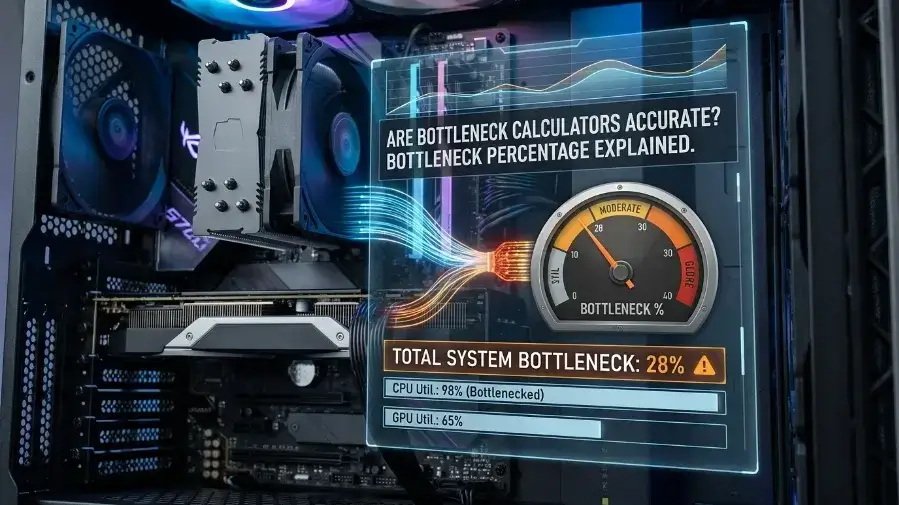
Bottleneck calculators are useful for basic planning, but not accurate for exact FPS. They compare CPU and GPU benchmark scores to guess mismatches, but they can’t account for your resolution, settings, RAM, drivers, or cooling. Use one to catch obvious mismatches before buying then confirm with real tools like MSI Afterburner or HWiNFO once your PC is built.
Introduction
You picked a CPU. You picked a GPU. Then a bottleneck calculator gives you a number like 17%. Now you are worried. Is your build bad? Should you return parts? Does that number even matter? Here is the simple truth: bottleneck calculators can help. But they are not perfect. They can warn you about a possible problem before you buy parts. But they cannot tell you your real FPS. They cannot tell you how smooth your game will feel. They cannot tell you what will happen in every game you play.
So are they accurate? Yes, for basic planning. No, for making big money decisions. Think of it like a weather forecast. It tells you it might rain. It does not tell you exactly when or how hard.
Should You Trust a Bottleneck Calculator?
Use it as a first check. Not as the final answer. If you are building a new PC, it can help you avoid bad matches. Like pairing a very old CPU with a brand new GPU. That kind of mismatch will hurt your FPS. A calculator will catch it.
But do not treat 23% as a fact. Real gaming depends on so many things. The game you play. Your resolution. Your graphics settings. Your RAM speed. Your drivers. Your cooling. Even what apps are open in the background. The only real answer comes from real testing. Tools like MSI Afterburner and HWiNFO show you what your PC is actually doing. A calculator only guesses.
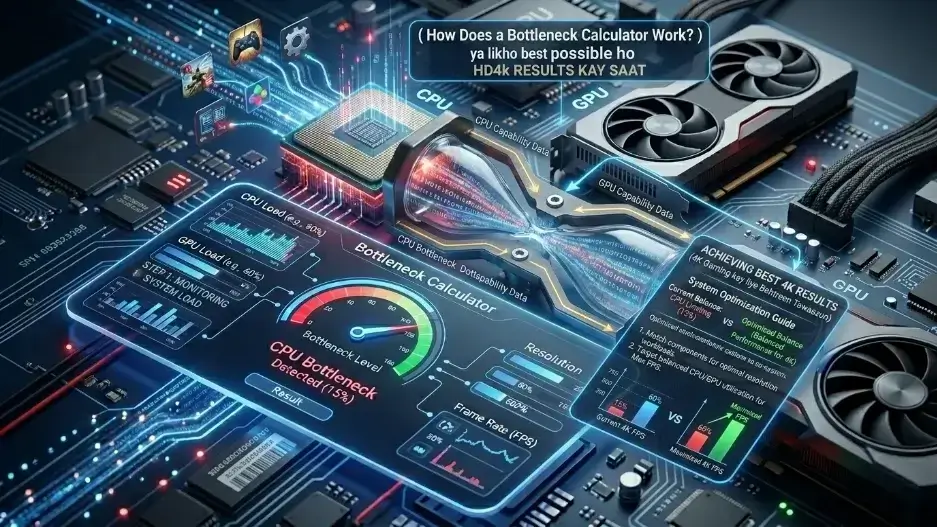
How Does a Bottleneck Calculator Work?
Most calculators compare CPU and GPU benchmark scores. They look at things like core count, clock speed, and memory specs. Then they estimate if one part might slow the other down. The exact math is usually secret. That is why two different calculators can give you two different numbers for the same parts.
CPU and GPU Comparison
The tool compares how fast your CPU is versus how fast your GPU is. It uses benchmark data to make that guess.But gaming is not a benchmark test. Real games behave differently. Cinebench tests CPU speed. But it does not tell you how that CPU acts in Call of Duty or Minecraft.
Resolution Matters a Lot
At 1080p, the GPU renders frames fast. So the CPU has to work harder to keep up. At 1440p, the GPU has more work. So the CPU matters less. At 4K, the GPU is almost always the limit. A calculator might show a CPU bottleneck at 1080p. The same parts at 1440p might show no bottleneck at all. The CPU did not change. The workload did.
Why Two Calculators Show Different Numbers
They use different data. Different math. Different assumptions. One might use old hardware data. Another might weigh GPU scores more heavily. This is why the same PC can show 8% on one site and 22% on another. Neither might be right.
Are Bottleneck Calculators Accurate Actually?
For basic planning before buying: sometimes yes. For predicting exact FPS: no.
Good for Rough Planning
If the calculator shows a big mismatch, pay attention. Pairing a 10-year-old CPU with a brand new RTX 4080 is a real problem. The calculator will catch that.In clear cases like that, the exact percentage does not matter. What matters is the warning.
Not Good for Exact FPS
No calculator can tell you that you will get 142 FPS in one game and 89 FPS in another. It cannot predict stutters. It cannot predict frame drops. Smoothness depends on more than average FPS. Frame timing, micro-stutters, and input lag all play a role. A calculator sees none of this.
Why the Same Score Feels Different at Different Resolutions
At 1080p, the CPU often hits its limit first. At 1440p, the GPU takes on more work. The CPU bottleneck looks smaller even though nothing changed. At 4K, the GPU is almost always maxed out. A CPU that looked like a problem at 1080p might not matter at all at 4K.
Bottleneck Percentage Is Not FPS Loss
This is the biggest mistake people make.
A 20% bottleneck does NOT mean you lose 20% of your FPS. It means the calculator thinks one part might be limiting the other by roughly that amount. Real FPS loss could be more. Could be less. Could be almost nothing.
Quick Tip: New RTX 5080 and RX 9070 XT cards are not fully added to many calculators yet. If you are planning a build with new 2026 hardware, real reviews will give you better answers than any calculator right now.
Bottleneck Percentage Guide
| Score | What It Means | What to Do |
|---|---|---|
| 0 to 5% | Great balance | Nothing, enjoy your PC |
| 5 to 10% | Acceptable | Check benchmarks if curious |
| 10 to 20% | Worth looking into | 3Find real game benchmarks |
| 20 to 30% | Noticeable mismatch | Test before spending money |
| 30% or more | Big concern | Definitely check real benchmarks |
Why Calculators Can Be Wrong
These tools take a very complex system and turn it into one number. That is never going to be fully accurate.
Every Game Is Different
Some games love fast single-core CPUs. Some need many cores. Some are mostly GPU work. Some run badly even on great hardware because of bad coding. This is why your CPU might bottleneck in one game and be totally fine in another.
Your Settings Change Everything
Low settings make the GPU finish frames faster. That can expose CPU limits that disappear at high settings. Ultra settings push the GPU harder. Ray Tracing adds even more GPU work. A calculator cannot know what settings you use.
RAM Is Often Ignored
Slow RAM, not enough RAM, or RAM in single channel mode can cause stuttering. It looks like a CPU or GPU problem but it is actually the memory. For AMD Ryzen PCs, RAM speed matters even more than on Intel because of how the chips are built.
Heat Can Fake a Bottleneck
When your CPU or GPU gets too hot, it slows itself down. This is called thermal throttling. It can make a fast CPU act like a slow one. A calculator has no idea how hot your PC runs. It does not know if your cooler is clogged with dust.
Old or Broken Drivers
A bad GPU driver can kill your FPS. It can look exactly like a hardware problem. But it costs nothing to fix. Always update your drivers before blaming your parts.
Laptops Are Different
The same GPU name on a laptop can be much weaker than on a desktop. Laptops run cooler and at lower power. Two laptops with the same GPU can perform very differently. Bottleneck calculators are not reliable for laptops. Look for reviews of your exact laptop model instead.
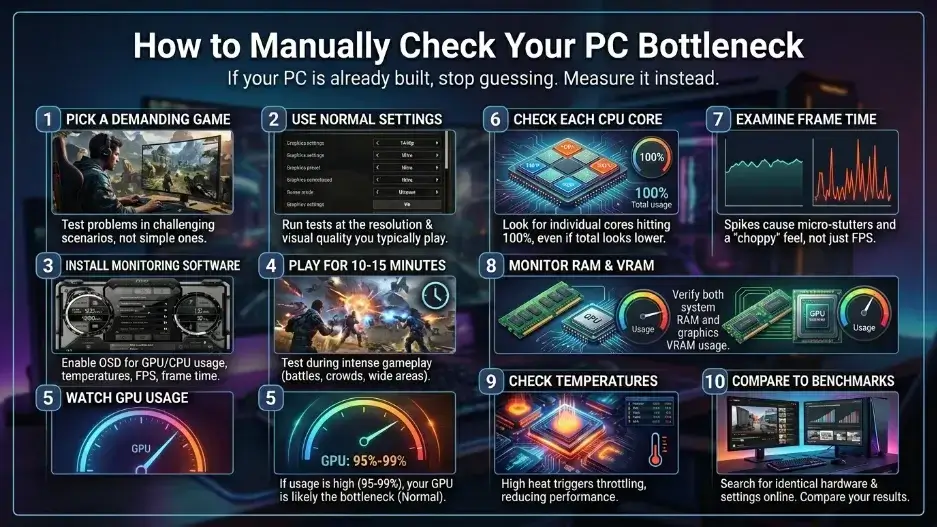
How to Manually Check Your PC Bottleneck
If your PC is already built, stop guessing. Measure it instead.
Step 1: Pick the game that feels slow Test the game where you actually have problems. Not an easy game. The one that gives you trouble.
Step 2: Use your normal settings Test at the resolution and settings you actually play on. Low settings tell a different story than ultra settings.
Step 3: Install MSI Afterburner and RivaTuner Turn on the display for GPU usage, CPU usage, temperatures, FPS, and frame time.
Step 4: Play for 10 to 15 minutes Test during busy scenes. Big fights. Open world areas. Crowded cities. That is where problems show up.
Step 5: Watch your GPU usage If it stays between 95% and 99%, your GPU is the limit. That is normal in most demanding games.
Step 6: Check each CPU core Total CPU usage can trick you. One or two cores might be at 100% while the total reads 50%. Check each core when you can.
Step 7: Look at frame time Frame time spikes explain stutters better than average FPS. A game with good average FPS can still feel bad if frame time is all over the place.
Step 8: Check RAM and VRAM If RAM is full, Windows uses your drive instead. That causes bad stutters. If VRAM fills up, textures load poorly.
Step 9: Check temperatures Use HWiNFO. If your CPU or GPU gets very hot and clock speeds drop, heat is the real problem.
Step 10: Compare to YouTube benchmarks Search for your exact CPU and GPU with your game and resolution. See if your numbers match what others get.
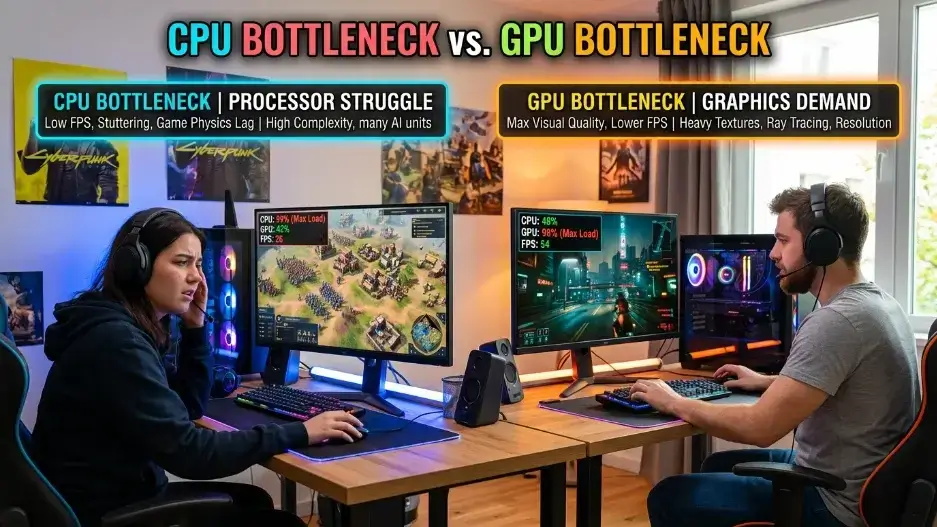
CPU Bottleneck vs GPU Bottleneck
| What You See | Likely Problem | What to Do |
|---|---|---|
| CPU cores maxed, GPU below 80% | CPU bottleneck | Lower CPU-heavy settings or plan CPU upgrade |
| CPU fine, GPU at 95 to 99% | GPU bottleneck | Lower graphics settings or plan GPU upgrade |
| Both low but FPS still bad | Driver or settings issue | Check power plan, drivers, frame caps |
| RAM almost full, game stutters | RAM bottleneck | Close apps or add more RAM |
| High temps, FPS drops mid-game | Thermal throttling | Thermal throttling |
| VRAM full, texture stutters | VRAM bottleneck | Lower texture quality or resolution |
When Calculators Are Useful
Before buying parts, a calculator is a quick and free sanity check. It takes two minutes. It can stop you from making a clear mistake. It also helps beginners who are confused about what parts work well together. For 1080p, 1440p, or 4K builds, it gives you a starting point. Best way to use it: check the calculator first. Then look up real benchmarks for those same parts.
When to Ignore the Calculator
Do not trust it when the number looks scary but real benchmarks show good results. Do not use it to predict exact FPS. Do not use it for laptops. Do not use it to diagnose stutters without also checking RAM, temps, VRAM, and drivers. Be extra careful with high refresh rate setups. A system that looks balanced for 60Hz might not be able to feed 240Hz in fast competitive games. Calculators often miss this.
Planning to Buy vs Already Built
If you are still planning: use the calculator as an early filter. Then check real benchmarks before buying. If you already built the PC: stop guessing. Use MSI Afterburner, HWiNFO, and in-game benchmarks. You will have real answers in 15 minutes. Calculators help you avoid mistakes before spending money. Monitoring tools tell you the truth after.
High Refresh Rate vs 4K Gaming
These two goals need very different hardware. For 144Hz, 240Hz, or 360Hz gaming, the CPU matters more. You need many frames per second. Low settings can make the GPU less busy, and then the CPU becomes the weak point. For 4K gaming, the GPU matters more. It has to render millions of extra pixels per frame. Even a slower CPU often does not become the bottleneck at 4K.
What to Do Before You Upgrade
Find the real problem first. A calculator might say CPU. But the real issue might be RAM, heat, or old drivers.
If It Looks Like a CPU Problem
Lower crowd density, view distance, shadow detail, and physics settings first. Close background apps. Check that your CPU is actually reaching its rated boost speed. Only upgrade the CPU if real testing shows low GPU usage and maxed CPU cores in your actual games.
If It Looks Like a GPU Problem
Try lowering texture quality, shadows, anti-aliasing, and Ray Tracing. Turn on DLSS or FSR if the image still looks good. Upgrade the GPU if you want higher resolution, better settings, or more FPS in GPU-heavy games.
If RAM Looks Like the Problem
Watch RAM usage while gaming. If it is constantly full and you have stutters, more RAM will help more than a new GPU. Also make sure RAM is in dual-channel mode. Single-channel RAM can hurt performance a lot on some systems.
If Heat Is the Problem
Check temperatures in HWiNFO during gaming. If your CPU or GPU hits very high temps and clock speeds drop, fix cooling before anything else. Clean the dust. Replace old thermal paste. Improve airflow in your case. This can restore full speed without buying any new parts.
If Drivers Are the Problem
Update your GPU drivers, chipset drivers, and Windows. Use DDU to fully remove old GPU drivers if needed. Check your power plan. Close overlays and background apps. A driver fix costs nothing and can feel like a free upgrade.
Simple Upgrade Table
| What You See | Real Cause | Best Fix |
|---|---|---|
| GPU low, CPU cores maxed, low FPS at 1080p | CPU bottleneck | Upgrade CPU or lower CPU-heavy settings |
| RAM always full, bad stutters | RAM bottleneck | Add more RAM or enable dual channel |
| GPU at 95 to 99%, FPS too low | GPU bottleneck | Upgrade GPU or lower graphics settings |
| High temps, FPS drops after 10 minutes | Thermal throttling | Clean PC and improve cooling |
| FPS stable, frame time smooth | No real bottleneck | Tune settings and enjoy |
CONCLUSION
Bottleneck calculators are useful. But only if you use them the right way. They are good for planning a new build. They can catch obvious mismatches before you spend money. They give beginners a starting point when hardware is confusing. But a bottleneck percentage is just a guess. It is not a measurement. It cannot predict your real FPS. It cannot detect stutters, heat problems, driver issues, or RAM problems. It does not know your game, your settings, or your resolution.
For real answers, use real tools. MSI Afterburner, HWiNFO, and in-game benchmarks will give you the truth in 15 minutes. The best upgrade is never the one a calculator suggests. It is the one your own data confirms

Leave a Reply